For the area of In-House Rewards Program Reports in the eTailPet system, we have the Rewards Program Report. This report gives you a full transaction history of every reward point and store credit change tied to your customers' loyalty accounts. Track your Rewards Program Report today to see exactly how your customers are earning and redeeming loyalty rewards!
The Rewards Program Report
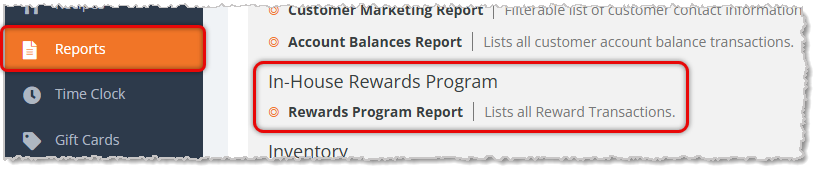
You can get to the Rewards Program Report by logging into the admin dashboard and clicking on Reports in the main menu, then scrolling down to the In-House Rewards Program section and clicking Rewards Program Report, as pictured below.
The Rewards Program Report has the following functions:
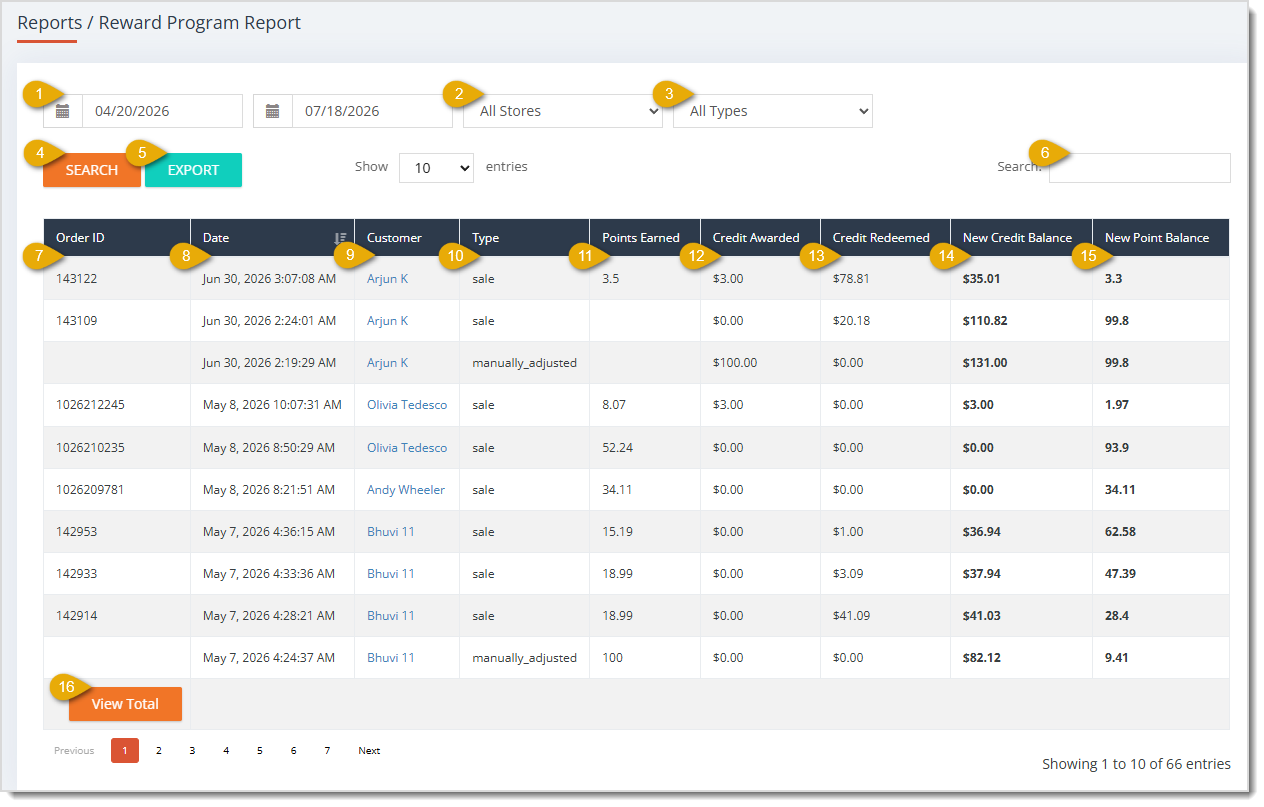
- Date Range — Enter or select the date range you want to search using the Start Date and End Date fields. These fields default to today's date for the Start Date and the following day's date for the End Date.
- Store — Use the Store drop-list to filter Reward Transactions down to a single location. It defaults to All Stores, which includes transactions from every store location.
- Type — Use the Type drop-list to filter transactions by category. It defaults to All Types, which includes every kind of transaction. The available options are:
- All Types — Includes every transaction type in the results.
- Manually Adjusted — Transactions where a staff member manually changed a customer's rewards balance.
- Refund — Transactions where a customer's rewards balance changed as a result of a refund.
- Sale — Transactions where a customer earned or redeemed rewards on a sale.
- System Adjusted — Transactions where the system automatically changed a customer's rewards balance.
- Search — Click the Search button to load the table using your selected filters.
- Export — Click the Export button to download the report.
- Search Field — Enter search text here then click the Search button to view matching results.
- Order ID — This column displays the Order ID of the transaction tied to the rewards change.
- Date — This column shows the Date the transaction occurred.
- Customer — This column lists the Customer associated with the transaction. You can click on a customer's name to open their details.
- Type — This column displays the Type of transaction, such as Sale, Refund, Manually Adjusted, or System Adjusted.
- Points Earned — This column shows how many Points Earned the customer received from the transaction.
- Credit Awarded — This column lists the dollar amount of Credit Awarded to the customer as a result of the transaction.
- Credit Redeemed — This column displays the dollar amount of Credit Redeemed by the customer during the transaction.
- New Credit Balance — This column shows the customer's New Credit Balance after the transaction was applied.
- New Point Balance — This column lists the customer's New Point Balance after the transaction was applied.
- View Total — Click the View Total button to display a bottom row totaling the Points Earned, Credit Rewarded, and Credit Redeemed columns.
Related Topics
Reports Overview
Customer Reports
In-House Rewards Program
Frequently Asked Questions
Q: What's the difference between the Manually Adjusted and System Adjusted transaction types?
A: A Manually Adjusted transaction is one where a staff member directly changed a customer's rewards balance, while a System Adjusted transaction happens automatically without staff intervention.
Q: Can I see rewards activity for just one store?
A: Yes. Use the Store drop-list on the Rewards Program Report to filter transactions down to a single location instead of All Stores.
Q: What do the New Credit Balance and New Point Balance columns represent?
A: These columns show the customer's rewards credit and point totals immediately after the listed transaction was applied, giving you a running snapshot of their balance over time.
Q: Why does the Rewards Program Report default to a one-day date range?
A: The Start Date and End Date fields default to today and the following day so you can quickly see the most recent rewards activity. You can change either field to widen the search.
Q: I have a question, but I can't find my answer here. How do I get more assistance?
A: You can ask any question at the number listed here. Contact our support team at (323) 370-0738 for the U.S. and (888) 370-2363 for Canada.







 Jul 17, 2026
Is this page helpful?
×Help us improve our articles