The Customer category of Reports gives you a complete view of the people who shop with you, from individual sales history and outstanding balances to marketing-ready contact lists. This article covers all five reports available in the Customer category: the Sales by Customer Report, Customer Deposits Report, Customer Deposit Liability Report, Customer Marketing Report, and Account Balances Report. Discover the customer insights that matter most to your store!

You can get to your Customer Reports by logging into the admin dashboard and clicking on Reports in the main menu. On the Reports page, scroll down to the Customer section, as pictured below.
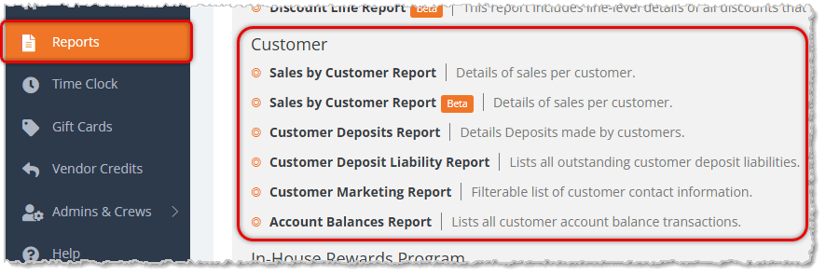
This section of your Reports listings has the following reports:
The Sales by Customer Report
This report will give you sales details for your customers that had purchases in the date range you choose. The Sales by Customer Report has the following functions:
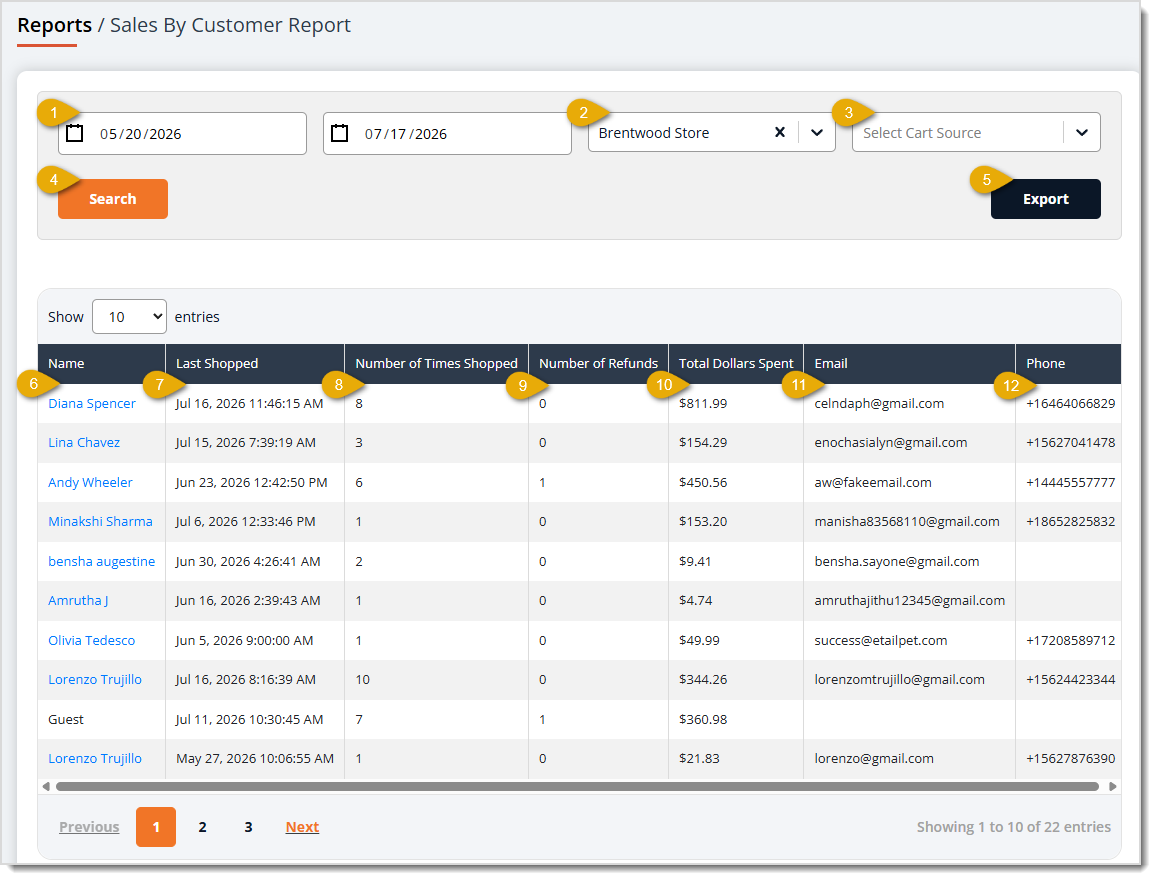
- Date Range — Enter or select the date range you want to search using the Start Date and End Date fields. These fields default to today's date for both the start and end date.
- Store — Use the Store drop-list to choose which store's sales to include. It defaults to your currently selected store; click the "x" to clear it and search across other locations.
- Cart Source — Use the Select Cart Source drop-list to filter results to Online or Instore sales only. Leave it blank to include both.
- Search — Click the Search button to load the table using your selected filters.
- Export — Click the Export button to download the report.
- Name — This column displays each customer's Name. Click the name to open the customer's profile.
- Last Shopped — This column shows the date and time of the customer's most recent purchase.
- Number of Times Shopped — This column lists how many times the customer has made a purchase within the selected date range.
- Number of Refunds — This column displays how many Refunds the customer has received within the selected date range.
- Total Dollars Spent — This column shows the customer's total dollars spent within the selected date range.
- Email — This column lists the customer's Email Address on file, if any.
- Phone — This column displays the customer's Phone Number on file, if any.
The Customer Deposits Report
This report will give you deposit details for your customers in the date range you choose. The Customer Deposits Report has the following functions:
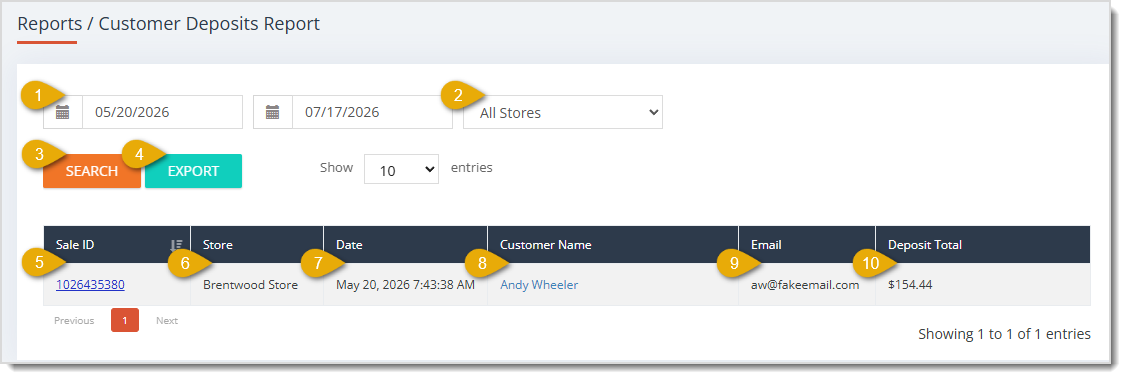
- Date Range — Enter or select the date range you want using the Start Date and End Date areas to search. The date range defaults to today's date for both the start and end date.
- Store — Use the Stores drop-list to filter deposits by a specific store. It defaults to showing customer deposits for all stores.
- Search — Click the Search button to load the table using your selected filters.
- Export — Click the Export button to download the report.
- Sale ID — This column shows the ID of the transaction that included the deposit.
- Store — This column displays the Store where you took the deposit.
- Date — This column lists the Date the deposit was taken.
- Customer Name — This column shows the Name of the customer who made the deposit.
- Email — This column displays the customer's Email Address on file.
- Deposit Total — This column lists the dollar amount of the Deposit.
The Customer Deposit Liability Report
This report will give you liability details for the deposits made by your customers. For this report, there is no Date Range filter; the report will show you all Deposit Balances currently outstanding across your stores. The Customer Deposit Liability Report has the following functions:
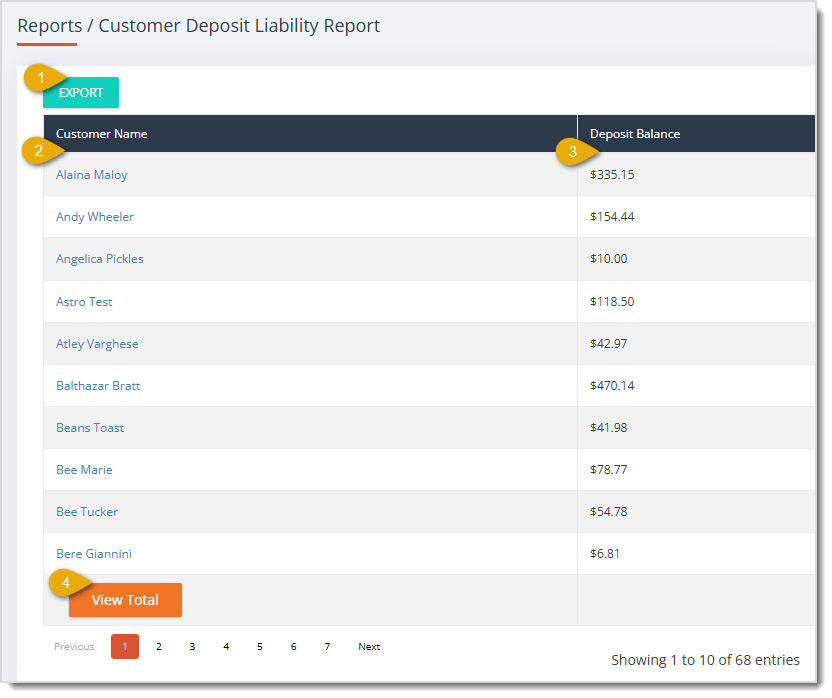
- Export — Click the Export button to download the report. This report has no date or store filters; it always shows every customer with an open deposit balance.
- Customer Name — This column shows the Name of the customer with a Deposit balance. Click the Name to open the customer's profile.
- Deposit Balance — This column displays the customer's current outstanding Deposit Balance.
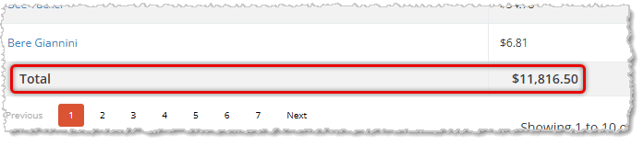
- View Total — Click the View Total button to add a Total row at the bottom of the data table showing the combined Deposit Balance for every customer in the report.
The Customer Marketing Report
This report will give you contact details for your customers for whatever activity date range you choose. Using this report, you can build an email or mobile number list for your top buyers, or for people who haven't shopped with you recently. You can also build marketing lists based on spending amounts or you can focus on specific brands. The Customer Marketing Report has the following functions:
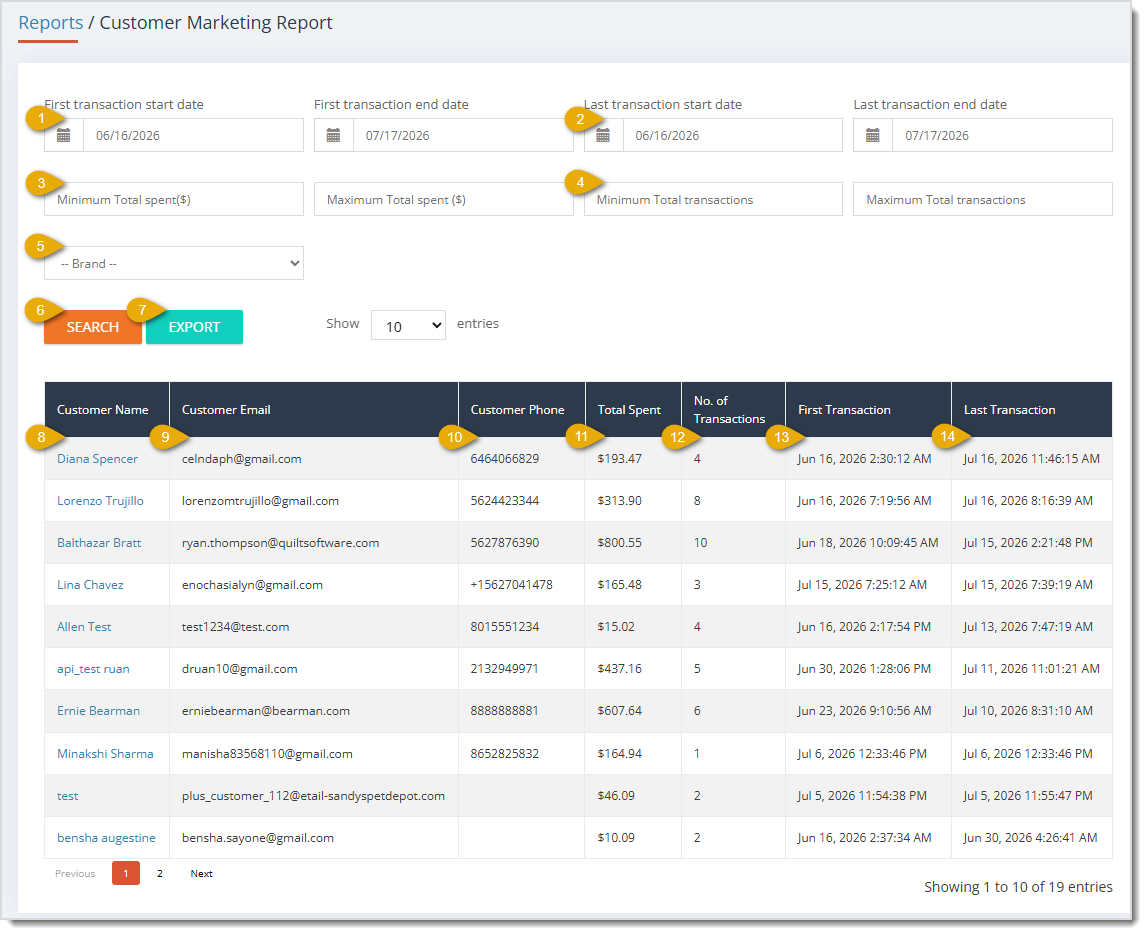
- First Transaction Date Range — Enter or select the First Transaction Start Date and First Transaction End Date to filter customers by when they made their first purchase. These fields default to a 30-day range going back from today.
- Last Transaction Date Range — Enter or select the Last Transaction Start Date and Last Transaction End Date to filter customers by when they made their most recent purchase. These fields default to a 30-day range ending today.
- Total Spent Range — Enter a Minimum Total Spent ($) and Maximum Total Spent ($) to filter customers by how much they've spent.
- Total Transactions Range — Enter a Minimum Total transactions and Maximum Total transactions to filter customers by how many purchases they've made.
- Brand — Use the Brand drop-list to filter customers to only those who've purchased a specific brand.
- Search — Click the Search button to load the table using your selected filters.
- Export — Click the Export button to download the report.
- Customer Name — This column shows each customer's Name.
- Customer Email — This column displays each customer's Email Address on file.
- Customer Phone — This column lists each customer's Phone Number on file.
- Total Spent — This column shows the Total Spent amount for each customer within your selected filters.
- Number of Transactions — This column displays how many Transactions the customer has made within the selected filters.
- First Transaction — This column lists the date and time of the customer's first purchase within the date ranges.
- Last Transaction — This column shows the date and time of the customer's most recent purchase within the date ranges.
The Account Balances Report
This report will give you account balance details for your customers. The Account Balances Report has the following functions:
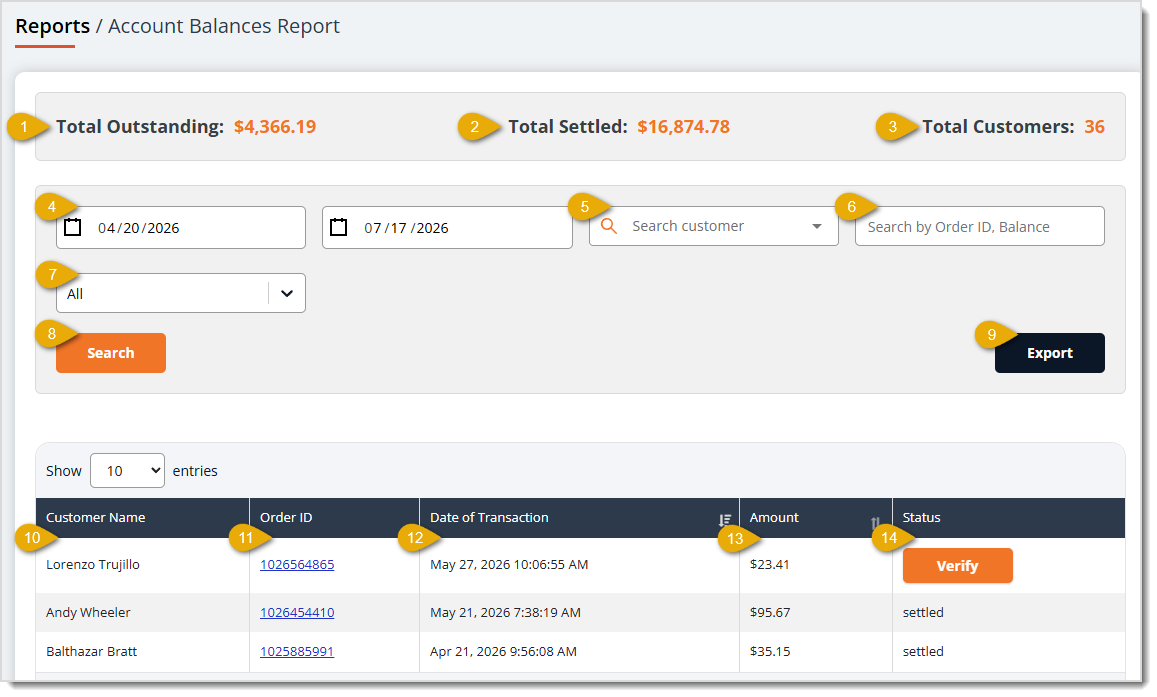
- Total Outstanding — This area shows the combined balance still owed across all customer accounts matching your filters.
- Total Settled — This area shows the combined balance already settled across all customer accounts matching your filters.
- Total Customers — This area shows the number of customers with account balance activity matching your filters.
- Date Range — Enter or select the date range you want to search using the Start Date and End Date fields. This field defaults to today's date for both the start and end date.
- Search Customer — Use the Search Customer field to filter the table to a specific customer by name.
- Search by Order ID or Balance — Use this field to filter the table to a specific Order ID or Account Balance amount.
- Status — Use the Status drop-list to filter transactions by All, Settled, or Verify. This filter defaults to All.
- Search — Click the Search button to load the table using your selected filters.
- Export — Click the Export button to download the report.
- Customer Name — This column shows the Name of the customer tied to the Account Balance transaction.
- Order ID — This column displays the Order ID of the order tied to the transaction. Click on an ID to view the order's details.
- Date of Transaction — This column lists the Date the transaction occurred.
- Amount — This column shows the Dollar Amount of the transaction.
- Status — This column displays whether the transaction is Settled or awaiting verification. You can click the Verify button to confirm payment of the amount owed for a balance that hasn't yet been settled.

Boss Quote
Make sure your human checks their Customer Reports at least monthly. They risk having account balances get out of hand and not staying in touch with their customers' shopping habits. Even a kitten knows that. Also remind them that I haven't had my afternoon tummy rub.
— Adrian, Wenatchee, WA
Related Topics
Reports Overview
Sales and Refund Reports 1 • Sales and Refund Reports 2 • Sales and Refund Reports 3
Online Reports 1 • Online Reports 2 • Online Reports 3
Discount and Promotional Reports
Frequently Asked Questions
Q: What's the difference between the Sales by Customer Report and the Customer Marketing Report?
A: The Sales by Customer Report focuses on purchase activity within a specific store and date range, while the Customer Marketing Report is built for finding customer contact lists, letting you filter by total spend, transaction count, and specific brands purchased.
Q: Why doesn't the Customer Deposit Liability Report have any date or store filters?
A: The Customer Deposit Liability Report always shows a real-time snapshot of every customer with an open deposit balance, so no filtering is needed.
Q: How can I see the total value of all outstanding customer deposits at once?
A: On the Customer Deposit Liability Report, click View Total to add a Total row showing the combined Deposit Balance for every customer.
Q: Can I filter the Account Balances Report to a single customer?
A: Yes. Use the Search customer field on the Account Balances Report to filter the table down to a specific customer.
Q: I have a question, but I can't find my answer here. How do I get more assistance?
A: You can ask any question at the number listed here. Contact our support team at (323) 370-0738 for the U.S. and (888) 370-2363 for Canada.







 Oct 13, 2025
Is this page helpful?
×Help us improve our articles