💻 You can view Online Reports in the eTailPet system to see data on orders that came from your e-commerce platform.
Here is every Online Report you can view and use:
Please Note: This article covers the third part of the Online Reports series. To learn about other Online Reports, click here for part 1 or here for part 2 of the series.
Part 1 covers these reports:
- Stripe Transactions
- Refunds
- Refunds (Legacy)
- Basic Transactions
- Sales Line Transactions
Part 2 covers these reports:
- Sales Tax Report
- Sales By Item
- Promo Code Report
- Emails
- Price Slash
Accessing Online Reports
Here is how to open any of your online reports:
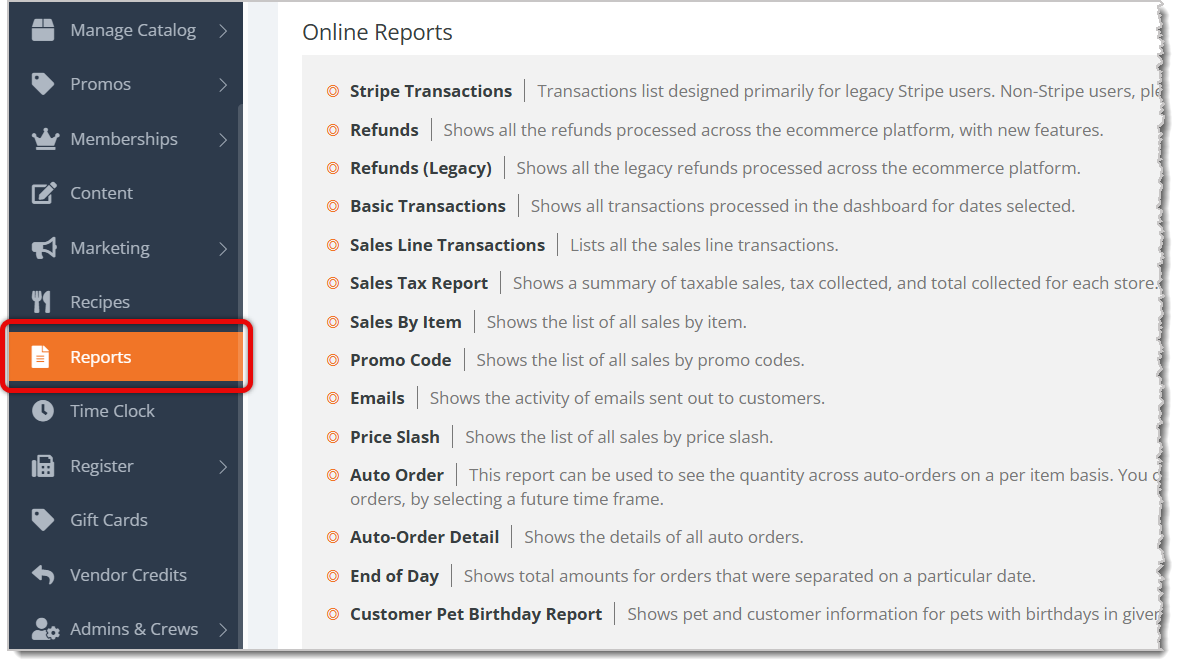
- Click on Reports in the eTailPet main menu.
- Scroll down to the bottom of the page for the Online Reports section.
- Click on the report you want to view.
Auto Order
The Auto Order online report lets you view how much of each product has been placed in automatic orders. You can also use this report to plan inventory for future automatic orders, ensuring you have enough to fill them out.
Here is everything you can use and view in this report:
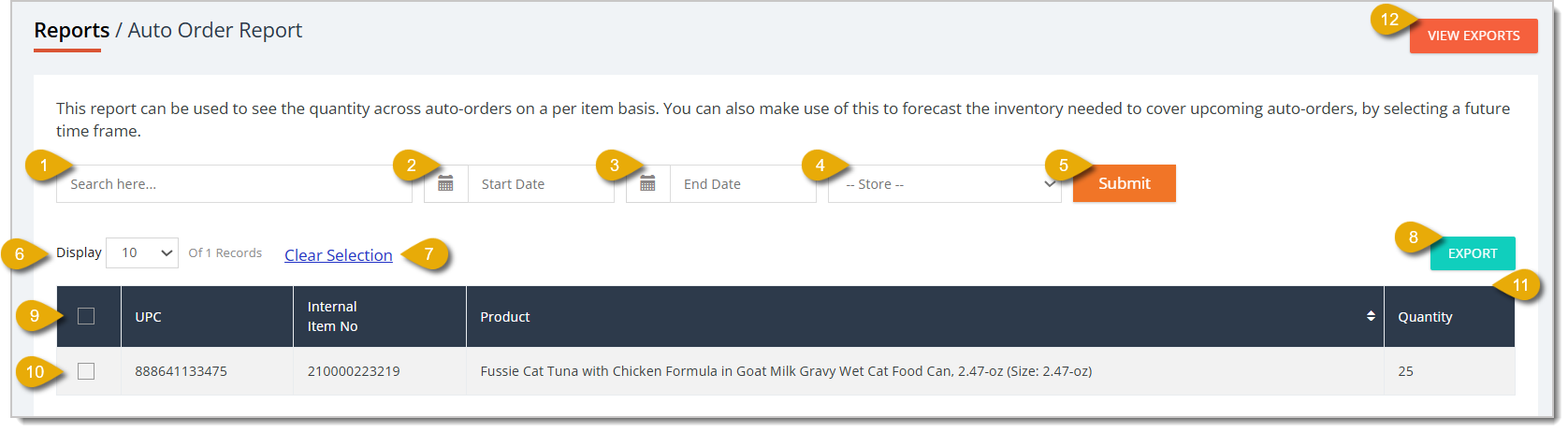
- Search Field — Enter a product's UPC, internal identification number, or name in this field to find matching results.
- Start Date — By default, the report will show data for all-time. If you want to view a specific time period, you can change the Start Date by clicking in the first date field. You can also set a future date range to view upcoming automatic orders.
- End Date — To specify the time period for the data, you can click into the second date field to mark an end date. You can set a future date range to view upcoming automatic orders.
- Store Filter — You can filter the report's data to a specific store.
- Submit — After entering any filter, click on Submit to find matching data.
- Show Number of Entries — You can view a certain number of entries per page in this report by selecting a number in this drop-list.
- Clear Selection — If you have data entries selected, click on Clear Selection to de-select all of them.
- Export — You can export your report as a CSV file by clicking on the Export button.
- Select All — You can select all data entries in the table by clicking on the checkbox in the column header.
- Select Individual — You can select an individual data entry in the table by clicking on the checkbox on the left of an entry.
- Data Table — You can view the report's data in this table. This is every column you can view in this report:
- UPC — This column shows the product's UPC number.
- Internal Item Number — If your store has an internal identification system for products, this column shows the identification number.
- Product — This column shows the product's name/description.
- Quantity — This column shows how many units of the product were/are in auto orders.
- View Exports — The View Exports button in the upper right allows you to view a report showing past exported report files. Click here for more information about the Export Report, or read the Export Report section at the bottom of this article.
Auto-Order Detail
The Auto-Order Detail online report lets you view full details of all auto orders in one place. This makes it easier to find more details on certain orders.
Here is everything you can use and view in this report:
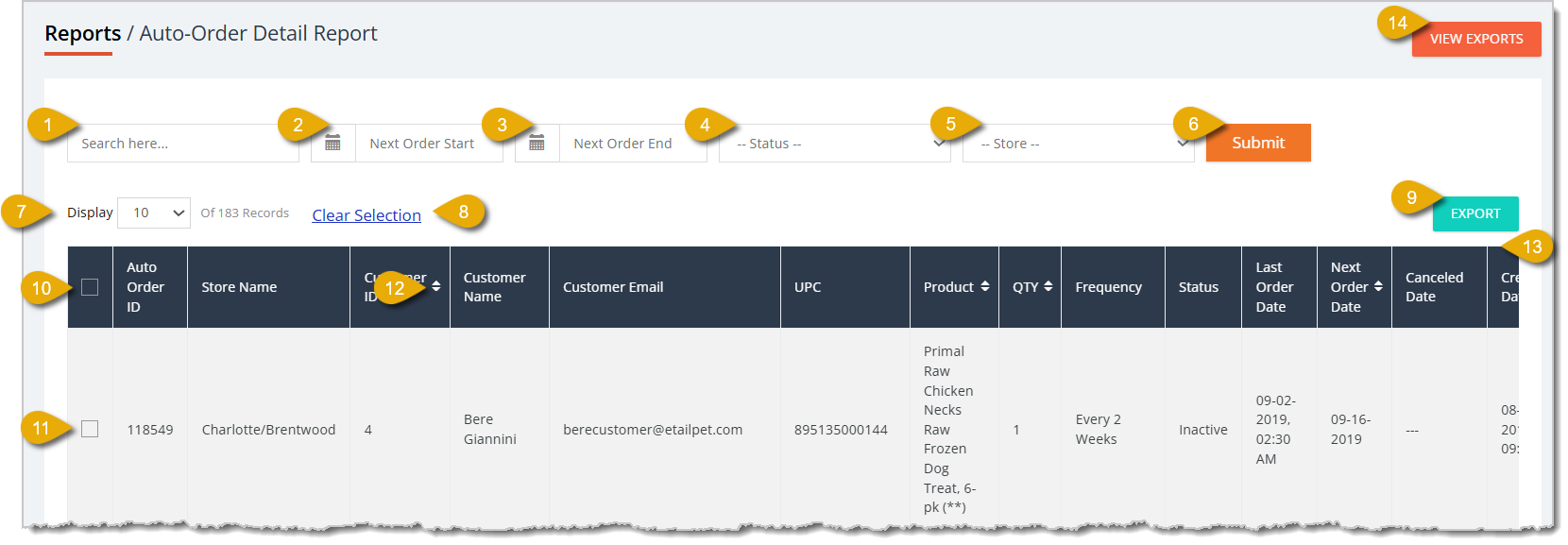
- Search Field — Enter an auto order's ID, product's UPC, or customer information in this field to find matching results.
- Next Order Start — By default, the report will show all-time data. If you want to view a specific time period, you can change the Next Order Start date by clicking in the first date field.
- Next Order End — To specify the time period for the data, you can click into the second date field to mark an end date for auto orders.
- Status Filter — You can filter the report's data to auto orders with a certain status:
- Active — This indicates the order is active/was active during the specified time period.
- Inactive — This indicates the order is not active/was not active during the specified time period.
- Store Filter — You can filter the report's data to a specific store.
- Submit — After entering any filter, click on Submit to find matching data.
- Show Number of Entries — You can view a certain number of entries per page in this report by selecting a number in this drop-list.
- Clear Selection — If you have data entries selected, click on Clear Selection to unselect all of them.
- Export — You can export your report as a CSV file by clicking on the Export button.
- Select All — You can select all data entries in the table by clicking on the checkbox in the column header.
- Select Individual — You can select an individual data entry in the table by clicking on the checkbox on the left of an entry.
- Sort by Column — You can sort the report's data according to a column by clicking on the Arrows icon to the right of each column name. Click once to sort in ascending order, or click again to reverse the sort.
- Data Table — You can view the report's data in this table. This is every column you can view in this report:
- Auto Order ID — This column shows the ID of the auto order.
- Store Name — This column shows the store that is processing and fulfilling the auto order.
- Customer ID — This column shows the customer ID of the person who placed the auto order.
- Customer Name — This column shows the name of the customer who placed the auto order.
- Customer Email — This column shows the email address of the customer who placed the auto order.
- UPC — This column shows the product's UPC.
- Product — This column shows the product's name/description.
- Quantity — This column shows how many units of the product are in the auto order.
- Frequency — This column shows the frequency of the auto order (for example, every 2 weeks).
- Status — This column shows whether the auto order is active or inactive.
- Last Order Date — This column shows the last time the auto order was processed.
- Next Order Date — This column shows the date for the next auto order.
- Canceled Date — If the auto order was canceled, this column shows the date and time it was canceled.
- Created Date — This column shows the date and time the customer created the auto order for the first time.
- Number of Orders Placed — This column shows how many times the auto order has been placed.
- View Exports — The View Exports button in the upper right allows you to view a report showing past exported report files. Click here for more information about the Export Report, or read the Export Report section at the bottom of this article.
End of Day
The End of Day online report shows a single day's total amounts from e-commerce orders. This report is organized by individual stores.
Here is everything you can use and view in this report:
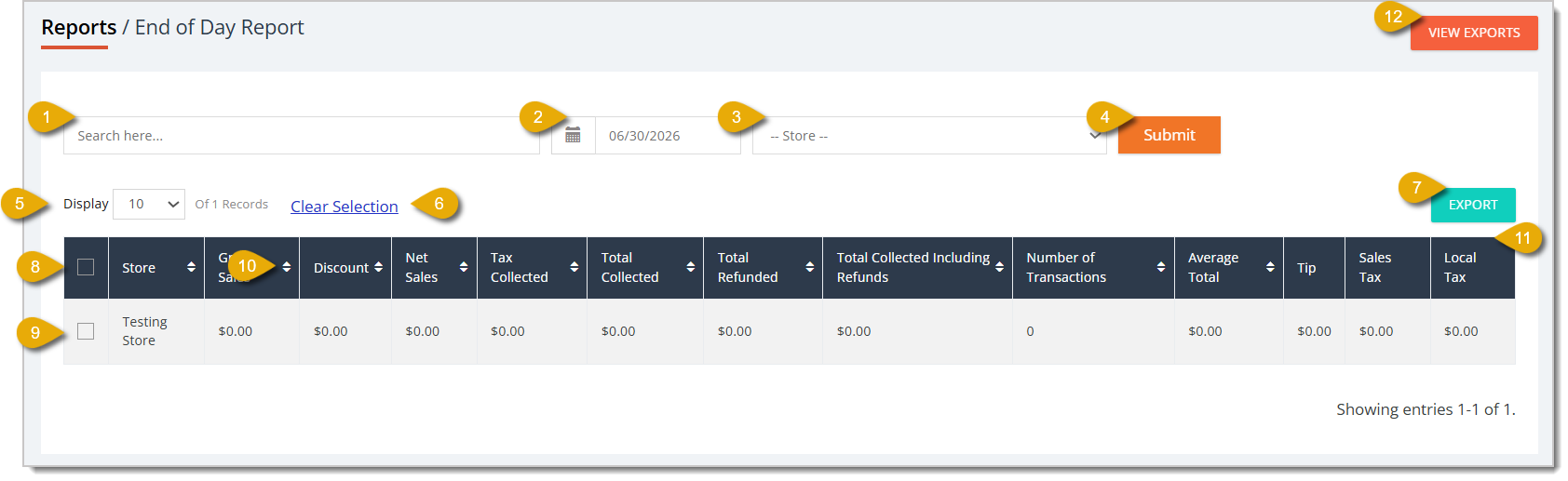
- Search Field — Enter a store's name to view matching results.
- Date — By default, the report will show data for the current day, but you can also change the Date in this field. The report will show sales data for only one day.
- Store Filter — You can filter the report's data to a specific store.
- Submit — After entering any filter, click on Submit to find matching data.
- Show Number of Entries — You can view a certain number of entries per page in this report by selecting a number in this drop-list.
- Clear Selection — If you have data entries selected, click on Clear Selection to unselect all of them.
- Export — You can export your report as a CSV file by clicking on the Export button.
- Select All — You can select all data entries in the table by clicking on the checkbox in the column header.
- Select Individual — You can select an individual data entry in the table by clicking on the checkbox on the left of an entry.
- Sort by Column — You can sort the report's data according to a column by clicking on the Arrows icon to the right of each column name. Click once to sort in ascending order, or click again to reverse the sort.
- Data Table — You can view the report's data in this table. This is every column you can view in this report:
- Store — This column shows the store that corresponds with the data.
- Gross Sales — This column shows the gross sales (before discounts) the store made from online orders for the day.
- Discount — This column shows the total discounted from online orders for the day.
- Net Sales — This column shows the net sales the store made after discounts from online orders for the day.
- Tax Collected — This column shows the total collected in tax for online orders by the end of the day.
- Total Collected — This column shows the total dollar amount the store collected from online orders for the day.
- Total Refunded — This column shows the total dollar amount the store refunded for online orders during the day.
- Total Collected Including Refunds — This column shows the total dollar amount the store collected from online orders for the day, accounting for revenue also lost due to refunds.
- Number of Transactions — This column shows the number of online transactions that occurred in the day.
- Average Total — This column shows the average dollar amount of online transactions that occurred in the day.
- Tip — This column shows the total dollar amount collected in online tips during the day.
- Sales Tax — This column shows the total collected in sales tax for online orders by the end of the day.
- Local Tax — This column shows the total collected in local tax for online orders by the end of the day.
- View Exports — The View Exports button in the upper right allows you to view a report showing past exported report files. Click here for more information about the Export Report, or read the Export Report section at the bottom of this article.
Customer Pet Birthday Report
The Customer Pet Birthday Report shows saved details on pets owned by customers, like their birth dates. This helps you keep track of upcoming birthdays and lets you personalize your interactions with customers to build loyalty.
Here is everything you can use and view in this report:
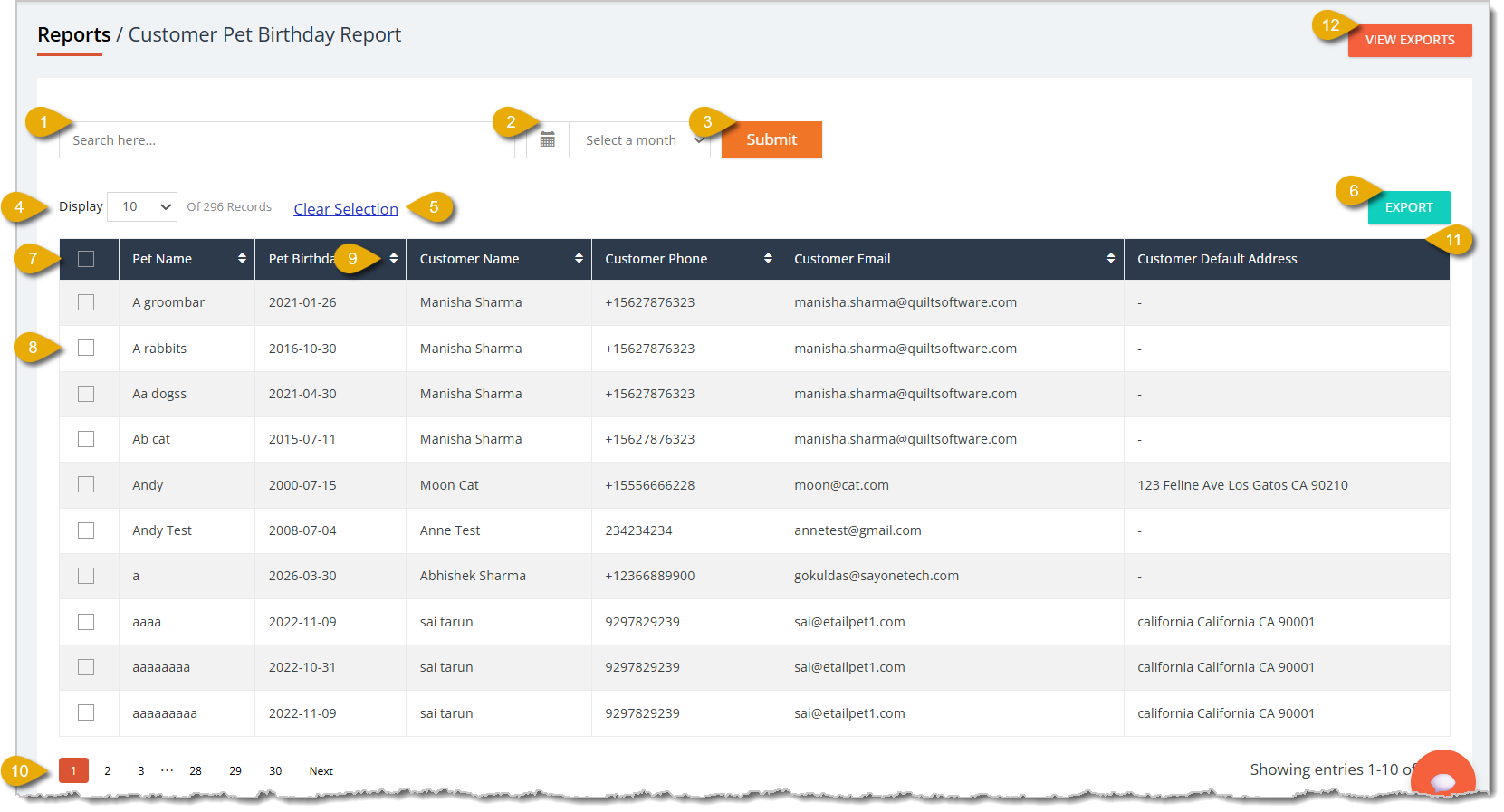
- Search Field — Enter a pet name, customer name, or email address to view matching results.
- Month — By default, the report will show all-time data, but you can select a month in this field to filter birthdays.
- Submit — After entering any filter, click on Submit to find matching data.
- Show Number of Entries — You can view a certain number of entries per page in this report by selecting a number in this drop-list.
- Clear Selection — If you have data entries selected, click on Clear Selection to unselect all of them.
- Export — You can export your report as a CSV file by clicking on the Export button.
- Select All — You can select all data entries in the table by clicking on the checkbox in the column header.
- Select Individual — You can select an individual data entry in the table by clicking on the checkbox on the left of an entry.
- Sort by Column — You can sort the report's data according to a column by clicking on the Arrows icon to the right of each column name. Click once to sort in ascending order, or click again to reverse the sort.
- Navigate — If your report spans multiple pages, you can navigate between pages by clicking on the Page Number to skip to that page, or by clicking either Next or Previous.
- Data Table — You can view the report's data in this table. This is every column you can view in this report:
- Pet Name — This column shows the pet's name.
- Pet Birthday — This column shows the pet's birth date.
- Customer Name — This column shows the customer's name.
- Customer Phone — This column shows the customer's phone number.
- Customer Email — This column shows the customer's email address.
- Customer Default Address — This column shows the customer's default street address for deliveries.
- View Exports — The View Exports button in the upper right allows you to view a report showing past exported report files. Click here for more information about the Export Report, or read the Export Report section at the bottom of this article.
Export Report
If you click on the View Exports button in some online reports, you'll be redirected to the Export Report. This will show which reports have been exported as CSV files. Note that this report will only show data from the past 3 months.
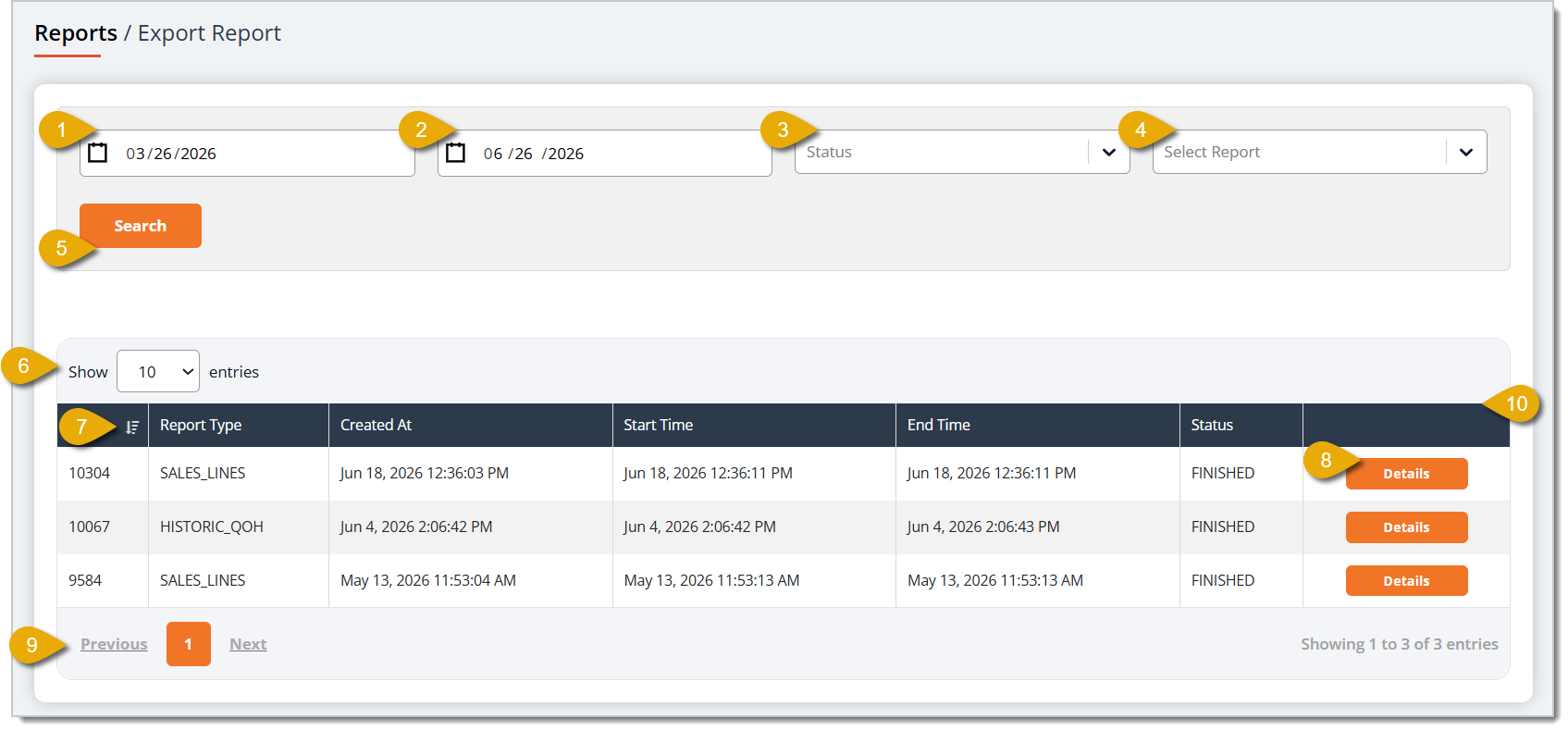
- Start Date — By default, the report will show data from the past 30 days. If you want to view a specific time period, you can change the Start Date by clicking in the first date field.
- End Date — To specify the time period for the data, you can click into the second date field to mark an end date.
- Status Filter — You can select from this drop-list to filter the data to reports of a certain status:
- IN_QUEUE — The report is in queue for export and is not ready yet.
- STARTED — The eTailPet system has started to export the requested report.
- FINISHED — The file was exported and ready for download.
- FAILED — The report failed to export.
- Select Report — You can select from this drop-list to filter the data to just one report type.
- Search Button — After entering any filter, click on Search to find matching data.
- Show Number of Entries — You can view a certain number of entries per page in this report by selecting a number in this drop-list.
- Sort by Column — You can sort the report's data according to a column by clicking on the Arrows icon to the right of each column name. Click once to sort in ascending order, or click again to reverse the sort.
- Details — You can view the full details of each report by clicking on the Details button. This page will allow you to download a copy of the exported file and view the filters of the export.
- Navigate — If your report spans multiple pages, you can navigate between pages by clicking on the Page Number to skip to that page, or by clicking either Next or Previous.
- Data Table — You can view the report's data in this table. This is every column you can view in this report:
- ID — This column shows the ID of the report.
- Report Type — This column shows what type of report was exported. For example, SALES_LINES indicates the file was for a Sales Line Transactions Report.
- Created At — This column shows the date and time the export was created.
- Start Time — This column shows the date and time the export process started.
- End Time — This column shows the date and time the export process finished.
- Status — This column shows the status of the file export.
Related Topics
Online Reports 1
Online Reports 2
Sales and Refund Reports 1
Sales and Refund Reports 2
Sales and Refund Reports 3
Reports Overview
Frequently Asked Questions
Q: Can I use the Auto Order report to plan ahead for orders that haven't happened yet?
A: Yes. Set a future date range in the Start Date and End Date fields to see the quantities committed to upcoming automatic orders, which helps you confirm you have enough stock to fill them.
Q: What's the difference between the Auto Order and Auto-Order Detail reports?
A: Auto Order summarizes quantities by product, so it's the one to use for inventory planning. Auto-Order Detail lists each individual auto order with its customer, frequency, status, and next order date.
Q: Can I pull a date range in the End of Day report?
A: No. This report shows one day at a time — set the day you need in the Date field. For totals spanning multiple days, use one of the Sales and Refund reports instead.
Q: What's the difference between Total Collected and Total Collected Including Refunds?
A: Total Collected is what the store took in from online orders that day. Total Collected Including Refunds subtracts the revenue lost to refunds, so it reflects the day's net position.
Q: How do I find which pets have birthdays coming up next month?
A: Select the month from the Month drop-list and click Submit. You can then click Export to download the list, which includes each customer's phone number, email address, and default address.
Q: I have a question, but I can't find my answer here. How do I get more assistance?
A: You can ask any question at the number listed here. Contact our support team at (323) 370-0738 for the U.S. and (888) 370-2363 for Canada.







 Jun 25, 2026
Is this page helpful?
×Help us improve our articles