📃 View your Sales and Refund reports to get closer insights into your store's activities. This article will cover these reports in the eTailPet system:
Please Note: This article covers the second part of the Sales and Refund reports series. To learn about all other Sales and Refund reports, click here for part 1 or here for part 3 of the series.

Accessing Sales and Refund Reports
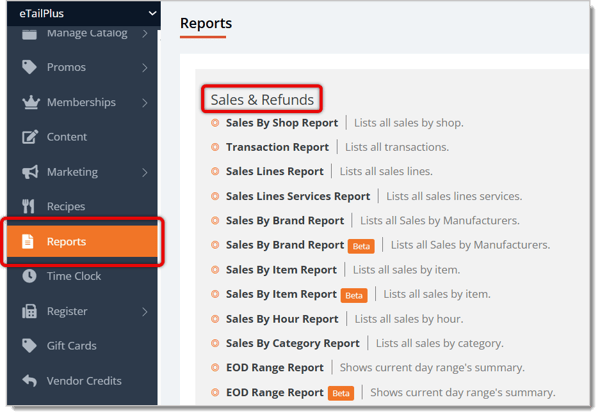
To find all of your Sales and Refund reports, do the following:
- Go to Reports from the eTailPet main menu.
- Under the Sales and Refunds section, you'll see a list of all related reports. Click on the report you need.
Sales By Hour Report
The Sales By Hour Report shows the sales performance of each product in your store by the hours of the day.
Here is what you can use and view in this report:
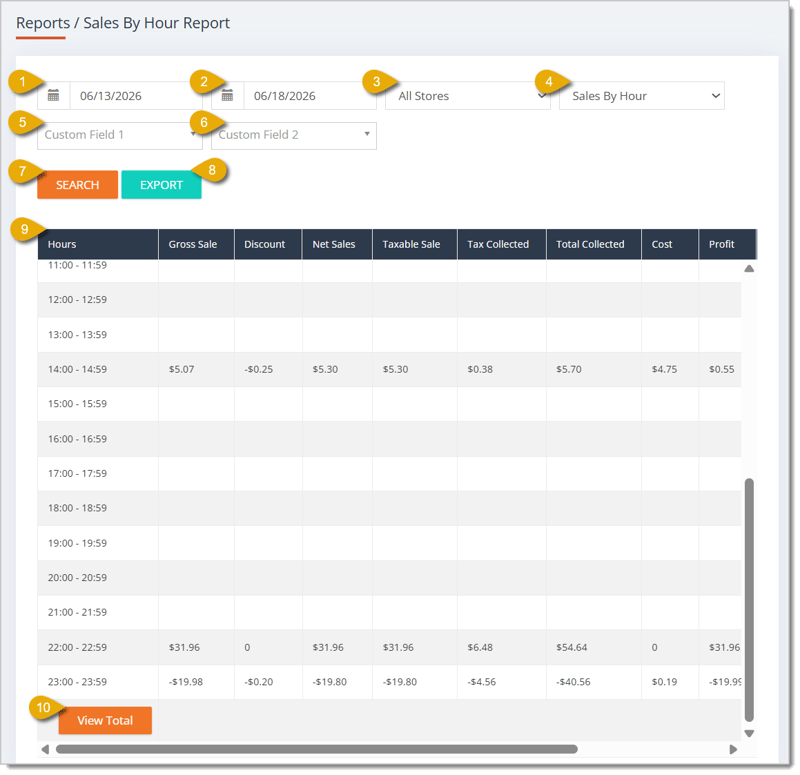
- Start Date — By default, the report will show data for the current day. If you want to view a different time period, you can change the Start Date by clicking in the first date field.
- End Date — By default, the report will set the End Date as the following day. You can click into this field to change it.
- Store Filter — You can filter the report's data to a specific store.
- Sales By Hour Filter — You can filter the report's data to a specific hour. Select an hour from the drop-list.
- Custom Field 1 — If you've configured a custom field filter, you can select the filter here.
- Custom Field 2 — If you've configured a custom field filter, you can select the filter here.
- Search Button — After configuring any filter above this button, click on the Search button to get the corresponding data in your report.
- Export — You can export your report as a CSV file by clicking on the Export button.
- Data Table — You can view the report's data in this table. This is every column you can view in this report:
- Hours — Because this report is organized by item, this column organizes entries by the product's internal System ID.
- Gross Sale — This column shows each product's UPC.
- Discount — This column shows any Discount amounts that occurred.
- Net Sales — This column shows the total dollar amount (after discounts or reductions) the product made in sales at your store(s) during the hour.
- Taxable Sales — This column shows the amount that was taxable from transactions during the hour.
- Tax Collected — This column shows the profit margin of this product at your store(s) during the specified time period.
- Cost — This column shows the total dollar amount your store(s) incurred in costs for products sold during the hour.
- Profit — This column shows the profit your store(s) made in the hour.
- Margin — This column shows the profit margin your store(s) made in the hour.
- Sales — This column shows the number of sales your store(s) made in the hour.
- Average Total — This column shows the average total dollar amount per transaction your store(s) made in the hour.
- View Total — Click on the View Total button to add a row that shows the totals of each column. This row combines all values from all columns in the page.

Sales By Category Report
The Sales By Category Report shows sales data according to product categories in your store.
Here is what you can use and view in this report:
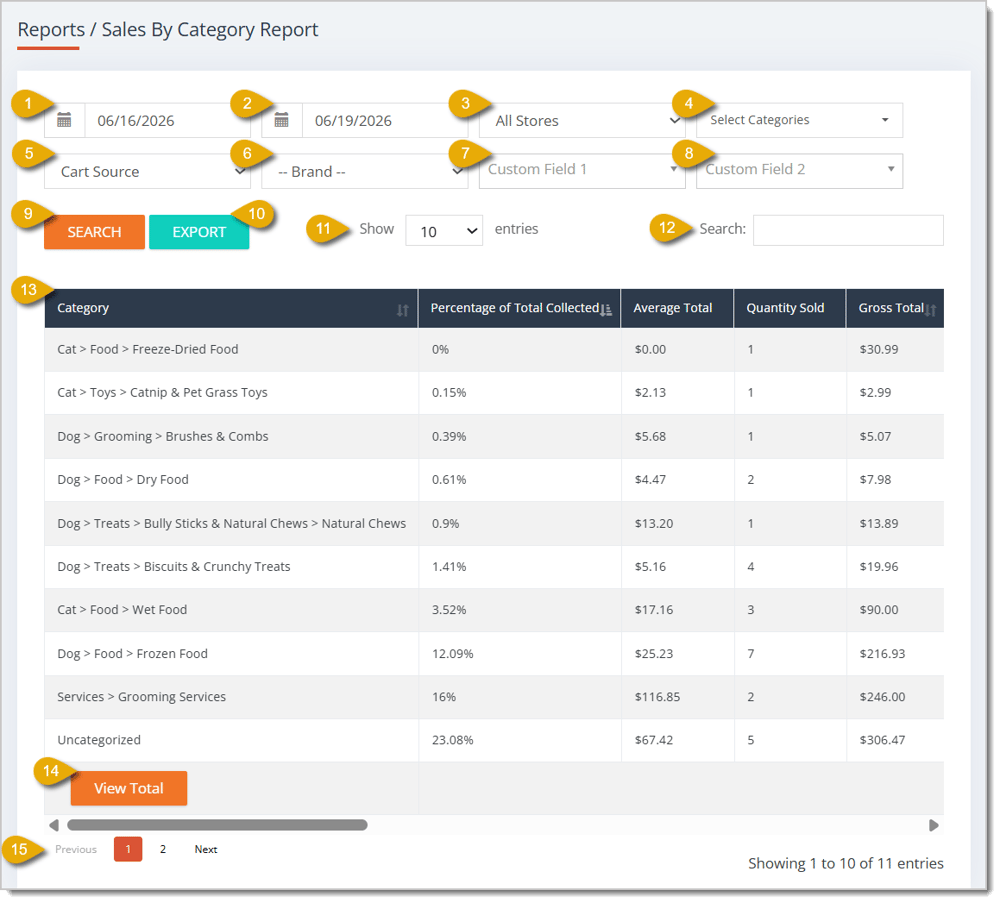
- Start Date — By default, the report will show data for the current day. If you want to view a different time period, you can change the Start Date by clicking in the first date field.
- End Date — By default, the report will set the End Date as the following day. You can click into this field to change it.
- Store Filter — You can filter the report's data to a specific store.
- Select Categories — You can filter the report's data to products from specific categories.
- Cart Source Filter — You can filter the report's data to sales from a certain cart source (online or in-store).
- Brand Filter — You can filter the report's data to products from specific brands.
- Custom Field 1 — If you've configured a custom field filter, you can select the filter you need here.
- Custom Field 2 — If you've configured a custom field filter, you can select the filter you need here.
- Search Button — After configuring any filter above this button, click on the Search button to get the corresponding data in your report.
- Export — You can export your report as a CSV file by clicking on the Export button.
- Show Number of Entries — You can view a certain number of entries per page in this report by selecting a number in this drop-list.
- Search Field — You can enter a category into this field to filter your data to matching products.
- Data Table — You can view the report's data, which is set for the time period specified above, in this table. This is every column you can view in this report:
- Category — This column shows the category name.
- Percentage of Total Collected — This column shows how much of your total revenue collected in the time period came from the category. For example, in the image above, the Catnip and Pet Grass Toys category made up 0.15% of the store's total collected.
- Average Total — This column shows the average total revenue the category's products made.
- Quantity Sold — This column shows how many units and/or pounds of the category were sold.
- Gross Total — This column shows the gross total revenue the category's products generated. This is the amount before discounts or reductions.
- Discount Total — This column shows the total amount discounted from products in the category.
- Net Total — This column shows the net sale made from the category's products after discounts / reductions.
- Taxable Total — This column shows how much in a dollar amount was taxable for the category's sold products.
- Sales Tax — This column shows the total sales tax the store got from the category's sold products.
- Local Tax — This column shows the total local tax the store got from the category's sold products.
- Other Tax — This column shows the total the store got from all other taxes, which were charged for the category's sold products.
- Tax Collected — This column shows how much in taxes your store collected from the category.
- Deposits Collected — This column shows the amount the store collected in deposits from the category.
- Gift Cards Collected — This column shows the dollar amount collected from gift cards to pay for the category's products.
- Tips Collected — This column shows the amount the store got in tips from the category's products.
- Fees Collected — This column shows the dollar amount of fees your store collected from the category.
- Total Collected — This column shows the total dollar amount your store collected from the category.
- Cost — This column shows the total cost the store paid for the category's products that sold.
- Profit — This column shows the profit the store made from the category's products.
- Margin — This column shows the profit margin of the category's products.
- Refund Quantity — This column shows how many units of the category's products were refunded.
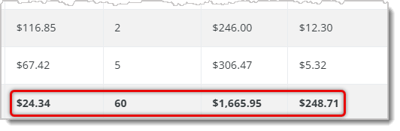
- View Total — Click on the View Total button to add a row that shows the totals of each column. This row combines values from all columns in the page.
- Navigate — If your report spans multiple pages, you can navigate between pages by clicking on the Page Number to skip to that page, or by clicking either Next or Previous.
End Of Day (EOD) Range Report
The End Of Day (EOD in the eTailPet system) Range Report is meant to summarize the sales data from a singular day. However, you can still use the EOD Range Report to see data that spans multiple days.
Here is what you can use and view in this report:
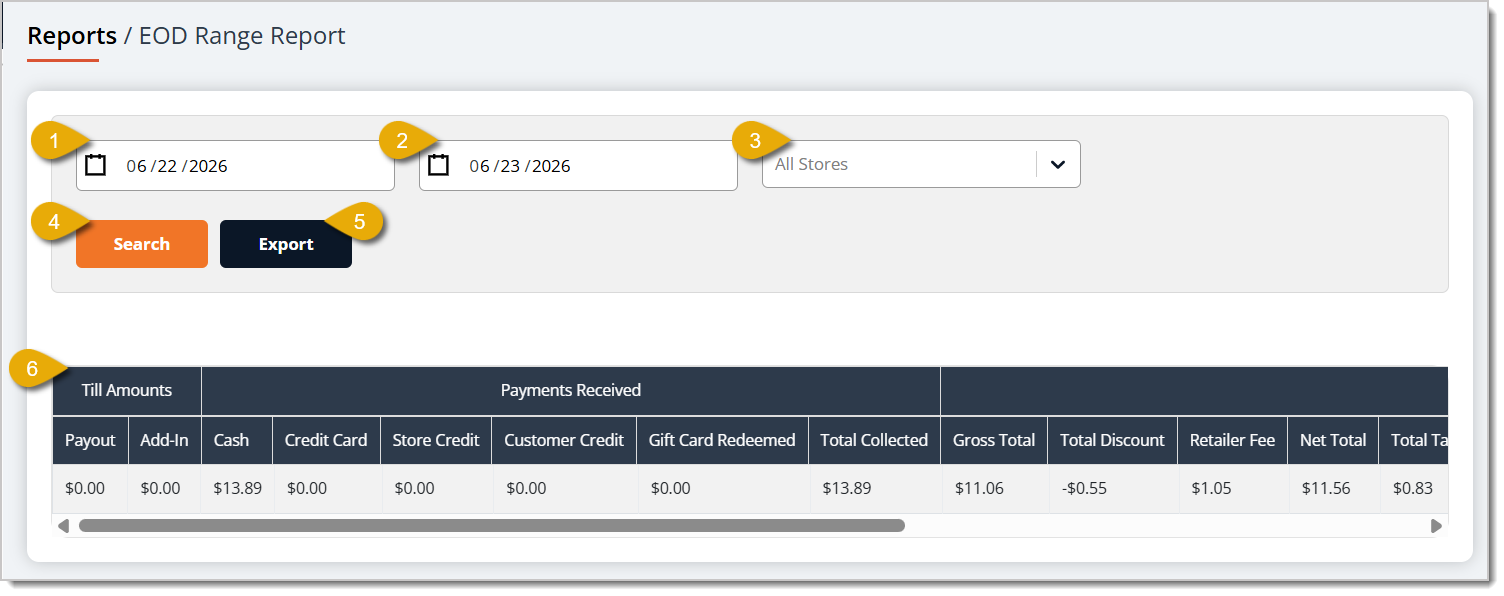
- Start Date — By default, the report will show data for the current day. If you want to view a different time period, you can change the Start Date by clicking in the first date field.
- End Date — By default, the report will set the End Date as the following day. You can click into this field to change it.
- Store Filter — You can filter the report's data to a specific store.
- Search Button — After configuring any filter above this button, click on the Search button to get the corresponding data in your report.
- Export — You can export your report as a CSV file by clicking on the Export button.
- Data Table — You can view the report's data, which is set for the time period specified above, in this table. This is every column you can view in this report:
- Payout — This column shows the dollar amount of the total payout for the day.
- Add-In — This column shows the dollar amount of the total add-ins for the day.
- Cash — This column shows the dollar amount of the total the store collected in cash for the day.
- Credit Card — This column shows the dollar amount of the total the store collected in credit card payments for the day.
- Store Credit — This column shows the dollar amount of the total the store collected in store credit payments for the day.
- Customer Credit — This column shows the total the store collected in customer credit payments for the day.
- Gift Card Redeemed — This column shows the total the store collected in gift card payments for the day.
- Total Collected (Payments Received) — This column shows the total dollar amount the store was paid for the day.
- Gross Total — This column shows the total amount collected before discounts and reductions.
- Total Discount — This column shows the total amount discounted from all transactions of the day.
- Retailer Fee — This column shows the total amount the store paid in retailer fees. You can set this Ad Hoc Fee in the Store Settings area, if needed.
- Net Total — This column shows how much your store collected for the day before state tax or local taxes.
- Total Tax — This column shows the amount the store collected in taxes for the day.
- Deposits Collected — This column shows the dollar amount collected from deposits for the day.
- Gift Cards Collected — This column shows the amount the store collected in gift card payments for the day.
- Tips Collected — This column shows the dollar amount of tips your store collected for the day.
- Donations Collected — This column shows the dollar amount of donations your store collected for the day.
- Fees Collected — This column shows the dollar amount of fees your store collected for the day.
- Total Collected — This column shows the total dollar amount your store collected for the day.
Non Sellers Report
The Non Sellers Report shows products that are in stock but that have not been sold in a specified time period. You can use this data to see what products are unpopular with customers.
Here is what you can use and view in this report:
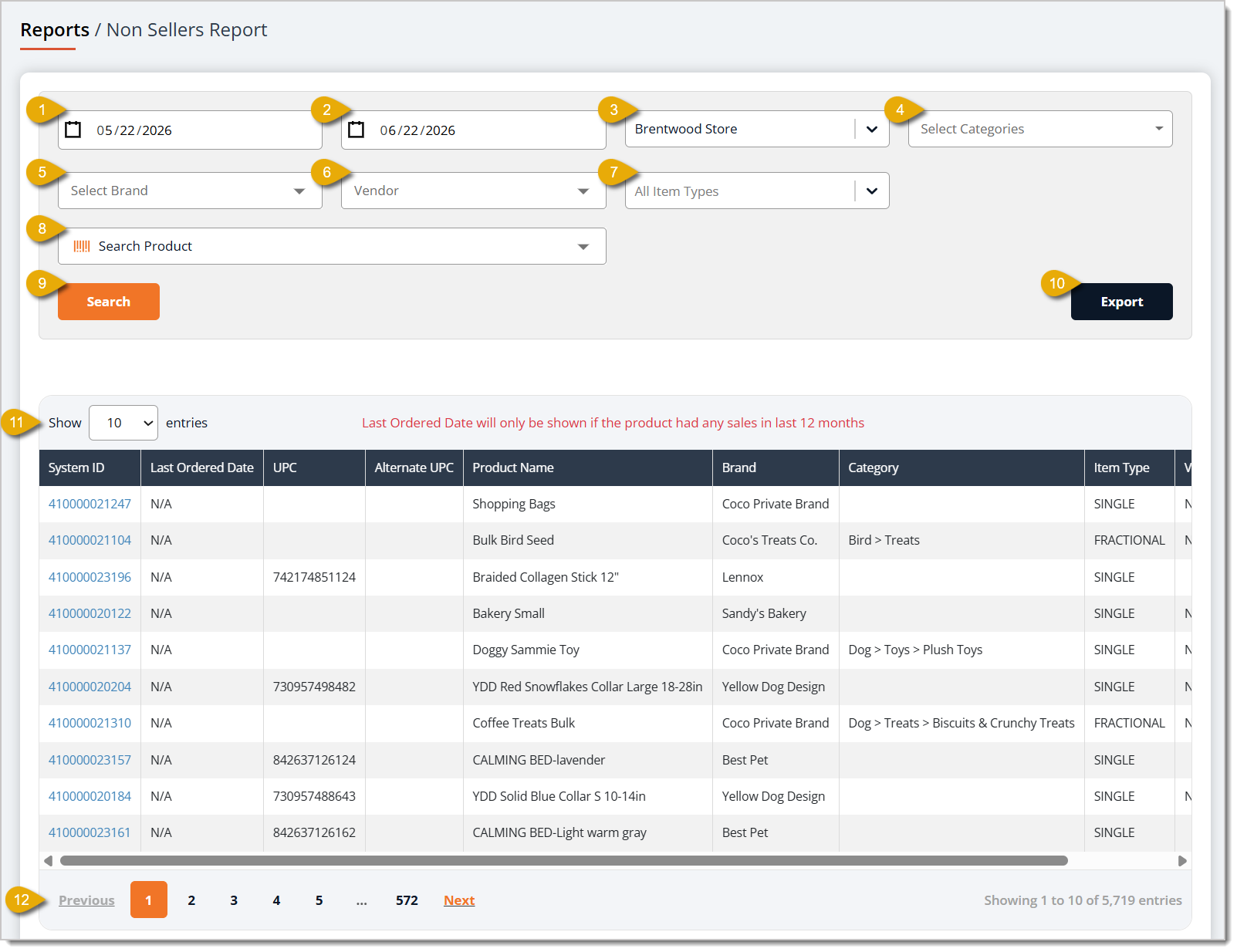
- Start Date — By default, the report will show data for the current day. If you want to view a different time period, you can change the Start Date by clicking in the first date field.
- End Date — By default, the report will set the End Date as the following day. You can click into this field to change it.
- Store Filter — You can filter the report's data to a specific store.
- Select Categories — You can filter the report's data to products from specific categories.
- Select Brand — You can filter the report's data to products from specific brands.
- Vendor Filter — You can filter the report's data to products from certain manufacturers.
- Item Type Filter — You can filter the report's data to products of specific item types.
- Search Product —You can enter a product's System ID or its Name in this field to find data that matches.
- Search Button — After configuring any filter above this button, click on the Search button to load the corresponding data in your report.
- Export — You can export your report as a CSV file by clicking on the Export button.
- Data Table — You can view the report's data in this table. This is every column you can view in this report:
- System ID — This column shows the product's System ID.
- Last Ordered Date — This column shows the last date the product was sold. If the product has not had any sales in the past 12 months, this will display as N/A.
- UPC — This column shows the product's UPC.
- Alternate UPC — This column shows the product's Alternate UPC, if applicable.
- Product Name — This column shows the Product Name.
- Brand — This column shows the product's Brand name.
- Category — This column shows the Category of the product.
- Item Type — This column shows the Item Type of the product.
- Vendor — This column shows the product's Vendor.
- Navigate — If your report spans multiple pages, you can navigate between pages by clicking on the Page Number to skip to that page, or by clicking either Next or Previous.
Consolidated Units Per Ticket
The Consolidated Units Per Ticket report shows the quantities you sold per transaction.
Here is what you can use and view in this report:
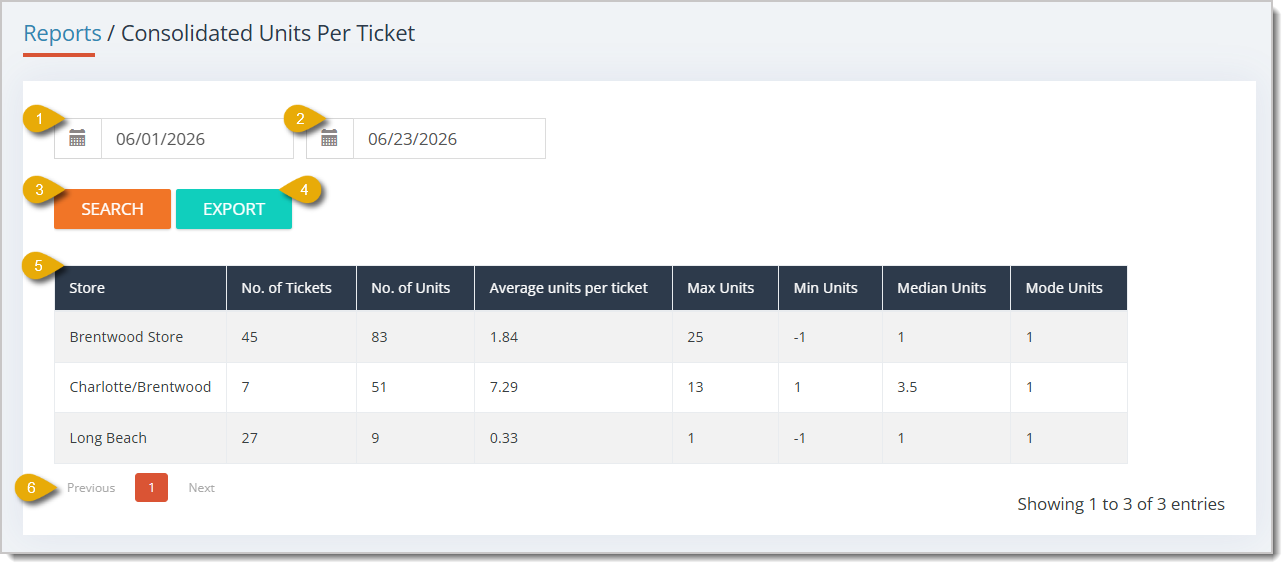
- Start Date — By default, the report will show data for the current day. If you want to view a different time period, you can change the Start Date by clicking in the first date field.
- End Date — By default, the report will set the End Date as the following day. You can click into this field to change it.
- Search Button — After configuring any filter above this button, click on the Search button to get the corresponding data in your report.
- Export — You can export your report as a CSV file by clicking on the Export button.
- Data Table — You can view the report's data in this table. This is every column you can view in this report:
- Store — This column shows the store that corresponds with the data.
- Number of Tickets — This column shows the number of transactions the store completed during the time period.
- Number of Units — This column shows the number of units the store sold during the time period.
- Average Units Per Ticket — This column shows the average number of units sold per transaction.
- Max Units — This column shows the maximum number of units in a day the store sold during the time period.
- Minimum Units — This column shows the minimum number of units in a day the store sold during the time period.
- Median Units — This column shows the median for the number of units the store sold during the time period.
- Mode Units — This column shows the mode for the number of units the store sold during the time period.
- Navigate — If your report spans multiple pages, you can navigate between pages by clicking on the Page Number to skip to that page, or by clicking either Next or Previous.
Detailed Units Per Ticket
The Detailed Units Per Ticket report shows data for individual transaction tickets and the total quantity of units sold in each transaction.
Here is what you can use and view in this report:
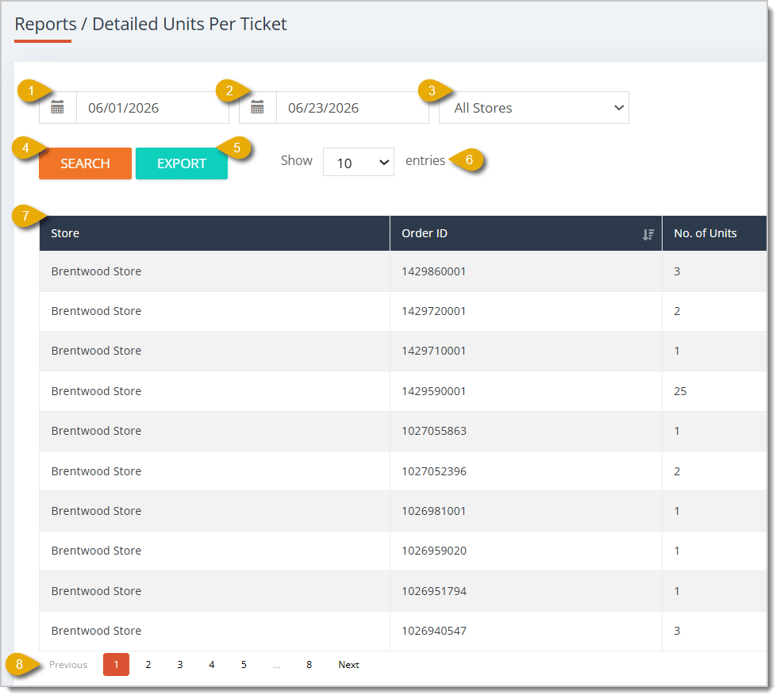
- Start Date — By default, the report will show data for the current day. If you want to view a different time period, you can change the Start Date by clicking in the first date field.
- End Date — By default, the report will set the End Date as the following day. You can click into this field to change it.
- Store Filter — You can filter the report's data to a specific store.
- Search Button — After configuring any filter above this button, click on the Search button to get the corresponding data in your report.
- Export — You can export your report as a CSV file by clicking on the Export button.
- Show Number of Entries — You can view a certain number of entries per page in this report by selecting a number in this drop-list.
- Data Table — You can view the report's data in this table. This is every column you can view in this report:
- Store — This column shows the store that completed the transaction.
- Order ID — This column shows the Order ID of each transaction.
- Number of Units — This column shows the number of units that were sold in the transaction.
- Navigate — If your report spans multiple pages, you can navigate between pages by clicking on the Page Number to skip to that page, or by clicking either Next or Previous.
Related Topics
Sales and Refund Reports 1
Sales and Refund Reports 3
Discount and Promotional Reports
Inventory Reports
Store Credit Reports
Frequently Asked Questions
Q: My report is empty or only showing today's data. Why?
A: Every report in this section defaults to the current day, with the End Date set to the following day. Click into the Start Date and End Date fields to set the time period you need, then click Search to load the data. Filters don't apply until you click Search.
Q: What's the difference between Gross Total and Net Total in the Sales By Category Report?
A: Gross Total is the revenue a category's products generated before any discounts or reductions. Net Total is what's left after those discounts and reductions are applied.
Q: Can I use the EOD Range Report for more than one day at a time?
A: Yes. The report is designed to summarize a single day's sales data, but you can set a wider date range to view data spanning multiple days.
Q: A product in my Non Sellers Report shows N/A under Last Ordered Date. What does that mean?
A: N/A means the product has had no sales in the past 12 months. These are good candidates to review when deciding what to discount or stop reordering.
Q: Should I use the Consolidated or the Detailed Units Per Ticket report?
A: Use Consolidated Units Per Ticket for store-level summary statistics like average, max, minimum, median, and mode units per transaction. Use Detailed Units Per Ticket when you need to see individual transactions, listed by Order ID with the unit count for each.
Q: Can I save or share a report outside of the eTailPet system?
A: Yes. Every report in this section has an Export button that downloads the report as a CSV file.
Q: I have a question, but I can't find my answer here. How do I get more assistance?
A: You can ask any question at the number listed here. Contact our support team at (323) 370-0738 for the U.S. and (888) 370-2363 for Canada.







 Jun 18, 2026
Is this page helpful?
×Help us improve our articles