





Store Credit Reports

Jul 23, 2026Jul 23, 2026

Your Store Credit Reports give you two dedicated reports for tracking store credit across your business: one that shows the outstanding store credit balance owed to each customer, and one that shows every individual store credit transaction as it's issued or used. This article shows you how you can use them to monitor your store credit liability and audit exactly how and where store credit is being issued and redeemed. Take a look below to see what each report offers!

francine - store credit reports

You can get to your Store Credit Reports by logging into the Admin Dashboard and clicking on Reports in the main menu. On the Reports page, scroll down to the Store Credit section, as pictured below.
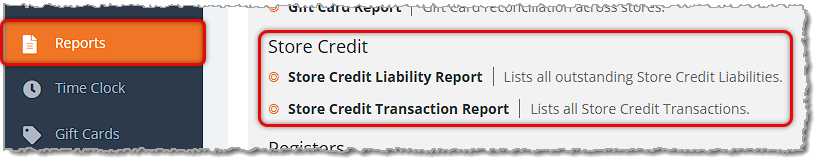
Image showing the Store Credit section of the Reports page of the eTailPet system with the section reports highlighted.

This section of your Reports listings has the following Store Credit reports:


The Store Credit Liability Report

The Store Credit Liability Report shows you the current Store Credit balance available to each customer, so you can see exactly how much outstanding Store Credit liability your business is carrying at any time. 
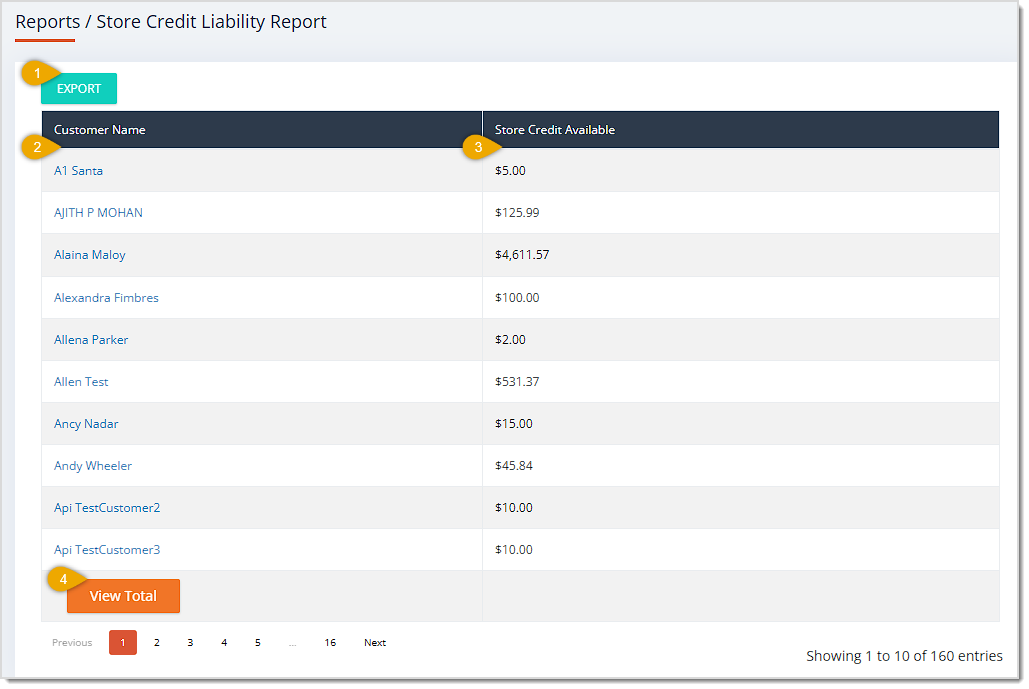
Image showing the Store Credit Liability Report page with major functions highlighted in the eTailPet system.

The Store Credit Liability Report has the following functions:

  1. Export — Click the Export button to download the data for current balances across all pages of the report as a CSV file.
  2. Customer Name — This column lists the Customer Name for each customer that has Store Credit. You can click the customer's name in this column to view the customer's Details page.
  3. Store Credit Available — This column displays the current Store Credit Balance available to each customer.
  4. View Total — Click this button to see the sum of the Store Credit Available column across data from all pages at the bottom of the table, as pictured below.
    Image showing the Totals row of the Store Credit Liability Report in the eTailPet system.


The Store Credit Transaction Report

The Store Credit Transaction Report shows you every transaction that involved Store Credit in your selected Date Range, including when credit was issued to a customer and when it was used as payment.
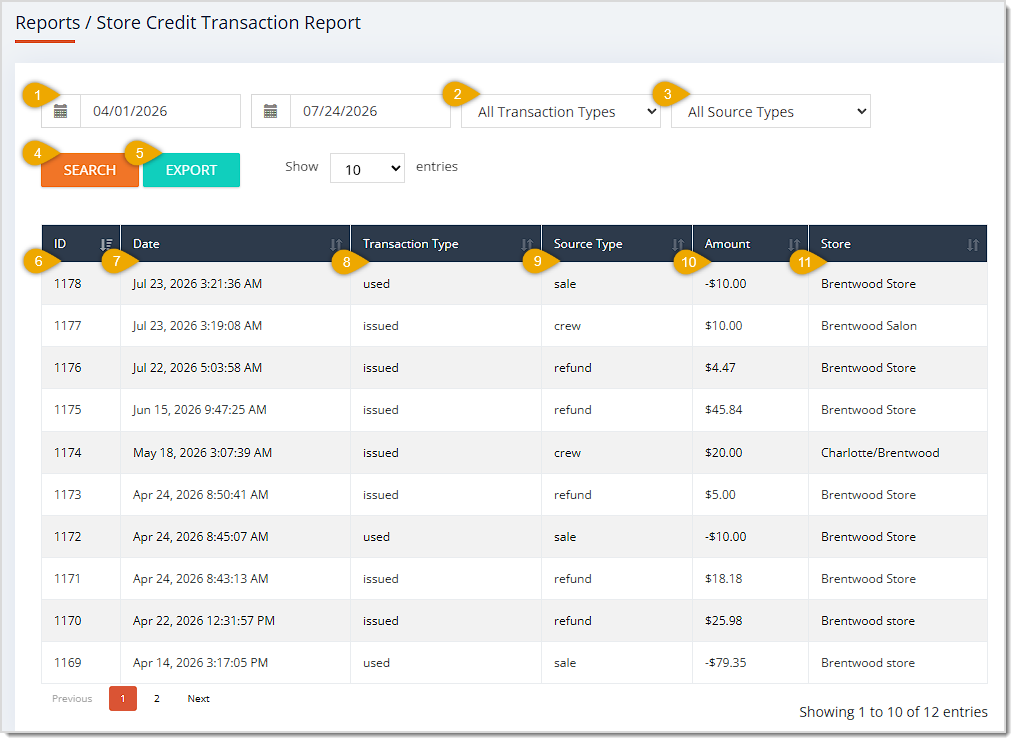
Image showing the Store Credit Transaction Report page with major functions highlighted in the eTailPet system.

The Store Credit Transaction Report has the following functions:

  1. Date Range — Enter or select the Start Date and End Date of the range you want to search. This area defaults to the current day. The range between the Start Date and the End Date cannot exceed 12 months. 
  2. Transaction Type — This field defaults to All Transaction Types. Select Issued or Used from this drop-list to filter the table to only Store Credit that was granted to customers or only store credit that was spent.
  3. Source Type — This field defaults to All Source Types. Select Refund, Crew, or Sale from this drop-list to filter the table to Store Credit transactions that originated from that source.
  4. Search — Click the Search button after selecting your Start Date, End Date, Transaction Type, and/or Source Type to narrow down the table's records.
  5. Export — Click the Export button to download the report's data across all pages as a CSV file.
  6. ID — This column displays the unique identifying number of each internal Transaction ID. Click on the header to sort the results according to this column, or click twice to reverse the sort.
  7. Date — This column shows the Date and Time you completed each transaction. Click on the header to sort the results according to this column, or click twice to reverse the sort.
  8. Transaction Type — This column lists whether each transaction was an Issued or Used event. Click on the header to sort the results according to this column, or click twice to reverse the sort.
  9. Source Type — This column displays what generated each transaction, such as Refund, Crew, or Sale. Click on the header to sort the results according to this column, or click twice to reverse the sort.
  10. Amount — This column shows the Dollar Amount of Store Credit used in each transaction. A positive value in this column shows when Store Credit was issued, and a negative value shows when it was used to pay. Click on the header to sort the results according to this column, or click twice to reverse the sort.
  11. Store — This column lists the Store Name where each transaction took place. Click on the header to sort the results according to this column, or click twice to reverse the sort.


Related Topics

Reports Overview

Payments Reports

Customer Reports


Frequently Asked Questions

Q: Why doesn't the Store Credit Liability Report have a Date Range or Store filter?

A: The Store Credit Liability Report always shows each customer's current, live store credit balance across all your stores, so it isn't limited to a specific date or location.


Q: How do I look up a specific customer's account from the Store Credit Liability Report?

A: Click the customer's name in the Customer Name column to open that customer's details page.


Q: What's the difference between Issued and Used in the Transaction Type filter?

A: Issued shows transactions where store credit was granted to a customer, and Used shows transactions where a customer used store credit as payment. You can see which type occurred for each row in the Amount column, since issued credit appears as a positive amount and used credit appears as a negative amount.


Q: Can I filter the Store Credit Transaction Report to a single store?

A: No. This report doesn't include a Store filter, so transactions from every location appear together in the table, though you can still see which store each transaction belongs to in the Store column.


Q: I have a question, but I can't find my answer here. How do I get more assistance?

A: You can ask any question at the number listed here. Contact our support team at (323) 370-0738 for the U.S. and (888) 370-2363 for Canada.

Need Help?

Can't quite find the answer you're looking for? Our support team is just a call away.