






Export Products
In the eTailPet system, you can easily export your product data as a CSV or XLSX file. If you want t
 Jun 11, 2026
💵 The Cost of Goods Sold (COGS) is the amount that you've paid for products that are no longer in your inventory because they've been sold or written off. In this article, we'll cover how the eTailPet system calculates COGS, and go over how inventory changes affect COGS, as well as how to resolve issues with COGS when they come up.
Here a few definitions you'll need to know:
Quantity On Hand (QOH) — This is inventory you already have in stock.
Unit Cost — This is the price you pay to a Vendor for one unit for a product.
Cost of Goods (COG) — This is the amount you've paid for your current inventory.
Cost of Goods Sold (COGS) — This is the amount that you've paid for products that are no longer in your inventory, either because they've been sold or written off.
Average Cost — This is the average dollar amount you've paid for a product throughout your store's history.
🐱 Please Note: In order to have an accurate values for COGS, Average Cost, and Margin, you will need to know the Unit Cost. If you want to learn how to update Unit Costs, click here to read our article on Batch Cost and Price Updates, or read Change or Remove Items.
Here is how you can see product costs and their average costs:

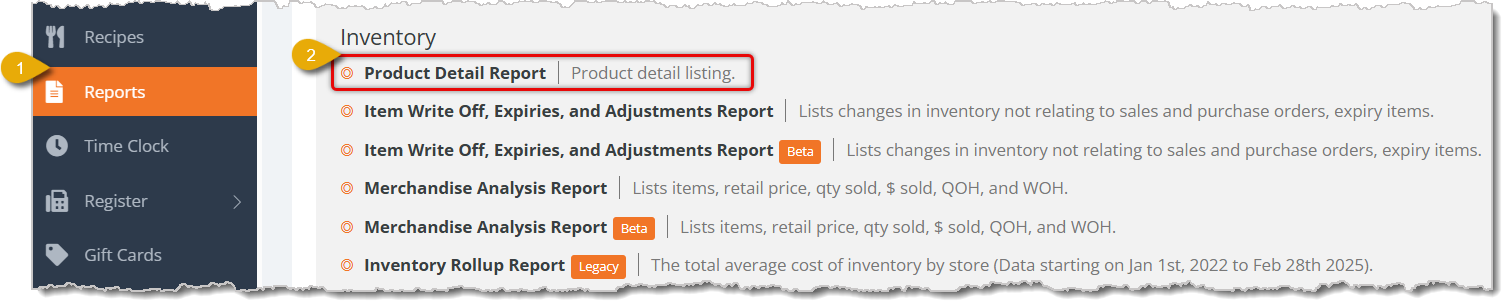
Go to Reports.
Go to the Product Detail Report.
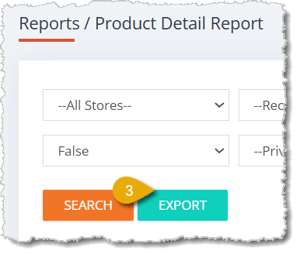
In the Product Detail Report, click on the Export button above the table.
You will receive an email with an Excel spreadsheet file that contains all details of your product catalog.
Below is a table that lists out each event that can change the COG and Average cost of a product and potentially cause inaccuracies.
Inventory Event |
How COG and Average Cost are Affected |
|
Inventory Count |
The Unit Cost of a product is linked to the Vendor. If you have not set up Vendor costs, your COG will be zero when you add or remove inventory in an inventory count. This affects the Average Cost because the system will calculate one or more items with the cost of $0. |
|
Manual Inventory Addition or Removal |
Admins can manually add or remove inventory in Manage Catalog > My Products > Inventory Tab. When you add inventory manually, the system will use the default Vendor cost if you don’t include the Cost. If there is no default Vendor cost, the item will be added to inventory with a cost of $0 unless you manually enter the Cost when adding inventory. This will negatively affect the Cost Of Goods Sold and Margins. |
|
Purchase Order |
When you Check-In items that were ordered with a Purchase Order, the COG of the item is going to be the Unit Cost from your Vendor costs. If you didn’t enter a cost, the system will assume that the COG is $0. When you get to the approval stage and reconcile your Purchase Order against the invoice, you can edit the cost you paid so that your system COG is correct. However, this will not update your Vendor costs, so you'll encounter this issue again unless you edit the Vendor costs. |
|
QOH Import |
When you import existing Quantity On Hand into the eTailPet system, you have to enter yourself how much you paid. The system does not use the Unit Cost in this event because you may have paid a different amount than the current Cost. If you import QOH without including the costs, the system will assume that the Cost was $0. This will affect your Margins, COGS, and Average Cost. |
|
Sale |
Unit Cost: The COGS of an item in a sale is also the Average Cost. If an item was added to your inventory without an associated cost, the COGS for this item will be $0. To avoid that, make sure you have set up Vendor Costs. Add Inventory: If an item is added to a New Sale transaction, and the QOH for it is currently at 0 (there are no units currently in stock), the eTailPet system will automatically adjust your inventory. The system will add an item and mark it at the current default Vendor cost. The COGS for that item will then be equal to the default Vendor cost. When the sale is complete, the item will be removed from stock. |
|
Write-Off |
When you refund an item and mark it as Sellable, it is added back to your inventory. If you have not set up Vendor Costs, when you refund a sellable item, your COG of the returned item will be zero, and the Margin will be 100%. This likely will not be accurate. |
If you need to fix the average cost of a mass amount of products, here is how to do so in the Product Manager:
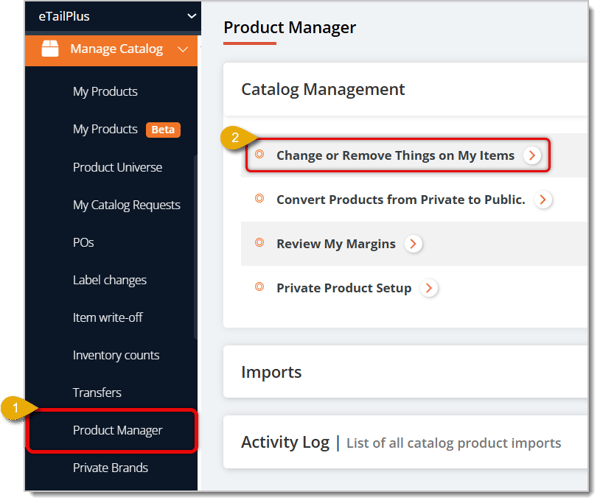
Find a your list of products by using the filters in this page. Here is how to search for items using this:
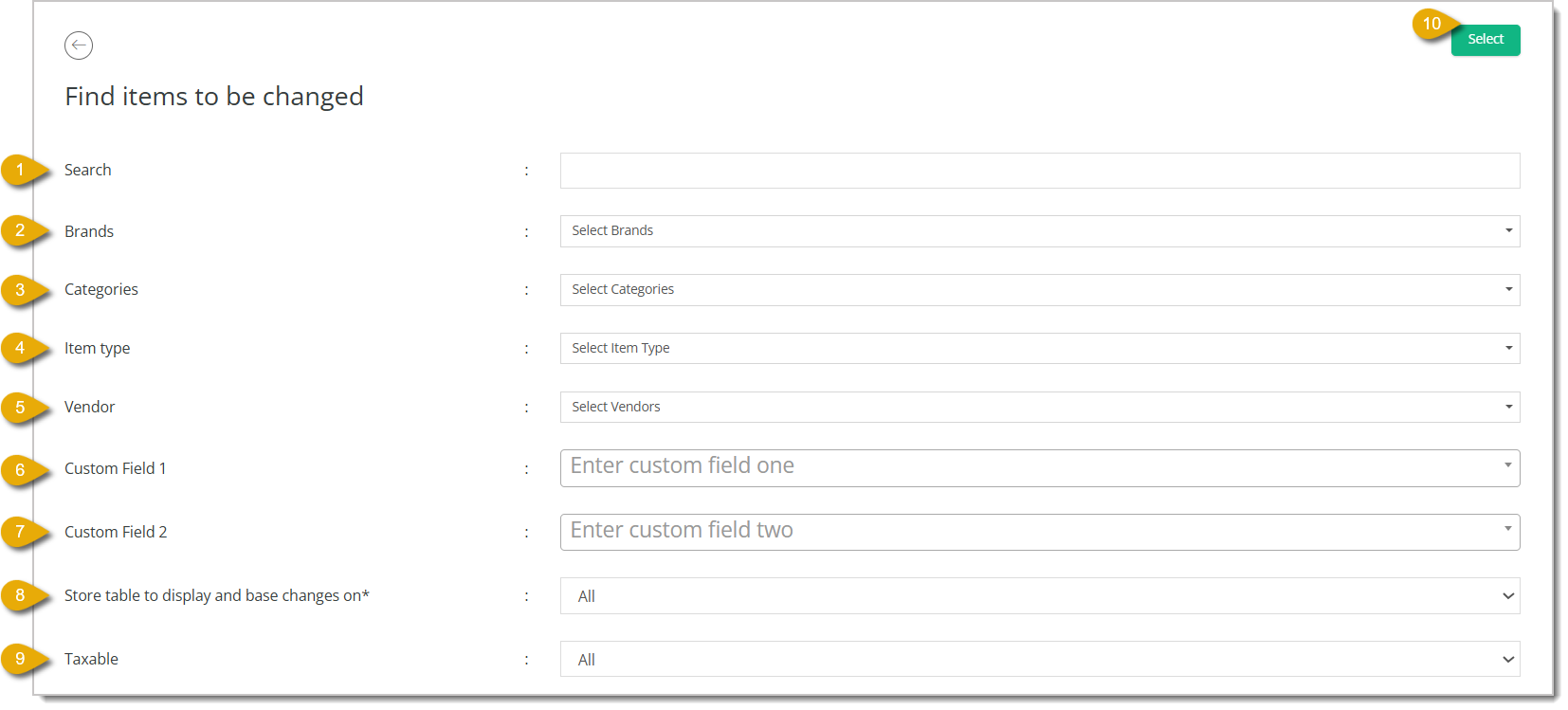
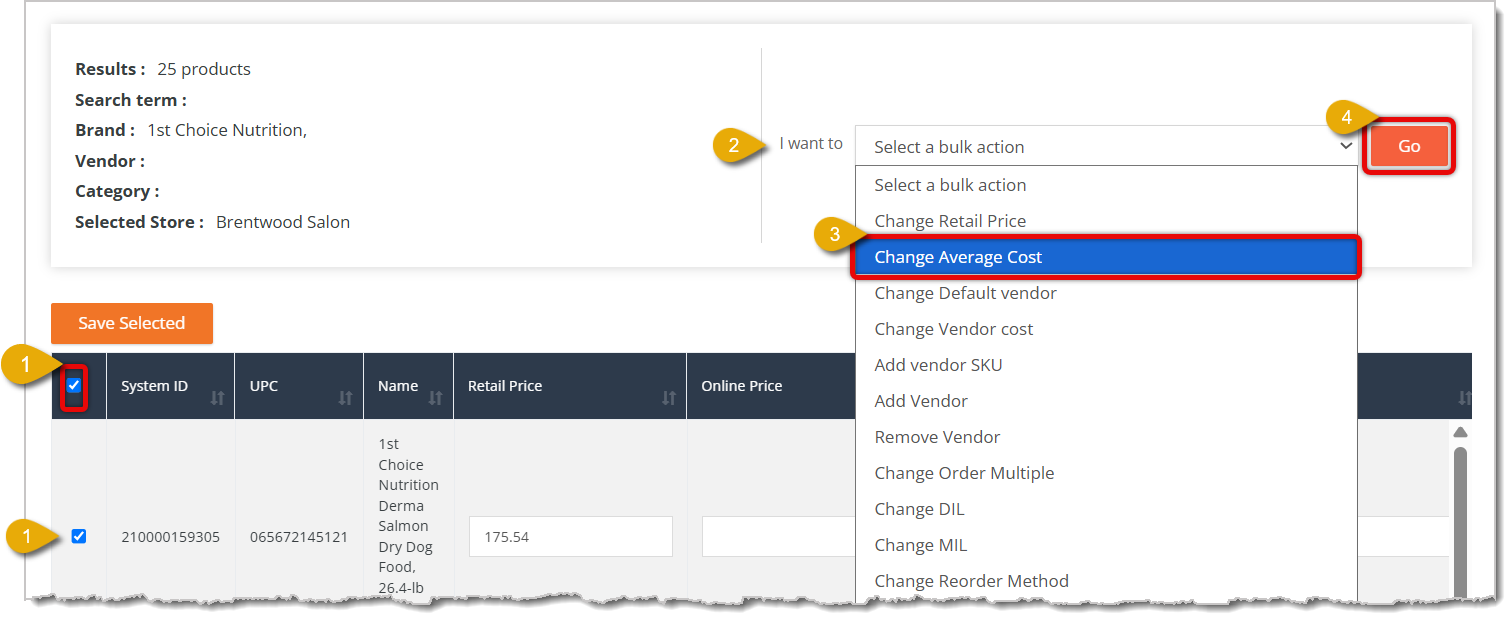
You'll then be directed to a table showing products that match your filters, and you can apply the Change Average Cost bulk action to them.
😸 Please Note: Changing the Average Cost requires the system to remove all Quantity on Hand and add it back in at the selected cost. This process may take some time. If you sell an item while this process is happening, your Quantity on Hand count may be a little off. If you are doing this for more than 200 items, we recommend performing this bulk action after you've closed your store.
Once you access a table of products that match your filters, you can apply a bulk action to Change Average Cost.
Each field and function of the Change Average Cost action window is explained below:
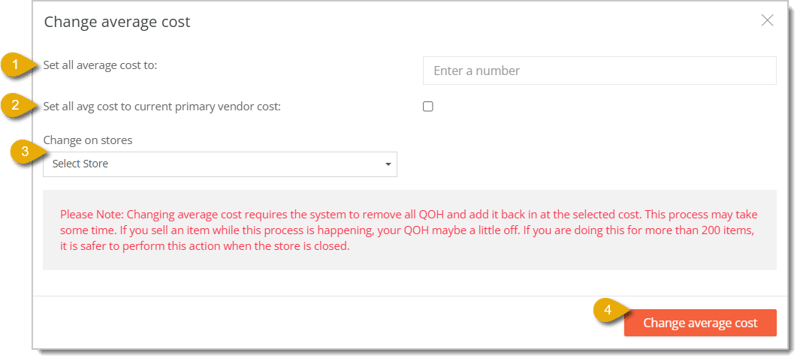
Set All Average Costs — Enter a dollar amount here to change the average costs of all items in the results list.
Set All Average Costs to Current Primary Vendor Cost — If the primary Vendor for the products has changed their costs, you can check this box to match the average costs of the items to the current cost from the Vendor.
Change on Stores — Select a store or multiple stores to which this change in average cost will apply.
This is how you can manually change the average cost of a product:
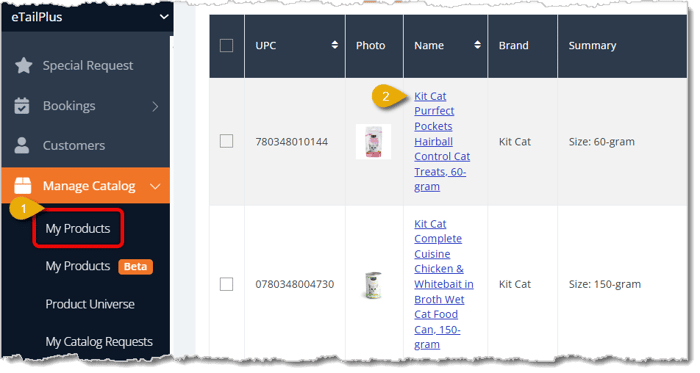
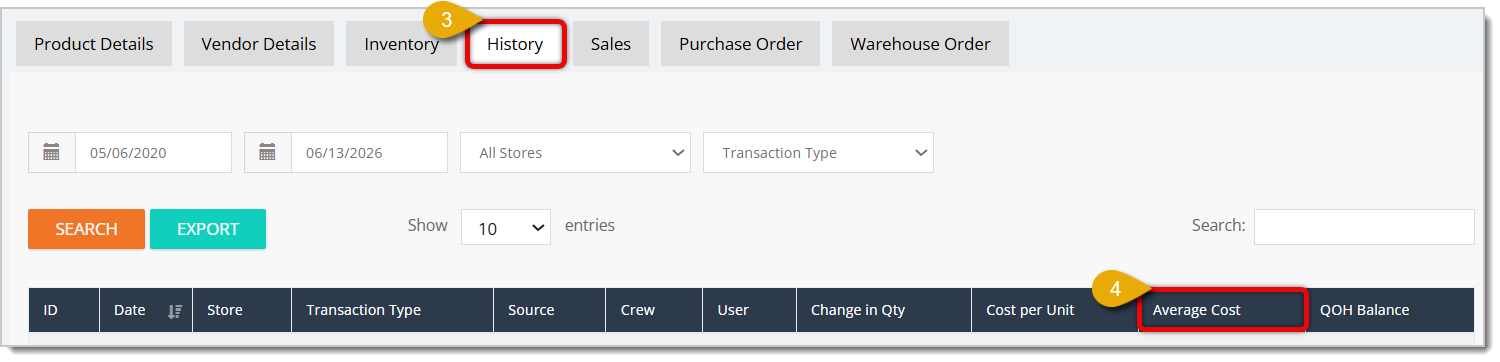
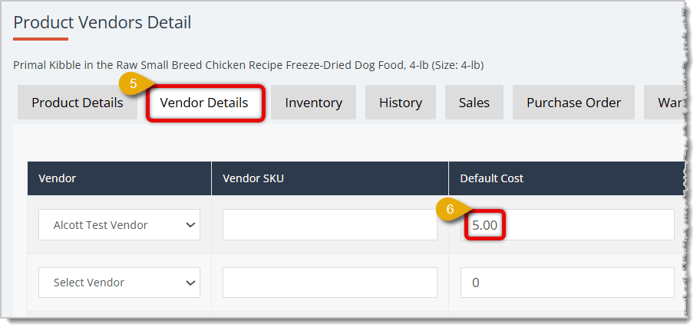
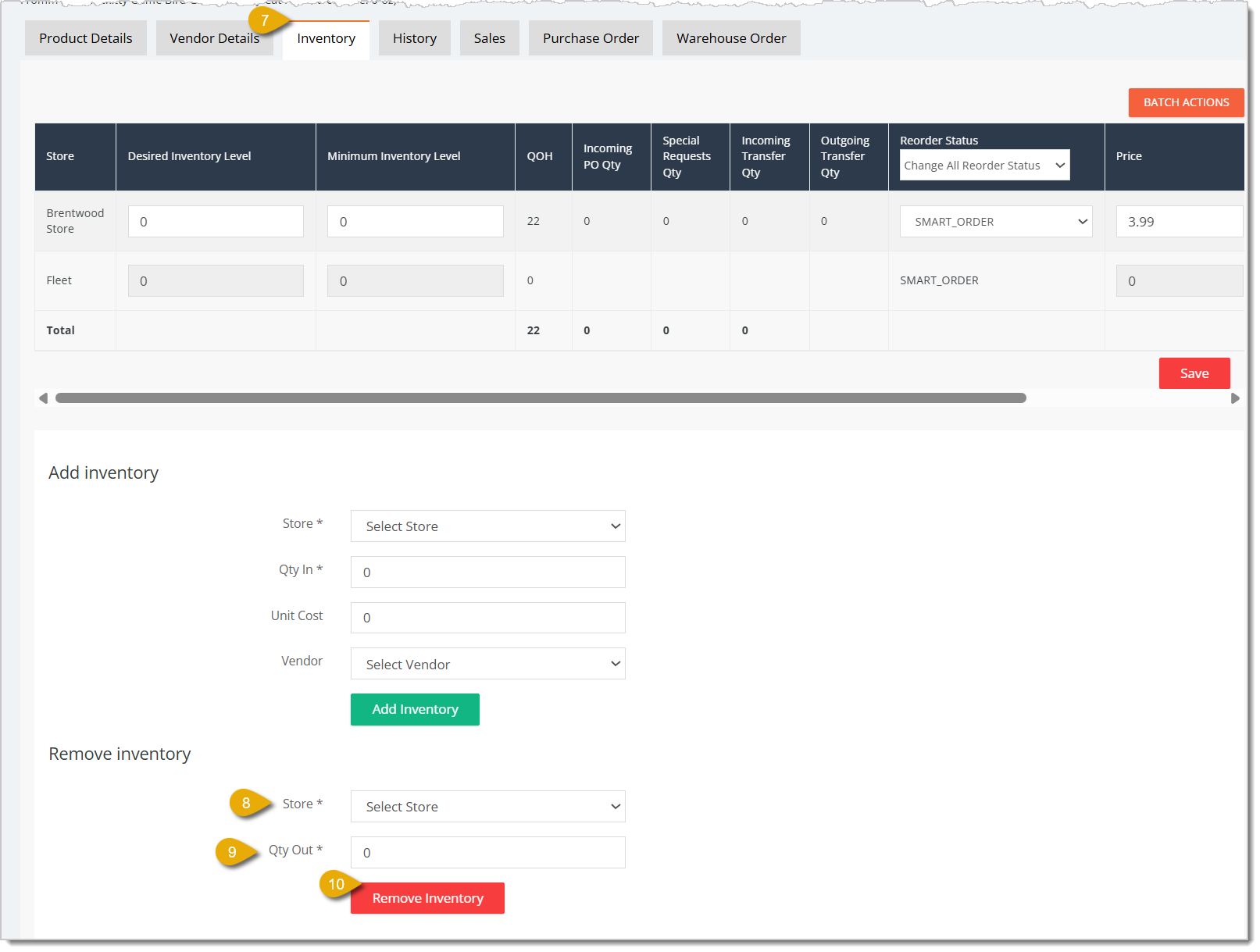
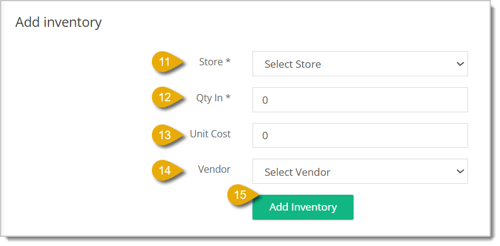
The product's unit cost should now be correct.
Please Note: We strongly recommend exporting a copy of the Product Details Report before you use this method so you have a backup of your data in case you encounter issues with the import method.
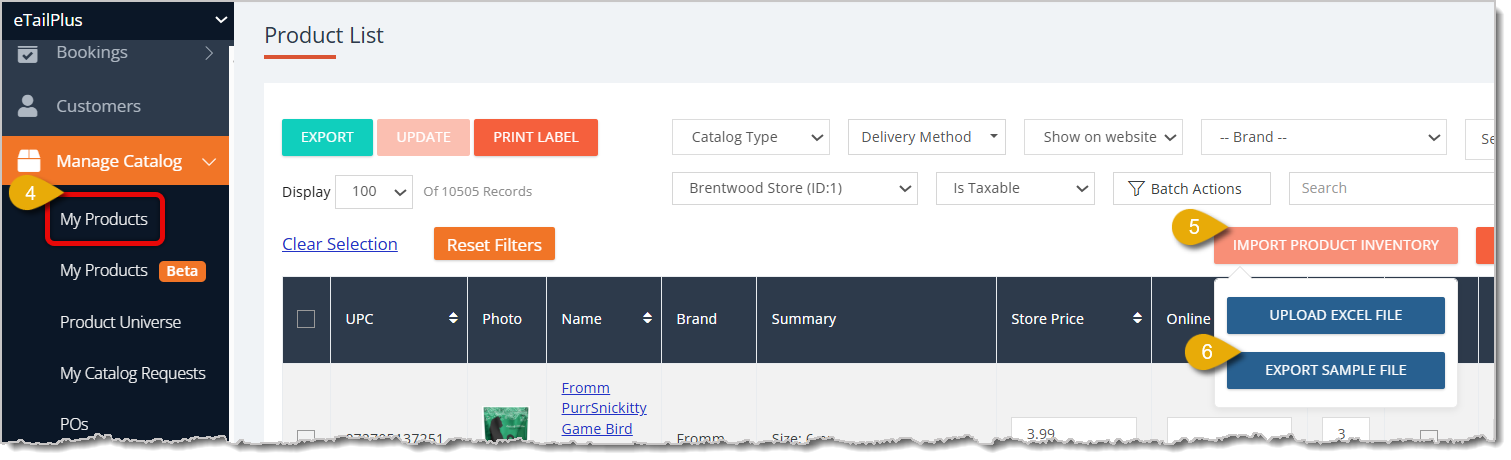
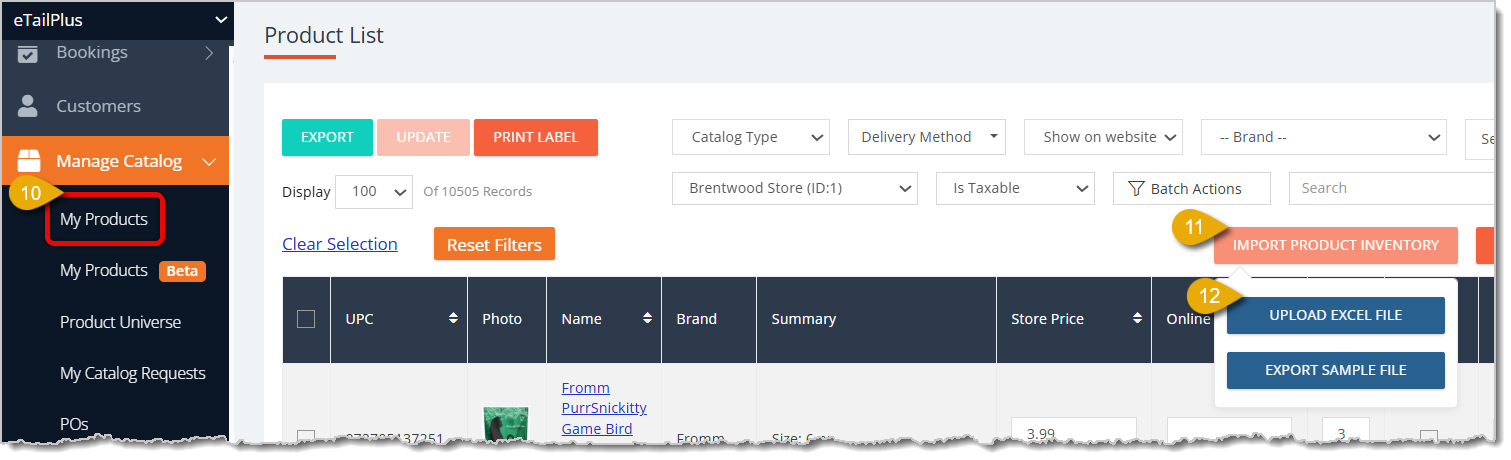
If the average cost for a product isn't accurate because you imported a product file or updated your inventory without a unit cost, you can fix it using the import method again. Here's what to do:
Max Per Cart vs. Quantity On Hand
Q: Why does my COGS show as $0 for some products?
A: This happens whenever inventory gets added without a cost attached — during an inventory count, a manual addition, a PO check-in, or a QOH import — and no Vendor cost or manual cost was entered at the time.
Q: What's the difference between COG and COGS?
A: COG is what you've paid for your current inventory, the stuff still on your shelves. COGS is what you've paid for inventory that's no longer in stock, because it sold or got written off.
Q: If I fix the cost during Purchase Order approval, does that update my Vendor cost too?
A: No. Editing the cost during PO reconciliation only fixes that one order's COG. You'll hit the same $0 issue again on future orders unless you also update the Vendor cost.
Q: Should I use the Product Manager bulk action or the manual method to fix Average Cost?
A: Use the bulk action for a large batch of products at once (do it after hours if you're touching 200+ items). Use the manual method when you're only fixing one product.
Q: Why does the import-fix method require uploading the file twice?
A: The first import zeroes out the QOH and cost to clear out the inaccurate data. The second import then adds the correct QOH and Unit Cost back in cleanly.
Q: I have a question, but I can't find my answer here. How do I get more assistance?
A: You can ask any question at the number listed here. Contact our support team at (323) 370-0738 for the U.S. and (888) 370-2363 for Canada.
Is this page helpful?
×Help us improve our articles