For the area of Discounts and Promotional Reports in the eTailPet system, we have two reports: the Discount Summary Report and the Discount Line Report. This article will show you how to work with both of them. See how you can use these reports together to understand your discount activity at both a high level and a granular level!

To begin working with your Discount and Promotional Reports, in the main system menu, go to Reports. Scroll down to the Discounts & Promotional section and you'll see the available reports. This area allows you to work with the following reports:
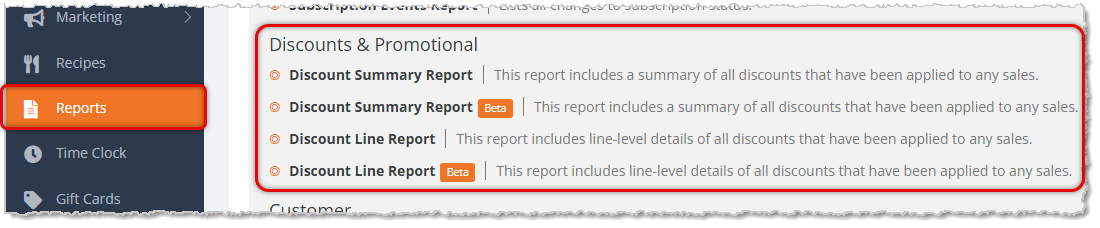
The Discount Summary Report
The Discount Summary Report has the following functions:
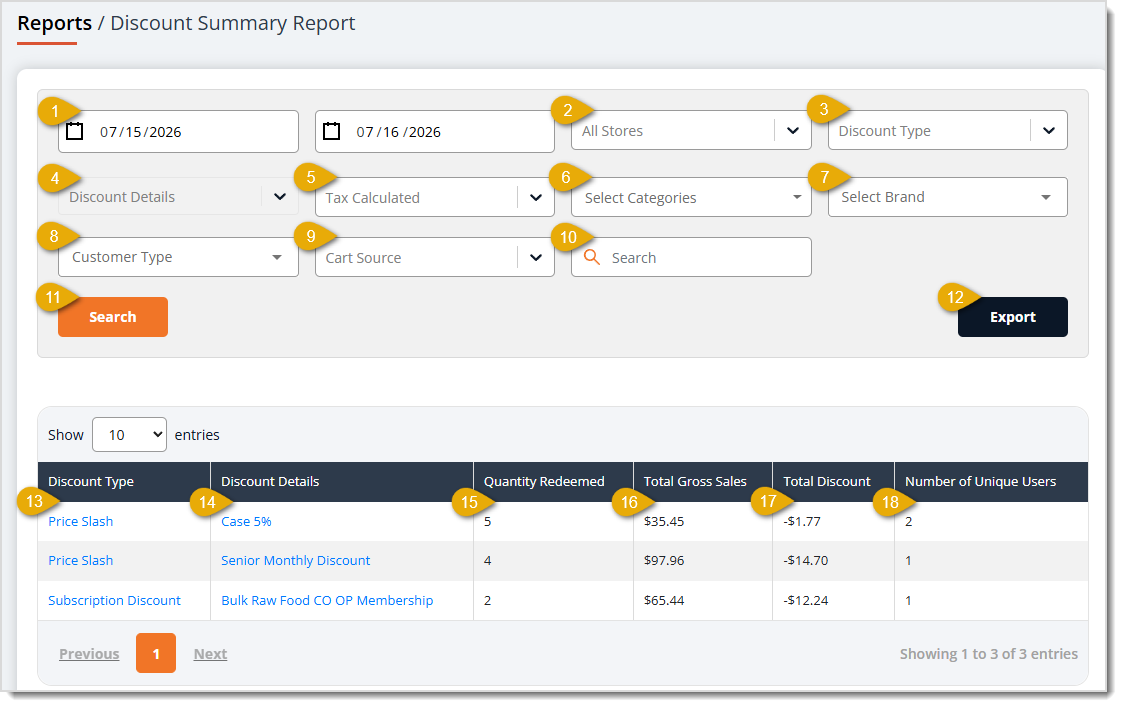
- Date Range — Enter or select the Start Date and End Date of the range you want to search. By default you'll see discount activity for the past 24 hours.
- Stores — Select a store from the drop-list to filter results to that store, or leave it set to All Stores to view combined data.
- Discount Type — Select Astro, Auto Order Discount, Cash Discount, Discount Override, Manufacturer Coupon, Price Slash, Promo Code, Reward Credit (In-House), or Subscription Discount from the drop-list to filter the table to that type of discount.
- Discount Details — Select a specific discount detail from the drop-list to filter the table to that item. Discount Details include Applied Manually at Checkout, FBC (Frequent Buyer Card), Loyalty Points, Offer, and Redemption. for some reason this isn't selectable on my end
- Tax Calculated — Select Gross or Net from the drop-list to determine whether the sales totals in the table include tax.
- Select Categories — Check the boxes for one or more product Categories from this drop-list to filter the table to those Categories.
- Select Brand — Enter at least three characters to search for and select a Brand to filter the data in the table to just that Brand.
- Customer Type — Enter at least three characters to search for and filter by a specific Customer Type you have saved in the system.
- Cart Source — Select Instore or Online from the drop-list to filter the table to that sales channel.
- Search Field — Enter a keyword in this field to search the table's records.
- Search Button — Click the Search button after entering your filters to narrow down the data table's records.
- Export — Click the Export button to download the table's data as a CSV file.
- Discount Type — This column displays the type of discount applied. Click the discount type to open the Discount Line Report showing only the discount type you selected.
- Discount Details — This column displays the discount's specific name or code. Click the item to open its details.
- Quantity Redeemed — This column displays how many times the discounts were redeemed.
- Total Gross Sales — This column displays the gross sales total for lines that used the discounts.
- Total Discount — This column displays the total dollar amount discounted.
- Number of Unique Users — This column displays how many unique customers used the discounts.
The Discount Line Report
The Discount Line Report has the following functions:
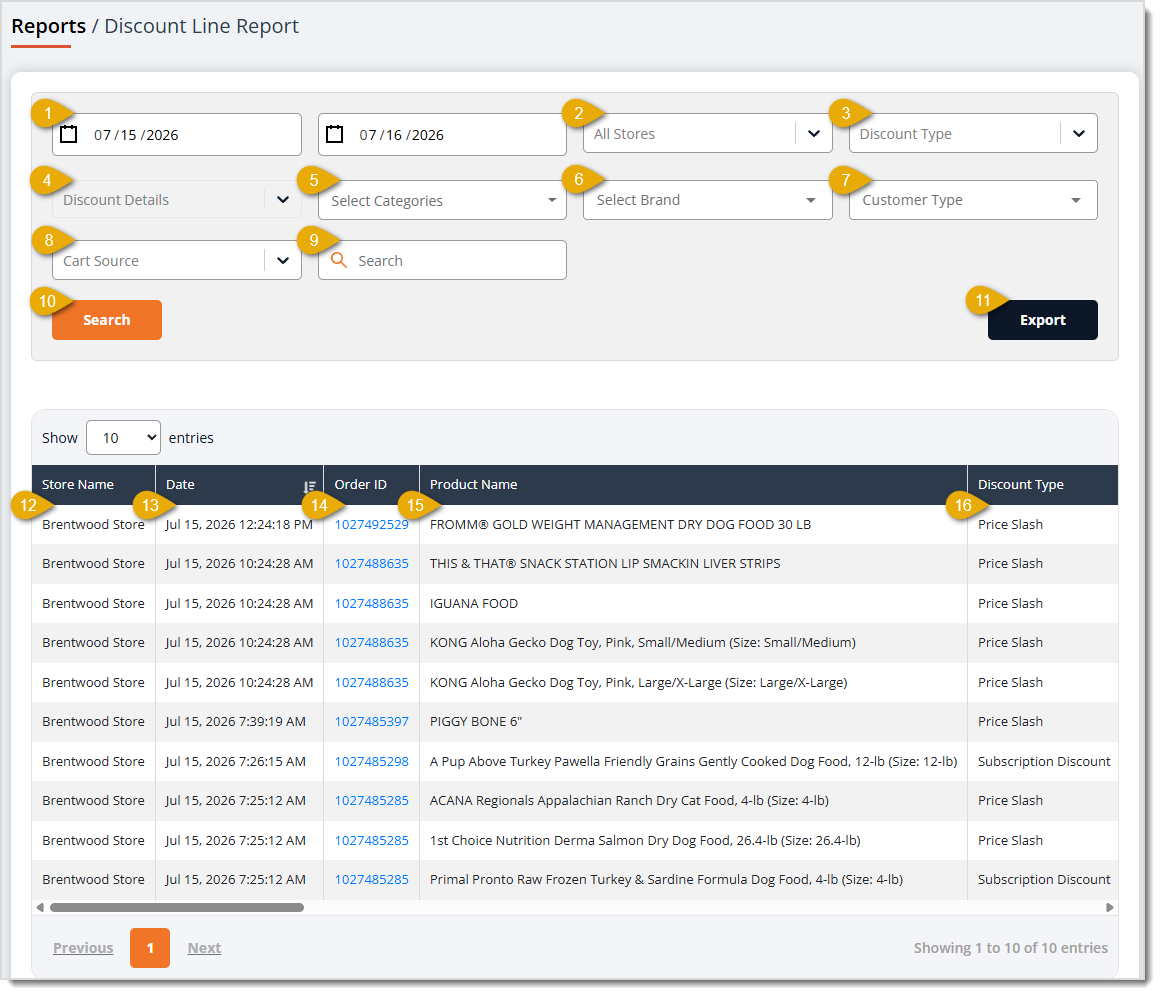
- Date Range — Enter or select the Start Date and End Date of the range you want to search. By default you'll see discount activity for the past 24 hours.
I also see a drop-list for regions. Not sure if that got updated recently?
- Stores — Select one or more stores from the drop-list to filter results to those stores, or leave it set to All Stores to view combined data.
- Discount Type — Select Astro, Auto Order Discount, Cash Discount, Discount Override, Manufacturer Coupon, Price Slash, Promo Code, Reward Credit (In-House), or Subscription Discount from the drop-list to filter the table to that type of discount.
- Discount Details — Select a specific discount detail from the drop-list to filter the table to that item. Discount Details include Applied Manually at Checkout, FBC (Frequent Buyer Card), Loyalty Points, Offer, and Redemption. do we know why this is grayed out?
- Categories — Check the boxes for one or more product Categories from this drop-list to filter the table to those Categories.
- Brand — Enter at least three characters to search for and select a Brand to filter the table to that Brand.
- Customer Type — Enter at least three characters to search for and filter by a specific Customer Type you have saved.
- Cart Source — Select Instore or Online from the drop-list to filter the table to that sales channel.
- Search Field — Enter a keyword in this field to search the table's records.
- Search Button — Click the Search button after entering your filters to narrow down the table's records.
- Export — Click the Export button to download the table's records as a CSV file.
- Store Name — This column displays the Store to which the discounted line belongs.
- Date — This column displays the Date and Time of the sale. Click the Sort Icon next to this column to reorder the table by date.
- Order ID — This column displays the Order IDs for all listed discounts. Click the Order ID in this column to view the full order details.
- Product Name — This column displays the Names of the discounted products.
- Discount Type — This column displays the Types of discount applied to each line.
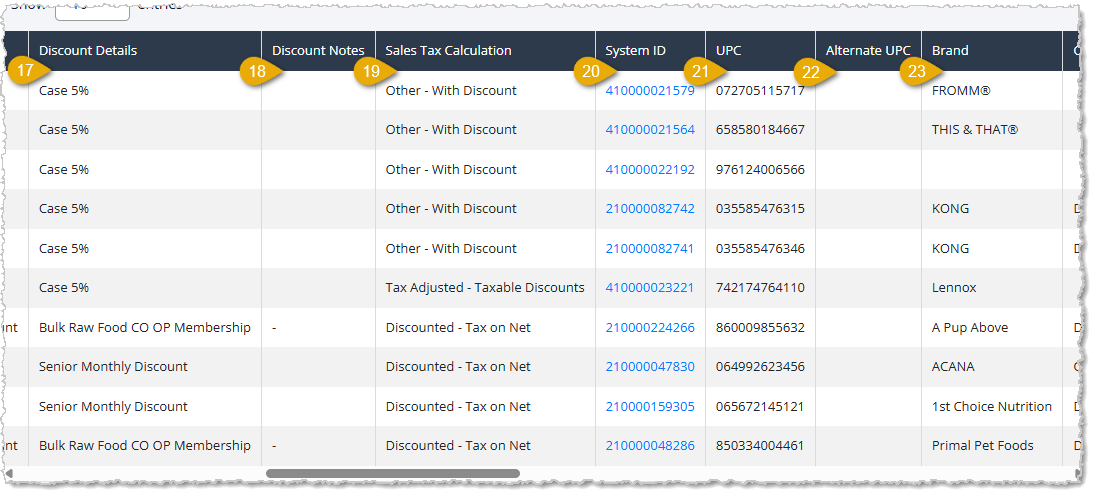
- Discount Details — This column displays the discount's Name.
- Discount Notes — This column displays any Notes that you have saved for the discount.
- Sales Tax Calculation — This column displays how Tax is applied along with the discount, if any.
- System ID — This column displays each product's internal System ID code.
- UPC — This column displays each product's UPC code.
- Alternate UPC — This column displays the product's Alternate UPC, if one exists.
- Brand — This column displays each product's Brand.
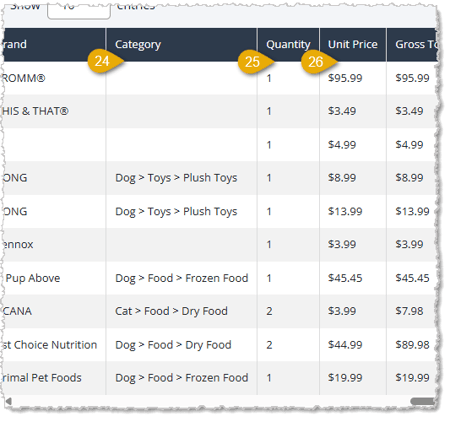
- Category — This column displays the product's Category and Subcategory Path.
- Quantity — This column displays the Quantity in units of each product that was sold for each line.
- Unit Price — This column displays the product's Unit Price before the discount.
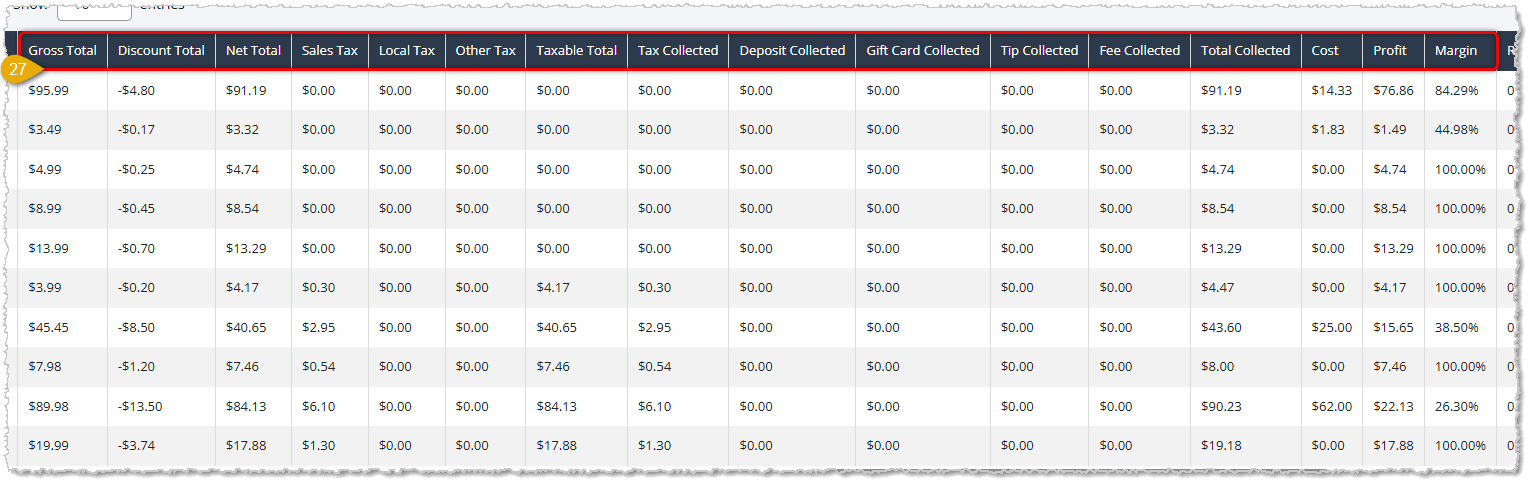
- Financial Breakdown Columns — These columns provide financial details about each discount line's Gross Total, Discount Total, Net Total, Sales Tax, Local Tax, Other Tax, Taxable Total, Tax Collected, Deposit Collected, Gift Card Collected, Tip Collected, Fee Collected, Total Collected, Cost, Profit, and Margin. Use these details to understand exactly how the discount affected each sale financially.
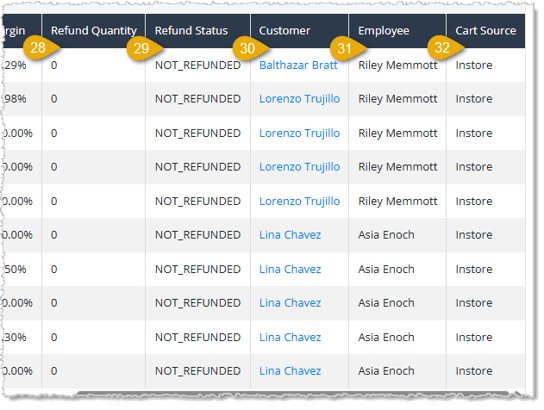
- Refund Quantity — This column displays the Quantity in units of each line that was refunded, if any.
- Refund Status — This column displays whether that line has been refunded or not by listing the Status.
- Customer — This column displays the Customer Name for each customer that received a listed discount. Click the customer's name in this column to view their customer profile.
- Employee — This column displays which Employee processed the sale.
- Cart Source — This column displays whether the sale came from your Instore or Online channel.
Related Topics
Reports Overview
Sales and Refund Reports
Promo Code Configuration
Frequently Asked Questions
Q: What's the difference between the Discount Summary Report and the Discount Line Report?
A: The Discount Summary Report rolls up your discount activity by type and offer, while the Discount Line Report shows the individual product lines behind that activity, including store, order, and customer details.
Q: Can I jump from the Discount Summary Report straight to the underlying line-level detail?
A: Yes. Click a discount type or discount detail in the Discount Summary Report to open the Discount Line Report already filtered to that discount.
Q: What discount types can I filter by in these reports?
A: You can filter by Astro, Auto Order Discount, Cash Discount, Discount Override, Manufacturer Coupon, Price Slash, Promo Code, Reward Credit (In-House), and Subscription Discount.
Q: Why doesn't the Discount Line Report have a Tax Calculated filter like the Discount Summary Report?
A: The Discount Line Report already breaks out Sales Tax, Local Tax, Other Tax, and Taxable Total as separate columns, so a Gross/Net toggle isn't needed at the line level.
Q: Can I download either report to work with it outside the system?
A: Yes. Click Export on either report to download the current table's records as a CSV file.
Q: I have a question, but I can't find my answer here. How do I get more assistance?
A: You can ask any question at the number listed here. Contact our support team at (323) 370-0738 for the U.S. and (888) 370-2363 for Canada.







 Jul 15, 2026
Is this page helpful?
×Help us improve our articles