






Sales and Refund Reports 3
 Jun 18, 2026
📃 View your Sales and Refund reports to get closer insights into your store's activities. This article will cover these reports in the eTailPet system:
Please Note: This article covers the third part of the Sales and Refund reports series. To learn about all other Sales and Refund reports, click here for part 1 or here for part 2 of the series.
Accessing Your Sales and Refund Reports
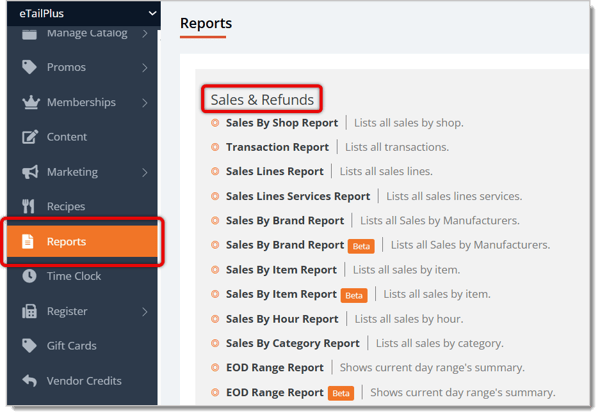
To find all of your Sales and Refund reports, do the following:
- Go to Reports from the eTailPet main menu.
- Under the Sales and Refunds section, you'll see a list of all related reports. Click on the report you need.
Sales By Employee
The Sales By Employee Report shows how much each employee has made the store in sales.
Here is what you can use and view in this report:
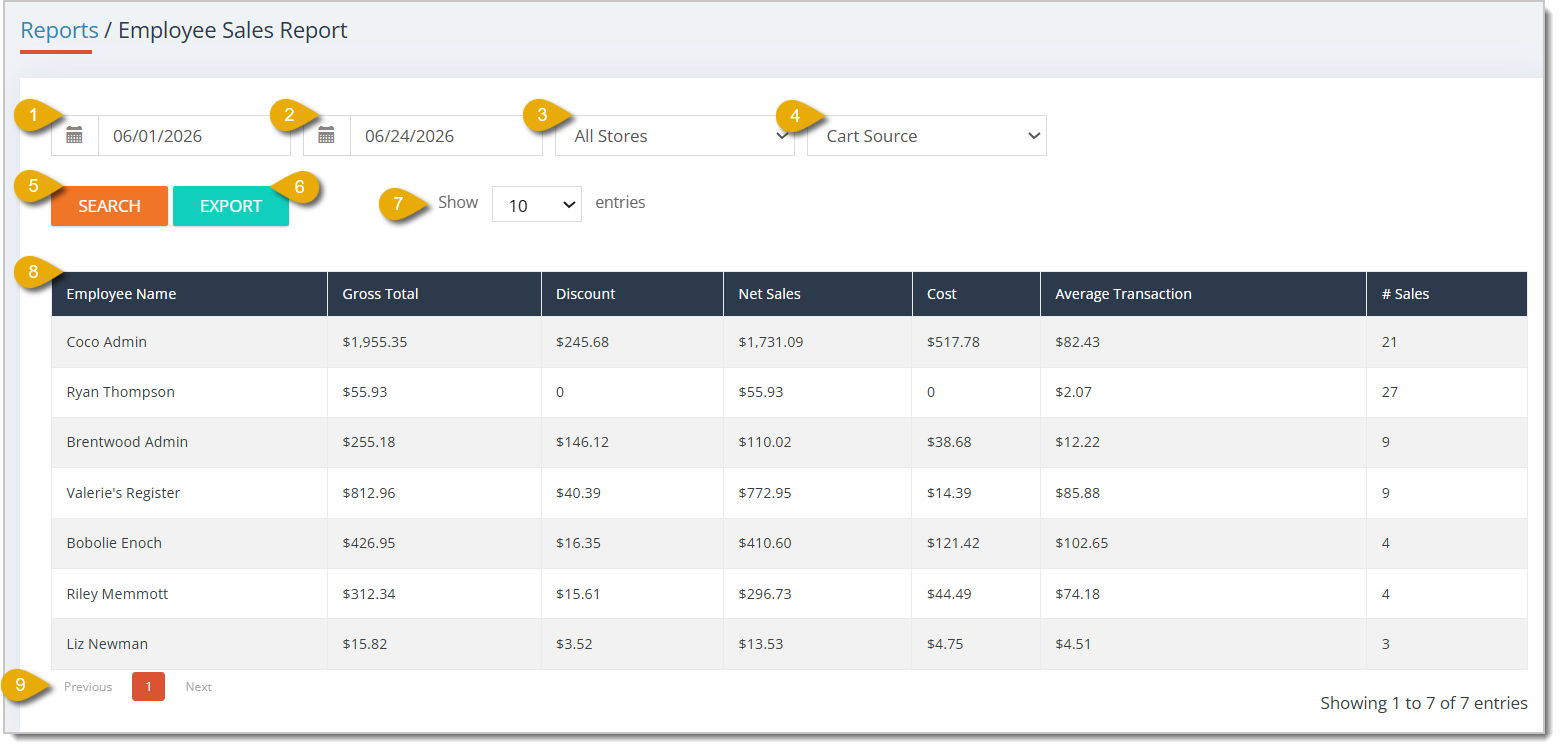
- Start Date — By default, the report will show data for the current day. If you want to view a different time period, you can change the Start Date by clicking in the first date field.
- End Date — By default, the report will set the End Date as the following day. You can click into this field to change it.
- Store Filter — You can filter the report's data to a specific store.
- Cart Source Filter — You can filter the report's data to sales from a certain cart source (online or in-store).
- Search Button — After configuring any filter above this button, click on the Search button to get the corresponding data in your report.
- Export — You can export your report as a CSV file by clicking on the Export button.
- Show Number of Entries — You can view a certain number of entries per page in this report by selecting a number in this drop-list.
- Data Table — You can view the report's data, which is set for the time period specified above, in this table. This is every column you can view in this report:
- Employee Name — This column shows the employee's name for the sales data.
- Gross Total — This column shows the gross total dollar amount the employee made in sales during the time period.
- Discount — This column shows the total amount in discounts that the employee applied to customer transactions during the time period.
- Net Sales — This column shows the total amount in net sales (before sales tax is applied) the employee made during the time period.
- Cost — This column shows the total cost of the products the employee sold during the time period.
- Average Transaction — This column shows the average dollar amount the employee made in sales per transaction during the time period.
- Number of Sales — This column shows the total number of transactions the employee handled during the time period.
-
Navigate — If your report spans multiple pages, you can navigate between pages by clicking on the Page Number to skip to that page, or by clicking either Next or Previous.
Tip Report
The Tip Report shows how much your store collected in tips during a specified time period. Tips are created as Private Products in the system and can be for whatever amount the customer wants to give.
Here is what you can use and view in this report:
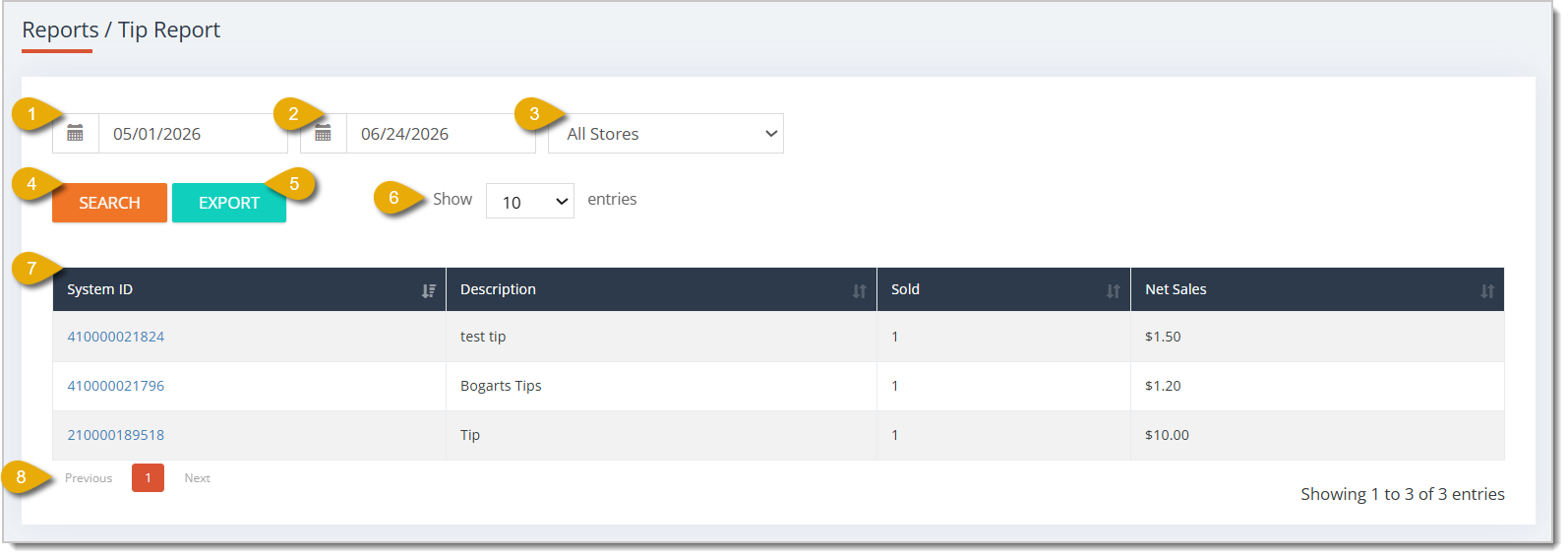
- Start Date — By default, the report will show data for the current day. If you want to view a different time period, you can change the Start Date by clicking in the first date field.
- End Date — By default, the report will set the End Date as the following day. You can click into this field to change it.
- Store Filter — You can filter the report's data to a specific store.
- Search Button — After configuring your filters, click on the Search button to get the corresponding data in your report.
- Export — You can export your report as a CSV file by clicking on the Export button.
- Show Number of Entries — You can view a specified number of entries per page in this report by selecting a number in this drop-list.
- Data Table — You can view the report's data, which is set for the time period specified above, in this table. This is every column you can view in this report:
- System ID — This column shows the tip's System ID. You can click on the ID to open the Tip product and view its full details.
- Description — This column shows a short description for the tip.
- Sold — This column shows how many tips were applied in the transaction.
- Net Sales — This column shows the total amount of the transaction's tip.
- Navigate — If your report spans multiple pages, you can navigate between pages by clicking on the Page Number to skip to that page, or by clicking either Next or Previous.
Donation Report
The Donation Report shows how much your store collected in donations during a specified time period.
Here is what you can use and view in this report:
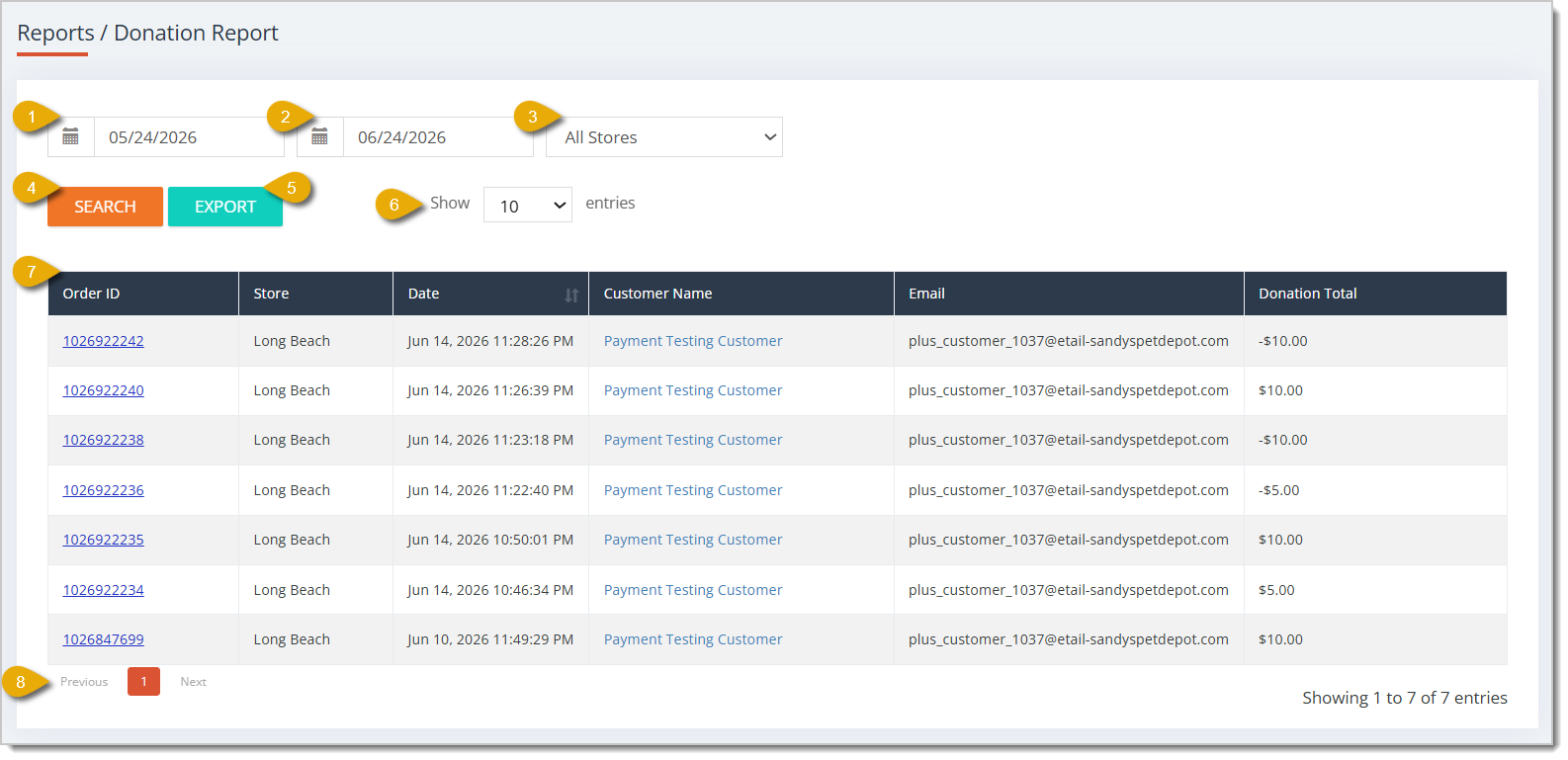
- Start Date — By default, the report will show data for the current day. If you want to view a different time period, you can change the Start Date by clicking in the first date field.
- End Date — By default, the report will set the End Date as the following day. You can click into this field to change it.
- Store Filter — You can filter the report's data to a specific store.
- Search Button — After configuring any filter above this button, click on the Search button to get the corresponding data in your report.
- Export — You can export your report as a CSV file by clicking on the Export button.
- Show Number of Entries — You can view a certain number of entries per page in this report by selecting a number in this drop-list.
- Data Table — You can view the report's data, which is set for the time period specified above, in this table. This is every column you can view in this report:
- Order ID — This column shows the Order ID of the donation.
- Store — This column shows the store that received the donation.
- Date — This column shows the date and time of the donation.
- Customer Name — This column shows the name of the customer who donated if they were added to the transaction.
- Email — This column shows the email address of the customer who donated if one was added to the transaction.
- Donation Total — This column shows the dollar amount of an individual donation.
- Navigate — If your report spans multiple pages, you can navigate between pages by clicking on the Page Number to skip to that page, or by clicking either Next or Previous.
Out Of Stock Sellers Report
The Out of Stock Sellers Report shows all products that are currently out of stock at your store (has a Quantity On Hand of zero) and have been active sellers. You can use this report to check on product demand and decide if you should adjust reorder quantities.
Here is what you can use and view in this report:
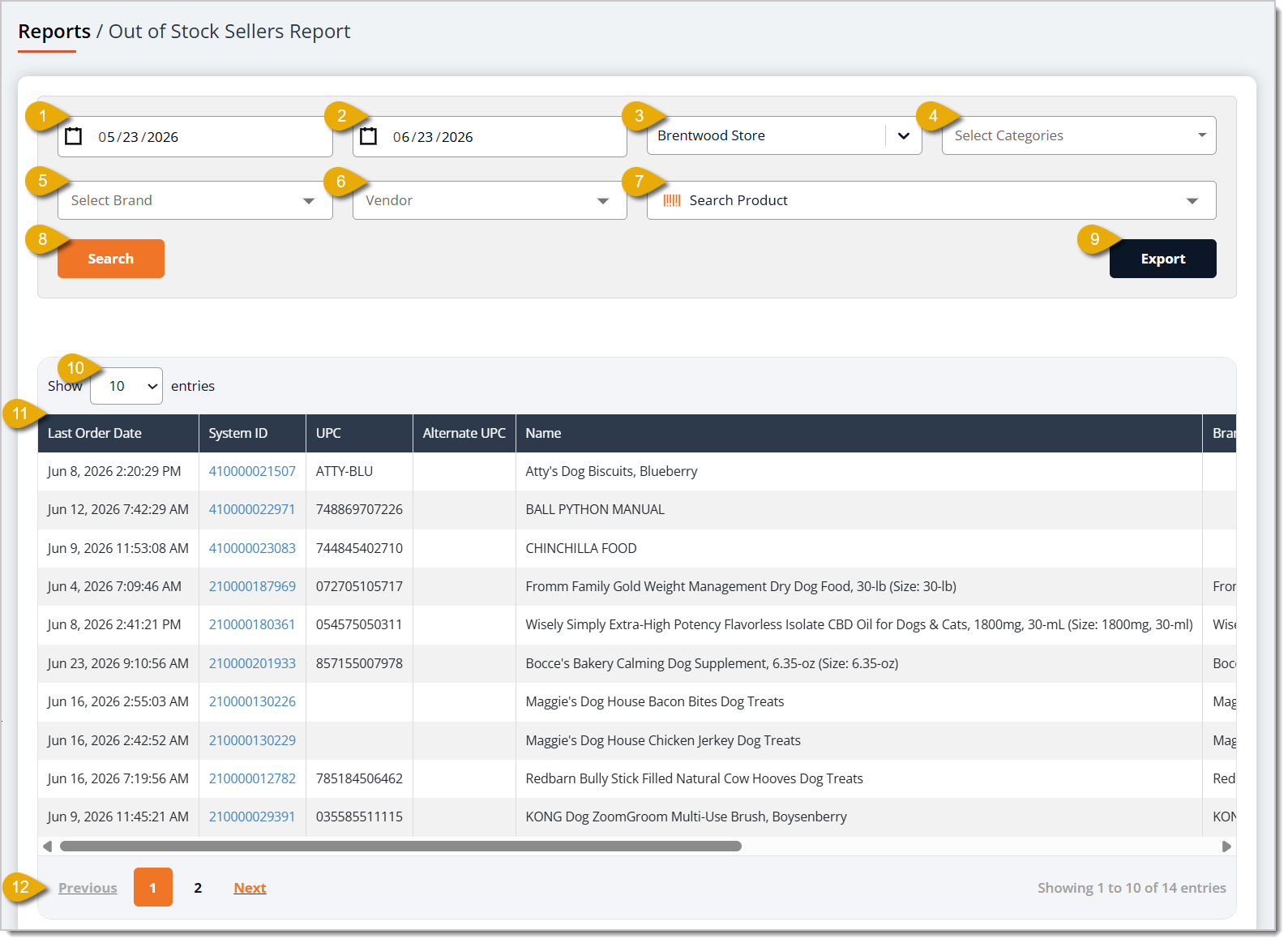
- Start Date — By default, the report will show data for the current day. If you want to view a different time period, you can change the Start Date by clicking in the first date field.
- End Date — By default, the report will set the End Date as the following day. You can click into this field to change it.
- Store Filter — You can filter the report's data to a specific store.
- Select Categories — You can filter the report's data to products from specific categories. You can select more than one category.
- Select Brand — You can filter the report's data to products from specific brands.
- Vendor Filter — You can filter the report's data to products from vendors you choose.
- Search Product — You can enter a product's System ID, UPC, or Name in this field to find data that matches.
- Search Button — After configuring any filter above this button, click on the Search button to get the corresponding data in your report.
- Export — You can export your report as a CSV file by clicking on the Export button.
- Show Number of Entries — You can view a certain number of entries per page in this report by selecting a number in this drop-list.
- Data Table — You can view the report's data in this table. This is every column you can view in this report:
- Last Order Date — This column shows the date and time when the product was last sold.
- System ID — This column shows the product's System ID.
- UPC — This column shows the product's UPC.
- Alternate UPC — This column shows the product's Alternate UPC.
- Name — This column shows the product's Name.
- Brand — This column shows the Brand of the product.
- Vendor — This column shows the Vendor from whom you order this product.
- Category — This column shows the Category of the product.
- Units Sold — This column shows how many units of the product you've sold in the specified time period.
- Average Price Per Unit — This column shows the average price for one unit of the product in the specified time period.
- Navigate — If your report spans multiple pages, you can navigate between pages by clicking on the Page Number to skip to that page, or by clicking either Next or Previous.
Refund Report
The Refund Report shows data on all refunds for your store for whatever date range you choose.
Here is what you can use and view in this report:
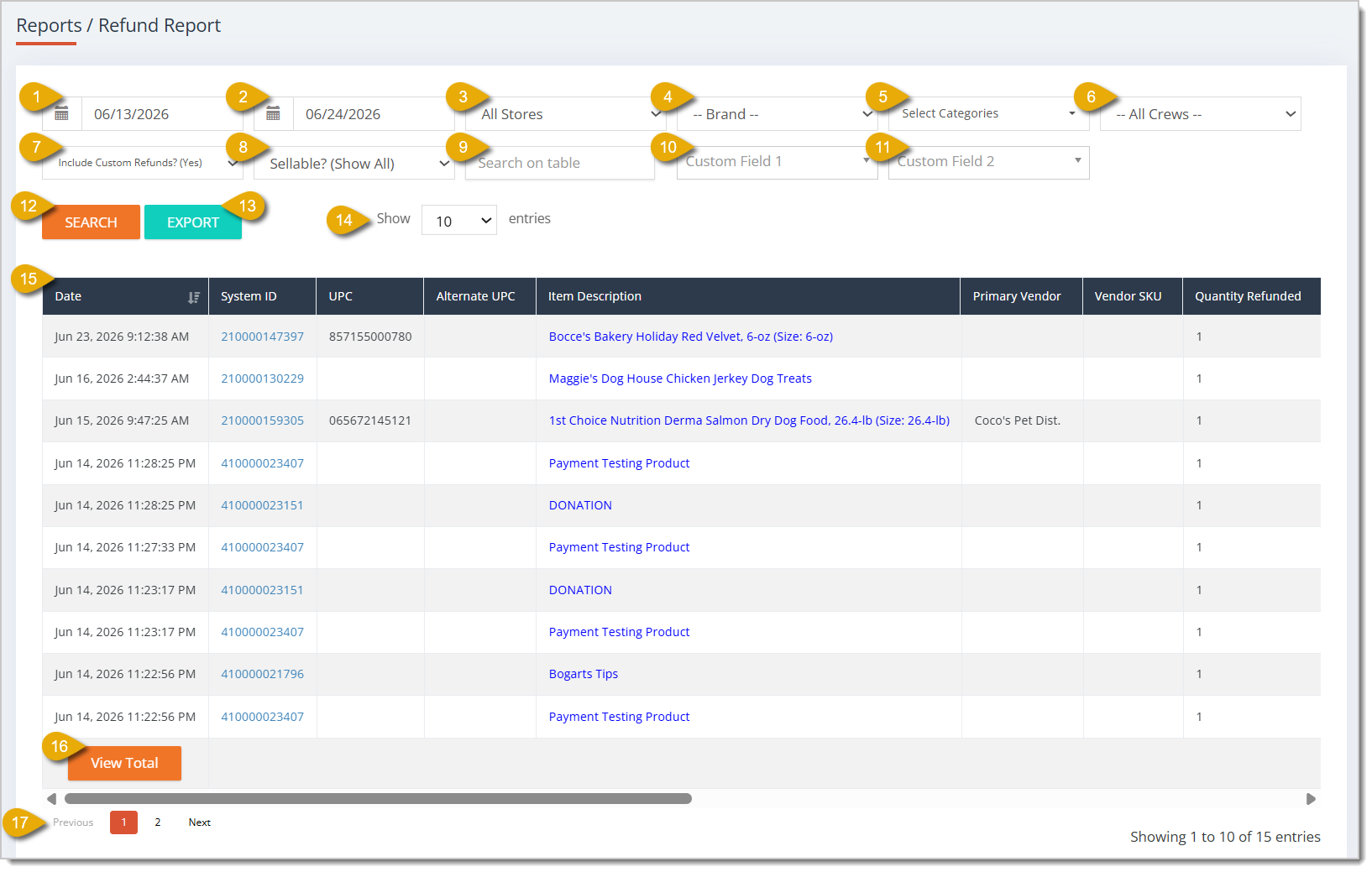
- Start Date — By default, the report will show data for the current day. If you want to view a different time period, you can change the Start Date by clicking in the first date field.
- End Date — By default, the report will set the End Date as the following day. You can click into this field to change it.
- Store Filter — You can filter the report's data to a specific Store.
- Select Brand — You can filter the report's data to products from a specific Brand.
- Select Categories — You can filter the report's data to products from specific Categories. You can select more than one category.
- Crews Filter — You can filter the report's data to just ones handled by an Employee you choose from the drop-list.
- Custom Refunds Filter — You can select to include custom refunds, show only custom refunds, or exclude custom refunds in the data.
- Sellable Filter — You can filter the report's data to refunded products that were or were not sellable.
- Search on Table — You can enter a product's System ID, UPC, or Item Description (Name) in this field to find data that matches.
- Custom Field 1 — If you've configured a custom field filter, you can select the filter you need here.
- Custom Field 2 — If you've configured a custom field filter, you can select the filter you need here.
- Search Button — After configuring any filter above this button, click on the Search button to get the corresponding data in your report.
- Export — You can export your report as a CSV file by clicking on the Export button.
- Show Number of Entries — You can view a certain number of entries per page in this report by selecting a number in this drop-list.
- Data Table — You can view the report's data in this table. This is every column you can view in this report:
- Date — This column shows the Date and Time of the refund.
- System ID — This column shows the refunded product's System ID.
- UPC — This column shows the refunded product's UPC.
- Alternate UPC — This column shows the refunded product's Alternate UPC.
- Item Description — This column shows the Item Description (Name) of the refunded product.
- Primary Vendor — This column shows the Primary Vendor from which your store orders the refunded product.
- Vendor SKU — This column shows the SKU of the Primary Vendor for the refunded product.
- Quantity Refunded — This column shows how many units of the product were refunded.
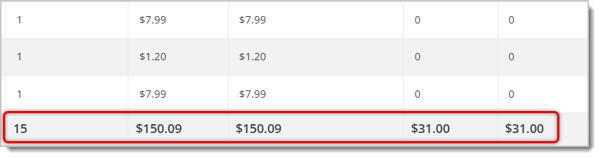
- View Total — Clicking on the View Total button will add a row that shows the totals of each column, combining all values from all transactions in the page.
- Navigate — If your report spans multiple pages, you can navigate between pages by clicking on the Page Number to skip to that page, or by clicking either Next or Previous.
Related Topics
Frequently Asked Questions
Q: Why doesn't the Sales By Employee Report match what an employee was actually paid out?
A: This report measures sales activity, not payroll. Net Sales is the amount before sales tax is applied, and Discount reflects discounts the employee applied to customer transactions. It does not account for commission, hours worked, or tips.
Q: My Tip Report is empty even though customers left tips. Why?
A: Tips are created as Private Products in the system, so they only appear in this report if they were rung up as tips on the transaction. Confirm the tip was added to the sale, and check that your date range and Store filter cover the transactions you're looking for.
Q: Some donations in my Donation Report have no customer name or email. Is that a problem?
A: No. The Customer Name and Email columns only populate if a customer was added to the transaction. Guest transactions will show the donation amount and Order ID without customer details.
Q: How is the Out of Stock Sellers Report different from the Non Sellers Report?
A: Out of Stock Sellers shows products that have a Quantity On Hand of zero but have been selling, which helps you spot items you may want to reorder in larger quantities. The Non Sellers Report (covered in part 2 of this series) does the opposite: it shows products you have in stock that aren't selling.
Q: Can I see only the refunds that were issued as custom refunds?
A: Yes. Use the Custom Refunds Filter in the Refund Report. You can choose to include custom refunds, show only custom refunds, or exclude them from the data entirely.
Q: I have a question, but I can't find my answer here. How do I get more assistance?
A: You can ask any question at the number listed here. Contact our support team at (323) 370-0738 for the U.S. and (888) 370-2363 for Canada.
Is this page helpful?
×Help us improve our articles