💻 You can view Online Reports in the eTailPet system to see data on orders that came from your e-commerce platform.
Here is every Online Report you can view and use:
Please Note: This article covers the first part of the Online Reports series. To learn about all other Online Reports, click here for part 2 or here for part 3 of the series.
Part 2 covers these reports:
- Sales Tax Report
- Sales By Item
- Promo Code Report
- Emails
- Price Slash
Part 3 covers these reports:
- Auto Order
- Auto-Order Detail
- End of Day
- Customer Pet Birthday Report
Accessing Online Reports
Here is how to open any of your online reports:
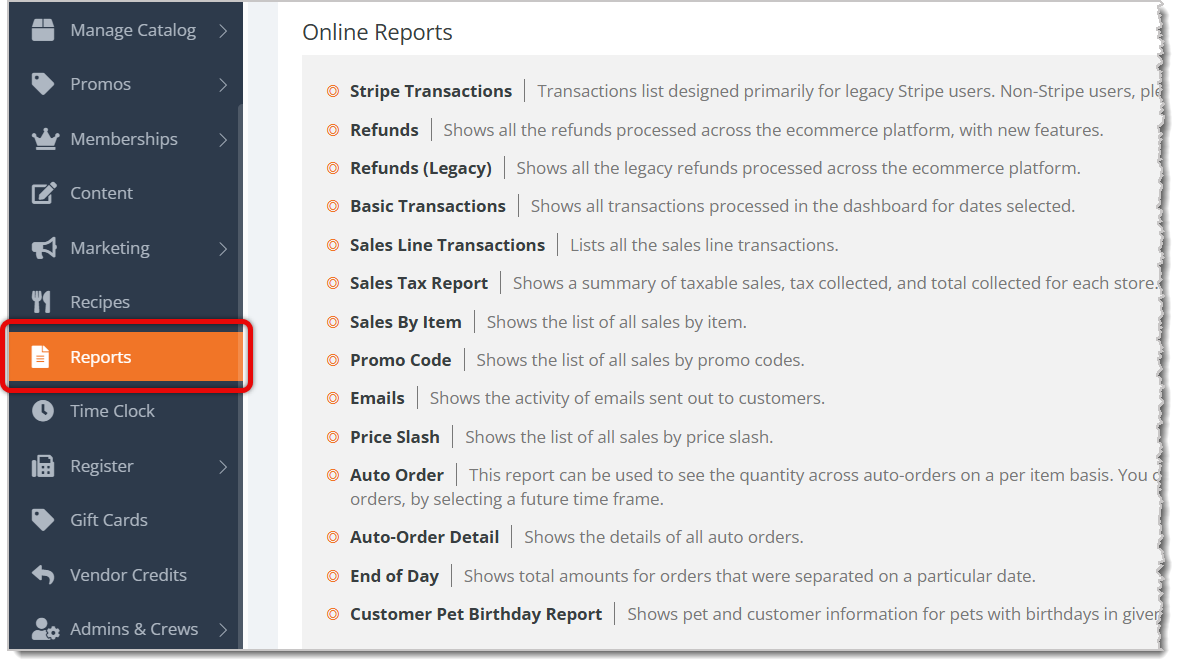
- Click on Reports in the eTailPet main menu.
- Scroll down to the bottom of the page for the Online Reports section.
- Click on the report you want to view.
Stripe Transactions
The Stripe Transactions report shows data on all transactions processed through Stripe. If you do not use Stripe for your online transaction processing, please refer to your merchant dashboard for your card processor.
There are two tabs in the Stripe Transactions report, which show different data:
Transactions Tab
A. Transactions Tab — The report will open to the Transactions tab by default. In this tab, you can view all Stripe transactions, including refunds.
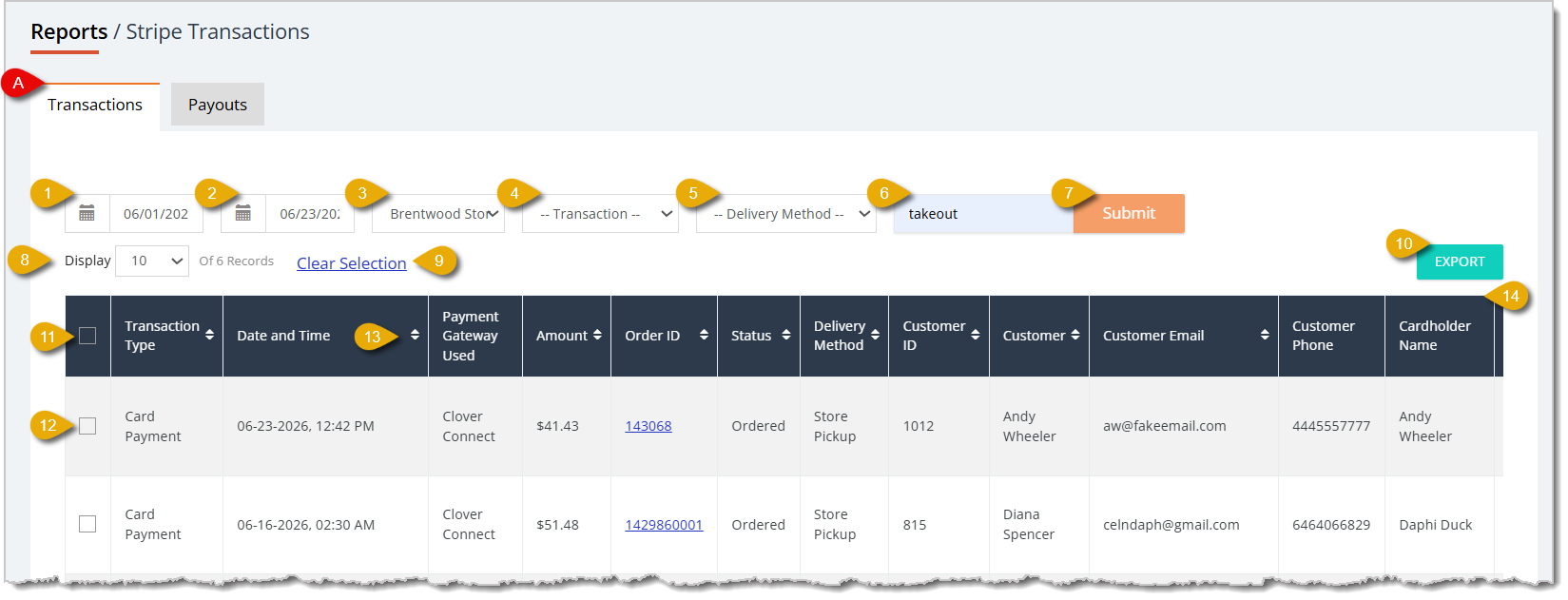
- Start Date — By default, the report will show all-time data. If you want to view a specific time period, you can change the Start Date by clicking in the first date field.
- End Date — To specify the time period for the data, you can click into the second date field to mark an end date.
- Store Filter — You can filter the report's data to a specific store.
- Transaction Type Filter — You can select from this drop-list to filter your data to one type of transaction: Card Payments, Refunds, or Partial Refunds.
- Delivery Method Filter — You can select from this drop-list to filter your data to transactions that used certain delivery methods: Store Pickup, Local Delivery, or Ship to Me.
- Search Field — You can type in a transaction's Order ID or the customer's name into the search field to find matching data.
- Submit Button — After entering any filter, click on Submit to find matching data.
- Show Number of Entries — You can view a certain number of entries per page in this report by selecting a number in this drop-list.
- Clear Selection — If you have data entries selected, click on Clear Selection to unselect all of them.
- Export — You can export your report as a CSV file by clicking on the Export button.
- Select All — You can select all data entries in the table by clicking on the checkbox in the column header.
- Select Individual — You can select an individual data entry in the table by clicking on the checkbox on the left of an entry.
- Sort by Column — You can sort the report's data according to a column by clicking on the Arrows icon to the right of each column name. Click once to sort in ascending order, or click again to reverse the sort.
- Data Table — You can view the report's data, which is set for the time period specified above, in this table. This is every column you can view in this report:
- Transaction Type — This column shows if the transaction was paid for with a card, or if it was a refund or partial refund.
- Date and Time — This column shows the date and time of the transaction.
- Payment Gateway Used — This column shows which payment gateway was used for the Stripe transaction.
- Amount — This column shows the dollar amount the customer was due to pay for their order.
- Order ID — This column shows the transaction's Order ID. You can click on the Order ID to be redirected to the transaction's full details.
- Status — This column shows the Status of the order. For example, Ordered means the order has been submitted but has not been delivered or picked up yet. Statuses include Ordered, Separated, Printed, Picked Up, Shipped, Delivered, Failed, and Canceled.
- Delivery Method — This column shows the Delivery Method of the order: Store Pickup, Home Delivery, or Ship to Me.
- Customer ID — If you added a customer to the transaction, their Customer ID will appear in this column.
- Customer — If you added a customer to the transaction, their Name will appear in this column.
- Customer Email — If you added a customer to the transaction, their Email Address will appear in this column.
- Customer Phone — If you added a customer to the transaction, their Phone Number will appear in this column.
- Cardholder Name — This column shows the name of the cardholder who paid for the order.
- Store Name — This column shows the Name of the store from which the customer made the order.
- Description — This column shows details about the order that includes the Retailer Name, Order Number, and the Employee who processed it.
- Issued By — This column shows which Employee processed the order.
- Subtotal Before Discount — This column shows the dollar amount of the order before any discounts were applied.
- Discount — This column shows the dollar amount of the discounts applied to the order.
- Subtotal Before Tax — This column shows the dollar amount of the order before any tax was applied.
- Tax Collected — This column shows how much in tax your store collected from the order.
- Total Including Tax — This column shows the total dollar amount of the order including tax.
- Merchant Fee — This column shows the card processing merchant fee.
- Net — This column shows the Net Sale your store made from the order.
- Refunded Amount — If the transaction was a refund, this column shows the dollar amount that was refunded to the customer.
- Available Amount — This column shows the dollar amount available to your store. This will usually be the same amount as the amount in the Total Including Tax column.
- Gateway Reference — This column shows the Gateway Reference number for troubleshooting purposes.
- Payout ID — If the transaction was a payout, this column will show the Payout ID.
Payouts Tab
B. Payouts Tab — Click on the Payouts tab to view data on payouts conducted through Stripe.
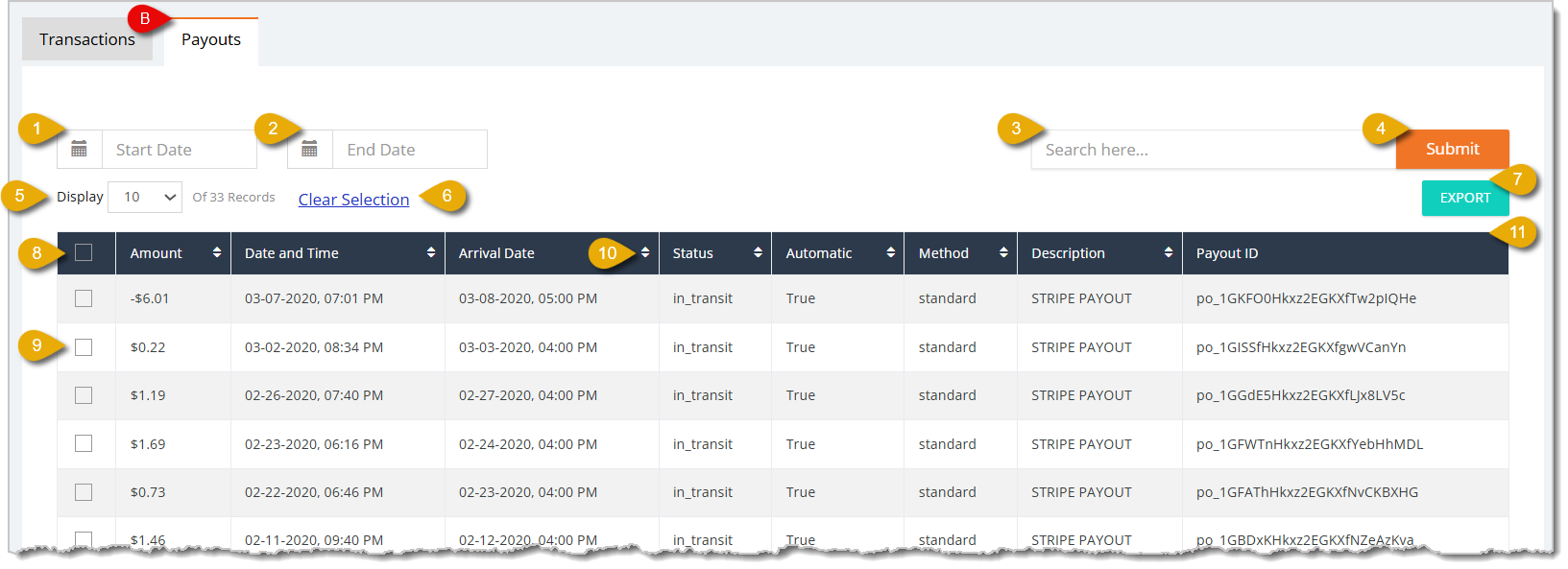
- Start Date — By default, the report will show all-time data. If you want to view a specific time period, you can change the Start Date by clicking in the first date field.
- End Date — To specify the time period for the data, you can click into the second date field to mark an end date.
- Search Field — You can type in a transaction's Order ID or the customer's name into the search field to find matching data.
- Submit Button — After entering any filter, click on Submit to find matching data.
- Show Number of Entries — You can view a certain number of entries per page in this report by selecting a number in this drop-list.
- Clear Selection — If you have data entries selected, click on Clear Selection to unselect all of them.
- Export — You can export your report as a CSV file by clicking on the Export button.
- Select All — You can select all data entries in the table by clicking on the checkbox in the column header.
- Select Individual — You can select an individual data entry in the table by clicking on the checkbox on the left of an entry.
- Sort by Column — You can sort the report's data according to a column by clicking on the Arrows icon to the right of each column name. Click once to sort in ascending order, or click again to reverse the sort.
- Data Table — You can view the report's data, which is set for the time period specified above, in this table. This is every column you can view in this report:
- Amount — This column shows the dollar amount of the payout.
- Date and Time — This column shows the date and time of the payout.
- Arrival Date — This column shows the date and time the payout got to the recipient.
- Status — This column shows the transit status of the payout.
- Automatic — This column shows if the payout was from an auto-order. True means it was, while False indicates it is not.
- Method — This column shows the payout method. Most of the time, this will display as standard.
- Description — This column shows the Description of the payout. This will usually read as Stripe Payout.
- Payout ID — This column shows the payout ID.
Refunds
The online Refunds report shows data for all refunds processed through your e-commerce website.
Here is everything you can use and view in this report:
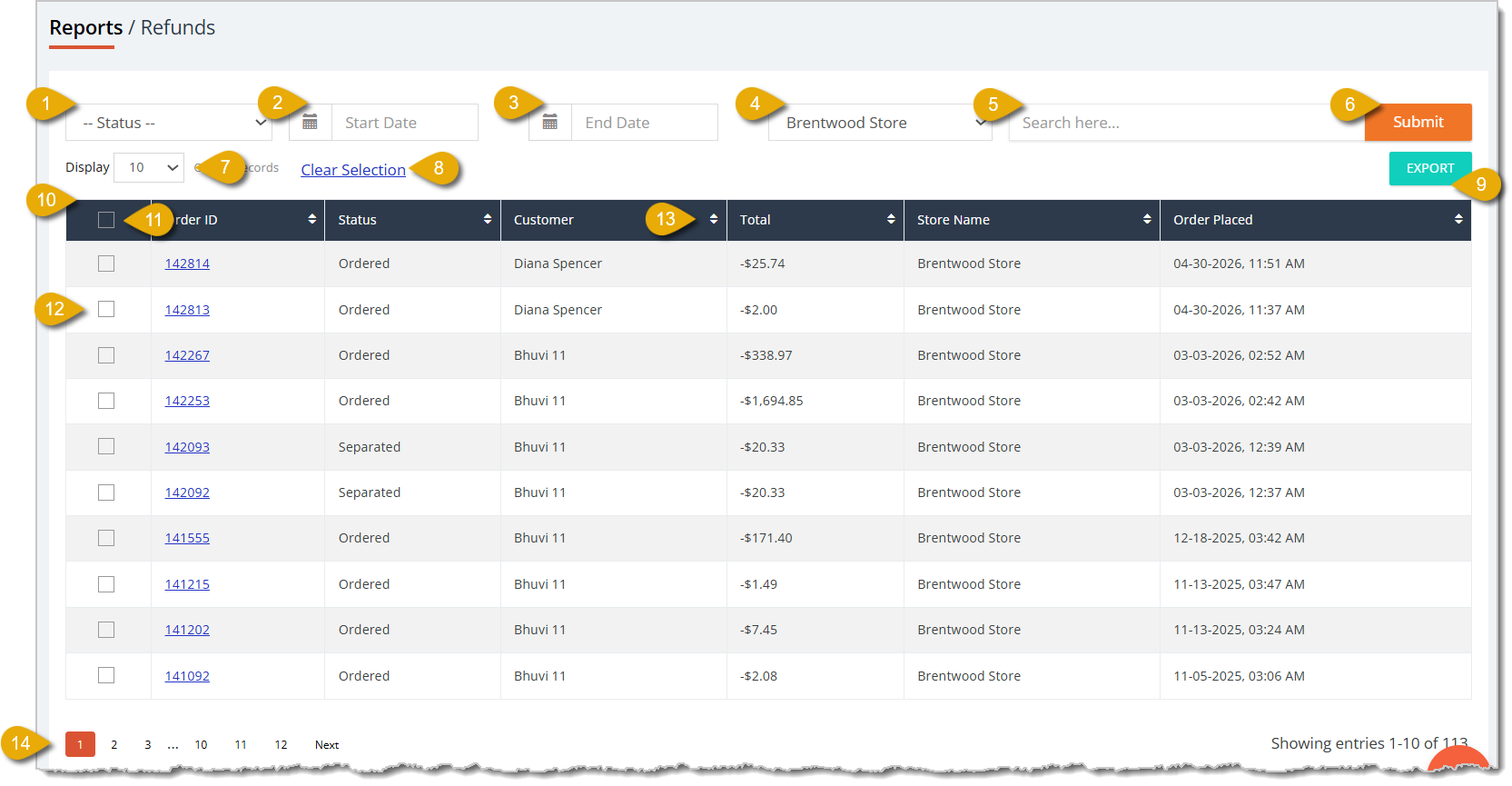
- Status Filter — You can select from this drop-list to filter the report's data to refunds of a certain status:
- Ordered — A customer has placed an order.
- Separated — The item has been separated from the stock for customer pickup or delivery.
- Printed — The shipping label has been printed.
- Picked Up — The order has been picked up by the customer.
- Canceled — The order has been canceled.
- Failed — The order payment failed to process.
- Deferred — The order has been postponed.
- Start Date — By default, the report will show all-time data. If you want to view a specific time period, you can change the Start Date by clicking in the first date field.
- End Date — To specify the time period for the data, you can click into the second date field to mark an end date.
- Store Filter — You can filter the report's data to a specific store.
- Search Field — You can enter a refund's Order ID or the customer's name into the search field to find matching data.
- Submit Button — After entering any filter, click on Submit to find matching data.
- Show Number of Entries — You can view a certain number of entries per page in this report by selecting a number in this drop-list.
- Clear Selection — If you have data entries selected, click on Clear Selection to unselect all of them.
- Export — You can export your report as a CSV file by clicking on the Export button.
- Data Table — You can view the report's data, which is set for the time period specified above, in this table. This is every column you can view in this report:
- Order ID — This column shows the refund's Order ID. You can click on the Order ID to be redirected to the refund's full details.
- Status — This column shows the status of the refund.
- Customer — If you added a customer to the transaction, their name will appear in this column.
- Total — This column shows the dollar total refunded to the customer. Note that since these are refunds, these values will be negative.
- Store Name — This column shows the store that processed the refund.
- Order Placed — This column shows the date and time of the refund.
- Select All — You can select all data entries in the table by clicking on the checkbox in the column header.
- Select Individual — You can select an individual data entry in the table by clicking on the checkbox on the left of an entry.
- Sort by Column — You can sort the report's data according to a column by clicking on the Arrows icon to the right of each column name. Click once to sort in ascending order, or click again to reverse the sort.
- Navigate — If your report spans multiple pages, you can navigate between pages by clicking on the Page Number to skip to that page, or by clicking either Next or Previous.
Refunds (Legacy)
The online Refunds report shows data for all legacy refunds processed through your e-commerce website.
Here is everything you can use and view in this report:
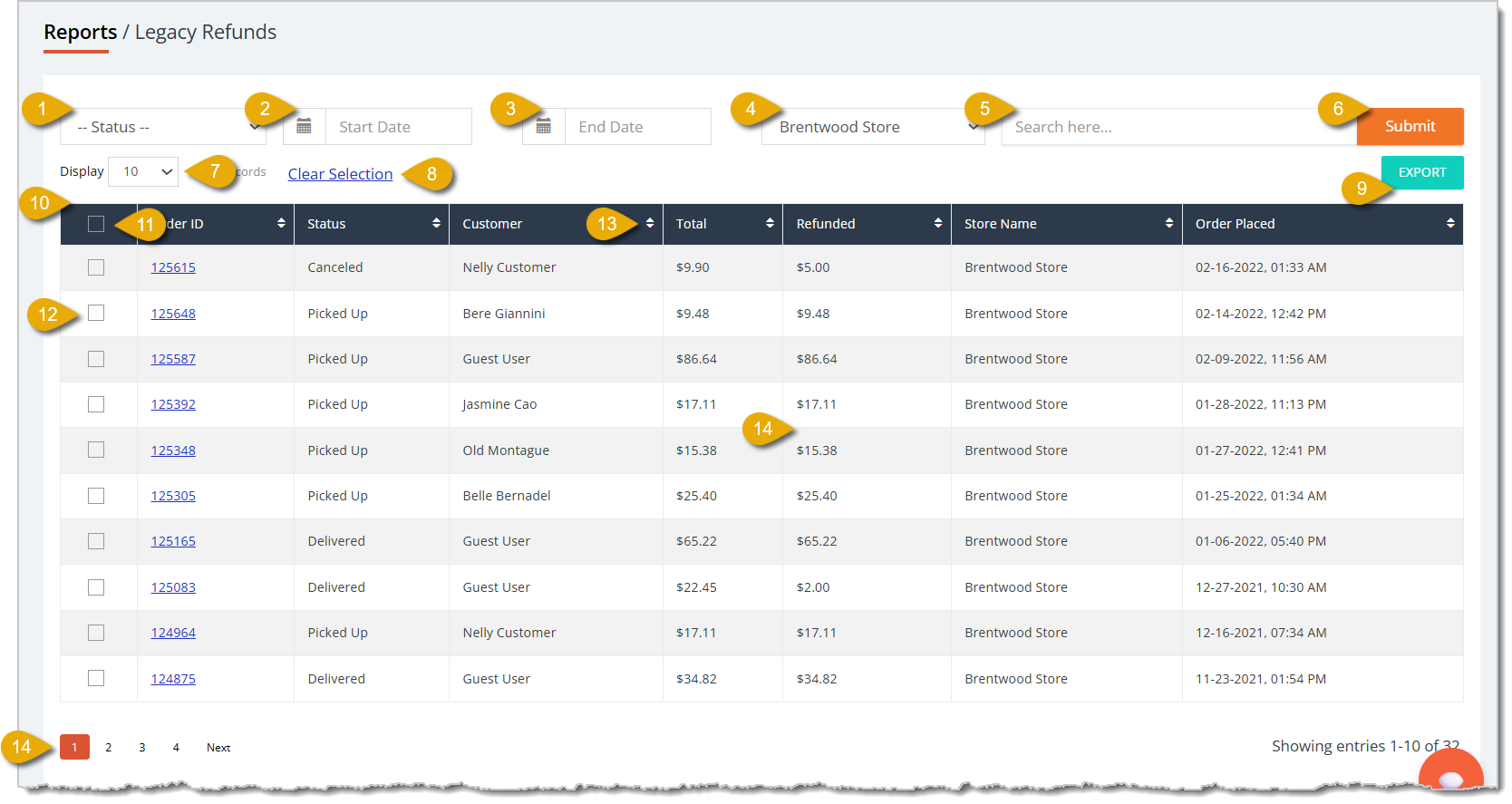
- Status Filter — You can select from this drop-list to filter the report's data to refunds of a certain status:
- Ordered — A customer has placed an order.
- Separated — The item has been separated from the stock for customer pickup or delivery.
- Printed — The shipping label has been printed.
- Picked Up — The order has been picked up by the customer.
- Canceled — The order has been canceled.
- Failed — The order payment failed to process.
- Deferred — The order has been postponed.
- Start Date — By default, the report will show all-time data. If you want to view a specific time period, you can change the Start Date by clicking in the first date field.
- End Date — To specify the time period for the data, you can click into the second date field to mark an end date.
- Store Filter — You can filter the report's data to a specific store.
- Search Field — You can enter a refund's Order ID or the customer's name into the search field to find matching data.
- Submit Button — After entering any filter, click on Submit to find matching data.
- Show Number of Entries — You can view a certain number of entries per page in this report by selecting a number in this drop-list.
- Clear Selection — If you have data entries selected, click on Clear Selection to unselect all of them.
- Export — You can export your report as a CSV file by clicking on the Export button.
- Data Table — You can view the report's data, which is set for the time period specified above, in this table. This is every column you can view in this report:
- Order ID — This column shows the refund's Order ID. You can click on the Order ID to be redirected to the refund's full details.
- Status — This column shows the status of the refund.
- Customer — If you added a customer to the transaction, their name will appear in this column.
- Total — This column shows the dollar total of the original transaction that the customer paid for.
- Refunded — This column shows the dollar amount refunded to the customer.
- Store Name — This column shows the store that processed the refund.
- Order Placed — This column shows the date and time of the refund.
- Select All — You can select all data entries in the table by clicking on the checkbox in the column header.
- Select Individual — You can select an individual data entry in the table by clicking on the checkbox on the left of an entry.
- Sort by Column — You can sort the report's data according to a column by clicking on the Arrows icon to the right of each column name. Click once to sort in ascending order, or click again to reverse the sort.
- Navigate — If your report spans multiple pages, you can navigate between pages by clicking on the Page Number to skip to that page, or by clicking either Next or Previous.
Basic Transactions
The online Basic Transactions report shows records of every transaction that has been processed from your e-commerce website.
Here is everything you can use and view in this report:
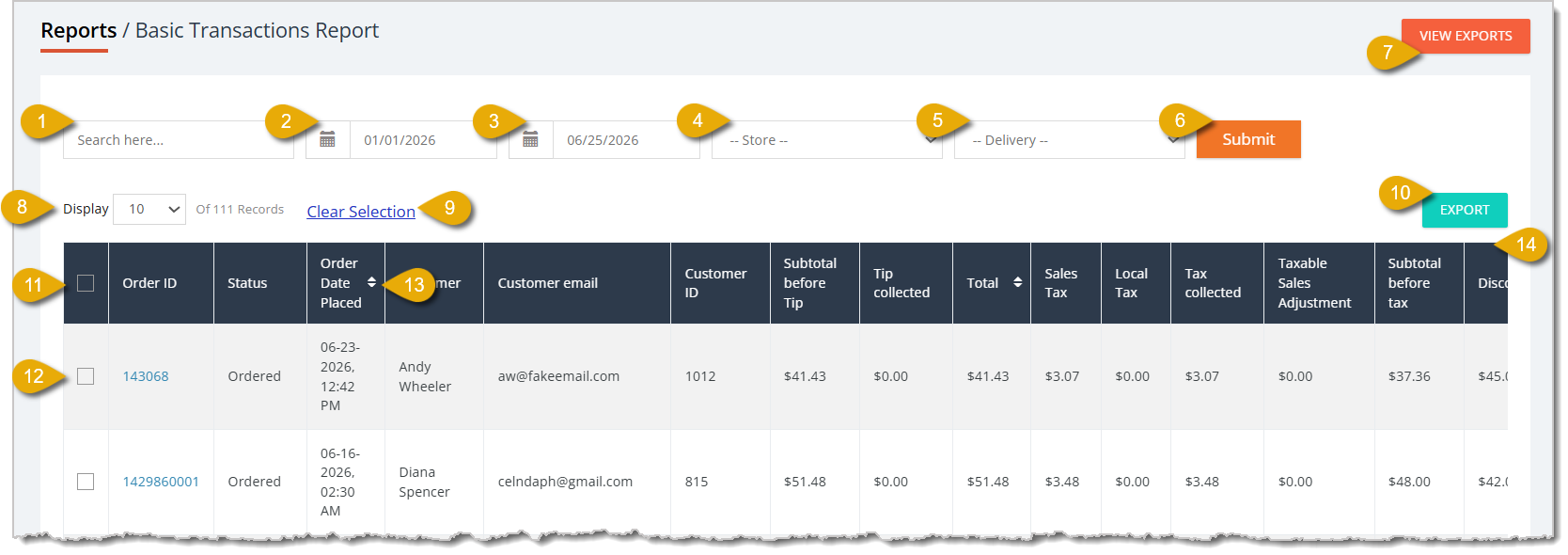
- Search Field — You can type in a transaction's Order ID, or enter a customer's name, email address, or ID into the search field to find matching data.
- Start Date — By default, the report will show all-time data. If you want to view a specific time period, you can change the Start Date by clicking in the first date field.
- End Date — To specify the time period for the data, you can click into the second date field to mark an end date.
- Store Filter — You can filter the report's data to a specific store.
- Delivery Method Filter — You can select from this drop-list to filter your data to transactions that used certain delivery methods: Store Pickup, Local Delivery, or Ship to Me.
- Submit Button — After entering any filter, click on Submit to find matching data.
- View Exports — The View Exports button in the upper right allows you to view a report showing past exported report files. Click here for more information about the Export Report.
- Show Number of Entries — You can view a certain number of entries per page in this report by selecting a number in this drop-list.
- Clear Selection — If you have data entries selected, click on Clear Selection to unselect all of them.
- Export — You can export your report as a CSV file by clicking on the Export button.
- Select All — You can select all data entries in the table by clicking on the checkbox in the column header.
- Select Individual — You can select an individual data entry in the table by clicking on the checkbox on the left of an entry.
- Sort by Column — You can sort the report's data according to a column by clicking on the Arrows icon to the right of each column name. Click once to sort in ascending order, or click again to reverse the sort.
- Data Table — You can view the report's data, which is set for the time period specified above, in this table. This is every column you can view in this report:
- Order ID — This column shows the Order ID of the transaction.
- Status — This column shows the status of the order:
- Ordered — A customer has placed an order.
- Separated — The item has been separated from the stock for customer pickup or delivery.
- Printed — The shipping label has been printed.
- Picked Up — The order has been picked up by the customer.
- Canceled — The order has been canceled.
- Failed — The order payment failed to process.
- Deferred — The order has been postponed.
- Order Date Placed — This column shows the date and time the order was placed.
- Customer — If you added a customer to the order, this column will show their name.
- Customer Email — If you added a customer to the order, this column will show their email address.
- Customer ID — If you added a customer to the order, this column will show their customer ID.
- Subtotal Before Tip — This column shows the subtotal of the order excluding tips.
- Tips Collected — This shows the amount the transaction got your store in tips.
- Total — This column shows the order's total after tips.
- Sales Tax — This column shows the dollar amount of the sales tax applied to the order.
- Local Tax — This column shows the dollar amount of the local tax applied to the order.
- Tax Collected — This shows the total tax your store collected from the sold product.
- Taxable Sales Adjustment — This column shows the dollar amount that was adjusted to the tax applied to the order.
- Subtotal Before Tax — This column shows the subtotal of the order excluding tax.
- Discount — This column shows the dollar amount discounted from the order.
- Subtotal Before Discount — This column shows the subtotal of the transaction excluding discounts.
- Refunded Amount — If the order was refunded, this column shows the dollar amount that was returned to the customer.
- Store Name — This shows the store that processed the order.
- Delivery — This shows the delivery method of the order: Store Pickup, Home Delivery, or Ship to Me.
- Delivery Address — This shows the address to which the order was sent.
- Order Type — This shows if the order was on auto-order or not.
- POS Order Number — If the order payment was processed in-store, this column shows the POS Order Number.
- Customer Date Joined — This shows the date and time the customer signed up with your store.
- Navigate — If your report spans multiple pages, you can navigate between pages by scrolling to the bottom of the page. Then click on the Page Number to skip to that page, or click either Next or Previous.
Sales Line Transactions
The online Sales Line Transactions report shows data for each time a product was sold from your e-commerce website. If there were two different products purchased in the same order, each would have its own sale line in this report. If two of the same item were in the same order, they would be combined as one sales line.
Here is everything you can use and view in this report:
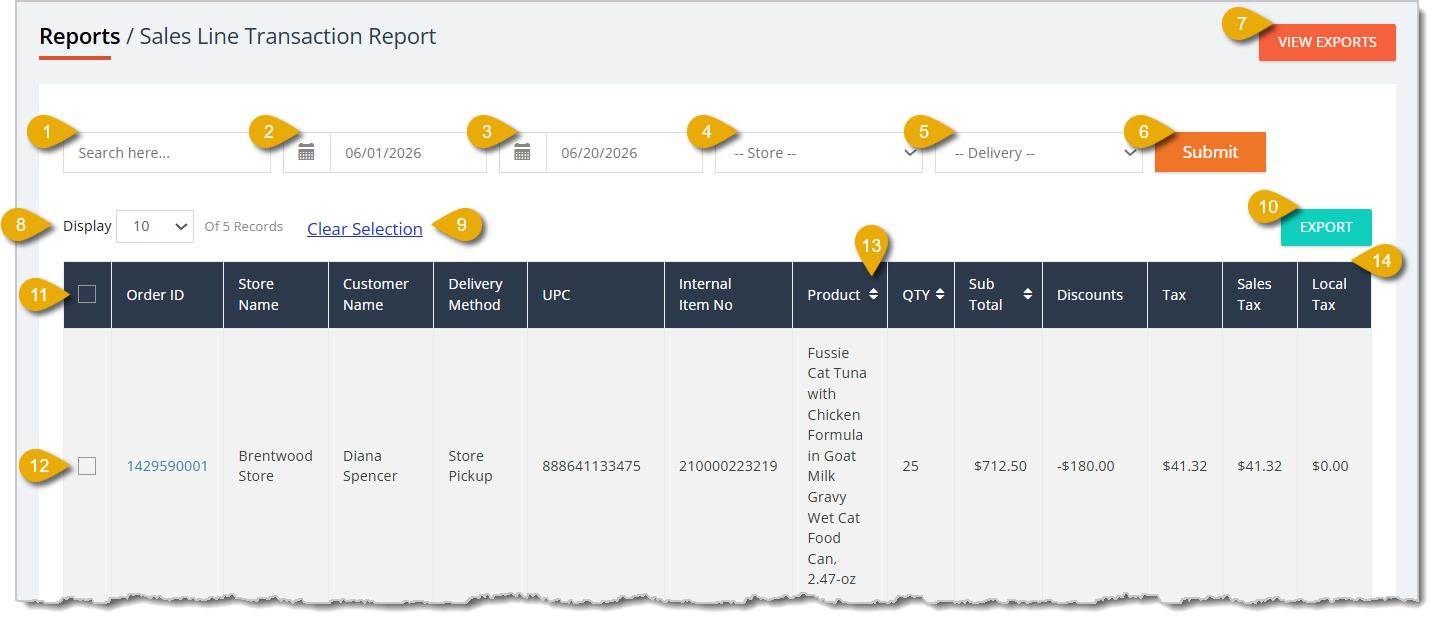
- Search Field — You can type in a transaction's Order ID or UPC into the search field to find matching data. You can also enter a customer's name.
- Start Date — By default, the report will show all-time data. If you want to view a specific time period, you can change the Start Date by clicking in the first date field.
- End Date — To specify the time period for the data, you can click into the second date field to mark an end date.
- Store Filter — You can filter the report's data to a specific store.
- Delivery Method Filter — You can select from this drop-list to filter your data to transactions that used certain delivery methods: Store Pickup, Local Delivery, or Ship to Me.
- Submit Button — After entering any filter, click on Submit to find matching data.
- View Exports — The View Exports button in the upper right allows you to view a report showing past exported report files. Click here for more information about the Export Report.
- Show Number of Entries — You can view a certain number of entries per page in this report by selecting a number in this drop-list.
- Clear Selection — If you have data entries selected, click on Clear Selection to unselect all of them.
- Export — You can export your report as a CSV file by clicking on the Export button.
- Select All — You can select all data entries in the table by clicking on the checkbox in the column header.
- Select Individual — You can select an individual data entry in the table by clicking on the checkbox on the left of an entry.
- Sort by Column — You can sort the report's data according to a column by clicking on the Arrows icon to the right of each column name. Click once to sort in ascending order, or click again to reverse the sort.
- Data Table — You can view the report's data in this table. This is every column you can view in this report:
- Order ID — This column shows the Order ID of the transaction.
- Store Name — This shows the store that processed the order.
- Customer Name — If you added a customer to the transaction, their name will appear in this column.
- Delivery Method — This column shows the Delivery Method of the product: Store Pickup, Home Delivery, or Ship to Me.
- UPC — This column shows the product's UPC.
- Internal Item Number — If your store has an internal item number ID system for products, the corresponding one will appear in this column.
- Product — This column shows the product's Name / Description.
- Quantity — This column shows how many units of the product were sold in the transaction.
- Subtotal — This column shows the product's subtotal amount before discounts and tax.
- Discounts — This column shows the dollar amount discounted from the product during the transaction.
- Tax — This column shows the total tax applied to the product.
- Sales Tax — This column shows the dollar amount of sales tax that was applied to the product.
- Local Tax — This column shows the dollar amount of local tax that was applied to the product.
- Navigate — If your report spans multiple pages, you can navigate between pages by scrolling to the bottom of the page. Then click on the Page Number to skip to that page, or click either Next or Previous.
Export Report
If you click on the View Exports button in some online reports, you'll be redirected to the Export Report. This will show which reports have been exported as CSV files. Note that this report will only show data from the past 3 months.
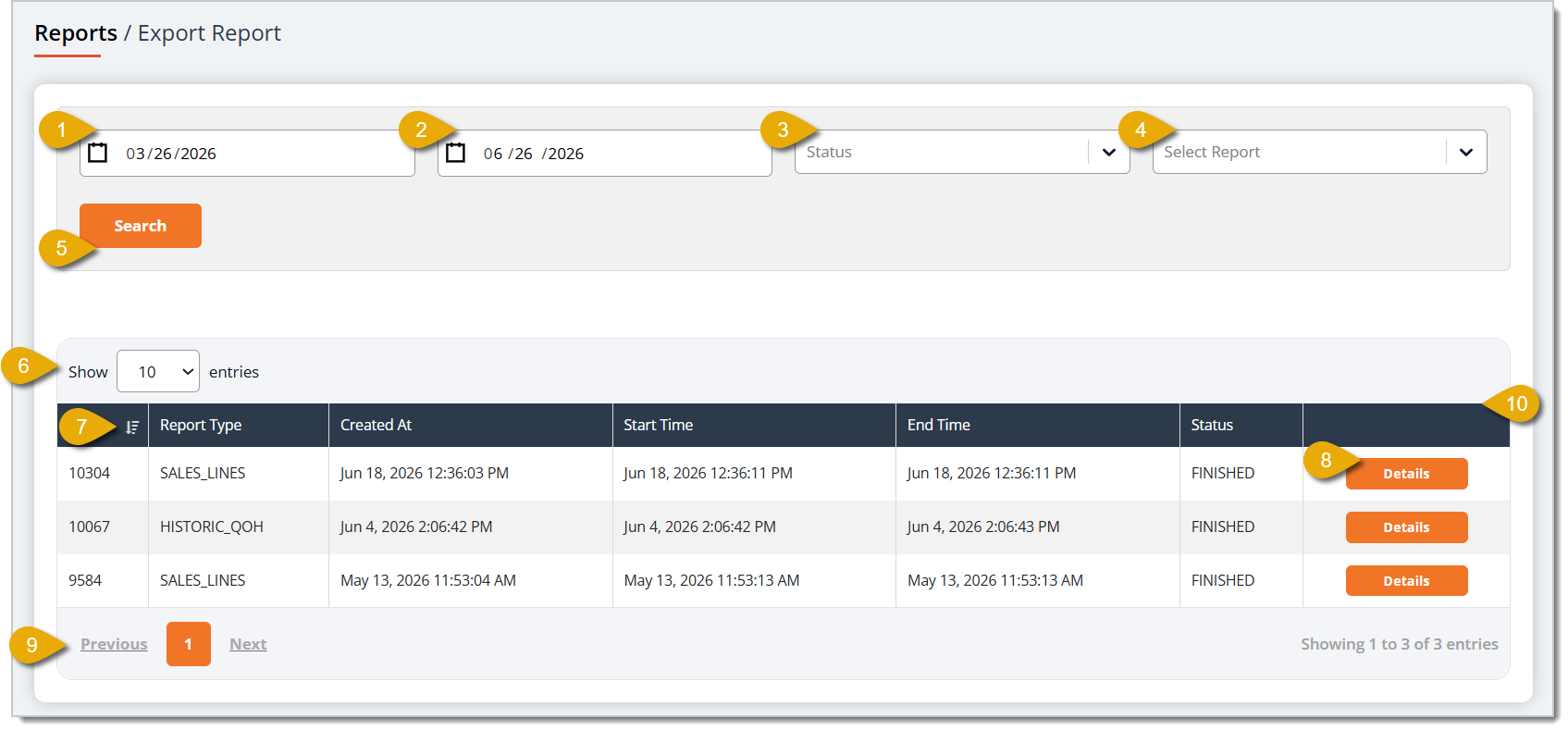
- Start Date — By default, the report will show data from the past 30 days. If you want to view a specific time period, you can change the Start Date by clicking in the first date field.
- End Date — To specify the time period for the data, you can click into the second date field to mark an end date.
- Status Filter — You can select from this drop-list to filter the data to reports of a certain status:
- IN_QUEUE — The report is in queue for export and is not ready yet.
- STARTED — The eTailPet system has started to export the requested report.
- FINISHED — The file was exported and ready for download.
- FAILED — The report failed to export.
- Select Report — You can select from this drop-list to filter the data to just one report type.
- Search Button — After entering any filter, click on Search to find matching data.
- Show Number of Entries — You can view a certain number of entries per page in this report by selecting a number in this drop-list.
- Sort by Column — You can sort the report's data according to a column by clicking on the Arrows icon to the right of each column name. Click once to sort in ascending order, or click again to reverse the sort.
- Details — You can view the full details of each report by clicking on the Details button. This page will allow you to download a copy of the exported file and view the filters of the export.
- Navigate — If your report spans multiple pages, you can navigate between pages by clicking on the Page Number to skip to that page, or by clicking either Next or Previous.
- Data Table — You can view the report's data in this table. This is every column you can view in this report:
- ID — This column shows the ID of the report.
- Report Type — This column shows what type of report was exported. For example, SALES_LINES indicates the file was for a Sales Line Transactions Report.
- Created At — This column shows the date and time the export was created.
- Start Time — This column shows the date and time the export process started.
- End Time — This column shows the date and time the export process finished.
- Status — This column shows the status of the file export, In Queue, Started, Finished, or Failed.
Related Topics
Online Reports 2
Online Reports 3
Sales and Refund Reports 1
Sales and Refund Reports 2
Sales and Refund Reports 3
Reports Overview
Frequently Asked Questions
Q: I don't use Stripe to process my online payments. Can I still use the Stripe Transactions report?
A: No. This report only shows transactions processed through Stripe. If you use a different card processor, refer to that processor's merchant dashboard for your transaction data.
Q: What's the difference between the Transactions tab and the Payouts tab?
A: The Transactions tab shows individual customer transactions, including card payments, refunds, and partial refunds. The Payouts tab shows the deposits Stripe sent to your store, along with each payout's amount, arrival date, and transit status.
Q: Why are the totals in my Refunds report showing as negative numbers?
A: That's expected. Because these entries are refunds, the Total column displays the amount returned to the customer as a negative value.
Q: Should I use the Refunds report or the Refunds (Legacy) report?
A: Use the standard Refunds report for current refund data. The Refunds (Legacy) report covers legacy refunds and includes an extra Refunded column, so its Total column shows the original transaction amount rather than the refunded amount.
Q: A customer bought three of the same item. Why is that only one line in the Sales Line Transactions report?
A: Multiple units of the same product in one order are combined into a single sales line, with the unit count shown in the Quantity column. Different products in the same order each get their own line.
Q: I exported a report but never got the file. Where can I check on it?
A: Click View Exports in the upper right of the report to open the Export Report, which lists your exports from the past 3 months. Check the Status column — In Queue or Started means it's still processing, Finished means it's ready to download from the Details page, and Failed means you'll need to run the export again.
Q: I have a question, but I can't find my answer here. How do I get more assistance?
A: You can ask any question at the number listed here. Contact our support team at (323) 370-0738 for the U.S. and (888) 370-2363 for Canada.







 Jun 23, 2026
Is this page helpful?
×Help us improve our articles