Manage Customer Types

Jul 06, 2026Jul 06, 2026

🙋 You can create and use Customer Types in the eTailPet system to group customers together so you can apply specific promotional discounts. This article will show you how to manage Customer Types, apply types to your customer records, and add types to promo codes or price slashes. Keep reading to see how quickly you can do it!

nando - customer types

Overview of Customer Types

Customer Types are completely custom, and you also have unlimited customer type slots. A few examples of customer types include:

  • Seniors – You can create a Senior customer type to apply certain discounts to senior citizen customers.

  • Military – You can apply discounts to military personnel or veterans.

  • New Adopter – You can give discounts to customers who have recently adopted a pet to get them started.


Manage Customer Types

This is how to manage Customer Types in the eTailPet system:
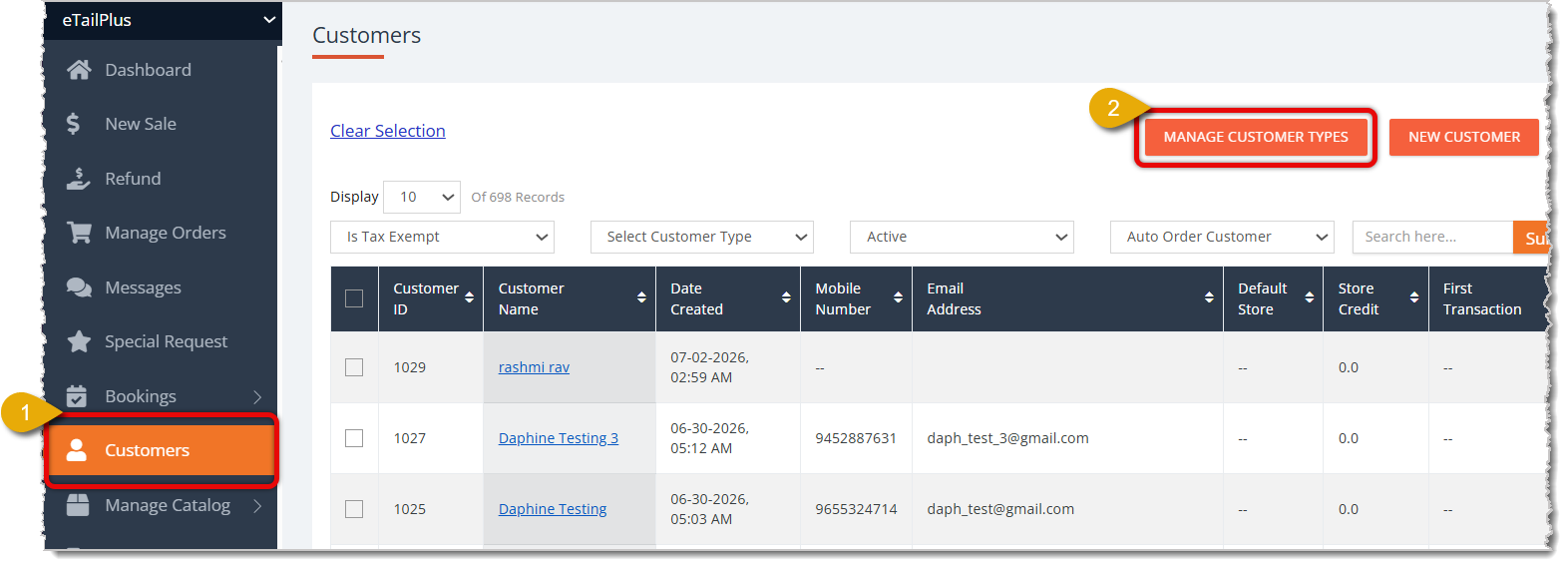
Image highlighting the Customers selection in the eTailPet main menu and the Manage Customer Types button.

  1. Click on Customers in the eTailPet main menu.
  2. Click on Manage Customer Types in the upper right.
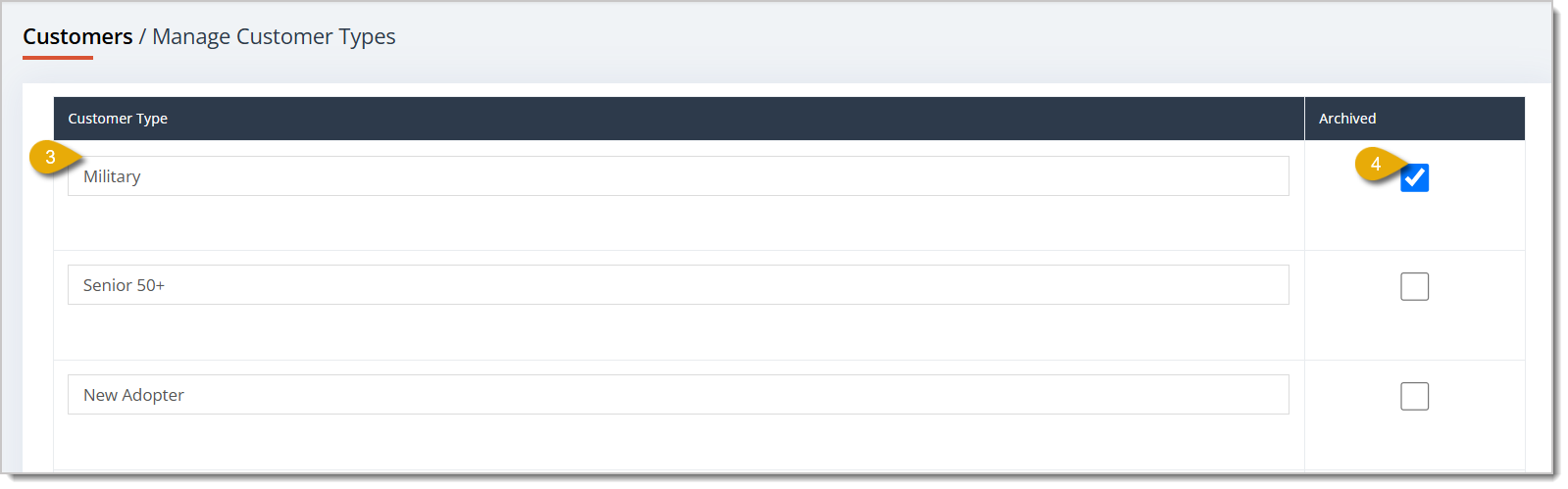
    Image highlighting the Customer Type name field and the Archived checkbox.
  3. In one of the Name Fields, enter the name of the Customer Type, or edit an existing one.
  4. You cannot remove a Customer Type you have already created because that would cause technical issues if you still have customers categorized under that type. If you no longer need a Customer Type, instead check the box in the Archived column.
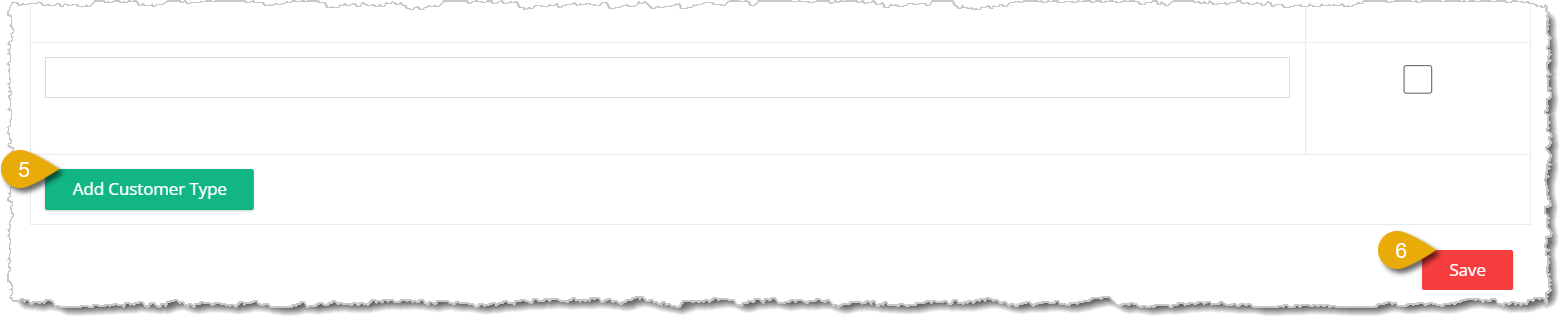
    Image highlighting the Add Customer Type button and the Save button.
  5. If you want another slot for a Customer Type, click on Add Customer Type on the bottom left of the page.
  6. Click on Save in the bottom right of the page to save your changes.


Apply Customer Types

Once you've created your Customer Types, you can apply them to customers.

New Customers in the Customers Page

Here is how to apply a Customer Type when you're adding a new customer to the system:
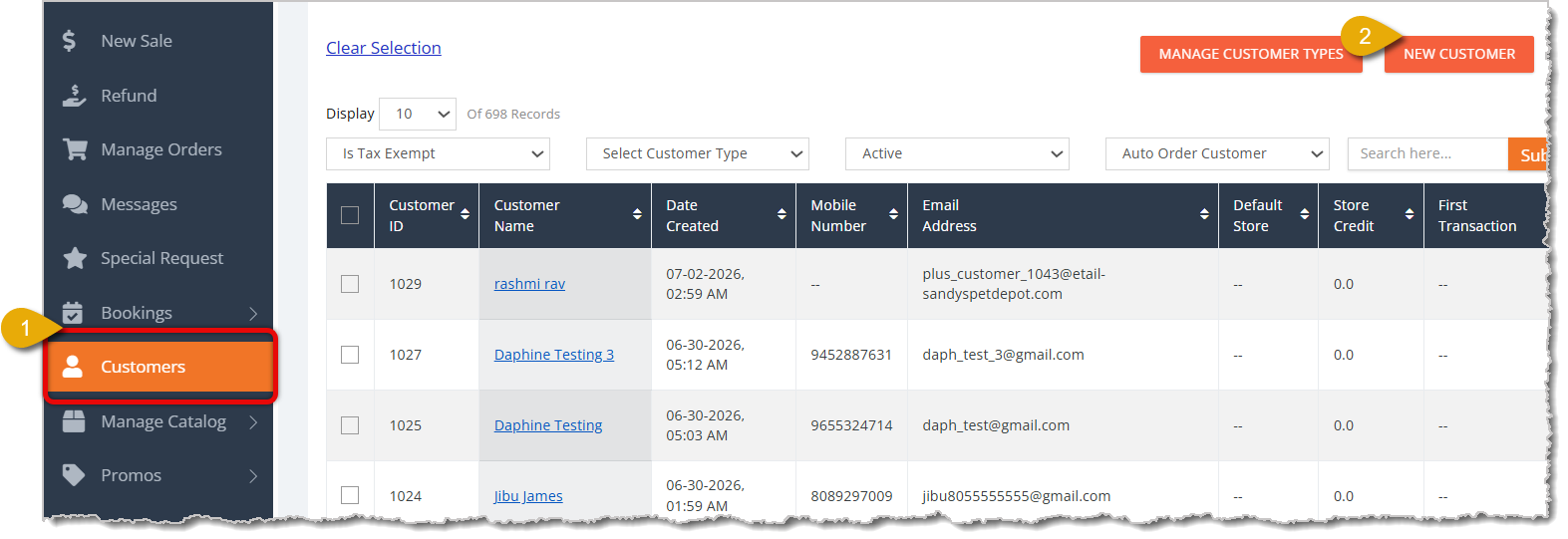
Image highlighting the Customers selection in the eTailPet main menu and the New Customer button.

  1. Go to Customers from the eTailPet main menu.
  2. Click on New Customer to open the New Customer form.
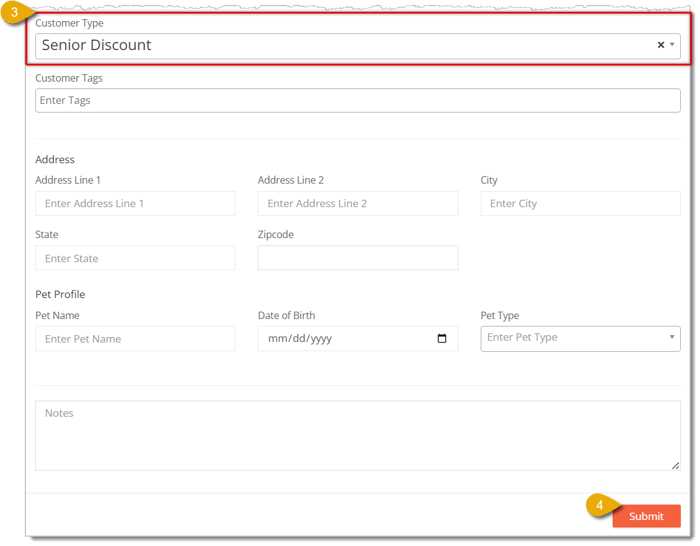
    Image highlighting the Customer Type field and the Submit button in the New Customer form.
  3. Enter the new customer's details and select the Customer Type from a drop-list.
  4. Click on Submit to save the new customer.


Customer Types in New Sale

If you're adding a new customer from the New Sale screen, here is how you can apply the Customer Type:

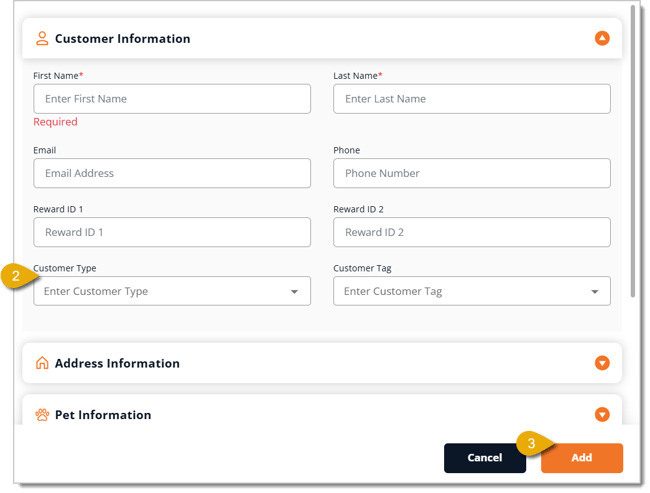
Image highlighting the New Customer button from the New Sale screen.

  1. Click on New Customer towards the upper right.
    Image highlighting the Customer Type field in the New Customer form from the New Sale screen and the Add button.
  2. Enter the new customer's details, then select the Customer Type from a drop-list.
  3. Click on Add in the bottom right of the New Customer form.


Edit Customer Types for Existing Customers

If you want to apply a Customer Type to an existing customer at your store, follow these steps:
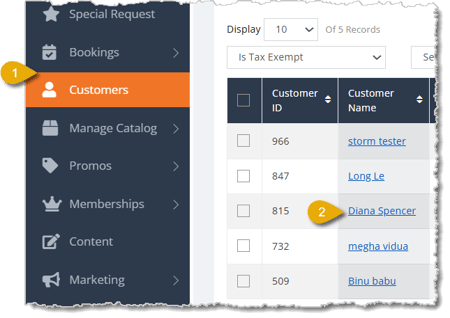
Image highlighting the Customers selection in the eTailPet main menu and a clickable Customer Name.

  1. Go to Customers from the eTailPet main menu.
  2. Click on a Customer Name to open their full details.
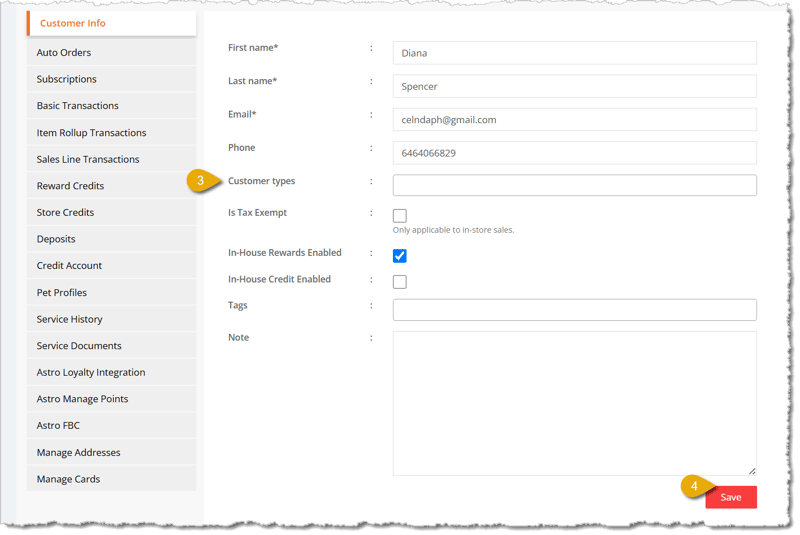
    Image highlighting the Customer Types field in an existing Customer Info page and the Save button.
  3. The existing customer's details page will open to the Customer Info tab by default. In the Customer Types field, select the type from the drop-list.
  4. Click on the Save button in the bottom right.


Import Customer Types

If you want to apply Customer Types to customers in bulk, you can import a spreadsheet file with new information. Here's how:

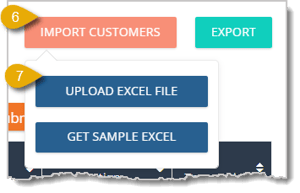
Image showing steps 1 to 3 for importing customer types.

  1. Go to Customers from the eTailPet main menu.
  2. Click on Export to get a spreadsheet file of your existing customers and their details.
  3. From the options that open, you can either select CSV or XLSX to download the file in the respective format. We recommend using XLSX so you can upload the same file later.
  4. Open your spreadsheet so you can edit then save customer types. In the file, customer Types are under the customer_types column. Please Note: Make sure you do not misspell anything to avoid creating duplicates when you upload the file.
  5. Go back to the Customers area of the eTailPet system.
    Image of the Import Customers button and the Upload Excel File button in the Customers area.
  6. Click on Import Customers.
  7. Click on Upload Excel File. 
  8. Upload your spreadsheet file.
  9. Review that the information is correct.

Click here to learn more about importing customers into the eTailPet system.


Apply Promo Codes and Price Slashes to Customer Types

Now that you've created Customer Types for your store, you can apply promo codes and price slashes to them. Here's how:
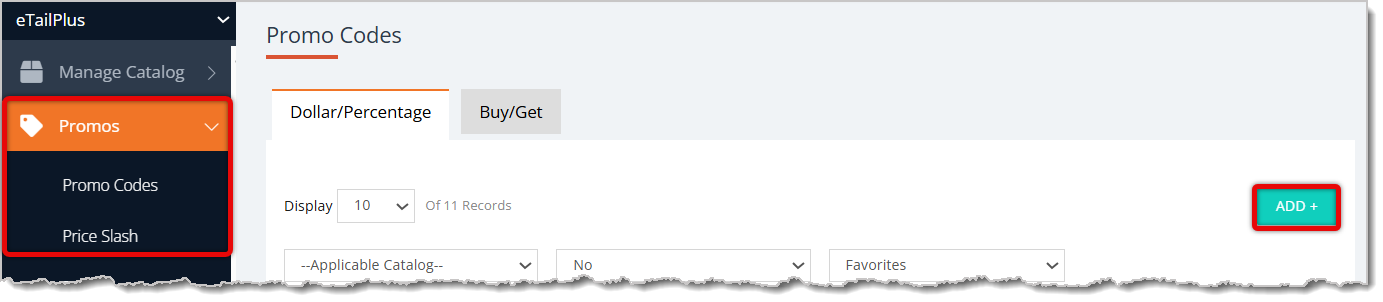
Image highlighting the Promo Codes and Price Slash selections in the eTailPet main menu, as well as the Add button in the Promo Codes area.

  1. Go to Promos > Promo Codes or Price Slash > Add.

  2. In the Create Promo Code / Price Slash (depending on what you opened from the main menu) form, scroll down to Select Eligible Customer Types.
    Image of the Select Eligible Customer Types field in the Create Promo Code / Price Slash form.
  3. In this field, enter keywords for Customer Types. Select results from the drop-list to add them. You can add multiple Customer Types.
  4. You can also create a new Customer Type in this field. Enter the name of your new Customer Type, then click on the Create popup that appears in the drop-list, as shown in the image below.
    Image showing the Create popup in the Select Eligible Customer Types field of the Create New Price Slash / Promo Code form.
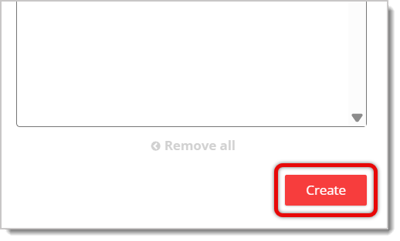
  5. Click on Create in the bottom right of the form to save the new promo code or price slash.
    Image highlighting the Create button in the Create Promo Code / Price Slash form.


Related Topics

Customers Overview

Create a New Customer in the Admin

Import & Export Customers

Astro Loyalty Overview

Customer Report

Apply a Promo Code in New Sale


Frequently Asked Questions

Q: Can I delete a Customer Type I no longer need?

A: No, you can't delete one once it's created. Check the Archived box instead to retire it without affecting customers already assigned to it.


Q: Can I apply more than one Customer Type to a single promo code or price slash?

A: Yes. You can add multiple Customer Types in the Select Eligible Customer Types field.


Q: Is there a limit to how many Customer Types I can create?

A: No, eTailPet gives you unlimited Customer Type slots.


Q: Can I create a new Customer Type directly while setting up a promo code?

A: Yes. Type the new name into the Select Eligible Customer Types field and click Create when it pops up.


Q: How do I avoid creating duplicate Customer Types when importing?

A: Make sure the customer_types column in your import spreadsheet matches your existing type names exactly. A misspelling creates a brand new duplicate type instead of applying the one you meant.


Q: I have a question, but I can't find my answer here. How do I get more assistance?

A: You can ask any question at the number listed here. Contact our support team at (323) 370-0738 for the U.S. and (888) 370-2363 for Canada.

Need Help?

Can't quite find the answer you're looking for? Our support team is just a call away.