






Customers in New Sale
The eTailPet system has useful and easy functionality for working with your customers in New Sale. T
 Jul 31, 2026
If you want to allow some of your customers to have In-House Credit Accounts, you can do so in the eTailPet system. This article shows you how to set that up and manage those accounts. Take a look!
Pet Quote
⚠️Please Note: Invoicing and payment for house credit is typically NOT done through eTailPet POS. However, as a work around, you can do the following: Create a Private Product called Payment on Account or something similar. Set it up with a Price Type of Variable, then in the New Sale page you can add that item, set the Price to what the customer owes, and they can pay that way however they want. Then you can Verify the balance as paid, as described below. If you need help setting this up, contact Support using the information at the bottom of this article.
Is this supposed to be the intro for this?
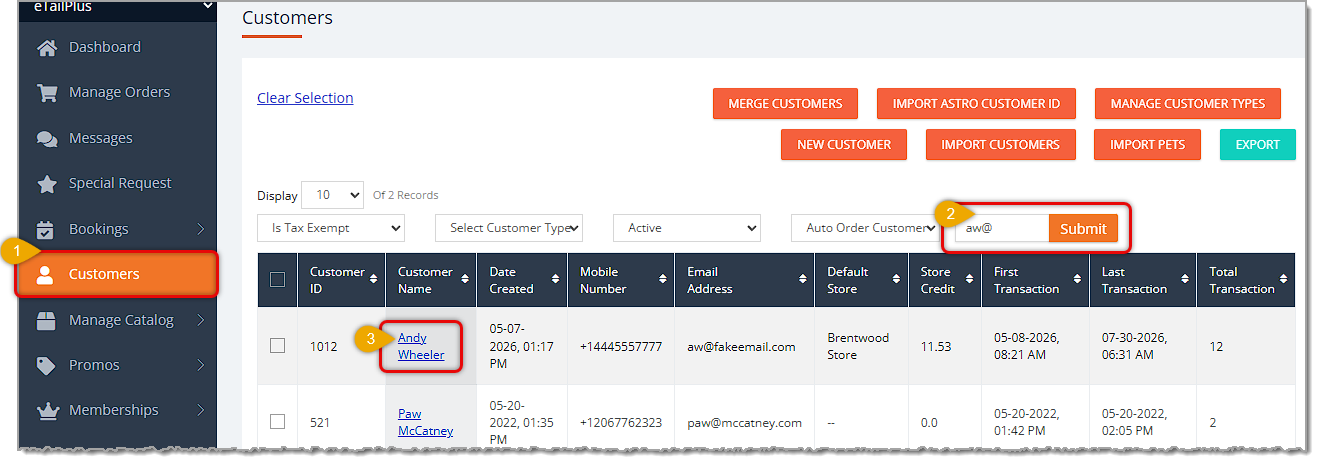
Here is how to set a customer to be tax-exempt:
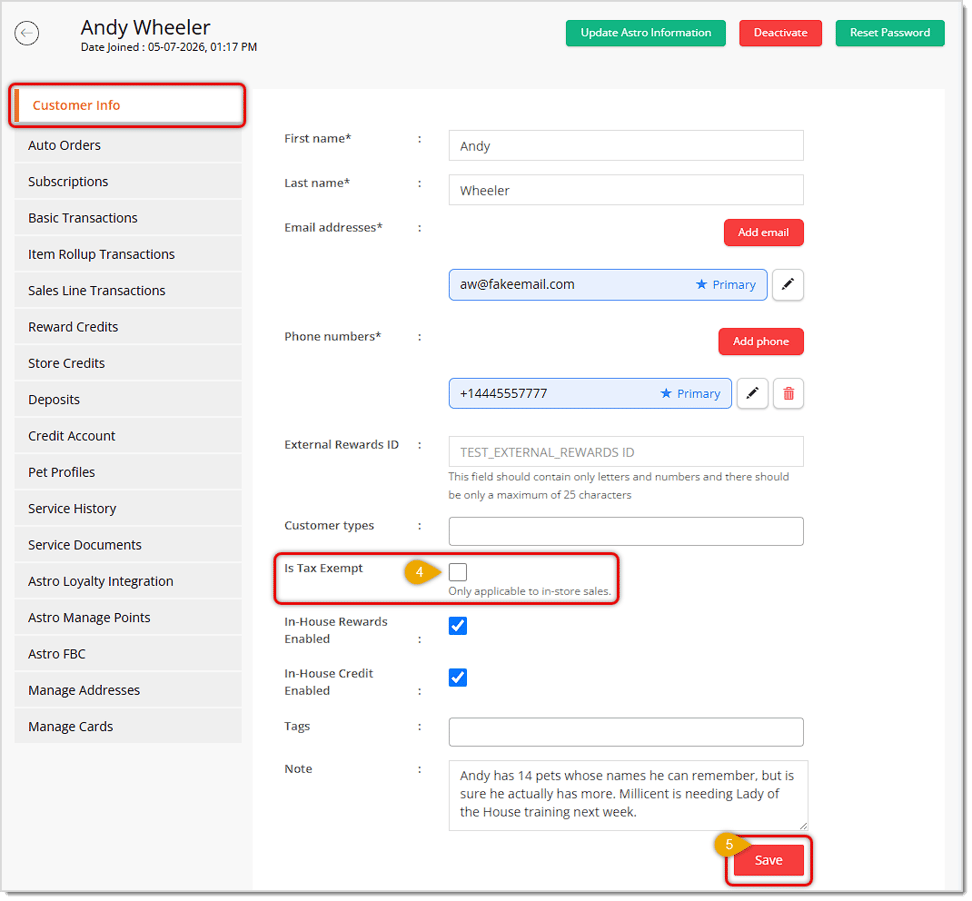
The customer will now be tax-exempt for in-store purchases.
Create a New Customer in the Admin
Q: How do I enable tax for a customer that no longer has tax exemption?
A: Open the customer's profile, go to the Customer Info tab, un-check the "Is Tax Exempt" box, and click Save. The customer will no longer be exempt from tax on future in-store purchases.
Q: Does marking a customer as tax exempt affect their online orders too?
A: No. The "Is Tax Exempt" setting only applies to in-store sales and does not change tax calculation for online or e-commerce orders.
Q: What happens if I leave "Is Tax Exempt" unchecked?
A: The customer will continue to be charged tax on in-store purchases according to your standard tax settings.
Q: Can I find all of my tax-exempt customers later on?
A: Yes. From the Customer List page, use the "Is Tax Exempt" filter and select Yes to view only tax-exempt customers.
Q: I have a question, but I can't find my answer here. How do I get more assistance?
A: You can ask any question at the number listed here. Contact our support team at (323) 370-0738 for the U.S. and (888) 370-2363 for Canada.
Is this page helpful?
×Help us improve our articles