Special Requests in the eTailPet system allow you to facilitate the product requests that customers or crew members have placed for items that are not currently in stock. This article will show you how to create and manage your Special Requests. Explore everything you can do on this page!

Creating a Special Request
You can create a Special Request for a customer from the New Sale page.
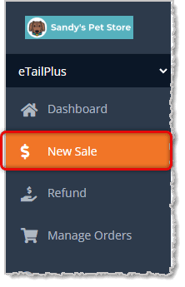
Special Requests are for items requested by a customer that are not normally stocked in your store, or it's a larger quantity than you usually keep on hand. Use this tool to create a Special Request Order for the customer or work with an existing one. You'll be able to use the Special Request tool after you load a customer into the New Sale page. You can also use this tool to look up Special Requests from the customer that are active, on order, or in other order statuses.
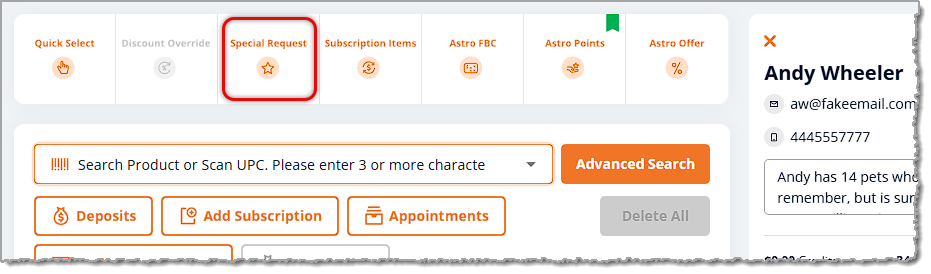
When you click the button, the Special Requests window will open.
Andy: I believe they added a few things to this window because now it has fields for Start Date, End Date, and Store. This image may need to be updated.
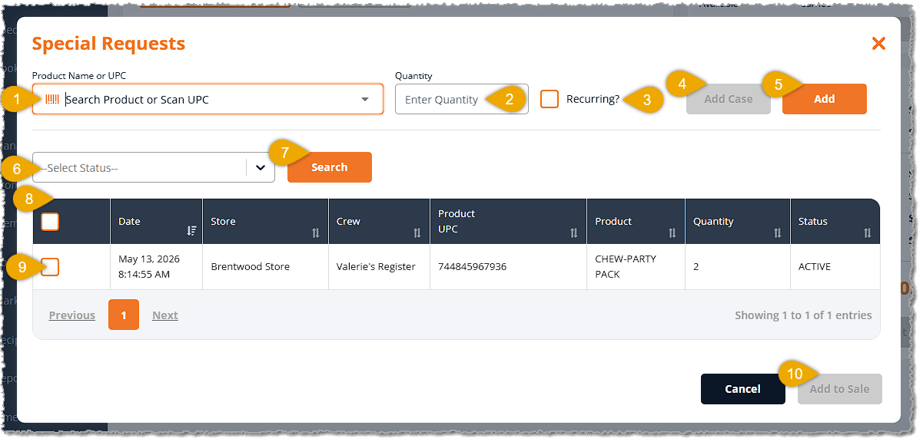
- Search or Scan — If you don't have an item barcode you can scan in here, search for the product by entering its title and brand.
- Quantity — Enter the quantity the customer wants. If they are ordering by the case, enter the number of cases.
- Recurring — Check this box if the customer wants to do the same special request on a regular, recurring basis.
- Add Case — If the item is sold by the case, you'll have the option to set the Quantity of cases; when you click the Add Case button, they'll be added to the Special Request Item table.
- Add — If the item is sold as single units, after you've entered a Quantity, you can click the Add button to add the item to the Special Request Item table.
- Date Range —
- Store —
- Status Filter — If the customer has multiple items in their list, you can use this to view only the items with the status you want. Click to open the drop-list and filter for Active (items that are Active in the Special Request, but have not yet been ordered; you can let the customer know the item will be added to the next vendor order), In Stock, On Order, or Separated items (items that have been set aside for pickup of the Special Request).
- Search — If you are using the Status Filter, once you have made your selection, click the Search button to find items in the list of the status you chose.
- Special Request Items — This area holds all the Special Request Items the customer has asked for, including items that have been in previous Special Requests that are recurring. It doesn't show items from previous Special Requests that were fulfilled and purchased that were not recurring. In the Special Requests area of the main menu on the left side of the page, you can view items that were purchased previously and are not recurring. This area shows the Date and time the item was added, the Store, the Crew member who added it, the Product UPC, the Product name, the Quantity requested, and the current Status of the requested item.
- Select Item for Special Request — Check this box if the customer wants to order the items now.
- Add to Sale — Click this button to add selected items to the transaction. The customer can either pay for them now, or you can take a Deposit where they can pay part of the order, whatever your store policy is for Special Request orders. See the section below on Deposits for details on how to do this. When you're ready, you can complete the sale the normal way using the Payment button.
Special Requests in Purchase Orders
If you made a Special Request for an item and the vendor for that item has a Stock Day (a day of the week you've designated for the system to create a PO for the vendor), then the special request item will appear on the Created PO on that vendor's Stock Day. If you make a Special Request for an item and the vendor for that item DOES NOT have a Stock Day, then a PO will be created automatically for that vendor the following day. It is important to remember that a created purchase order will be deleted after 24 hours unless you move it to the next status, so you will need to work with the PO right away.
Once the PO is created, you can access its full details by going to Manage Catalog > POs, finding the Purchase Order you want, and clicking on its ID to open it. There are two sections in the Purchase Order where you can work with Special Request items:
Special Requests
To get to this area, click on the PO's ID; if you see a page for Smart Ordering configuration, click on Skip This, Take Me to the PO in the lower right. Scroll down to find the Special Requests area and click on it to expand it and view any Special Requests that might be needed for the vendor's items. Here are the functions of this area:
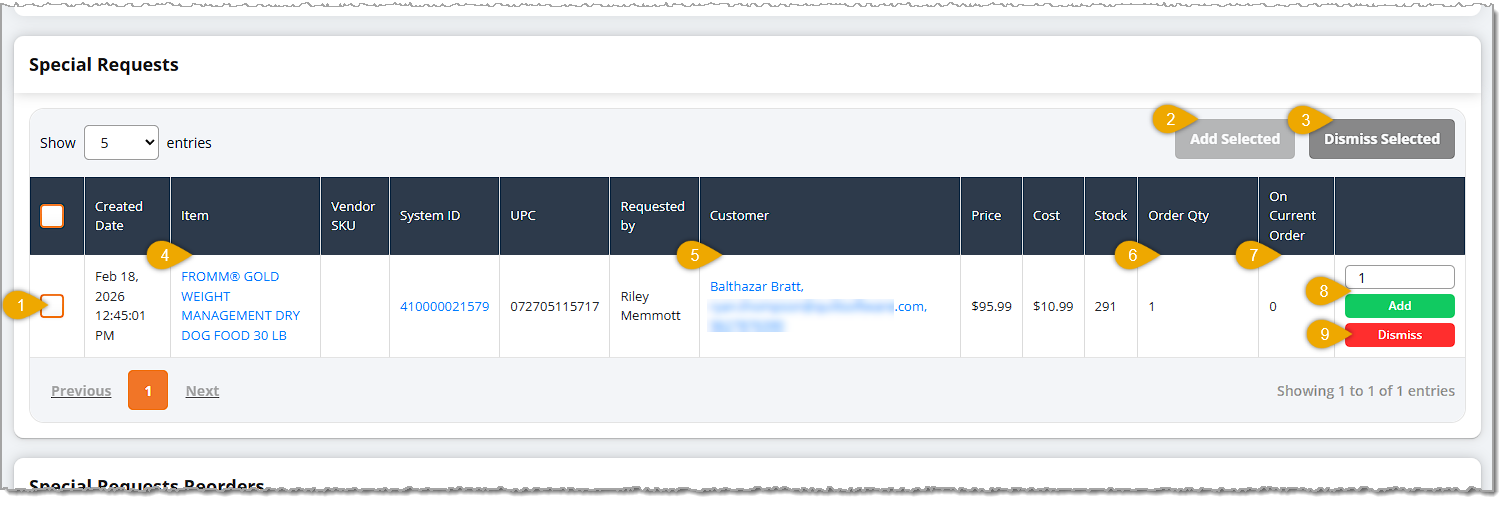
- Item Selection — Use the checkboxes on the left to select items for bulk actions such as Add Selected or Dismiss Selected. You can use the checkbox in the header row to Select All items on the current page, or click it again to Deselect All.
- Add Selected — If you have selected one or more items using the checkboxes on the left, you can click the Add Selected button to add them in the quantities you entered to the Purchase Order all at once.
- Dismiss Selected — If you won't be needing items for this PO that you've selected with the checkboxes on the left, you can click the Dismiss Selected button to remove them from this list. Whenever a new PO for the vendor is created, those Special Request items will be added to this area in that new PO by default.
- Item Link — You can click the Item name or the System ID for the item to open its Product Detail page in a new browser window.
- Customer — You can click the Customer name to open their details page in a new browser tab, if needed.
- Order Quantity — The original Quantity from the Special Request is displayed here for your reference.
- On Current Order — If the item has already been added to the current PO, the Quantity being ordered will be listed here for your reference.
- Add Item — You can enter a quantity into the Quantity field for the item, and if you click the Add button, the item will be added to the PO and the On Current Order quantity will adjust.
- Dismiss — If you won't be needing the item for this PO, you can click the Dismiss button to remove it from the Special Requests list. Whenever a new PO for the vendor is created, by default the Special Request item will be added to this area in that new PO.
Special Requests Reorders
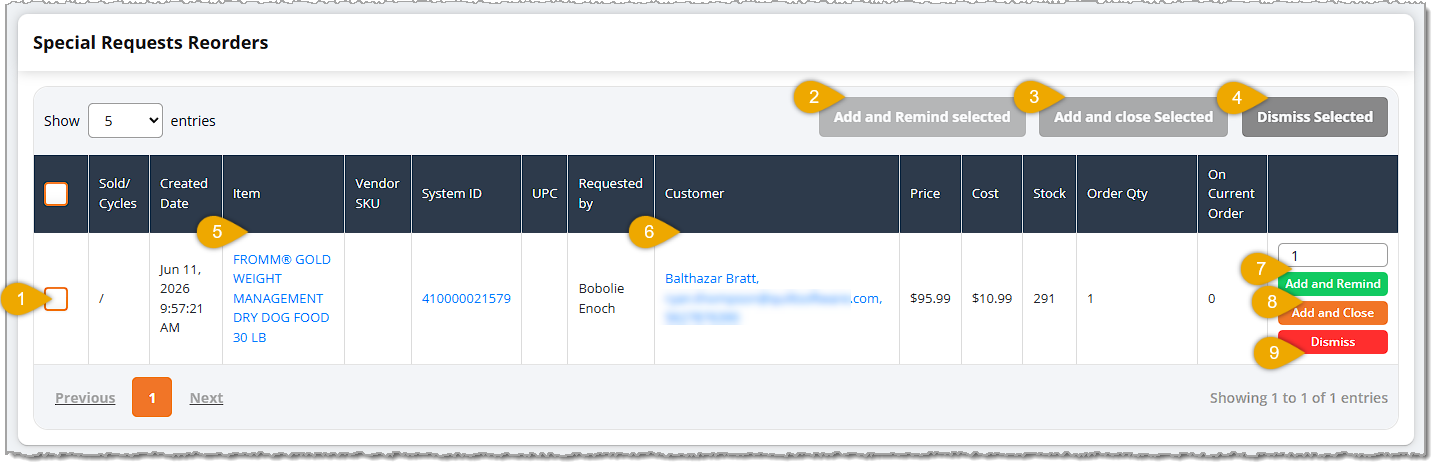
- Item Selection — Use the checkboxes on the left to select items for bulk actions such as Add Selected or Dismiss Selected. You can use the checkbox in the header row to Select All items on the current page, or click it again to Deselect All.
- Add and Remind Selected — If you have selected one or more items using the checkboxes on the left, you can click the Add and Remind Selected button to add them in the quantities you entered to the Purchase Order all at once. The system will also set a reminder for you that will appear in the Alarm Bell area at the top of the system when it is time to reorder again.
- Add and Close Selected — If you have selected one or more items using the checkboxes on the left, you can click the Add and Close Selected button to add them in the quantities you entered to the Purchase Order all at once. The system will also cease reordering the item(s) in future purchase orders.
- Dismiss Selected — If you won't be needing the items that you've selected with the checkboxes for this PO, you can click the Dismiss Selected button to remove them from this list. Whenever a new PO for the vendor is created, by default those Special Request Reorder items will be added to this area in that new PO.
- Item Link — You can click the Item name or the System ID for the item to open its Product Detail page in a new browser window.
- Customer — You can click the Customer name to open their details page in a new browser tab, if needed.
- Add and Remind Item — You can enter a quantity into the Quantity field for the item, and if you click the Add and Remind button, the item will be added to the PO, and the On Current Order quantity will adjust. You will also be given a reminder in the Alarm Bell area when it's time to reorder the item again.
- Add and Close Item — You can click the Add and Close Item button to add the the item in the quantity you entered to the Purchase Order all at once. The system will also cease reordering the item in future purchase orders.
- Dismiss — If you won't be needing the item for this PO, you can click the Dismiss button to remove it from the Special Requests Reorders list. Whenever a new PO for the vendor is created, by default the Special Request Reorder item will be added to this area in that new PO.
Managing Special Requests
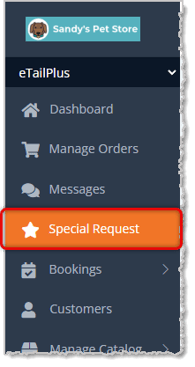
To get to this page, in the main system menu on the left, click on Special Request.
Here is how to work with your Special Requests:
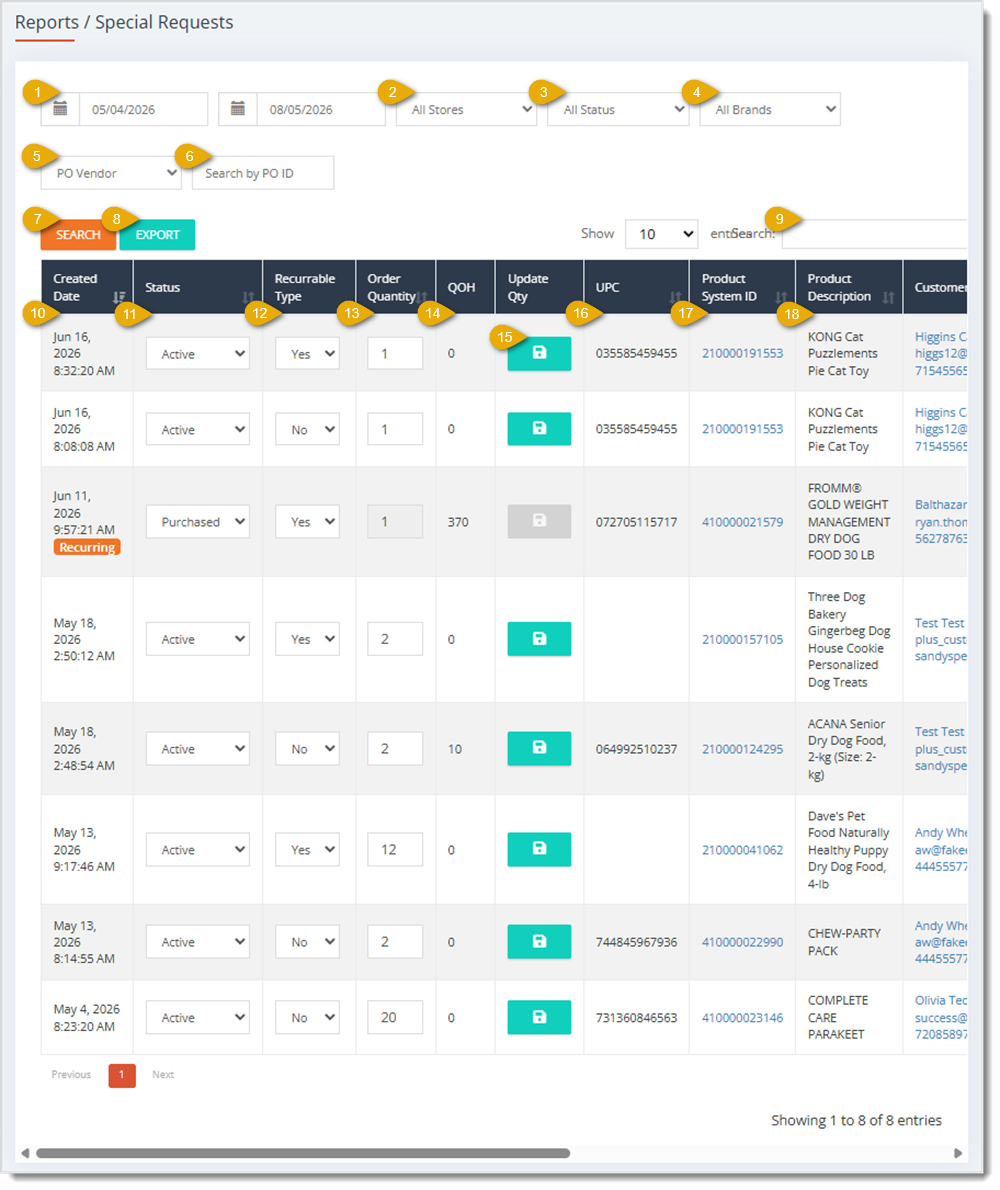
- Start Date / End Date — Click the calendar icon in either field and select a date to filter the list to special requests created within that date range.
- All Stores — Select a specific store from the drop-list to filter the list to special requests created at that store, or leave this set to All Stores to see requests from every location.
- All Status — Select Active, On order, In stock, Separated, Purchased, Closed, or Canceled from the drop-list to filter the list to special requests in that status.
- All Brands — Select a specific product brand from the drop-list to filter the list to special requests for products of that brand.
- PO Vendor — Select a purchase order vendor from the drop-list to filter the list to special requests tied to that vendor.
- Search by PO ID — Enter a purchase order ID here to find special requests linked to that specific PO.
- Search — Click this button to apply the filters you selected above and refresh the list.
- Export — Click this button to export the filtered list of special requests to a file.
- Search Field — Enter any keyword here (such as a customer name, product, or brand) to quickly filter the entries shown in the table.
- Created Date — This column shows the Date and Time the special request was created. Click the column header to sort the list by this date. If the request is set up to recur, a Recurring tag displays under the date once the request has been purchased.
- Status — Select Active, On order, In stock, Separated, Purchased, Closed, or Canceled from the drop-list to update the current status of this special request.
- Recurrable Type — Select Yes or No from the drop-list to set whether this special request should automatically recur once it's fulfilled.
- Order Quantity — Enter the quantity of the product the customer is requesting.
- QOH — This column shows the Quantity On Hand, meaning how many units of the product you currently have in your inventory.
- Update Qty — Click this Save button after changing the Status, Recurrable Type, or Order Quantity in a row to save your changes. This button is grayed out and unavailable once a request has been marked Purchased.
- UPC — This column shows the product's UPC barcode number. Click the column header to sort the list by UPC.
- Product System ID — This column shows the internal System ID for the requested product. Click the ID link to open that product's detail page in your product catalog, where you can review its full details. Click the column header to sort the list by UPC.
- Product Description — This column shows the Name of the requested product. Click the column header to sort the list by product name.
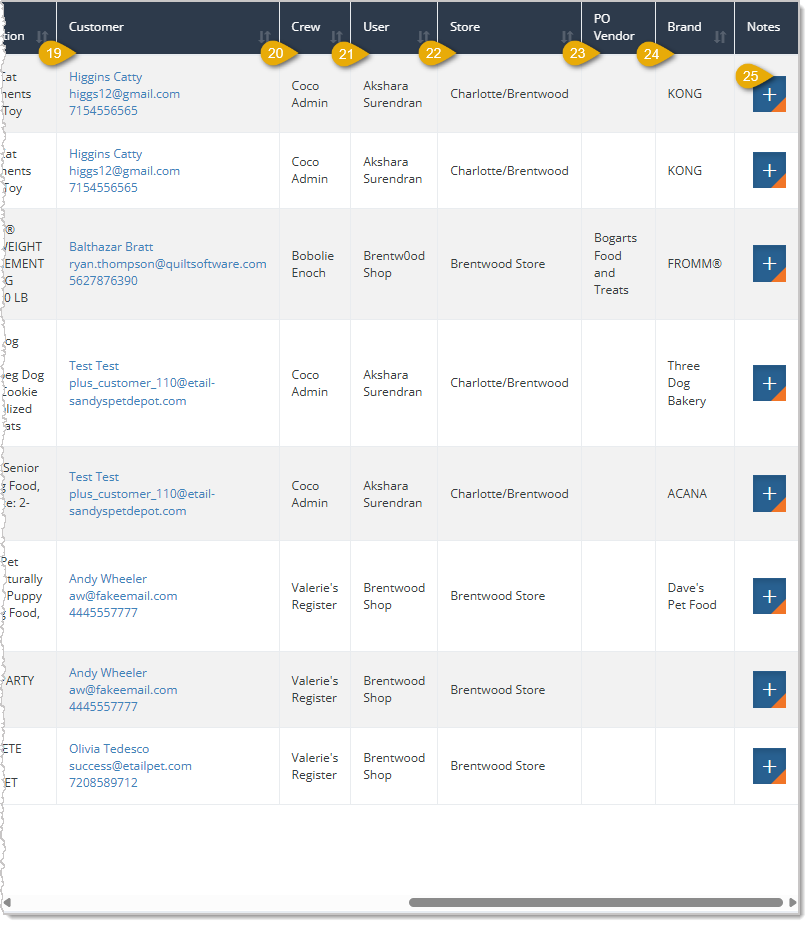
image needs alt text
- Customer — This column shows the Name, Email, and Phone Number of the customer who made the request. Click the customer's name to open their Customer Info page and review their profile. Click the column header to sort the list by UPC.
- Crew — This column shows the Crew associated with the special request, if any. Click the column header to sort the list by UPC.
- User — This column shows the Staff Member who created or is handling the special request. Click the column header to sort the list by UPC.
- Store — This column shows the Store Location where the special request was made.
- PO Vendor — This column shows the Vendor tied to the purchase order for this request, if one has been assigned.
- Brand — This column shows the Brand of the requested product.
- Notes — Click the Plus (+) button to open the Notes window for this special request. See the section below on Add a Note to a Special Request for details.
Add a Note to a Special Request
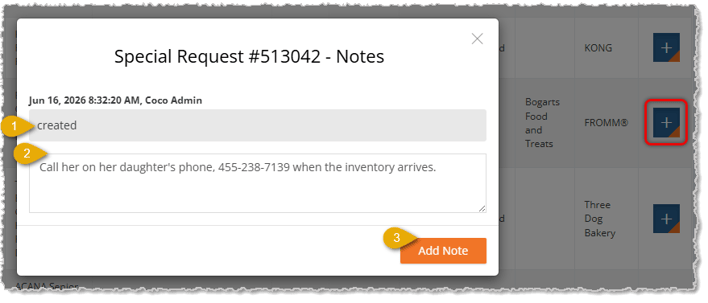
Here is how to add a Note to a special request:
- Notes History — Review the list of existing notes at the top of the window, each showing the Date, Time, and Staff Member who added it.
- Enter the Notes — Enter your note text in this field to record any relevant details about the special request.
- Add Note — Click this button to save your note to the special request's history.
Related Topics
Purchase Orders
The Purchase Order Process
Associate Training 2
Frequently Asked Questions
Q: How do I see only special requests that still need to be ordered?
A: Select Active from the All Status drop-list, then click Search to filter the list to requests that haven't been ordered yet.
Q: Why is the Update Qty button grayed out for some requests?
A: The Update Qty button becomes unavailable once a request's status is set to Purchased, since the request has already been fulfilled.
Q: What does the Recurrable Type field control?
A: Setting Recurrable Type to Yes marks the special request to automatically recur after it's purchased, which is shown with a Recurring tag on the request.
Q: Can I filter special requests by a specific vendor?
A: Yes. Select a vendor from the PO Vendor drop-list, or enter a purchase order number in the Search by PO ID field, then click Search.
Q: How do I view more details about the customer who made a special request?
A: Click the customer's name in the Customer column to open their Customer Info page.
Q: I have a question, but I can't find my answer here. How do I get more assistance?
A: You can ask any question at the number listed here. Contact our support team at (323) 370-0738 for the U.S. and (888) 370-2363 for Canada.







 Aug 04, 2026
Is this page helpful?
×Help us improve our articles