The eTailPet system allows your customers flexible payment options at checkout in New Sale. This article will show you how to use different payment methods and multiple methods at once in the Payment window. See how easy it is!
Working With Payment Methods
When the customer is ready to pay for the items in their transaction, click on the Payment button in the lower right.
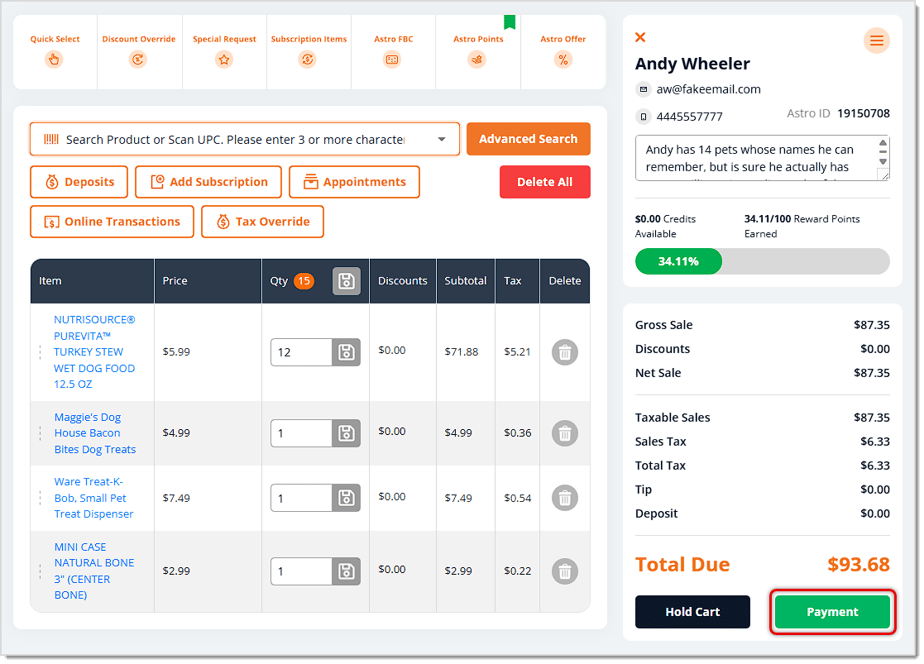
If a customer is loaded, you'll be asked if you want to check for Astro Offers. Once you have completed or bypassed that step, the Payment panel will load for you with the transaction information.
Card
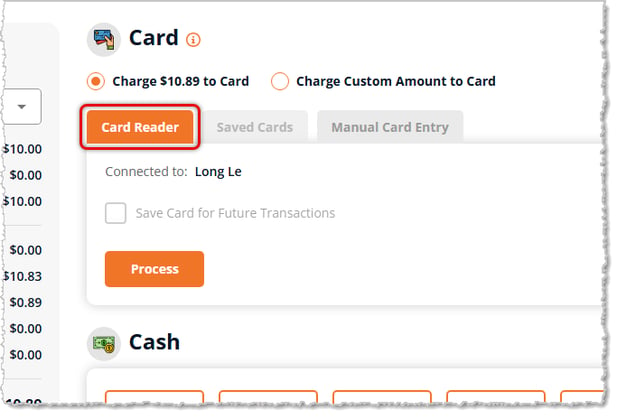
By default the Card payment method will have the Card Reader tab highlighted and ready for the customer to tap, insert, or swipe. That will come up automatically for them on the payment terminal. Once the charge is successfully authorized, you'll see the payment come through in New Sale for the amount being charged.
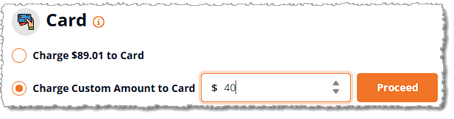
- If the customer doesn't want to charge the full amount to the card, click the radio button for Charge Custom Amount to Card and you'll be able to enter the amount the customer wants to put on the card, then click Proceed. The customer can then enter their card in the card reader for that amount. You'll need to enter their next payment method or more than one to complete payment for the Total Due. Please note, the card has to be present and charged through the payment terminal to use this option.
- If the customer wants to pay using the connected Card Reader, as described above, they can enter their card and the system will authorize the funds and then will give you a Process button to click.
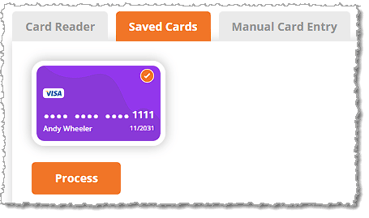
- If the customer has a card saved in the system they want to use, you can click the Saved Cards tab and click on the card. Once you've selected the card, you can click the Process button to authorize the funds.
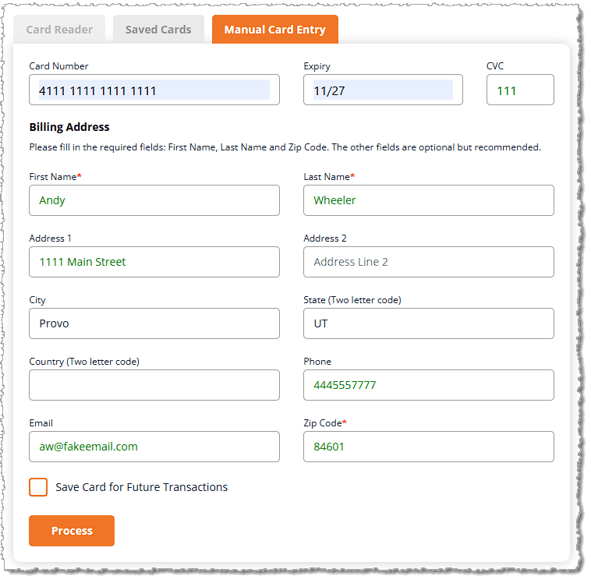
- If you're taking a phone order, you can click the Manual Card Entry tab and enter the card information. The Card Number, Expiry, CVC, First Name, Last Name, and ZIP Code are required fields, but it's recommended to also complete the others. Once you have the details in place, the system will check the card's validity, and you will be able to click the Process button to authorize the funds. If there is a customer added to the transaction and they want to save the card to the account, you can check the box for Save Card for Future Transactions.
If you've covered the Total Due, you'll be able to complete the transaction with the Finish Sale button on the left. If not, find the next payment method the customer wants to use.
Cash
If the customer is paying by Cash, you have the following options:
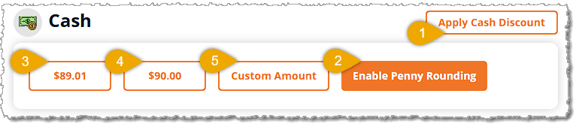
- If your store uses Cash Discounting, you can click the Apply Cash Discount button to discount the Total Due. This option offers your customers an incentive to pay by cash, which saves the store processing fees, and the discount passes that savings to the customer. When you click this button, you'll see the Total Due reduced by the Discount amount.
- If your store no longer accepts pennies, you can click the Enable Penny Rounding button and the amount will round down to the nearest 5 cents, as in this example. It will never round up, because your store loves your customers. You can click to Disable Penny Rounding if needed.

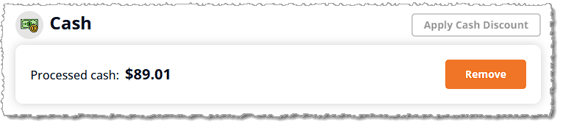
- The system will give you a Cash button for the Exact Change for the order, if the customer has it. When you click this button, the Payment page will show that you Processed Cash for the amount. You can click the Remove button if you need to change the payment method.
- The system will give you a Cash button for the Next Dollar Up amount for the order. For example, if our cart Total Due is $96.63, the Next Dollar Up button would be $97.00, as pictured here:
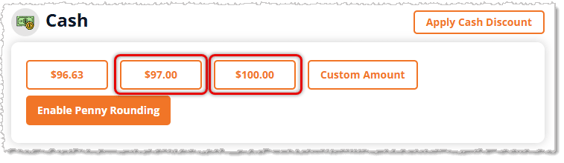
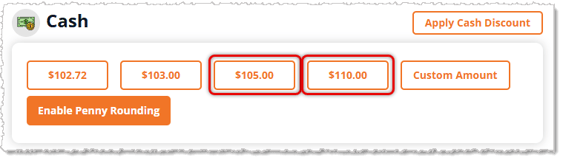
For some Total Due amounts, you will see additional buttons. In the example above, we have a Next Ten Dollars Up button for $100.00, but in the example below, there is an additional button. If the Total Due is something like $102.72, we see a Next Five Dollars Up button at $105.00, and a Next Ten Dollars Up button at $110.00, as pictured here. The idea is that the cart will offer the customer round amounts that are likely to match the cash they have.
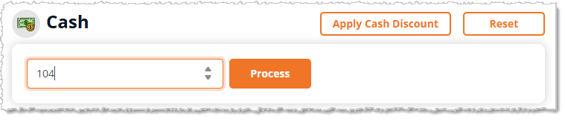
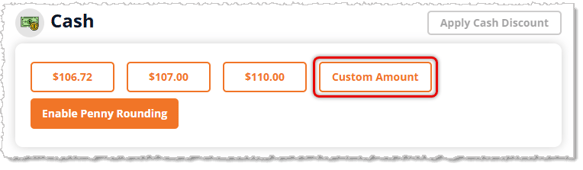
- If the customer has a different cash amount that doesn't fit the buttons you see, like five $20 and two $2 bills for a total of $104.00, you can click the Custom Amount button to enter that amount. Click the Process button when you're ready and the Payment page will list that as the amount paid in cash.
If you've covered the Total Due, you'll be able to complete the transaction with the Finish Sale button on the left. If not, find the next payment method the customer wants to use.
Other Payment Types
The system automatically offers up to four Other default payment types if your store is configured to use them. The first is Gift Cards, if you're using them, the second is Store Credit, and the third is Customer Deposit for things like Special Requests and Appointments. If you have customers with In-House Credit accounts, and such a customer is checking out, you will see an option for On-Account.
In addition to those payment methods, your store can create up to three Custom methods for other types of payment. This can be anything that isn't integrated and automated within the system (for example, checks). You can create Custom payment types under the Account button in the upper right, click on Settings, then open the Payment Types tab, as pictured below. For full details on how to work with Payment Type creation, CLICK HERE for the Settings: Payment Types article or click the link in Related Topics below.
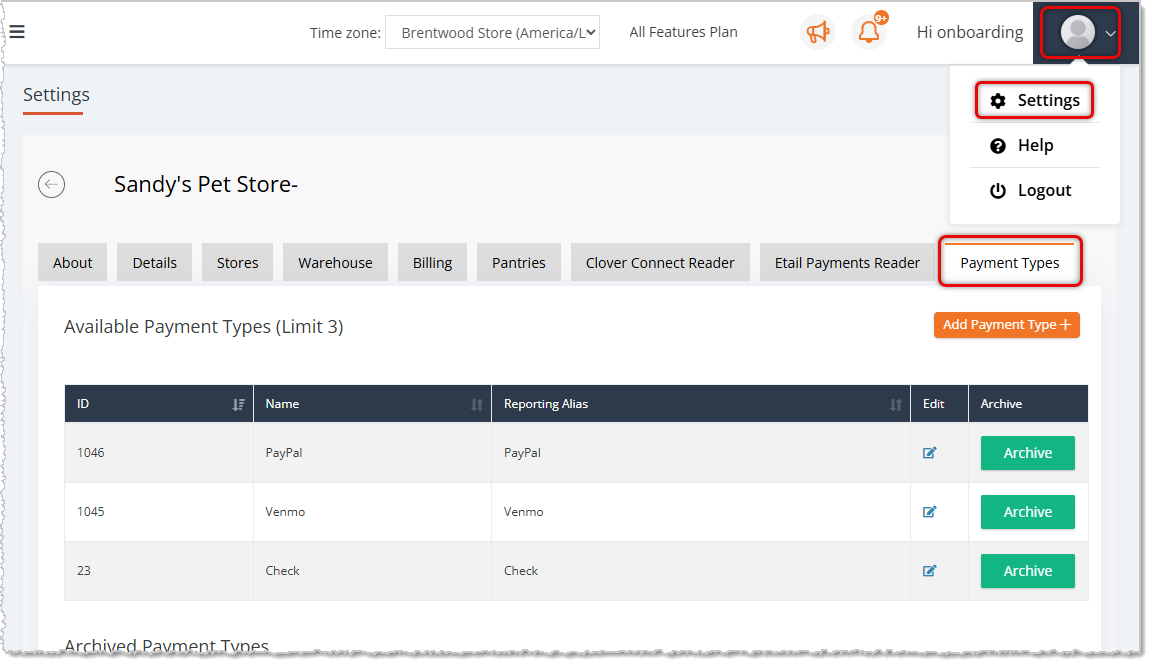
For example, you might take personal Checks. The Payment page will assume that you have verified a Check from a customer and it will just count the amount for the check as paid.
A similar example would be Venmo. If your store has a Venmo account, that will not be integrated with the cart. If you have Venmo as one of your Custom payment types, the system assumes that you have collected the amount externally and enters that amount as paid when you use that payment type.
Here are descriptions of how to use the Other payment types:
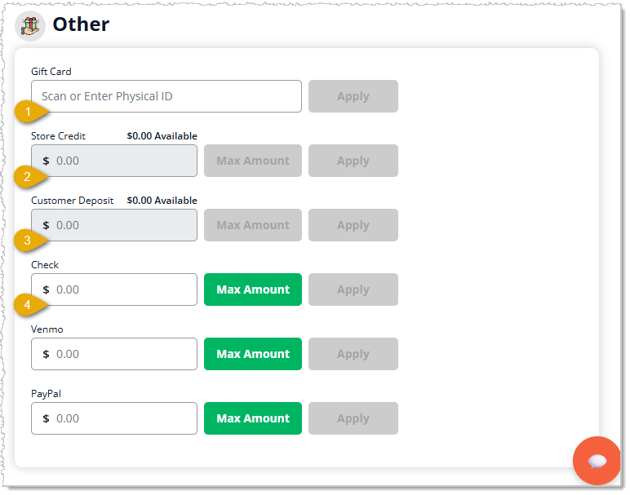
- Gift Card — If the customer has a Gift Card from your store, you should start by clicking in the Gift Card field to get the cursor flashing. Then either scan the card or manually enter the card's Digital Code. The system will look up the card and display its current Available balance. You can click the Max Amount button to either use all of that balance or enough to cover the order's Total Due amount. Or you can enter a custom amount manually if the customer wants to pay a specific amount from the Gift Card. Click the Apply button when you're ready to add the payment to the cart.

- Store Credit — If the customer has received a refund in Store Credit, the balance they have available will display in this field, similar to the Available balance shown above. You can click the Max Amount button to either use all of that balance or enough to cover the order's Total Due amount. Or you can enter a custom amount manually if the customer wants to pay a specific amount from their Store Credit. Click the Apply button when you're ready to add the payment to the cart.
- Customer Deposit — If the customer has made a Deposit toward a Special Request or an Appointment, and if they are paying the remaining amount for either of those things, you will see the amount of the Deposit they previously paid here as an Available amount. You can click the Max Amount button to either use all of that balance or enough to cover the order's Total Due amount. Or you can enter a custom amount manually if the customer wants to pay a specific amount from their Deposit. Click the Apply button when you're ready to add the payment to the cart.

- Custom Payment Type — The three Payment Types at the bottom of the image above number 1 were all custom-made in the system Settings on the Payment Types tab. For each of these, if the customer is paying with that method, you will take the payment outside of the system. For example, you might have a Check ACH reader that will read personal checks and verify funds, or you might have a PayPal or Venmo account that the customer would send the payment to, and you would verify you've received the funds. Once you've received the externally verified payment, and if it's less than the Total Due, enter in the amount field how much the customer is paying using that payment method. Or if they are paying the Total Due, click the Max Amount button. Either way, when you have the amount in place, click the Apply button to add it to the transaction.
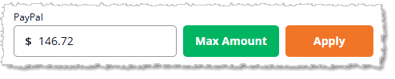
- On-Account — If the customer has an In-House Credit account, they can charge items to the On-Account payment type, as pictured below. Be sure to check the Outstanding balance the customer has at the top of that area. Your store likely has a policy on how much of a balance a customer can have before they need to pay it off. If they can proceed, and the amount is less than the Total Due, enter in the amount field how much the customer is paying with their In-House Credit. Or if they are paying the Total Due, click the Max Amount button. Either way, when you have the amount in place, click the Apply button to add it to the transaction.
 Boss Quote
"Instruct your human to keep their eyes on amounts and to be careful with the custom payment methods. Since the system has no way to verify amounts processed externally, accuracy depends on their feeble human vision. Don't tell them I said that! Can they really see nothing at night?"
— Oliver, Dubuque, IA
Using Multiple Payment Methods in a Transaction
The eTailPet system makes it easy to use multiple payment methods at in-store checkout. For example, if the Total Due is $146.72 and the customer wants to use three different payment methods, here is how you can ring that up:
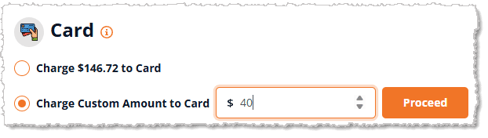
- The customer only wants to put $40 of the total on a card. They can tell you the amount, and in the Card payment area, you would click the radio button for Charge Custom Amount to Card, enter the amount, then click the Proceed button. In this example, you would see the Total Due reduce to $106.72.
- Next, the customer wants to pay $35 in Cash. In the Cash area, you would click the Custom Amount button, then enter the amount and click Process. In this example, you would see the Total Due reduce to $71.72.
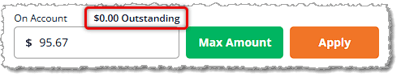
- Finally, the customer wants to pay the remaining $71.72 using their Venmo account. You would have them send the funds to the store's Venmo, and you'd verify payment. Then you click the Max Amount button in the Venmo payment type area. The system would populate $71.72, as pictured below, and when you click the Apply button, the Total Due would be fully covered. You can then click the Finish Sale button to complete the transaction.

Related Topics
New Sale Tour
Customers in New Sale
Refunds and Returns
Customer In-House Credit Accounts
Settings: Payment Types Tab
Frequently Asked Questions
Q: Can a customer pay with more than one payment method?
A: Yes. Enter each payment one at a time. For example, use Charge Custom Amount to Card for part of the total, then the Custom Amount button under Cash for another part. The Total Due drops after each payment. When it's fully covered, click Finish Sale.
Q: How do I charge only part of the total to a card?
A: In the Card area, click the radio button for Charge Custom Amount to Card, enter the amount, and click Proceed. The card has to be present and charged through the payment terminal to use this option.
Q: Can I take a card payment over the phone?
A: Yes. Click the Manual Card Entry tab and enter the card information. Card Number, Expiry, CVC, First Name, Last Name, and ZIP Code are required. Once the system checks the card's validity, click the Process button to authorize the funds.
Q: How does Penny Rounding work?
A: In the Cash area, click Enable Penny Rounding. The amount rounds down to the nearest 5 cents and never rounds up. Click Disable Penny Rounding if you need to turn it off.
Q: Why doesn't the system verify payments made with Venmo, checks, or other Custom payment types?
A: Custom payment types aren't integrated with the system. It assumes you've collected and verified the payment yourself and counts the amount as paid, so check each amount carefully before you apply it. Your store can create up to three Custom payment types under Account > Settings > Payment Types.
Q: Why don't I see the On-Account payment type?
A: On-Account only appears when the customer checking out has an In-House Credit account. The other payment types you see depend on how your store is configured.
Q: I have a question, but I can't find my answer here. How do I get more assistance?
A: You can ask any question at the number listed here. Contact our 24/7 support team at (323) 370-0738 for the U.S. and (888) 370-2363 for Canada.







 May 19, 2026
Is this page helpful?
×Help us improve our articles