⭐ eTailPet's Astro Loyalty Frequent Buyer integration lets your customers redeem Frequent Buyer Cards (FBC) online. This article will cover Astro Loyalty setup and Frequent Buyer troubleshooting tips. Keep reading to learn how to set it all up yourself!
Please Note: If you need to set up Astro Loyalty, click here to learn how to do so.

Sales Tax on Free Goods and Discounted Items
Make sure you abide by your state's tax laws. We recommend doing some thorough research before you issue your first free product reward or discount any item at your store. Your state's IRS website is a good place to start.
Redeem a Frequent Buyer Card Reward
A customer can redeem their free FBC item either online or in-store. Read below to learn how to do both.
Redeeming Frequent Buyer Cards In-Store in New Sale
If you're processing an FBC redemption in New Sale, do the following:
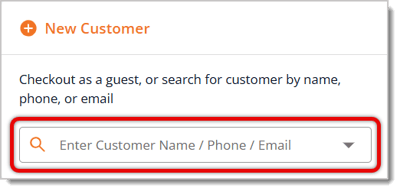
- Enter the customer's name, phone, or email address in the customer field of New Sale, as highlighted in the image below.
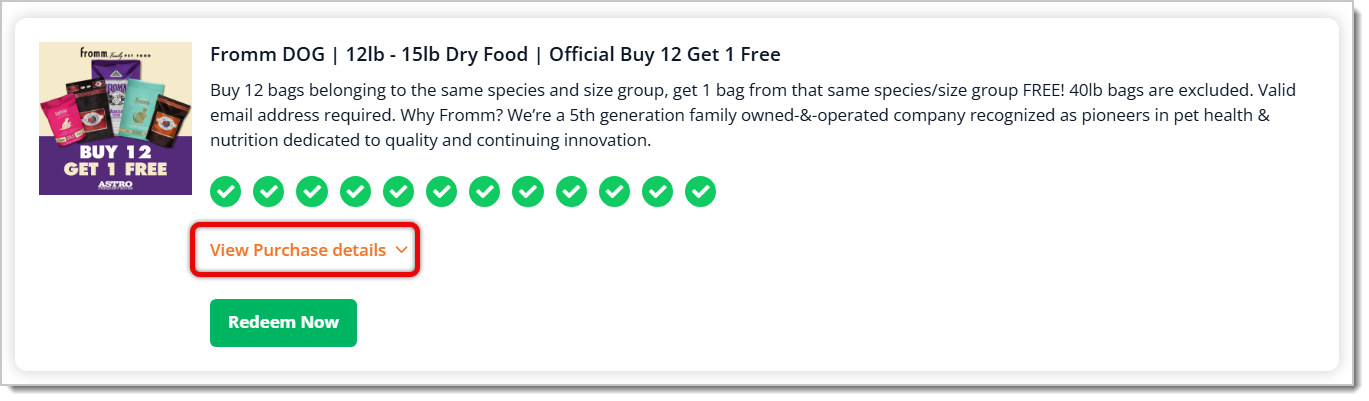
- After adding the customer to the transaction, click on Astro FBC from the top bar. If the customer has redeemable rewards from FBCs, you'll see a green banner, as pictured below.

- You can click on View Purchase Details to see what items are eligible as an FBC reward.
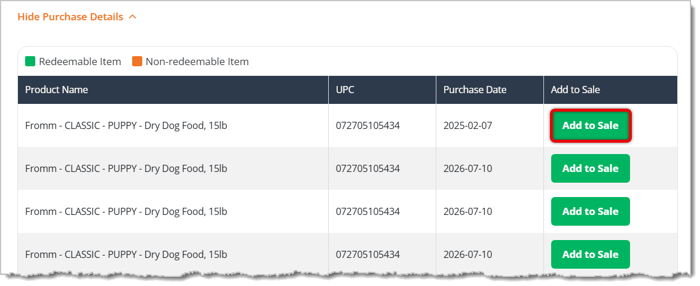
- Click on Add to Sale for the item the customer wants to redeem. The item will appear in the transaction.
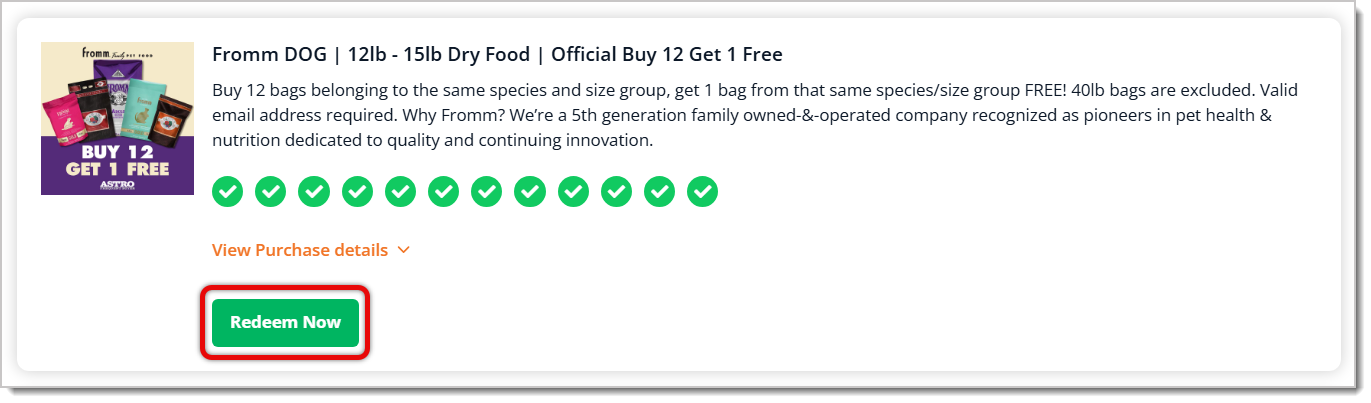
- Click on Redeem Now to mark the item as free in the transaction.
- You'll see the discount reflected in the transaction.

🐱 Please Note: The customer may still have to pay sales tax, as the tax is calculated pre-discount. 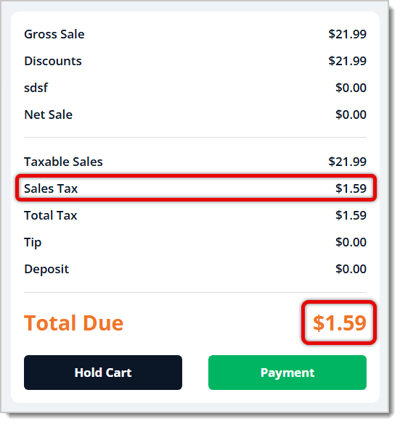
Online
View Frequent Buyer Cards
Customers can view and redeem their FBCs on your e-commerce website. If a customer is unsure how to access that online, tell them to do the following:
- Click on their profile name at the top of the website to open the menu.
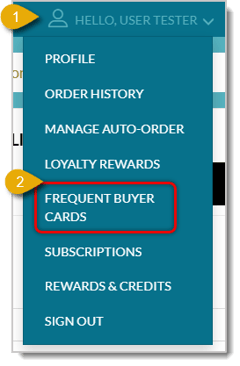
- Click on Frequent Buyer Cards in the menu.
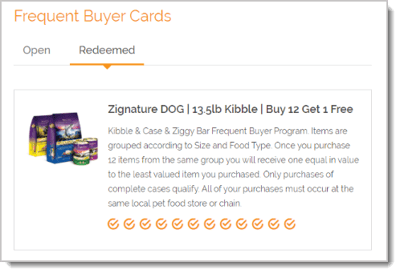
- Customers can view either their Open or Redeemed FBCs by clicking on their respective tabs.
Redeem a Loyalty Reward Online
When a customer has accumulated enough Astro Loyalty points, they can redeem a reward in exchange for points. Here is how they can do so online:
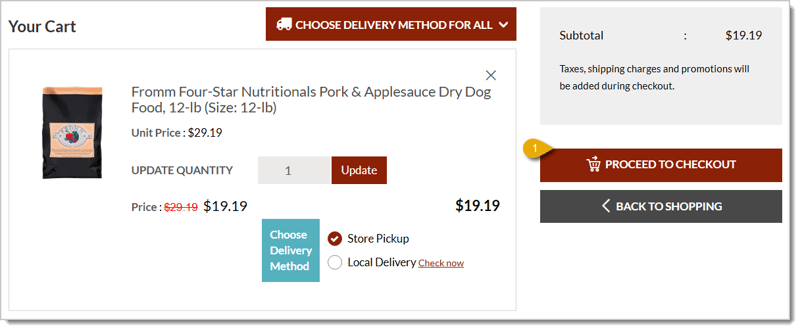
- After a customer opens their cart, they can click on Proceed to Checkout to purchase the order.
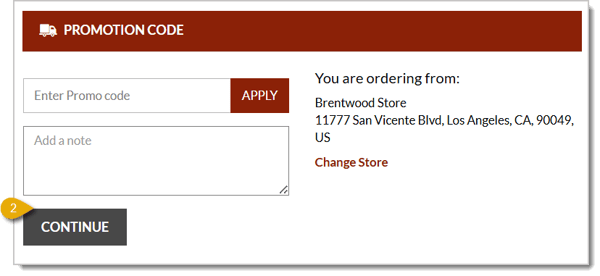
- The checkout screen will automatically open on the Promotion Code section first. Click on Continue to move onto the Loyalty Rewards section.
- Click on the FBC tab to view available rewards.
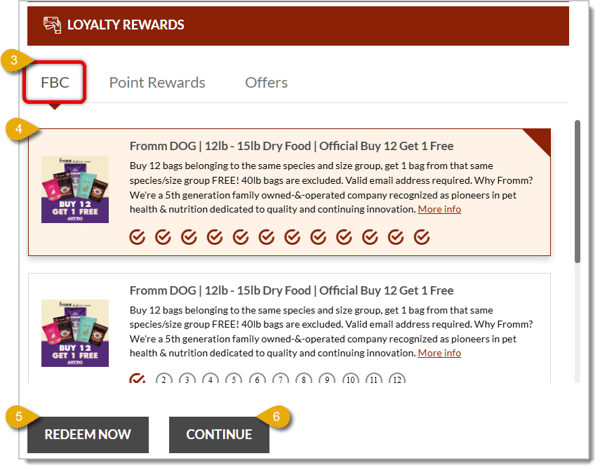
- Click on the FBC from which the customer wants to redeem a reward.
- Click on Redeem Now.
- Click Continue to proceed with the rest of the online transaction.
Troubleshooting
If you run into issues with FBCs, here are some steps you can take or reasons they're occurring:
Frequent Buyer Cards are not appearing in eTailPet
- Check to make sure you entered the correct Astro username and password in your eTailPet dashboard.
- Make sure you've asked Astro to enable the API.
- Log into your Astro Loyalty retailer account and verify that you're enrolled in the manufacturer's offer.
- Be sure to enroll in the manufacturer’s Frequent Buyer programs from your Astro Loyalty portal.
Customer Did Not Receive a Punch for Their Purchase
- Log into your Astro Loyalty retailer account and locate the customer to verify the punch applied to their purchase. If not, contact Astro Support at support@astroloyalty.com.
- Check that the customer's email address and phone number in eTailPet match their Astro profile.
- Note that Guest Checkout transactions are not eligible for Frequent Buyer punches.
The Customer Could Not Redeem a Free Item
- Redemption is possible after the last required qualifying purchase, not in the same transaction of the last qualifying purchase.
- For example, if a customer has to buy 10 bags of kibble to redeem a free one, the 10th bag is not free. The customer also can't add the 11th bag to the same transaction as the 10th. The 11th bag has to be redeemed in a separate transaction.
- Auto-orders are not eligible for free bag redemption. Customers can earn punches with auto-orders, but redemption has to be with regular online checkout or in-store.
Because information from Astro is passed electronically via API to eTailPet, any Astro-specific questions should be directed to support@astroloyalty.com.
Related Topics
Astro Loyalty Overview
Astro Loyalty for Your Online Store
Astro Loyalty Integration
Astro Loyalty Customer Connection
Astro Loyalty Points Events
Astro Loyalty Programs
Astro Loyalty Redemption
Frequently Asked Questions
Q: What do I do if I encounter issues with the Astro integration passing information to the eTailPet system?
A: If something goes wrong with the customer information from Astro Loyalty, we recommend contacting support@astroloyalty.com since Astro-specific information is passed electronically via API to eTailPet.
Q: I have a question, but I can't find my answer here. How do I get more assistance?
A: You can ask any question at the number listed here. Contact our support team at (323) 370-0738 for the U.S. and (888) 370-2363 for Canada.







 Jul 17, 2026
Is this page helpful?
×Help us improve our articles