POS Troubleshooting

Aug 19, 2026
From time to time when working in the eTailPet system, you may see system errors or have difficulty in some areas. This article is an overview of troubleshooting methods across the system. See what's here for you!
⚠️Please Note: These instructions are provided for your convenience only. eTailPet does not offer support or troubleshooting for third-party applications. For additional help, please utilize help resources from your third-party software provider.
General Data
| Issue |
Resolution |
| Data Import Error |
There are many things that could cause a data import to fail to upload, including improper formatting, incorrect column names, incorrect columns, etc. The first things to check are:
- Make sure you are using the correct template for your import.
- Make sure the import worksheet tab is named import.
- Make sure to delete the instruction tab and any additional tabs in the worksheet.
- Make sure you don't change the titles of any column headers.
Click here for the full article on Importing Best Practices.
|
Duplicate UPC in Public and Private Products
“No Value Present” |
Having the same UPC for both Public and Private products can create issues. This can happen if you initially created a private product and the product was later added to the Product Universe, causing a conflict. You might see the error No Value Present when clicking on the Vendors or Inventory tab in the public product.
In order to resolve this issue, you will need to archive the Private Product and create it as a Public Product from the Product Universe.
Click here to learn more about archiving private products and migrating them to public products.
|
| Desired Inventory Levels (DIL) Are Incorrect |
When you use Smart Order on a Purchase Order, you are allowing the POS to adjust your Desired Inventory Levels (DIL) to automatically keep up with demand increase or decrease. If you are new to the eTailPet POS, you will need to allow 4 to 6 weeks to build up your sales and purchasing history so that Smart Order can correctly calculate the DIL updates. If you run Smart Order before that time, some of your DIL could be changed to 0 because there is not enough data to make the correct decisions. You may need to reimport or use Batch Actions to change your DIL back to the original amount if you have run Smart Order too soon.
Click here to learn more about Smart Order.
To correct your DIL you can use Batch Actions or Adding and Importing Products.
|
Inventory
New Sale Page
| Issue |
Resolution |
| Error Initializing Cart |
- Make sure the tax rate is present under Store > Settings > Stores > Edit.
- Make sure an Open Register count was submitted under Register > Open / Close Drawer.
- Log out, clear your browser cache, and log back in again. Click here for instructions from Google Support.
|
| Astro Loyalty Issues |
- Click here for more detailed Astro Loyalty troubleshooting tips.
- Address Required: Some programs require a customer's phone number and street address. If the customer profile is missing that information, you will need to add the missing information in order for the customer to participate in the program.
- Customer profiles need to pair by email address and phone number in order for the integration to work. Add or update the missing email and/or phone information.
|
| Admin User Can't Check Out |
Admin users in the system cannot also be checked out as a customer with the same associated email address.
|
| Card Reader Won't Connect |
|
Browser Errors
| Issue |
Resolution |
| Ajax Error |
- Make sure the login email is all lower case:
- Not: LikeThis@etailpet.com
- Should Be: likethis@etailpet.com
- Log out, clear your browser cache, and log back in. Click here for instructions from Google Support.
- In some cases, you may need to exit the Chrome browser completely and restart it to force start a new browser session.
|
| Authentication Failed: Bad Credentials |
If you get this error when logging in “Authentication Failed: Bad Credentials” but it still logs you in, follow these steps to troubleshoot.
- Go to Settings > About tab.
- Check your email address and make sure that you don’t have any capital letters in it. If you do, then click Edit and change it to all lowercase.
- Log back in using only lowercase letters for the email address.
✅ Should be likethis@etailpet.com ❌ Not LikeThis@etailpet.com
|
| Password Reset Link |
Administrators are able to send reset password links. Occasionally, a user on the same computer may attempt to use the link to reset a password. If a reset password link is clicked when the computer already has a logged-in user in the eTailPet system, then the link will not work. Make sure the user is logged out and retry the link.
|
| Can't Log In |
There could be several reasons you are having issues logging in to your dashboard. If the above solutions didn’t solve your issue, the try these steps before submitting a help desk ticket:
- Check that you are entering your email address in all lowercase.
- Check the URL (website address) that you are typing is your correct login address.
- Clear your cache and restart your browser (See instructions linked above).
|
Purchase Orders
| Issue |
Resolution |
| Vendor Didn’t Receive Emailed Purchase Order |
- You can’t reopen a PO once you have submitted it.
- It is a good idea to copy yourself on the email submission so that you will be able to forward it to the vendor if they do not receive the original.
- To copy yourself on the PO, separate emails with a comma in the Vendor Information section of the PO. See the example below.
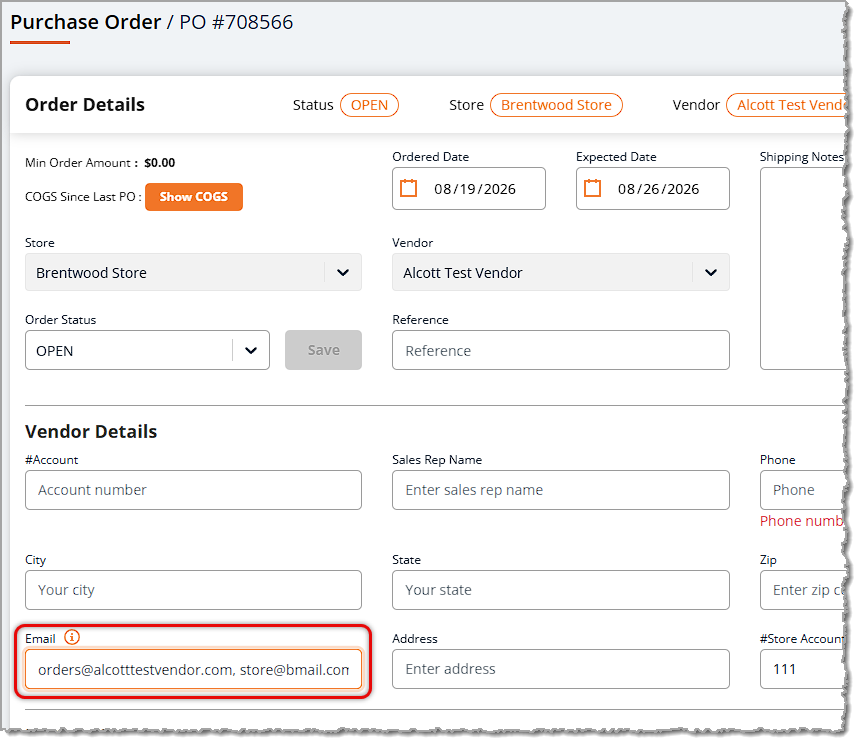
- Update the Vendor contact information in Manage Catalog > Product Vendors if you want it to be added automatically each time you create a new PO.
|
| Unwanted Fractional Number in PO Quantities |
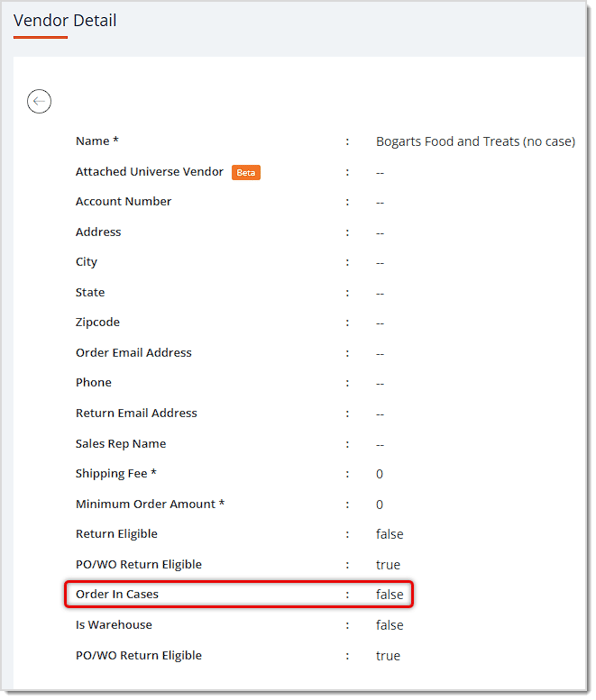
Go to Manage Catalog > Product Vendors > Open the Vendor for the Purchase Order.
Make sure that Order in Cases is set to false.
|
Email Troubleshooting
| Issue |
Resolution |
| Not Getting Emails in Your Inbox |
Make sure you do not unsubscribe yourself from any of your retailer emails. Do not unsubscribe to any system emails (which would come from your domain email), including but not limited to:
- Password Reset Notifications
- Order Emails
- Account Creation Notifications
If you think this might be your issue, please open a support ticket so we can help you resolve it.
|
| Customer or Vendor is Not Receiving Emails |
There are many possible reasons that your email could be getting blocked. Click here to learn more about how emails work in the eTailPet POS, including information about a report that can help you troubleshoot your email issues. If this doesn’t resolve your issue, please open a help desk ticket so we can help you resolve it. |
Labels
| Issue |
Resolution |
| Labels Won't Print |
- Make sure your browser is not blocking the label print dialog popup. Depending on your browser and plugins, you may need to change this in your browser settings or in your Ad-Blocker plugin:
- Change the setting to Always Allow Pop-Ups from the eTailPet.com domain.
- If you're using a Zebra Label Printer, make sure you have Browser Print enabled. Click here for instructions.
|
| Labels Are Misaligned |
On most Zebra printers, you can align the paper by holding the Paper Feed button until the light blinks four times, then release. |
| Labels Print Incorrectly |
Make sure the printer is set to the factory settings.
Zebra: Hold down the forward feed button on the front panel. The indicator light will start a flash sequence: 1, 1-2, 1-2-3, and so on. When it flashes four times, release it. This resets the printer to factory defaults.
|
⚠️Please Note: If you didn't find a solution here:
- Check the Knowledge Base for more how-to articles on troubleshooting in the eTailPet system.
- Submit a Support Ticket by clicking here remember to add a link here, email us at support@etailpet.com, or call us at the number at the bottom of this article.
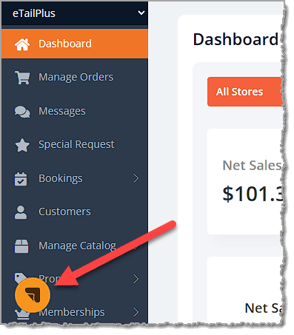
- View Maintenance Releases and Platform Updates by going to the Dashboard and clicking on the Maintenance Updates button in the lower left.
Related Topics
Astro Loyalty Troubleshooting
Importing Products Best Practices and Troubleshooting
Email Troubleshooting
Hardware Setup and Troubleshooting
Basic Hardware Troubleshooting for Card Readers
Frequently Asked Questions
Q: I have a question, but I can't find my answer here. How do I get more assistance?
A: You can ask any question at the number listed here. Contact our support team at (323) 370-0738 for the U.S. and (888) 370-2363 for Canada.
⭐ If you're running into problems with the Astro Loyalty integration, there are ways to troubleshoot
The Knowledge Base has been a dependable resource, but it was time to build a new one with better fu
The Dashboard is your admin interface for the eTailPet system. This article covers the navigation el







Is this page helpful?
×Help us improve our articles