






Astro Loyalty Troubleshooting
⭐ If you're running into problems with the Astro Loyalty integration, there are ways to troubleshoot
 Aug 19, 2026
You can use eTailPet to send all kinds of emails for your business, like customer order confirmations, purchase orders, and vendor credit requests. If you encounter issues with your emails though, you can try a few things to resolve them. See how you can make it work!
If you ever forget your password, you can click on Lost Your Password? in the login page. But if you don't receive the email containing a reset password link, there are ways to work around this.
Retailers often need multiple email addresses for different register logins. It may be tempting to use a fake login email address (meaning it doesn't actually exist) to avoid additional email costs, but if you forget the password, you won't receive the password reset email.
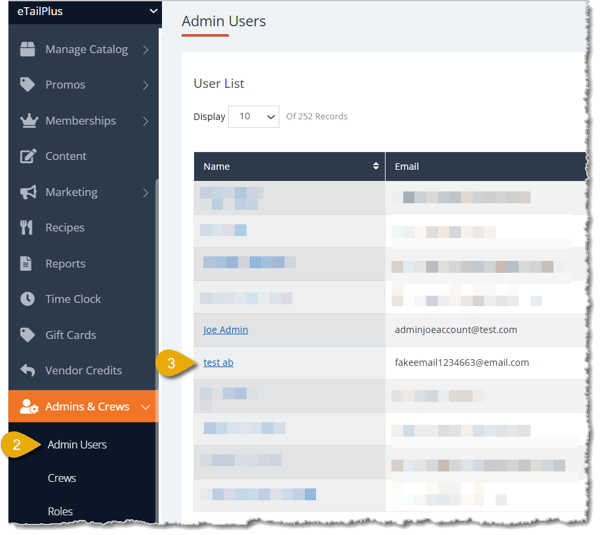
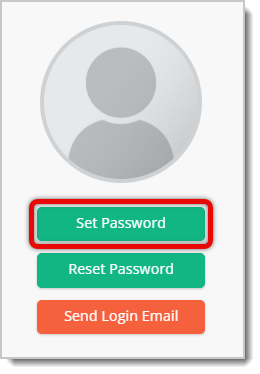
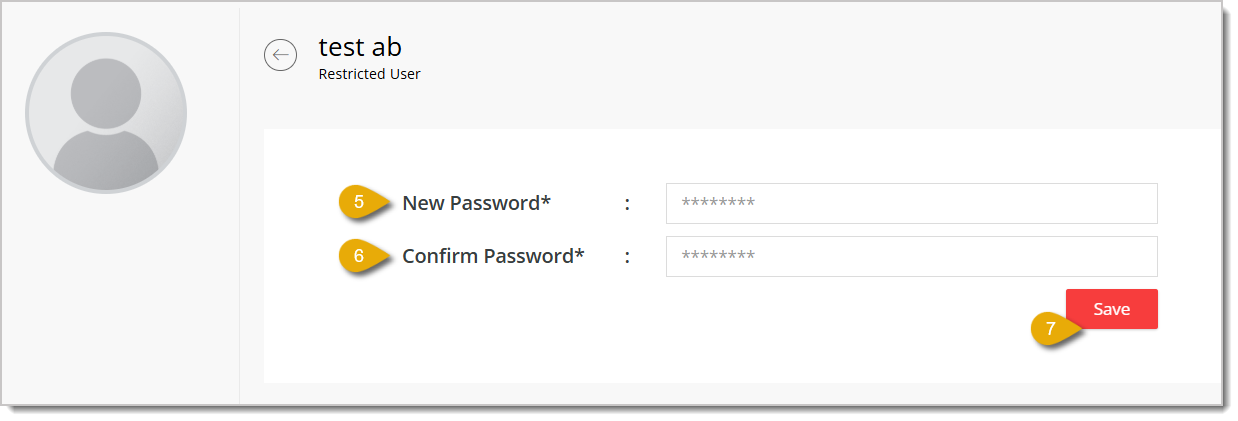
You can also manually set the password if you use an Administrator account in the eTailPet system. Here's how:
Email providers try to catch spam email on your behalf, so important emails might go directly to your junk folder. To prevent this from happening, add the reset link email to your safe senders list in your email client. This is sometimes called whitelisting.
If you're using Outlook (formerly Hotmail), do the following to make sure your emails don't go straight to spam. This works for both the Outlook desktop app and its web browser version (outlook.com).

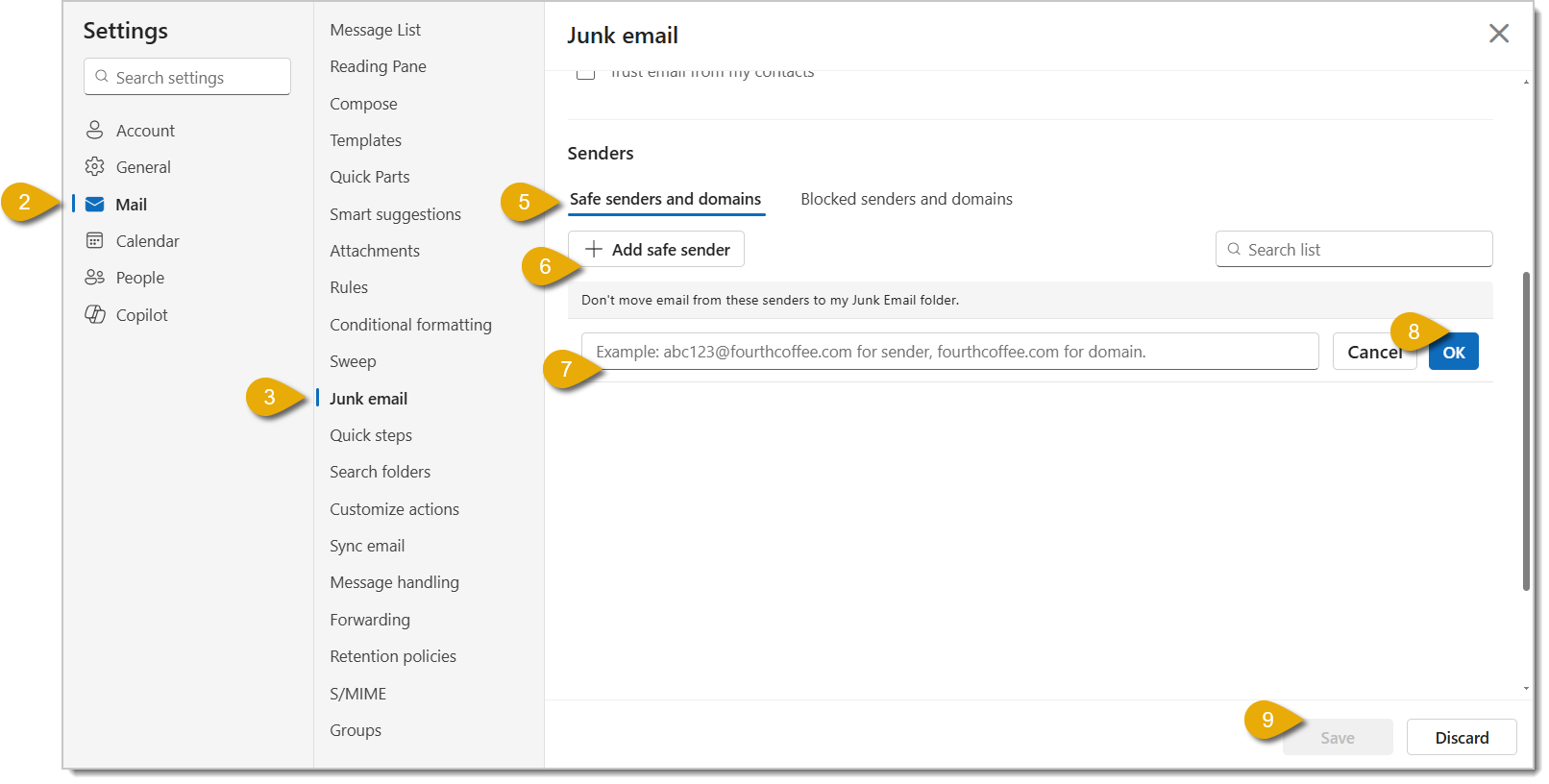
Now you'll always receive emails from this sender.
🐱 Please Note: If you've accidentally blocked your own domain email address or find that you can't receive emails from yourself, please reach out to support using the contact information at the bottom of this article.
There are several reasons your email may not get received.
Q: What if my login email address doesn't actually exist (I just made it up for a register login)?
A: Set up an email alias that forwards to your real inbox, so you still receive password reset emails sent to it.
Q: Can I reset a user's password for them instead of waiting on the reset email?
A: Yes, if you have an Administrator account. Go to Admin & Crews > Admin Users, open their account, and click Set Password — not Reset Password, since that just tries to email a link to an address that might not exist.
Q: My customers say they never got their order confirmation email. What's the most likely cause?
A: Most often it's because they accidentally unsubscribed from your email group — contact the help desk to check. The next most common causes are the email landing in their junk folder, or their email provider blocking it outright.
Q: What does "whitelisting" an email address mean?
A: It means marking that sender as safe in your email client, so future emails from them skip the junk folder automatically.
Q: I own my own domain and send emails through a managed email service — is there anything extra I need to set up?
A: You may need to add sender authentication to your email server using CNAME records, especially if receiving providers like Gmail or Yahoo are blocking your emails.
Q: I have a question, but I can't find my answer here. How do I get more assistance?
A: You can ask any question at the number listed here. Contact our support team at (323) 370-0738 for the U.S. and (888) 370-2363 for Canada.
Is this page helpful?
×Help us improve our articles