📨 Email marketing can be one of the ways your store gets the word out about promotions or special events. Luckily, the eTailPet system lets you send emails out to customers! This article will cover how to send out marketing emails, as well as how you can view their performance. See how to market your business more effectively with emails!
Composing and Sending Marketing Emails
Here is how to create and send out emails to your customers (given that the customer's email address is recorded in your system):
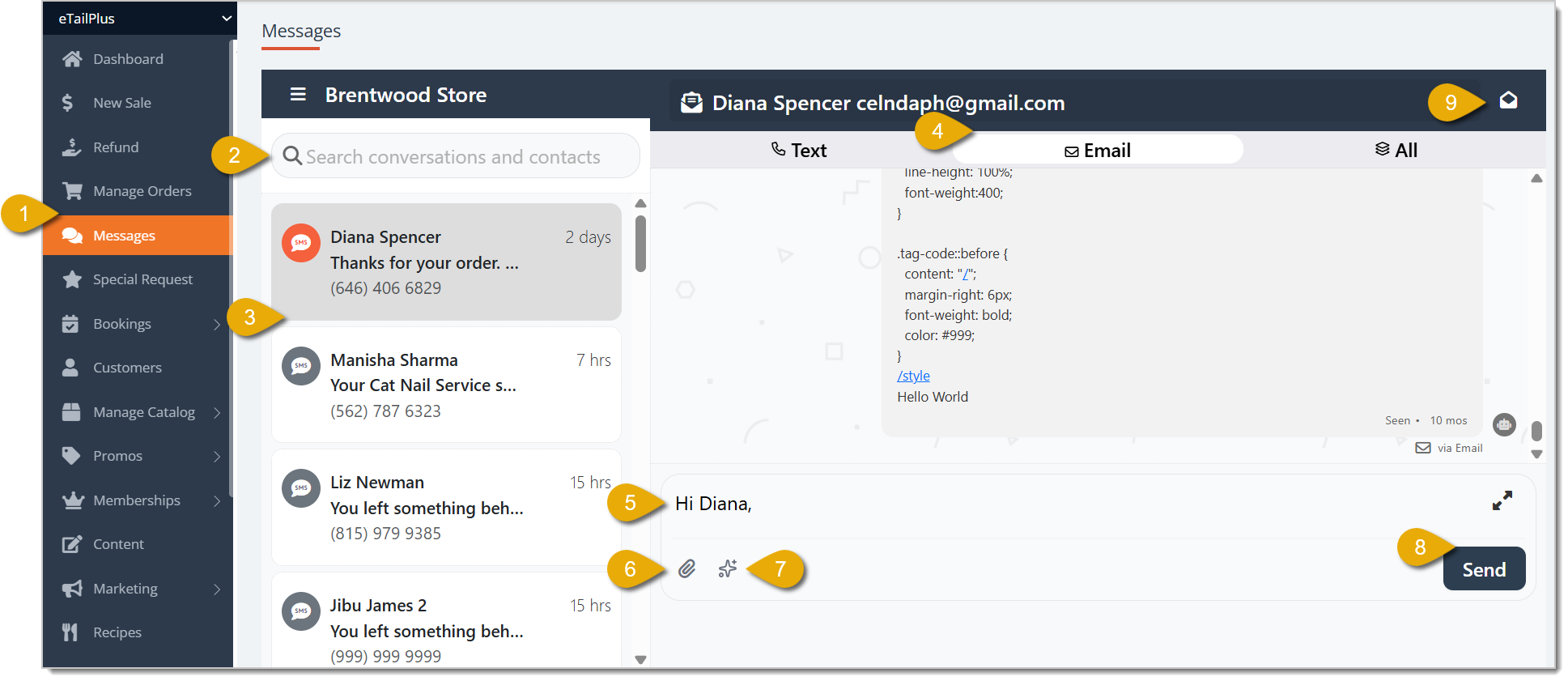
- Go to Messages in the eTailPet main menu.
- To find a customer's messaging history, enter their name or a message keyword in the Search Conversations and Contacts field. If you want to send an email to a customer you haven't messaged before, go to step number 9.
- Click on the customer's messaging entry to open it.
- On the right, click on Email in the upper tab.
- Type in the email you want to send.
- Click on the Paperclip Icon if you want to attach files to the email.
- If you're having trouble coming up with a message, you can click on the AI icon to have AI draft one up for you.
- Click on Send when you're ready to send the email.
- If you want to send an email to a customer you haven't messaged before, click on the Inbox icon in the upper right.
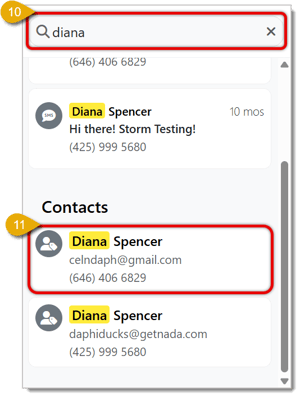
- Enter the customer's name in the Search Conversations and Contacts field.
- Select the customer's name under Contacts. This will open a window with the customer's contact information.
- In the window showing the contact information, click on Email: (Customer's Email).

- Compose and send the email as described in steps 4 to 8.
Emails Report
You can use the Emails online report to track how your marketing or reminder emails are performing.
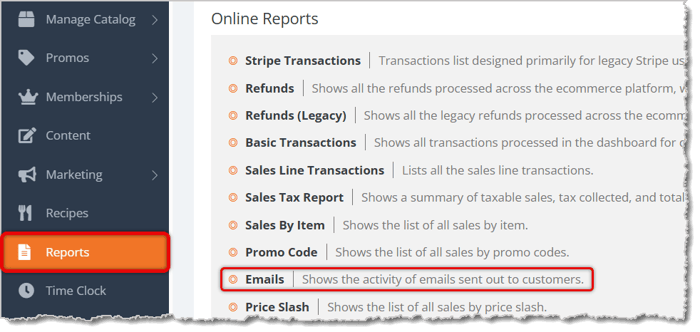
To start, go to Reports > Online Reports > Emails. Here is everything you can view and use in this report:
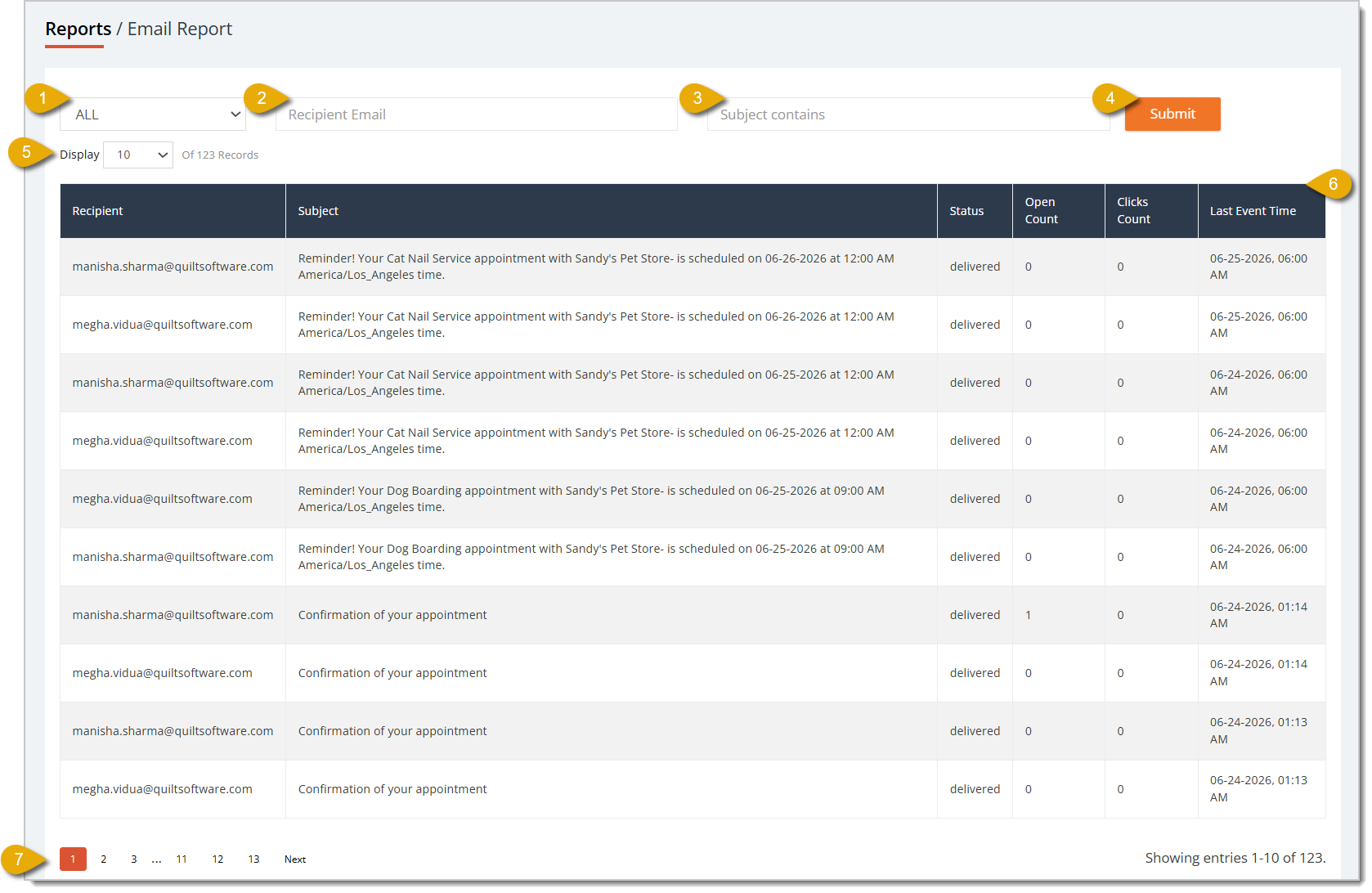
- Status Filter — You can filter the report's data to emails with a certain status:
- Processing — The email is currently being processed to get sent to the recipient.
- Delivered — The email has been successfully delivered to the recipient.
- Not Delivered — The email was not delivered to the recipient. Check that the recipient email address is correct.
- Recipient Email Field — You can filter the report's data to just ones that were sent to a certain recipient. Enter the receiving email address here.
- Subject Contains Field — You can filter the report's data to just ones with keywords in the email subject. Enter the keywords here.
- Submit — After entering any filter, click on Submit to find matching data.
- Show Number of Entries — You can view a certain number of entries per page in this report by selecting a number in this drop-list.
- Data Table — You can view the report's data in this table. This is every column you can view in this report:
- Recipient — This column shows the email address that received the email.
- Subject — This column shows the subject line of the email.
- Status — This column shows the status of the email: Processing, Delivered, or Not Delivered.
- Open Count — This column shows how many times the email was opened by recipients.
- Clicks Count — This column shows how many times the email's contents were clicked on by recipients.
- Last Event Time — This column shows the last date and time the email had a recipient interaction.
- Navigate — If your report spans multiple pages, you can navigate between pages by clicking on the Page Number to skip to that page, or by clicking either Next or Previous.
Related Topics
Promo Codes
Price Slash
Rewards
Online Store Listings
Store Reviews
Product Reviews
Online Reports 2
Frequently Asked Questions
Q: Can I send a marketing email to a customer who isn't in my system yet?
A: No. The customer needs an email address on file first. Add their contact info before you can message them.
Q: What does the AI icon do when composing an email?
A: It drafts a message for you if you're stuck on what to write. You can edit the draft before sending.
Q: What should I do if an email shows as Not Delivered?
A: Double-check that the recipient's email address is entered correctly in their contact info, then try sending again.
Q: What's the difference between Open Count and Clicks Count in the Emails Report?
A: Open Count tracks how many times the email itself was opened. Clicks Count tracks how many times something inside it, like a link, got clicked.
Q: Can I attach files to a marketing email?
A: Yes. Click the Paperclip Icon while composing to attach files before you send.
Q: I have a question, but I can't find my answer here. How do I get more assistance?
A: You can ask any question at the number listed here. Contact our support team at (323) 370-0738 for the U.S. and (888) 370-2363 for Canada.







 Oct 01, 2024
Is this page helpful?
×Help us improve our articles