






Price Slash
 Jul 29, 2026
The Price Slash page of the eTailPet system allows you to view, filter, and manage automatic product discounts available in your store. A Price Slash applies its discount automatically whenever its conditions are met, so the customer never has to enter a code at checkout. You can also create new Price Slash discounts from here. Explore the options here for you!
Price Slash Page
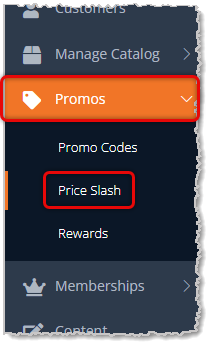
To get to this page, in the main system menu on the left, click on Promos, then on the Promos menu, click on Price Slash.
There are two tabs on the Price Slash page. By default, you'll see the tab for Dollar / Percentage price slashes. There is also a tab for your Buy / Get price slashes. Here is how to work with your Price Slash discounts:
Dollar / Percentage Price Slash
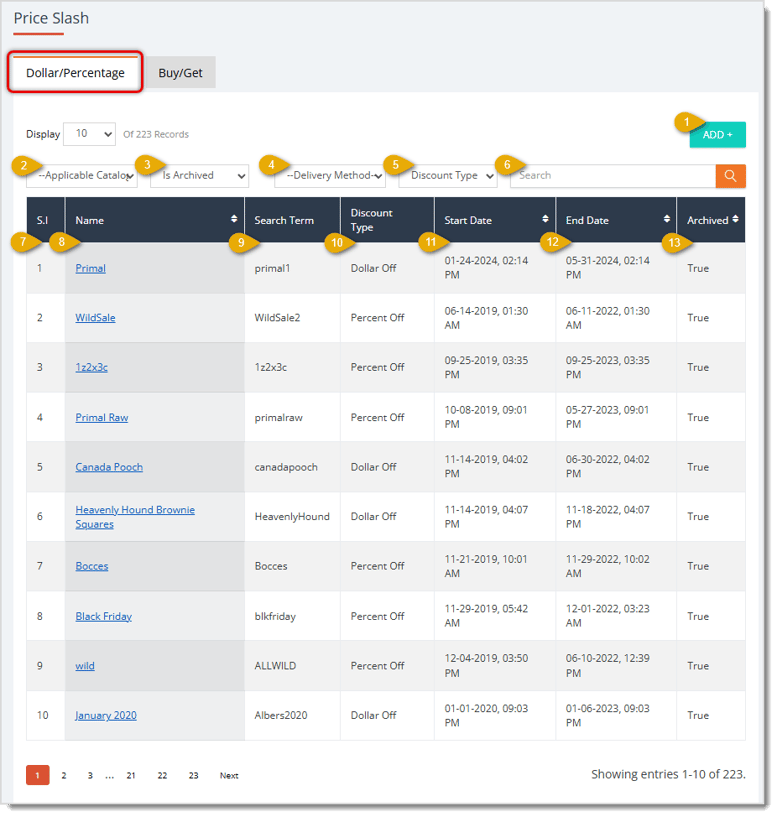
- Add + — Click this button to create a new Dollar/Percentage price slash. See the section below on Create a Price Slash for details.
- Applicable Catalog — Select Public Catalog or Private Catalog from the drop-list to filter the list to price slashes that apply to that catalog.
- Is Archived — Select Yes or No from the drop-list to filter the list to show either archived or active price slashes. By default, the system displays active price slashes.
- Delivery Method — Select Local Delivery, Store Pickup, Ship to Me, or In-Store from the drop-list to filter the list to price slashes available for that fulfillment method.
- Discount Type — Select Dollar Off, Percent Off, or Cost + Percent Markup from the drop-list to filter the list by how the discount is calculated.
- Search — Enter a Name or Search Term here, then click the search icon to find a specific price slash.
- S.I. — The Serial Index is the numeric order of the price slashes in the data table.
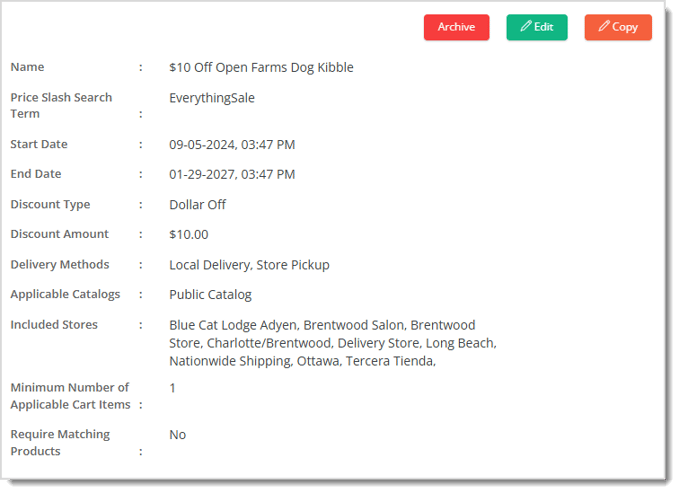
- Name — This column displays the Name for each price slash. Click on the column header to sort the data according to this column, or click twice to reverse the sort. You can click a Name link to open that price slash's details so you can review or edit it. When viewing the price slash's details, you can click the Archive button to archive it (this button reads Restore if the price slash is already archived), click the Edit button to adjust its details, or click the Copy button to duplicate the price slash and adjust the details for the new one, as pictured below. Each of the price slash details are explained in the section below, Create a Dollar / Percentage Price Slash.
- Search Term — This column lists the internal Search Term used to locate this price slash in the list. The customer never enters this term at checkout, since the discount applies automatically once its conditions are met.
- Discount Type — This column displays the Type of discount for the price slash: Dollar Off, Percent Off, or Cost + Percent Markup.
- Start Date — This column shows the Date and Time when each price slash becomes active. You can click on the column header to sort the data according to this column, or click twice to reverse the sort.
- End Date — This column lists the Date and Time when each price slash expires. You can click on the column header to sort the data according to this column, or click twice to reverse the sort.
- Archived — This column displays whether the price slash is archived (True) or active (False). You can click on the column header to sort the data according to this column, or click twice to reverse the sort.
Buy / Get Price Slash
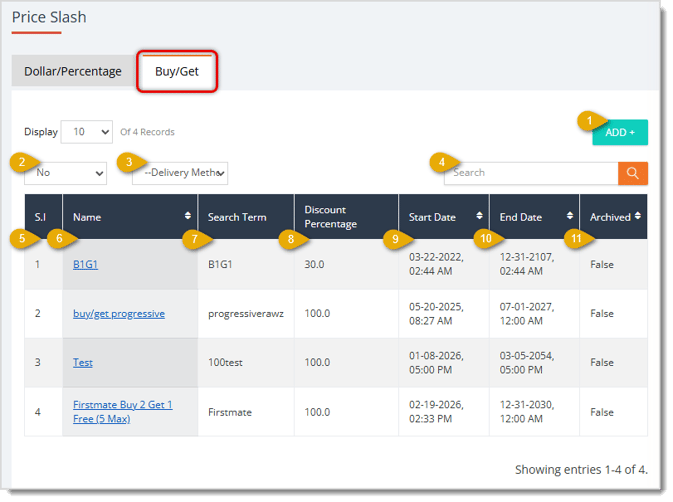
- Add + — Click this button to create a new Buy / Get price slash. See the section below on Create a Price Slash for details.
- Is Archived — Select Yes or No from the drop-list to filter the list to show either archived or active price slashes. By default, the system displays active price slashes.
- Delivery Method — Select Local Delivery, Store Pickup, Ship to Me, or In-Store from the drop-list to filter the list to price slashes available for that fulfillment method.
- Search — Enter a name or search term here, then click the search icon to find a specific price slash.
- S.I. — The Serial Index is the numeric order of the price slashes in the data table.
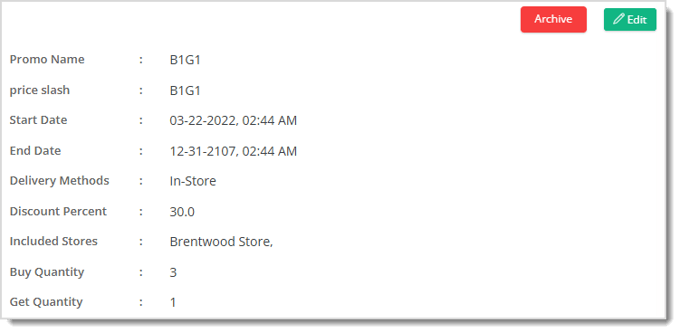
- Name — This column displays the Name for each price slash. Click on the column header to sort the data according to this column, or click twice to reverse the sort. You can click a Name link to open that price slash's details so you can review or edit it. When viewing the price slash's details, you can click the Archive button to archive it, or click the Edit button to adjust its details, as pictured below. Each of the price slash details are explained in the section below, Create a Buy / Get Price Slash.
- Search Term — This column lists the internal Search Term used to locate this price slash in the list.
- Discount Percentage — This column shows the percentage discount the customer receives on the Get quantity when the price slash applies.
- Start Date — This column shows the Date and Time when each price slash becomes active. Click on the column header to sort the data according to this column, or click twice to reverse the sort.
- End Date — This column lists the Date and Time when each price slash expires. Click on the column header to sort the data according to this column, or click twice to reverse the sort.
- Archived — This column displays whether the price slash is archived (True) or active (False). Click on the column header to sort the data according to this column, or click twice to reverse the sort.
Create a Price Slash
Create a Dollar / Percentage Price Slash
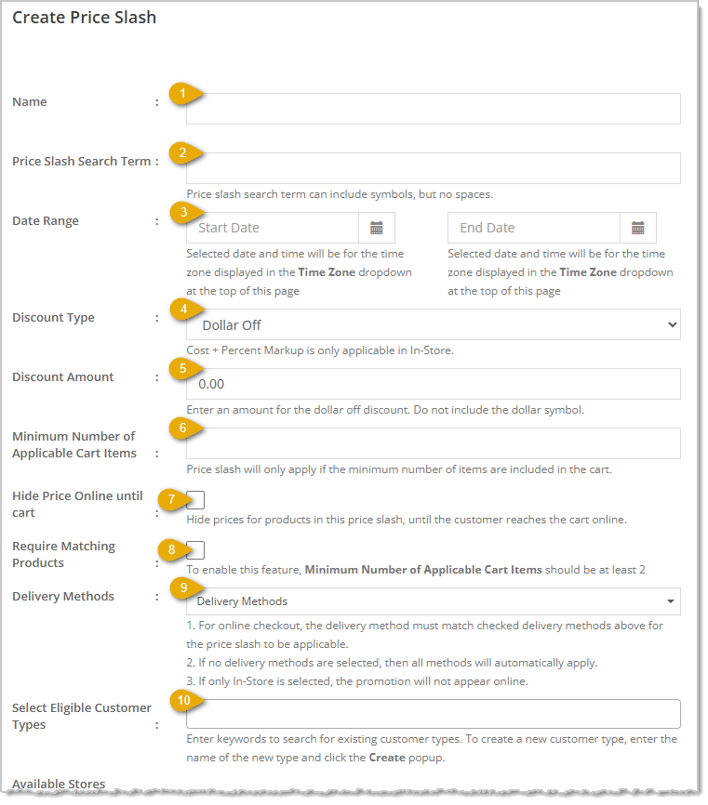
Here is how to create a Price Slash that automatically reduces a dollar amount or a percentage off eligible products:
- Name — Enter the internal Name you want to use to identify this price slash.
- Price Slash Search Term — Enter a unique Search Term you can use to find this price slash in the list later. This field can include symbols, but does not allow spaces.
- Date Range — Enter the Start Date and End Date (and time) during which the price slash will be active. The date and time you enter apply to the time zone shown in the Time Zone drop-list at the top of the page.
- Discount Type — Select Dollar Off, Percent Off, or Cost + Percent Markup from the drop-list to set how the discount is calculated. Cost + Percent Markup only applies to In-Store purchases.
- Discount Amount — Enter the value of the discount. Depending on what you selected for Discount Type, enter either a dollar amount or a percentage, without including the dollar sign or percent symbol.
- Minimum Number of Applicable Cart Items — Enter the minimum number of eligible items the customer must have in their cart for this price slash to apply.
- Hide Price Online Until Cart — Check this box if you want to hide the discounted price for these products on your storefront website until the customer reaches the cart.
- Require Matching Products — Check this box if you want the price slash to require the minimum cart quantity to be reached using the same matching product, rather than any combination of eligible products. To enable this feature, Minimum Number of Applicable Cart Items must be set to at least 2.
- Delivery Methods — Select which fulfillment methods (Local Delivery, Store Pickup, Ship to Me, or In-Store) qualify for this price slash from the drop-list. If you don't select any delivery methods, all methods automatically qualify. If you only select In-Store, the price slash will not appear online.
- Select Eligible Customer Types — Enter keywords to search for and select an existing customer type that qualifies for this price slash, or enter a new type name and click Create in the popup to add it.
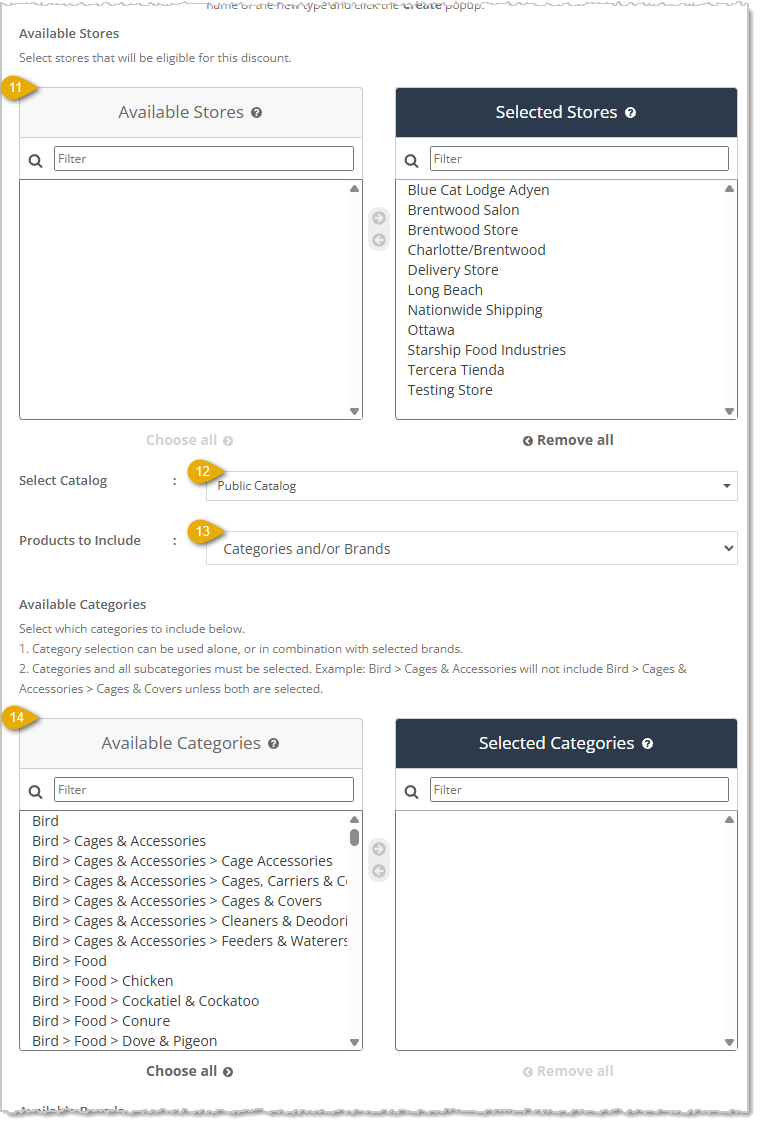
- Available Stores — By default, all of your store locations will be Selected. If there are any you don't want to use this price slash, either double-click the Store Name, or click on the Store Name to highlight it, then click the Left Arrow button to move it out of the Selected Stores list.
- Select Catalog — Select Public Catalog or Private Catalog from the drop-list to set the catalog to which this price slash applies.
- Products to Include — Select Categories and/or Brands, Selected Products, or All Products from the drop-list to define which products are eligible for this price slash.
- Available Categories — If you selected Categories and/or Brands above, select which product categories are eligible for this price slash by moving them from the Available Categories list into the Selected Categories list. You must select each subcategory individually, since selecting a parent category does not automatically include its subcategories. You can either double-click the Category, or click on the Category to highlight it, then click the Right Arrow button to move it into the Selected Categories list.
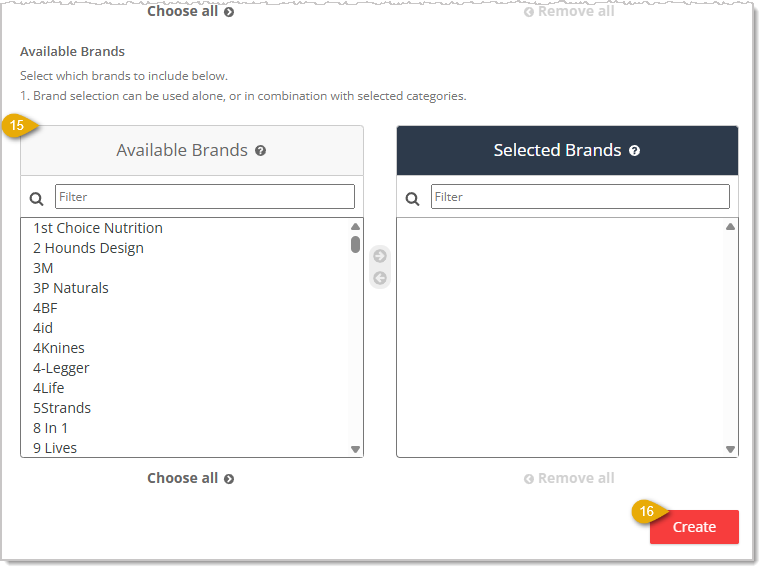
- Available Brands — If you selected Categories and/or Brands above, select which product brands are eligible for this price slash by moving them from the Available Brands list into the Selected Brands list. You can use brand selection alone or combine it with selected categories. You can either double-click the Brand, or click on the Brand to highlight it, then click the Right Arrow button to move it into the Selected Brands list.
- Create — Click the Create button in the bottom right once you finish entering the price slash details to save and create the new price slash.
Your new Price Slash will now appear in the list on your Price Slash page when you view the Dollar / Percentage tab.
Create a Buy / Get Price Slash
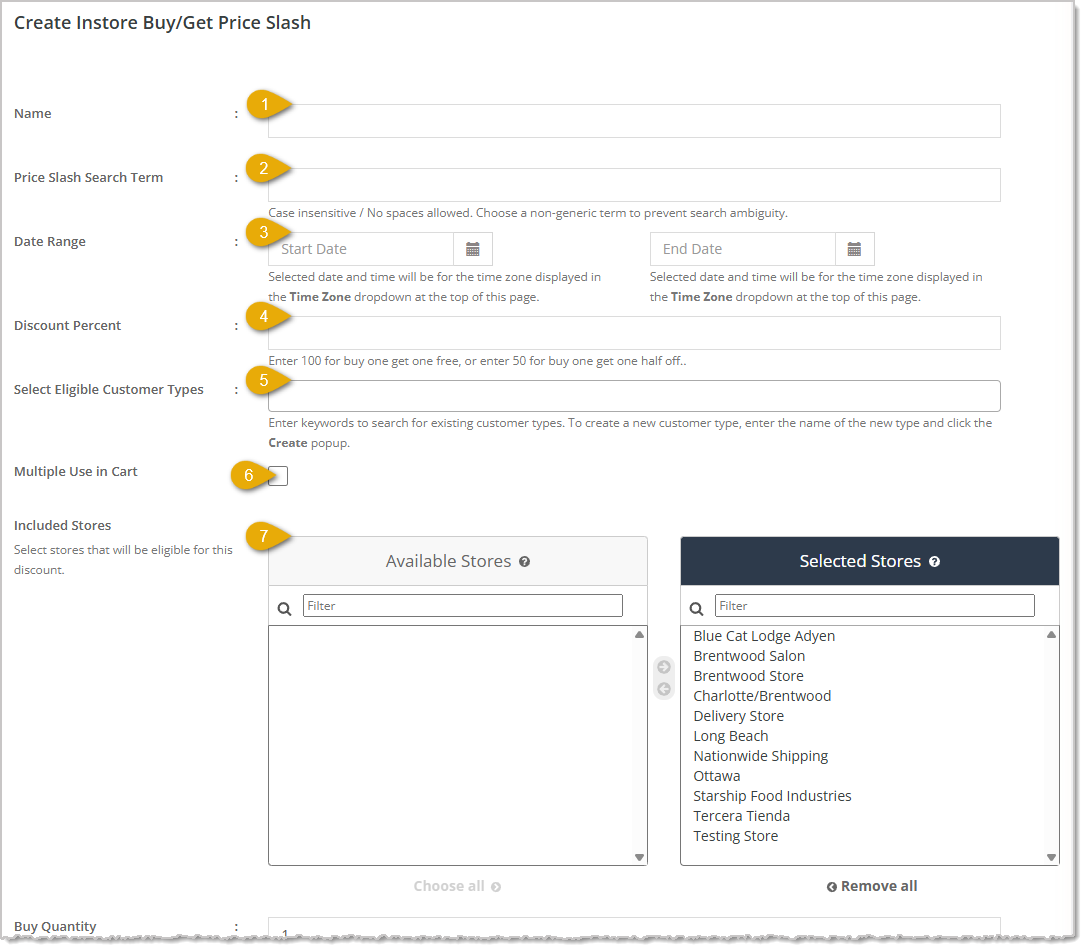
Here is how to create a Price Slash that rewards the customer with a discount on certain products after they buy a required quantity of other products:
- Name — Enter the internal Name you want to use to identify this price slash.
- Price Slash Search Term — Enter a unique Search Term you can use to find this price slash in the list later. This field is case insensitive and does not allow spaces. Choose a non-generic term to avoid search ambiguity.
- Date Range — Enter the Start Date and End Date (and time) during which the price slash will be active. The date and time you enter apply to the time zone shown in the Time Zone drop-list at the top of the page.
- Discount Percent — Enter the percentage discount the customer receives on the Get product(s). For example, you could enter 100 for a buy-one-get-one-free offer, or enter 50 for a buy-one-get-one-half-off offer.
- Select Eligible Customer Types — Enter keywords to search for and select an existing customer type that qualifies for this price slash, or enter a new type name and click Create in the popup to add it.
- Multiple Use in Cart — Check this box if you want to let the customer apply this price slash more than once within the same cart.
- Included Stores — By default, all of your store locations will be Selected. If there are any you don't want to use this price slash, either double-click the Store Name, or click on the Store Name to highlight it, then click the Left Arrow button to move it out of the Selected Stores list.
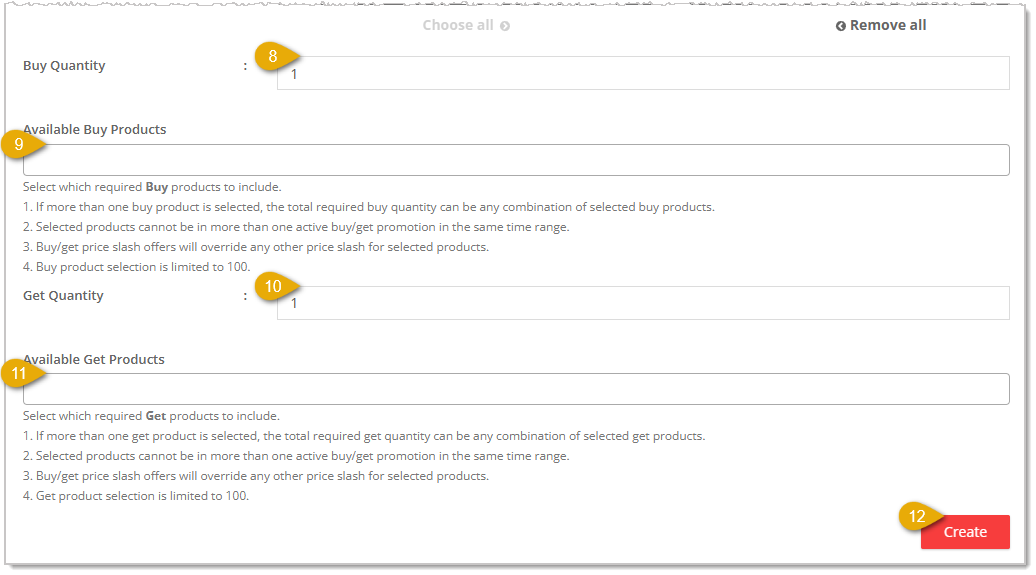
- Buy Quantity — Enter the Quantity of qualifying items the customer must have in their cart from the Available Buy Products for this price slash to apply.
- Available Buy Products — Enter keywords to search for and select which products count toward the Buy quantity. If you select more than one buy product, the customer can reach the required buy quantity using any combination of the selected products. Buy product selection is limited to 100 products, and selected products cannot belong to more than one active Buy/Get price slash in the same time range.
- Get Quantity — Enter the Quantity of qualifying items from the Available Get Products that receive the discount when the price slash applies.
- Available Get Products — Enter keywords to search for and select which products Get the discount. If you select more than one get product, customers can meet the required get quantity using any combination of the selected products. Get product selection is limited to 100 products, and selected products cannot belong to more than one active Buy/Get price slash in the same time range.
- Create — Click the Create button in the bottom right once you finish entering the price slash details to save and create the new Buy/Get price slash.
Your new Price Slash will now appear in the list on your Price Slash page when you view the Buy / Get tab.
Boss Quote
Make sure your human understands to give Price Slashes with care. Each one cuts into profit share, so while offering several is nice, don't price slash the whole store. Even a kitten knows that. Ooh! Something flashy, gotta pounce!- Hemingway, Frankford, DE
Related Topics
Discount and Promotional Reports
Frequently Asked Questions
Q: What is the difference between a Price Slash and a Promo Code?
A: A Price Slash automatically reduces the price of eligible products once its conditions are met, and the customer never has to enter anything at checkout. A Promo Code requires the customer to enter a specific code at checkout to receive the discount.
Q: What is the difference between the Dollar/Percentage tab and the Buy/Get tab?
A: The Dollar/Percentage tab lists price slashes that reduce eligible products by a dollar amount or percentage. The Buy/Get tab lists price slashes that give a discount on certain products once the customer buys a required quantity of other products.
Q: How do I see price slashes that are no longer active?
A: Select Yes from the Is Archived drop-list to filter the list to archived price slashes.
Q: Can I require the customer to buy multiples of the same product to qualify for a Dollar/Percentage price slash?
A: Yes. Check the Require Matching Products box and set the Minimum Number of Applicable Cart Items to at least 2.
Q: If I select multiple products for the Buy or Get quantity on a Buy/Get price slash, how is the required quantity calculated?
A: The required quantity can be met using any combination of the products you selected for Available Buy Products or Available Get Products.
Q: I have a question, but I can't find my answer here. How do I get more assistance?
A: You can ask any question at the number listed here. Contact our support team at (323) 370-0738 for the U.S. and (888) 370-2363 for Canada.
Is this page helpful?
×Help us improve our articles