Your Legacy Reports section preserves six older discount-tracking reports that eTailPet has since consolidated into your newer Discount Summary Report. This article shows you how to use each of them just in case you find value in the reports individually. Take a look below to see what each legacy report still offers!
You can get to your Legacy Reports by logging into the Admin Dashboard and clicking on Reports in the main menu. On the Reports page, scroll down to the Legacy Reports section, as pictured below.
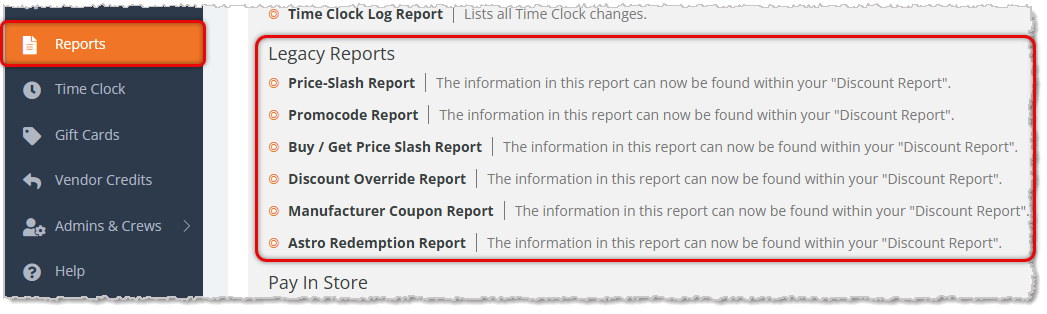
The Legacy Reports area has the following reports:
The Price-Slash Report
The Price-Slash Report shows you how each Price Slash offer performed within a selected date range, including how many times it was redeemed, the sales it drove, and how much it discounted.
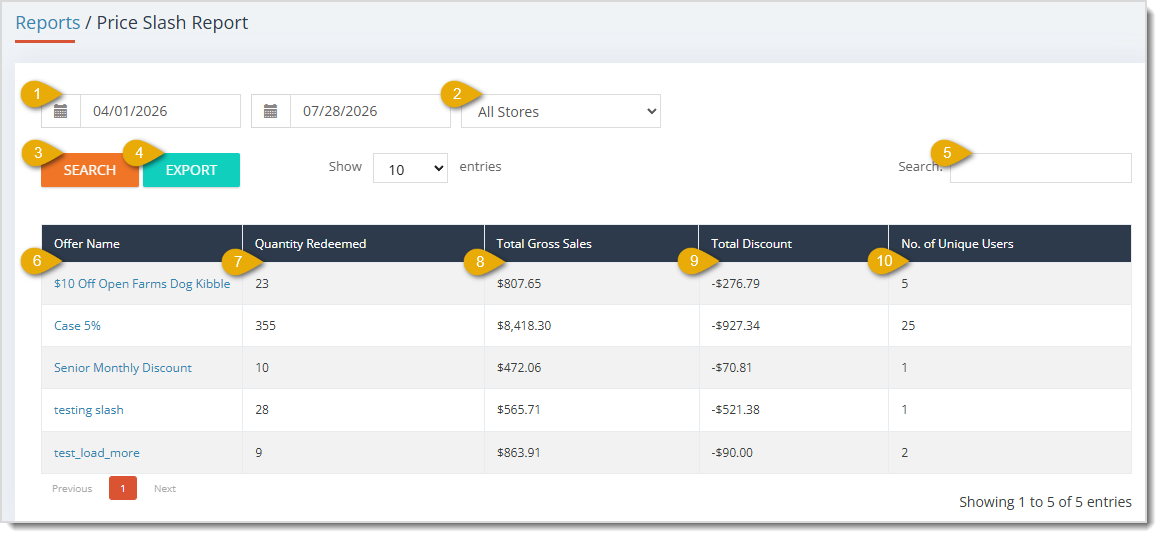
The Price-Slash Report has the following functions:
- Date Range — Enter or select the Start Date and End Date of the range you want to search. This area defaults to the current day.
- Store — This field defaults to All Stores. Select a specific Store location from this drop-list to filter the table to Price-Slash redemptions from that store only.
- Search — Click the Search button after setting your filters to narrow down the results.
- Export — Click the Export button to download the report's data across all pages as a CSV spreadsheet file.
- Search Field — Enter search text to find what you want in the data table.
- Offer Name — This column lists the name of each Price Slash offer that was redeemed. You can click on the offer's name to open a Sales Lines Report filtered to that specific offer and date range.
- Quantity Redeemed — This column displays how many times each offer was redeemed within your search range.
- Total Gross Sales — This column shows the total gross sales amount generated across all redemptions of each offer.
- Total Discount — This column lists the total dollar amount discounted through each offer, shown as a negative value.
- Number of Unique Users — This column displays the number of distinct customers who redeemed each offer.
The Promo Code Report
The Promo Code Report shows you how each promo code performed within a selected date range, including how many times it was used, the sales it generated, and the average size of transactions that used it.
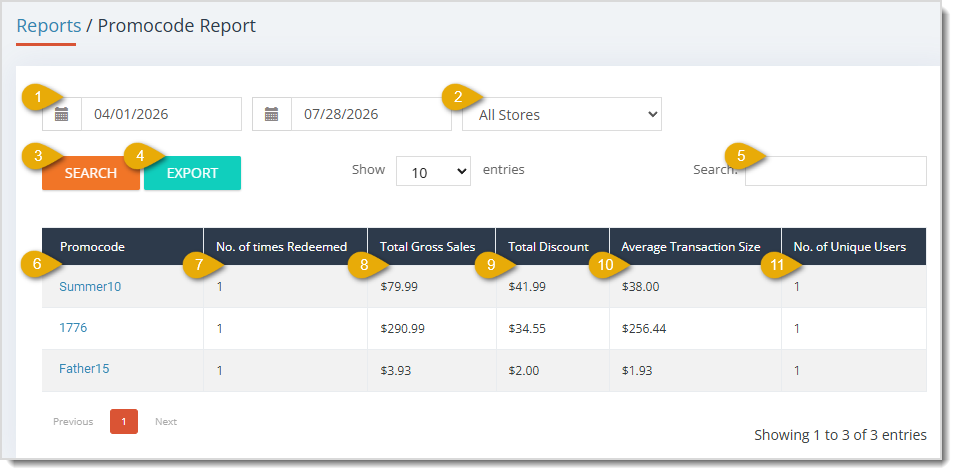
The Promocode Report has the following functions:
- Date Range — Enter or select the Start Date and End Date of the range you want to search. This area defaults to the current day.
- Store — This field defaults to All Stores. Select a specific Store location from this drop-list to filter the table to promo code redemptions from that store only.
- Search — Click the Search button after selecting your filters to narrow down the table's results.
- Export — Click the Export button to download the report's data across all pages as a CSV spreadsheet file.
- Search Field — Enter search text to find what you want in the data table.
- Promocode — This column lists each promo code that customers redeemed. You can click the code to open a Sales Lines Report filtered to that specific code and date range.
- Number of Times Redeemed — This column displays how many times each promo code was used within your search range.
- Total Gross Sales — This column shows the total gross sales amount each code generated across all transactions that used each code.
- Total Discount — This column lists the total dollar amount you discounted through each code, shown as a negative value.
- Average Transaction Size — This column displays the average dollar total of transactions where you used each code.
- Number of Unique Users — This column lists the number of distinct customers who used each code.
The Buy / Get Price Slash Report
The Buy / Get Price Slash Report shows you activity for your Buy/Get style Price Slash offers, split across two tabs: a Redeemed tab summarizing how each offer performed, and a Refunded tab listing line-level detail for offer items that were later refunded.
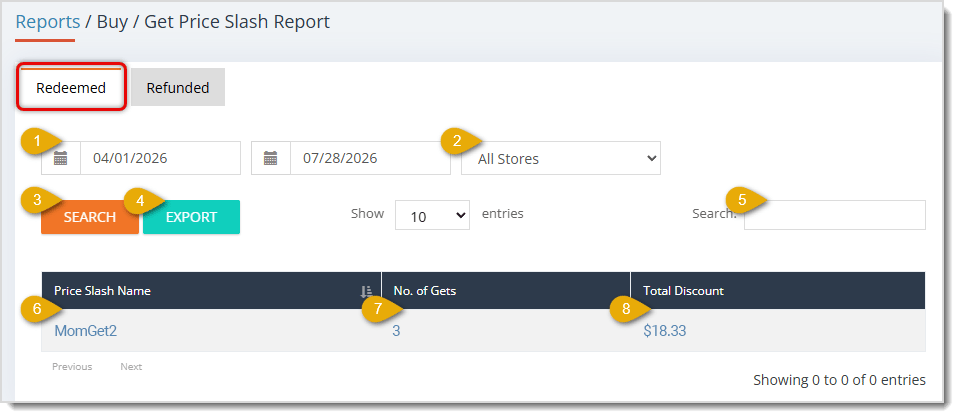
The Buy / Get Price Slash Report has the following functions, starting with the Redeemed tab (please note, this report is for in-store buy/get offers only):
- Date Range — Enter or select the Start Date and End Date of the range you want to search. This area defaults to the current day and applies to whichever tab is active.
- Store — This field defaults to All Stores. Select a specific Store location from this drop-list to filter the active tab's table to that store only.
- Search — Click the Search button after selecting your filters to narrow down the results.
- Export — Click the Export button to download the active tab's data across all pages as a CSV spreadsheet file.
- Search Field — Enter search text to find what you want in the data table.
- Price Slash Name — This column lists the name of each Buy/Get Price Slash offer. You can click on the header once to sort the data according to this column, or click twice to reverse the sort.
- Number of Gets — This column displays how many free or discounted "get" items were awarded through each offer within your search range.
- Total Discount — This column shows the total dollar amount discounted through each offer's redemptions.
For numbers 9 and following, these are descriptions of the columns in the data table for the Refunded Tab. For each of the following columns, you can click on the header once to sort the data according to that column, or click twice to reverse the sort.
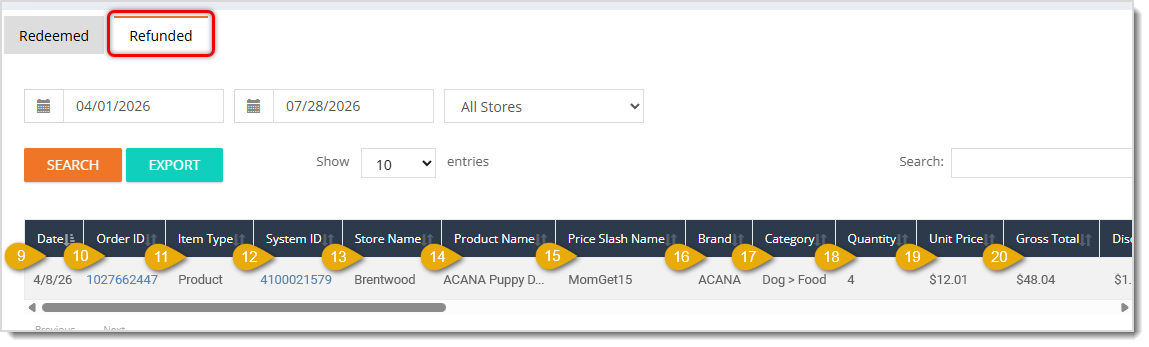
- Date — This column displays the date and time each refunded transaction occurred.
- Order ID — This column lists the unique Order ID of each refunded transaction. Click the Order ID to view that order's Details page.
- Item Type — This column shows the type of line item involved in the refunded transaction.
- System ID — This column displays the internal System ID of the refunded product. Click the System ID to view that product's Details page.
- Store Name — This column lists the Store where each refunded transaction took place.
- Product Name — This column shows the name of each refunded product.
- Price Slash Name — This column shows the name of each item's Buy/Get Price Slash offer.
- Brand — This column displays the Brand of each refunded product.
- Category — This column lists the Category assigned to each refunded product.
- Quantity — This column shows the Quantity of each item originally sold.
- Unit Price — This column displays the Per-Unit Selling Price of each refunded item.
- Gross Total — This column lists the gross sales total for each refunded line before discounts.

- Discount Total — This column lists the discount tied to each refunded line, shown as a negative value.
- Net Total — This column shows each refunded line's total after discounts were applied.
- Tax — This column displays the tax amount you applied to each refunded line.
- Taxable Total — This column lists the portion of each refunded line's total that was subject to tax.
- Tax Collected — This column shows the dollar amount of tax collected on each refunded line.
- Deposit Collected — This column displays any deposit amount you collected on each refunded line.
- Gift Card Collected — This column lists any Gift Card amount you collected as payment on each refunded line.
- Tip Collected — This column shows any tip amount you collected on each refunded line.
- Fee Collected — This column displays any additional fee amount you collected on each refunded line.
- Total Collected — This column lists the full amount you collected from the customer for each refunded line, including tax, tip, and fees.

- Cost — This column shows your Cost for each refunded item.
- Profit — This column displays the profit you made on each item before the refund was issued.
- Margin — This column lists the profit margin percentage for each item.
- Coupon Code — This column shows any coupon code applied to each refunded line, if applicable.
- Refund Quantity — This column displays number of units from the original Quantity that you refunded.
- Refund Status — This column lists the current status of each refund, either Not Refunded or Refunded.
- Customer — This column shows the Name of the Customer to whom you gave each refund. You can click the customer's name to view their Details page.
- Employee — This column displays the name of the Employee who processed each refund.
- Cart Source — This column lists where the original sale originated, in-store or online.
The Discount Override Report
The Discount Override Report shows you every line item where a manual discount override was applied in the New Sale register within your selected date range.
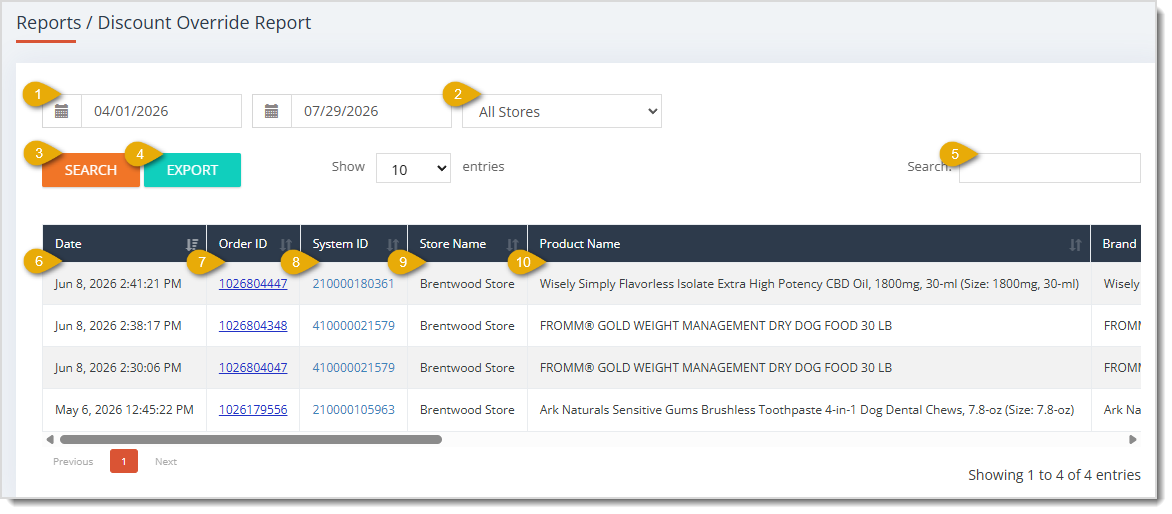
The Discount Override Report has the following functions:
- Date Range — Enter or select the Start Date and End Date of the range you want to search. This area defaults to the current day.
- Store — This field defaults to All Stores. Select a specific Store location from this drop-list to filter the table to overrides from that store only.
- Search — Click the Search button after selecting your filters to narrow down the table's results.
- Export — Click the Export button to download the report's data across all pages as a CSV spreadsheet file.
- Search Field — Enter search text to find what you want in the data table.
For each of the following columns, you can click on the header once to sort the data according to that column, or click twice to reverse the sort.
- Date — This column displays the Date and Time you completed each override.
- Order ID — This column lists the unique Order ID tied to the override. Click the Order ID to view that order's Details page.
- System ID — This column shows the internal System ID of the discounted product. Click the System ID to view that product's Details page.
- Store Name — This column displays the Store where you completed each override.
- Product Name — This column lists the Name of the Product that received each override.
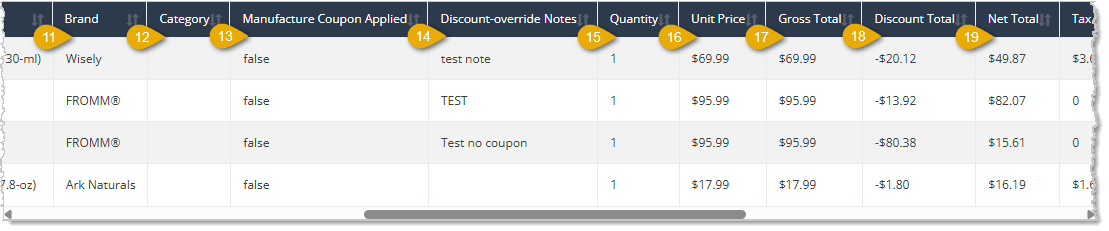
- Brand — This column shows the Brand of each discounted product.
- Category — This column displays the Category assigned to each discounted product.
- Manufacture Coupon Applied — This column lists whether you applied a Manufacturer Coupon to each item, if any.
- Discount-Override Notes — This column shows any Notes an employee entered explaining the reason for each override.
- Quantity — This column displays the Quantity of the item you sold under each override.
- Unit Price — This column lists the Per-Unit Price of each discounted item.
- Gross Total — This column shows the item's Gross Sales Total before you applied each override.
- Discount Total — This column displays the Total Dollar Amount you Discounted through each override, shown as a negative value.
- Net Total — This column lists the Item's Total after you applied each override discount.
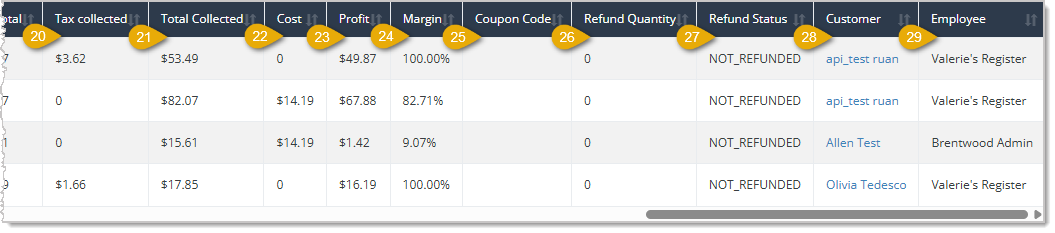
- Tax Collected — This column shows the Dollar Amount of Tax you collected on each item.
- Total Collected — This column displays the Total Dollar Amount you collected from the customer for each item, including tax.
- Cost — This column lists your Cost for each discounted item.
- Profit — This column shows the Profit you generated on the item after you applied each override.
- Margin — This column displays the Profit Margin Percentage for each line.
- Coupon Code — This column lists any Coupon Code applied to each item, if applicable.
- Refund Quantity — This column shows how many units of each item you later refunded, if any.
- Refund Status — This column displays the current Refund Status of each item, such as Not Refunded.
- Customer — This column lists the Name of the Customer to whom you sold each item. Click the customer's name to view their Details page.
- Employee — This column shows the Name of the Employee who applied each override.
The Manufacturer Coupon Report
The Manufacturer Coupon Report shows you every transaction where a manufacturer coupon was applied within a selected date range, including the product, the crew member who processed it, and any notes recorded about the coupon.
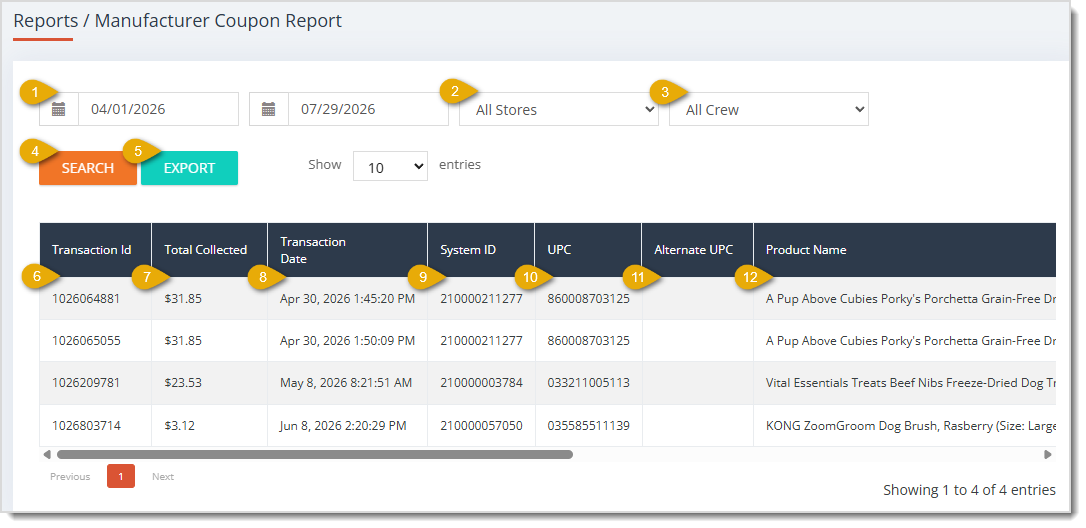
The Manufacturer Coupon Report has the following functions:
- Date Range — Enter or select the Start Date and End Date of the range you want to search. This area defaults to the current day.
- Store — This field defaults to All Stores. Select a specific Store location from this drop-list to filter the table to coupon redemptions from that store only.
- Crew — This field defaults to All Crew. Select a specific Crew Member from this drop-list to filter the table to coupons that employee processed.
- Search — Click the Search button after selecting your filters to narrow down the table's results.
- Export — Click the Export button to download the report's data across all pages as a CSV spreadsheet file.
- Transaction ID — This column lists the unique Transaction ID Number where you used a manufacturer coupon.
- Total Collected — This column shows the Total Amount you Collected from the customer on each transaction.
- Transaction Date — This column displays the Date and Time of each transaction.
- System ID — This column lists the internal System ID of the product to which you applied the coupon.
- UPC — This column shows each product's UPC code.
- Alternate UPC — This column displays the Alternate UPC code for each product, if applicable.
- Product Name — This column lists the Name of the Product to which you applied the coupon.
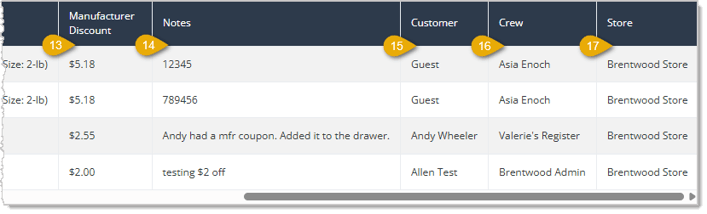
- Manufacturer Discount — This column shows the Dollar Amount you discounted with each manufacturer coupon.
- Notes — This column displays any Notes an employee entered about each coupon, such as a coupon reference number.
- Customer — This column lists the Name of the Customer on each transaction, or Guest if no customer profile was attached.
- Crew — This column shows the Name of the Crew Member who processed each transaction.
- Store — This column displays the Name of the Store where you ran each transaction.
The Astro Redemption Report
The Astro Redemption Report shows you every line item where an Astro reward or offer was redeemed within a selected date range.
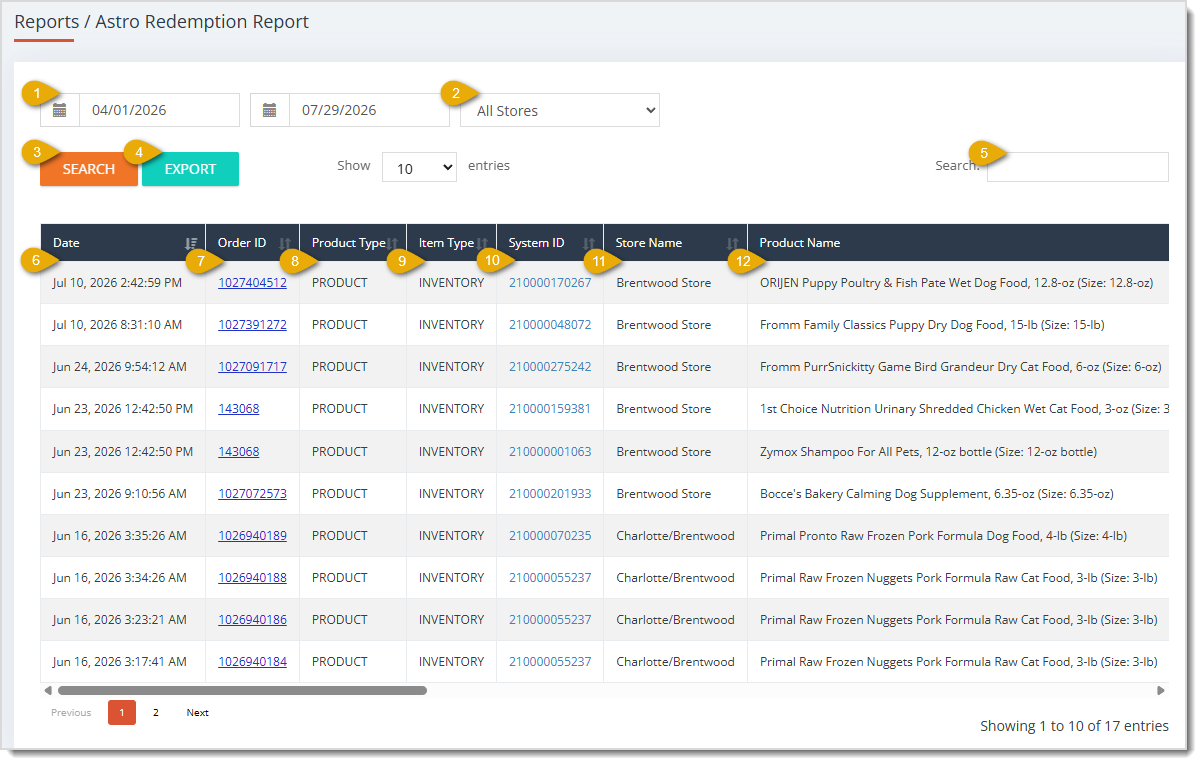
The Astro Redemption Report has the following functions:
- Date Range — Enter or select the Start Date and End Date of the range you want to search. This area defaults to the current day.
- Store — This field defaults to All Stores. Select a specific Store location from this drop-list to filter the table to Astro redemptions from that store only.
- Search — Click the Search button after selecting your filters to narrow down the table's results.
- Export — Click the Export button to download the report's data across all pages as a CSV spreadsheet file.
- Search Field — Enter search text to find what you want in the data table.
For each of the following columns, you can click on the header once to sort the data according to that column, or click twice to reverse the sort.
- Date — This column lists the Date and Time of each redemption.
- Order ID — This column shows the unique Order ID tied to each redemption. Click the Order ID to view that order's Details page.
- Product Type — This column displays the Type of item the customer redeemed, such as Product.
- Item Type — This column lists the Classification of each item, such as Inventory.
- System ID — This column shows the internal System ID of the redeemed product. Click the System ID to view that product's Details page.
- Store Name — This column displays the Store where the customer completed each redemption.
- Product Name — This column lists the Name of each redeemed product.
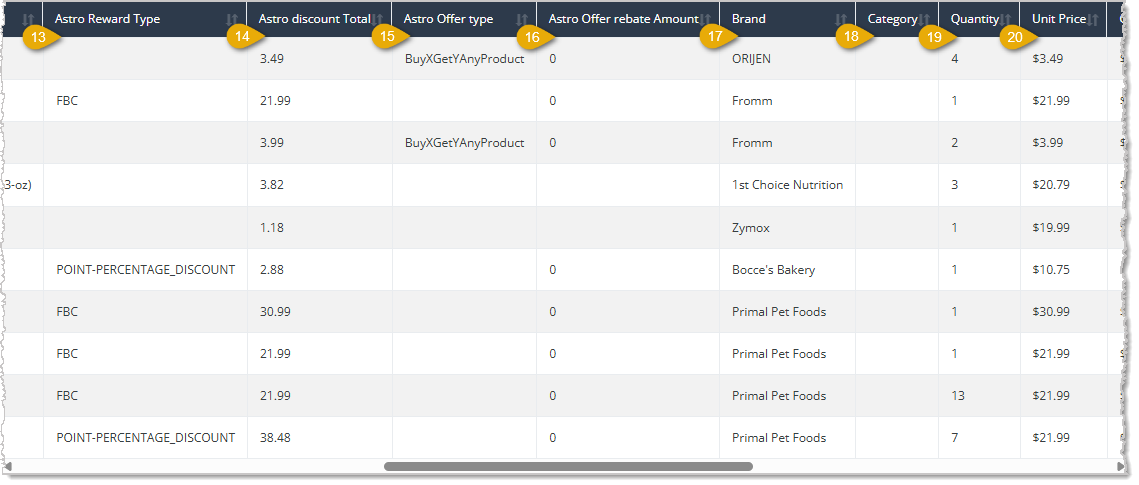
- Astro Reward Type — This column shows the Type of Astro Reward applied to each item.
- Astro Discount Total — This column displays the Total Dollar Amount you discounted through each Astro reward, shown as a negative value.
- Astro Offer Type — This column lists the Type of Astro Offer that generated each reward.
- Astro Offer Rebate Amount — This column shows the Rebate Amount tied to each Astro offer, if any.
- Brand — This column displays the Brand of each redeemed product.
- Category — This column lists the Category assigned to each redeemed product.
- Quantity — This column shows the Quantity of each item the customer redeemed.
- Unit Price — This column displays the Per-Unit Price of each redeemed item.
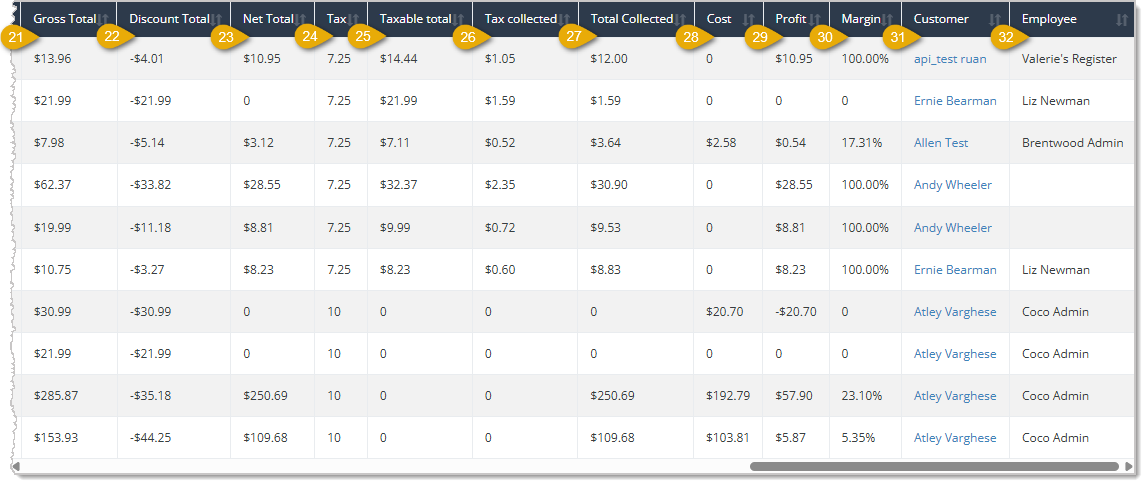
- Gross Total — This column lists each item's Gross Sales Total before the Astro discount.
- Discount Total — This column shows the Total Discount you applied to each item, shown as a negative value.
- Net Total — This column displays each item's Total Dollar Amount after the discount was applied.
- Tax — This column lists the Tax Rate the system applied to each item.
- Taxable Total — This column shows the portion of each item's Total that was subject to Tax.
- Tax Collected — This column displays the Total Dollar Amount of Tax you collected on each item.
- Total Collected — This column lists the Total Amount you collected from the customer for each item, including Tax.
- Cost — This column shows your Cost for each redeemed item.
- Profit — This column displays the Profit you generated on each item.
- Margin — This column lists the Profit Margin percentage for each item.
- Customer — This column shows the Name of the Customer on each transaction. You can click the customer's name to view their Details page.
- Employee — This column displays the Name of the Employee who processed each transaction.
 Boss Quote
Instruct your human to not get too crazy with the discounts and promotions, or they might give away the store. Even a kitten knows that. The Legacy Reports go into detail about discounts and promotions that can be useful. It's time for my play date, but don't let your human slack off!
— Adrian, Wenatchee, WA
Related Topics
Reports Overview
Discount and Promotional Reports
Sales and Refund Reports 1
Sales and Refund Reports 2
Sales and Refund Reports 3
In-House Rewards Program Reports
Frequently Asked Questions
Q: Do I still need to check the Price-Slash Report if I already use the Discount Summary Report?
A: No, not usually. The Price-Slash Report still returns live data, but the Discount Summary Report now consolidates the same offer-performance data alongside your other discount types in one place.
Q: Where does clicking a code in the Promocode column of the Promo Code Report take me?
A: It opens a Sales Lines Report filtered to that specific promo code and the date range you searched, so you can see every line item where it was used.
Q: What's the difference between the Redeemed and Refunded tabs on the Buy / Get Price Slash Report?
A: The Redeemed tab summarizes how each Buy/Get offer performed overall, while the Refunded tab lists line-level detail for individual offer items that were later refunded.
Q: What does the Manufacture Coupon Applied column tell me on the Discount Override Report?
A: It shows whether a manufacturer coupon was used on the same line item in addition to the manual discount override, which helps you spot lines that had more than one discount stacked together.
Q: Why does the Manufacturer Coupon Report have a Crew filter when the other legacy reports don't?
A: The Manufacturer Coupon Report is built to help you audit coupon handling by employee, so it includes an All Crew drop-list you can narrow down to a specific crew member alongside the standard Date Range and Store filters.
Q: What do the Astro Reward Type and Astro Offer Type columns show on the Astro Redemption Report?
A: Astro Reward Type identifies the kind of reward applied to the line, and Astro Offer Type identifies the kind of offer that generated it, so together they tell you both what a customer received and why.
Q: I have a question, but I can't find my answer here. How do I get more assistance?
A: You can ask any question at the number listed here. Contact our support team at (323) 370-0738 for the U.S. and (888) 370-2363 for Canada.







 Jul 27, 2026
Is this page helpful?
×Help us improve our articles