Astro Loyalty Troubleshooting

Jul 21, 2026Jul 21, 2026

⭐ If you're running into problems with the Astro Loyalty integration, there are ways to troubleshoot your issue. Read on to see how you can fix such problems yourself!

Here are some troubleshooting topics:

sunset - astro loyalty troubleshooting

Connecting Customers to Astro Loyalty

If for any reason a customer record gets disconnected from its Astro Loyalty profile, there are multiple ways to reconnect it. You can sync it from New Sale and the eTailPet Dashboard. If you're using the Dashboard, you can connect customers using the Astro ID, email address / phone number, or Easy Connect. 


Updating With New Sale

If, for some reason, a customer's Astro Loyalty record isn't updated on your eTailPet store, you can have it automatically update as long as the integration is live. Here's how:
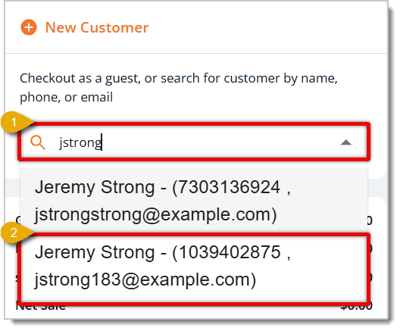
  1. In the Customer Search Field, enter at least 3 characters from the customer's name, email address, or phone number.
    Image of an example of entering a customer's email address and selecting it from existing records.
  2. Select the customer record from the drop-list, as in the image above.
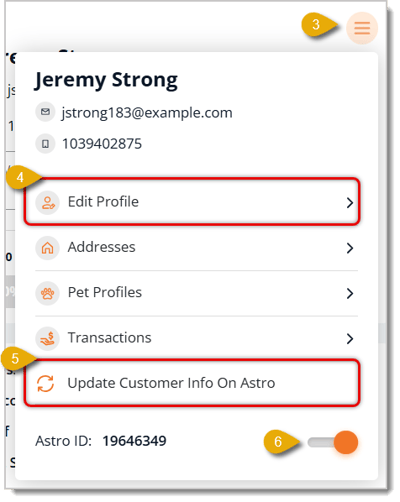
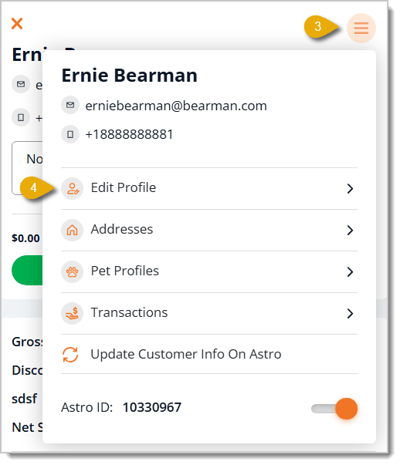
  3. After the customer has been added, click on the Hamburger Stack icon in the upper right to open more options.
    Image highlighting Edit Profile and Astro Loyalty functions for an existing customer record.
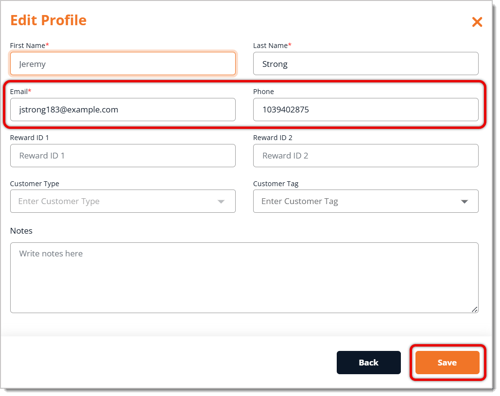
  4. If the customer doesn't already have their email address and phone number in their record, they will not be connected to Astro Loyalty. Click on Edit Profile to add them, as highlighted in the image above.
    • Add the customer's Email address and Phone number.
    • Click on Save.
      Image highlighting the Email address and Phone number fields in the New Sale Edit Profile menu. The save button is also highlighted.
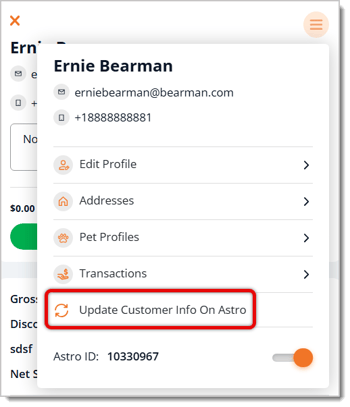
  5. Click on Update Customer Info On Astro to sync the Astro Loyalty information with the eTailPet system's record.
  6. Next to the customer's Astro ID, you can toggle the Astro Loyalty connection on or off.


Access Customer Astro Loyalty Information

You first need to open the customer's details and Astro Loyalty Integration information. Here's how:
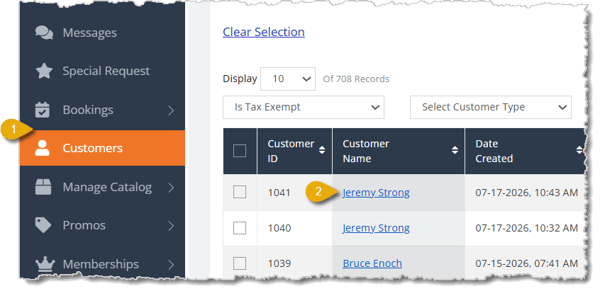
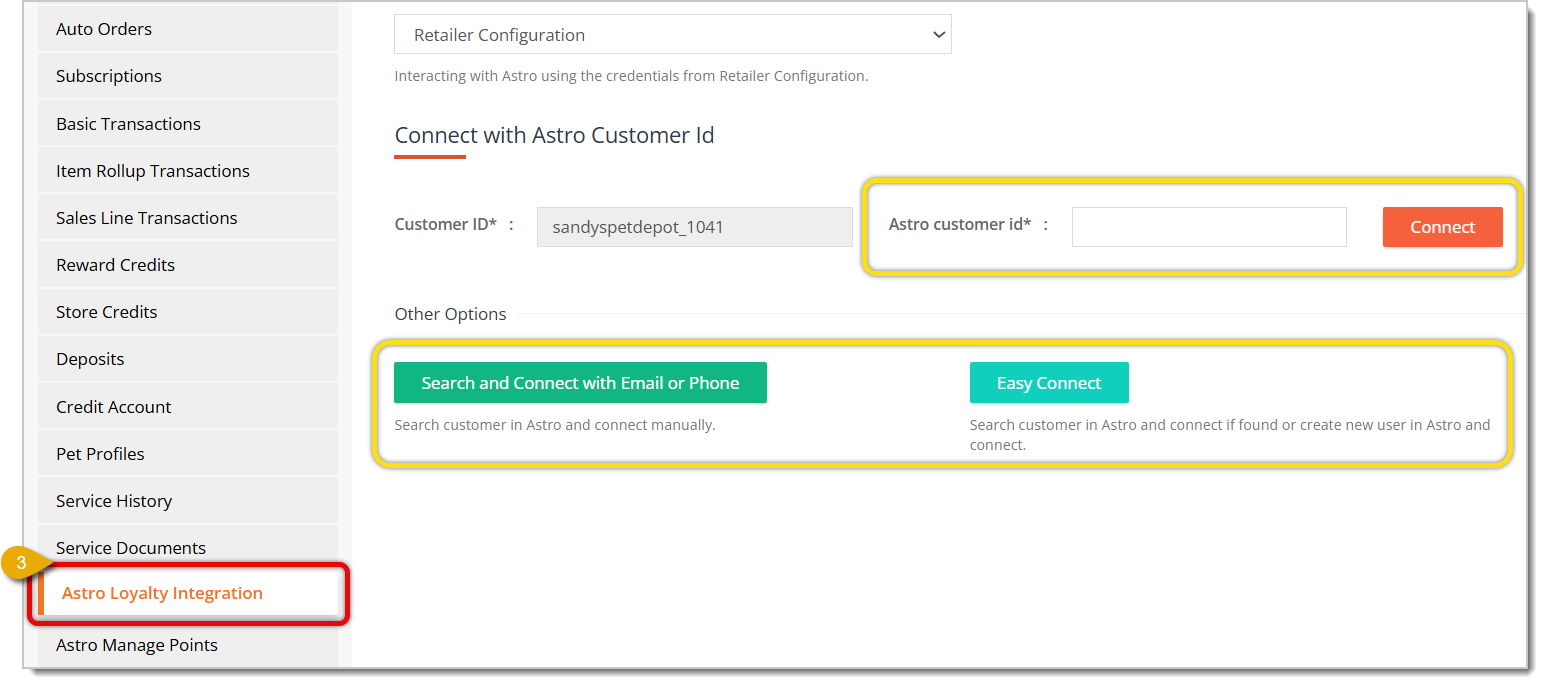
Image highlighting the Customers selection from the main menu and a clickable Customer Name.

  1. Go to Customers from the main menu.
  2. From the Customers list, click on the Customer Name you need.
  3. In the customer's details, click on the Astro Loyalty Integration tab. In this tab, you can see the Astro Customer ID field, Search and Connect with Email or Phone button, and the Easy Connect button.
    Image highlighting the Astro Loyalty Integration tab, along with 3 ways to connect a customer to Astro Loyalty.


Connect with Astro ID

If the customer already has an Astro ID in the Loyalty system, you can copy and paste that to connect the customer. Do the following:

  1. Enter the customer's ID from the Astro Loyalty program in the field next to Astro Customer ID.
  2. Click on Connect.

Image highlighting the Astro Customer ID function in a customer's Astro Loyalty Integration area.


Connect with Email Address or Phone Number

You can also use the customer's email address or phone number to find their record in the Astro Loyalty Program, then connect it.

🐱 Please Note: If you edit a customer's email address or phone number here, you will also need to update them in their customer details by doing the following: Go to Customers > Click on a customer's name > Go to Customer Info tab > Fill out Email and Phone. Click here to learn more about updating customer details.
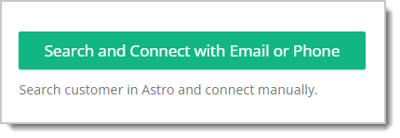
  1. Click on the Search and Connect with Email or Phone button.
    Image of the Search and Connect with Email or Phone button.
  2. Enter the customer's Email address if needed.
    Image highlighting the Email address and Phone number fields, as well as the Search button.
  3. Enter the customer's Phone number if needed.
  4. Click on the Search button. This will show any matching records below.
  5. Click on Connect for the customer from the Astro Loyalty program you want to connect to the eTailPet record.
    Image highlighting the Connect button.

Easy Connect

If you can't find the customer using either of the above methods, you can try Easy Connect. This will make the system search for a matching customer and connect their Astro Loyalty information.

  1. Click on the Easy Connect button. The connection will happen automatically.
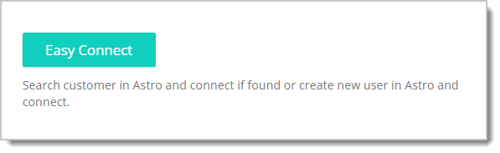
    Image of the Easy Connect button.

  2. If the customer is successfully connected, you'll see a confirmation at the top of the page.Image showing the Customer connected notification.

 

I Can't Connect the Customer to Astro Loyalty

If you've followed all of the steps above but still can't connect the customer to Astro Loyalty, here's what to try next:

  • For Astro Loyalty to connect, a customer profile needs both their email address and phone number. If either are missing, you need to update the profile. 
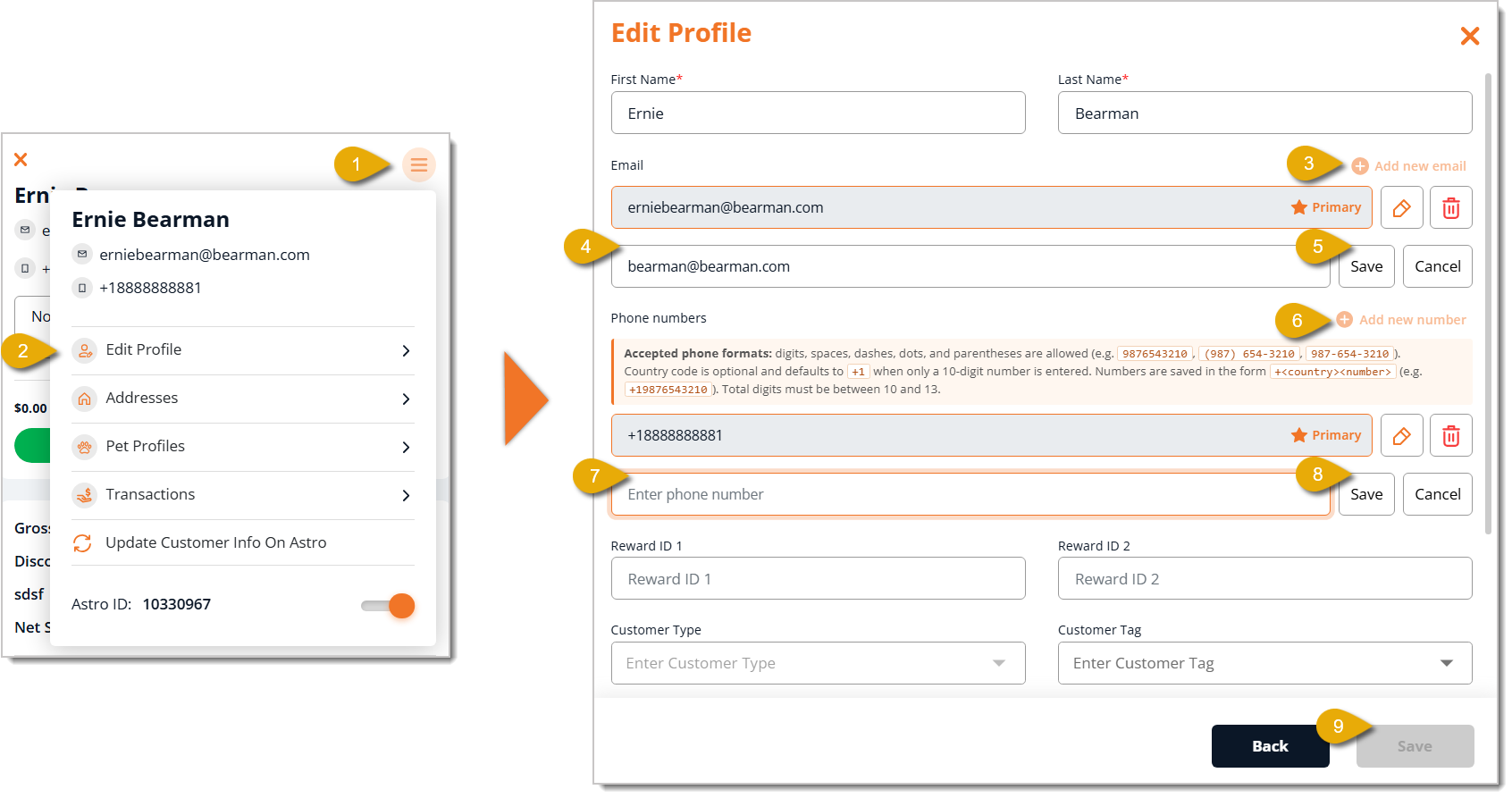
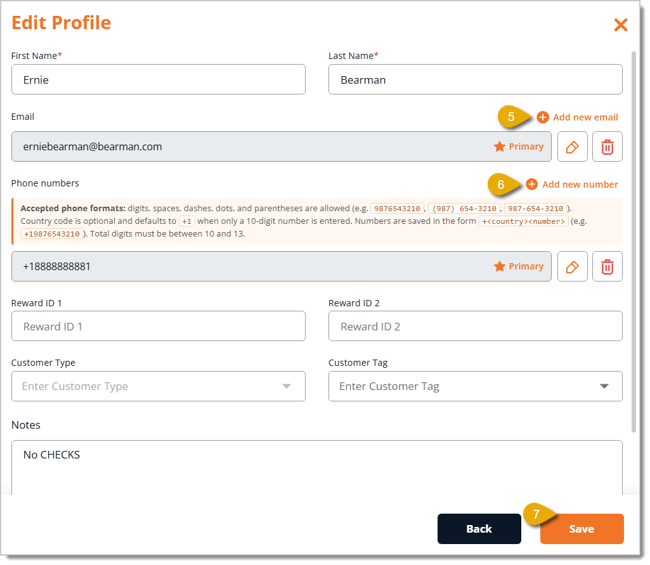
    Image highlighting the Hamburger Stack icon and the Edit Profile selection. The Add New Email and Add New Phone buttons are also highlighted, as well as the Save button.

    1. Click on the Hamburger Stack icon in the upper right to open the menu.
    2. Click on Edit Profile.
    3. Click on Add New Email.
    4. Enter the customer's email address.
    5. Click on Save to the right of the email address.
    6. Click on Add New Number.
    7. Enter the customer's phone number.
    8. Click on Save to the right of the phone number.
    9. Click on the Save button in the bottom right of the window to update the customer's information.
    10. Go back to the Hamburger Stack menu from step 1.
    11. Click on Update Customer Info on Astro.
      Image highlighting Update Customer Info on Astro.


Frequent Buyer Cards Are Not Appearing in eTailPet

Customer Did Not Receive a Punch for Their Purchase

  • Log into your Astro Loyalty retailer account and locate the customer to verify the punch applied to their purchase. If not, contact Astro Support at support@astroloyalty.com.
  • Check that the customer's email address and phone number in eTailPet match their Astro profile.
Please Note: Guest checkout transactions are not eligible for Frequent Buyer Card punches.


Customer Could Not Redeem a Free FBC Item

Possible Reasons:

  • Redemption is possible after the last required qualifying purchase, not in the same transaction of the last qualifying purchase.
    • For example, if a customer has to buy 10 bags of kibble to redeem a free one, the 10th bag is not free. The customer also can't add the 11th bag to the same transaction as the 10th. The 11th bag has to be redeemed in a separate transaction.
  • Auto-orders are not eligible for free bag redemption. Customers can earn punches with auto-orders, but redemption has to be with regular online checkout or in-store.

Check a Customer's Redemption Status:

  1. Go to the New Sale screen.

  2. Click on Astro FBC.
    Image highlighting the Astro FBC selection in New Sale.

  3. If the customer has met the FBC's requirements, all of the checkboxes will be green.
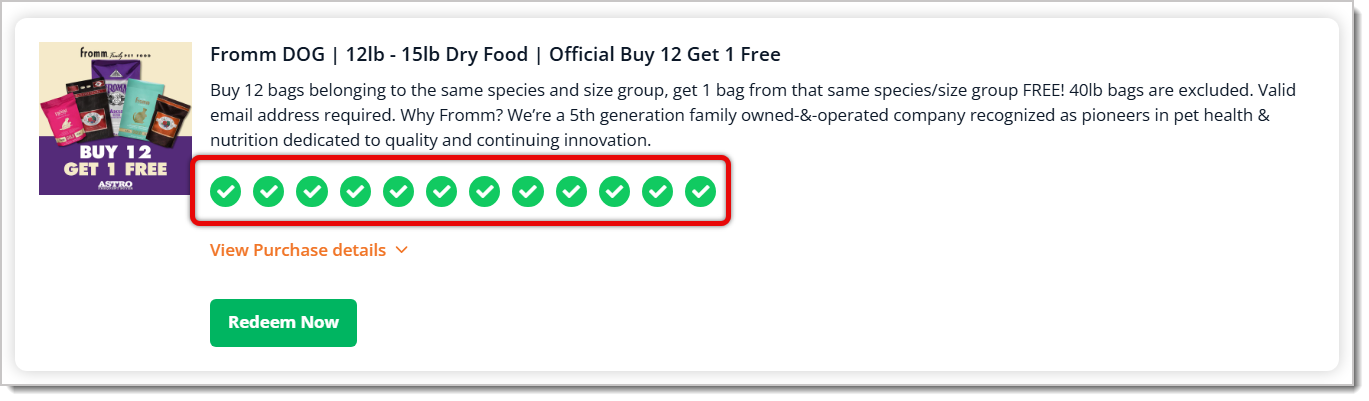
    Image highlighting the green check marks for a redeemable FBC item.

  4. You'll also see a clickable Redeem Now button. 
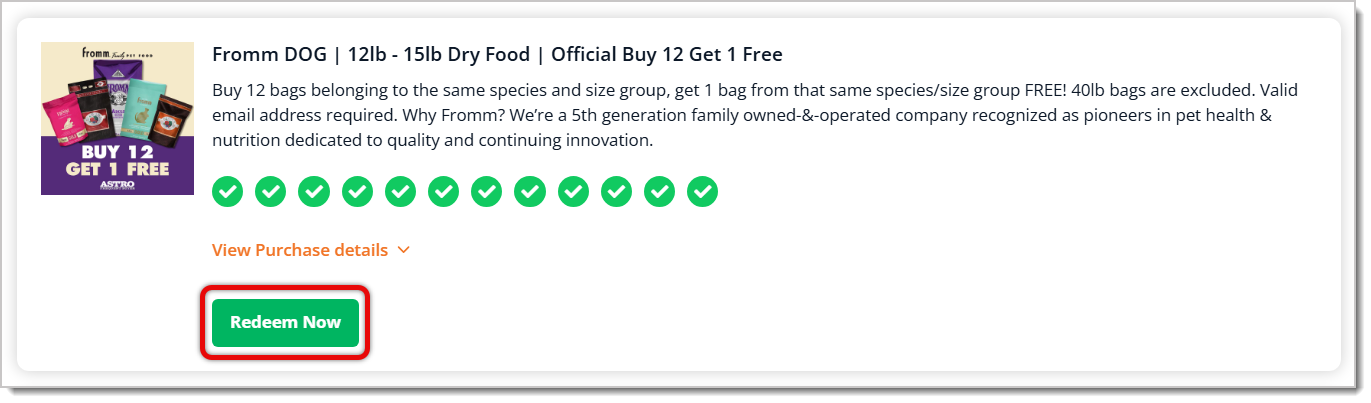
    Image highlighting the Redeem Now button for an FBC.


Customer Can't Redeem Their Astro Loyalty Points Rewards

Make sure your Astro Loyalty Points program is set up correctly:

  1. Log into your Astro Loyalty account at https://www.astroloyalty.com/.

  2. Go to Actions > My Points Setup.

  3. Enter the Rest API Reward Value in the respective field.

  4. If you want it to be an instant rebate, enter the amount of the rebate. For example, enter 10 for a $10 rebate.

  5. If you want it to be a percentage discount, enter the discount amount in percentage points. For example, enter 10 for 10%.

  6. If you want it to be a free item, enter the UPC of the free item. Make sure the UPC has at least 12 digits, including leading zeroes if applicable.

  7. Click on Save Changes.


I Can't Apply Promotions For a Customer

Some Astro programs require both the customer's phone number and address. If the customer's profile is missing either of that information, you'll need to add it so the customer can participate in the program. Here's how:
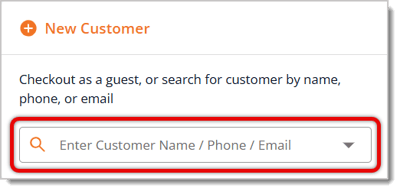
  1. Go to the New Sale screen.
  2. If you haven't already, add the customer to the transaction on the right of the screen.
    Image highlighting the Enter Customer field in New Sale.
  3. Click on the Hamburger Stack icon in the upper right of the customer area to open the menu.
    Image highlighting the Hamburger Stack icon and the Edit Profile selection.
  4. Click on Edit Profile, as highlighted in the image above.
  5. In the Email section, click on Add New Email.
    Image highlighting the Add New Email and Add New Number buttons. It also highlights the Save button.
  6. In the Phone Numbers section, click on Add New Number, as highlighted in the image above.
  7. Click on the Save button in the lower right.
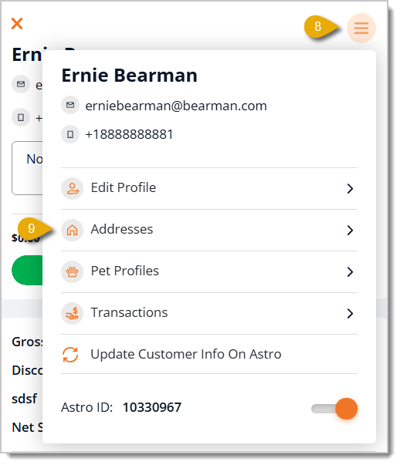
  8. Go back to the menu from step number 3.
    Image highlighting the Hamburger Stack icon and the Addresses selection.
  9. Click on Addresses, highlighted in the image above.
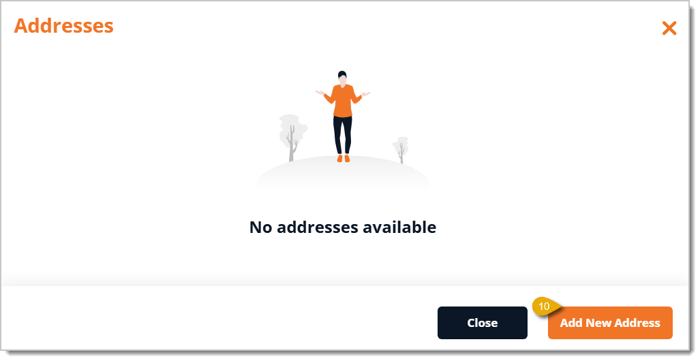
  10. You can view all of the customer's addresses, if there are any. Click on Add New Address.
    Image highlighting the Add New Address button.
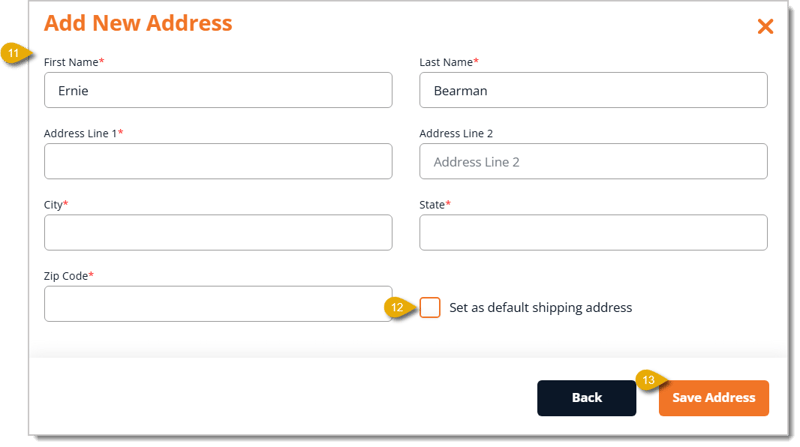
  11. Enter the customer's address information: First Name, Last Name, Address Line 1, Address Line 2, City, State, and ZIP Code.
    Image of the Add New Address form.
  12. Check the box for Set as Default Shipping Address if this will be the customer's primary address.
  13. Click on Save Address.
  14. Apply the promotion for the customer.


No Item Found Error

Occasionally, you might see that you can't apply an Astro Offer even though it appears everything is correct. Although rare, there are a few legitimate reasons for this.

Astro Loyalty allows you to add an exemption to a card for very specific reasons, such as adding a New Item/New UPC, Larger/Greater Value Item onto Smaller/Lesser Value Card, Most Frequently Purchased Free, and more. Use this method at your own risk, as the Astro Loyalty support article linked below includes a disclaimer that if an exception is set up for an excluded item, they cannot guarantee they will honor the credit.

Click here to learn more about adding an Exception to a card in Astro Loyalty. 


Related Topics

Astro Loyalty Overview

Astro Loyalty for Your Online Store

Astro Loyalty Integration

Astro Loyalty Customer Connection

Astro Loyalty Points Events

Astro Loyalty Programs

Astro Loyalty Redemption

Astro Frequent Buyer Cards


Frequently Asked Questions

Q: What do I do if I encounter issues with the Astro integration passing information to the eTailPet system?

A: If something goes wrong with the customer information from Astro Loyalty, we recommend contacting support@astroloyalty.com since Astro-specific information is passed electronically via API to eTailPet. 


Q: I have a question, but I can't find my answer here. How do I get more assistance?

A: You can ask any question at the number listed here. Contact our support team at (323) 370-0738 for the U.S. and (888) 370-2363 for Canada.

Need Help?

Can't quite find the answer you're looking for? Our support team is just a call away.