Zebra Label Printer

Aug 26, 2026Aug 26, 2026

The eTailPet system works best with Zebra label printers for your shelf tags and product labels. This article explains how to connect and use Zebra label printers. The instructions include how to connect the printer, install the printer driver, and configure the printer in the system. Get started now!
casey - zebra label printer

⚠️Please Note: The instructions for connecting and installing the printer driver are based on information from Zebra and are provided for your convenience only. eTailPet does not offer support or troubleshooting for hardware or third party applications or hardware. For additional help, please reach out to your hardware distributor or the manufacturer.


Compatible Printers

Label Printers Currently Supported by Zebra

The list below may become dated so click this link for the latest support label printers by Zebra.

The following printer families are both supported by Zebra and will integrate with the eTailPet system using Zebra Print:

  • ZT200™ series
  • ZT400™ series
  • ZT500™ series
  • ZT600™ series
  • ZD400™ series
  • ZD500™ series
  • ZQ300™ series
  • ZQ500™ series
  • ZQ600™ series
  • ZR™ series

These printers can either be connected by USB or through the local Network. However, it is eTailPet’s recommendation to choose a USB connected device. This set up does not work for iOS or Android devices.


Legacy Zebra Label Printers

The following printers will work with eTailPet but are no longer directly supported by Zebra. If you use a printer listed below, you will need third-party support, since eTailPet does not provide hardware support.

  • QLn series
  • LP2824+
  • GK420
  • GX420

All four lines have reached their official End of Service Life (EOSL) status. Zebra has stopped providing formal technical support, firmware updates, and factory repairs for these units. While they may still function locally in your environment, they are considered legacy hardware.


Install the Printer Driver

Ensure you have the correct driver installed for your device. You can download the latest version of the Zebra Setup Utilities here:

Zebra Setup Utilities


Configure the Printer in the eTailPet System

Here is how to set up the printer to work with eTailPet:
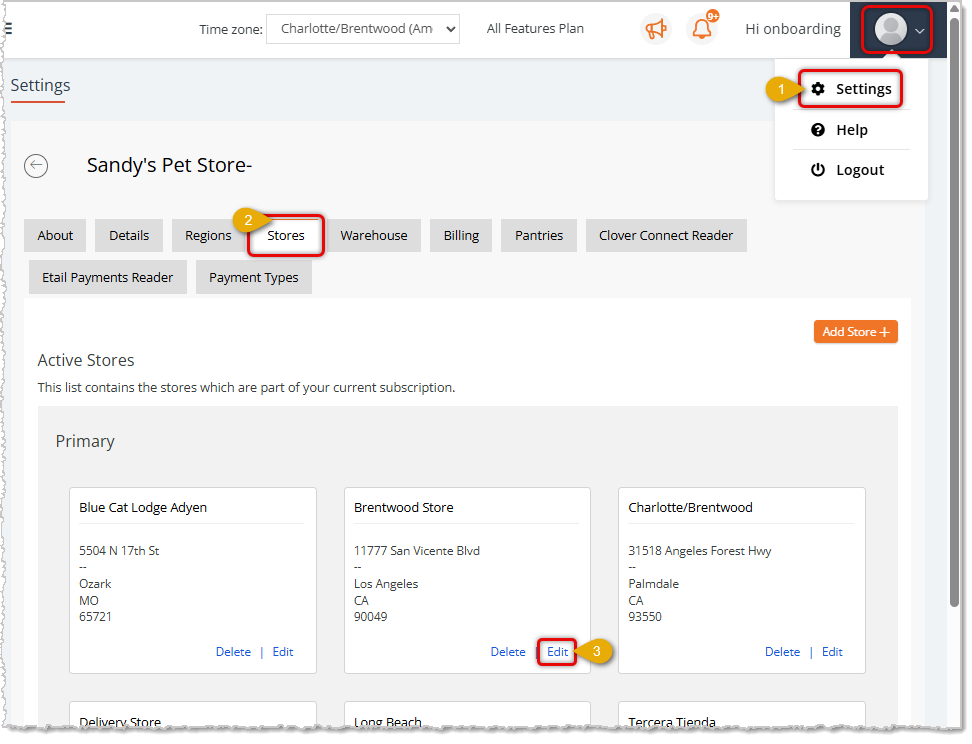
Image showing steps in the settings for a store in th eTailPet system to begin label printer setup.

  1. Log into the system as an Administrator. Click on the User Icon in the upper right and go to Settings.
  2. Click to open the Stores tab.
  3. Find the store you want and click on its Edit link.
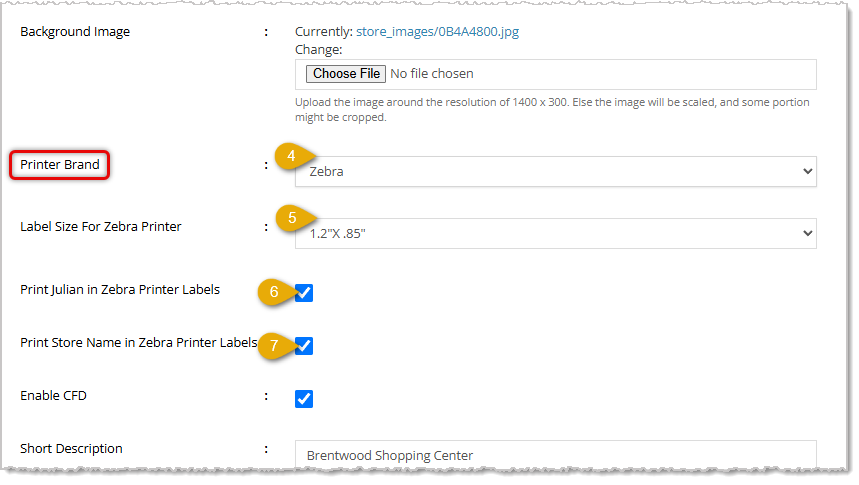
    Image showing the Zebra label printer settings in the eTailPet system.
  4. Scroll down to Printer Brand (in the upper part of the page) and open the drop-list to set the Printer Brand to Zebra. Configuration options will open for you.
  5. Set the Label Size for Zebra Printer you want to use. Options include 1.2" x .85", 2" x 1", and 2.25" x 1.25".
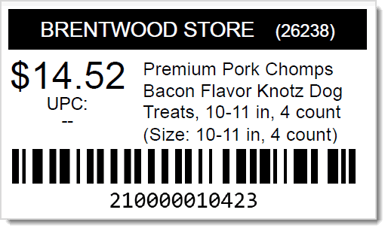
  6. If you want to use the three-digit Julian Date code instead of standard date format, check the box to Print Julian in Zebra Label Printers. This format basically gives each day of the year a sequential number, so January 1 would be 001, and if it was August 26th and you printed a label, the date in Julian would be 238, for the 238th day of a standard (non-leap) year. The Zebra system will properly account for the extra day in leap years. The system will also print the year, so for the date code example, for 2026, the Julian code would be 26238, as in the example label in the section below.
  7. If you want your Store Name on your product labels, check the box for Print Store Name in Zebra Printer Labels.
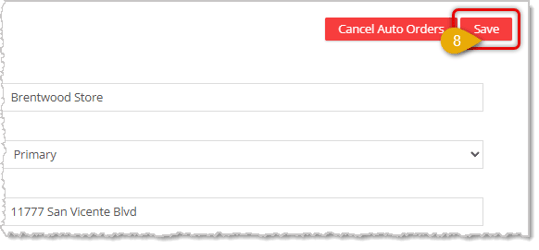
    Image showing the Store Settings page Save button in the eTailPet system.
  8. When you are finished configuring your printer, scroll up to the top of the page and in the upper right, click the Save button to save your changes.


Print a Test Label

To print a test label, follow these steps:
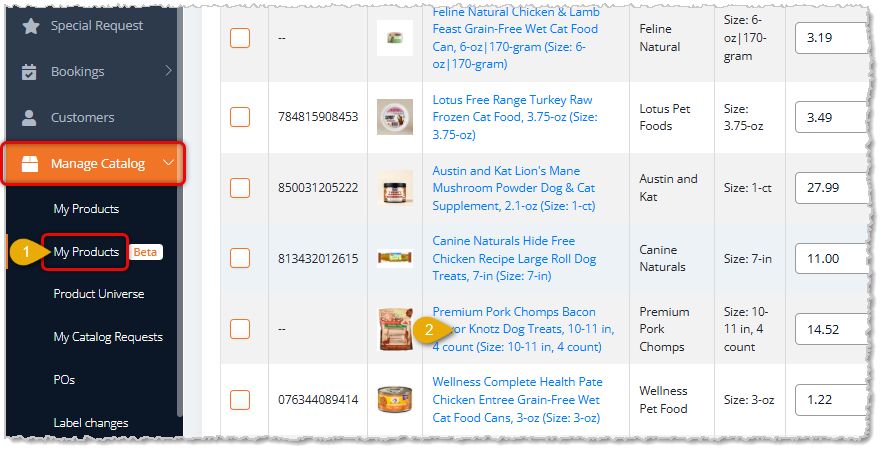
Image showing how to open a product's Details page from the My Products page of Manage Catalog in the eTailPet system.

  1. Go to Manage Catalog > My Products.
  2. Find the product you want and click on its Name.
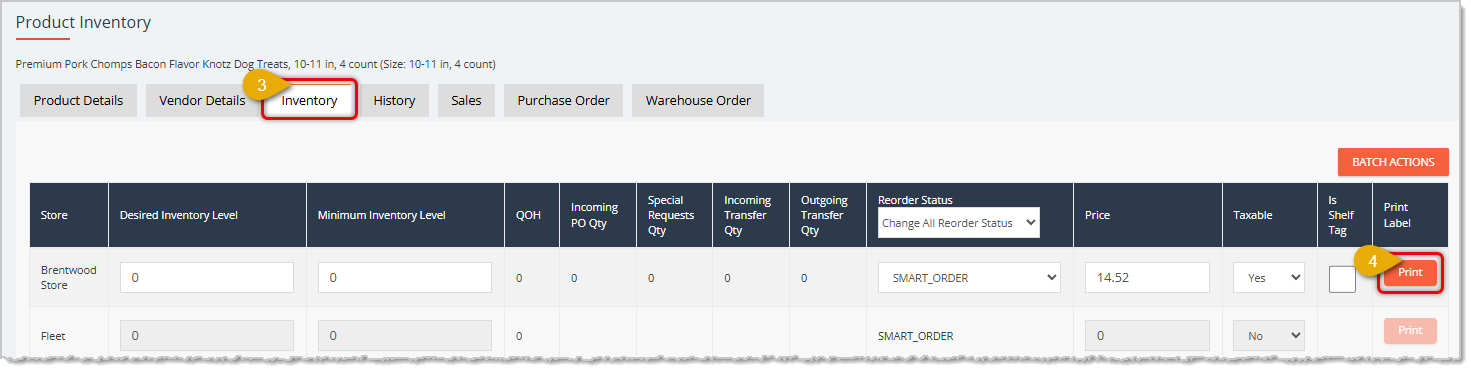
    Image showing how to print product labels from the Inventory tab of the Product Details page in the eTailPet system.

  3. On the product's Details page, click on the Inventory tab.
  4. On the far right, click on the Print button for the Store row you want.
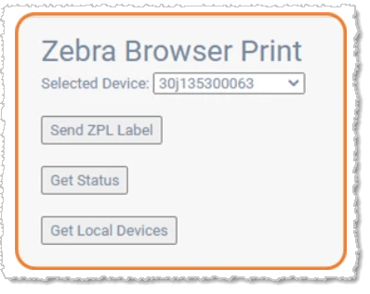
    Image showing the Zebra Browser Print utility for label printing from the Chrome browser.
  5. If you're using the Zebra Browser Print utility, you can choose the printer you want and click the Send ZPL Label button.
  6. You will be able to select the quantity of labels you want to print. Here is what our example product's label looks like. Please note, the date in the upper right is in the Julian format described above:
    Example product label from the eTailPet system.

⚠️Please Note: If the general troubleshooting steps do not resolve the issue, we suggest contacting a third-party hardware/IT support technician for setup. eTailPet does not offer hardware support. If you have purchased your Zebra label printer through our partner POS Guys, hardware support is included directly through them.


Related Topics

Hardware Support

Cash Drawer Setup

Scanner Setup

Customer Facing Display

Hardware Requirements

Hardware Setup and Troubleshooting


Frequently Asked Questions

Q: I have a question, but I can't find my answer here. How do I get more assistance?

A: You can ask any question at the number listed here. Contact our support team at (323) 370-0738 for the U.S. and (888) 370-2363 for Canada.

Need Help?

Can't quite find the answer you're looking for? Our support team is just a call away.