






Astro Loyalty Troubleshooting
⭐ If you're running into problems with the Astro Loyalty integration, there are ways to troubleshoot
 Aug 18, 2026
Barcode scanners are easy to set up in the eTailPet POS. This article explains how to set up the hardware and test it to make sure it's working properly. See how easy it is!

Scanners are mostly plug and play, meaning all you need to do is connect it to your device via USB cable, and it’s ready to use. Some models are wireless using either Wi-Fi or Bluetooth and may require some basic installation. Either way, you'll need to follow the manufacturer's instructions for setting it up.
⚠️Please Note: These instructions are provided for your convenience only. eTailPet does not offer support or troubleshooting for hardware or third party applications. For additional help, please reach out to your hardware distributor or the manufacturer.
Open any word processing application such as Notepad or Microsoft Word and make sure the flashing text cursor appears and is ready to accept input.
With the cursor flashing, scan any product UPC. (See video below for reference)
If the UPC code appears in the text editor, then your scanner is functioning properly.
If the UPC does not appear in the text editor, then the Scanner is not functioning properly. Please review the manufacturer's instructions to troubleshoot.
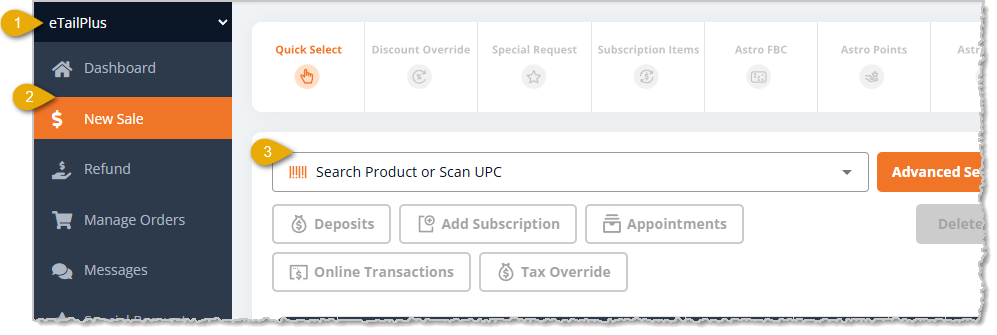
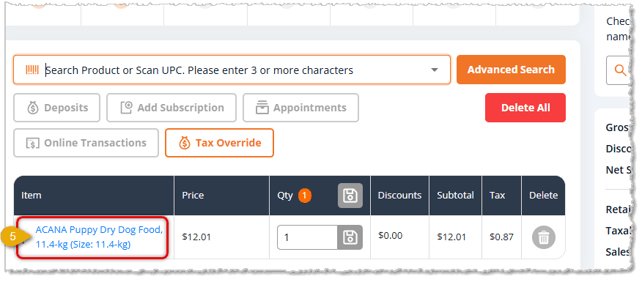
Follow the steps above first to confirm the scanner is functioning. Here is how to test your scanner with actual products in an eTailPet transaction:
Honeywell Voyager XP 1470g — Excellent general-purpose 1D (across the barcode) / 2D (QR Code) counter scanner optimized for reading damaged codes and mobile promotional displays.
Zebra DS9308-SR — A compact hybrid/presentation scanner designed to sit on the counter for automatic hands-free scanning.
Eyoyo Mini-Bluetooth Scanner — Ultra-portable, lightweight pocket scanner ideal for mobile shelf inventory and aisle stock checks.
Tera HW0002 Wireless Barcode Scanner — A 3-in-1 handheld wireless and wired 1D/2D/QR code reader. It features Bluetooth, 2.4GHz wireless, USB connectivity, a built-in battery level indicator, vibration alerts, and a companion stand for retail, inventory, and office use.
Hardware Setup and Troubleshooting
WisePOS E / S700 Card Reader Setup
Basic Troubleshooting for Card Readers
Payments Hardware Network Requirements
Q: I have a question, but I can't find my answer here. How do I get more assistance?
A: You can ask any question at the number listed here. Contact our support team at (323) 370-0738 for the U.S. and (888) 370-2363 for Canada.
Is this page helpful?
×Help us improve our articles