






Astro Loyalty Troubleshooting
⭐ If you're running into problems with the Astro Loyalty integration, there are ways to troubleshoot
 Aug 18, 2026
📲eTailPet has an app available that can act as a customer facing display (CFD) screen, which lets customers view items in their transaction and the amount they have to pay. The app is currently available only for Android devices that are 7 inches or larger, like a tablet. This article explains how to download, install, and use the app. Learn how to empower your customers with their own display!
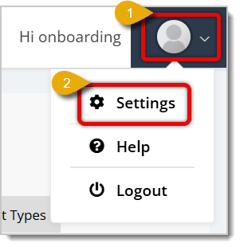
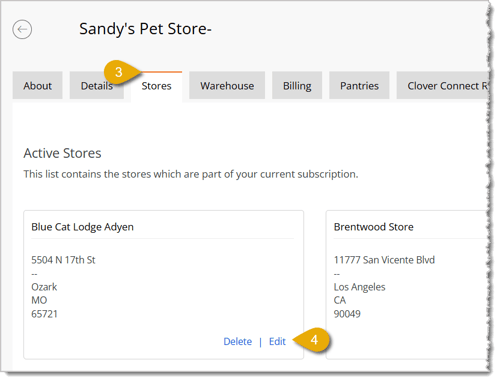
You have to first enable CFD for your register. Here's how:


Please Note: The CFD does not actually mirror the New Sale screen. It's a customer-facing version of the register that is more buyer-friendly and shows them items and amounts as the cashier works.
Watch the video below, or read the instructions under the video to learn how to install and use the app.
The mobile device will reflect what you add to the transaction. Now, when you add items to transactions in New Sale, customers can view the items immediately.
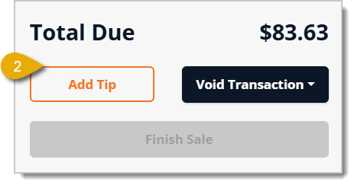
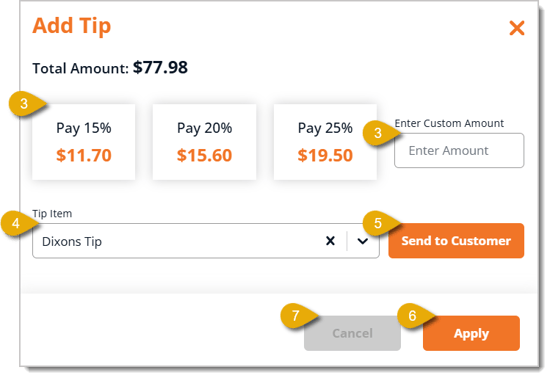
When you're finished adding products to a transaction, you can move on to Payment in the New Sale screen. After that, a customer can be prompted to tip your store from the CFD.
Watch the video below, or read the instructions under the video to learn how to add a tip to the CFD.

Your app will stay logged in until you manually log out. To log out, tap the Power Icon in the lower right corner of the screen. You will need to enter your register password to finish logging out.
Here are some things you can do if your CFD app is not working as expected:
Q: Can I use an iPad or iPhone for the Customer Facing Display?
A: Not currently. The CFD app is only available for Android devices, ideally ones with a screen of 7 inches or larger.
Q: Does the CFD show the exact same screen as the cashier's New Sale view?
A: No. The CFD is a simplified, customer-facing version of the register with only the functions a customer should see — it doesn't mirror the New Sale screen directly.
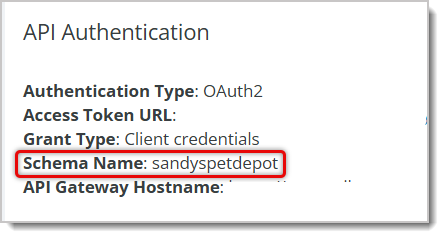
Q: Where do I find the Schema Name I need to log into the app?
A: In the eTailPet Dashboard, go to Content > Configuration and scroll to the API Authentication section.
Q: What if a customer wants to cancel adding a tip partway through?
A: Click Cancel in the tip panel on the register if the customer runs into an issue or changes their mind about tipping.
Q: Do I need to log out of the CFD app every day?
A: No. The app stays logged in until you manually log out by tapping the Power Icon and entering your register password.
Q: I have a question, but I can't find my answer here. How do I get more assistance?
A: You can ask any question at the number listed here. Contact our support team at (323) 370-0738 for the U.S. and (888) 370-2363 for Canada.
Is this page helpful?
×Help us improve our articles