






Astro Loyalty Troubleshooting
⭐ If you're running into problems with the Astro Loyalty integration, there are ways to troubleshoot
 Aug 20, 2026
🖥️ If you encounter issues while working with your hardware, you should first try some troubleshooting methods. This article provides some troubleshooting tips you can try if you find your hardware isn't working as it should. Take a look at what you can do!
Please Note: Our eTailPet support specialists are not able to help with troubleshooting your devices. We suggest that you purchase approved hardware through our partner POS Guys, as support is included with your purchase.

Please make sure that your hardware devices are compatible with each other and your desired setup. For example, Chromebooks are NOT recommended for use with the system because they will not have full system functionality, e.g. they are not compatible with many printers. If you have existing hardware that you want to use, please make sure it is compatible with any new hardware purchases.
If you're experiencing trouble connecting your card readers, here are a few relevant articles:
For most scanners, all you need to do is connect it to your device via USB cable. Some models that include features like Wi-Fi or Bluetooth may require some additional basic installation. Follow your manufacturer's instructions for setting it up.
Either watch this video or read the instructions below the video to see how you can test your scanner's functionality:
You have two available options for cash drawers:
Automatic Open
Some drawers can be configured to automatically open at the end of a sale. A signal is sent from the receipt printer to the cash drawer. Just connect the cable from the drawer itself to the receipt printer.
Key Open
If you simply use the key to open the drawer when needed, there is no setup required.
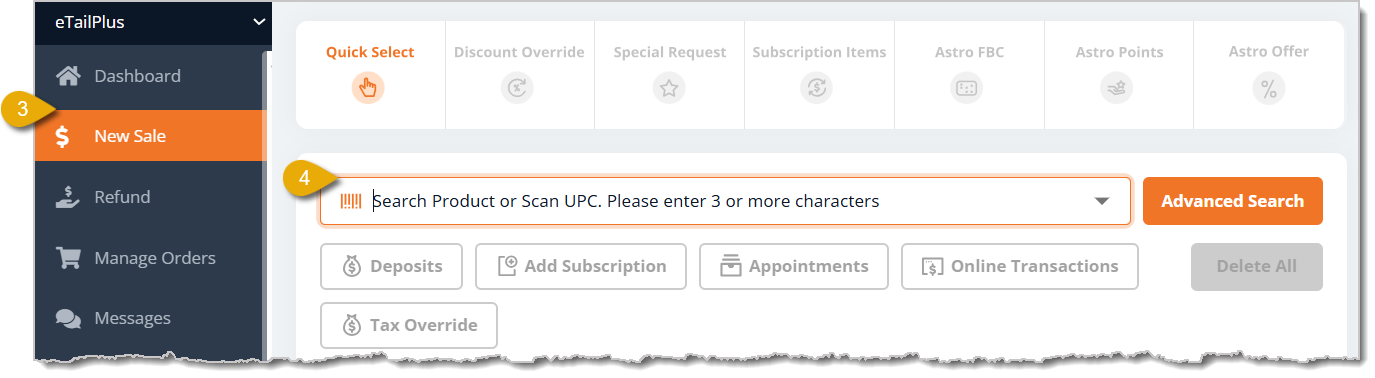
You should first test out your receipt printer by completing a transaction and printing out the receipt. Click here for the New Sale Tour if you're not sure how to run a transaction.
Go to New Sale.
Add items for a test transaction.
Click on Payment in the lower right.
Use a test payment method such as Cash.
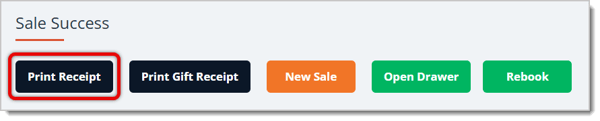
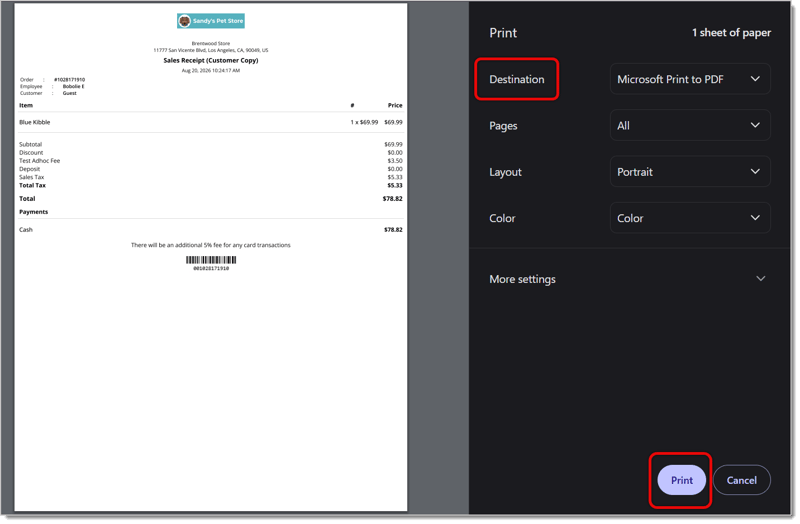
You may need to make some adjustments to the margins, paper size, etc. Due to the variances between printers, it may take some trial and error to get the sizing right.
Use one of the following methods to print a label. You may need to make some adjustments to the margins, paper size, etc. Due to the variances between printers, it may take some trial and error to get the sizing right. The eTailPet system works best with Zebra printers and uses a label size of 2.5" x 1.5" for both shelf tags and individual product barcode labels.
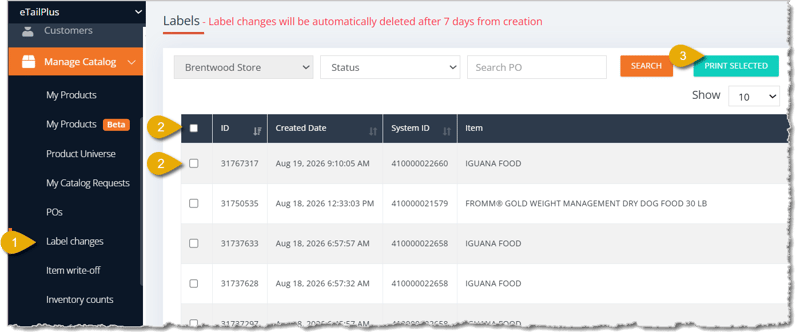
Go to Manage Catalog > Label Changes.
Select items by checking individual boxes, or select all items on the page by clicking on the checkbox in the column header.
Click Print Selected. This page will populate automatically with new labels when retail price changes occur, or when new inventory is added, or when you manually send label print jobs to the queue (as described in the Inventory Tab section below).
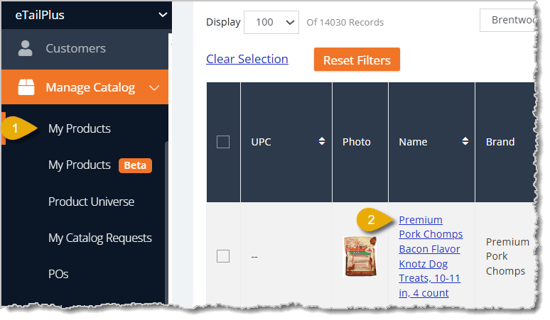
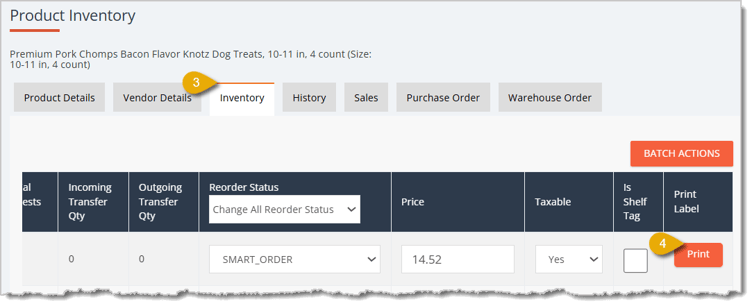
Click here to learn how to set up your Zebra label printer.
Basic Hardware Troubleshooting for Card Readers
Q: Can I get help troubleshooting my hardware directly from support?
A: No. Because there's such a wide variety of hardware available, support specialists aren't able to help troubleshoot your specific devices. It's recommended you purchase approved hardware through the partner POS Guys, since support is included with that purchase.
Q: Does it matter which hardware I use together?
A: Yes. Make sure your devices are compatible with each other and your setup. For example, Chromebooks aren't compatible with certain printers.
Q: Can I use Apple products?
A: No. This isn't recommended, as Apple products are not compatible with all functions in the software.
Q: I have a question, but I can't find my answer here. How do I get more assistance?
A: You can ask any question at the number listed here. Contact our support team at (323) 370-0738 for the U.S. and (888) 370-2363 for Canada.
Is this page helpful?
×Help us improve our articles