| Data Type |
Template Import and Export |
Knowledge Articles |
| Imports & Exports General |
General information and tips on importing data. |
Importing Products Best Practices and Troubleshooting
Spreadsheet Tips and Tricks |
| Customers |
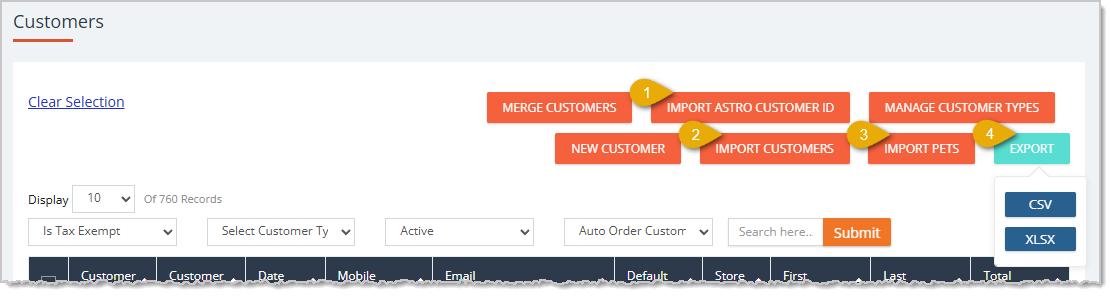
- To import a list of Astro Customer IDs, first you'll need to Export the Astro ID template for import: Go to Customers > Import Astro Customer ID > Get Sample Excel.
Then after you've added your data to the downloaded template, to Import the Astro ID template: Go to Customers > Import Astro Customer ID > Upload Excel File.
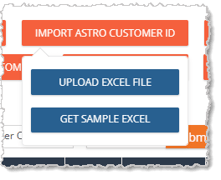
- To Import Customers or Update Customers, first you'll need to Export the template for import: Go to Customers > Import Customers > Get Sample Excel.
Then after you've added your data to the downloaded template, to Import the Customers and Customer Updates template: Go to Customers > Import Customers > Upload Excel File.
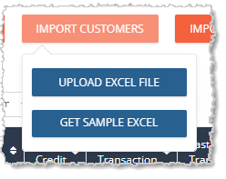
- To Import Pets or Update Pets, first you'll need to Export the template for import: Go to Customers > Import Pets > Get Sample Excel.
Then after you've added your data to the downloaded template, to Import the Pets and Pet Updates template: Go to Customers > Import Pets > Upload Excel File.
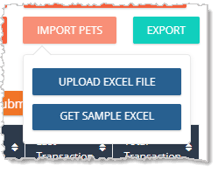
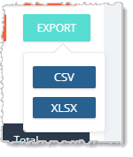
- To Export Customer Data: Go to Customers > Export, and you can choose to download a CSV or Excel file.
|
Import and Export Customers |
| Product Universe / Public Products |
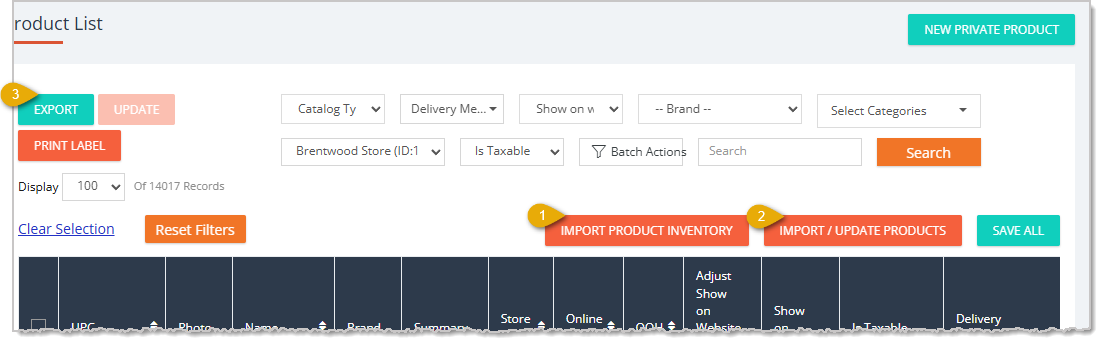
- To Import Product Inventory, first Export the template for import: Go to Manage Catalog > My Products > Import Product Inventory > Export Sample File.
To Import and Update Public Products Inventory: Go to Manage Catalog > My Products > Import Product Inventory > Upload Excel File.
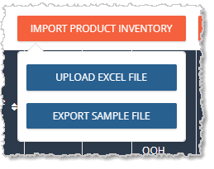
- To Import Products, first Export the template for import: Go to Manage Catalog > My Products > Import/Update Products > Get Sample Excel.
To Import and Update Public Products and retail pricing: Go to Manage Catalog > My Products > Import/Update Products > Upload Excel File.
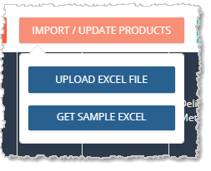
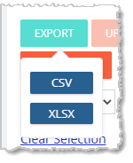
- To Export items from your Public Product Catalog: Go to Manage Catalog > My Products and select the products you want to download. Click Export in the upper left and you can choose to download a CSV or Excel file.
|
Importing and Updating Inventory
Adding and Importing Products
Export Products
|
| Private Products |
To Import / Update Private Product Inventory, change the Catalog Type as described below and follow the instructions in #1 in the section above.
To Import / Update Private Products, change the Catalog Type as described below and follow the instructions in #2 above.
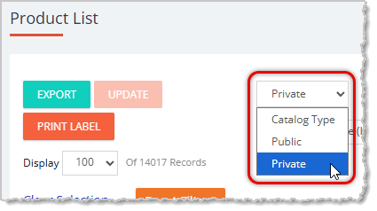
To work with Private Products in bulk, go to Manage Catalog > My Products and on the left, change the Catalog Type to Private.
|
Private Products
Private Product Setup
|
| Product Vendors |
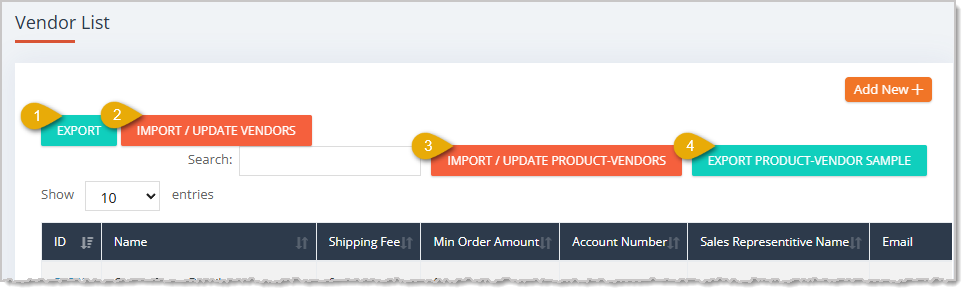
💡Please Note: The Vendor Import/Export functions on this page can be confusing to some, so here is some clarification:
-
The functions on the left of the page, Export, and Import/Update Vendors are about working with your Vendor company list data.
-
The functions on the right, Import/Update Product-Vendors and Export Product-Vendor Sample are about the Products that are associated with each of your Vendors.
- Export Vendor List: Go to Manage Catalog > Product Vendors > Export to download a CSV file of your Vendor data.
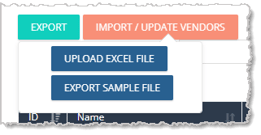
- To Import your Vendors, first download the sample data file by going to Manage Catalog > Product Vendors and click the Import/Update Vendors button on the left. Click the Export Sample File button to download the Excel file template.
Next, after adding your data to the template, click on Import/Update Vendors and click to Upload Excel File.
- To Import / Update the Products that are associated with your Vendors, first Export Product Vendor template for import (the templates in each are exactly the same):
- This template includes a tab with a list of the vendors associated with each product: Manage Catalog > Product Vendors > Import/Update Product-Vendors > Export Sample File.
- This template includes a tab with current vendors associated with each product and the unit cost: Manage Catalog > Product Vendors > Import/Update Product Vendors > Export Product Vendor Sample.
To Import products associated with your vendors and vendor unit costs: Go to Manage Catalog > Product Vendors > Import/Update Product-Vendors > Upload Excel File.
|
Product Vendors |
| Quantity on Hand Product Inventory |
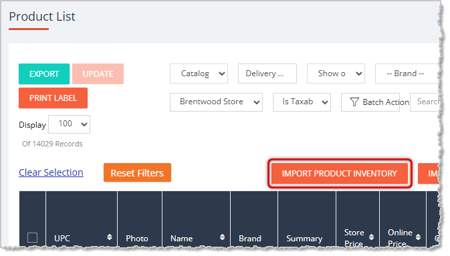
To Import Product Inventory, first Export the template for import: Go to Manage Catalog > My Products > Import Product Inventory > Export Sample File.
To Import and Update Public Products Inventory: Go to Manage Catalog > My Products > Import Product Inventory > Upload Excel File.
|
Importing and Updating Inventory |
| Purchase Orders |
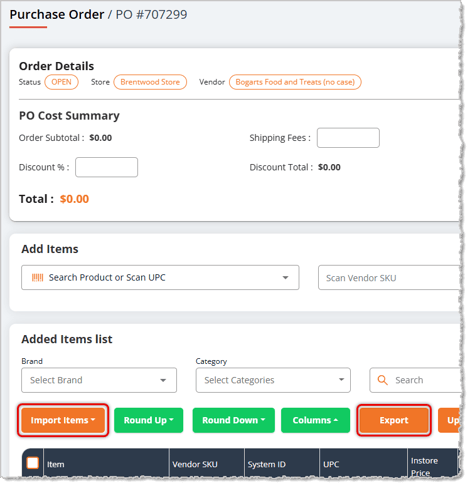
To import items into a PO, first Export Purchase Order template for import: Go to Manage Catalog > POs > Open PO > Import Items > Export Sample File.
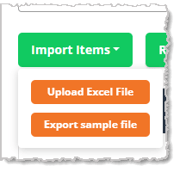
Then Import the Purchase Order template: Manage Catalog > POs > Open PO > Import Items > Upload Excel File.
To Export the Items from a PO, from an open PO, click the Export button and you will download an Excel file of the PO details, including all Items.
|
The Purchase Order Process |







 Aug 14, 2026
Is this page helpful?
×Help us improve our articles