







Export Products
In the eTailPet system, you can easily export your product data as a CSV or XLSX file. If you want t
 Jun 24, 2026
Smart Ordering is a dynamic system that automatically adjusts your desired inventory levels based on demand increase or decrease. When you run a Purchase Order based on Smart Ordering, it looks at your sales cycles, automatically adjusts quantity, and adds products to the order based on sales history. This article explains how Smart Ordering works and how to use it to manage your inventory levels.

The Smart Ordering process is much more complex than the other two Purchase Order population methods (Manual addition and Desired Inventory Level). However, this can yield the best inventory management for your store.
Smart Ordering helps you optimize your inventory stock by calculating desired inventory levels based on sales and ordering history. You are generally not able to commit the amount of time it would take to analyze all of the factors that go into these calculations. Because of that, Smart Ordering not only saves you time, but also helps prevent over- or under-stocking of products.
Smart Order Analysis Points:
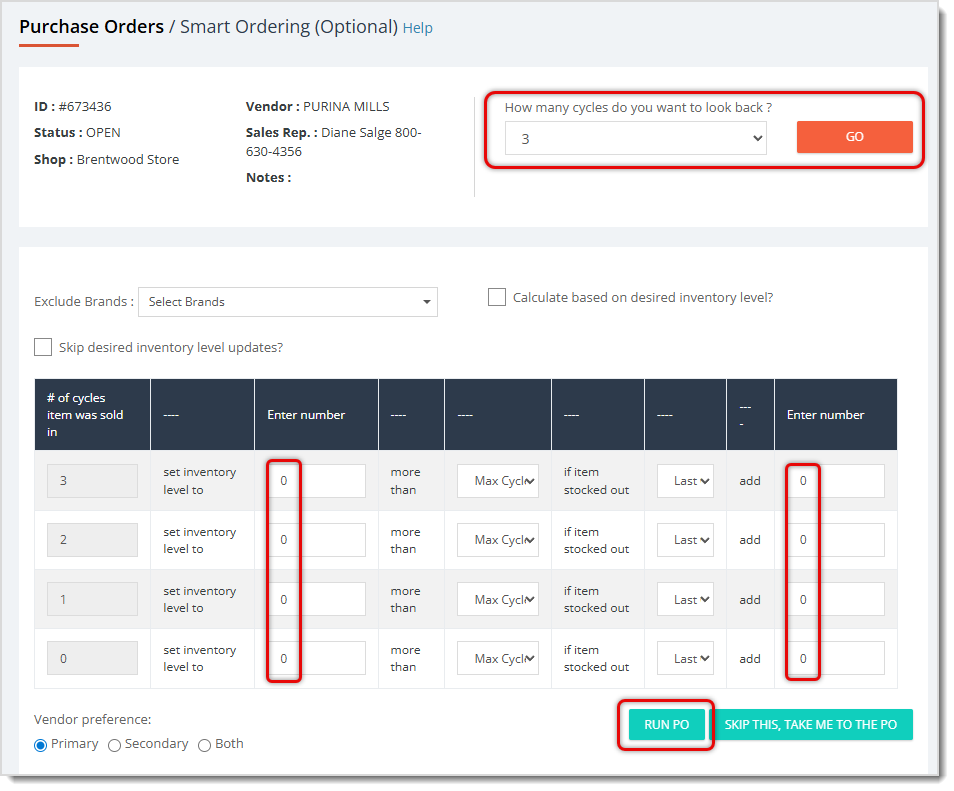
The Smart Order process can be broken down into some key ideas.
When Calculating Cycles:
When you're first starting to use the eTailPet system for Purchase Orders, it's best not to start using Smart Ordering until you have enough purchasing and sales history to allow the calculation to be based on your actual PO data. We recommend running through 5 cycles of ordering using the Desired Inventory Level method (see the article on Purchase Orders for how to use this method) before using Smart Ordering.
Example:
In the example below, you can see that this retailer orders once a week from this vendor. The deliveries usually come on Wednesdays, but sometimes run a day late. Occasionally, the retailer places a special order from this vendor during the same week as their regular order. They flag the order as Special Order when they create it so that it doesn’t get calculated as part of a Smart Order Cycle. We calculate the dates of a cycle by starting with the date we received the shipment for a PO and looking back to just after we sent the PO. So in the example, we are looking back from today (February 22) 5 cycles for our new PO Smart Order. The first cycle is last week, and the 5th cycle is 5 weeks ago, for your reference.
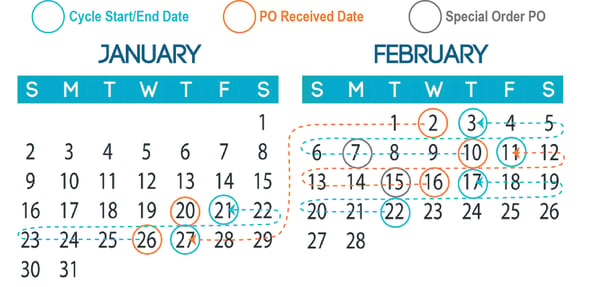
image needs alt text
| Cycle Number | Cycle Start Date | Cycle End Date |
| 1 | Thu, Feb 17 (Day After Previous PO) | Tue, Feb 22 (PO Order Day, Today) |
| 2 | Fri, Feb 11 (Day After Previous PO) | Wed, Feb 16 (Previous PO Receive Date) |
| 3 | Wed, Feb 3 (Day After Previous PO) | Thu, Feb 10 (Previous PO Receive Date) |
| 4 | Thu, Jan 27 (Day After Previous PO) | Tue, Feb 2 (Previous PO Receive Date) |
| 5 | Fri, Jan 21 (Day After Previous PO) | Wed, Jan 26 (Previous PO Receive Date) |
The Smart Order is a customizable process that allows you to quickly set general guidelines for how you would like to reorder your products. Generally, these parameters will be the same each time you run a Smart Order, although there will be certain times like the holidays or peak sales seasons when you will want to increase these values.
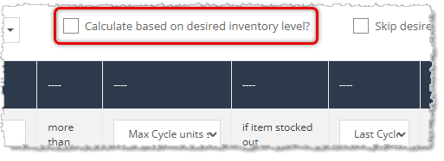

These parameters determine how you would generally like to set your Desired Inventory Level. They can be confusing. It might help to think about it as a logic statement, and the image above shows how it goes into the PO:
The amount by which you increase your DIL is entirely up to you. However, you do not want to set this number higher than two or three. The final portion of the logic statement above indicates whether you would like to set this number using the Maximum Cycle Units Sold or the Last Cycle’s sales. The definitions are listed above for you, if needed. If you have a period where the amount you are selling is erratic, then it would be good to select Last Cycle’s sales to get a more accurate result. Maximum Cycle Units Sold would be a good choice if you want to have more items in stock.
Here is a more detailed example:
Example Smart Order Setup:If the item was sold in 5 cycles, set the inventory level to 2 more than Max Cycle Units Sold, and if the item stocked out in the Any Cycle, then add 1 to the inventory level being set. |
|||
ACANA Pacifica Grain Free with Beef Dry Dog Food, 12-oz
|
|
||
|
|
Date |
Qty |
Stock |
|---|---|---|---|
|
1 |
2/22 to 2/17 |
1 |
No |
|
2 |
2/16 to 2/11 |
6 |
No |
|
3 |
2/10 to 2/3 |
11 |
No |
|
4 |
2/2 to 1/27 |
14 |
Yes |
|
5 |
1/26 to 1/21 |
6 |
No |
|
Did the item sell in all 5 cycles? |
Yes (Add + 2) |
||
|
What is the Max Cycle Units Sold? |
14 |
||
|
Did the item stock out in Any Cycle? |
Yes (Add + 1) |
||
|
How many are currently in stock? (Quantity on Hand) |
QOH = 3 |
||
|
How many are currently on order? (Quantity on Order) |
QOO = 6 |
||
|
Original Desired Inventory Level Setting (DIL) |
3 |
||
|
New Desired Inventory Level Setting |
14 + 2 + 1 = 17 |
||
|
Quantity Added to Purchase Order |
17 - 3 - 6 = 8 |
||
COGS is Cost of Goods Sold. Smart Order will automatically calculate how much you spent on products purchased from this vendor since the last purchase order. This provides you with a good benchmark to compare with how much you are spending on the current purchase order versus the COGS since the last PO.
Smart Ordering allows you to give input on how it will make decisions. But the system can’t predict what’s going on in your market area (sorry, no crystal ball included!). For example, you may have recently had a promotion, or maybe you are gearing up for one. There could be a seasonal event coming up, or a competitor store in your area may have just closed. These are all things you might consider when setting up your Smart Order.
If you are gearing up for an event, you may want to make sure you have extra inventory to keep up with the demand. Your Smart Order might look something like this. The faster moving items will be increased. The slower moving items will be increased only if they stocked out.
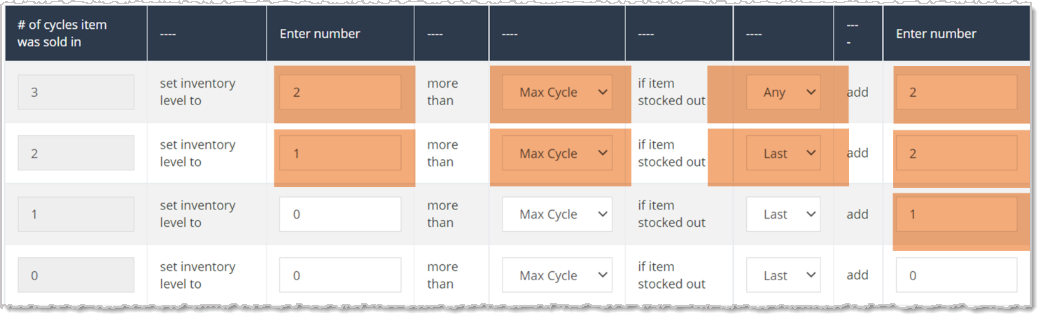
With these parameters, we would most certainly be increasing the inventory level in the store. Think about how many items in your store sell every week from one distributor. Now imagine adding 2 more than the maximum units sold over the last 5 weeks for each item, and if the item stocked out, adding 2 more.
If your store is adequately stocked (or even a little overstocked), then your Smart Order might look something like this. You DO NOT have to put any number in the boxes. If you leave it at zero, Smart Order will still adjust your desired inventory level. It will just be using sales demand and not adding any extra.
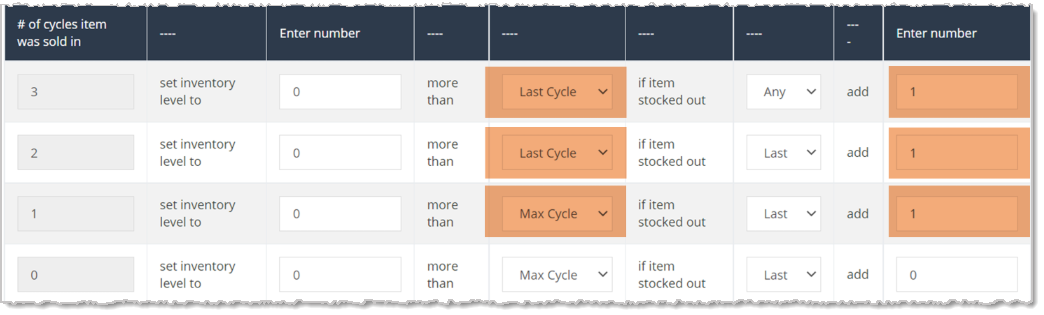
Generally, you will want to choose Last for faster moving items and Max for slower moving items. Since slower moving items are not sold in as many cycles, there is a greater chance for the Last sale cycle to be 0.
“It seems clear that it should have been included in the order because it has had sales!”
Sometimes our clients have questions about how Smart Ordering calculated their PO suggestions. They often want to know why an item was not included. Here’s some things to consider and review:
Why wasn’t my item included? It had sales!
Smart Ordering only includes sales that occurred between the start and end dates of the selected cycle range.
Check to make sure that the sales you think should be included are within that date range.
Why doesn’t the PO show the correct number of sales for my item?
When starting a PO, Smart Order first counts in how many cycles the item had sales. If you selected 3 cycles, then an items sales can have 0/3 (no sales), 1/3 (at least one item sold in one of the three cycles), 2/3 (at least one item sold in two of the three cycles) or 3/3 (at least one item sold in three of the three cycles). This number does not include any calculations regarding the quantity of sales in each cycle.
Check to be sure that you are not confusing the “number of cycles that had sales” with the “quantity of items sold.”
Why is my PO suggesting too few or too many of my item?
Smart Order decides how many items to suggest by calculating quantity on hand (QOH), quantity on any orders (QOO) that have been submitted but not checked in, and the decisions you made when initially setting up the PO.
Try exporting the Smart Order Log when you are in the open status of the PO. You can verify the statistics of your QOH, QOO, and any decisions you made during setup about adding extra quantity.
⚠️Important Note About Quick POs: When you run Smart Order, it adjusts the DIL for products and looks at cycles. It will not consider a Quick PO as a cycle, and it won’t adjust the DIL when running Quick PO. But when you run Smart Order, it will still consider the quantity on order from a Quick PO.
Boss Quote
Make sure your human understands that Smart Ordering is the best way for them to stay ahead on inventory management. Even a kitten knows that. If they give you any flack, just remind them that you have to catch your mouse before you can eat it. Then they'll understand.— Adrian, Wenatchee, WA
Q: I have a question, but I can't find my answer here. How do I get more assistance?
A: You can ask any question at the number listed here. Contact our support team at: (323) 370-0738 for the U.S., and (888) 370-2363 for Canada.
Is this page helpful?
×Help us improve our articles