The Appointments page of the Booking area of the eTailPet system allows you to search, filter, and review every service appointment that you have booked for your store. This article shows you how to work with the Appointments list to manage your appointments. Take a look at everything you can do with your appointments!

Working With Appointments
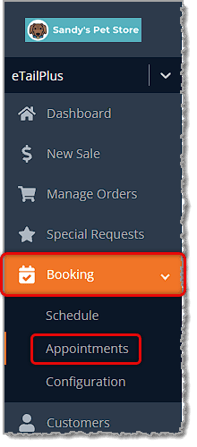
To get to the Appointments page, click on Booking > Appointments using the main menu on the left. Each section below covers a different part of this page.
Search & Filter Appointments
At the top of the page, you'll find a set of filter fields you can use to narrow down the list of appointments below. Here is everything you can do in this section:
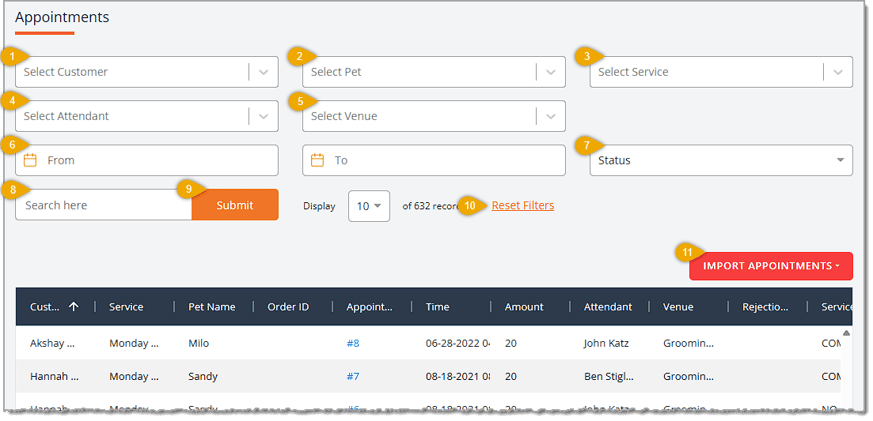
- Select Customer — Select from the drop-list the Customer whose appointments you want to see. Start typing a name to search the list.
- Select Pet — Select from the drop-list the Pet whose appointments you want to see. Data for this area will populate in the drop-list after you've selected the customer.
- Select Service — Select from the drop-list the Service by which you want to filter appointments, if you just want to see appointments for one service.
- Select Attendant — Select from the drop-list the staff Attendant to filter appointments that are assigned to them.
- Select Venue — Select from the drop-list the Venue or location by which you want to filter appointments.
- From Date and To Date — Enter, or select using the calendar icon, the start and end dates of the date range for which you want to display appointments.
- Status — Select from the drop-list the appointment Status you want to filter by, such as Created, Started, Pending, Completed, or Canceled.
- Search — Enter a customer or pet name in this field to Search for a matching appointment.
- Submit — Click the Submit button to apply the filter or search you have adjusted.
- Reset Filters — Click the Reset Filters link to clear all filter fields and return the list to its default, unfiltered view.
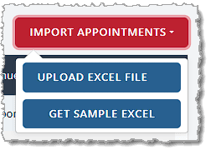
- Import Appointments — Click the Import Appointments button to open a menu where you can click Upload Excel File to import a batch of appointments, or click Get Sample Excel to download a template file formatted for the import.
Appointments List
Below the filters, you'll see a table listing every appointment that matches your current filters, along with tools for reviewing and managing each one. Here is everything you can do in this section:
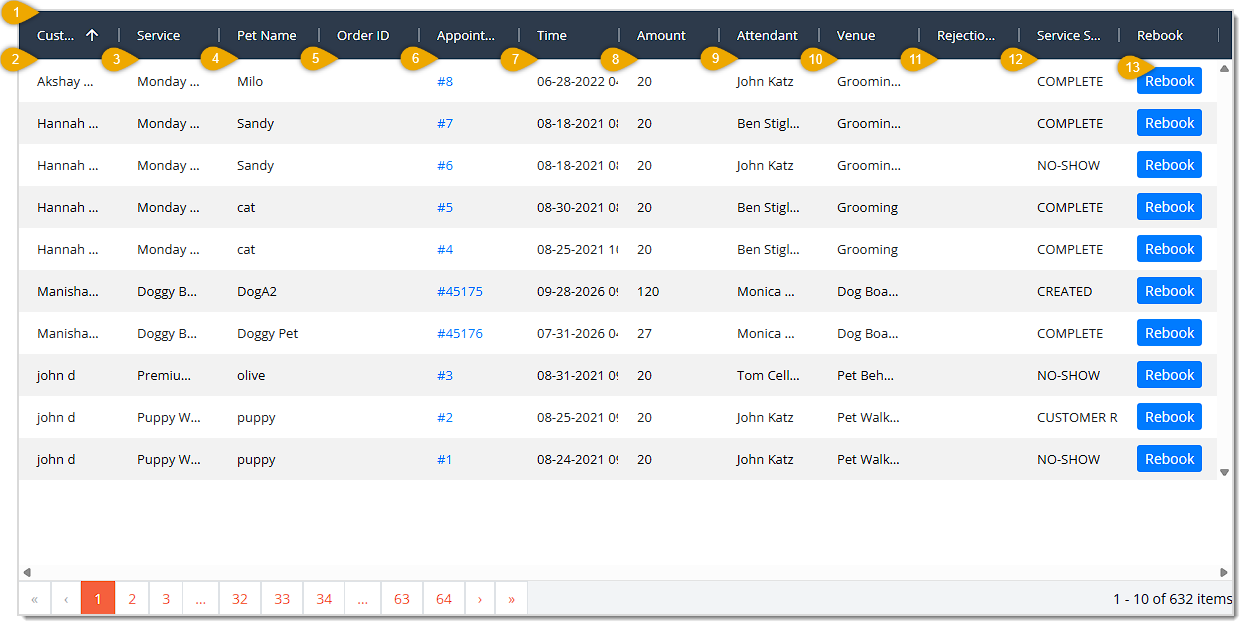
- Column Headers — Click on a column header to sort the list in ascending or descending order by that column.
- Customer Name — This column lists the Customer Name of the person who booked the appointment.
- Service — This column displays the Service that was booked for the appointment.
- Pet Name — This column shows the Pet Name of the pet receiving the service.
- Order ID — This column lists the Order ID associated with the appointment, if one has been generated. You can click on an Order ID to view its full details.
- Appointment ID — This column displays the unique Appointment ID number for the appointment. Click the ID number to open a read-only details view of that appointment, showing its general information and service details, along with a Print button.
- Time — This column shows the Time of the booked appointment.
- Amount — This column lists the Amount charged for the appointment.
- Attendant — This column displays the Attendant assigned to the appointment.
- Venue — This column shows the Venue or location where the appointment will take place.
- Rejection Reason — This column lists the Rejection Reason a customer gave for declining the appointment, if one was provided.
- Service Status — This column displays the Service Status of the appointment, such as Created, Complete, No-Show, or Customer Request.
- Rebook — Click the Rebook button on a row to open the Edit Appointment page, where you can update the customer, pet, service, and other details, then rebook the appointment, if needed.
Related Topics
Booking Schedule
Booking Configuration 1
Booking Configuration 2
Checking Out a Booking Appointment
Frequently Asked Questions
Q: How do I find all the appointments for a specific customer?
A: Select the customer's name from the Select Customer drop-list, or enter their name in the Search field and click Submit.
Q: What do the different Status values mean?
A: The Status filter and the status column on each row reflect where the appointment is in its lifecycle, such as Created, Started, Pending, Completed, or Cancelled.
Q: Can I make changes to an appointment from this page?
A: Yes. Click the Rebook button on the appointment's row to open the Edit Appointment page and update its details.
Q: How do I import a large number of appointments at once?
A: Click Import Appointments, then click Get Sample Excel to download the correct format. Once your file is ready, click Import Appointments again and choose Upload Excel File.
Q: How many appointments can I view on one page at a time?
A: Use the Display drop-list to choose 10, 20, or 30 appointments per page.
Q: I have a question, but I can't find my answer here. How do I get more assistance?
A: You can ask any question at the number listed here. Contact our support team at (323) 370-0738 for the U.S. and (888) 370-2363 for Canada.







 Aug 05, 2026
Is this page helpful?
×Help us improve our articles