📆 The Schedule page of the Booking area in the eTailPet system allows you to view, create, and manage your grooming, boarding, and other bookable appointments in one central calendar. You can create new appointments, enable time slots, review booking requests, manage a customer waitlist, and block off unavailable times. This article shows you how to work with your Booking settings. Take a look at everything this page can do for you!

Schedule Page
To get to the Schedule page, click on Booking > Schedule using the main menu on the left.
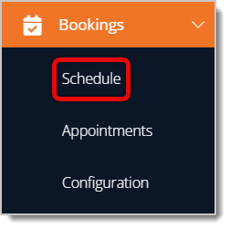
Each section below covers different parts and functions of this area.
Calendar View
When you first open the Schedules page, you'll see a Calendar view of your appointments. Here is everything you can do on this page:
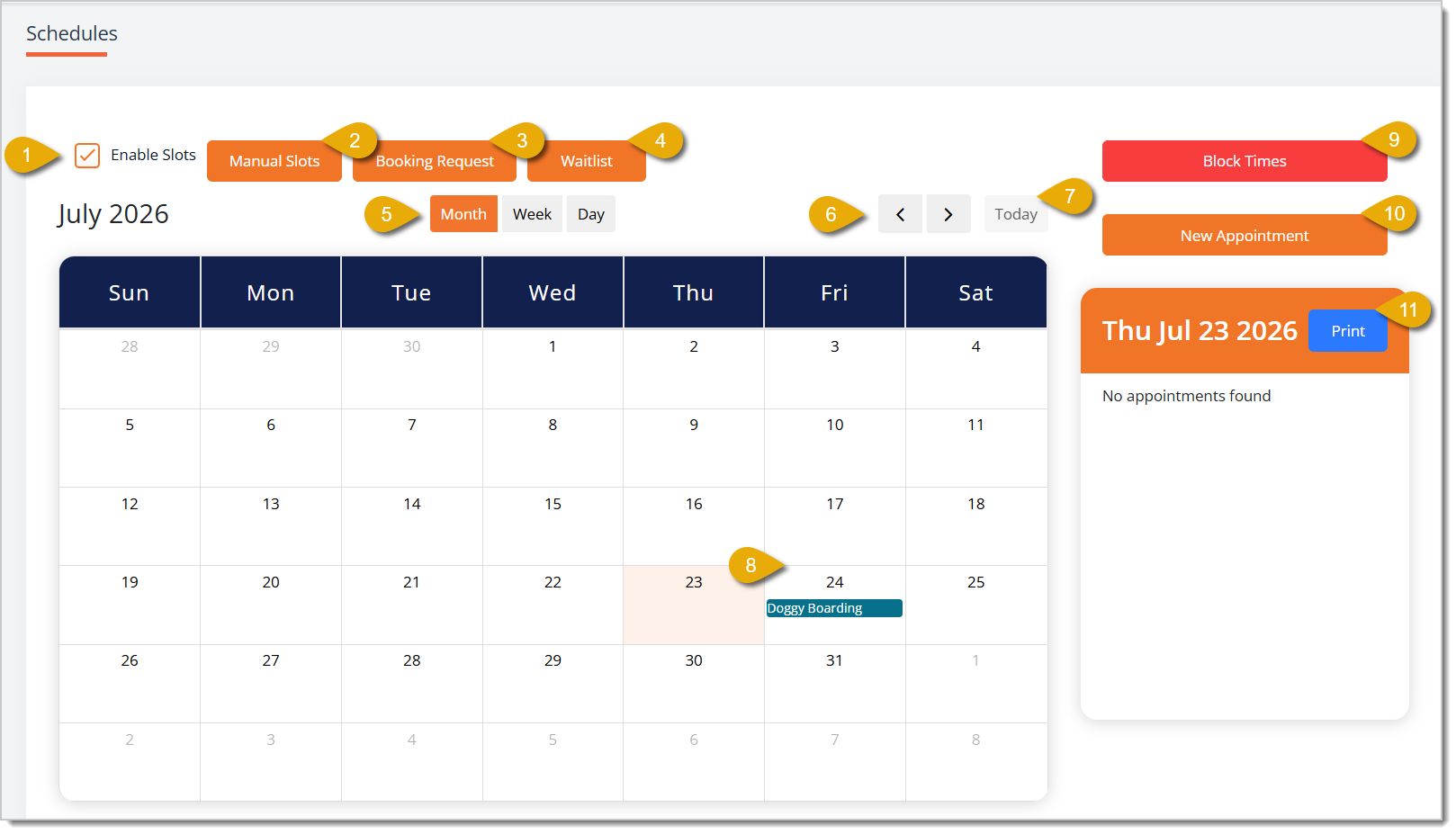
- Enable Slots — Check this box to turn on time slot booking for your store. When you uncheck this box, the system disables the Manual Slots button.
- Manual Slots — Click this button to open the Slots page, where you can view existing slots on the calendar. On this page, you can also click Add New Slot to create a new one. Click here to learn more about adding a new slot.
- Booking Request — Click this button to open the Booking Requests List, where you can search, review, and manage appointment requests submitted by customers. Click here to learn more about this page.
- Waitlist — Click this button to open the Waitlist page, where you can see any customers who are waiting for a slot to open up. You can see their name, phone number, email address, and the slot they waitlisted. Click here to learn more about this page.
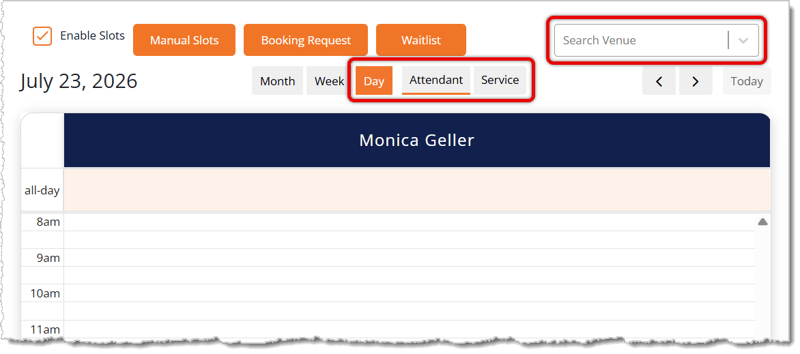
- Month / Week / Day — Click one of these buttons to change how the calendar displays appointments. If you click Day, the system also shows Attendant and Service buttons so you can group the day's schedule by staff member or by service type, along with a Search Venue field to filter by location.
- Left / Right Arrows — Click these arrows to move to the previous or next month, week, or day.
- Today — Click this button to jump the calendar back to the current date.
- Calendar Date — Click on any date in the calendar to load that day's appointments in the right-side panel and to switch the view to that Day. You can choose to Print out the day's appointments.
- Block Times — Click on Block Times to open a window where you can select times to block out for appointments. You can set this for stores and dates. Click here to learn more about blocking times.
- New Appointment — Click on New Appointment to open a window where you can add a new appointment. Click here to learn more about creating appointments in the Schedule page.
- Print — Click on the Print button in the right-hand panel to get a printout of the day's appointments.
Add New Slot
When you click on Add New Slot on the Manage Slots page, you'll be able to enter information about the new slot in the Add New Slot window. Here is everything you can configure in this window:
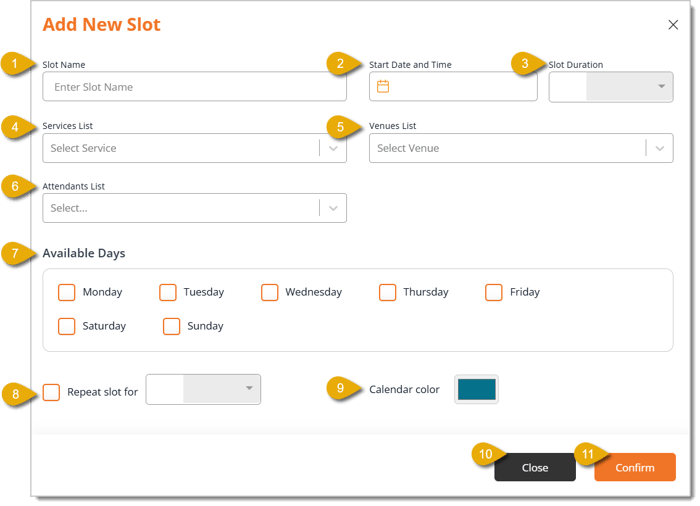
- Slot Name — Enter the name for this slot. For example, "Doggy Boarding" indicates the slots are for boarding reservations.
- Start Date and Time — Enter the date and time that these slots will start.
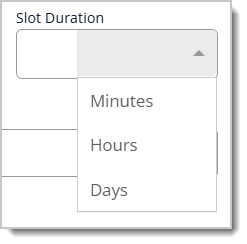
- Slot Duration — Enter a number and select Minutes, Hours, or Days from the drop-list to set the time duration of the slot.
- Services List — Select from the drop-list the services provided for these slots.
- Venues List — Select from the drop-list the venues that will get these slots.
- Attendants List — Select from the drop-list the attendants available for these slots.
- Available Days — Check the boxes for each day of the week (Monday through Sunday) these slots will be open.
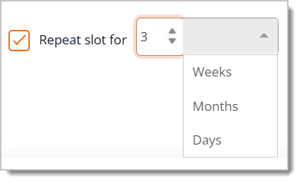
- Repeat Slot For — Check this box to have this slot repeat. Enter a number and select Days, Weeks, or Months to set up the duration of this.
- Calendar Color — Select a color for the slot. This time slot will appear with this color on your calendar.
- Close — Click on this button to close the window without saving the slot.
- Confirm — Click on this button to save the slot configuration and add it to the calendar so customers can book appointments.
Booking Requests
When a customer submits a Booking Request, you'll see it in this list, as well as the Customer Name, Service, Pet Name, Order ID, Appointment ID, the appointment date and Time, the Amount charged for the service, Attendant, Venue, Rejection reason, if any, and the Service Status. Here is everything you can do on this page:
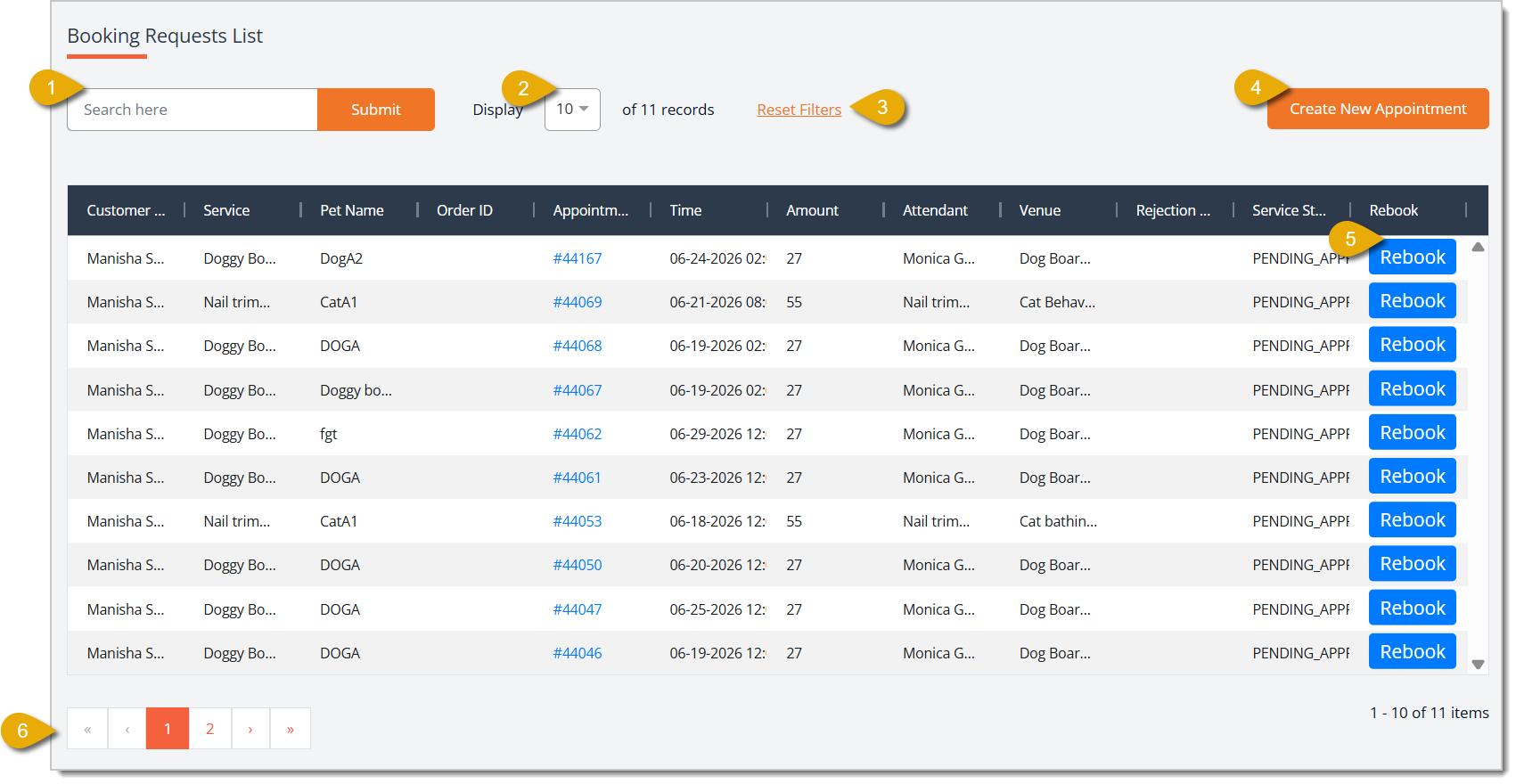
- Search — Search for a request by entering the customer's name or pet's name, then click on Submit.
- Display Number of Entries — Select how many entries you want to view per page.
- Reset Filters — Click on this to reset any filters you've set for the Booking Requests List.
- Create New Appointment — Click this button to create a new appointment. Click here to learn more about adding new appointments.
- Rebook — Click on the Rebook button for an appointment request to edit the appointment details or change the time and date (This will direct you to a page that has the same functions as adding a new appointment. You can click here to learn more about it).
- Page Navigation — Click on the Arrow Buttons to move between pages of requests, or click on a Page Number to skip to that page.
Waitlist
The Waitlist page shows you customers who have been waitlisted for certain time slots because another customer has already booked it. If the customer with the booking cancels it, you can click on Book Now in the Waitlist to give the customer that slot.

Block Times
For your Bookings Calendar, you are able to block off times to prevent customers from booking appointments during those times. For example, if you're closed on Sunday, you can Block the entire day. Here is how to Block time on your Calendar:
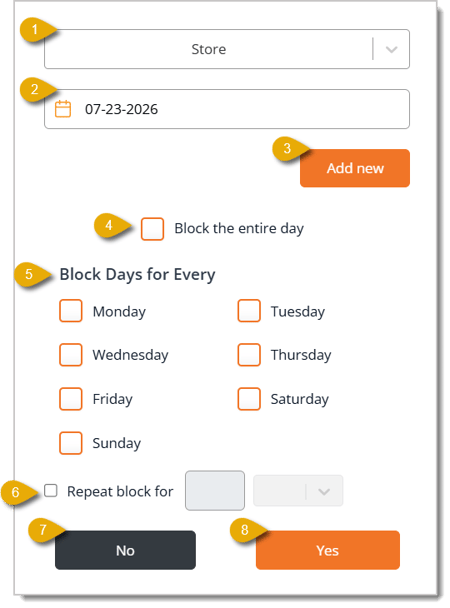
- Store — Select the store location you want to block times at from the drop-list.
- Date — Enter or select the date you want to block using the calendar icon.
- Add New — Click this button to add the time periods you want to block.
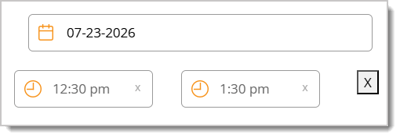
- Block the Entire Day — Check this box to block appointments for the entire selected date.
- Block Days for Every — Check the box next to any day of the week (Monday through Sunday) to block that day on a recurring basis.
- Repeat Block For — Check this box, then enter a number and select a time unit from the drop-list, to have the block repeat for a set number of days, weeks, or months.
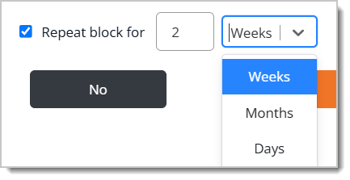
- No — Click No to cancel without saving
- Yes — Click Yes to confirm and save your blocked times.
New Appointment
On the Booking Appointments page, when you click to Create New Appointment, the Book Appointment page will load for you. Here is how to create a new appointment:
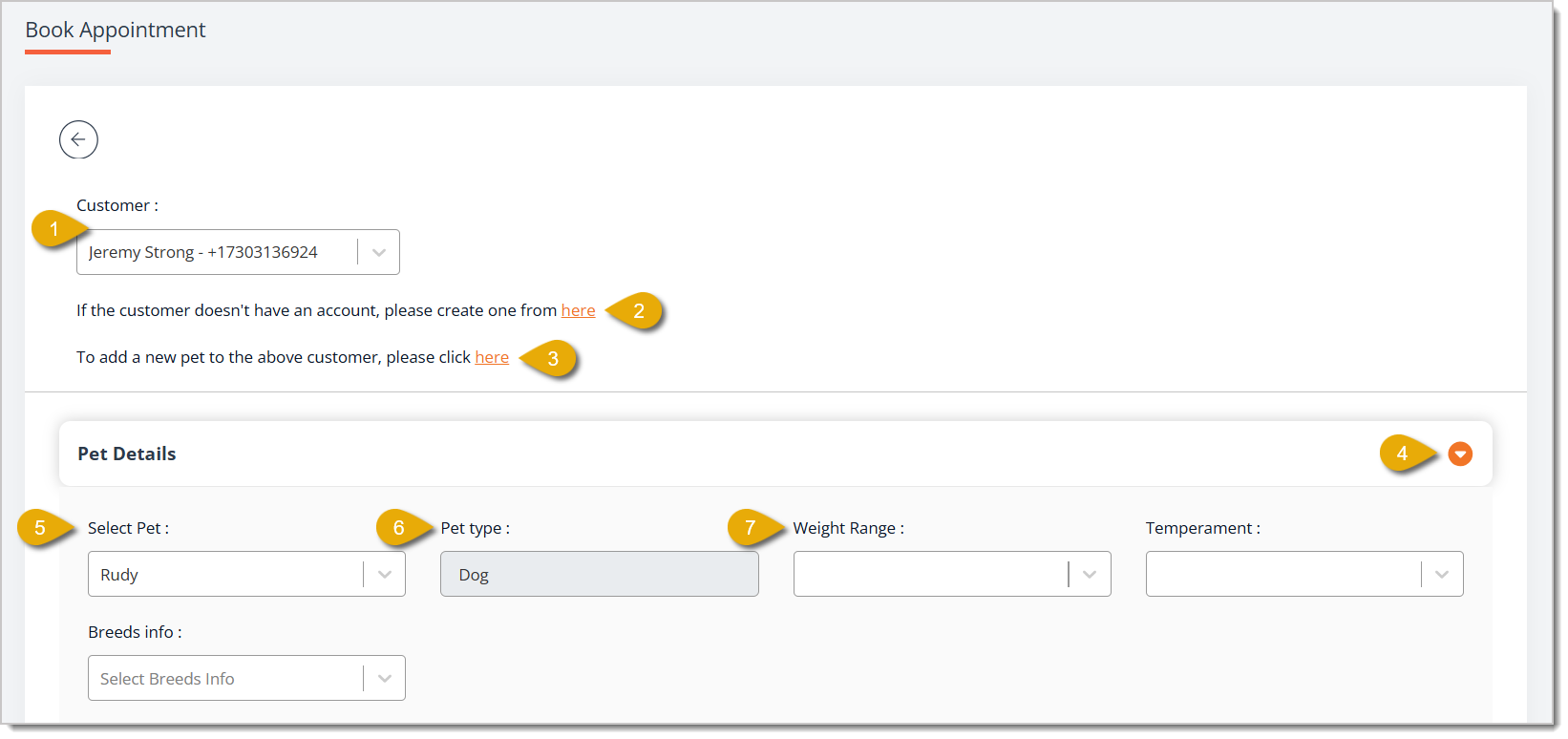
- Customer — Select the customer you are booking the appointment for from the drop-list.
- Customer Account — If the customer does not already have an account, click on the link to create one.
- Add Pet — If the customer does not already have a pet registered to their profile, click on the link to create one.
- Pet Details — Click this arrow to expand the Pet Details section.
- Select Pet — Select the customer's pet from the drop-list. If the pet is not listed, click the link from number 3 to add a new pet.
- Pet Type — Select the type of pet for the service (e.g. dog, cat, etc.) from the drop-list. Click here to learn how to configure a pet type.
- Weight Range, Temperament, Breeds Info, etc. — You can select extra details about a pet for a booking. Click here to learn how to configure these details.
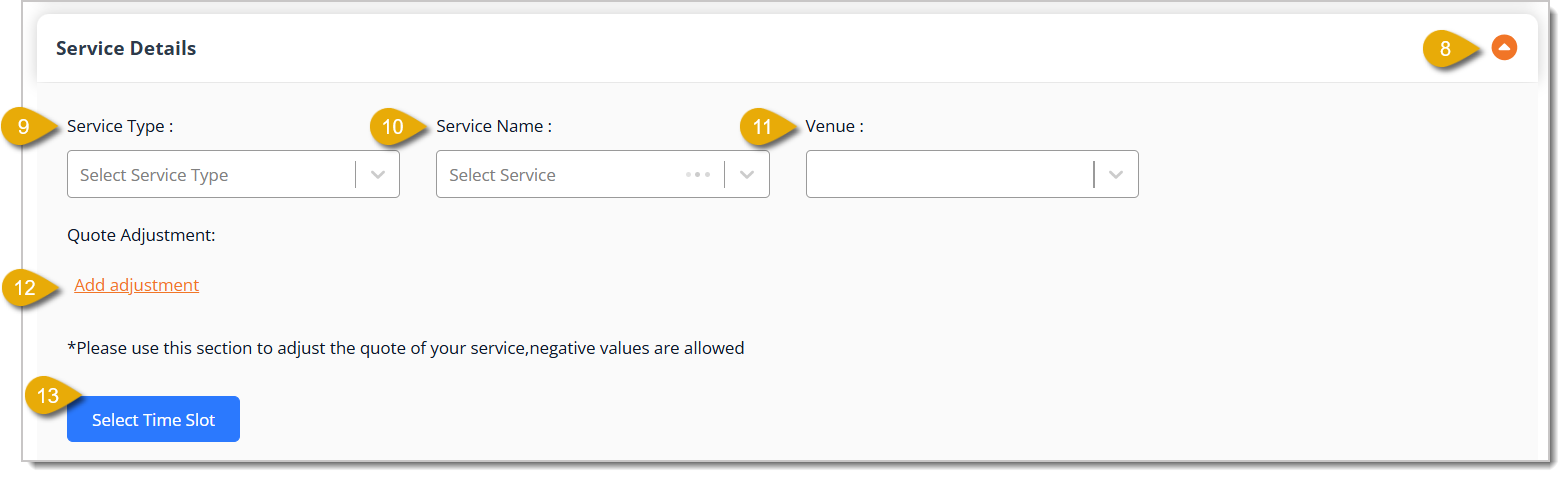
- Service Details Tab — Click this arrow to expand the Service Details section.
- Service Type — Select the type of service you are booking from the drop-list.
- Service Name — Select the name of the specific service you are booking from the drop-list.
- Venue — Select the venue or location where the service will take place from the drop-list.
- Add Adjustment — Click this link to adjust the quoted price of the service. You can enter a negative value here if you need to reduce the quote.
- Select Time Slot — Click this button to choose an available time slot for the appointment.
- Other Details — Click this section to expand it and enter any additional notes or information for the appointment.
- Book Now — Click this button once you have finished entering the appointment details to save the new appointment.
Related Topics
Booking Appointments
Booking Configuration 1
Checking Out a Booking Appointment
Frequently Asked Questions
Q: What happens if I uncheck the Enable Slots box?
A: The system disables and hides the Manual Slots button. The Booking Request and Waitlist buttons remain available.
Q: What is the difference between the Attendant and Service buttons in the Day view?
A: Clicking Attendant groups the day's schedule by staff member, while clicking Service groups it by the type of service.
Q: Can I block out an entire day instead of specific hours?
A: Yes. In the Block Times window, check the Block the Entire Day box to prevent any appointments from being booked on that date.
Q: I have a question, but I can't find my answer here. How do I get more assistance?
A: You can ask any question at the number listed here. Contact our support team at (323) 370-0738 for the U.S. and (888) 370-2363 for Canada.







 Jul 22, 2026
Is this page helpful?
×Help us improve our articles