📆 The Required Configurations section of the Booking Configuration page contains the core setup areas you have to complete before you can accept bookings: Service Types, Pet Types, Venues, Attendants, and Services. This article covers all five of these areas and how to work with each one. Get your booking foundation set up!

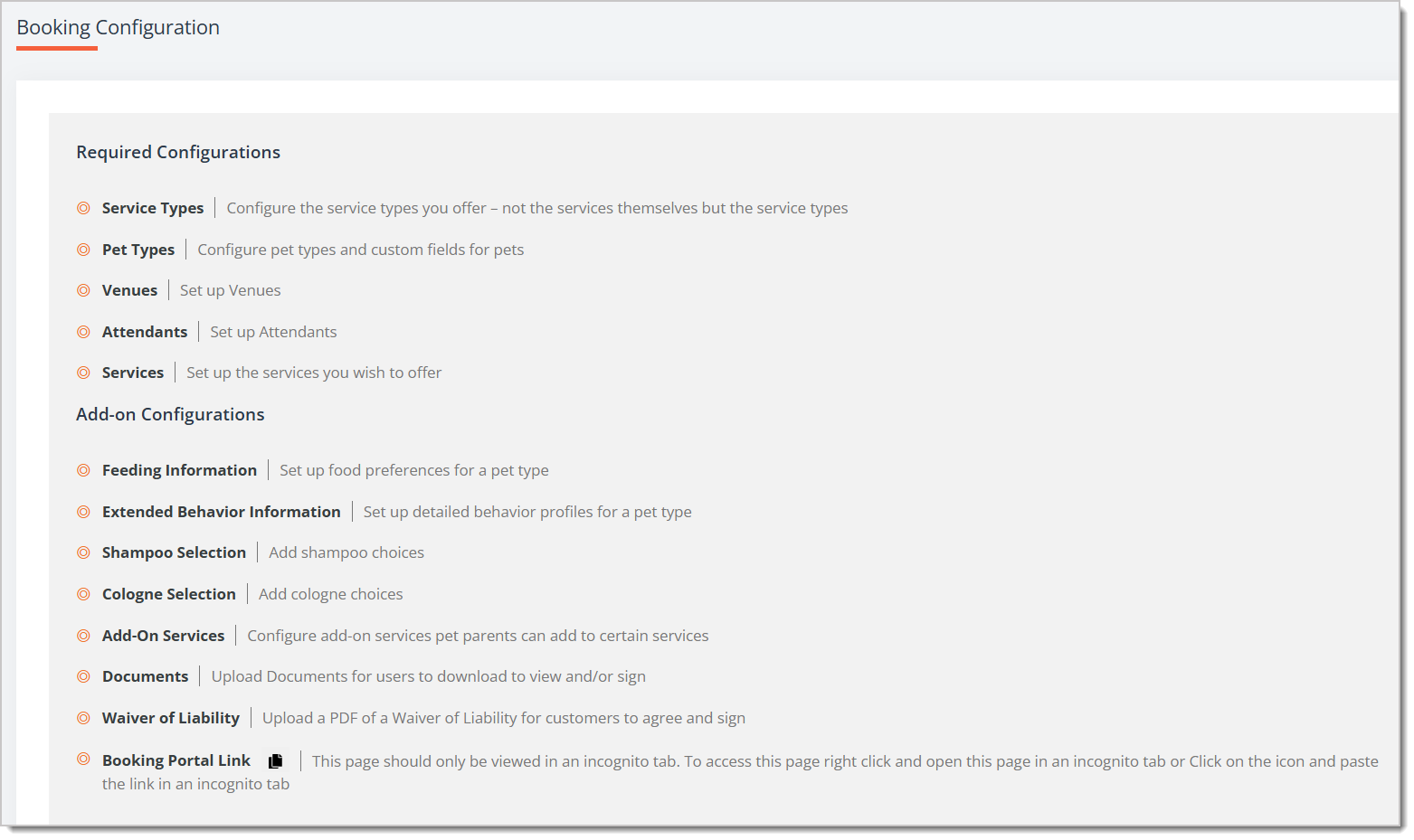
Required Booking Configurations
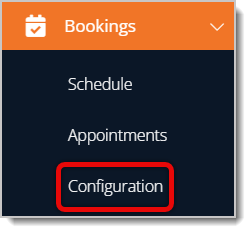
To get to this area, using the main system menu on the left, go to Booking > Configuration.
On the Booking Configuration page, under Required Configurations, click on any of the sections to access those areas. Each one is described below:
Service Types
The Service Types page lists the general categories of services you offer, such as grooming or boarding, and it lets you control which ones are active.
Please Note: This is not where you configure the individual services. That is done on the Services page, which is described in its own section below.
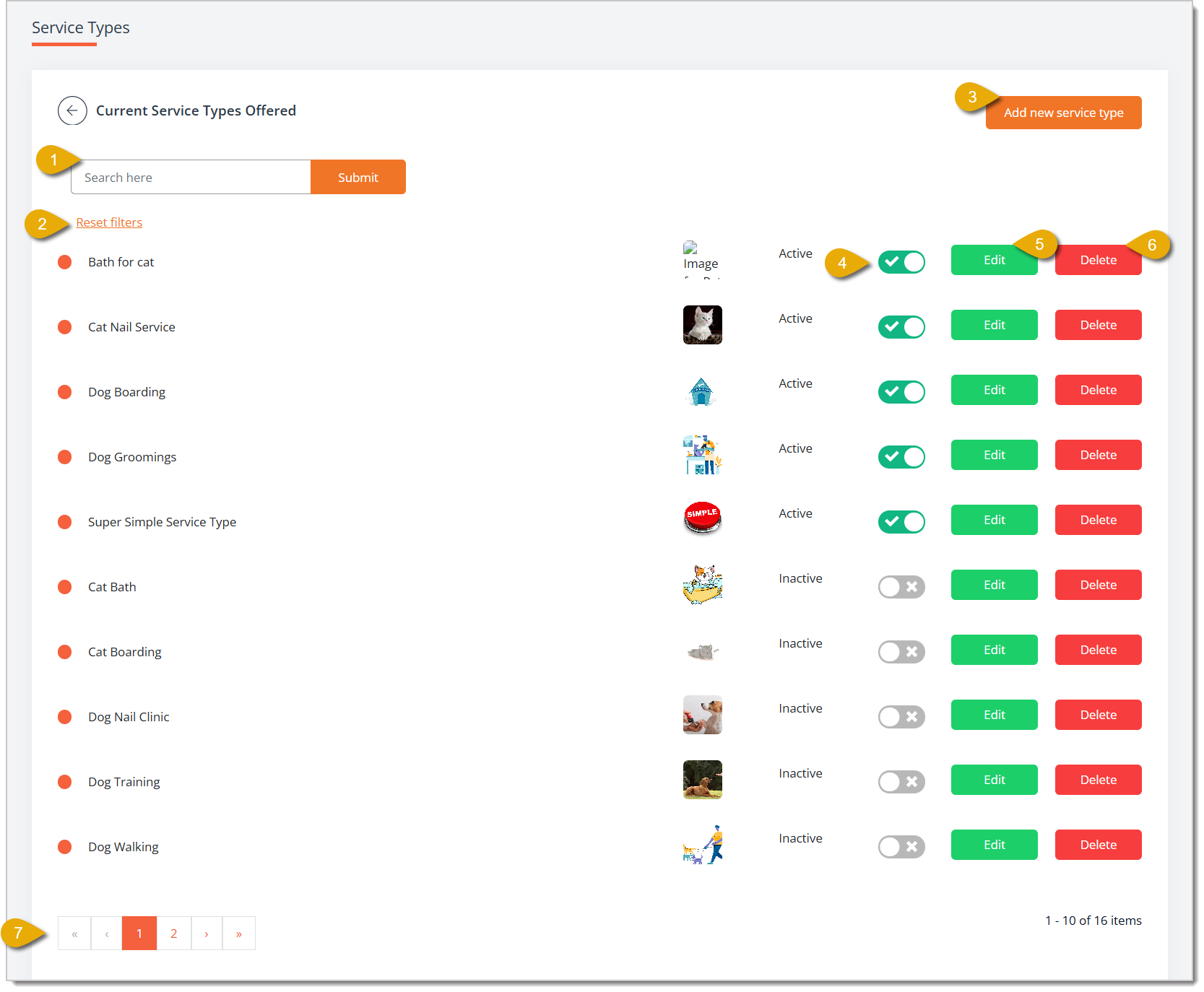
- Search — Enter a keyword in the Search field, then click Submit to filter the list of service types down to those matching your search.
- Reset Filters — Click this link to clear filters and display the full list of service types again.
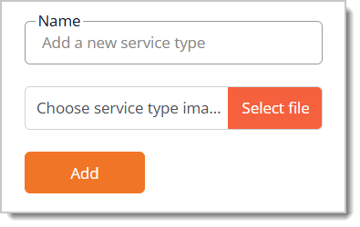
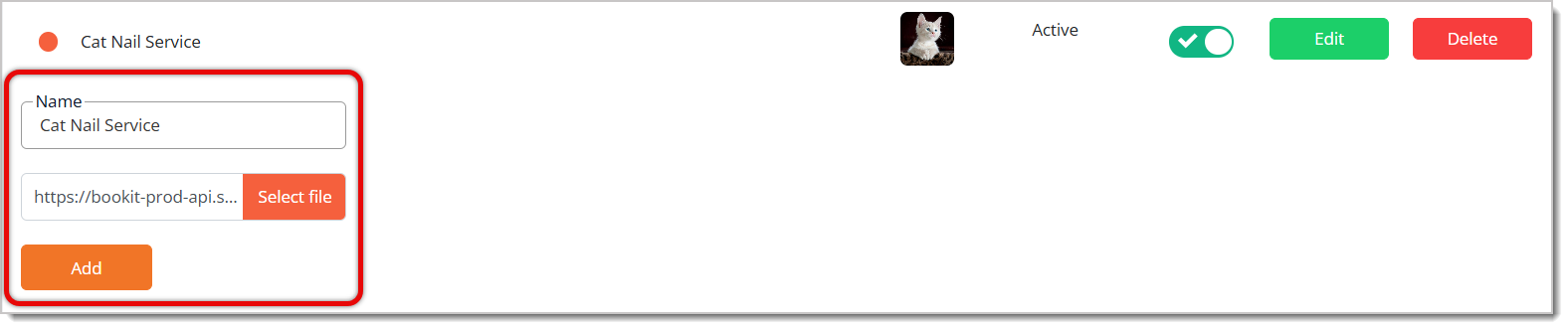
- Add New Service Type — Click this button to reveal a Name field so you can enter the name of the new service type. You can also click on the Select File button to upload an image for the service type. Please Note: For image files you upload, JPG and PNG images are best, and the image file should be 1mb or less in size. Click Add to create the new service type.
- Active Toggle — Click this toggle next to any service type to switch it between Active and Inactive. When you set a service type to Inactive, it is no longer available to add to an appointment.
- Edit — Click this button to reveal the Name field and image field for that service type so you can update them, then click Add to save your changes.
- Delete — Click this button to permanently remove the service type.
- Navigate Pages — Click on the Arrow Buttons on the bottom of the page to navigate between pages of your Service Types list. You can also click on the Page Number Buttons to skip to certain pages.
Pet Types
Initial Pet Type Creation
The Pet Type page lets you create the categories of pets you serve, such as Cat or Dog, and configure the custom intake fields you want for each one.
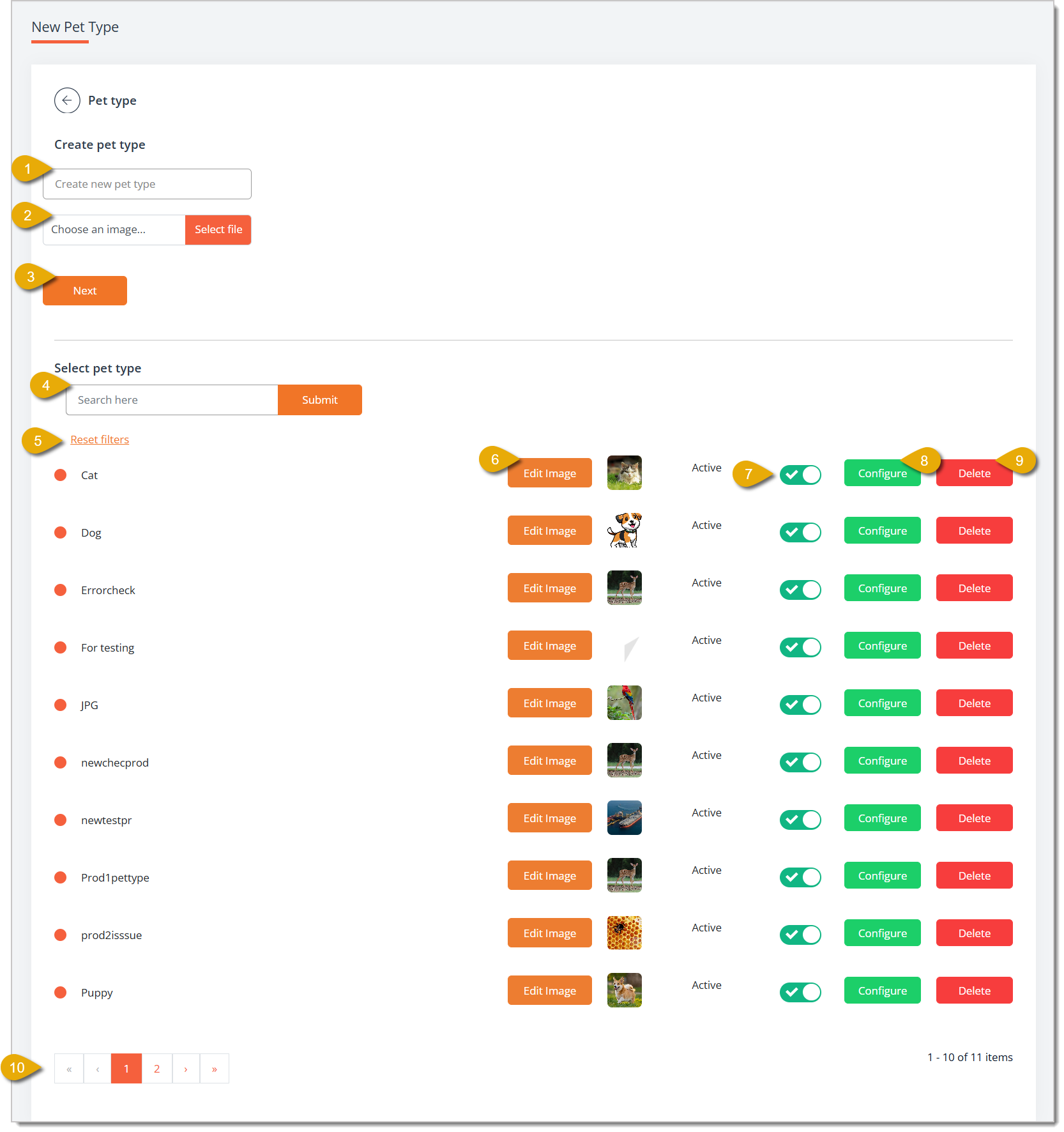
- Create New Pet Type — Enter the name of a new Pet Type you want to add.
- Choose An Image — Click on the Select File button to upload an image that will display for the Pet Type on your website. Please Note: For image files you upload, JPG and PNG images are best, and the image file should be 1mb or less in size.
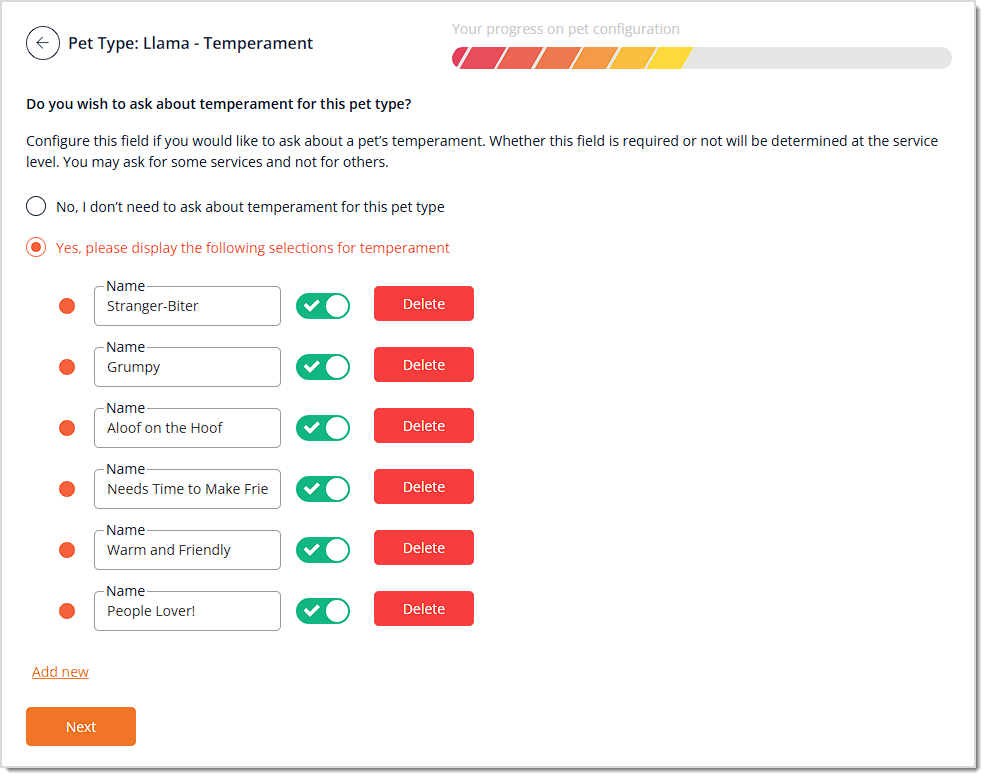
- Next — Click Next to create the new pet type. You will go through a step-by-step walk through to configure the different aspects of the Pet Type. As you go, you'll see a progress bar that will follow your completion of the configuration, as pictured below. On the final step, click Save to save the new Pet Type.
- Search — Enter a keyword and click Submit to filter the Pet Type list.
- Reset Filters — Click this link to clear the filters and display all pet types again.
- Edit Image — Click this button next to any pet type to change its displayed photo. Please Note: For image files you upload, JPG and PNG images are best, and the image file should be 1mb or less in size.
- Active Toggle — Click this toggle to switch a pet type between Active and Inactive. When you set a pet type to Inactive, it is no longer available to add to an appointment.
- Configure — Click this button to open the Pet Type Information page for that pet type, where you decide which details to collect from customers.
- Delete — Click this button to permanently remove that pet type from the list.
Configure
Clicking on Configure for a pet type will lead you to the Pet Type Information page. You'll see the Pet Type you are editing in the upper left. Here is everything you can configure in this page for a pet type:
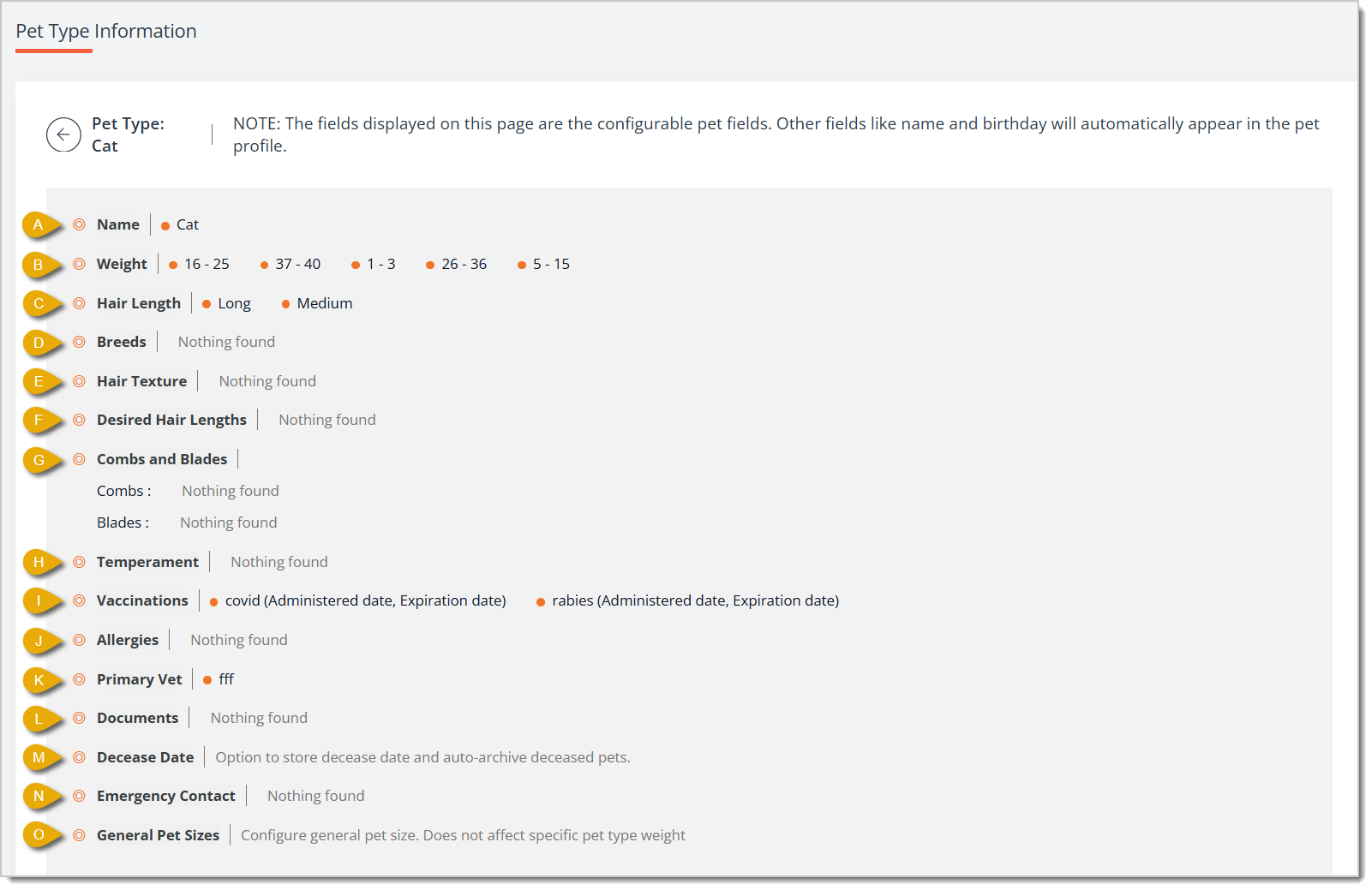
A. Name
This displays the pet type's name, such as Cat, as entered when you created it. Click on this to edit the Name of the pet type, and click on Save.
B. Weight
You can use this to configure a way to get weight information on a certain pet type. If you set this up, when someone books a pet of this pet type for a service, they will have to provide the pet's weight. Here's everything you can configure for Weight:
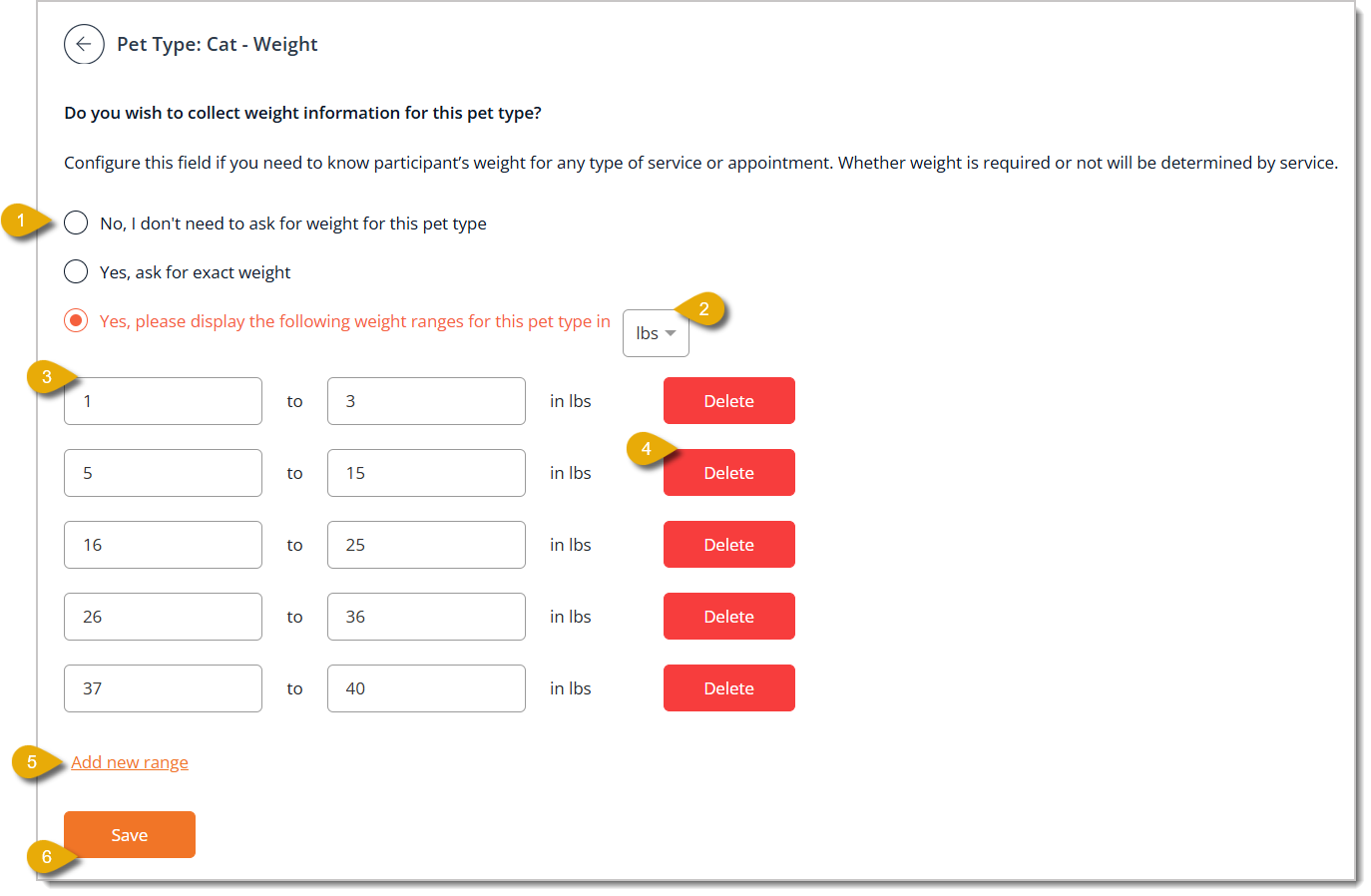
- Choose from No, I don't need to ask for weight for this pet type; Yes, ask for exact weight; or Yes, please display the following weight ranges for this pet type.
- If you select Yes, please display the following weight ranges for this pet type above, select a unit of measure (such as lbs for pounds) from the drop-list.
- Enter 2 values to indicate a range. For example, if your range is 1 to 3 pounds, the first value would be 1, and the second value would be 3, like in the image above. You can also edit the values in these fields.
- If you don't want a range included, click on Delete next to the range.
- Click on Add New Range to add another set of fields for a new weight range.
- Click on Add for the range after entering your new weight range.
- Click on Save to update your changes.
C. Hair Length
Click on Hair Length in the Pet Type Information page to set the hair length options that would describe the pet of this pet type. Here's everything you can configure:
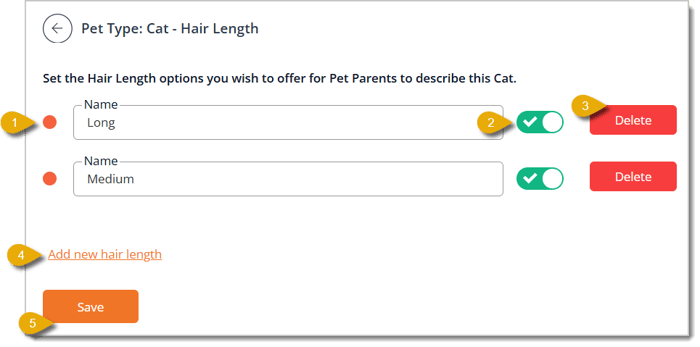
- Edit the Name of an existing hair length option.
- Toggle a hair length as active or inactive. If the hair length is inactive, it will not be an available option for pet parents.
- Click on Delete if you want to remove the hair length from options.
- Click on Add New Hair Length to create a new set of fields so you can add a new hair length.
- Click on Add to add the new hair length to your options.
- Click on Save to update your changes.
D. Breeds
Click on Breeds in the Pet Type Information page to set the breed options that would describe the pet of this pet type. Here's everything you can configure:
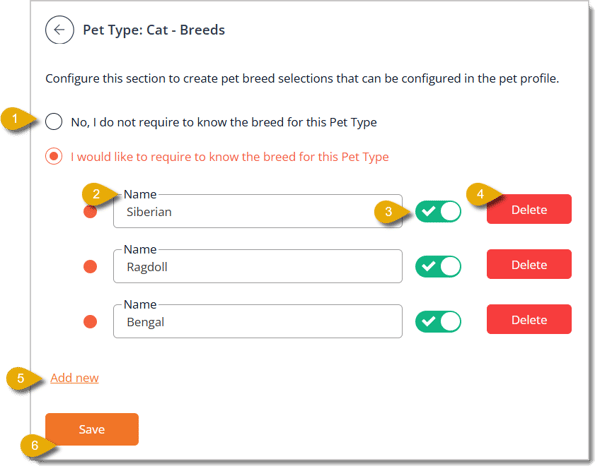
- Choose No, I do not require to know the breed for this Pet Type or I would like to require to know the breed for this Pet Type. If you choose the latter, you can proceed with the next fields.
- You can edit the Name of a breed already in your options.
- You can toggle a breed as active or inactive. If the breed is inactive, it will not be an available option for pet parents.
- Click on Delete to remove the breed from options.
- Click on Add New to open a set of fields for adding a breed to your options.
- Enter a breed Name and click Add.
- Click on Save to update changes.
E. Hair Texture
Click on Hair Texture in the Pet Type Information page to set the options that would describe the pet of this pet type. Here's everything you can configure:
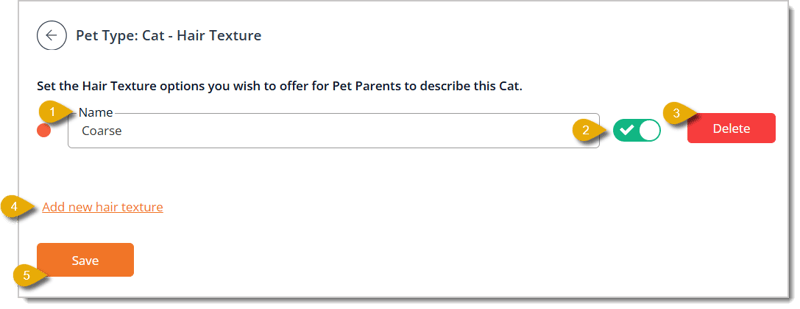
- You can edit the Name of a hair texture already in your options.
- You can toggle a hair texture as active or inactive. If it is inactive, it will not be an available option for pet parents.
- Click on Delete to remove the hair texture from options.
- Click on Add New Hair Texture to open a set of fields for adding to your options.
- Enter a Name and click Add.
- Click on Save to update changes.
F. Desired Hair Lengths
Click on Desired Hair Lengths in the Pet Type Information page to set length options that a pet parent can choose for their pet's haircut, if applicable. Here's everything you can configure:
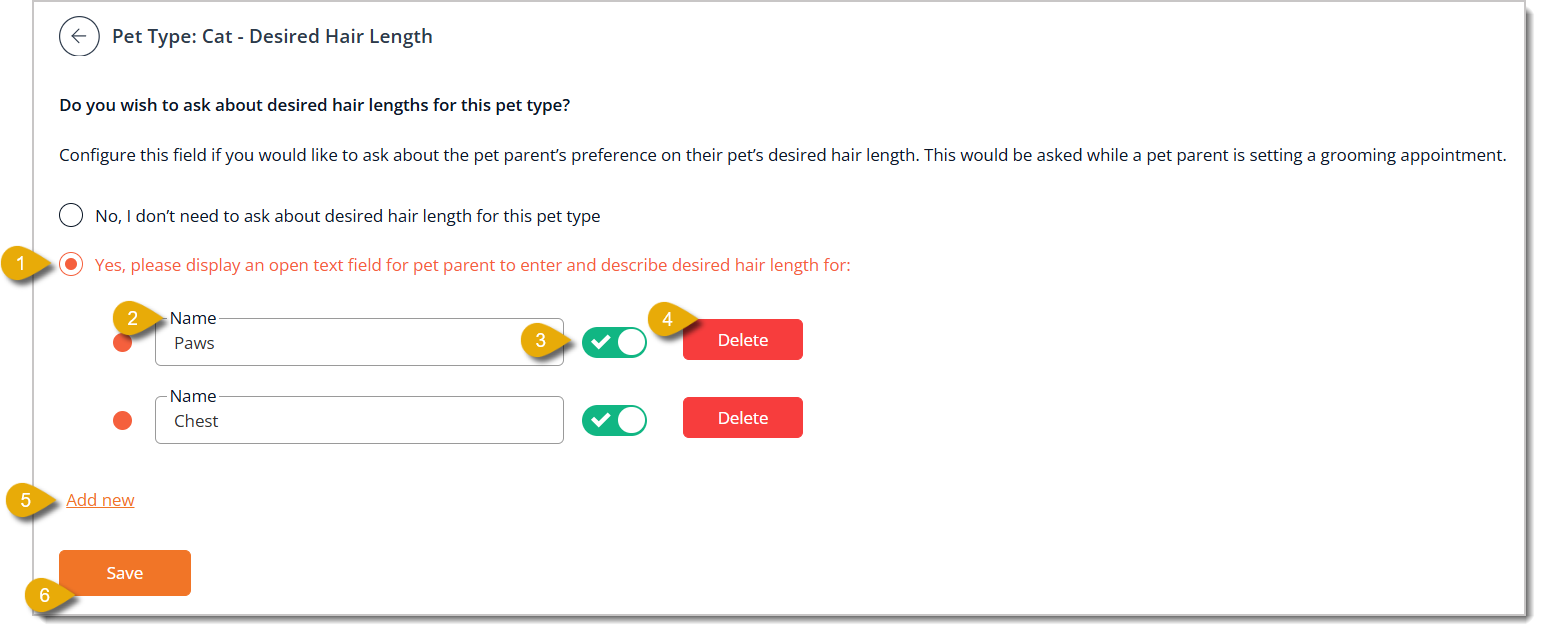
- Choose No, I don't need to ask about desired hair length for this pet type or Yes, please display an open text field for pet parent to enter and describe desired hair length for; the latter option lets pet parents type in a description when setting a grooming appointment.
- You can also add selectable options for certain parts, like the chest or paws. Here, you can edit the Name of an option you've already added.
- You can toggle an option as active or inactive. If it is inactive, it will not display as an available option for pet parents.
- Click on Delete to remove an option.
- Click on Add New to open a set of fields for adding to your options.
- Enter a Name and click Add.
- Click on Save to update changes.
G. Combs and Blades
Click on Combs and Blades in the Pet Type Information page to set options that a pet parent can choose for their pet's haircut, if applicable. Here's everything you can configure:
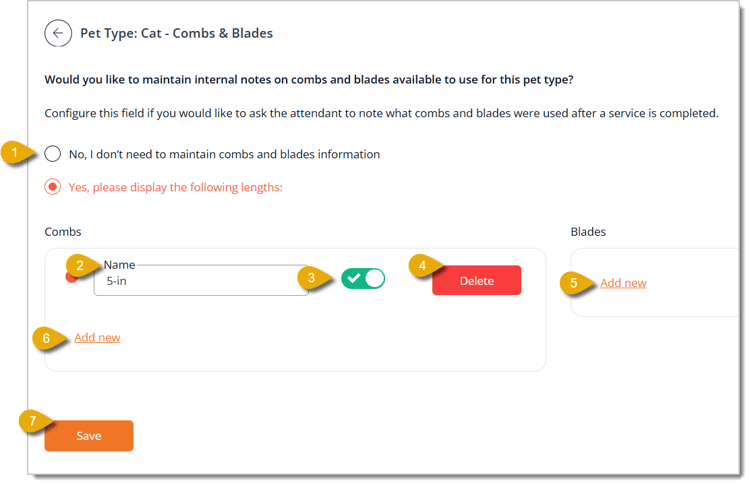
- Choose No, I don't need to maintain combs and blades information or Yes, please display the following lengths; the second option reveals separate Combs and Blades sections.
- You can edit the Name of an already existing option.
- You can toggle an option as active or inactive. If it is inactive, it will not display as an available option for pet parents.
- Click on Delete to remove an option.
- Click on Add New under Blades to add a new blade option.
- Enter a Name and click Add.
- Click on Add New under Combs to add a new comb option.
- Enter a Name and click Add.
- Click on Save to update changes.
H. Temperament
You can require a customer to describe their pet's temperament before an appointment in the Temperament page. Here is everything you can configure:
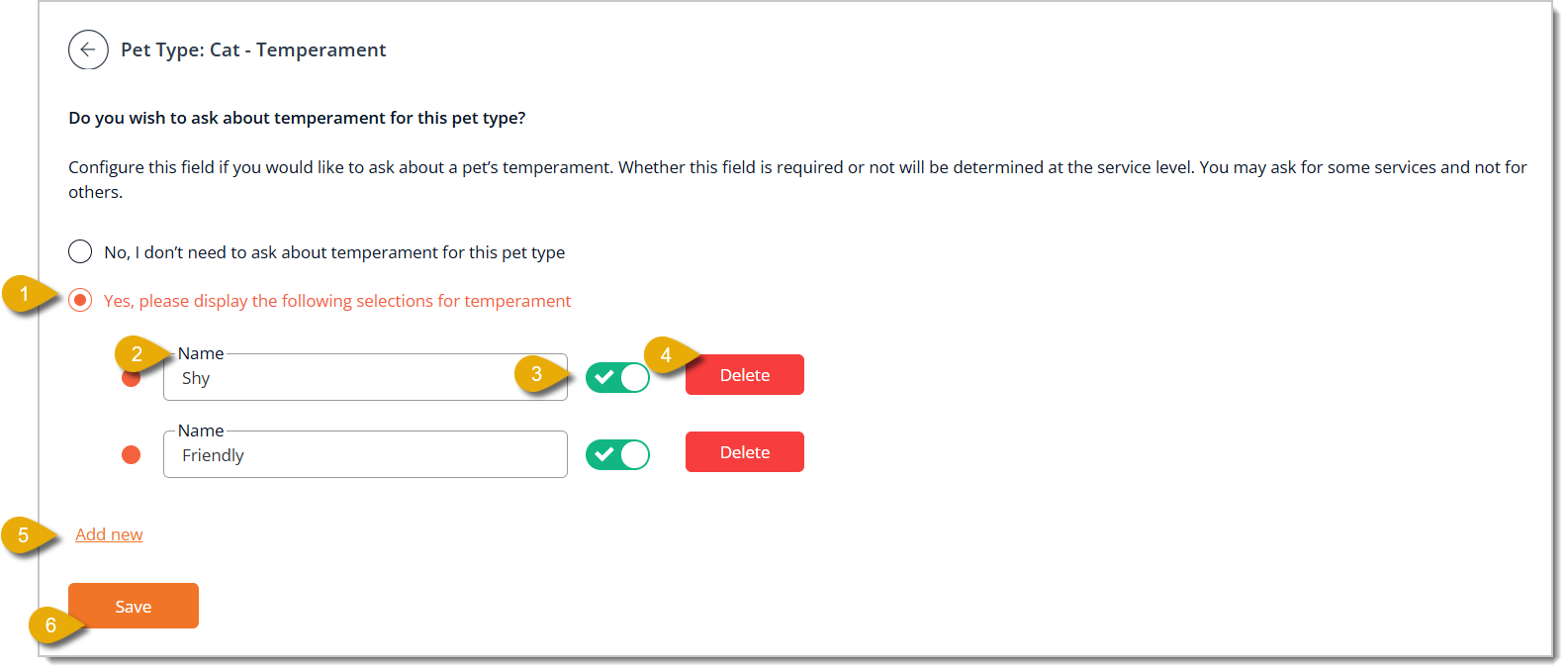
- Choose No, I don't need to ask about temperament for this pet type or Yes, please display the following selections for temperament. Whether this field is required is determined at the service level, so you can offer some services depending on the temperament and not others.
- You can edit the Name of an already existing option.
- You can toggle an option as active or inactive. If it is inactive, it will not display as an available option for pet parents.
- Click on Delete to remove an option.
- Click on Add New to add a new temperament option.
- Enter a Name and click Add.
- Click on Save to update changes.
I. Vaccinations
Configure this field if you need vaccination records for any service. The system will only prompt the pet parent to upload vaccination documents if the service requires it. You can select which vaccination records are required by service.
Add any vaccination types you might need to collect, and specify whether or not the pet parent should enter dates of the vaccinations so that the system can prompt them to renew these when they expire. Here's what you can configure:
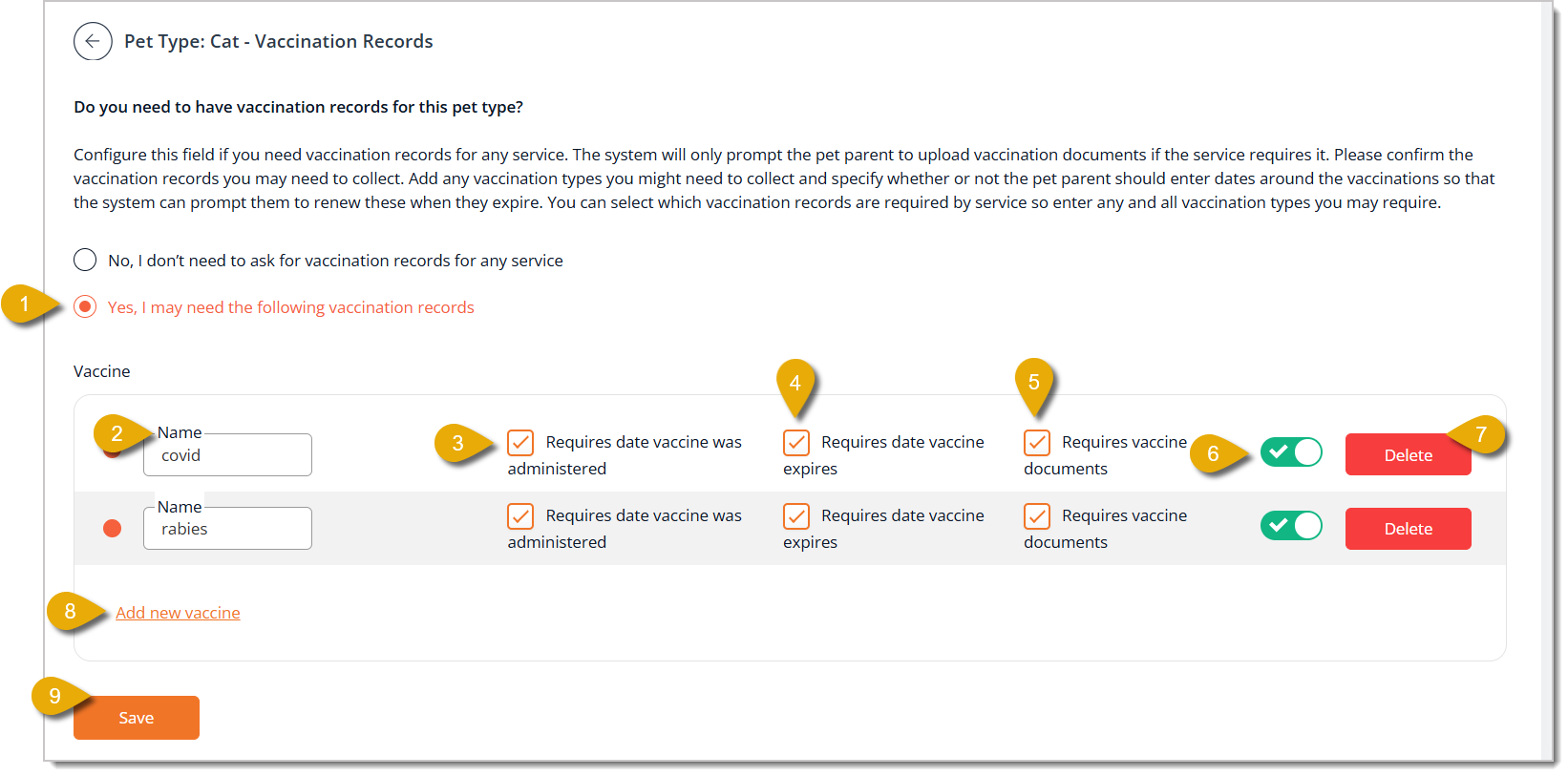
- Choose No, I don't need to ask for vaccination records for any service or Yes, I may need the following vaccination records. The latter will have you fill out fields for vaccinations below.
- You can edit the Name of any existing vaccination requirement.
- Check the box for Requires date vaccine was administered if you want to require customers to enter the date the shot was given.
- Check the box for Requires date vaccine expires if you want to require customers to enter the expiration date of their pet's vaccine.
- Check the box for Requires vaccine documents if you want to require customers to upload a file of their pet's vaccination record.
- You can toggle an option as active or inactive. If it is inactive, it will not display as an available option for pet parents.
- Click on Delete to remove an option.
- Click on Add New Vaccine to open a set of fields so you can add a vaccine requirement.
- Enter a Name and click Add.
- Click on Save to update changes.
J. Allergies
Click on Allergies in the Pet Type page to configure whether or not you want to know the pet's allergies. Here's what you can configure:
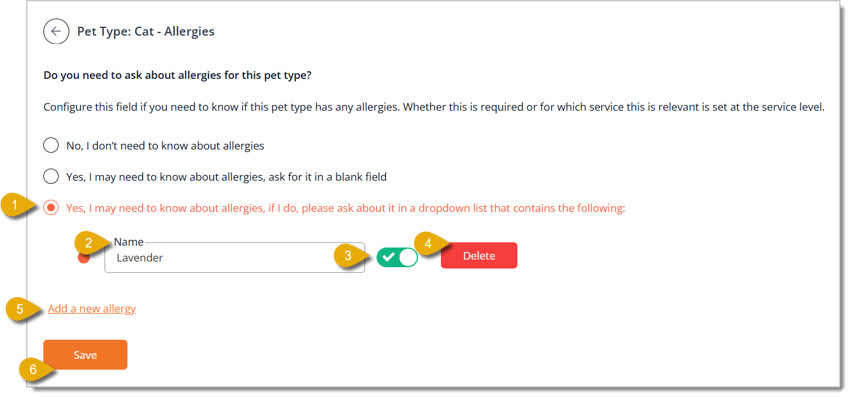
- Choose No, I don't need to know about allergies; Yes, I may need to know about allergies, ask for it in a blank field; or Yes, I may need to know about allergies, if I do, please ask about it in a dropdown list that contains the following. The last option gives you access to all of the configurations below.
- You can edit the Name of any existing allergy option.
- You can toggle an option as active or inactive. If it is inactive, it will not display as an available option for customers.
- Click on Delete to remove an option.
- Click on Add a New Allergy to add another option for customers.
- Enter a Name and click Add.
- Click on Save to update changes.
K. Primary Vet
Click on Primary Vet in the Pet Type page to configure whether or not you want to know the pet's primary veterinarian. Here's what you can configure:
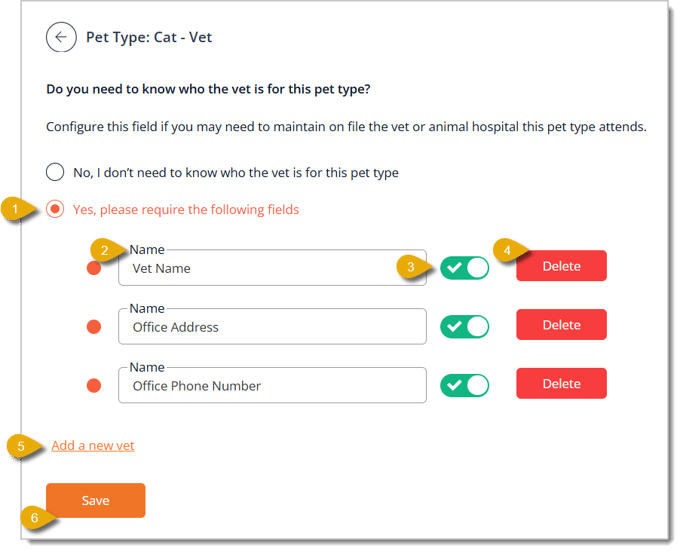
- Choose No, I don't need to know who the vet is for this pet type or Yes, please require the following fields. The second option provides you with the fields described below.
- You can edit the Name of an existing option.
- You can toggle an option as active or inactive. If it is inactive, it will not display as an available option for customers.
- Click on Delete for an option to remove it.
- Click on Add New Vet to open another field so you can add an option.
- Enter a Name for the option and click Add.
- Click on Save to update your changes.
L. Documents
The Documents configuration page allows you to display specific documents for customers to view when they book with your store. Here is everything you can configure:
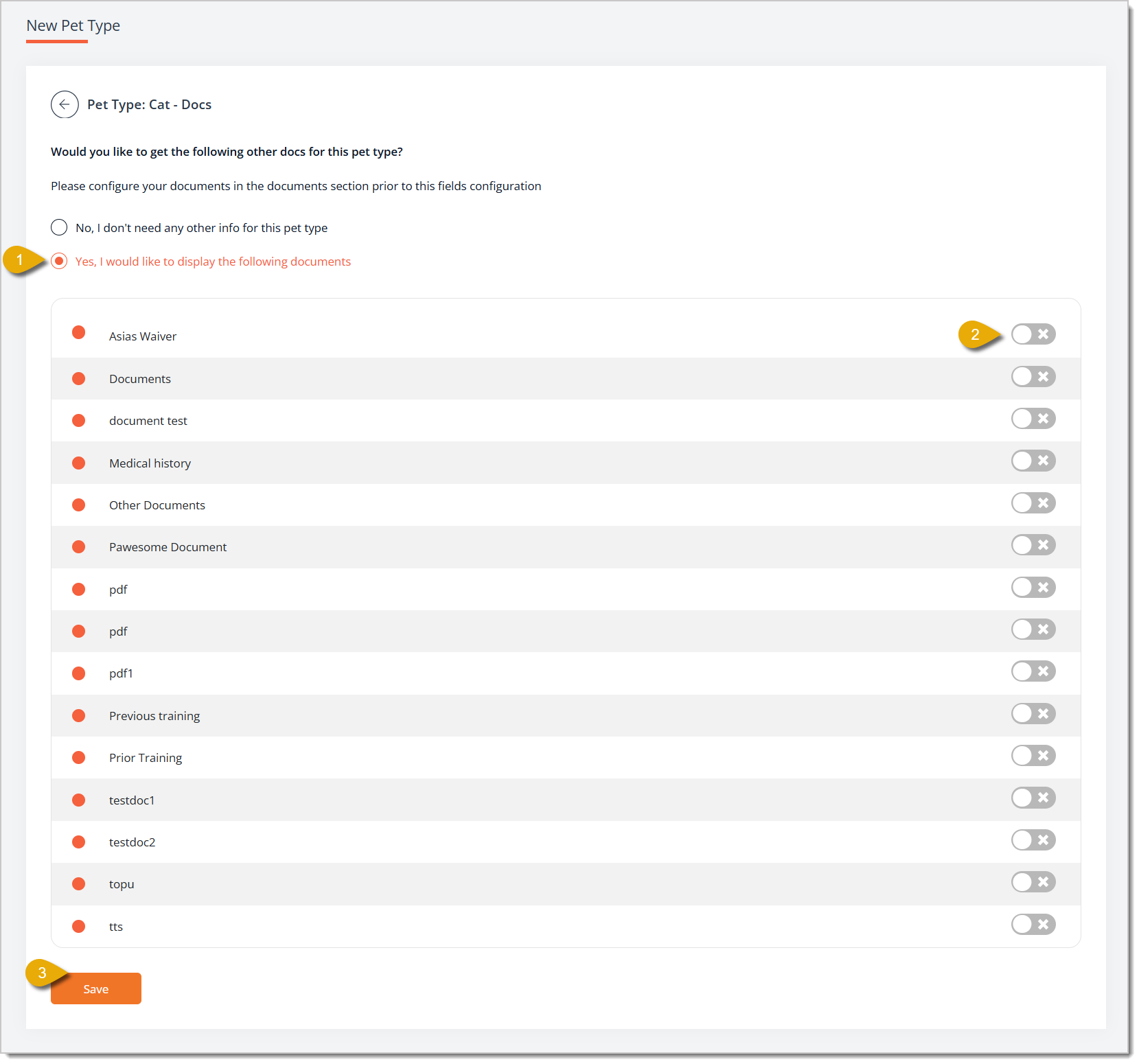
- Choose No, I don't need any other info for this pet type or Yes, I would like to display the following documents. The latter option would allow you to toggle document options as active. You must configure your documents in the Documents page under Add-on Configurations before you can select them here. Click here to learn about the Documents page.
- You can toggle a document as active or inactive. If it is inactive, it will not appear on the booking website for customers.
- Click on Save to update your changes.
M. Decease Date
The Decease Date page lets you configure whether or not you want to record the deceased date for this pet type. The customer would not fill this out and is only for internal records. Here is what you can configure:
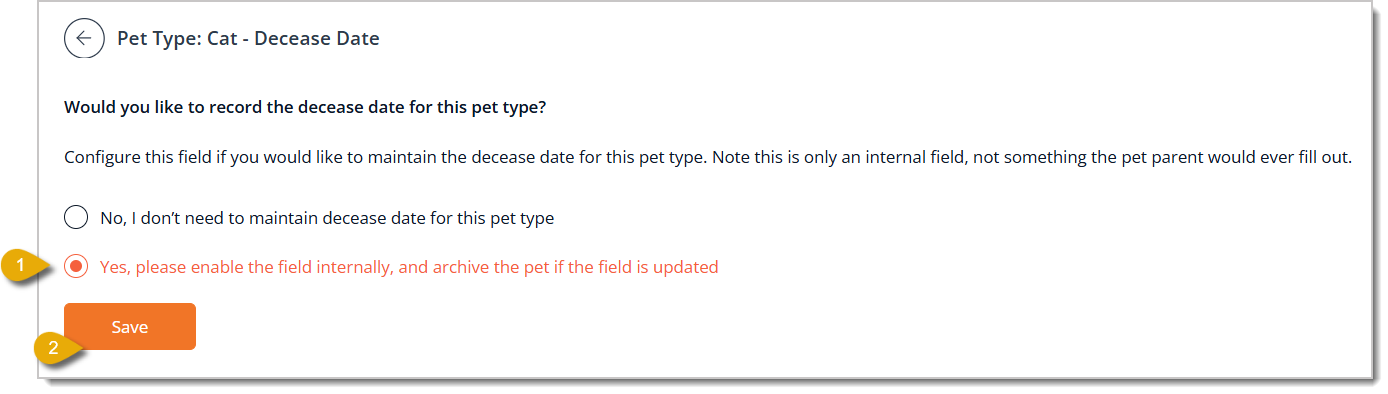
- Choose No, I don't need to maintain decease date for this pet type or Yes, please enable the field internally, and archive the pet if the field is updated. This is an internal-only field that customers never see or fill out.
- Click on Save to update your changes.
N. Emergency Contact
The Emergency Contact configuration page lets you decide whether or not you want to collect emergency information for pets. Here is what you can configure:
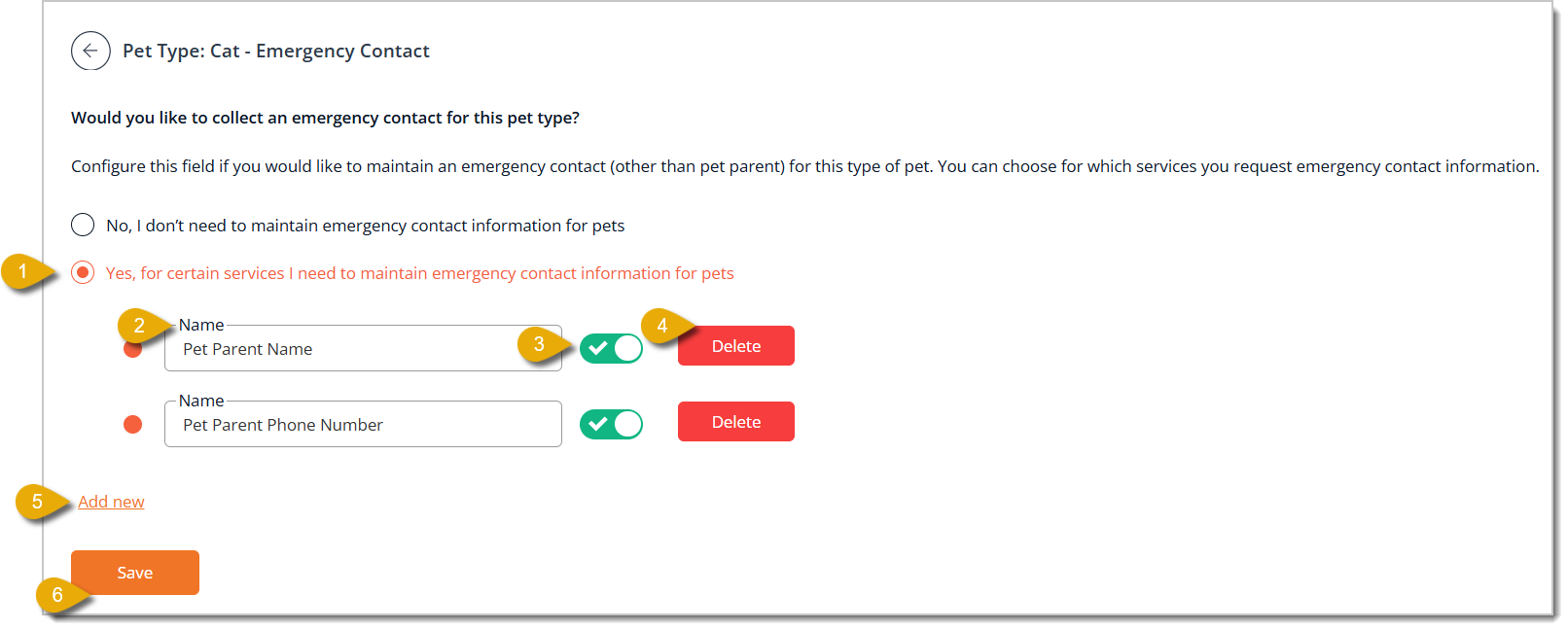
- Choose No, I don't need to maintain emergency contact information for pets or Yes, for certain services I need to maintain emergency contact information for pets to collect a contact other than the pet parent.
- You can edit the Name of an existing field.
- You can toggle a field as active or inactive. If the field is inactive, it will not appear as an option for customers.
- Click on Delete to remove a field.
- Click on Add New to open another field so you can add another option.
- Enter the Name and click Add.
- Click on Save to update your changes.
O. General Pet Sizes
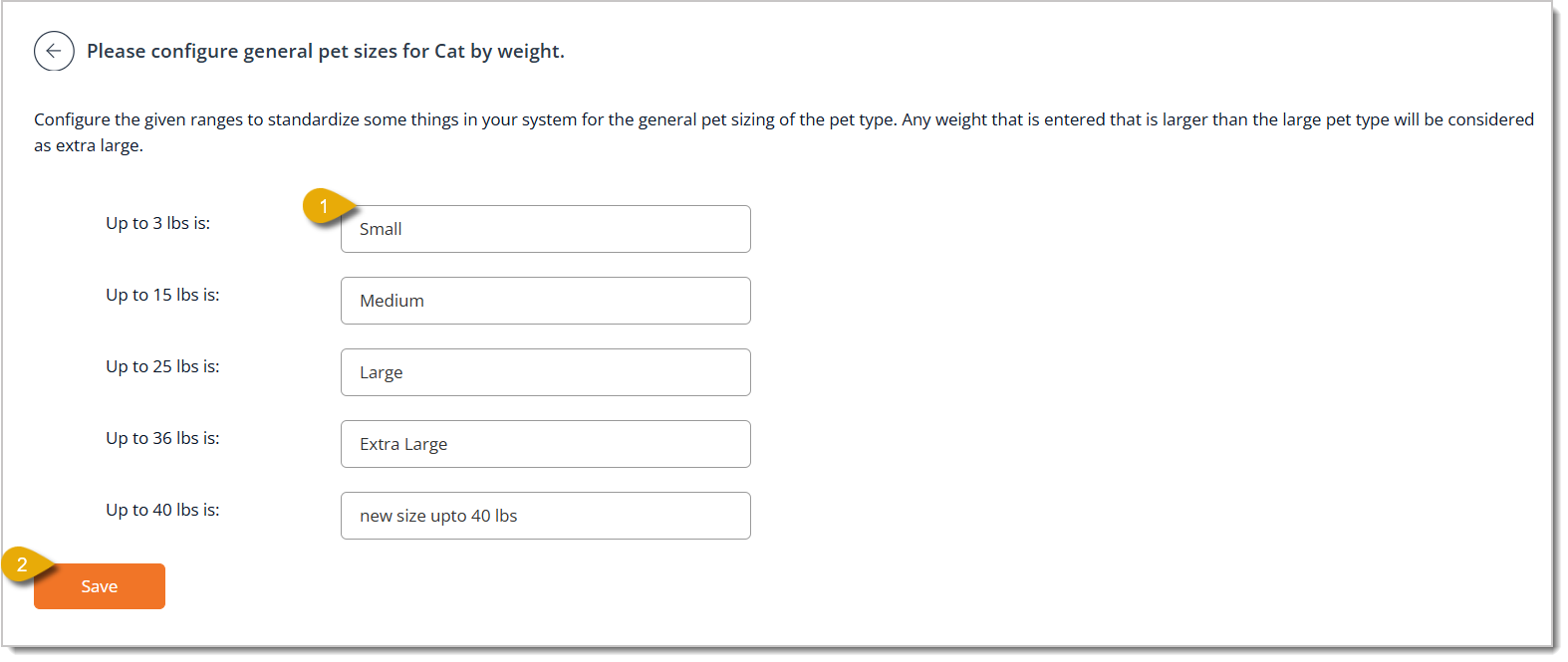
- Enter a size label, such as Small, Medium, Large, or Extra Large, next to each weight threshold (Up to 3 lbs is, Up to 15 lbs is, Up to 25 lbs is, Up to 36 lbs is, Up to 40 lbs is). Any weight entered above your largest threshold is automatically labeled as extra large. This setting does not affect the specific weight ranges you configure for individual pet types.
- Click on Save to update your changes.
Venues
The Venue List page shows every location where you perform bookable services. The table displays the Internal Venue Name, Public Venue Name, Participant Constraints, and Extra Charge for each venue.
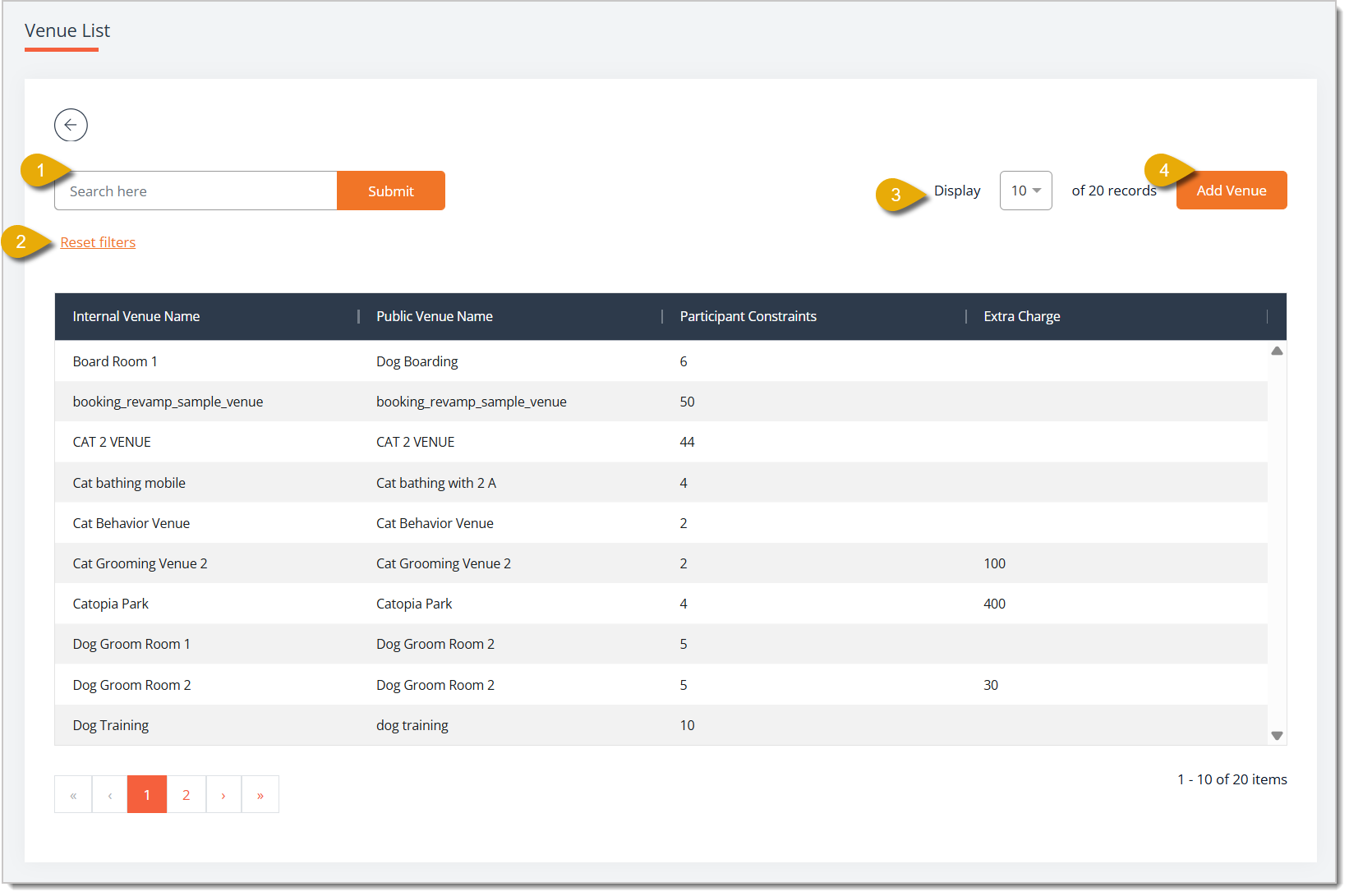
- Search — Enter a keyword and click Submit to filter the venue list.
- Reset Filters — Click this link to clear your search and show every venue again.
- Display — Select how many records will display per page from this drop-list.
- Add Venue — Click this button to open the Add New Venue page and create a new venue using the fields below.
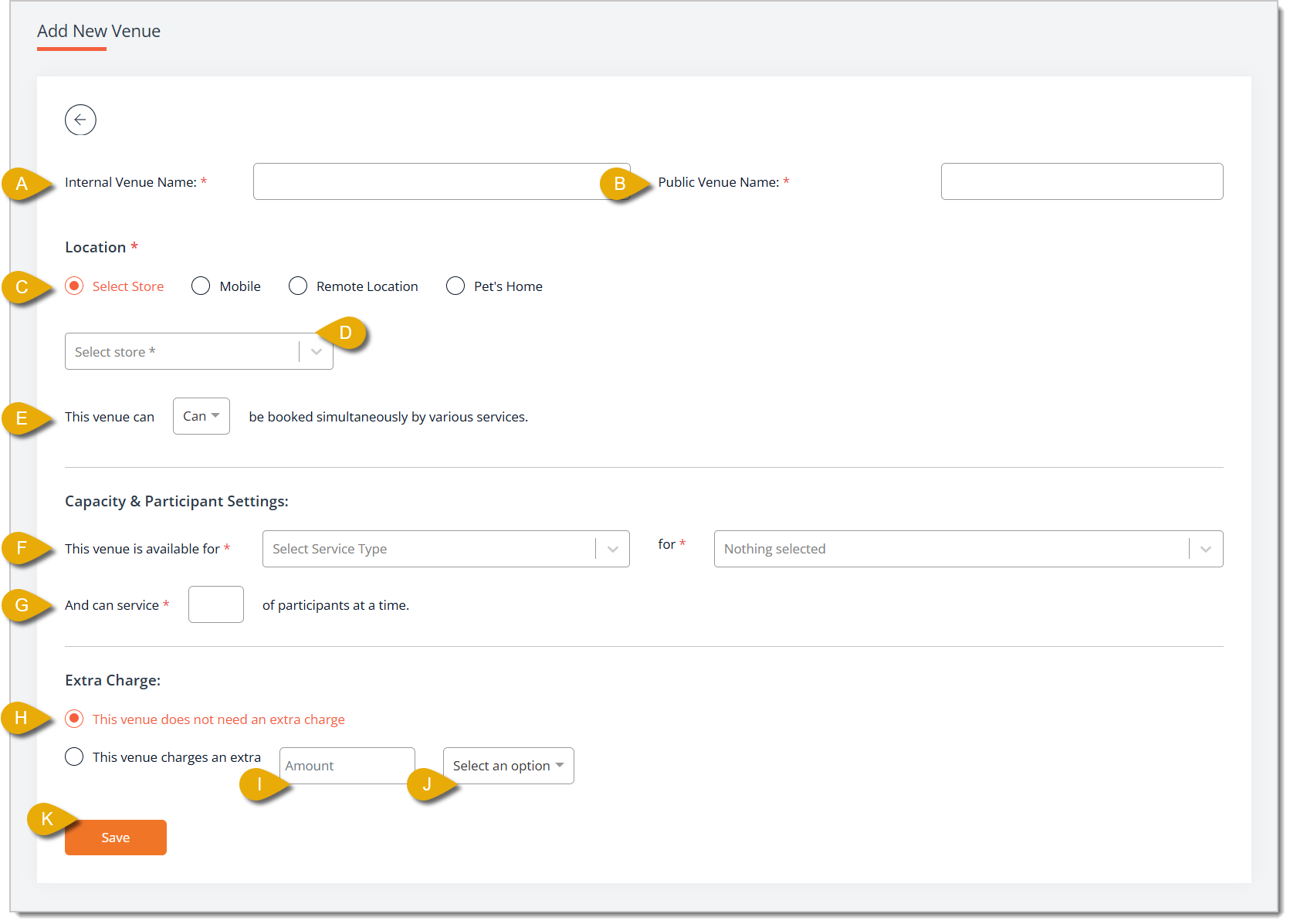
- Internal Venue Name* — Enter the name your staff will see for this venue.
- Public Venue Name* — Enter the name customers will see for this venue when booking online.
- Location* — Select Select Store, Mobile, Remote Location, or Pet's Home to describe the location of your services.
- Store Drop-list — When you choose Select Store in Location, also choose the specific location from the store drop-list below that.
- This Venue Can Be Booked Simultaneously — Select Can or Can't from the drop-list to control whether this venue can be booked for more than one service at the same time.
- This Venue Is Available For* — Select a service type from the first drop-list, as well as the related pet type or option from the second drop-list, to define which services can be done at this venue.
- And Can Service* — Enter the number of participants this venue can handle at one time.
- Extra Charge — Select whether This venue does not need an extra charge or This venue charges an extra amount.
- Amount — From Extra Charge, if you choose the latter option, enter the Amount.
- Select an Option — From Extra Charge, if you choose the latter option, select a unit from the drop-list.
- Save — Click this button once you have finished entering the venue details.
- Navigation — Click on the Arrow Buttons on the bottom of the page to navigate between pages. You can also click on the Page Number Buttons to skip to certain pages.
* Required Field
Attendants
The Attendant List page shows every staff member eligible to perform bookable services. The table displays the Attendant Name, Attendant Title, Attendant Phone, Attendant Email, Revenue Share, Capacity Constraints, and Participant Eligibility Constraints for each attendant, along with a note explaining that a green checkmark indicates a preferred method of communication.
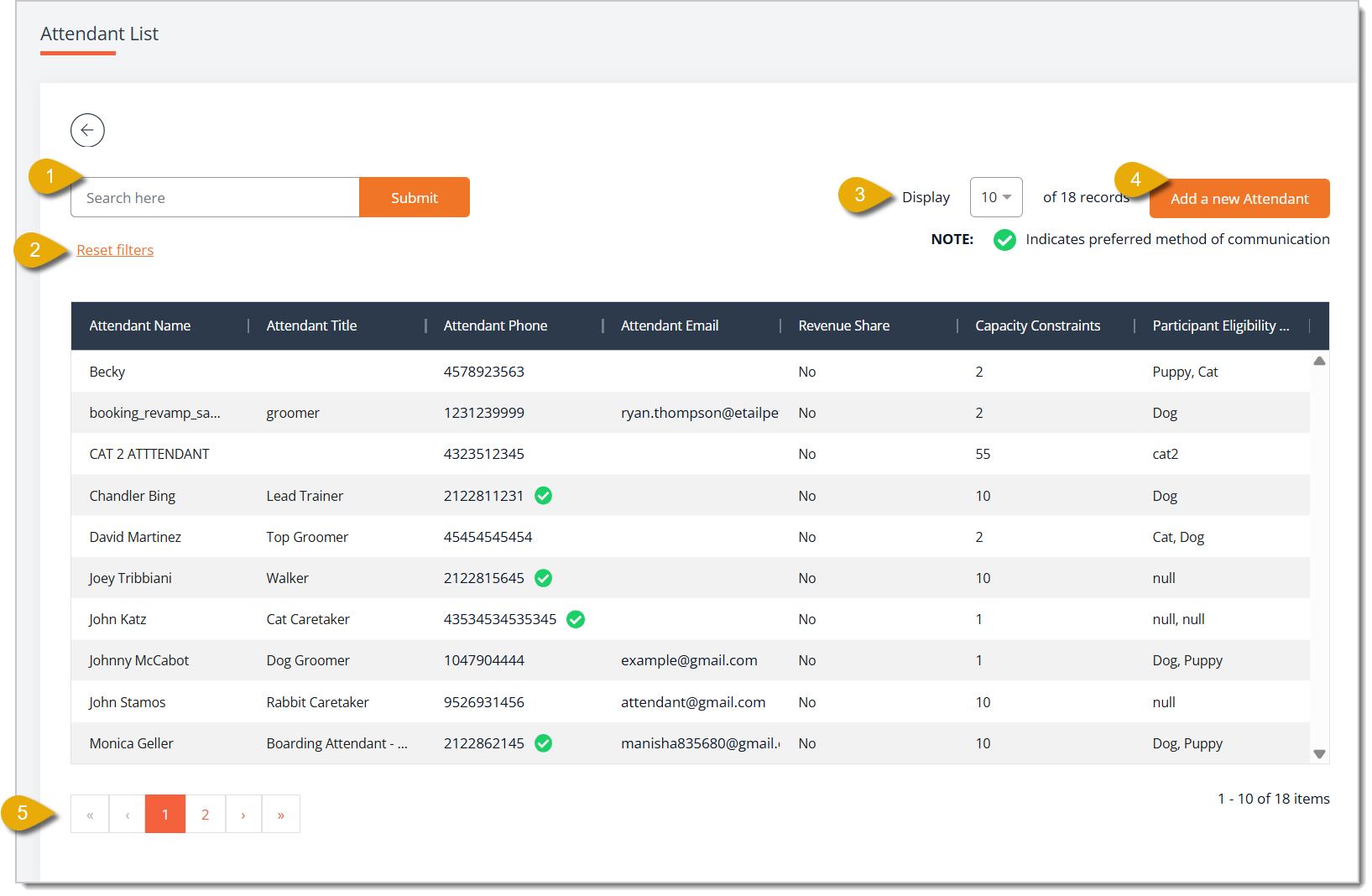
- Search — Enter a keyword and click Submit to filter the attendant list.
- Reset Filters — Click this link to clear the filters and display all attendants again.
- Display — Select how many records will display per page from this drop-list.
- Add A New Attendant — Click this button to open the Add New Attendant page and create a new attendant using the fields below.
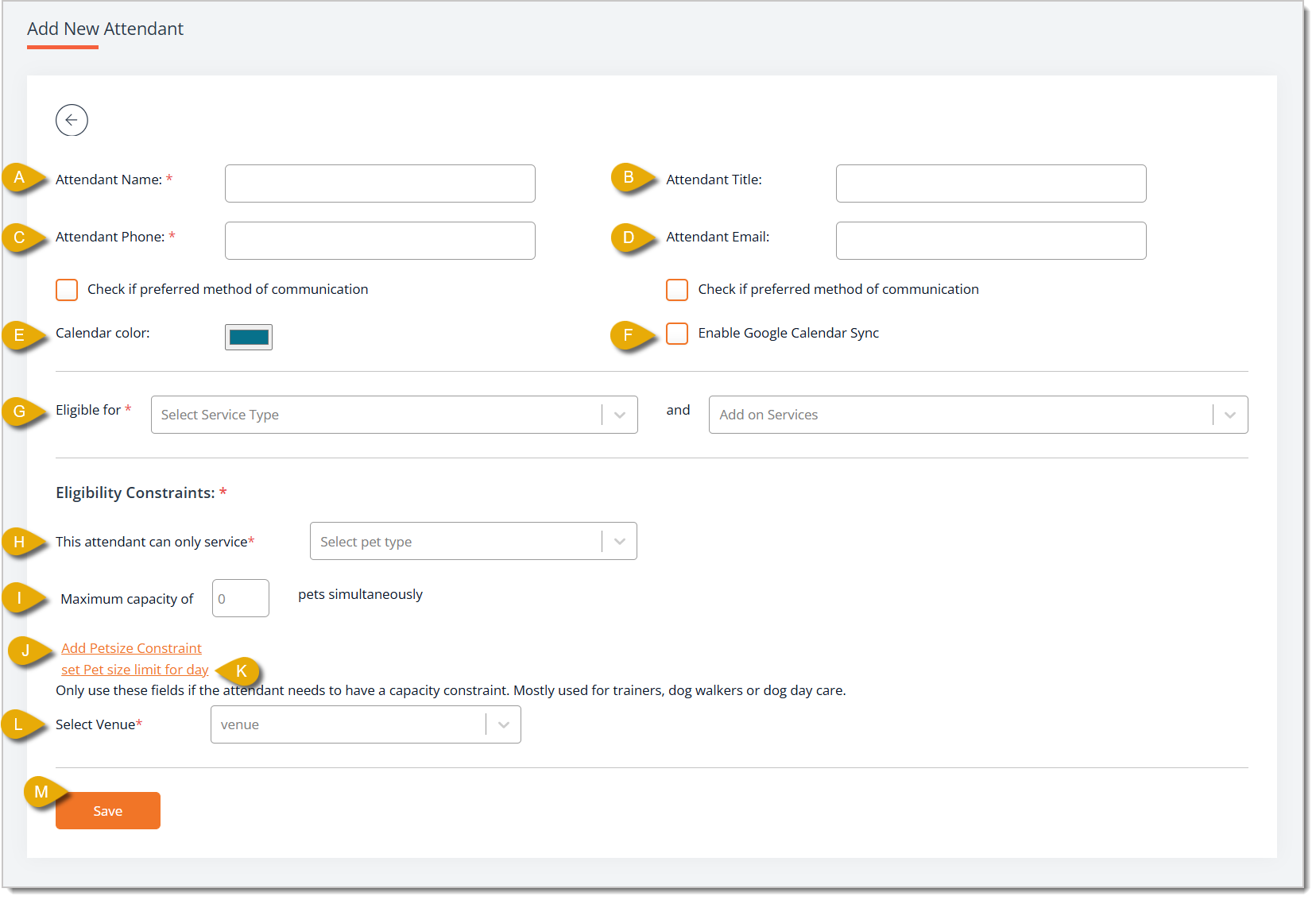
- Attendant Name* — Enter the attendant's full name.
- Attendant Title — Enter the attendant's job title, such as Groomer or Lead Trainer.
- Attendant Phone* — Enter the attendant's phone number. Check the box for Check If Preferred Method of Communication below if phone is how this attendant prefers to be contacted.
- Attendant Email — Enter the attendant's email address. Check the box for Check If Preferred Method of Communication below if email is how this attendant prefers to be contacted.
- Calendar Color — Click the color swatch to select a color that represents this attendant on the booking calendar.
- Enable Google Calendar Sync — Check this box to sync this attendant's appointments with their Google Calendar.
- Eligible For* — Select a service type from the Select Service Type drop-list and select any applicable add-ons from the Add On Services drop-list to set what this attendant can do.
- This Attendant Can Only Service* — Select the pet types this attendant is eligible to work with from the drop-list.
- Maximum Capacity Of — Enter the number of pets this attendant can handle simultaneously.
- Add Petsize Constraint — Click on this link to add limits to the size of pets this attendant can handle. This is primarily meant for trainers, dog walkers, or day care attendants.
- Set Pet Size Limit For Day — Click on this link to add limits to the size of pets this attendant can handle in one day. This is primarily meant for trainers, dog walkers, or day care attendants.
- Select Venue* — Select the venue or venues where this attendant works from the drop-list.
- Save — Click this button once you have finished entering the attendant's details.
- Navigate Pages — Click on the Arrow Buttons on the bottom of the page to navigate between pages. You can also click on the Page Number Buttons to skip to certain pages.
* Required Field
Services
The Service List page shows every bookable service you offer. The table displays the Service Name, Service Type, Pet Type, Service Duration, Taxable status, and Payment Type for each service. Here is everything you can use on this page:
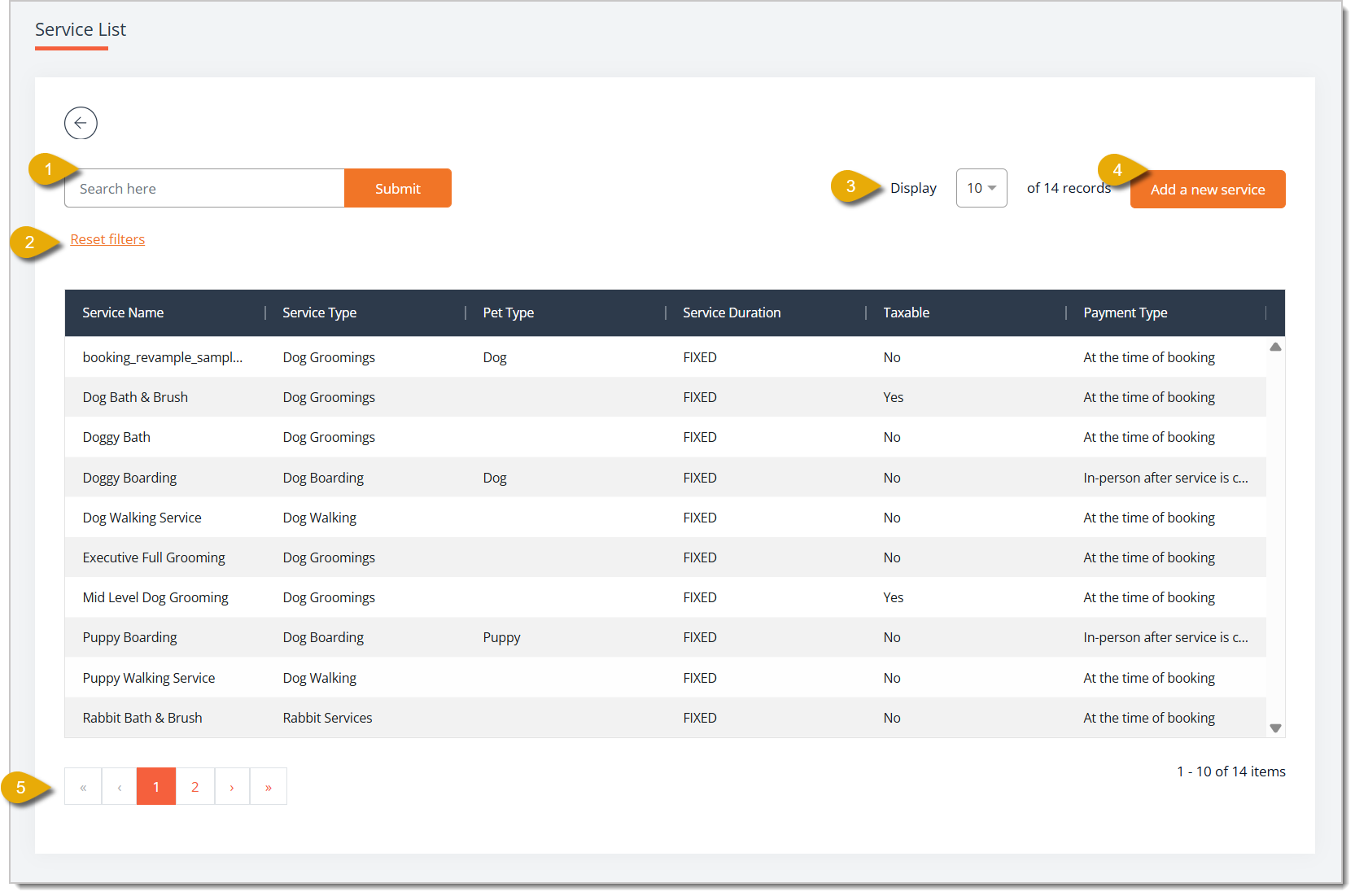
- Search — Enter a keyword and click Submit to filter the service list.
- Reset Filters — Click this link to clear the filters and display all services again.
- Display — Select how many records will display per page from this drop-list.
- Add A New Service — Click this button to open the Add New Service page and build a new service using the fields below. Please Note: The Add a New Service button leads you to a very robust page, so that is described in its own section below this one.
- Navigate Pages — Click on the Arrow Buttons on the bottom of the page to navigate between pages. You can also click on the Page Number Buttons to skip to certain pages.
Add a New Service
Here is everything you can configure when you want to add a new service to your store:
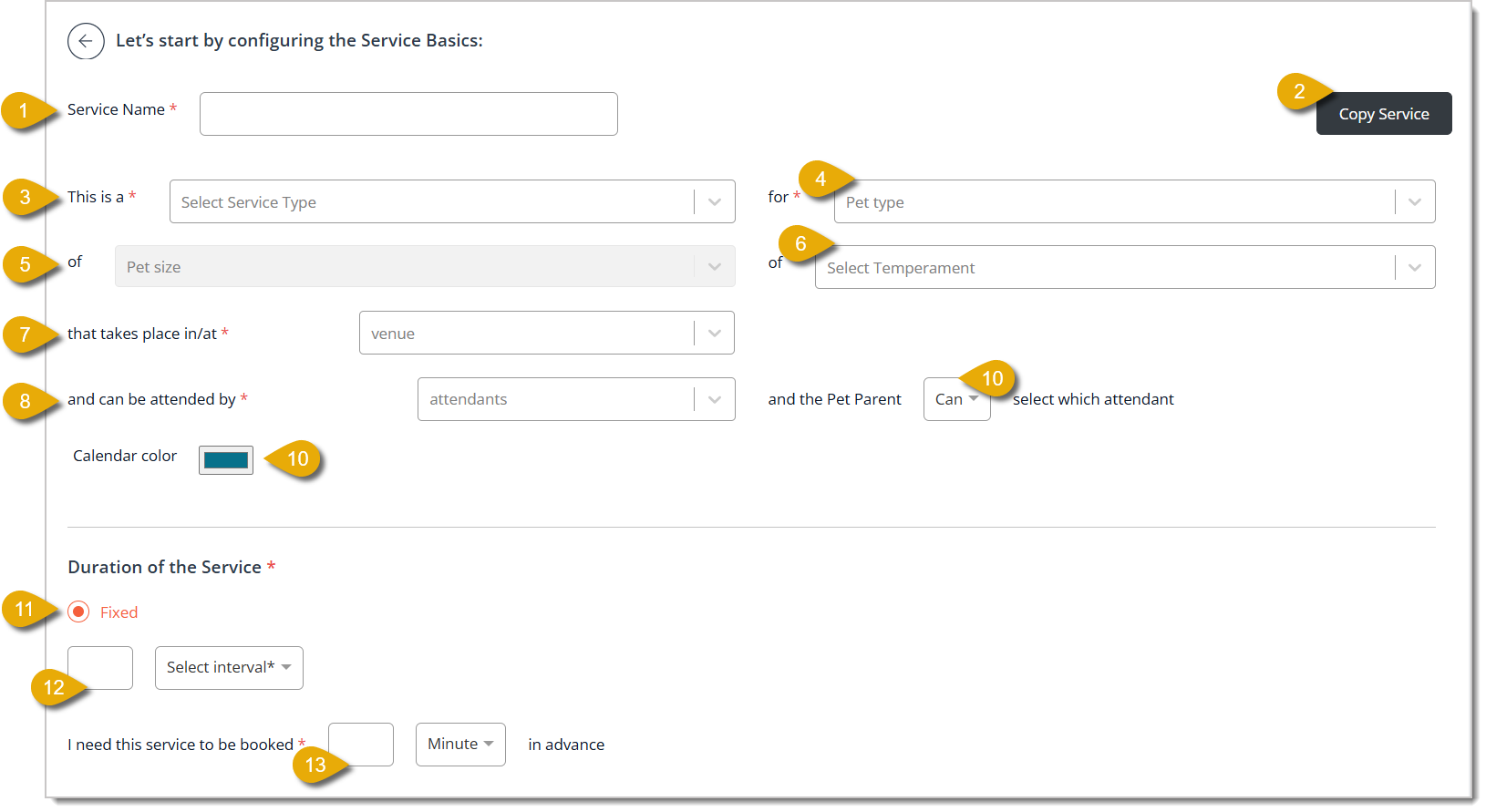
- Service Name* — Enter the name of the service.
- Copy Service — Click Copy Service if you would rather duplicate an existing service's settings as a starting point.
- This is a / Select Service Type* — Select the service type from this drop-list.
- For / Pet Type — Select the applicable Pet Type from the drop-list.
- Of / Pet Size — Select a Pet Size from the drop-list if this service should be limited to pets of a certain size.
- Of / Select Temperament — Select a Temperament from the drop-list if this service should be limited to pets of a certain temperament.
- That Takes Place In/At* — Select the venue where this service is performed.
- Can Be Attended By* — Select which attendants can perform this service.
- The Pet Parent — Select Can or Can't from the drop-list to choose whether or not the pet parent can select the pet's attendant.
- Calendar Color — Click the color swatch to choose the color that represents this service on the booking calendar.
- Duration of the Service* — You can select Fixed to indicate that the service should take a set amount of time. For example, you can fix a dog walk to 30 minutes.
- Interval — Enter a number and select an interval from the Select Interval drop-list to set how long the service takes.
- I Need This Service to Be Booked* — Enter a number and select Minute or another unit from the drop-list to require advance notice in a certain amount of time before the appointment.
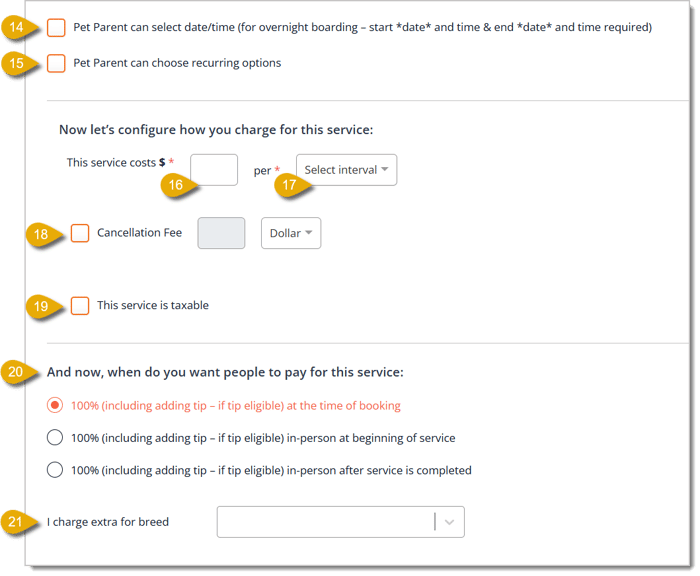
- Pet Parent Can Select Date/Time — Check this box for services such as overnight boarding that require the customer to choose a start date and time, as well as an end date and time.
- Pet Parent Can Choose Recurring Options — Check this box to let customers set up this service as a recurring booking.
- This Service Costs* — Enter the price of the service.
- Per / Select Interval* — Select an interval from the Select Interval drop-list to set how you charge for the service.
- Cancellation Fee — Check Cancellation Fee to charge a fee (in Dollar or another unit) if the booking gets canceled.
- This Service Is Taxable — Check this box if sales tax applies.
- Payment Timing — Under And now, when do you want people to pay for this service, select when you want to collect payment. Your options are at the time of booking, in-person at beginning of service, or in-person after service is completed.
- I Charge Extra for Breed — Select a breed from the drop-list if this service carries a breed-based surcharge.
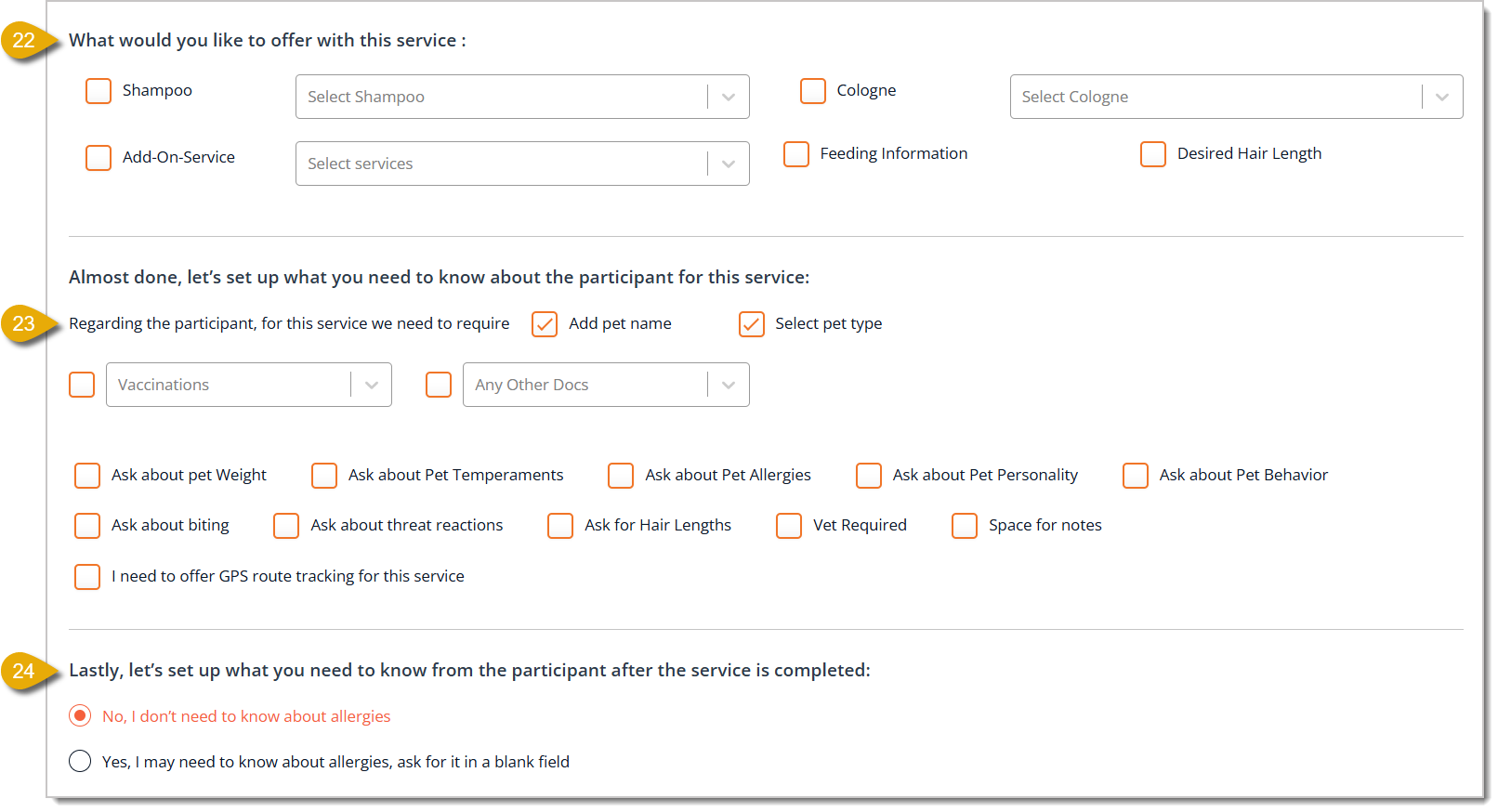
- What Would You Like to Offer With This Service — Check any combination of Shampoo, Cologne, Add-On-Service, Feeding Information, and Desired Hair Length, selecting the specific options from each paired drop-list.
- Regarding the Participant, For This Service We Need to Require — Check Add Pet Name and Select Pet Type as needed, along with any combination of Vaccinations and Any Other Docs from their drop-lists. You can also check boxes for Ask About Pet Weight, Ask About Pet Temperaments, Ask About Pet Allergies, Ask About Pet Personality, Ask About Pet Behavior, Ask About Biting, Ask About Threat Reactions, Ask for Hair Lengths, Vet Required, Space for Notes, and I Need to Offer GPS Route Tracking for This Service.
- Allergy Follow-Up — Choose No, I don't need to know about allergies or Yes, I may need to know about allergies, ask for it in a blank field to determine if the attendant records allergy details after completing the service.
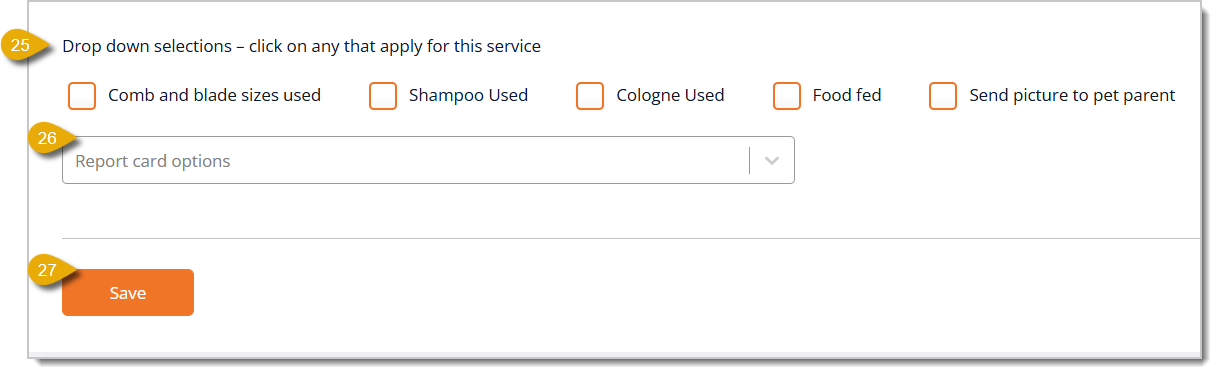
- Drop Down Selections — Check boxes for Comb and Blade Sizes Used, Shampoo Used, Cologne Used, Food Fed, and Send Picture to Pet Parent to allow customers to get this information after the service.
- Report Card Options — In the drop-list, select which options attendants can use to describe the pet's behavior during the service.
- Save — Click on the Save button once you have finished configuring the service.
* Required Field
Related Topics
Booking Schedule
Booking Appointments
Checking Out a Booking Appointment
Frequently Asked Questions
Q: What is the difference between Service Types and Services?
A: Service Types are broad categories, like Dog Grooming or Dog Boarding, while Services are the more specific bookable offerings from those types, complete with pricing, duration, venue, and attendant assignments.
Q: What is the difference between General Pet Sizes and the Weight ranges I set for a pet type?
A: General Pet Sizes assigns labels like Small or Large to system-wide weight thresholds. The Weight configuration sets the weight question or ranges a pet parent sees when booking a specific pet type. The two are separate, so changing your General Pet Sizes labels does not affect the weight ranges configured for an individual pet type.
Q: Is the Decease Date field something pet parents can see or fill out?
A: No. The Decease Date field is internal only. If you enable it and later update the field for a pet, the system automatically archives that pet.
Q: Why can't I select a document on the pet type's Documents field?
A: You need to upload and configure your documents on the Documents page under Add-on Configurations first. Once those documents exist, they become available to select on the pet type's Documents configuration page.
Q: How do I make sure a specific attendant only works with certain pets?
A: On the Add New Attendant page, use the This Attendant Can Only Service drop-list under Eligibility Constraints to limit that attendant to specific pet types.
Q: Can I require a customer to enter a start and end date for a service like boarding?
A: Yes. On the Add New Service page, check Pet Parent Can Select Date/Time to require both a start date and time, and an end date and time for that service.
Q: I have a question, but I can't find my answer here. How do I get more assistance?
A: You can ask any question at the number listed here. Contact our support team at (323) 370-0738 for the U.S. and (888) 370-2363 for Canada.







 Jul 23, 2026
Is this page helpful?
×Help us improve our articles