






Booking Schedule
📆 The Schedule page of the Booking area in the eTailPet system allows you to view, create, and mana
 Jul 27, 2026
📆 When a customer books an appointment at your store, the eTailPet system allows them to then pay for it at the register. This article will cover how to add a booking to a transaction and perform checkout from the New Sale screen. Read on to see how easy it is!

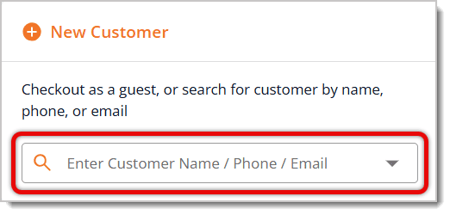
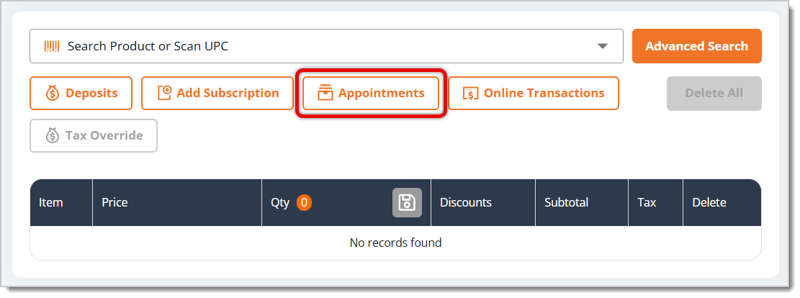
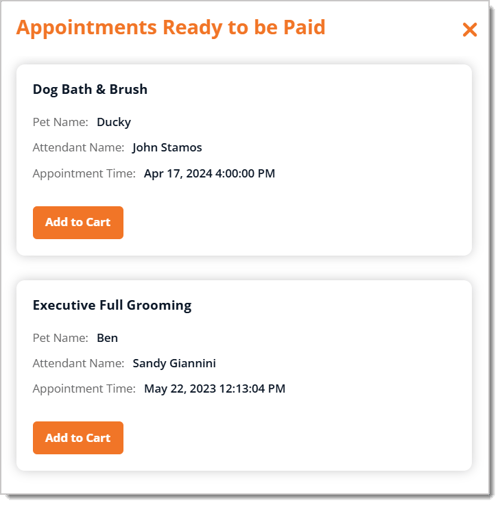
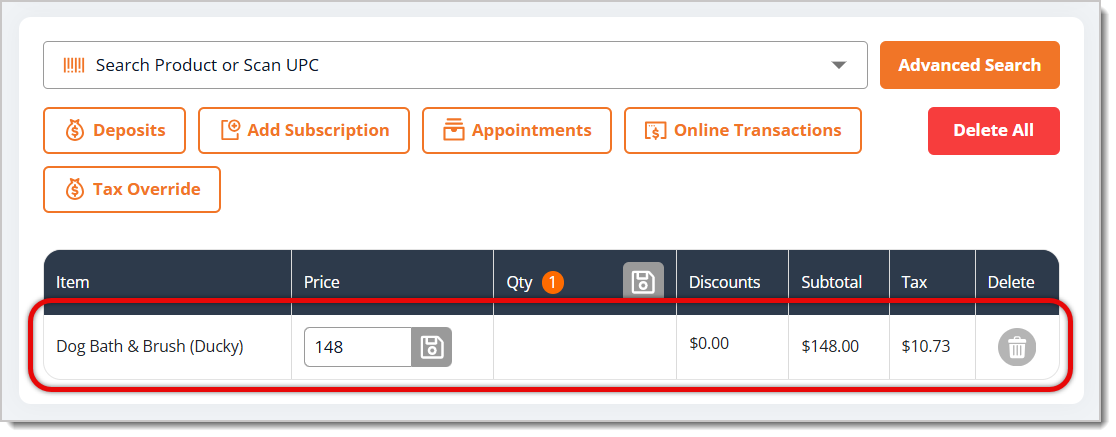
In order to check out a customer's booked appointment, follow these steps:

Q: How do I configure when the customer pays for their booking? For example, at the time they're booking it, after the appointment, etc.
A: Go to Bookings > Configuration > Services. Click on a service's entry in the table to edit it or create a new one by clicking on the button that reads Add a new service. Scroll until you see And now, when do you want people to pay for this service. Under that, select from at time of booking, in-person at beginning of service, or after service is completed. Click on Update or Save, depending on whether you're editing an existing service or making a new one.
To view more detailed information and instructional images, click here.
Q: Can guest customers that don't have their details recorded at my store book appointments too?
A: No. Only customers with profiles can make appointments.
Q: I have a question, but I can't find my answer here. How do I get more assistance?
A: You can ask any question at the number listed here. Contact our support team at (323) 370-0738 for the U.S. and (888) 370-2363 for Canada.
Is this page helpful?
×Help us improve our articles