📆 The Add-On Configurations section of the Booking Configuration area is where you can set up add-on details to services. This article covers the pages for Feeding Information, Extended Behavior Information, Shampoo Selection, Cologne Selection, Add-On Services, Documents, Waiver of Liability, and Booking Portal Link. See everything you can configure in this part of the eTailPet system!
Click on the links below to jump to a section.
Feeding Information
The Feeding Information page of the Booking Configuration area is where you can configure feeding options and pricing for customers who create boarding reservations at your store.
Here is everything you can view and use on this page:
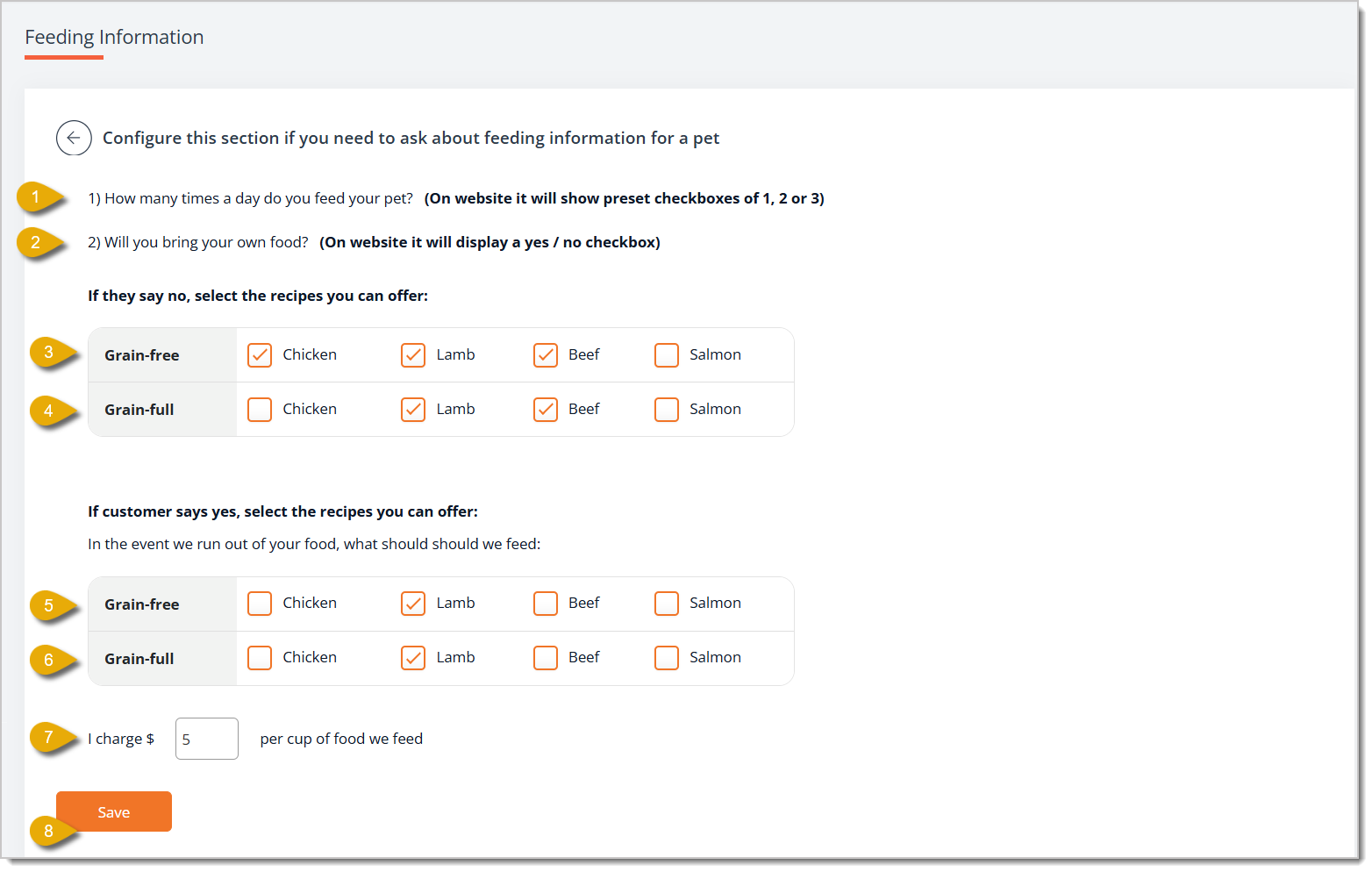
- How many times a day do you feed your pet? — Customers have to answer this question to let you know how many times a day they normally feed their pet and therefore how often your staff should feed their pet. Their options are 1, 2, and 3. This field is read-only and is not editable.
- Will you bring your own food? — Customers have to answer this question to inform you if they will provide you with their own pet food. Their options are Yes and No. This field is read-only and is not editable.
- Grain-Free (if customer will not bring their own food) — If a customer answers that they will not bring their own pet food, they can select what grain-free recipes you can feed their pet. In this section, check the box for each grain-free recipe you offer to customers.
- Grain-Full (if customer will not bring their own food) — If a customer answers that they will not bring their own pet food, they can select what grain-full recipes you can feed their pet. In this section, check the box for each grain-full recipe you offer to customers.
- Grain-Free (if customer will bring food but it runs out) — If a customer will bring their own pet food, they can select what grain-free recipes you can feed their pet in case you run out of their own food. In this section, check the box for each grain-free recipe you offer to customers.
- Grain-Full (if customer will bring food but it runs out) — If a customer will bring their own pet food, they can select what grain-full recipes you can feed their pet in case you run out of their own food. In this section, check the box for each grain-full recipe you offer to customers.
- I Charge $ Per Cup of Food We Feed — Enter the dollar amount per cup you charge customers for feeding their pets with your in-house pet food.
- Save — Click on the Save button to save your feeding information configuration.
Extended Behavior Information
The Extended Behavior Information page allows you to gather extra details from customers about a pet's behavior, personality, and history when they book a service at your store. Settings on this page include enabling questions about personality descriptors, behavioral triggers, and biting history.
Here is how to work with the settings on this page:
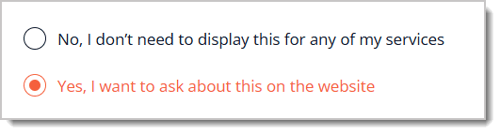
- Yes, I want to ask about this on the website / No, I don't need to display this for any of my services — You can click on No or Yes at the top of the page to indicate whether or not you want to ask customers for extended behavior information for any of your services. If you select Yes, the system displays configuration sections for personality, triggers, threat responses, and biting history.
Please Note: Remember to click on the Save button on the bottom of this page after you've edited any Extended Behavior Information configurations, or the eTailPet system will not save and update your changes.
Personality
You can show customers certain personality descriptors to help them describe their pet's personality ahead of the appointment.
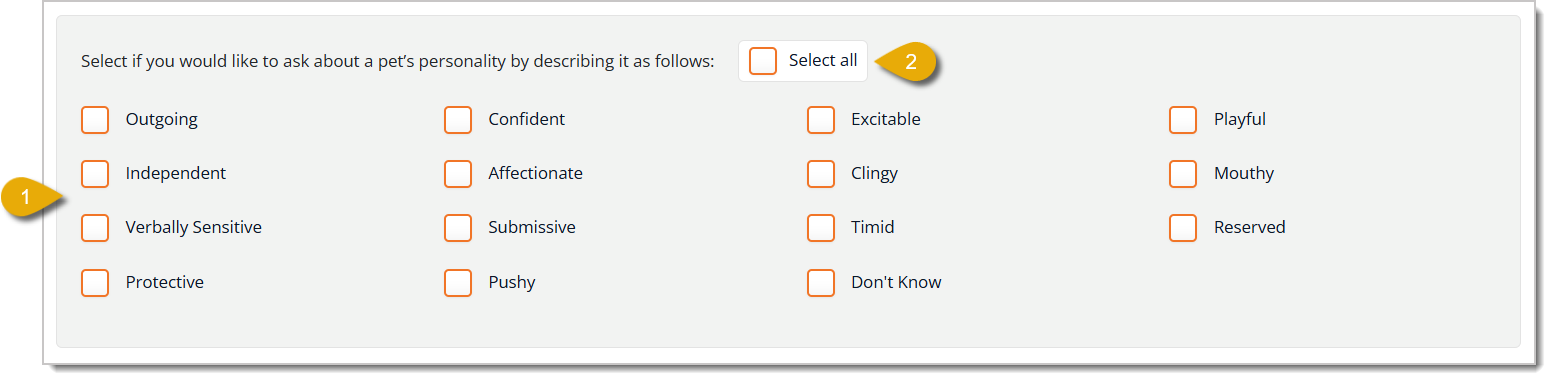
- Personality Descriptors — Check the box next to each personality trait you want customers to be able to select to describe their pet's personality. Your options are: Outgoing, Confident, Excitable, Playful, Independent, Affectionate, Clingy, Mouthy, Verbally Sensitive, Submissive, Timid, Reserved, Protective, Pushy, and Don't Know.
- Select All (Personality Descriptors) — Check this box to select every personality descriptor in the personality section.
Unfriendly Behavior Triggers
You can allow customers to select certain actions that would cause their pets to act unfriendly during the service. This helps attendants know what to expect and avoid.
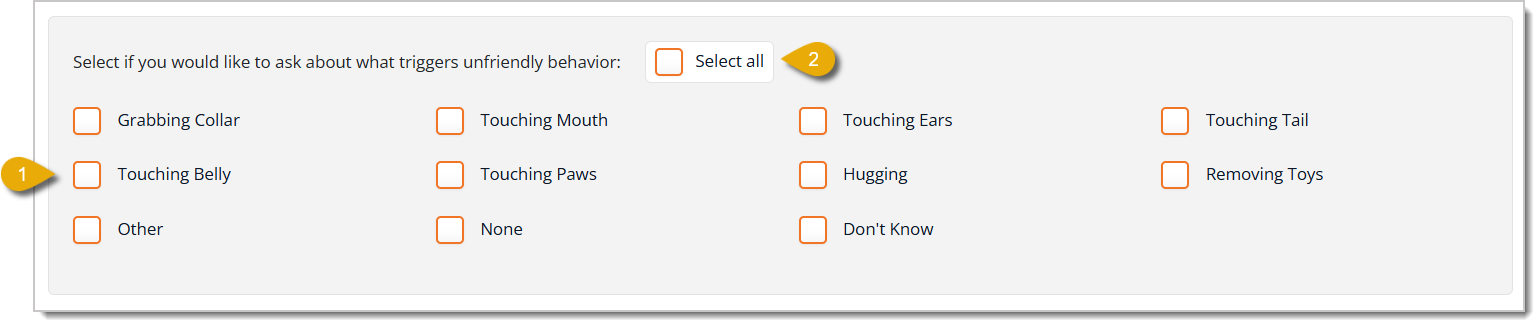
- Unfriendly Behavior Triggers — Check the box next to each trigger you want customers to be able to select as actions that cause their pet to act unfriendly. The options are: Grabbing Collar, Touching Mouth, Touching Ears, Touching Tail, Touching Belly, Touching Paws, Hugging, Removing Toys, Other, None, and Don't Know.
- Select All — Check this box to select every trigger so customers can select from all listed triggers when they book online.
Threatened Behavior
This configuration section is to help customers tell you how their pets show when they feel threatened. This helps attendants know what to expect before the appointment.

- Threat Responses — Check the box next to each response you want pet parents to be able to select from, so they can describe what their pet does when it feels threatened. Your options are: Freezes, Trembles, Moves Away, May Bite, Growls, Shows Teeth, Other, and Don't Know.
- Select All — Check this box to select every response in this section at once, so pet parents see all of the listed responses when they book online.
Biting History
This section lets you configure what you ask about a pet's biting history. This lets you set expectations ahead of time and choose whether or not to approve a booking request.
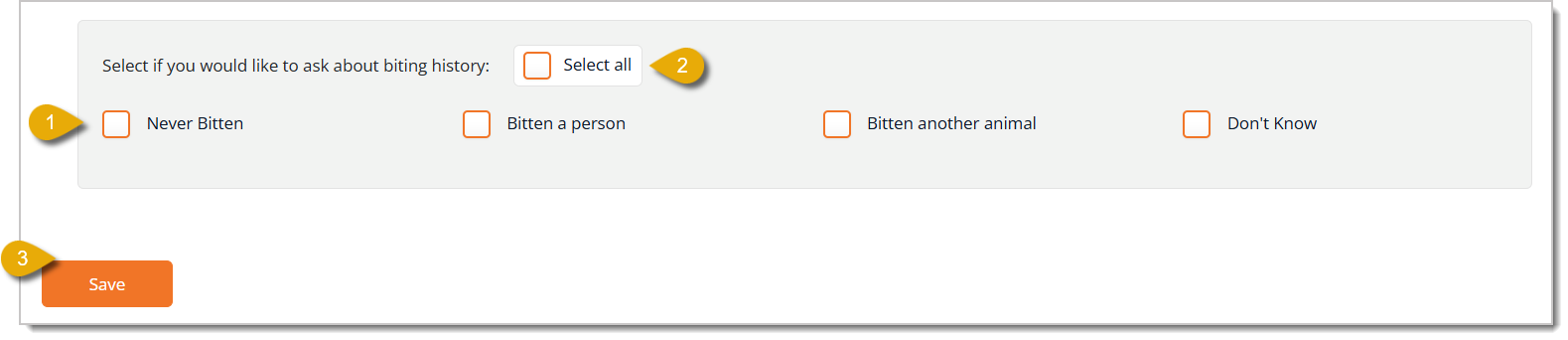
- Biting History Descriptors — Check the box next to each option you want customers to be able to select from so they can describe their pet's biting history. Your options are: Never Bitten, Bitten a Person, Bitten Another Animal, and Don't Know.
- Select all — Check this box to select every biting history option so customers see all of the listed options when they book online.
- Save — Click the Save button to save any changes you've made on this page. No changes will be saved on this page until you click Save.
Shampoo Selection
The Shampoo Selection area lets you set up shampoo add-on options that customers can choose when they book a grooming or spa service. You can add scent options, set a price for each selection (or leave it included at no extra charge), and control which options are available to customers.
Here is how to work with your Shampoo Selections:
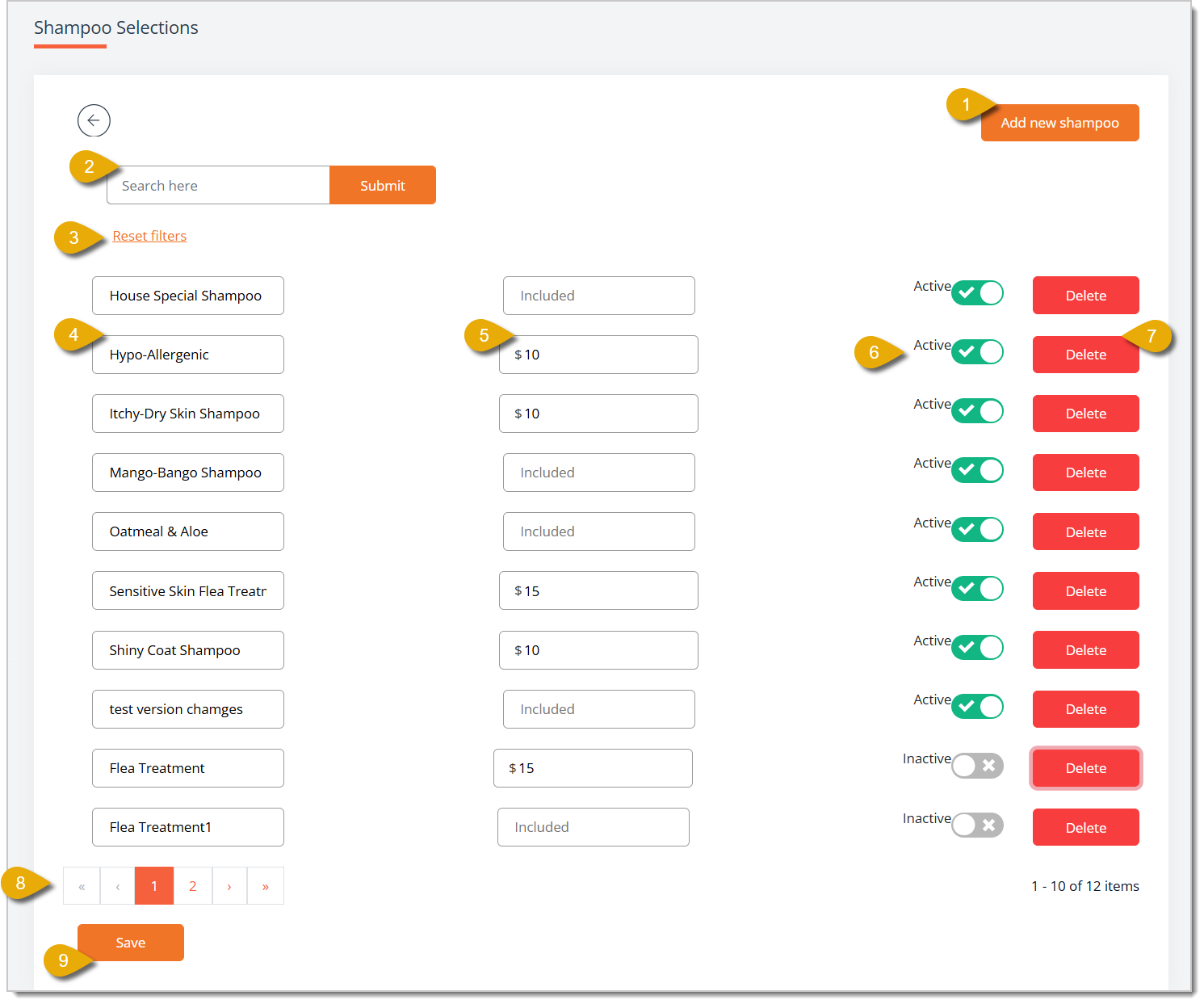
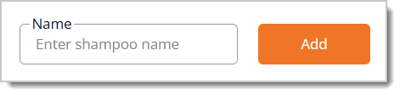
- Add New Shampoo — Click this button to open a Name field above the list. Enter the name of the new shampoo choice, then click Add to add it to the list below.
- Search — Enter the name of a shampoo in this field, then click Submit to find the shampoo in the list.
- Reset Filters — Click this link to clear your search filter and display the full list of shampoos again.
- Shampoo Name — Enter or update the name of this shampoo choice in the corresponding field.
- Price — Enter a dollar amount here to charge extra for this shampoo choice, or leave the field blank so it displays as Included, meaning it carries no extra charge.
- Active/Inactive Toggle — Switch this toggle to Active for a shampoo option so it's displayed to customers as an option when they book a service, or switch it to Inactive to hide it from the options without deleting it.
- Delete — Click this button to permanently remove the shampoo choice from your list.
- Page Navigation — Click a page number or the arrow icons at the bottom of the list to browse shampoo choices if your list spans more than one page.
- Save — Click this button to save all changes you've made to your Shampoo Selections.
Cologne Selection
The Cologne Selection area lets you set up cologne add-on options that customers can choose when they book a grooming or spa service.
Here is how to work with your Cologne Selections:
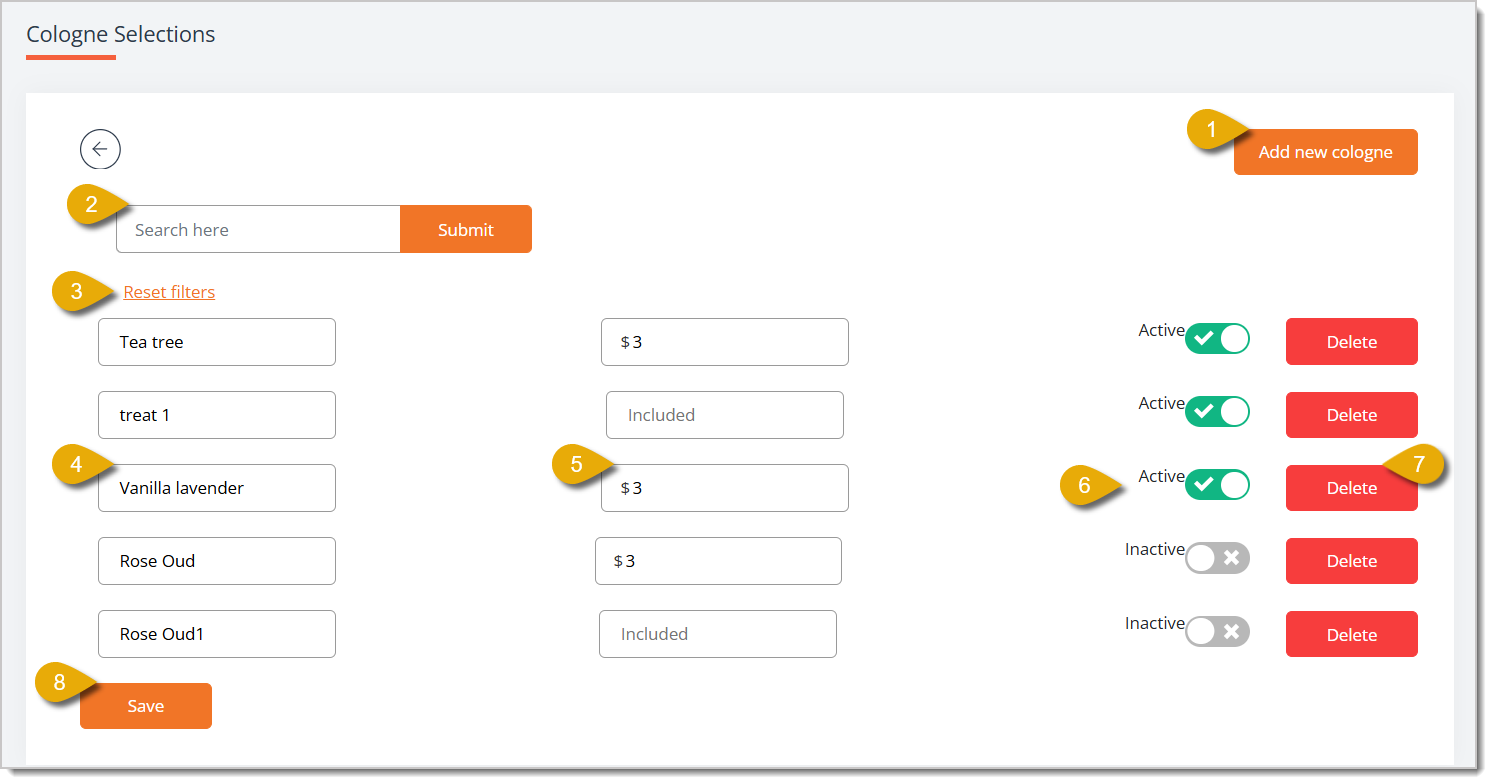
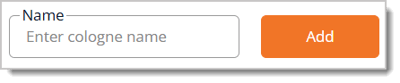
- Add New Cologne — Click this button to open a Name field above the list. Enter the name of the new cologne choice, then click Add to add it to the list below.
- Search — Enter the name of a cologne in this field, then click Submit to find a specific cologne.
- Reset Filters — Click this link to clear your search filter and display the full list of cologne choices again.
- Cologne Name — Enter or update the name of this cologne choice.
- Price — Enter a dollar amount here to charge extra for this cologne choice, or leave the field blank so it displays as Included, meaning it carries no extra charge.
- Active/Inactive toggle — Switch this toggle to Active so the cologne choice is displayed to customers when they book a service, or switch it to Inactive to hide it from the options without deleting it.
- Delete — Click this button to permanently remove the cologne choice from your list.
- Save — Click this button to save all changes you've made to your Cologne Selections.
Add-On Services
The Add-On Services page of the eTailPet Booking area allows you to view, create, and manage the extras that customers can add on to bookable services, such as a nail trim during a grooming appointment.
Here is how to work with your Add-On Services:
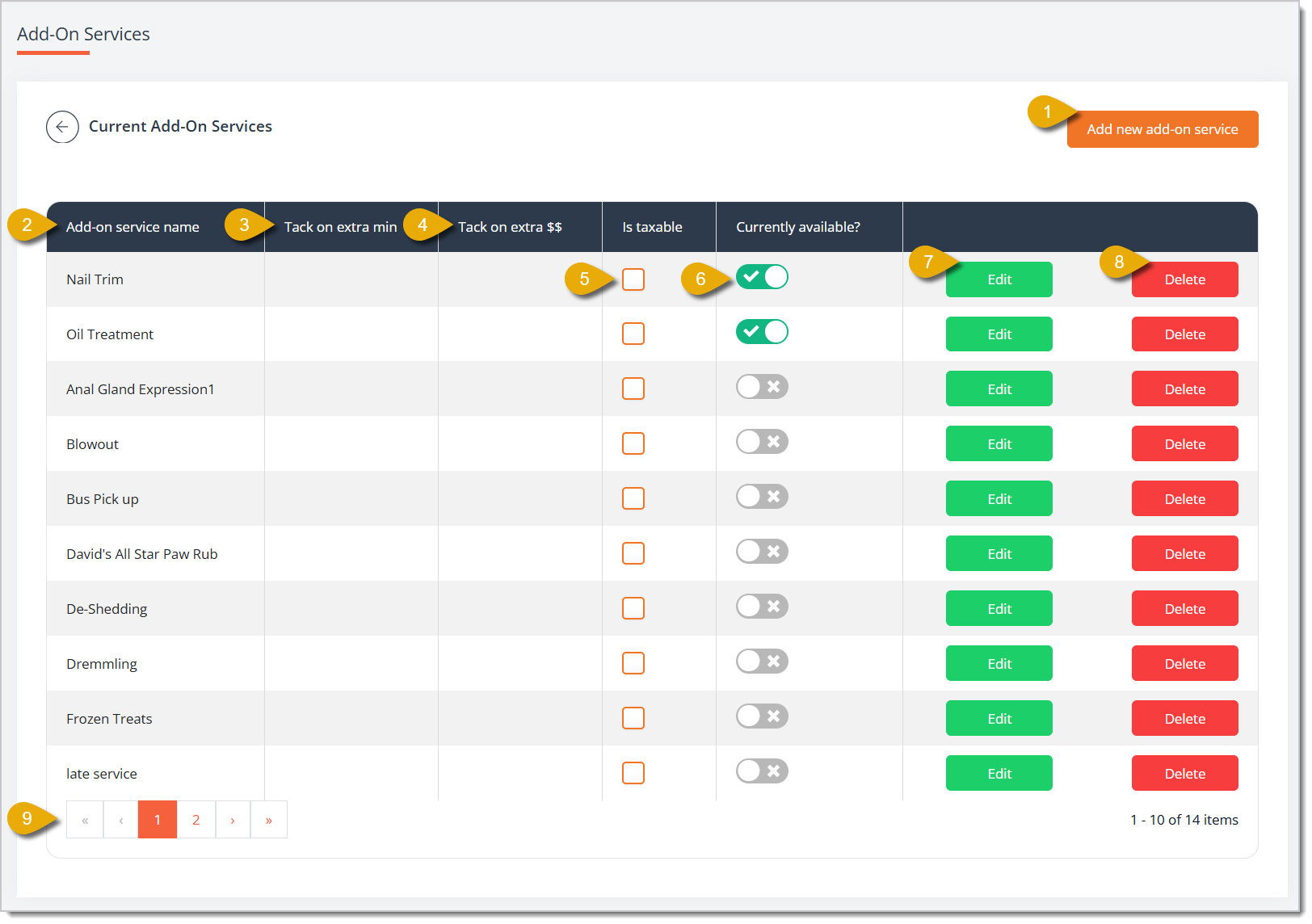
- Add New Add-On Service — Click this button to create a new add-on service. A new field will appear above the table. See the Create an Add-On Service section below to learn more about this.

- Add-On Service Name — This column displays the name of each add-on service.
- Tack On Extra Min — This column shows the extra minutes added to an appointment when a customer selects this add-on service.
- Tack on extra $$ — This column shows the extra charge applied when a customer selects this add-on service.
- Is taxable — Check this box to mark the add-on service as taxable. You must first click Edit on the right of this to make this checkbox editable.
- Currently available? — Toggle this to enable or disable the add-on service for customer booking. You can change this without clicking Edit first.
- Edit / Save — Click Edit to make the fields for add-on service name, extra minutes, extra charge, and is taxable in that row editable. Once you click Edit, the button changes to Save. After you make changes, click on Save to update your changes.

- Delete — Click this button to permanently remove the add-on service from the list.
- Page Navigation — If your add-on services span more than one page, click the page number buttons at the bottom of the list, or click the arrow buttons, to browse between pages.
Create an Add-On Service
Here is how to create a new Add-On Service after you click on the Add New Add-On Service button:

- Name — Enter the name for the new add-on service.
- Add — Click this button to save the new add-on service.
- Note that you only add the name of the add-on service here. To set the extra minutes, extra charge, taxable status, and availability, click on Edit in the service's row, as described above in the Add-On Services section.

Your new add-on service will now appear in the list on the Add-On Services page.
Documents
The Documents page of the Booking Configuration area lets you set up document types that customers must review, download, fill out, or sign as part of the booking process. You can require a signature, request a description, or upload your own file for customers to download, complete, and return.
Here is how to work with your Documents:

- Add New — Click this button to create a new document type. See the section below on Add a New Document for details.
- Instructions Text — Read this note at the top of the page before you add a document.
- If you want to collect a document from the customer, leave Signature Required unchecked and do not upload a file.
- If you want the customer to download a document and fill it out, upload your document here. Check Signature Required if you also want the customer to sign it when they upload it.
Add a New Document
Here is how to add a new document type for your customers:
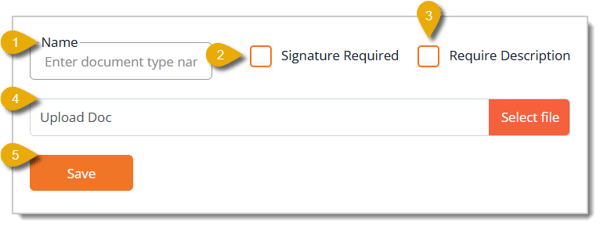
- Name — Enter the name you want to use to identify this document type to your customers.
- Signature Required — Check this box if you want the customer to give a signature when they submit this document. Leave this box unchecked if you only need the customer to provide their own document without a signature.
- Require Description — Check this box if you want the customer to enter a description along with the document they upload.
- Upload Doc — Click the Select File button to upload your own document, such as a form or waiver, for the customer to download and fill out. Leave this blank if you only want to collect a document from the customer like a vaccination record.
- Save — Click this button to save the new document type.
Your new document type will now be available to attach to services you require it for during the booking process.
Waiver of Liability
The Waiver of Liability page in the Booking Configuration area allows you to upload a PDF file of a waiver agreement, which customers have to sign and return when they book an appointment at your store.
Here is everything you can use in this page:
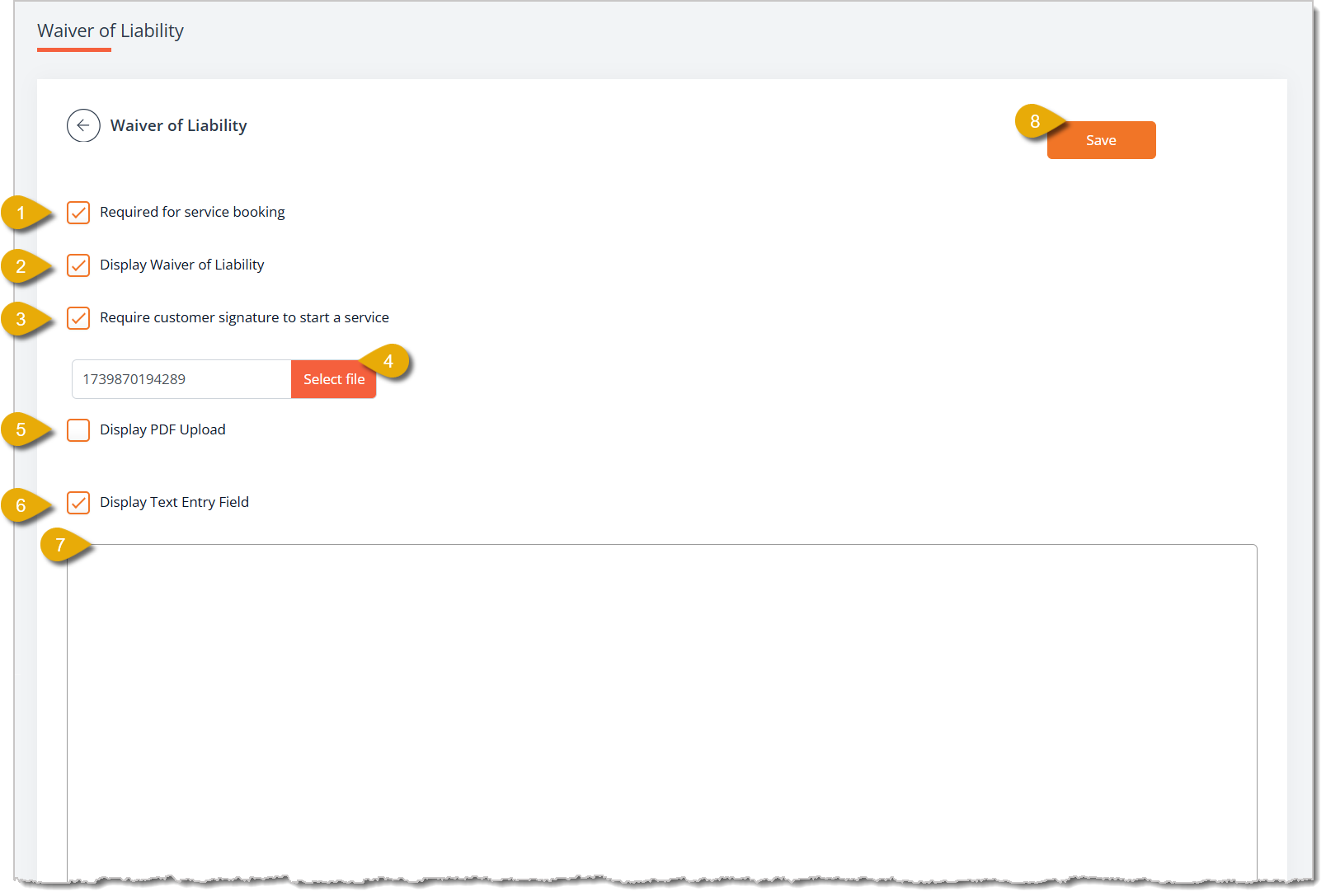
- Required for Service Booking — Check this box to require customers to read the waiver of liability to book a service at your store.
- Display Waiver of Liability — Check this box to display the waiver to customers when they book a service at your store.
- Require Customer Signature to Start a Service — Check this box to require customers to sign the waiver before they can book a service at your store.
- Upload File — Click on Select File to upload your waiver as a PDF file.
- Display PDF Upload — Check this box to view the PDF file you uploaded.
- Display Text Entry Field — Check this box to display the text entry field so you can type in your waiver information instead of uploading a file.
- Text Entry Field — If you checked the box for Display Text Entry Field, enter your waiver information in this text field.
- Save — Click on the Save button in the upper right of the page to save your waiver and settings.
Booking Portal Link
The Booking Portal Link in the Configuration area directs you to your own store's online booking portal when you click on it. You can use this to book an appointment from a customer's account, if needed. Here's how to access the portal using this link:
- In the Booking Configuration area, click on the Copy icon button next to Booking Portal Link.

- Open an incognito/private window in your web browser.
- Paste the copied link into the private window to open the page.
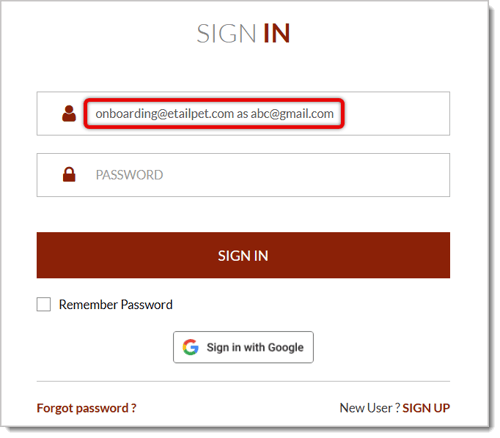
- Log in as a customer. To do so, enter your admin email address and add as [customer email address] in the field for email address.
- Enter your admin account's password.
- Click on Sign In.
- Select a pet from the drop-list if the customer already has pets registered to their account.
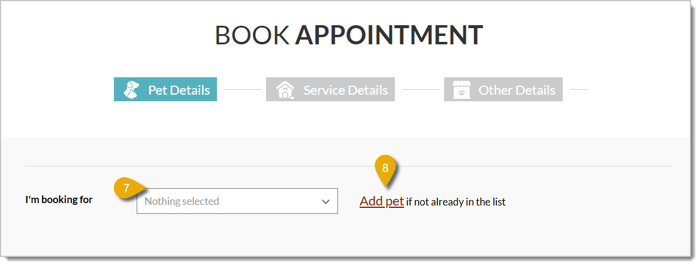
- If the customer doesn't have a registered pet, you can add one by clicking on the Add Pet link to the right of the drop-list and enter its details.
- Click on Save.
- Select the now-saved pet from the drop-list in number 7.
- Proceed with booking the appointment for the customer.
Related Topics
Booking Schedule
Booking Appointments
Booking Configuration 1
Checking Out a Booking Appointment
Frequently Asked Questions
Q: Do I have to configure all four sections of the Extended Behavior Information page (personality, triggers, threatened behavior, and biting history)?
A: No. You can simply check only the options you want to ask pet parents about in each section. You can leave any section without any boxes checked if you don't want to ask about that topic.
Q: Can I open the booking portal link in a regular browser window?
A: We strongly recommend opening it in a private/incognito window because this involves logging in as a customer. In a regular browser window, you may forget to manually log out when you close the window, which could cause issues with your admin account.
Q: I have a question, but I can't find my answer here. How do I get more assistance?
A: You can ask any question at the number listed here. Contact our support team at (323) 370-0738 for the U.S. and (888) 370-2363 for Canada.







 Aug 10, 2026
Is this page helpful?
×Help us improve our articles