






Holding and Resuming Transactions
Sometimes you have to put transactions on hold so the customer can come back later to complete it. T
 Jun 01, 2026
When a customer orders from your store online, if your store is set to allow Payment at Store Pickup, they can choose to pick it up in the physical store and pay for it at the register. In that case, you can process online transactions from the New Sale screen of the eTailPet system. This article shows you how to set your store to allow this, what checkout looks like with that option, and how to take payment for those online transactions. Take a look at how it works!

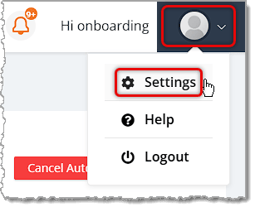
If you want your customers to be able to pay in-store for online orders, you'll need to be logged into the system as an Admin. Click your User icon in the far upper right of the page and go to Settings.
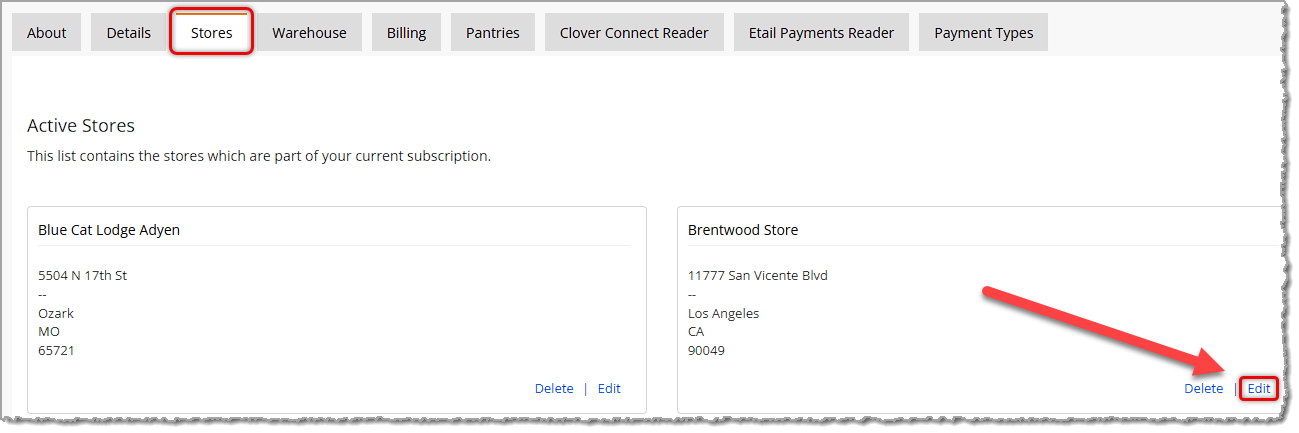
On the Settings page, click to open the Stores tab. Find the store you want and click on its Edit link.
Scroll down the Edit Store page to the section near the bottom for Other Info and find the Enable Pay In-Store setting. Check the box for that setting, if needed, and if you made a change, click the Save button in the lower right of the page.
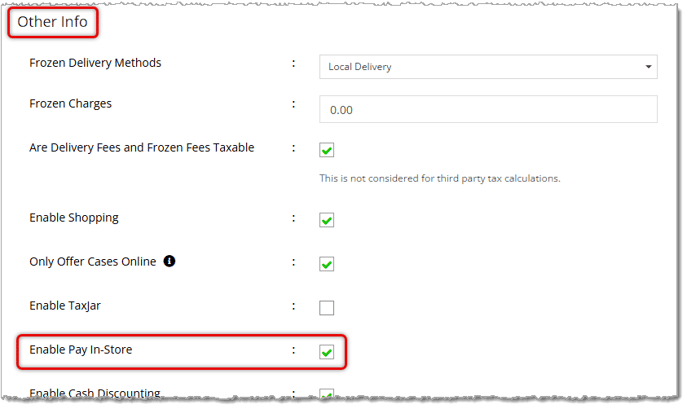
That store location for your online store will now allow the customer the option to pay for website orders in-store.
When the customer goes to view their cart, they are able to choose the Delivery Method for all products, or individually if they need different methods.
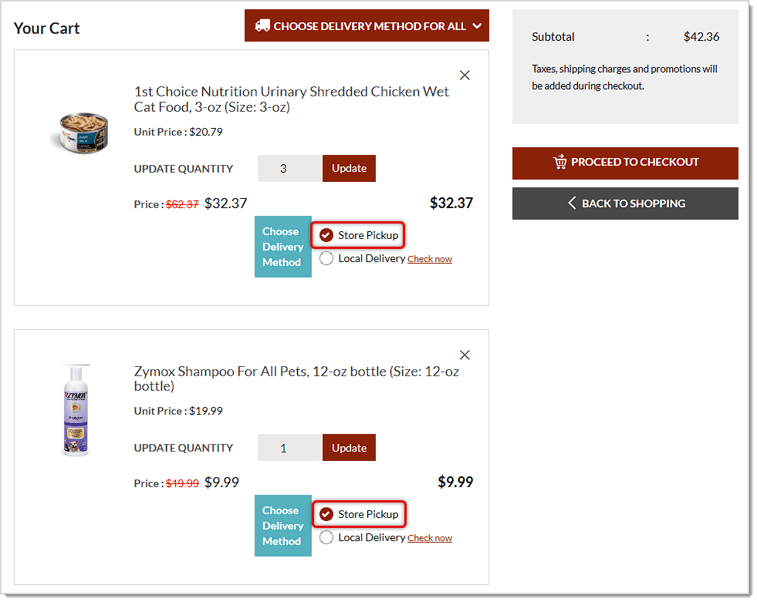
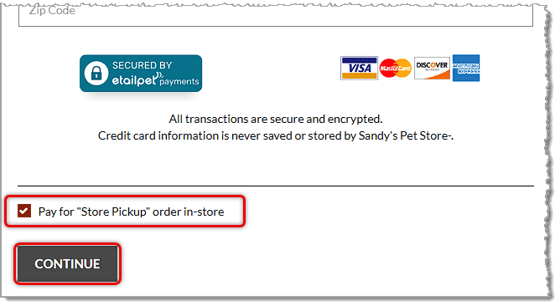
At checkout, the customer will have the option to Pay for "Store Pickup" Order In-Store if you have configured that for web orders, as described above.
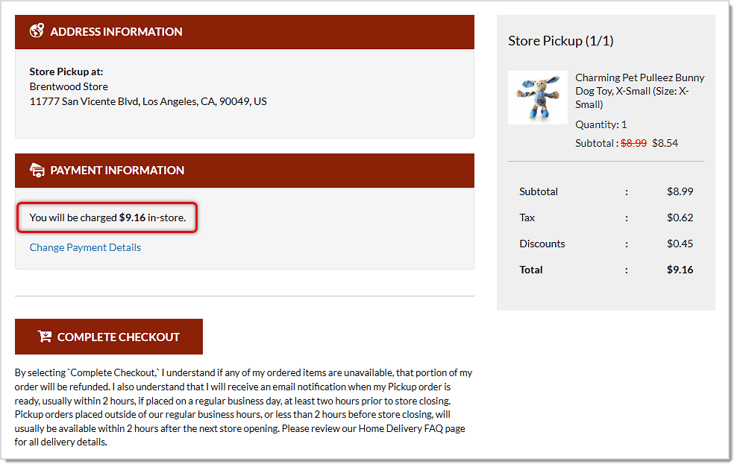
In the final order summary, the customer will see the address of the store pickup location and the amount they will be expected to pay.
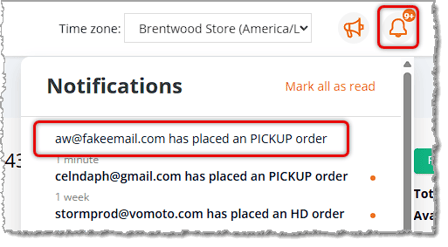
When you log into the system, in the System Reminders under the Alarm Bell icon at the top of the page, you'll see a list of system notifications that will include any Pickup orders placed through your website.
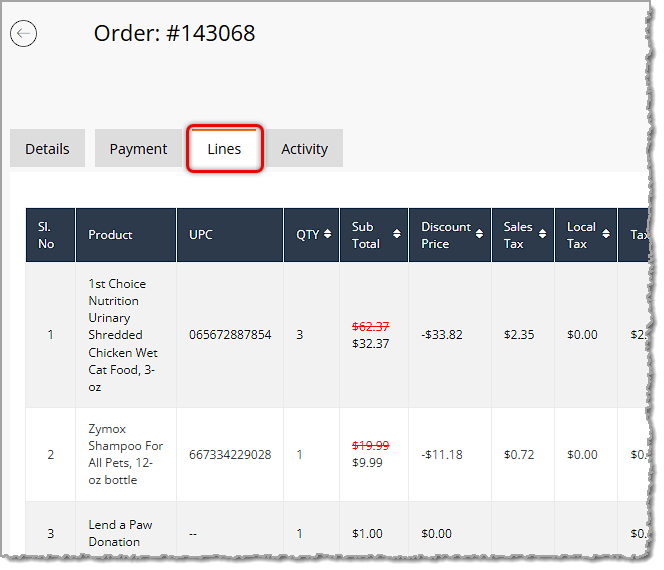
If you click a Pickup order notification, you will open an Order details page. The Lines tab of the Order page will show you which items to gather for the pickup order.
Follow these instructions to have a customer pay for an online order in New Sale:
Q: How do I let customers pay in-store for online orders?
A: You need to be logged into the system as an Admin. Click your User icon in the far upper right and go to Settings. Open the Stores tab, find your store, and click its Edit link. Scroll down to Other Info, check the Enable Pay In-Store box if needed, and click Save in the lower right.
Q: What will my customer see when they choose Pay In-Store?
A: In their cart, customers can choose the Delivery Method for all products or individually. At checkout, they can choose to pay for the Store Pickup order in-store. The final order summary shows the pickup store's address and the amount they'll be expected to pay.
Q: How will I know a customer placed a pickup order?
A: When you log into the system, check the System Reminders under the Alarm Bell icon at the top of the page. The list of system notifications includes any Pickup orders placed through your website. Click a Pickup order notification to open the Order details page. The Lines tab shows which items to gather.
Q: How do I take payment for an online order at the register?
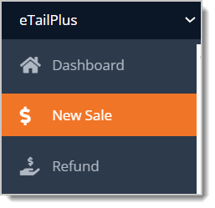
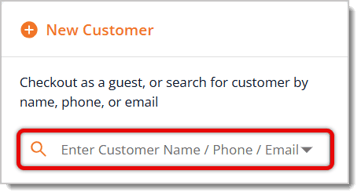
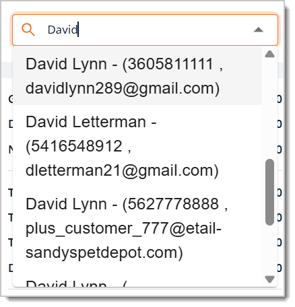
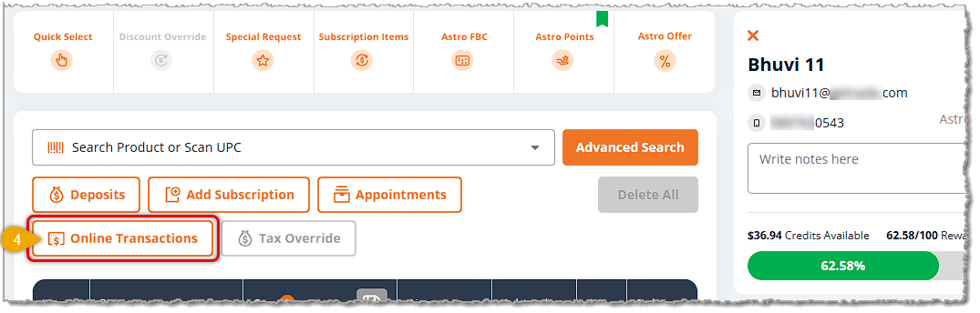
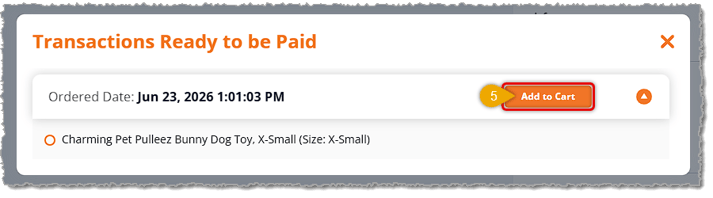
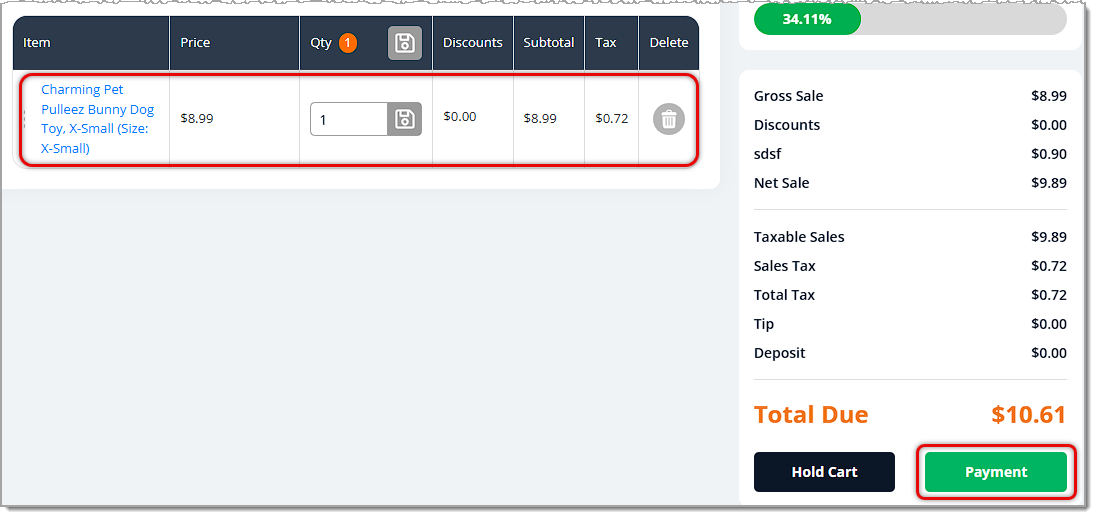
A: Open New Sale from the main menu and search for the customer by name, phone number, or email in the upper right. Select the customer, then click the Online Transactions button below the product search. In the Transactions Ready to Be Paid window, click Add to Cart to load the item(s) into the transaction. Then click Payment in the lower right to complete the transaction as normal.
Q: Can I ring up other items along with the web order?
A: Yes. After the web order item(s) load into the transaction, you can ring up any other items the customer is purchasing. When they're ready to check out, click Payment to complete the transaction as normal.
Q: Can customers choose different delivery methods for different items?
A: Yes. In the cart, customers can choose the Delivery Method for all products, or individually if they need different methods.
Q: I have a question, but I can't find my answer here. How do I get more assistance?
A: You can ask any question at the number listed here. Contact our support team at: (323) 370-0738 for the U.S., and (888) 370-2363 for Canada.
Is this page helpful?
×Help us improve our articles