






Export Products
In the eTailPet system, you can easily export your product data as a CSV or XLSX file. If you want t
 Jun 24, 2026
The last step in the Purchase Order process in the eTailPet system is to approve your PO. This step is important because it allows you to reconcile your order with your invoice. You can record discounts and keep your Cost of Goods Sold (COGS) accurate by updating the cost to the actual cost paid. It also allows you to automatically submit vendor credit requests for products that you were charged for but didn’t receive. You can also use this as a way to update the costs and prices permanently in your catalog without leaving the page. This article explains how Admin PO Approval works and how to run through the process. See how to sign off on a PO!

Purchase Order Status Progression: Closed > Approved
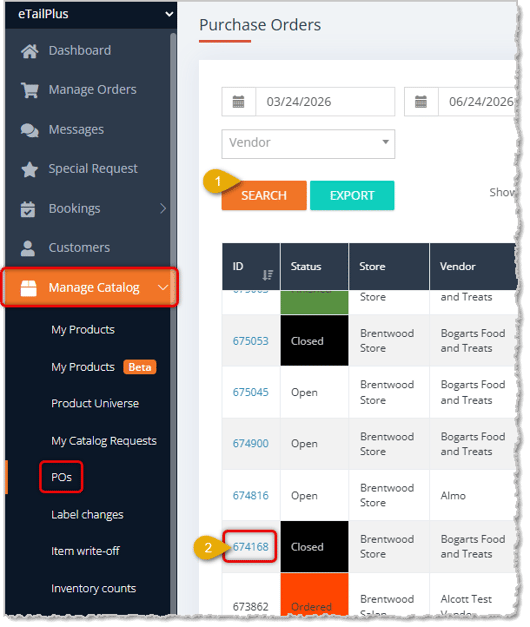
To begin the approval step for a PO, you must be logged into the eTailPet Dashboard as an administrator. In the main menu on the left, click to open the Manage Catalog menu, then click on POs.
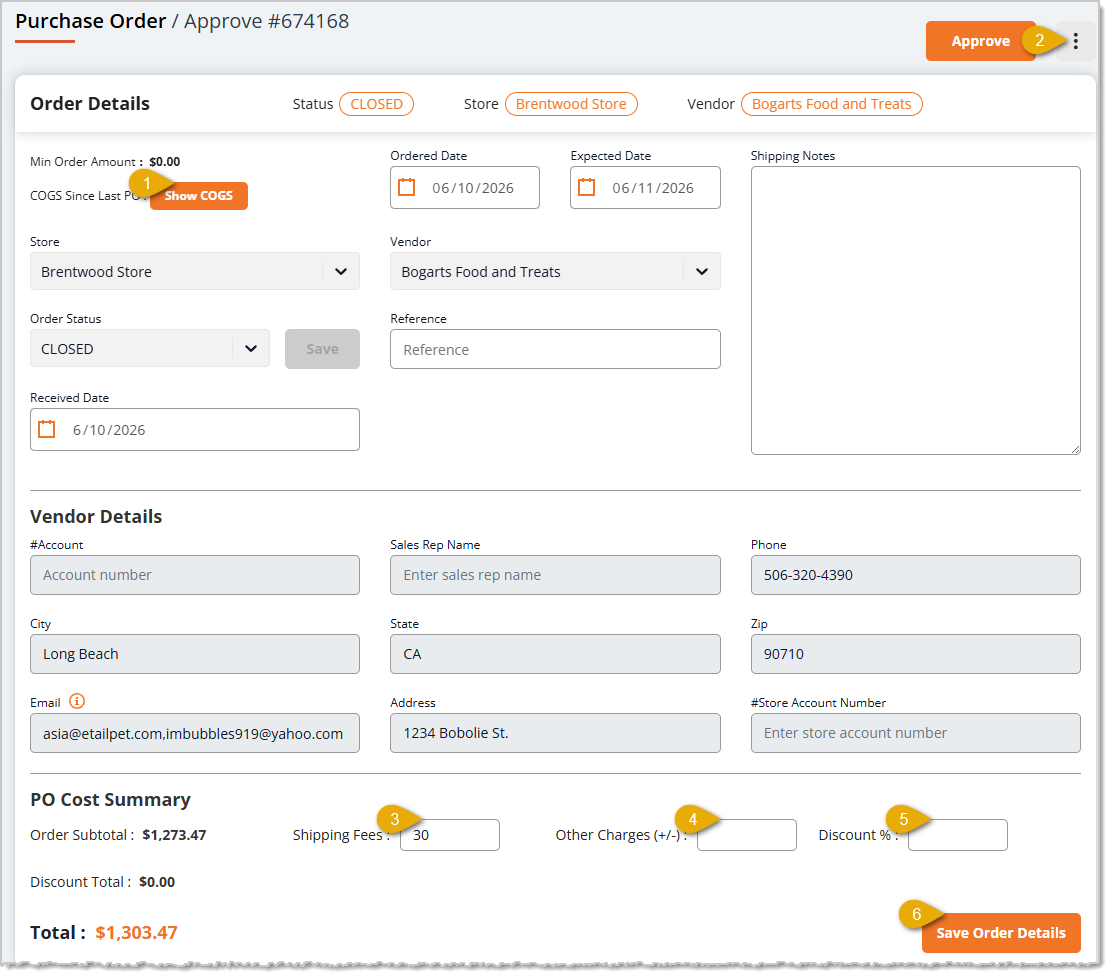
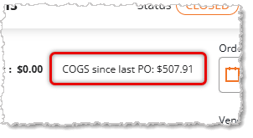
The top portion of your Approval page contains a summary of all the details of your PO. Here, you can add and update shipping cost, reference text, and add any other charges. Note that the save button in the bottom right of the Order Details area only saves the details in this section of the page. You can click anywhere in the Order Details header bar to expand it and show the full details pictured below:
As you edit your invoice Quantity and Cost in the item data table below, the totals in this section will update as your changes are saved.
*Note: Other Charges can be a positive or a negative number. If you have an overall discount that you want to apply, you can include it here. Just add the minus (-) symbol in front of the amount. Note that the discount placed here does not get factored into your average cost for items received.
Case Pricing
Here is an example where the pricing of items by the case can be confusing:
Perhaps one of your vendors has a set price for a case of cans, so you have to order cans in multiples of 12 or 24. When you sell the cans in your store, however, you will sell the them individually. In this example, one case of 12 cans will ring up at 12 X the individual can price.
This can cause confusion when it comes to the math for your purchase orders. For instance, if the case price for 12 cans is $25.17, that cannot be divided equally by 12. If you divide the case price of $25.17 by 12, it comes out to $2.0975. The purchase orders go to 2 decimal places, so you have to make a choice to either round up to $2.10 or round down to $2.09. If you choose to round up, when you receive the purchase order, you can use the Other Charges box in the approval state to reduce the overall PO invoice cost by $0.03 (so -$0.03). That will ensure that the invoice will match the PO in the system. If you choose to round down in this case, you would increase the overall PO invoice by $0.09.
Remember that the adjustment you make is so that your invoice cost on the PO matches the PO cost in the system and your reporting is accurate.
The bottom section of the purchase order approval page has a data table with the details about the items ordered on your PO. Update any of the details in the editable form fields to reconcile your invoice with the PO.
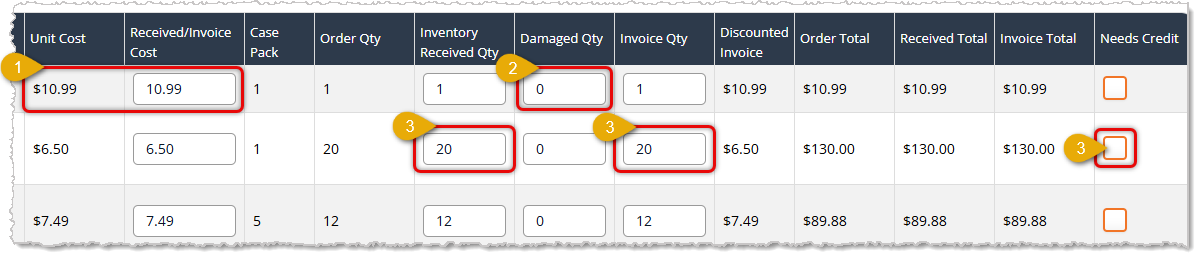
After you finish making your changes to the item data, click the Save Changes button in the lower right to update the PO.
If your Costs changed and you need to make Price changes accordingly, click the Update Catalog button on the right is this right?, above the item data table.
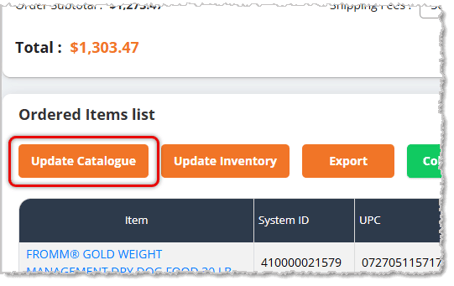
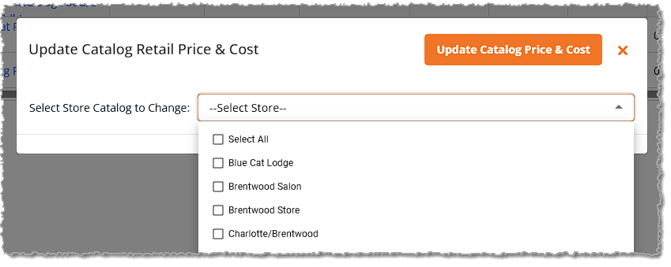
The Update Catalog panel will open for you.
If you want to be sure you are using the most recent data, you can click the button to Show Latest Catalog Price & Cost, and the items will update. You are able to edit the In-Store Price, Online Price, and Vendor Cost for each item, if needed. You can save time by clicking the Copy Current Received Costs to Vendor Costs button. If you match pricing for In-Store and Online, you can save time by clicking the Copy In-Store Price to Online Price button, which will populate the In-Store Prices to the Online Price column. If you want to set updated pricing based on Margins, you can click the Edit Gross Margin button and the In-Store Margin and Online Gross Margin columns will become editable. As you adjust a Gross Margin, the Price fields will automatically adjust for you.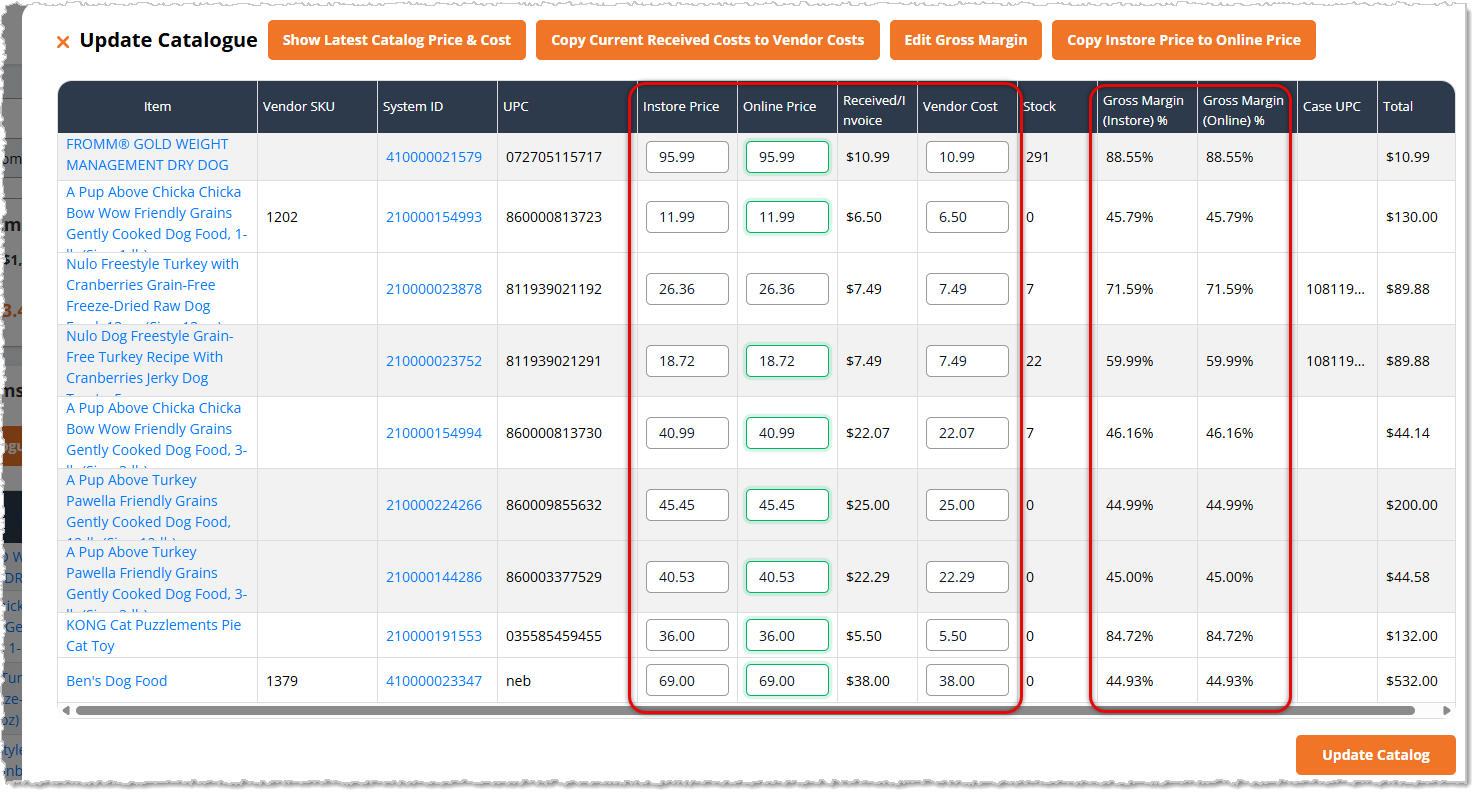
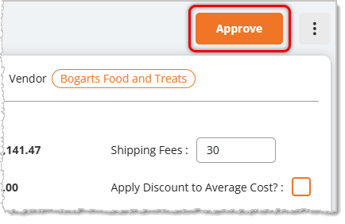
Once you have completed your edits, you are ready to approve the PO. Although it is simply a matter of clicking the Approve button, your changes will become final after this. You will not be able to go back and edit, so be sure to review and make sure everything is set how you want it.
A confirmation will pop up asking if you are sure you want to set final approval. Click the Yes, Continue button to proceed.
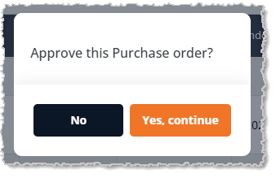
image needs alt text
You'll be returned to the main Purchase Orders list page. Your PO will be in an Approved status with its same order-by-date location in the list of Purchase Orders. You can always click to View the details of the order, as needed, but you will no longer be able to edit it.
Boss Quote
Instruct your human to trust but verify: When completing the Purchase Order process, never assume that everything is correct. Your minion may have made a mistake. Just as you wouldn't snuggle into a lap you didn't own, your human shouldn't approve POs they haven't fully reviewed for errors.— Sherman, Evanston, WY
Q: I have a question, but I can't find my answer here. How do I get more assistance?
A: You can ask any question at the number listed here. Contact our support team at: (323) 370-0738 for the U.S., and (888) 370-2363 for Canada.
Is this page helpful?
×Help us improve our articles