






Desired Inventory Level
 May 27, 2026
🐿️ You can set a Desired Inventory Level, or DIL, for a product, meaning you can indicate the amount you want in your inventory when it's time to restock. For example, if your DIL for a brand of dry food is 35 and you have 10 left, you'd order 25 units to reach your DIL. This article will show you how to set a product's DIL and how to use it for Purchase Orders in the eTailPet system.
To learn how to set up purchase orders, click here for the Purchase Orders article.
Boss Quote
"Make sure your human understands that their Desired Inventory Level should be enough to meet demand, yet not too high so they don't have inventory that just sits in storage. They probably don't have good places to keep it, anyway. Luckily, I can store my inventory in my cheeks!"
— Charlie, Alexandria, VA
Overview
Setting a Desired Inventory Level is an important part of your reordering process, so here are a few tips:
- When you're adding new products to your catalog that you'll need to reorder, you should set them up with a beginning DIL. No need to do this for one-time offerings or seasonal products.
- New retailers will create purchase orders using the beginning DIL for the first 4 to 6 weeks, so it’s important to set this DIL as accurate as possible.
- Throughout those first 4 to 6 weeks, the eTailPet system will collect data on sales and purchasing history. Once enough data is available, you can start using Smart Order as a reorder method for purchase orders. Smart Order automatically analyzes data to edit existing DILs so the DILs are based on demand.
- Non-tangible products, like services, tips, or donations, should not have DILs because they are not items you'd stock.
Setting a Product's Beginning Desired Inventory Level (DIL)
Set an Individual Product DIL
To set a product's DIL, you can do the following:
-
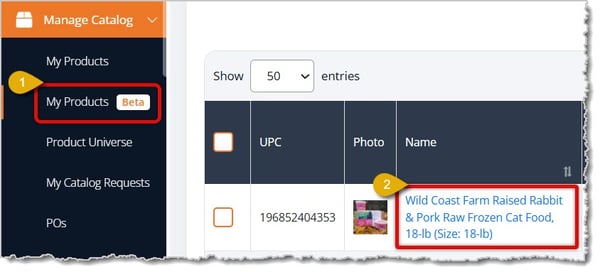
Go to Manage Catalog > My Products.
- Click on the product's Name in the table of products. This will open the product's full details.
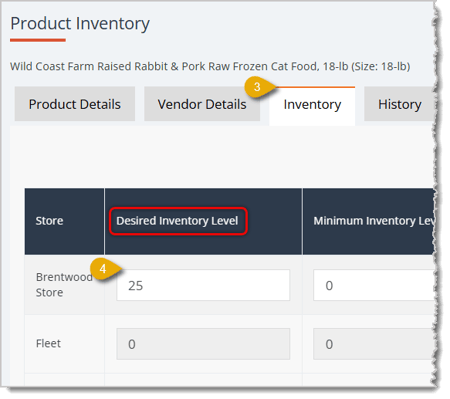
- Click on the Inventory tab.
- In the table, enter the product's Desired Inventory Level for each store that stocks it.
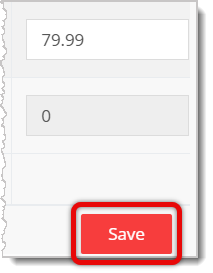
- Click on the Save button on the lower right of the table.
Change DILs for Multiple Products
You can also add or edit DILs for multiple products using a batch action. This way, you don't need to work manually for each individual product. To learn how, click here to read Change or Remove Products or here for Product Batch Actions.
Tips for Calculating a DIL
There are many factors to consider for setting a product's DIL, including the demand, lead time, sales-to-stock ratio, and product turnover rate.
Here are some tips for calculating the DIL for a product:-
If you're just starting out using eTailPet, it's best that you start off with well-planned DILs.
-
If you are transitioning to eTailPet from another POS, you may be able to export your DIL from your old POS.
-
If you have instead been using formulas to manage your stock, you can use those same methods to set your beginning DIL.
-
If you're not sure where to start, you can use your sales data to calculate the DIL. Look at the total number of sales per product over the last 3 to 6 months. Divide that by the number of purchase orders you would have created in that time period. That should give you a decent beginning DIL. The formula would look like this:
- Total # of sales over the last 3-6 months / # of purchase orders you would have made in that time = Beginning DIL
🐱 Please Note: These are just suggestions. Ultimately, it is up to you to ensure that your beginning DILs will work well for your store.
Reordering Methods
You will also have to set reordering methods for products. A reorder method will add a number of units for a product to a purchase order—or not reorder them at all—depending on the DIL. Here is what each reordering method means:
- Desired Inventory Level — If you use this reorder method, it will use your DIL settings. This will keep your inventory at the same level for products set to this reorder method.
- Smart Order — Use this for products that you want to order using Smart Order, which automatically adjusts your Desired Inventory Levels according to demand (If you are new to eTailPet, you should wait 4 to 6 weeks before you run Smart Order on a Purchase Order. This is because the system will analyze your DIL and adjust it based on demand. For now, you can still set the products to the Smart Order reorder method in this bulk action and wait until you have enough sales data).
- Do Not Order — Use this for products you do not want to reorder. For example, grooming services would not be an item you'd reorder.
Setting Reorder Methods for Products
-
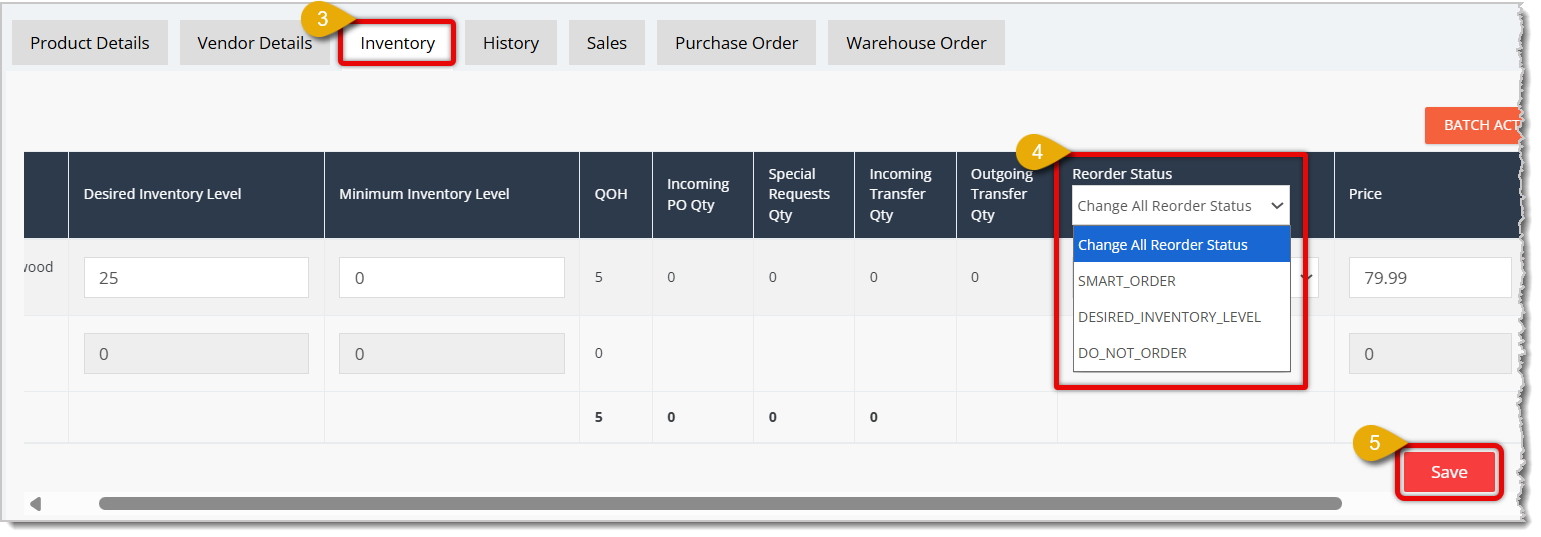
Go to Manage Catalog > My Products (Beta).
-
Click on the product's Name in the table of products. This will open the product's full details.
-
Click on the Inventory tab.
-
Towards the right of the table, you can change the method under the Reorder Status column. You can either use the drop-list in an individual product's entry of the table, or use the drop-list in the column header to change the status for the product in all stores. The latter is shown in the image above.
- Click on the Save button in the lower right of the table.
Related Topics
Frequently Asked Questions
Q: Which products should NOT have a DIL set?
A: Skip DILs for one-time or seasonal products, and for non-tangible items like services, tips, or donations, since those aren't things you stock.
Q: How do I calculate a starting DIL if I don't know where to begin?
A: Take your total sales for a product over the last 3-6 months and divide by the number of purchase orders you'd have made in that time. That gives you a reasonable beginning DIL.
Q: When should I switch a product from Desired Inventory Level to Smart Order?
A: Wait 4 to 6 weeks after you start using eTailPet. That gives the system enough sales and purchasing data to adjust DILs accurately based on demand.
Q: Can I set the same DIL for a product across all my stores at once?
A: Not from the individual product page — you enter it separately for each store there. For multiple products at once, use a batch action instead.
Q: What's the difference between the Desired Inventory Level and Smart Order reorder methods?
A: Desired Inventory Level reorders to hit the DIL number you set manually. Smart Order adjusts your DIL automatically based on demand.
Q: I have a question, but I can't find my answer here. How do I get more assistance?
A: You can ask any question at the number listed here. Contact our support team at (323) 370-0738 for the U.S. and (888) 370-2363 for Canada.
Is this page helpful?
×Help us improve our articles