






Store Pickup
🛍️The Store Pickup area shows all of your online orders that customers requested for in-store picku
 May 22, 2026
The eTailPet system offers you the ability to create orders between a distribution warehouse and all of its affiliated stores as an add-on option. In this article, you'll learn how to place and receive Master Purchase Orders, how to receive, pick, and ship orders from the warehouse to stores using Transfers, and how to transfer inventory back to the warehouse when needed. Also see what types of reporting are available and how to set up nationwide shipping for your warehouse. Take a look at what's here for you!
Many multi-store retailers are starting to increase profits by buying products in bulk at a discount, storing the products in a warehouse, and then distributing them as needed to their individual stores.
The eTailPet system has always had the ability to create and manage Purchase Orders between you and your vendors. With Warehouse functionality, we offer an add-on that allows you to create orders in a similar way between your own distribution center and your stores. Currently, the system is configured to have only one Warehouse per account.
The Warehouse has its own Catalog from which your stores can order. You can build it using items from the Product Universe and Private Products in the same way that you build a catalog for a store. In Manage Orders, there will be a new tab for Warehouse Orders. You'll manage all Warehouse orders from this page. When you send a store order to the warehouse, your Warehouse team will follow the steps to receive it, pick it, and send it. QOH (quantity on hand) will be automatically updated for each step of the WO (warehouse order). The store will then receive the order similar to the way a PO is received in the current workflow. Items that need to be returned to the Warehouse for whatever reason can be transferred using Manage Catalog > Transfers.
When it’s time to restock the Warehouse, regular POs (purchase orders) will be placed to the vendors. The steps to follow are the same steps you use to order from vendors. In the Manage Products > Product Catalog > Product Inventory tab, the Warehouse will be listed along with all of the affiliate stores. In Manage Products > Product Catalog > Product Details, there will be a new tab next to the Purchase Order tab called Warehouse Order. Similar to the Purchase Order tab, the new Warehouse Order tab will show details of the warehouse orders for the product.
In addition to being set up as a Store, the warehouse will also be set up as a Vendor in Manage Catalog > Product Vendors. This way, the stores can set the Warehouse as the default Vendor for the products that are distributed by the Warehouse. Also, the Warehouse can set its own default vendors for restocking.
When the eTailPet team enables the Warehouse functionality, you will have access to three additional reports: WO List Report, WO Line Report, and WO Ship To Report. In addition, all other Inventory reports will include details about Warehouse orders.
Let’s get started!
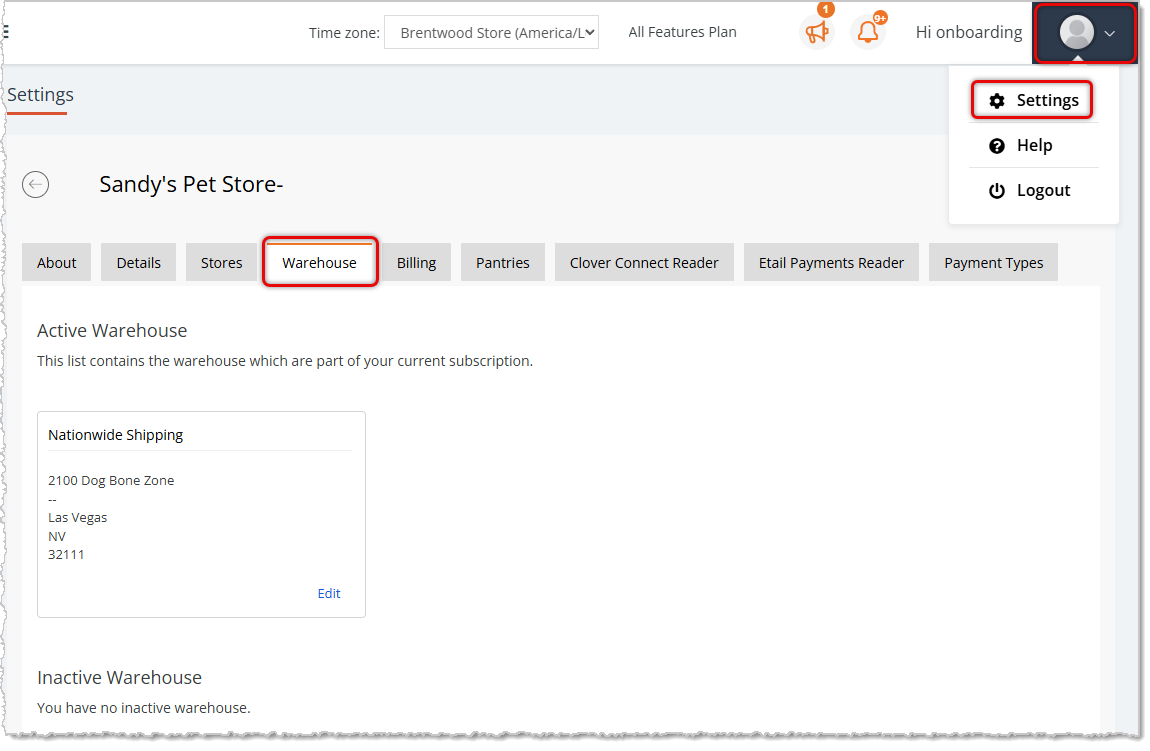
1. Once we have enabled the Warehouse functionality for you, go to the Account > Settings > Warehouse tab.
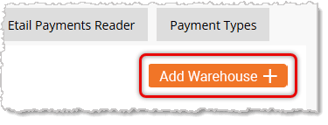
2. If you have not yet created your Warehouse, you'll see an Add Warehouse + button in the upper right, as pictured below. Click that button to create your Warehouse.
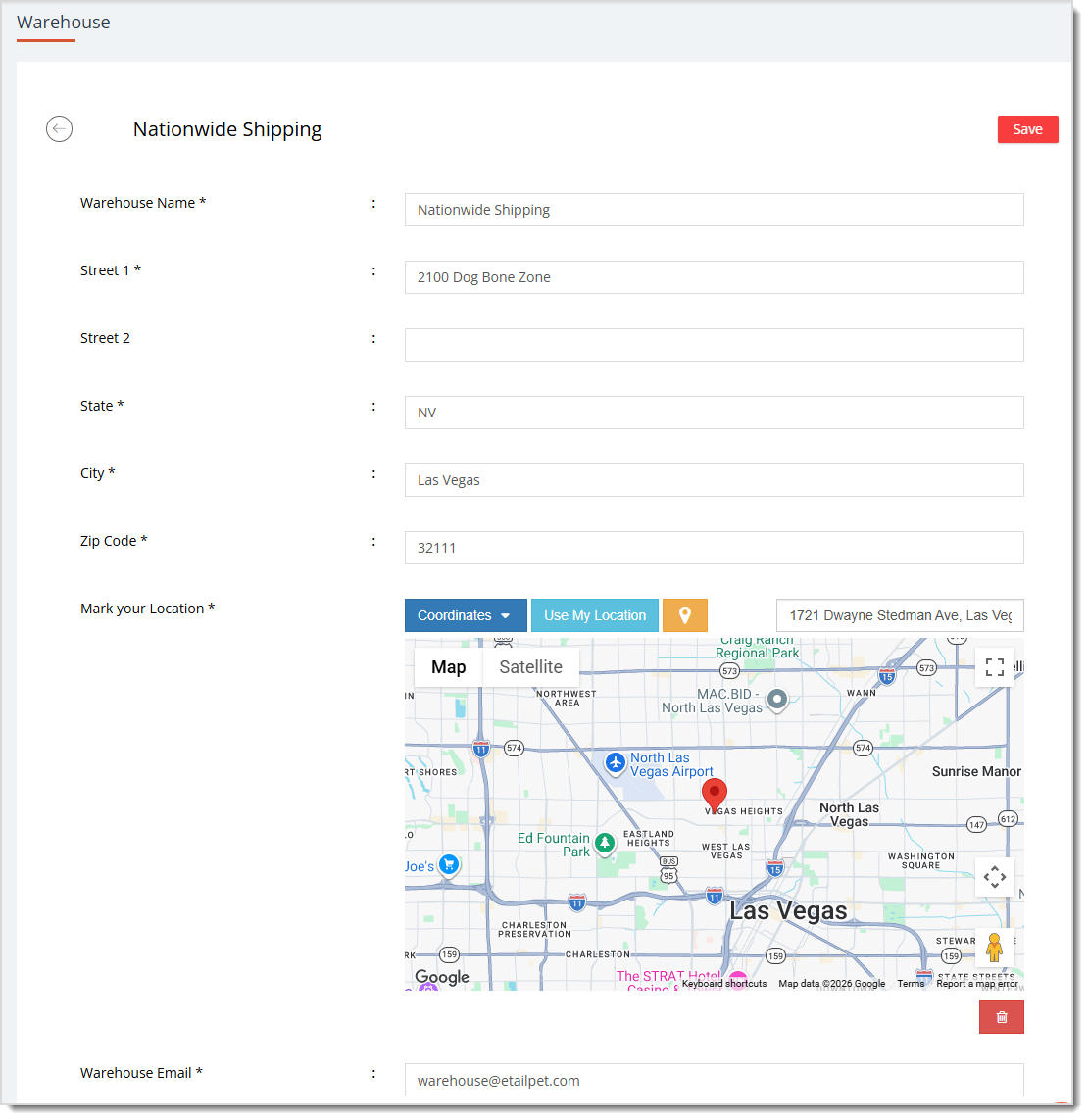
Enter the name of your warehouse and complete all relevant details. It is unlikely you will need all the settings since the Warehouse will not be a customer-facing location, so just filling out the Required fields marked by an asterisk is likely enough. This page uses the same steps you use to set up a new store (CLICK HERE to read Settings: Stores Tab, or click the link in the Related Topics section at the bottom of this page to learn about setting up a store in the eTailPet system). Click the Save button at the top or bottom of the page when you have completed the setup.
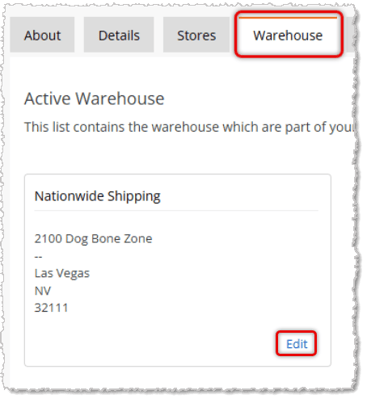
You can edit your warehouse details at any time by going to Account > Settings > Warehouse tab > click Edit link.
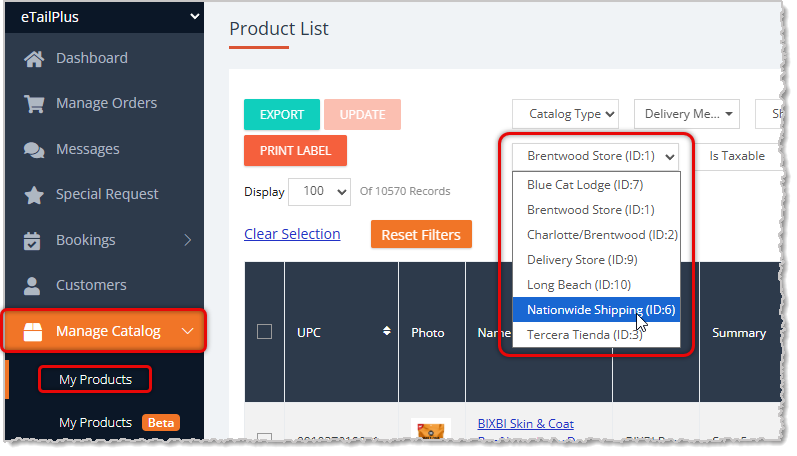
Once you have configured your Warehouse you will need to set up the Catalog. If you go to Manage Catalog > My Products you will see your new Warehouse in the Stores filter.
Create the Catalog manually using Product Universe, or by Import (see articles in the Related Topics section near the bottom of the page). You can also add Private Products to your Warehouse. All products in this catalog will be available for your stores to order. You will need to set up your Retail Pricing as well as your Vendor Costs.
Boss Quote
Inform your human that the fastest way to get inventory into the Warehouse Catalog is using the Export and Import functions in My Products. Also make sure they give you the freedom to hunt rodents in the warehouse; you need your play time.
— Isabella, Peoria, IL
Q: What is the Warehouse feature and who is it for?
A: It's an add-on option for multi-store retailers that lets them set up a central distribution location and manage orders between that warehouse and affiliated stores. This is useful if you buy inventory in bulk at a discount and distribute it to stores as needed.
Q: How many warehouses can I set up?
A: Currently, the system supports only one Warehouse per account.
Q: How is the Warehouse feature enabled?
A: It needs to be turned on for your account by the support team before you can access it.
Q: I have a question, but I can't find my answer here. How do I get more assistance?
A: You can ask any question at the number listed here. Contact our support team at: (323) 370-0738 for the U.S., and (888) 370-2363 for Canada.
Is this page helpful?
×Help us improve our articles