🏘️ Ship to Me configuration allows you to do nationwide shipping for your orders. For local deliveries, read our article on the Local Delivery tab linked in Related Topics below. Read on to see everything you can do!

Set Up Shipping
You can use an integration with Ship Station to fulfill shipments.
- Create an account at shipstation.com.
- Find your API Key from Ship Station by going to Select Account > API Settings > Generate API Keys.
- Open another browser tab or window and log into the eTailPet Dashboard.
- Go to Content > Configuration.
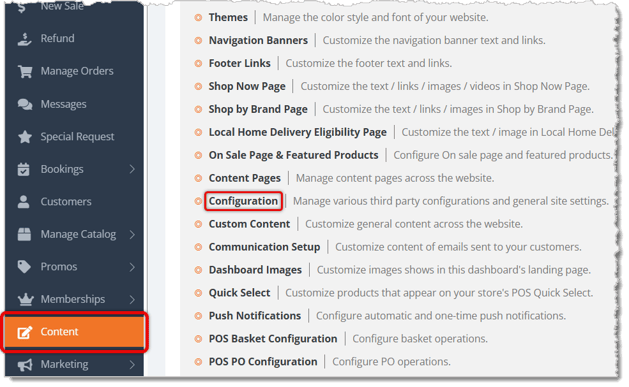
- Scroll down to Ship-to-Me Drop Shipper and select ShipStation in the drop-list. More settings will open for you.

- Copy and paste the API Key and API Secret from ShipStation into their respective fields.

- Save your changes by scrolling to the bottom of the page and clicking on the Save button in the bottom right.
Rotate your API Keys
Note that you will be periodically asked to rotate your API Keys for security purposes. Here's how to do so:
- Log into ShipStation.
- Click on the Gear icon in the top right to access settings.
- Click on Account.
- Click on API Settings.
- Under API Version, select V1 API.
- Click on Generate Key.
- Select 12 months as the expiration date.
- Verify your email address if ShipStation requests it. Repeat this process after verification.
- After logging into eTailPet, go to Content > Configuration
- Scroll down to Ship-to-Me Drop Shipper and select ShipStation in the drop-list.
- Copy and paste to update the API Key and API Secret from ShipStation in their respective fields in eTailPet. Please Note: You should keep a backup of the original keys from ShipStation in case you need to revert back to them. Also verify that your Ship to Me orders are working before you delete the original keys.
- Save your changes by scrolling to the bottom of the page and clicking on the Save button in the bottom right.
Enable Shipping
After connecting your eTailPet account with ShipStation, you can configure shipping for your store.
-
Open your Account menu by clicking on the Chevron next to your profile picture in the top right.
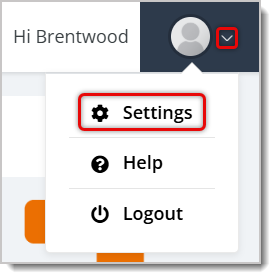
- Click on Settings, as pictured above.
- Click on the Stores tab.
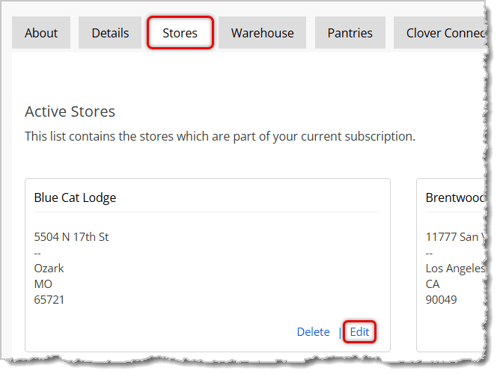
- Click on Edit in the lower right for whichever store you want to enable shipping, as pictured above.
- Scroll down to Ship to Me Details and check the box for Enable Ship-to-Me.
- Configure other settings for Ship to Me Details. Here is everything you can set:
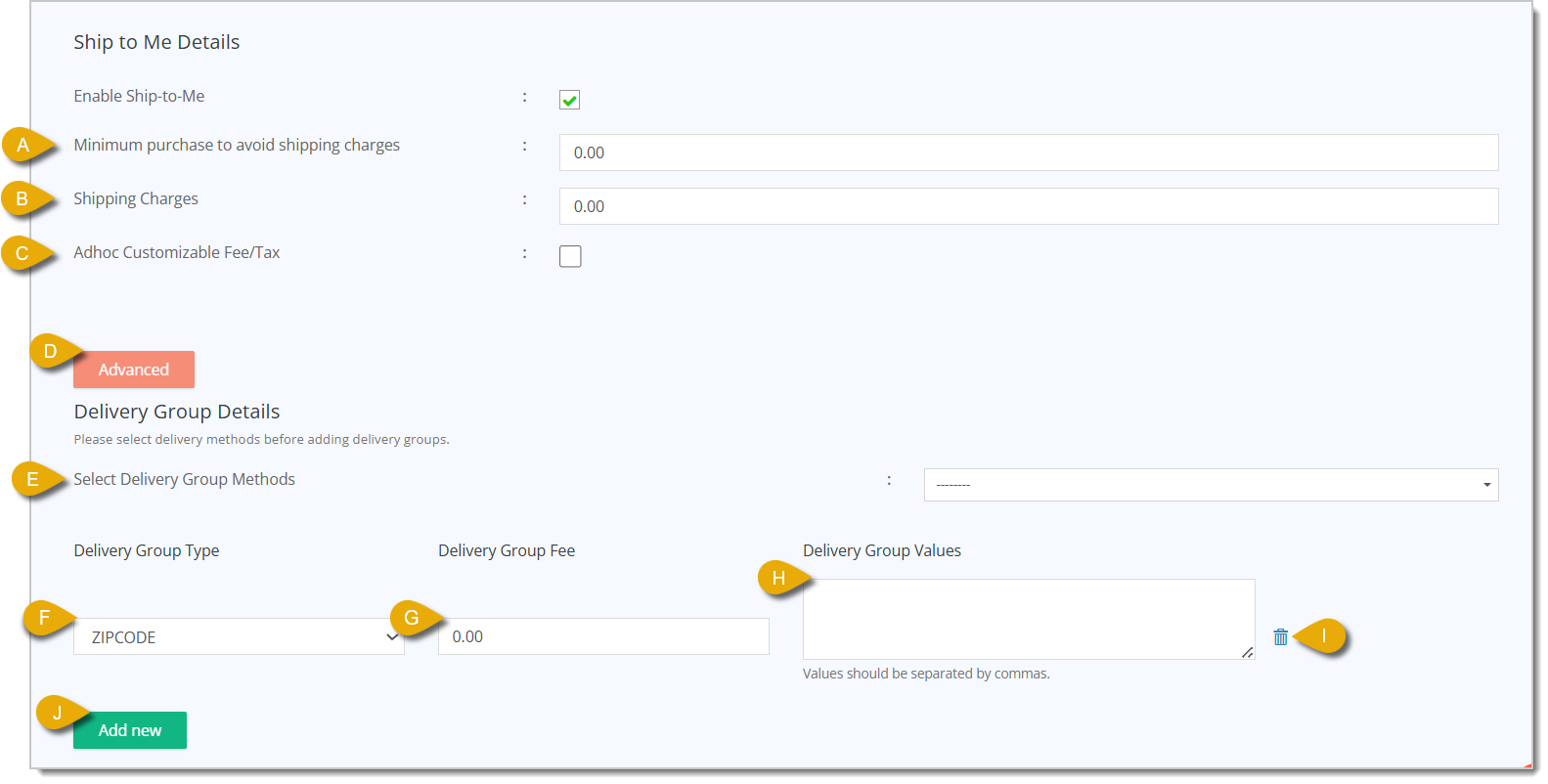
- Minimum Purchase to Avoid Shipping Charges — Enter the minimum amount the customer has to spend to get free shipping for their order.
- Shipping Charges — Enter the amount that the customer will be charged for shipping.
- Adhoc Customizable Fee/Tax — For shipping, you can add either a flat or percentage amount fee that you can apply to certain categories. You can use this for situations where you want to charge additional fees for certain products like frozen foods since those come with slightly more shipping risk and special handling.
- Advanced — Click on the Advanced button to open more advanced Ship to Me settings.
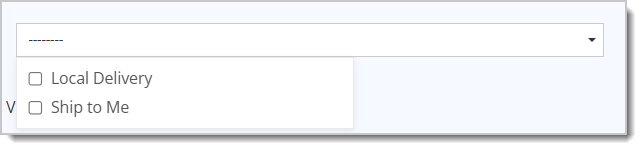
- Select Delivery Group Methods — Select which shipping options you want to enable. You can select Local Delivery and Ship to Me by checking their respective boxes.
- Delivery Group Type — You can select what types of shipments will be affected by the settings following this field. You can check boxes for Local Delivery, Ship to Me, or both to apply the settings.
- Delivery Group Fee — If a customer's delivery address is within the Delivery Group Values (described in H below), you can use this field to charge the customer an extra amount.
- Delivery Group Values — Enter the ZIP Codes that will be affected by the Delivery Group Fee. For example, if your store is located in one ZIP Code, you can set a specific delivery fee for your area. If you also want to deliver to another ZIP Code, you can add an additional $5 or $10 delivery group fee to cover certain costs, such as gas. You would put that other ZIP Code as one the Delivery Group Values, along with any others that they would like to come with the additional fee. Separate these ZIP Code values by commas (i.e. 87534, 87536, 87541, etc.).
- Delete — You can clear out Delivery Group Values you've already entered by clicking on the Trash Can icon to the right of the field.
- Add New — Click on this button to enter another set of Delivery Group Values so you can charge varying delivery fees for different ZIP Codes based on how close they are to the store.
How to Use the Ship to Me Tab
In the Ship to Me tab, you also can view orders and edit details so you can stay on top of them.
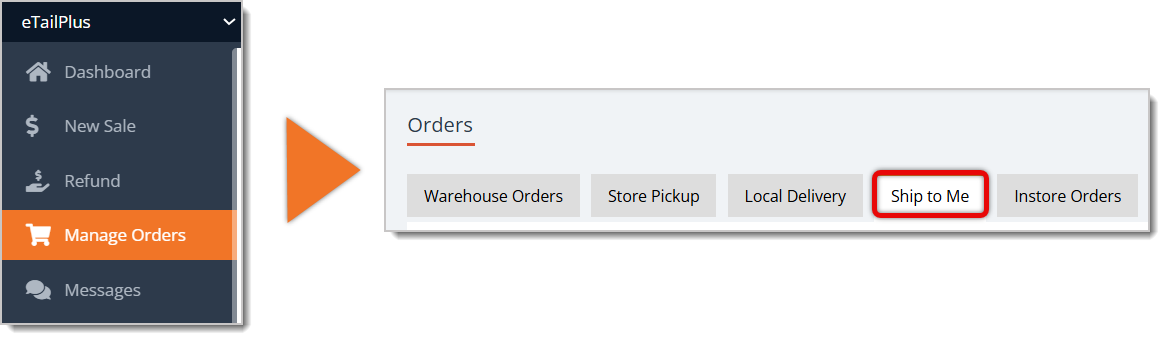
To access this tab, go to Manage Orders in the main menu, then click on the Ship to Me tab.
Here is everything you can use in this tab to find orders and work with their details:
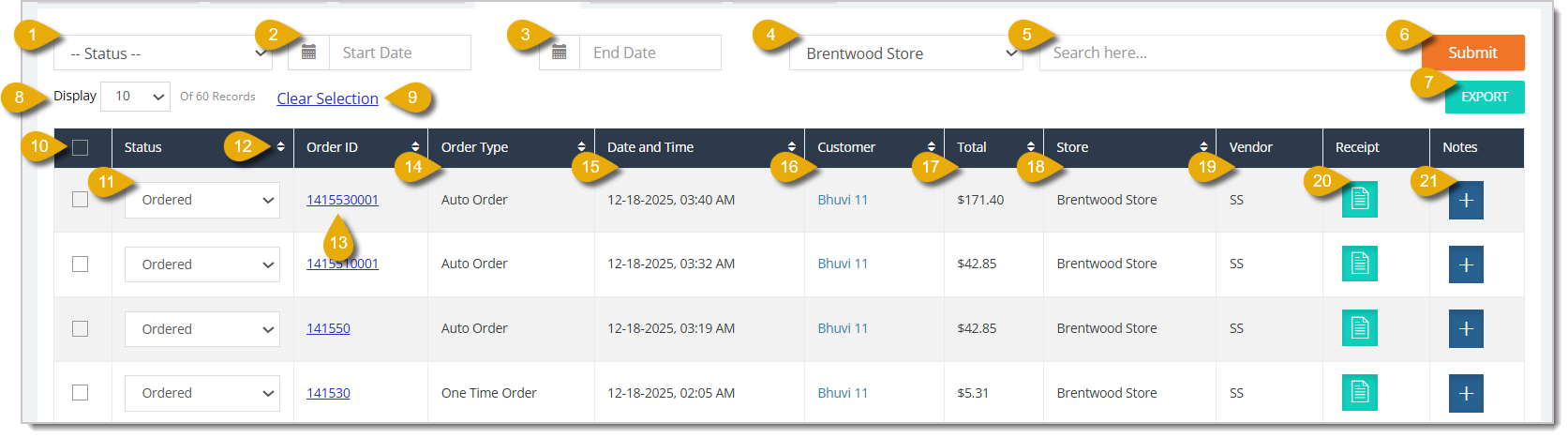
- Status Filter — You can select an order status from the drop-list here to filter the table below to orders with a certain status. The order statuses are Ordered, Separated, Shipped, Delivered, Canceled, Failed, and Deferred.
- Start Date — Enter a start date if you want to view orders within a certain time period.
- End Date — Enter an end date if you want to view orders within a certain time period.
- Store Filter — You can select one of your stores from the drop-list to filter the table below to orders made from a certain store.
- Search — You can enter an order ID, a customer's name, or a customer's email address here to find orders.
- Submit — Click on the Submit button to update the table to show orders that match your filters.
- Export — After you've selected one or more orders (see Select in number 10 below), you can click on the Export button to export the entries as a CSV or XLSX file.
- Display Number Per Page — You can select from the drop-list how many orders will display per page.
- Clear Selection — If you want to unselect all orders you've selected, you can clear on Clear Selection above the data table.
- Select (Checkbox) — You can click on the checkbox in the column header to select all entries displayed on the page. To select an individual order, click on the checkbox for a single entry.
- Edit Status — You can update the status of an order in the Status column. Select the Status from the drop-list. Your options are Ordered, Separated, Shipped, Delivered, Canceled, Failed, and Deferred.
- Sort by Column — You can sort your orders according to a column. Click once on the Arrows in a column header to sort by ascending order, or click again to reverse the sort.
- Order ID — You can view each order's Order ID under this column. You can also click on an Order ID to direct you to the order's full details.
- Order Type — Under this column, you can see if an order was a one-time delivery or an automatic order.
- Date and Time — Under this column, you can see what date and time the order was placed.
- Customer — This column shows the customer's email address, or their name if the customer already has their details registered with your store.
- Total — This column shows the total dollar amount the customer paid for the order.
- Store — This column shows the store at which the customer will pick up their order.
- Vendor — This column shows which shipping vendor will fulfill or fulfilled the order shipment.
- Receipt — You can click on the Receipt icon for any order to view and download the receipt.
- Notes — You can click on the Plus Button under this column to view, add, or edit notes about the order.
Related Topics
Store Pickup
Local Delivery
In-Store Orders
Frequently Asked Questions
Q: What's the difference between Ship to Me and Local Delivery?
A: Ship to Me covers nationwide shipping through your ShipStation integration. Local Delivery covers orders delivered within your local area. Check out our Local Delivery article (linked above) for that setup.
Q: How often do I need to rotate my ShipStation API keys?
A: ShipStation periodically asks you to rotate your keys for security. Generate a new key set to expire in 12 months, then update the API Key and API Secret fields in your eTailPet Configuration page. Keep your old keys until you confirm Ship to Me orders still work.
Q: Can I charge different shipping fees for different ZIP Codes?
A: Yes. Add the ZIP Codes to Delivery Group Values, then set your extra charge in Delivery Group Fee. This works well if you want to cover gas or distance costs for farther addresses.
Q: Can I offer free shipping to customers?
A: Yes. Set an amount in Minimum Purchase to Avoid Shipping Charges. Once a customer's order total hits that amount, they won't be charged for shipping.
Q: I have a question, but I can't find my answer here. How do I get more assistance?
A: You can ask any question at the number listed here. Contact our support team at (323) 370-0738 for the U.S. and (888) 370-2363 for Canada.







 May 07, 2026
Is this page helpful?
×Help us improve our articles