






Store Pickup
🛍️The Store Pickup area shows all of your online orders that customers requested for in-store picku
 May 22, 2026
For transactions you run through the eTailPet POS in New Sale, you can find them and work with them on the Manage Orders page, Instore Orders tab. This article will show you how to use all parts of your Instore Orders tab. Take a look at what you can do!

To work with all your POS orders, in the eTailPet Dashboard main menu on the left, click on Manage Orders. The Instore Orders tab will load by default.
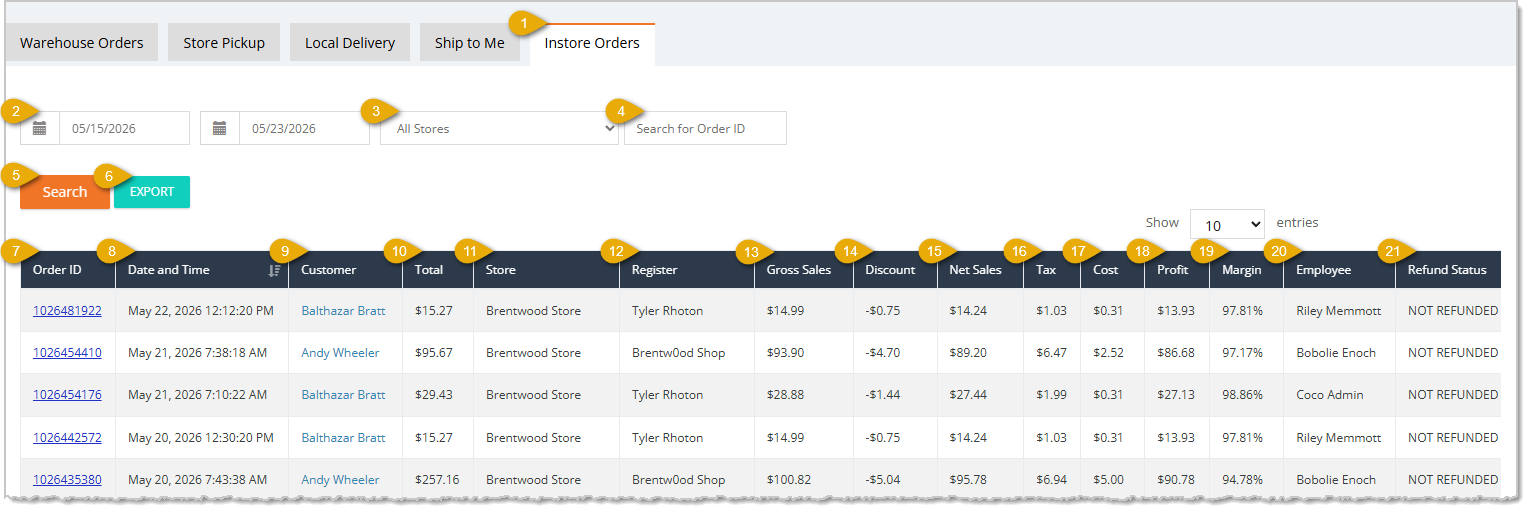
Please Note: In the data table for the Instore Orders tab, you can click on column headers to sort by that column, or click again to reverse-sort. In the image above you can see that the default column of Date and Time is the one that's sorted by default, with the newest transactions at the top. You can also use the Show Entries control in the upper right if you need to see more data line items on the page. At the bottom of the page (not pictured) are page navigation controls to move to the page you want.
Here are the functions of the Instore Orders tab of Manage Orders:
Q: How do I find a POS transaction?
A: In the main menu on the left, click Manage Orders. The Instore Orders tab loads by default. The date range is for the past week by default. To change it, enter the Start Date and adjust the End Date. You can also select one of your stores from the Store Filter drop-list to see only sales completed there. Click the Search button to load the results.
Q: Can I search for a specific order by Order ID?
A: Yes. In the Order ID Search, scan or manually enter all or part of the Order ID and the system will find matches. Click the Search button to load the results. You can click an Order ID to open the full details of the order, and you can come back to the Instore Orders tab when you're finished.
Q: How do I sort the list or see more orders on a page?
A: Click a column header to sort by that column, or click again to reverse-sort. The table is sorted by Date and Time by default, with the newest transactions at the top. Use the Show Entries control in the upper right to see more data line items on the page. Page navigation controls are at the bottom of the page.
Q: How do I export my orders?
A: Click the Export button. It exports the data in the table across all pages as a CSV file.
Q: How can I tell if an order has been refunded?
A: Check the Refund Status column. Transactions are either in the Not Refunded status or they are Refunded. To perform a Refund on a transaction, it must be in a Not Refunded status.
Q: How are Gross Sales, Net Sales, and Profit calculated for an order?
A: Gross Sales equals the Total minus the Cost. Net Sales equals the Total minus the Discounts. Profit equals the Total minus the Tax and Cost.
Q: I have a question, but I can't find my answer here. How do I get more assistance?
A: You can ask any question at the number listed here. Contact our support team at: (323) 370-0738 for the U.S., and (888) 370-2363 for Canada.
Is this page helpful?
×Help us improve our articles