🏠The Local Delivery tab in the Manage Orders area shows online orders that customers selected for local delivery (given the location fits within your local delivery configurations). For orders not in your parameters, you can read our article about the Ship to Me tab, linked in Related Topics. Keep reading to see how to use this page to find orders, update details, and stay on top of your deliveries!
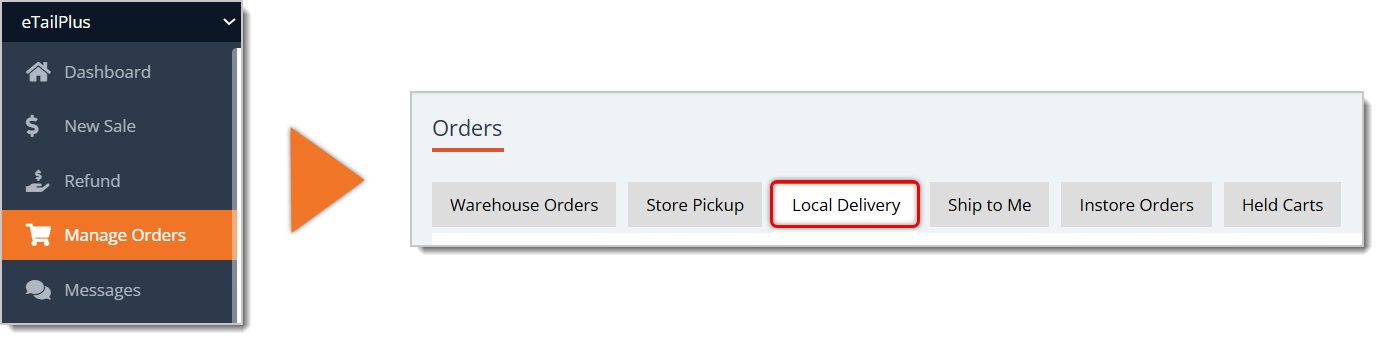
To access the Local Delivery page, go to Manage Orders from the main menu, then click on the Local Delivery tab.
How to Use the Local Delivery Tab
Here are all functions in the Local Delivery tab of Manage Orders:
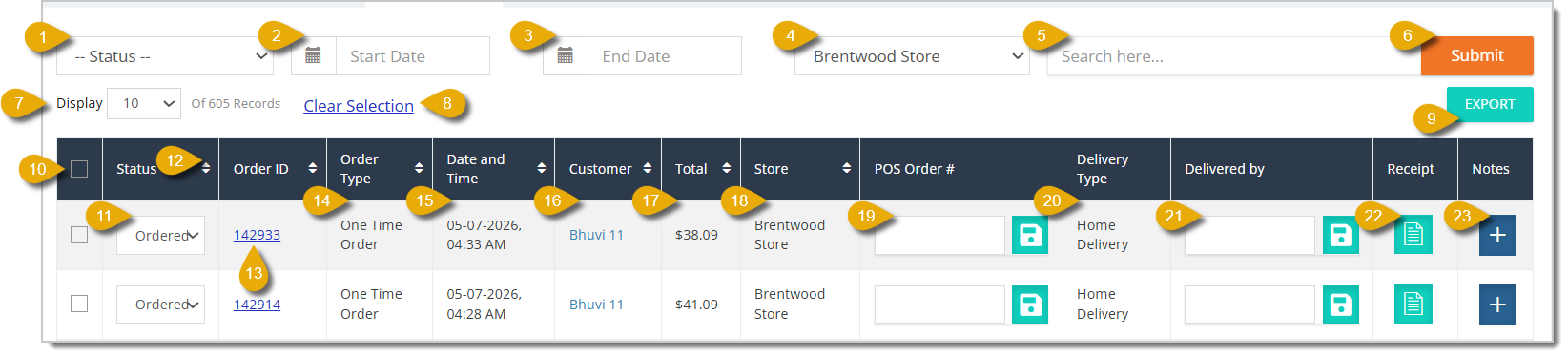
- Status Filter — You can select an order status from the drop-list here to filter the table below to orders with a certain status. The order statuses are Ordered, Separated, Shipped, Delivered, Canceled, Failed, and Deferred.
- Start Date — Enter a start date if you want to view orders within a certain time period.
- End Date — Enter an end date if you want to view orders within a certain time period.
- Store Filter — You can select one of your stores from the drop-list to filter the table below to local delivery orders made from a certain store.
- Search — You can enter an order ID, a customer's name, or a customer's email address here to find orders.
- Submit — Click on the Submit button to update the table to show orders that match your filters.
- Display Number Per Page — You can select from the drop-list how many orders will display per page.
- Clear Selection — If you want to unselect all orders you've selected, you can clear on Clear Selection above the data table.
- Export — After you've selected one or more orders (see Select in number 10 below), you can click on the Export button to export the entries as a CSV or XLSX file.
- Select (Checkbox) — You can click on the checkbox in the column header to select all entries displayed on the page. To select an individual order, click on the checkbox for a single entry.
- Edit Status — You can update the status of an order in the Status column. Select the Status from the drop-list. Your options are Ordered, Separated, Shipped, Delivered, Canceled, Failed, and Deferred.
- Sort by Column — You can sort your orders according to a column. Click once on the Arrows in a column header to sort by ascending order, or click twice to reverse the sort.
- Order ID — You can view each order's Order ID under this column. You can also click on an Order ID to direct you to the order's full details.
- Order Type — Under this column, you can see if an order was a one-time delivery or an automatic order.
- Date and Time — Under this column, you can see what date and time the order was placed.
- Customer — This column shows the customer's email address, or their name if the customer already has their details registered with your store.
- Total — This column shows the total dollar amount the customer paid for the order.
- Store — This column shows the store at which the customer will pick up their order.
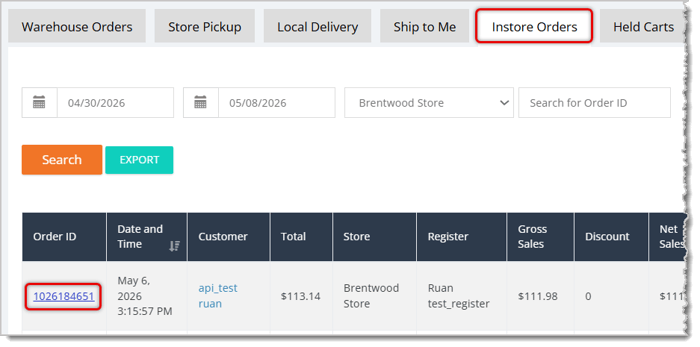
- POS Order Number — This column shows the POS Order Number of the order. The POS Order Number is primarily for orders that the customer chose to pay for in-store in advance. You can ring it up on the New Sale Screen. Afterwards, you can go to the In-Store Orders tab to get the Order ID (as highlighted in the image below). Then copy and paste that number under the POS Order Number column in the Store Pickup tab for your reference.
- Delivery Type — This column shows if the order was a Home Delivery or Pantry Delivery.
- Delivered by — You can enter the name of the employee who delivered the order. Click on the Save button to the right of this field to update it.
- Receipt — You can click on the Receipt icon for any order to view and download the receipt.
- Notes — You can click on the Plus Button under this column to view, add, or edit notes about the order.
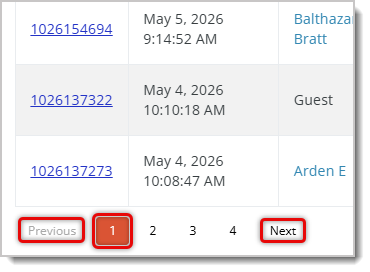
If your Local Delivery orders span multiple pages, you can use the navigation buttons below the table. Click on Next or Previous to move pages, or click on the Numbers to skip to that page.
Related Topics
Store Pickup
Ship To Me
In-Store Orders
Pay In Store Reports
Frequently Asked Questions
Q: A customer's order isn't showing up in the Local Delivery tab. Where is it?
A: Only orders whose delivery address falls within your local delivery configurations appear here. Orders outside those parameters show up in the Ship to Me tab instead.
Q: What are the order statuses I can choose from?
A: Ordered, Separated, Shipped, Delivered, Canceled, Failed, and Deferred. You can use these to filter the table with the Status Filter, or update an individual order by selecting a new status from the drop-list in the Status column.
Q: Can I track which employee made a delivery?
A: Yes. Enter the employee's name in the Delivered by field for that order, then click the Save button to the right of the field to update it.
Q: I have a question, but I can't find my answer here. How do I get more assistance?
A: You can ask any question at the number listed here. Contact our support team at (323) 370-0738 for the U.S. and (888) 370-2363 for Canada.







 May 07, 2026
Is this page helpful?
×Help us improve our articles