Your Pay In Store Reports give you two reports covering payments for online transactions and line items that customers order online then pay for in the store. This article shows you how to use the reports and how to track and audit your Pay In Store activity. See what each report offers!

You can get to your Pay In Store Reports by logging into the admin dashboard and clicking on Reports in the main menu. On the Reports page, scroll down to the Pay In Store section, as pictured below.
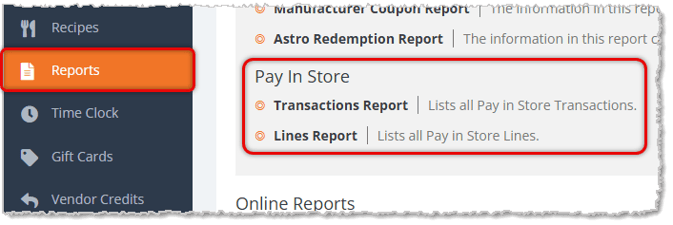
The Pay In Store area has the following reports:
The Pay In Store Transactions Report
The Pay In Store Transactions Report shows you every Pay In Store payment transaction within your selected date range.
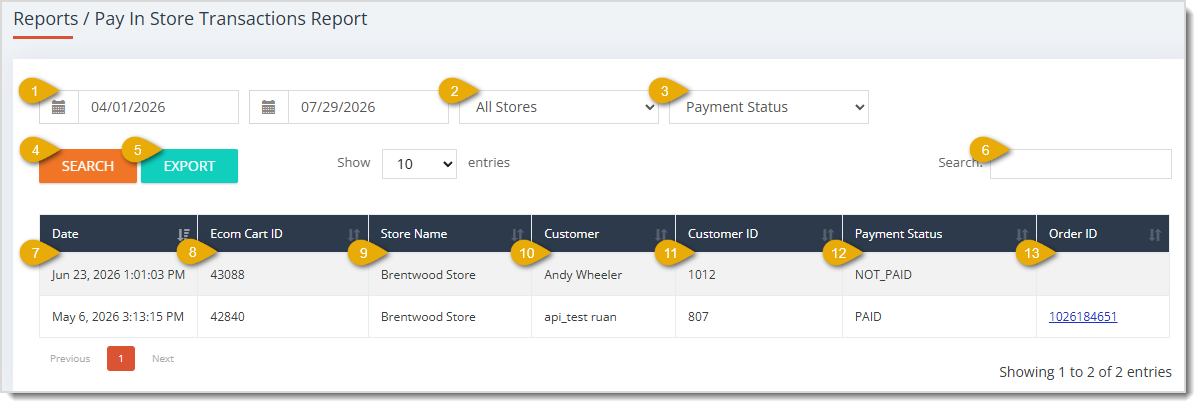
The Pay In Store Transactions Report has the following functions:
- Date Range — Enter or select the Start Date and End Date of the range you want to search. This area defaults to the current day.
- All Stores — This field defaults to All Stores. Select a Store from this drop-list to filter the table to only Pay In Store transactions you completed at that location.
- Payment Status — This field defaults to showing transactions of every status. Select Canceled, Not Paid, or Paid from this drop-list to filter the table to only transactions with that Status.
- Search — Click the Search button after selecting your Start Date, End Date, All Stores, and Payment Status choices to narrow down the table's records.
- Export — Click the Export button to download the report's data across all pages as a CSV file.
- Search Field — Enter search text to find what you want in the data table.
For every column described below, you can click once on the header to sort the data according to that column, or click twice to reverse the sort.
- Date — This column displays each transaction's Date and Time.
- Ecom Cart ID — This column lists each transaction's unique Ecom Cart ID.
- Store Name — This column shows each transaction's Store Name.
- Customer — This column identifies each transaction's Customer Name.
- Customer ID — This column lists each customer's unique Customer ID number.
- Payment Status — This column indicates whether each transaction is Canceled, Not Paid, or Paid.
- Order ID — This column displays a link to each transaction's order. You can click the Order ID number to open that order's Details page. This field stays blank for transactions that don't yet have a completed order, such as one with a Payment Status of Not Paid.
The Pay In Store Lines Report
The Pay In Store Lines Report shows you every line item from your Pay In Store transactions within your selected date range.
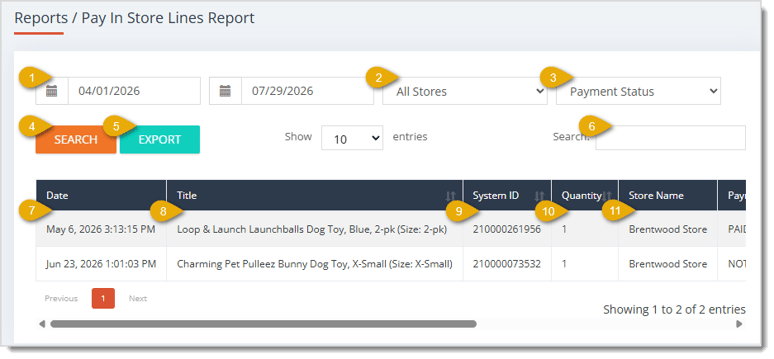
The Pay In Store Lines Report has the following functions:
- Date Range — Enter or select the Start Date and End Date of the range you want to search. This area defaults to the current day.
- All Stores — This field defaults to All Stores. Select a Store from this drop-list to filter the table to only line items you sold at that location.
- Payment Status — This field defaults to showing lines items of every Status. Select Canceled, Not Paid, or Paid from this drop-list to filter the table to only lines that has that status.
- Search — Click the Search button after selecting your filters to narrow down the table's results.
- Export — Click the Export button to download the report's data across all pages as a CSV spreadsheet file.
- Search Field — Enter search text to find what you want in the data table, then click on the Search button.
- Date — This column shows each line's transaction Date and Time.
- Title — This column displays each line's Product Name and the option you selected, such as size. You can click once on the header to sort the data according to this column, or click twice to reverse the sort.
- System ID — This column lists each line's unique System ID number. You can click once on the header to sort the data according to this column, or click twice to reverse the sort.
- Quantity — This column indicates the Quantity of units each line includes. You can click once on the header to sort the data according to this column, or click twice to reverse the sort.
- Store Name — This column displays each line's Store Name.
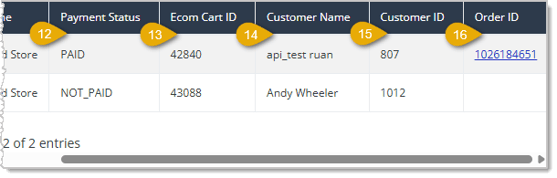
- Payment Status — This column shows whether each line's transaction is Canceled, Not Paid, or Paid.
- Ecom Cart ID — This column lists each line's unique Ecom Cart ID.
- Customer Name — This column displays each line's Customer Name.
- Customer ID — This column lists each customer's unique Customer ID Number.
- Order ID — This column has a link to each line's order. You can click the Order ID Number to open that order's Details page. This field is blank for lines that don't yet have a completed order.
Related Topics
Reports Overview
Payments Reports
Customer Reports
Register Reports
Frequently Asked Questions
Q: What's the difference between the Pay In Store Transactions Report and the Pay In Store Lines Report?
A: The Pay In Store Transactions Report shows one row per payment transaction, while the Pay In Store Lines Report breaks each transaction down into its individual product lines, so you can see exactly which items made up each sale.
Q: Why is the Order ID column sometimes blank on the Pay In Store Transactions Report?
A: The Order ID column stays blank until a completed order exists for that transaction. Transactions with a Payment Status of NOT_PAID typically don't have an Order ID yet.
Q: How do I see only completed payments on the Pay In Store Transactions Report?
A: Select PAID from the Payment Status drop-list, then click Search to filter the table to only transactions that have been paid.
Q: Can I see how many units of an item I sold in-store using the Pay In Store Lines Report?
A: Yes. The Quantity column on the Pay In Store Lines Report shows how many units of each product that line includes.
Q: Can I limit either Pay In Store report to a single location?
A: Yes. Both the Pay In Store Transactions Report and the Pay In Store Lines Report include an All Stores drop-list you can use to select one specific store instead of viewing every location's data at once.
Q: I have a question, but I can't find my answer here. How do I get more assistance?
A: You can ask any question at the number listed here. Contact our support team at (323) 370-0738 for the U.S. and (888) 370-2363 for Canada.







 Jul 28, 2026
Is this page helpful?
×Help us improve our articles