The Stores tab of the Settings page in the eTailPet system allows you to view all of the store locations tied to your account, see which locations are active and inactive, and create new store locations. From here you can also open a store to edit its address, delivery methods, payment settings, tax rates, and many other location-specific settings. See what's waiting for you here!
Working With Your Stores
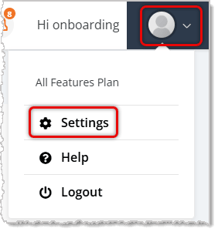
To get to this page, click on the User icon in the upper right, then click on Settings.
On the Settings page, click on the Stores tab. The Stores page lists your Active Stores and Inactive Stores as separate groups of cards.
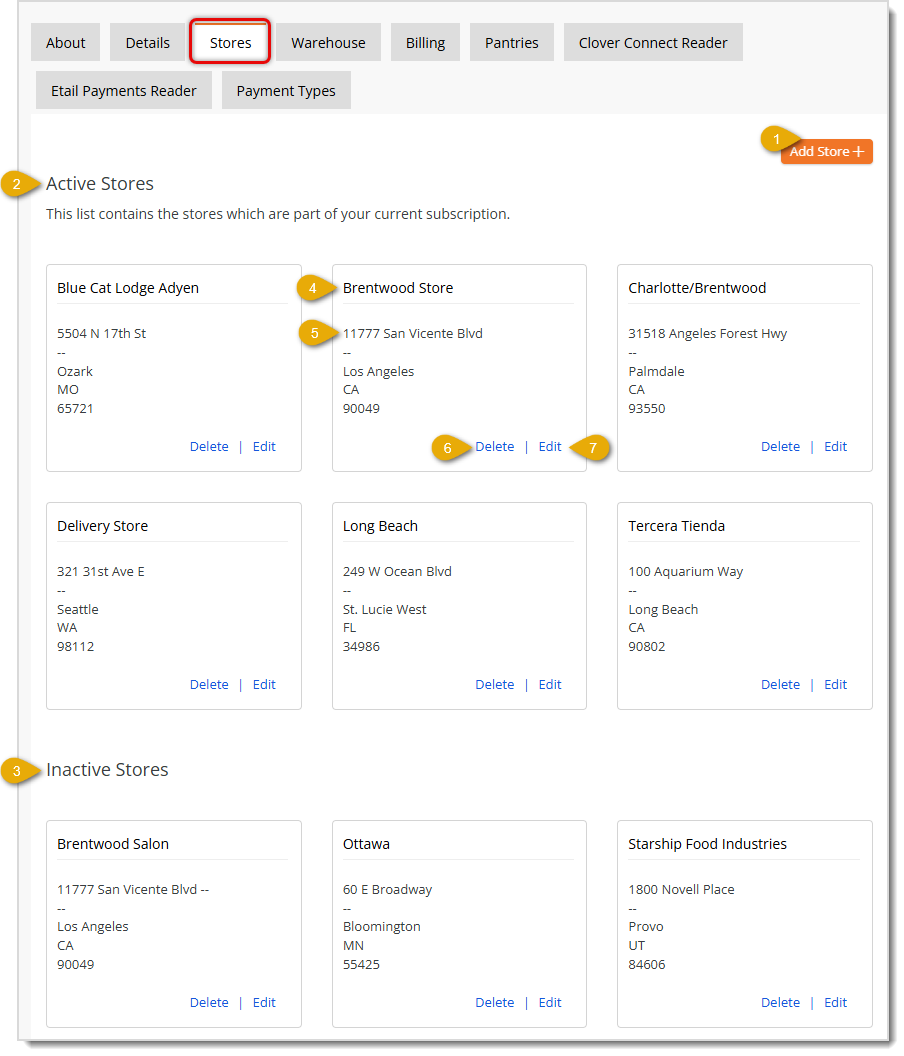
Here is how to work with your Stores:
- Add Store + — Click the Add Store button to create a new store location. See the section below on Create a Store for details.
- Active Stores — This section lists the Store locations that are part of your current subscription.
- Inactive Stores — This section lists the Store locations that are not currently part of your active subscription.
- Store Name — Each store card displays the Name of that store location.
- Address — Each store card displays the store's Street Address, City, State, and ZIP Code.
- Delete — Click the Delete link to permanently remove the store location. A confirmation window will open asking "Are you sure you want to delete this store?" Click Yes to confirm the deletion, or click No to close the window without deleting the store.
- Edit — Click the Edit link to open the store's details page, where you can review and update its settings. Each of the details are explained in the section below, Create a Store.
Create a Store
The settings below are identical when you Edit a store location that's already saved. Here is how to create a new Store location:
Store Information
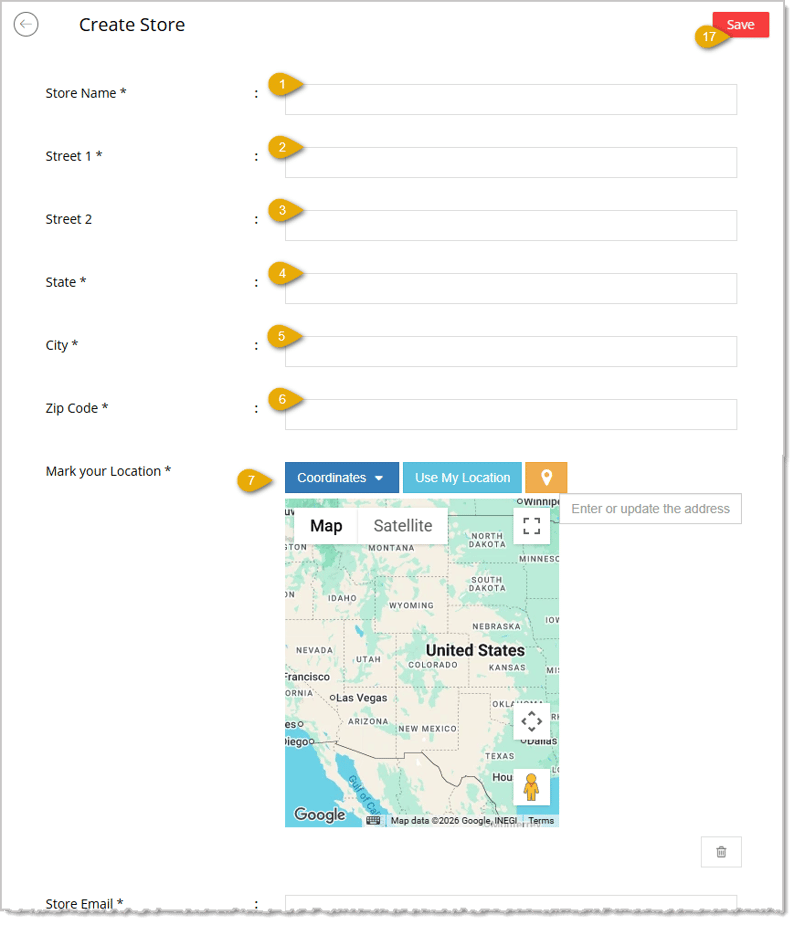
- Store Name — Enter the Name you want to use to identify this store.
- Street 1 — Enter the store's primary Street Address.
- Street 2 — Enter a second line of address information, such as a suite or unit number, if needed.
- State — Enter the State where the store is located.
- City — Enter the City where the store is located.
- Zip Code — Enter the store's Zip Code.
- Mark your Location — Enter or update the address in the search box, click Use My Location to use your current location, or click directly on the map to place the pin marking the store's exact location. Click the Coordinates button if you want to switch to entering an exact latitude and longitude instead. Click the trash icon to clear the pin from the map.
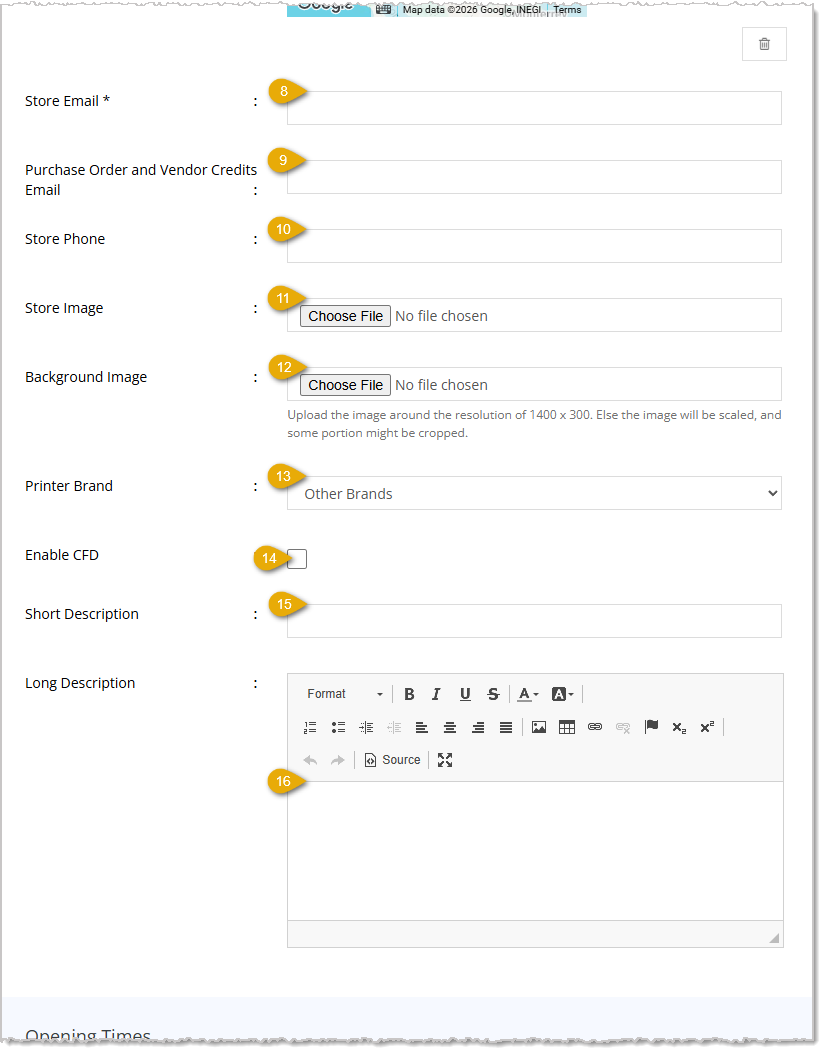
- Store Email — Enter the Email Address customers and the system use to contact this store.
- Purchase Order and Vendor Credits Email — Enter the Email Address that receives purchase order and vendor credit notifications for this store.
- Store Phone — Enter the store's Phone Number.
- Store Image — Click Choose File to upload an image representing this store.
- Background Image — Click Choose File to upload a background image for this store. Upload an image close to 1400 x 300 pixels, or the image will be scaled and some portions may be cropped.
- Printer Brand — Select Other Brands or Zebra from the drop-list to set the receipt printer brand used at this store.
- Enable CFD — Check this box to enable a Customer Facing Display at this store's point of sale.
- Short Description — Enter a brief Description of the store.
- Long Description — Enter a detailed Description of the store using the text editor toolbar to format the text as needed.
- Save — When you are finished adding details to your new store, you can either click this Save button in the upper right, or the one in the bottom right.
Opening Times
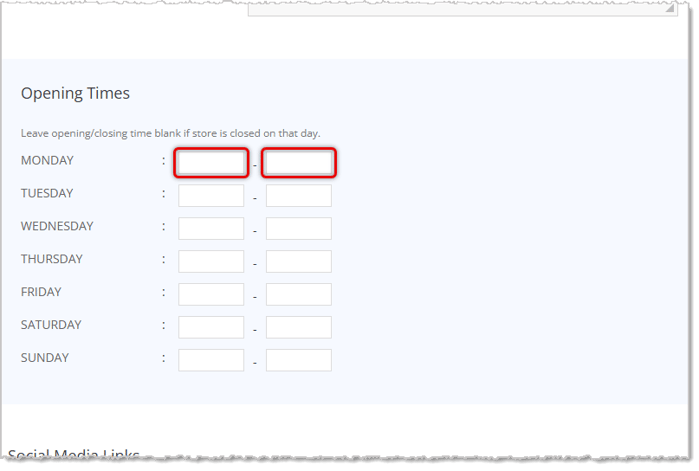
- Monday through Sunday — Enter the Opening and Closing time for each day of the week. Leave both fields blank for a day if the store is closed that day.
Social Media & Info Links
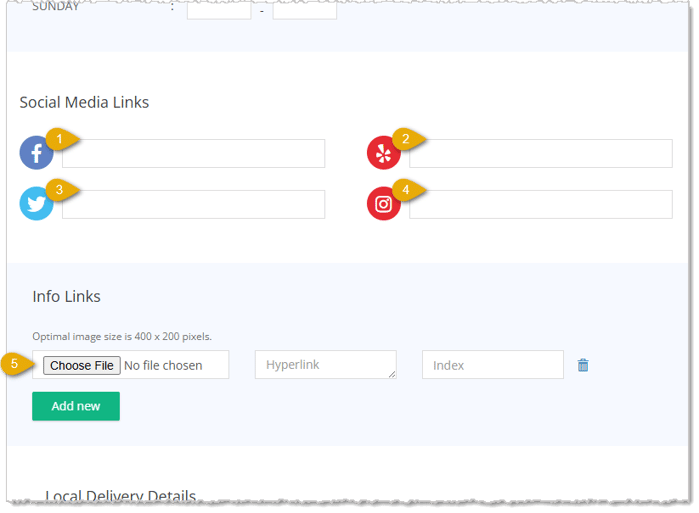
- Facebook — Enter the URL of the store's Facebook page.
- Yelp — Enter the URL of the store's Yelp page.
- Twitter — Enter the URL of the store's Twitter (X) page.
- Instagram — Enter the URL of the store's Instagram page.
- Info Links — Click Choose File to upload an icon image (optimal size 400 x 200 pixels), enter the Hyperlink the icon should link to, and enter an Index number to set its display order. Click Add new to add another info link, or click the trash icon next to a link to remove it.
Local Delivery Details
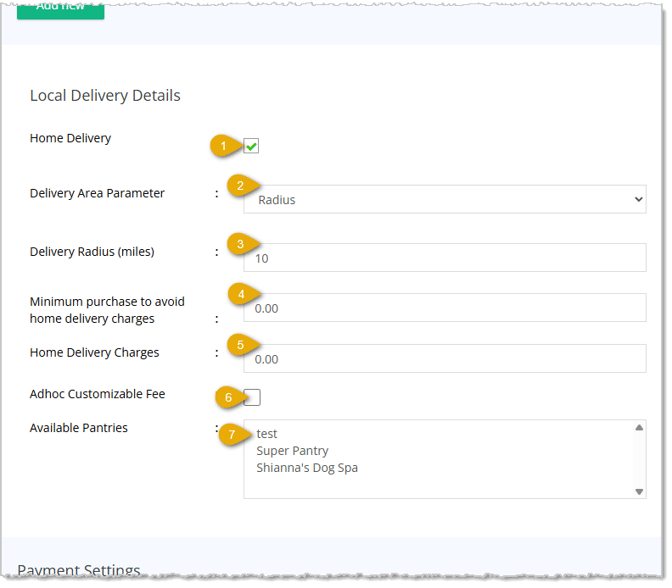
- Home Delivery — Check this box to let this store offer local/home delivery as a fulfillment method.
- Delivery Area Parameter — Select Radius, Polygon, or ZipCode from the drop-list to set how you want to define this store's local delivery area.
- Delivery Radius (miles) — Enter the number of miles from the store that qualify for local delivery, when Radius is selected above.
- Minimum purchase to avoid home delivery charges — Enter the cart subtotal a customer must reach to avoid being charged for home delivery.
- Home Delivery Charges — Enter the dollar amount charged for home delivery orders that do not meet the minimum purchase above.
- Adhoc Customizable Fee — Check this box to allow the home delivery fee to be manually customized on individual orders.
- Available Pantries — Select which Pantries are available for this store from the list.
Payment Settings
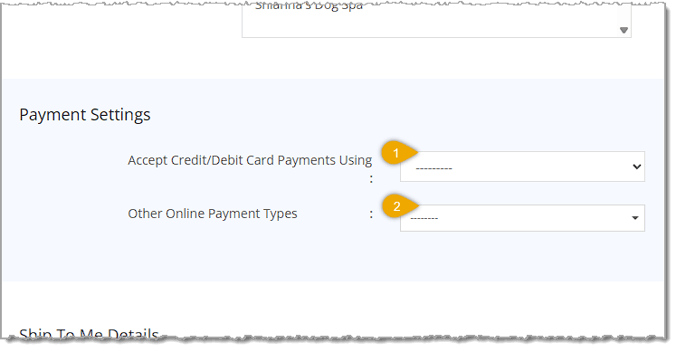
- Accept Credit/Debit Card Payments Using — Select Clover Connect, eTailPet Payments, or eTailPet Payments (Adyen) from the drop-list to set the payment processor this store uses for card payments.
- Other Online Payment Types — Select which additional payment types, such as Gift Cards, Reward Credits, Store Credits, or Customer Deposit Account, customers can use for online orders at this store.
Ship To Me Details
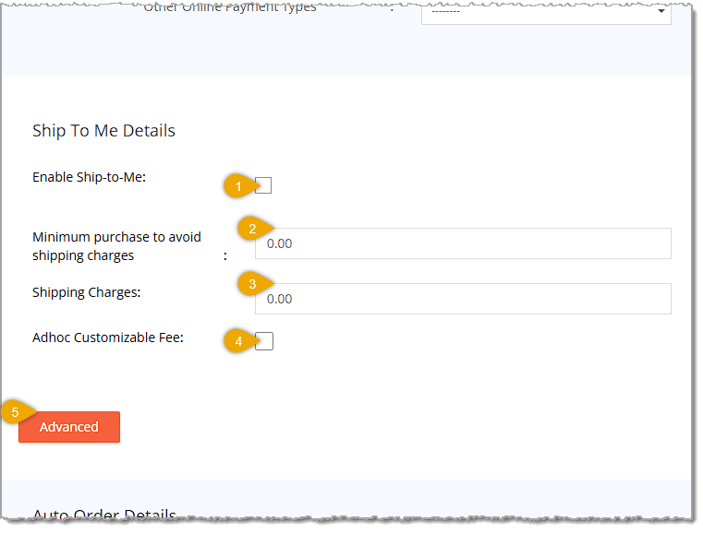
- Enable Ship-to-Me — Check this box to let this store offer shipping as a fulfillment method.
- Minimum Purchase to Avoid Shipping Charges — Enter the cart subtotal a customer must reach to avoid being charged for shipping.
- Shipping Charges — Enter the dollar amount charged for shipped orders that do not meet the minimum purchase above.
- Adhoc Customizable Fee — Check this box to allow the shipping fee to be manually customized on individual orders. When you enable this function, you'll see the following options open for you:
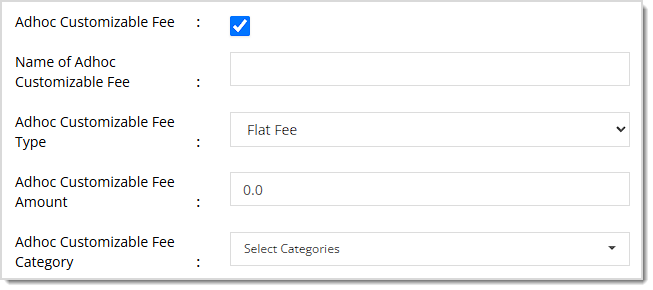
- Name of Adhoc Customizable Fee — Enter the Name you want to use for your fee.
- Adhoc Customizable Fee Type — By default, this will be a Flat Fee (this will use the Amount option in the setting detailed below), but you can change it to Percent Fee (this will use the Percent option in the setting detailed below)
- Adhoc Customizable Fee Amount or Percent — Enter the Percentage of the transaction you want to use for your fee. You do not need to enter a percent sign.
- Adhoc Customizable Fee Category — If you want the Ad Hoc Fee to apply only to certain Categories, you can select them from this drop-list.
- Advanced — Click the Advanced button to reveal additional settings for this store for Delivery Group Details, outlined below.
Delivery Group Details
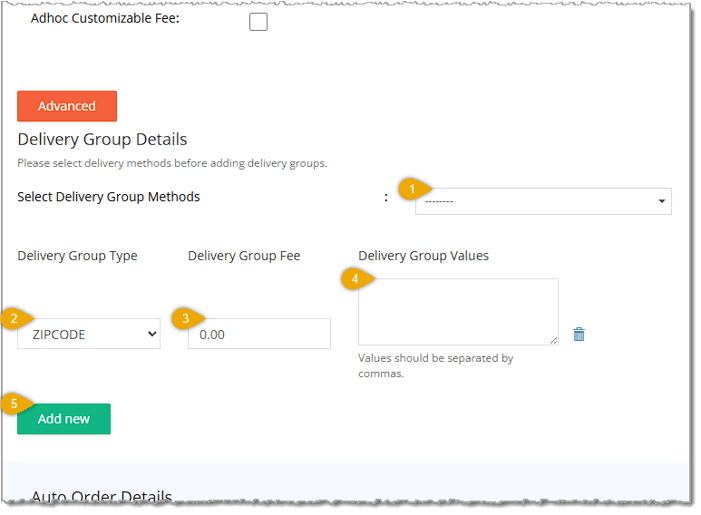
- Select Delivery Group Methods — Choose which fulfillment method (Local Delivery, Ship to Me, or both) to which this delivery group's fee rules will apply.
- Delivery Group Type — Choose how this group is defined, such as by Zip Code, so the correct fee applies to matching orders.
- Delivery Group Fee — Enter the dollar amount to charge orders that fall into this delivery group.
- Delivery Group Values — Enter the values (such as zip codes) that define this group, separated by commas.
- Add New — Click this button to create an additional delivery group with its own type, fee, and values.
Auto Order Details
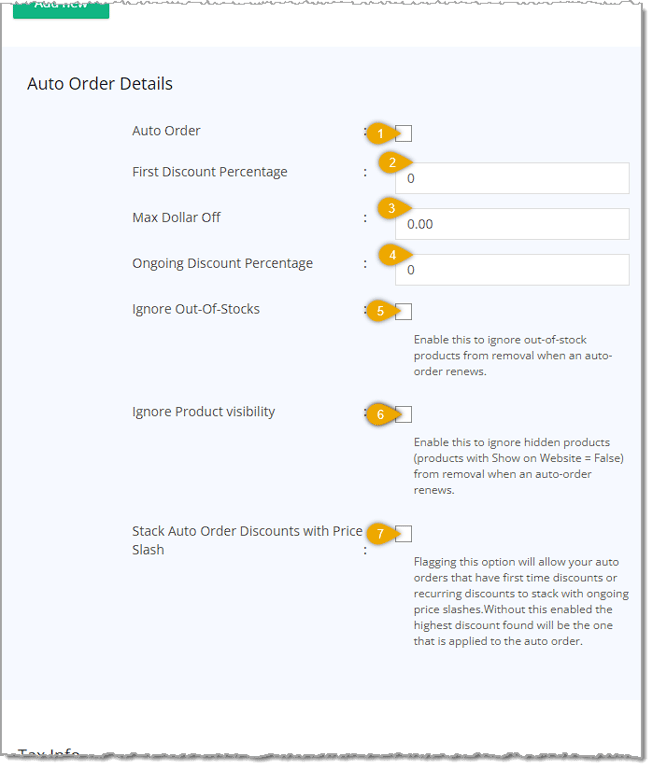
- Auto Order — Check this box to allow customers to set up recurring, automatic orders at this store.
- First Discount Percentage — Enter the discount percentage applied to a customer's first auto order.
- Max Dollar Off — Enter the maximum dollar amount that can be discounted on an auto order.
- Ongoing Discount Percentage — Enter the discount percentage applied to recurring auto orders after the first order.
- Ignore Out-Of-Stocks — Check this box to keep out-of-stock products on a recurring auto order instead of removing them when the order renews.
- Ignore Product Visibility — Check this box to keep hidden products (products with Show on Website set to False) on a recurring auto order instead of removing them when it renews.
- Stack Auto Order Discounts with Price Slash — Check this box to allow first-time or ongoing auto order discounts to stack with active price slashes. If left unchecked, only the highest available discount is applied.
Tax Info
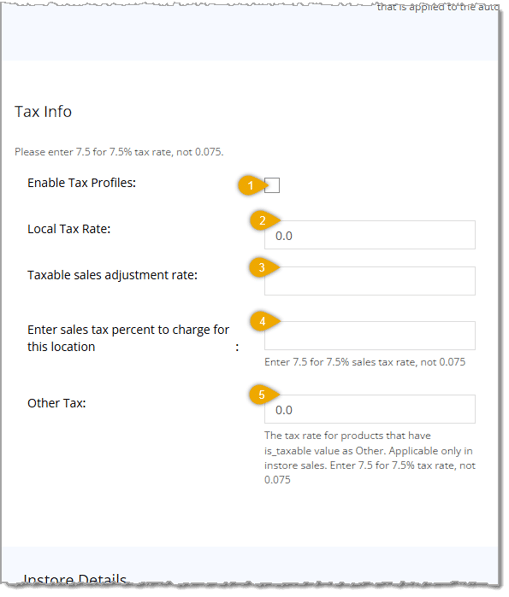
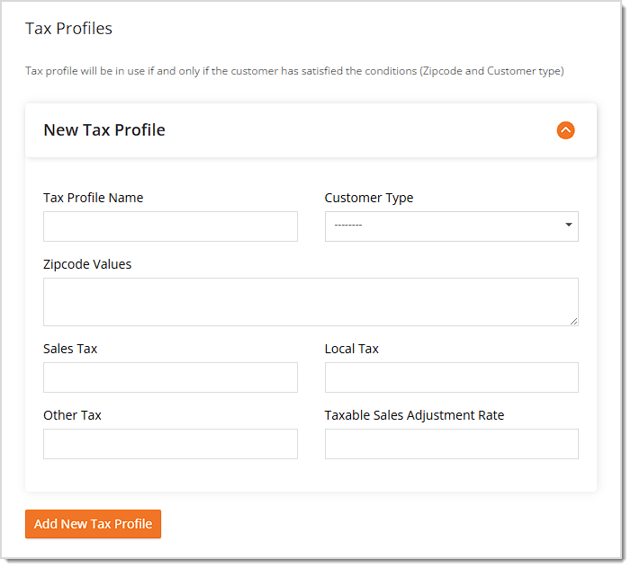
- Enable Tax Profiles — Check this box to use tax profiles for calculating tax at this store rather than the flat rates below. If you turn on this function, a section will open where you can define your Tax Profile with the following fields: Tax Profile Name, Customer Type, ZIP Code Values (comma separated list of ZIP Codes to which the Profile will apply), Sales Tax percentage, Local Tax percentage, Other Tax percentage, and Taxable Sales Adjustment Rate. Click the Add New Tax Profile button to save the Tax Profile to the store.
- Local Tax Rate — Enter the local sales tax rate for this store. For example, enter 7.5 for a 7.5% rate, not 0.075.
- Taxable Sales Adjustment Rate — Enter an adjustment rate applied to taxable sales calculations for this store.
- Enter Sales Tax Percent to Charge for This Location — Enter the sales tax percentage to charge for this store. For example, enter 7.5 for a 7.5% rate, not 0.075.
- Other Tax — Enter the tax rate for products set to use an 'Other' Tax Rate. This rate only applies to in-store sales. For example, enter 7.5 for a 7.5% rate, not 0.075.
Instore Details, Third Party Integrations, and Astro Loyalty Details
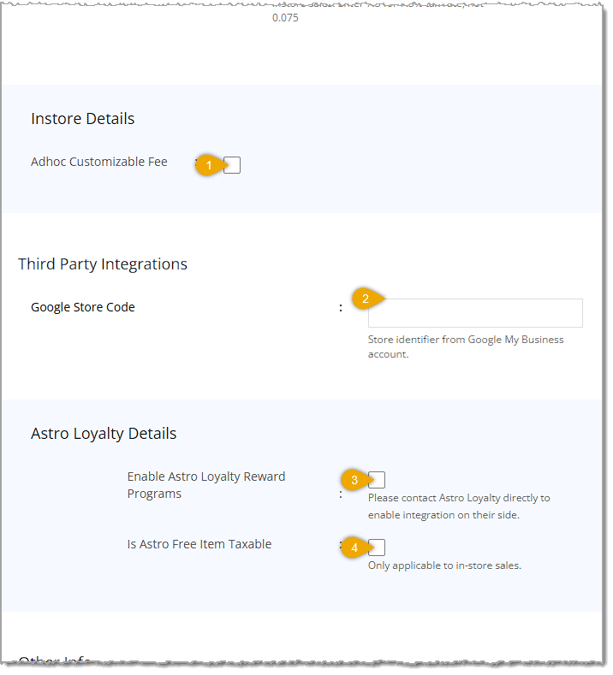
- Adhoc Customizable Fee — Check this box to allow in-store fees to be manually customized on individual orders. When you enable this function, you'll see the following options open for you:
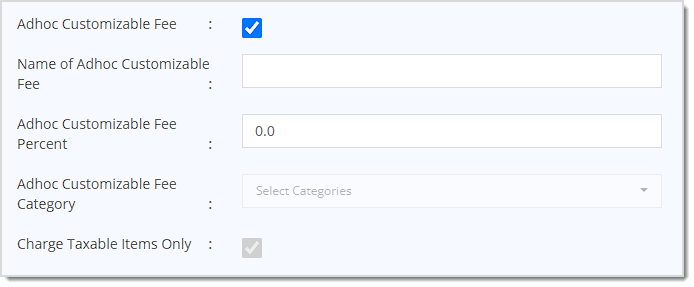
- Name of Adhoc Customizable Fee — Enter the Name you want to use for your fee.
- Adhoc Customizable Fee Percent — Enter the Percentage of the transaction you want to use for your fee. You do not need to enter a percent sign.
- Adhoc Customizable Fee Category — If you want the Ad Hoc Fee to apply only to certain Categories, you can select them from this drop-list.
- Charge Table Items Only — If you have selected one or more Categories to which the fee will apply, by default, it will apply to Taxable Items only. You can un-check this box if you wish for the fee to also apply to non-taxable items.
Third-Party Integrations
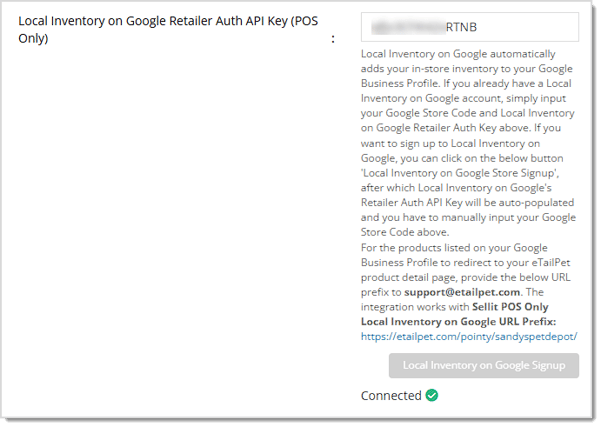
- Google Store Code — Enter the store identifier from this location's Google My Business account to link the two. Once you have saved this code, you'll be able to configure your Local Inventory on Google Retailer Auth API Key, which is for POS only, to list your inventory with Google. Follow the on-page instructions to set up the integration. Once you have it configured, you will see a Connected indicator, and the URL prefix for your items, as listed by Google.
Astro Loyalty Details
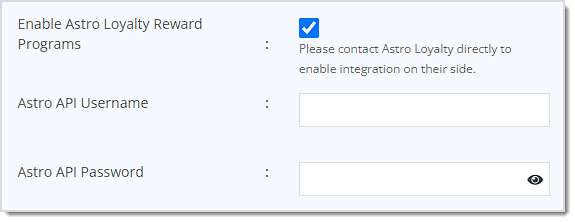
- Enable Astro Loyalty Reward Programs — Check this box to turn on Astro Loyalty rewards for this store. You must also contact Astro Loyalty directly to enable the integration on their side. Once this is checked, you'll see options to add your Astro API Username and Astro API Password. You will receive these credential from Astro after you contact them.
- Is Astro Free Item Taxable — Check this box to charge tax on free items awarded through Astro Loyalty. This setting only applies to in-store sales.
Other Info
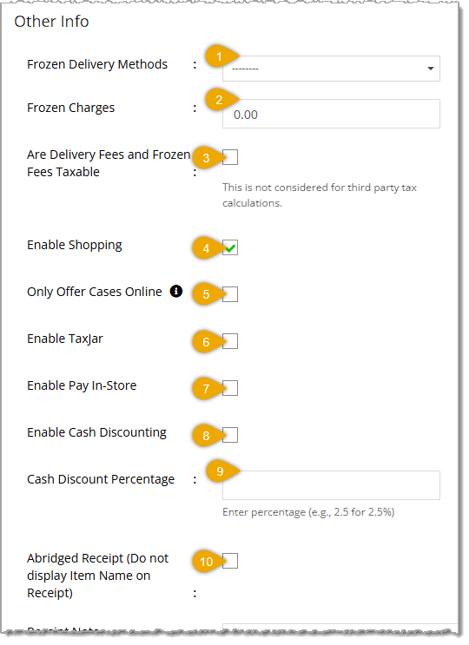
- Frozen Delivery Methods — Select which fulfillment method(s), Local Delivery and/or Ship to Me, frozen product charges apply to.
- Frozen Charges — Enter the additional dollar amount charged on orders containing frozen products.
- Are Delivery Fees and Frozen Fees Taxable — Check this box to charge tax on delivery and frozen fees. Note this is not considered for third-party tax calculations.
- Enable Shopping — Check this box to allow customers to shop online at this store.
- Only Offer Cases Online — Check this box to only offer case options for products that have them on your e-commerce site; products without a case option will still display as an each option.
- Enable TaxJar — Check this box to calculate taxes for this store using TaxJar.
- Enable Pay In-Store — Check this box to allow customers to choose to pay in-store when checking out online.
- Enable Cash Discounting — Check this box to offer a discount to customers who pay with cash.
- Cash Discount Percentage — Enter the percentage discount offered for cash payments. For example, enter 2.5 for a 2.5% discount.
- Abridged Receipt (Do not display Item Name on Receipt) — Check this box to hide item names on printed receipts.
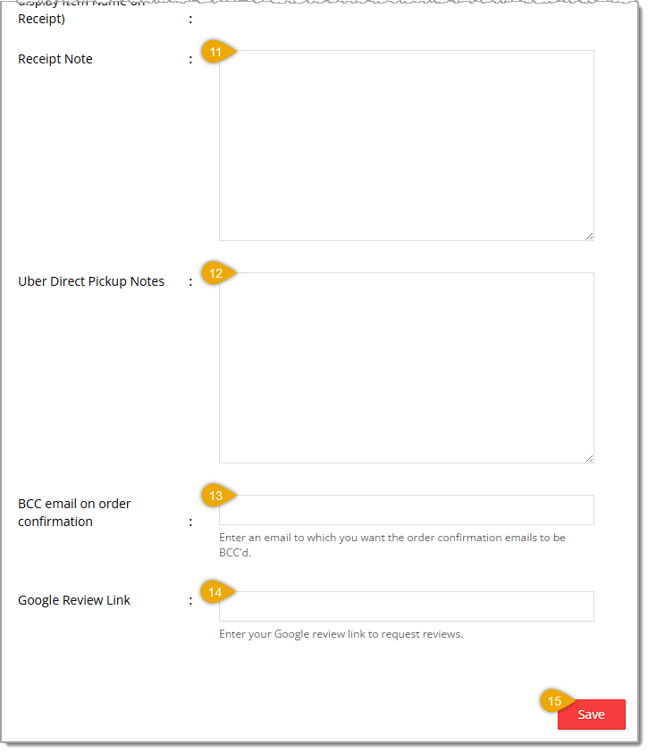
- Receipt Note — Enter a custom note to print on customer receipts.
- Uber Direct Pickup Notes — Enter pickup instructions or notes for Uber Direct drivers picking up orders from this store.
- BCC Email on Order Confirmation — Enter an email address that should be BCC'd (Blind Carbon Copy) on order confirmation emails.
- Google Review Link — Enter your store's Google review link to use when requesting customer reviews.
- Save — When you are finished adding details to your new store, you can either click this Save button in the lower right, or the one in the upper right of this page.
After you click the Save button, your new Store will appear in the Active Stores list on your Stores page.
 Boss Quote
Make sure your human understands they don't have to do all of the Store Settings in one between-naps session. They can come back here as many times as needed and add whatever details the store needs. Also make sure your human understands the reset-value of a good nap, they don't rest nearly enough. Even a kitten knows that! Now leave me alone. I'm off to try and bait the dog into trying to run through my little door-flap again.
Related Topics
Settings: Details Tab
Settings: Warehouse Tab
Settings: Pantries Tab
Local Inventory on Google Integration
Google My Business
Content Configuration
Frequently Asked Questions
Q: What is the difference between the Active Stores and Inactive Stores lists?
A: The Active Stores list shows the store locations included in your current subscription. The Inactive Stores list shows locations that are not currently part of your active subscription.
Q: How do I permanently remove a store location?
A: Click the Delete link on the store's card, then click Yes in the confirmation window to permanently remove it.
Q: How do I cancel a store's active auto orders?
A: Click Edit on the store's card to open its details page, then click the Cancel Auto Orders button at the top of the page.
Q: Can I define a store's delivery area using something other than a mile radius?
A: Yes. Select Polygon or ZipCode from the Delivery Area Parameter drop-list instead of Radius when creating or editing a store.
Q: Where do I set which payment processor a store uses?
A: Select the processor from the Accept Credit/Debit Card Payments Using drop-list in the Payment Settings section of the store's details.
Q: I have a question, but I can't find my answer here. How do I get more assistance?
A: You can ask any question at the number listed here. Contact our support team at (323) 370-0738 for the U.S. and (888) 370-2363 for Canada.







 Aug 06, 2026
Is this page helpful?
×Help us improve our articles