The Configuration page of the Content area of the eTailPet system allows you to set up resources and settings for your storefront website. You can also configure third-party integrations such as MailChimp and Uber. This article shows you how to configure the settings on this page. See what's in there for you!

Content Configuration
The upper area of the Configuration page of Content has Storefront Website Settings. The lower area allows you to configure Third-Party Integration Configurations, and at the bottom of the page is API Auth Configuration info, mainly used by our Support and Onboarding teams. To get to this area, in the main system menu on the left, click on Content, then on the Content page, click on Configuration, as pictured below.
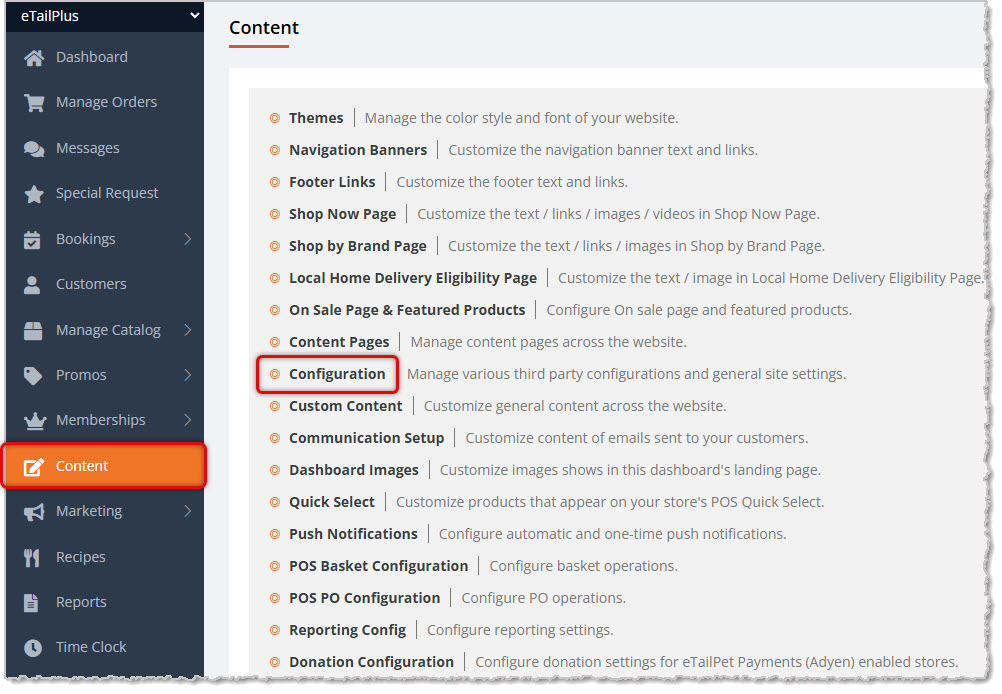
Here is how to set up the different areas of your Configuration page:
Storefront Website Configuration
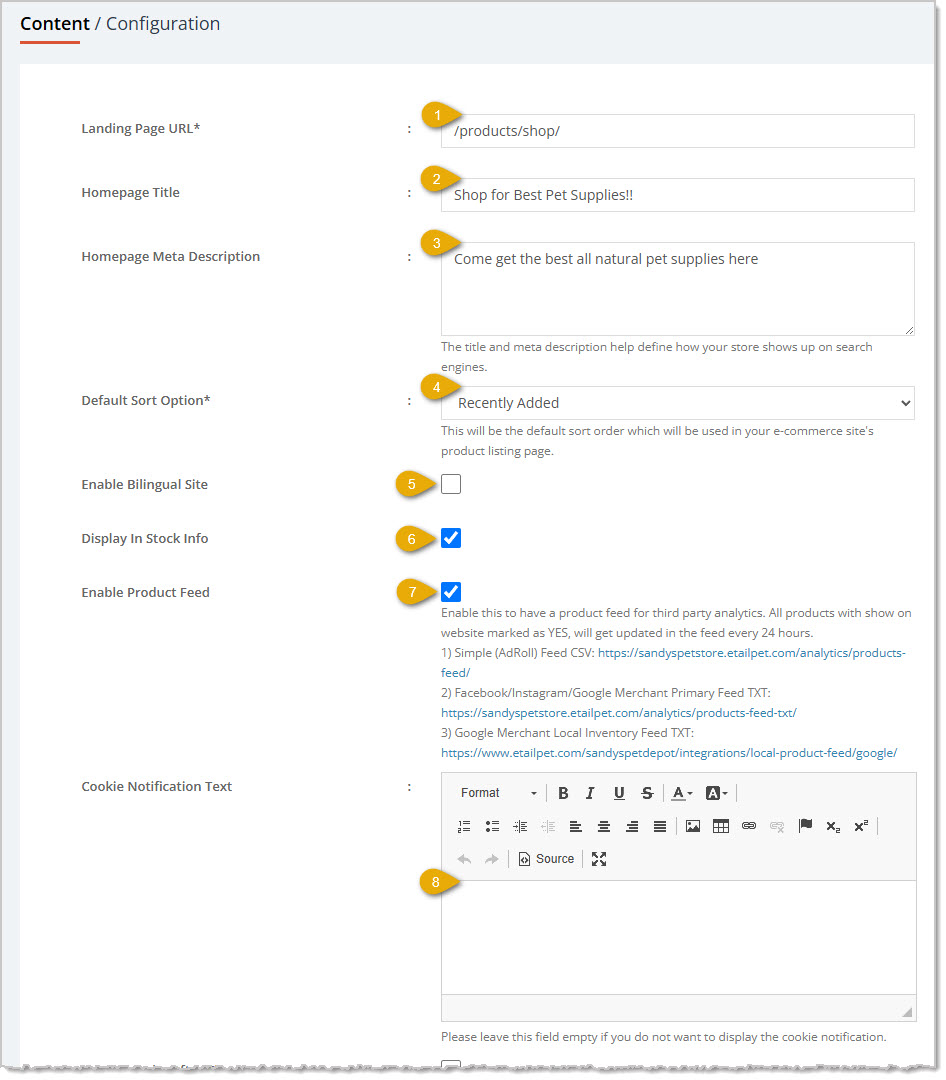
- Landing Page URL* — This will be everything after your .com in the domain URL for your website, starting with the forward-slash (/) and going to the end of the URL line. By default, this will be /products/shop/ so your visitors can begin shopping when first landing on the storefront, but you can change this to be another page you have created. For example, if you made a Home page and wanted visitors to land there, you would enter /home/ here.
- Homepage Title — The Title you enter here will be what the system supplies to search engines for searches that result in your storefront website landing page. It should read like a marketing headline about your store. While this is not required we strongly encourage you to include this since it will help your website SEO if it is in place.
- Homepage Meta Description — Having a description in here is also very good for your SEO. This will be the two or three lines of text that appear below the Homepage Title in search results. If the headline says what your store is about, this description should say why someone would be interested in shopping in your store. Why are you the best choice? This should either be two short sentences or one regular length sentence.
- Default Sort Option* — By default, items in your store will display with the most Recently Added at the top. If you prefer, you can click this drop-list to change the item sorting to Price: High to Low, Price: Low to High, Name: A to Z, or Name: Z to A. Your visitors will be able to manually change the format to whatever they need; this setting just determines the initial sorting method.
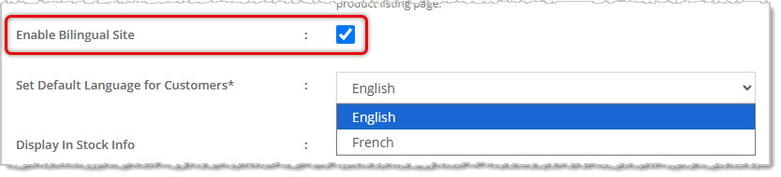
- Enable Bilingual Site — Check this box if you have a Canadian store that requires both English and French versions of your content. When you enable this function, you will have the option of choosing the default language, as pictured below.
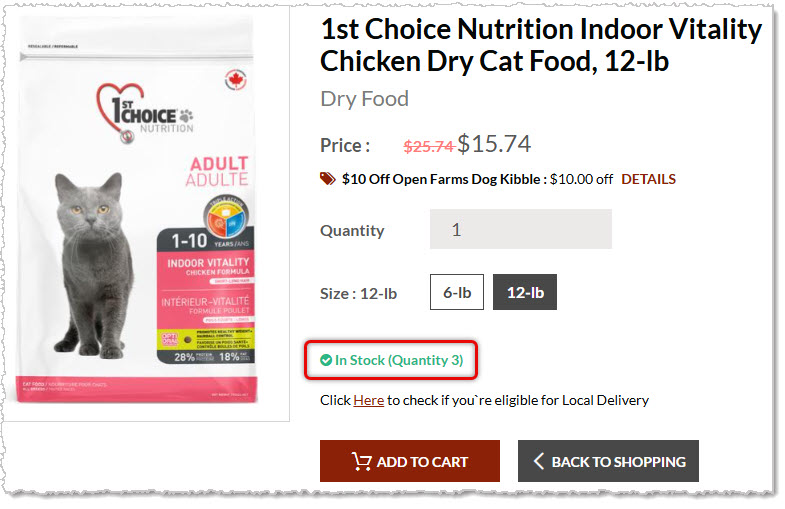
- Display In Stock Info — If you want to show the Quantity in stock for items at the location a visitor is shopping, check this box. It will display as pictured in the example below.
- Enable Product Feed — Check this box if you want your storefront website products updated daily for various social media and other automated feeds. The system provides three URLs for you to use to provide to the feed venues. The first is for AdRoll and the link provides a CSV spreadsheet file that service uses. The second URL is a TXT file for Facebook, Instagram, and Google Merchant feeds. The third URL is for the Google Merchant Local Inventory feed, and is also a TXT file. Feeds are updated every 24-hours.
- Cookie Notification Text — If you enter text into this area the eTailPet storefront website system will display a banner at the bottom of the page your visitors will need to either choose to not accept (which will leave it on-screen until they do), or they can click the Accept button and the site will use cookies.
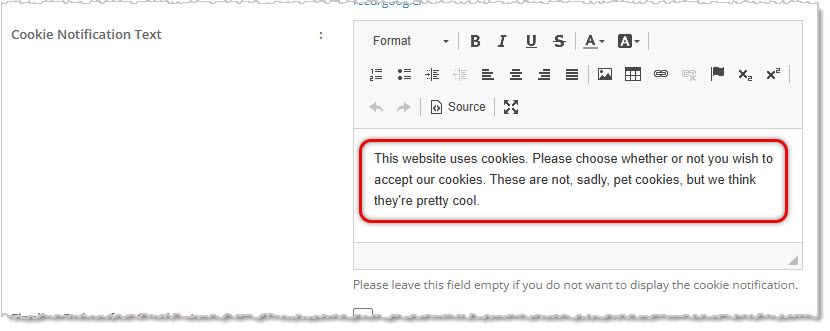
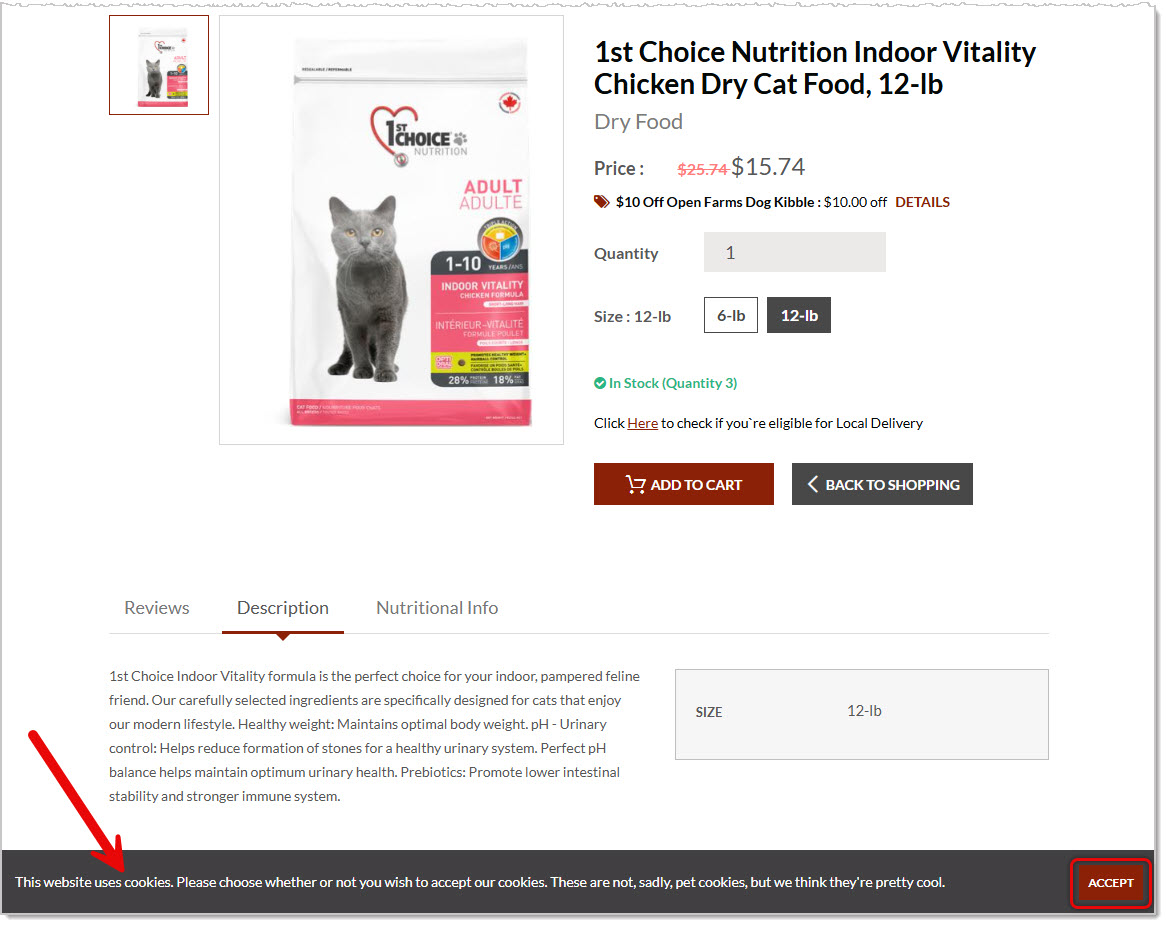
There is also a content editor provided for your Cookie Notice text for the French-language version, if you are using the Bilingual website option.
- Finalize Order After Checkout — Check this box if you use eTailPet Payments or Clover Connect and want staff to be able to edit orders after customers place them. Leaving this unchecked (or using a different payment processor) means orders are finalized and not editable.
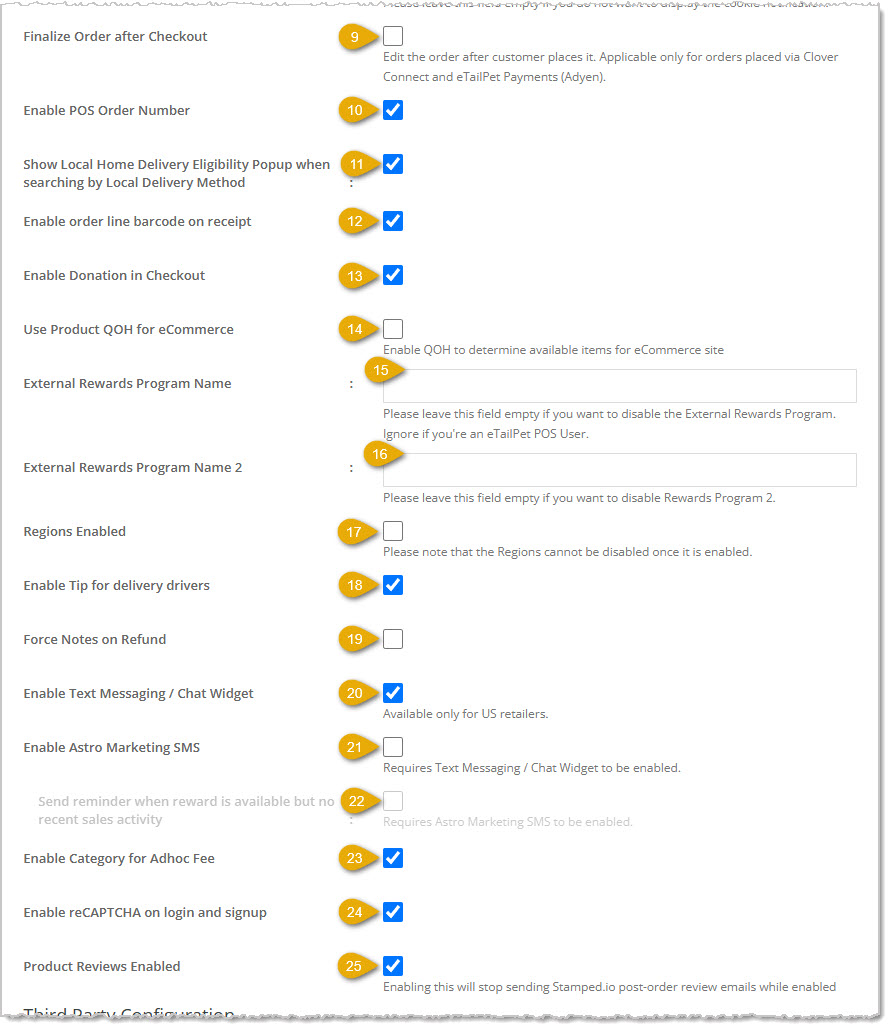
- Enable POS Order Number — Check this box if you want to use POS-specific order numbers for your storefront website orders.
- Show Local Home Delivery Eligibility Popup When Searching by Local Delivery Method — Check this box to display an eligibility popup for visitors searching your storefront using the Local Delivery method.
- Enable Order Line Barcode on Receipt — Check this box to print a barcode for the order on customer receipts, useful for quickly loading the order during returns or exchanges.
- Enable Donation in Checkout — Check this box to give shoppers the option to add a charitable donation amount during checkout.
- Use Product Quantity on Hand for eCommerce — Check this box to have your storefront's product availability driven by each item's actual Quantity On Hand rather than a simple in-stock / out-of-stock notification.
- External Rewards Program Name — Enter the name of an outside loyalty/rewards program in this field; leave it empty to disable the External Rewards Program (ignore if you're an eTailPet POS user).
- External Rewards Program Name 2 — Enter a name in this field if you run a second external rewards program; leave it empty to disable this area.
- Regions Enabled — Check this box to turn on multi-region support. Please Note: Regions cannot be disabled once enabled, so confirm you need this first.
- Enable Tip for Delivery Drivers — Check this box to allow customers add a tip for their delivery driver at checkout.
- Force Notes on Refund — Check this box to require staff to enter a note whenever they process a refund.
- Enable Text Messaging / Chat Widget — Check this box to add an SMS/chat widget to your storefront website (available only to US-based retailers).
- Enable Astro Marketing SMS — Check this box to allow Astro Loyalty to send marketing texts to customers (requires Enable Text Messaging / Chat Widget to be checked first). Once enabled, you'll see #22 below become active.
- Send Reminder When Reward Is Available But No Recent Sales Activity — Check this box to have Astro text customers with an unused reward who haven't shopped recently.
- Enable Category for Adhoc Fee — Check this box to allow Adhoc Customizable Fees elsewhere in the system to be restricted to specific product categories.
- Enable reCAPTCHA on Login and Signup — Check this box to add Google reCAPTCHA bot protection to your storefront's login and signup forms.
- Product Reviews Enabled — Check this box to turn on built-in product reviews. Enabling this pauses automatic post-order review emails sent through Stamped.io. For full details on this function, click here to view the article on Product Reviews.
Third-Party Integration Configuration
This section allows you connect your storefront to outside loyalty, shipping, marketing, tax, review, and delivery-dispatch platforms.
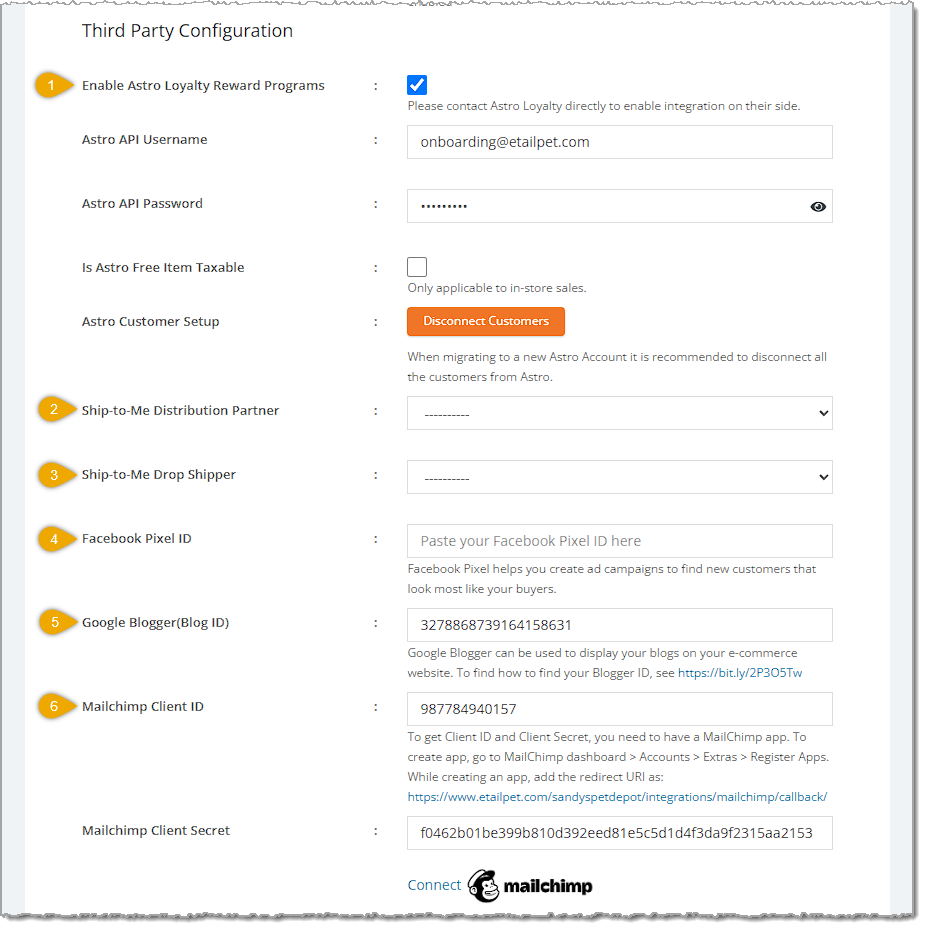
- Enable Astro Loyalty Reward Programs — Here is how you can configure your Astro Loyalty integration:
- Check this box to turn on Astro Loyalty integration (you'll also need to contact Astro Loyalty directly to complete setup on their side).
- Once enabled, enter your Astro API Username .
- You will also need to enter your Astro API Password.
- Check the box for Is Astro Free Item Taxable if free Astro promotional items should be taxed on in-store sales. Please note, this will not apply to items bought through your storefront website.
- ONLY IF YOU ARE MIGRATING TO A NEW ASTRO ACCOUNT: Click the Disconnect Customers button under Astro Customer Setup.
- Ship-to-Me Distribution Partner — Select your shipping logistics partner (for example, ASC Connect) from this drop-list.
- Ship-to-Me Drop Shipper — Select your drop-shipping provider (for example, ShipStation) from this drop-list.
- Facebook Pixel ID — Enter your Facebook Pixel ID in this field to power ad retargeting campaigns.
- Google Blogger (Blog ID) — Enter your Google Blogger Blog ID in this field to display blog posts on your storefront. Click here for how to find your Blogger Blog ID.
- Mailchimp Client ID / Client Secret — Enter your Mailchimp app's Client ID and Mailchimp Client Secret in these fields, then click Connect to link your Mailchimp account for email marketing. To get these codes, you will need to create an App in your Mailchimp account. Go to the Mailchimp dashboard > Accounts > Extras > Register Apps and click to create a new app. In the Mailchimp Client ID area of the Content > Configuration page in our system, under the text you'll see your Redirect URL for your storefront website, as pictured above.
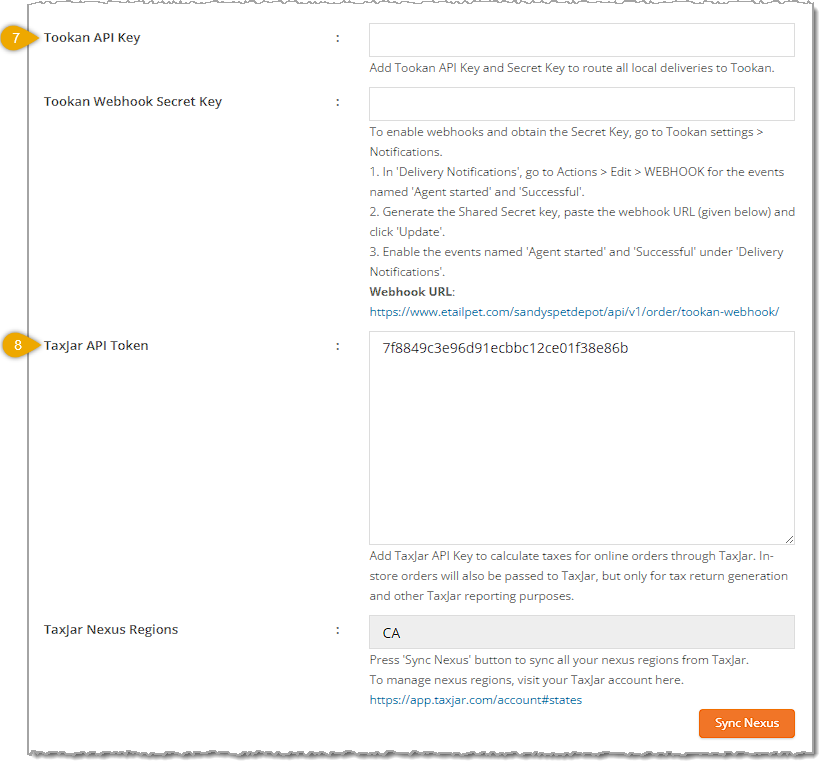
- Tookan API Key / Webhook Secret Key — Tookan is a delivery communication app with which the eTailPet system integrates. Our Onboarding and Support representatives can help you with getting the app installed. Open the app and enter values in their fields to route local deliveries through Tookan, then follow the on-page steps to configure the delivery webhook. Those steps are:
- In 'Delivery Notifications', go to Actions > Edit > WEBHOOK for the events named 'Agent Started' and 'Successful'.
- Generate the Shared Secret key, copy and paste the Webhook URL (from below) and click 'Update'.
- Enable the events named 'Agent Started' and 'Successful' under 'Delivery Notifications'.
- In our system, the Configuration page provides you the Webhook URL you will need below the list of steps, as pictured above.
- TaxJar Integration — To work with this integration, which manages your Nexus tracking for out of state taxes you might need to pay for online sales, you will need to have an account at TaxJar.com. In the upper right of TaxJar, click to open your Account, and in the Account menu, select TaxJar API. Under the Live Token section, click the Generate Token button to view your API Token. Copy and paste your TaxJar API Token in this field on our Configuration page to have TaxJar calculate tax for online orders. The TaxJar Nexus Regions field displays synced nexus states; click the Sync Nexus button to refresh them from your TaxJar account.
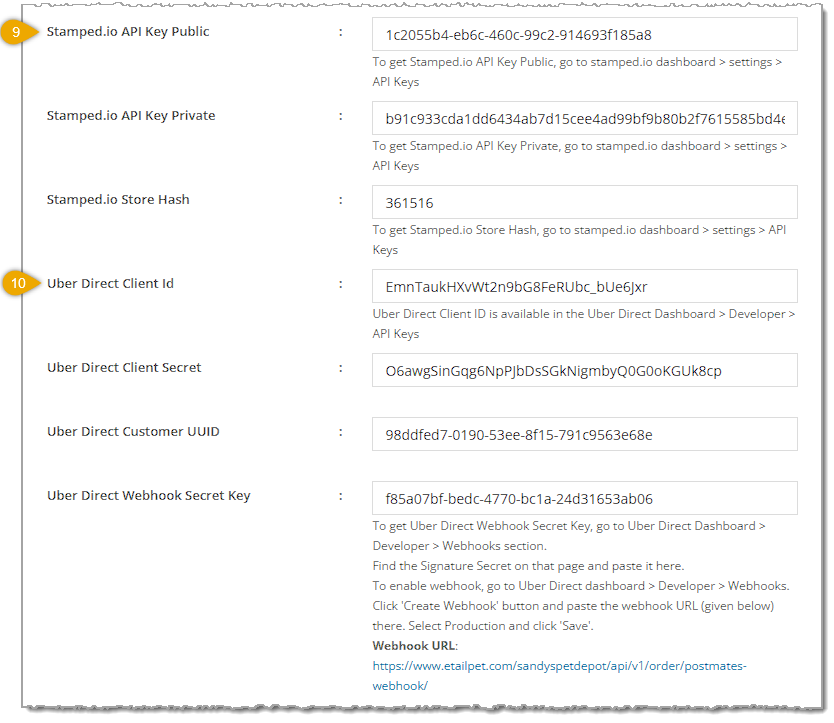
- Stamped.io API Key Public / API Key Private / Store Hash — Please Note: If you will be using the built-in Product Reviews function, you no longer need to integrate with Stamped.io. If you will be working with Stamped.io for your item reviews, enter these three values in their fields to connect your Stamped.io reviews account. You can get the codes you need by logging into your Stamped.io dashboard and going to Settings in the lower left, then clicking on API Keys. You will see all three of the codes needed for this integration, you may need to click the Show button for the codes to display.
- Uber Direct Client ID / Client Secret / Customer UUID / Webhook Secret Key — You will need a merchant account with Uber Direct (merchants.ubereats.com). Go to the Developer tab in the Management section of you Direct dashboard to find your Client ID, Client Secret, Customer UUID, and Webhook Secret Key. Copy and paste these values in their fields to route local deliveries through Uber Direct, following the on-page instructions to enable the delivery webhook. Those instructions include the following:
- To get Uber Direct Webhook Secret Key, go to Uber Direct Dashboard > Developer > Webhooks section.
- Find the Signature Secret on that page and paste it here.
- To enable webhook, go to Uber Direct dashboard > Developer > Webhooks.
Click 'Create Webhook' button and paste the Webhook URL (given below) there.
- Select Production and click 'Save'.
- In our system, the Configuration page provides you the Webhook URL you will need below the list of steps, as pictured above.
API Auth Configuration
This section is something you are likely to never need, so it's for reference only. Our Support and Onboarding teams use this area for technical tasks within the system.
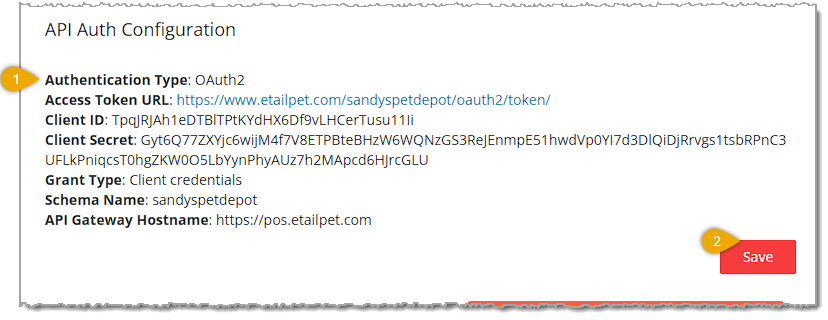
- API Auth Configuration — This read-only information block displays the OAuth2 credentials and endpoints (Authentication Type, Access Token URL, Client ID, Client Secret, Grant Type, Schema Name, and API Gateway Hostname) used to connect your store to the eTailPet API. These values are primarily used by our Support and Onboarding teams; you typically won't need to change anything here yourself.
- Save — If you make any changes on this page, you will need to click the Save button to save them to the system. You'll see a success notification at the top of the page after saving.
Related Topics
Content Pages
Custom Content
Frequently Asked Questions
Q: Can I turn Regions Enabled back off after I've checked the box?
A: No. Once enabled, Regions cannot be disabled, so confirm you need multi-region support before checking this box.
Q: Do I need anything set up in Mailchimp before I enter my Client ID and Client Secret here?
A: Yes, you need to register a Mailchimp app first (under MailChimp dashboard > Accounts > Extras > Register Apps) and set the correct redirect URL before connecting.
Q: Will enabling Product Reviews stop my Stamped.io review emails?
A: Yes, enabling the built-in Product Reviews Enabled setting pauses Stamped.io's automatic post-order review emails while it's active.
Q: Is the Bilingual Site option only for Canadian stores?
A: It's primarily intended for stores that need both English and French content, such as Canadian storefronts, but it's available to any store that needs French as a second language.
Q: What's the difference between the Ship-to-Me Distribution Partner and the Ship-to-Me Drop Shipper?
A: The Distribution Partner handles logistics/routing for shipped orders, while the Drop Shipper is the fulfillment provider that actually ships the product; you can select one, both, or neither depending on your shipping setup.
Q: Do I still need to contact Astro Loyalty separately after checking Enable Astro Loyalty Reward Programs?
A: Yes, checking this box only enables it on your side — you'll need to contact Astro Loyalty directly at support@astroloyalty.com to complete the integration.
Q: Is the Text Messaging / Chat Widget available to all retailers?
A: No, it's currently available only to US-based retailers.
Q: If I switch to a new Astro Loyalty account, what happens to my existing customers' Astro links?
A: They'll remain linked to the old account unless you use the Disconnect Customers button under Astro Customer Setup, which is recommended when migrating to a new Astro account.
Q: I have a question, but I can't find my answer here. How do I get more assistance?
A: You can ask any question at the number listed here. Contact our support team at (323) 370-0738 for the U.S. and (888) 370-2363 for Canada.







 Jul 07, 2026
Is this page helpful?
×Help us improve our articles