Themes

May 28, 2026
🎨 You can edit the color and font themes of your eTailPet website by going to Themes. Read on to see everything you can customize about your site!
Editing Your Store Website's Theme
To access the Theme customization page, follow these steps:
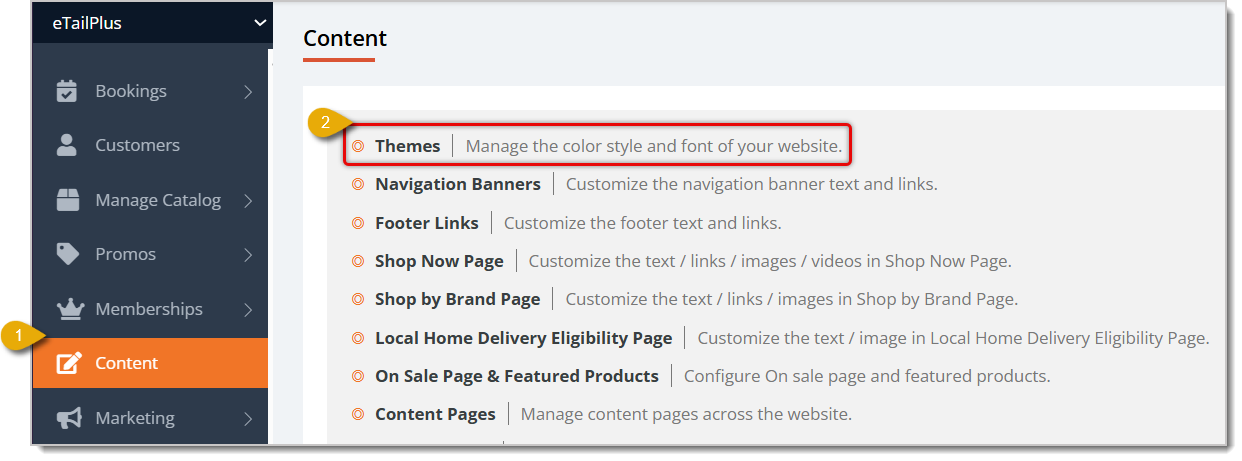
- Go to Content in the main menu, as highlighted in the image below.
- Click on Themes.
Here is everything about your website's Theme that you can customize, as well as other functions of the customization screen:
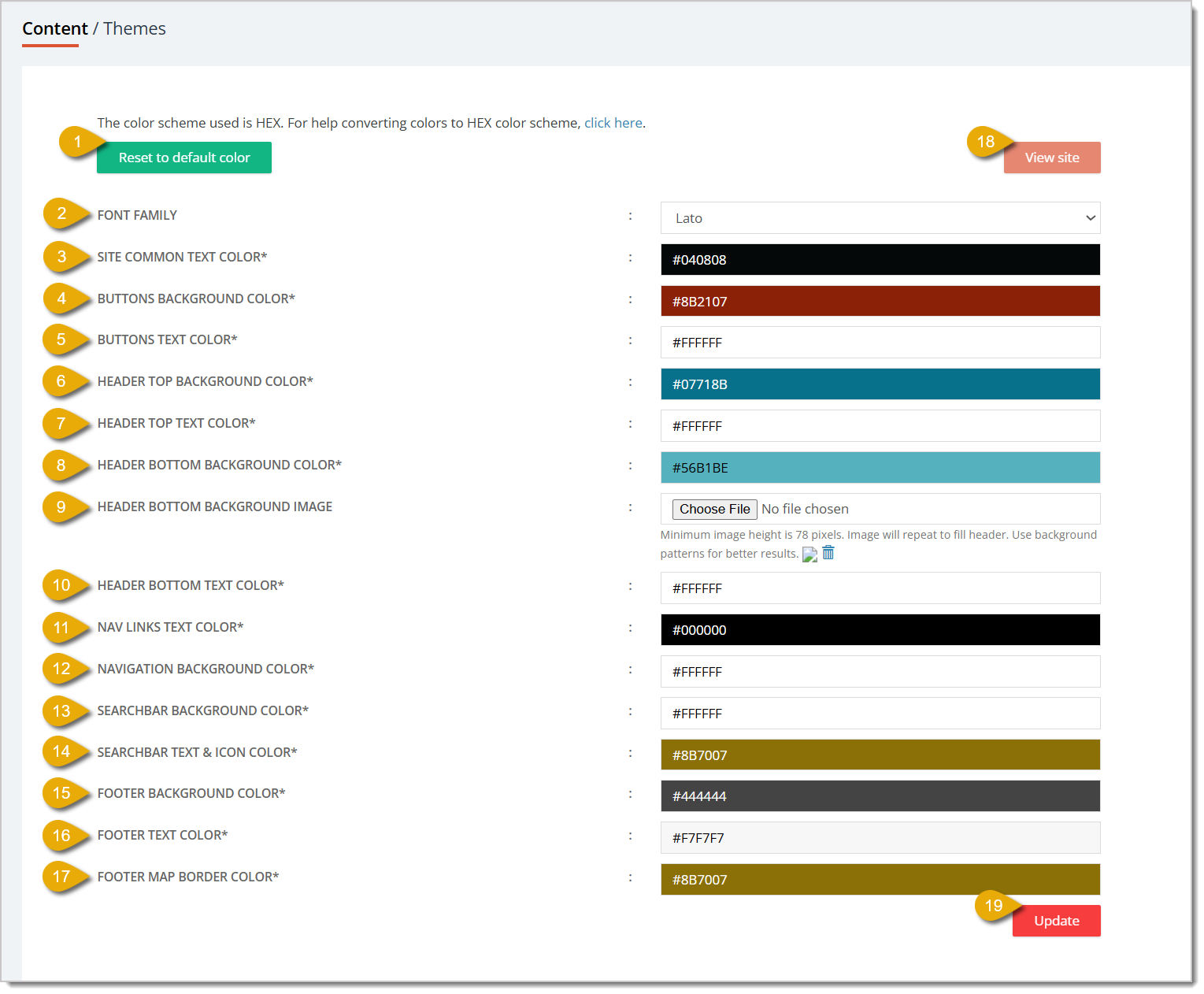
😸 Please Note: This customization uses HEX codes for colors. To convert your colors to the HEX color scheme, you can click here for a converter tool.
- Reset to Default Color — Click on this button to change your website's color scheme to the default one from eTailPet.
- Font Family — Select from this drop-list to change the font family of your website.
- Site Common Text Color* — This color field is for the miscellaneous text on your website. Examples are highlighted in the image below.
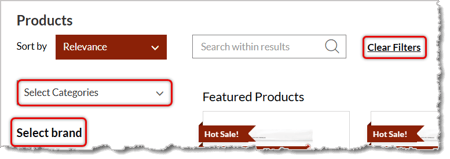
- Buttons Background Color* — This color field is for the background color of buttons on your website.
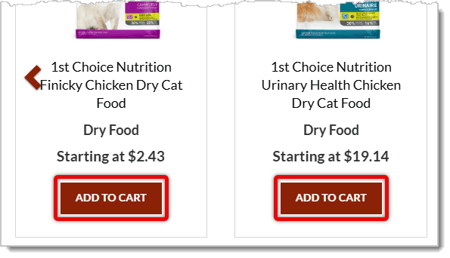
- Buttons Text Color* — This color field is for the text color of the buttons on your website.

- Header Top Background Color* — This color field is for the background color of the header on the very top of your website. This header is where your store's phone number and address are displayed.

- Header Top Text Color* — This color field is for the text color of the header on the very top of your website. This header is where your store's phone number and address are displayed.

- Header Bottom Background Color* — This color field is for the background color of the header that shows your store's name, logo, and search bar.

- Header Bottom Background Image — You can choose a background image for the header that shows your store's name, logo, and search bar. Click on Choose File to upload a image for the background. We recommend using a pattern image because the image will repeat to fill the header.
- Header Bottom Text Color* — This color field is for the text color of the header that shows your store's name, logo, and search bar.

- Navigation Links Text Color* — This color field is for navigation on your website, which are the links underneath your website's header.

- Navigation Background Color* — This color field is for the navigation bar on your website, which contains the links underneath your website's header.

- Search Bar Background Color* — This color field is for the search bar on your website.

- Search Bar Text and Icon Color* — This color field is for the search bar text and magnifying glass icon on your website.

- Footer Background Color* — This color field is for the footer background of your website. This is highlighted in red in the image below.
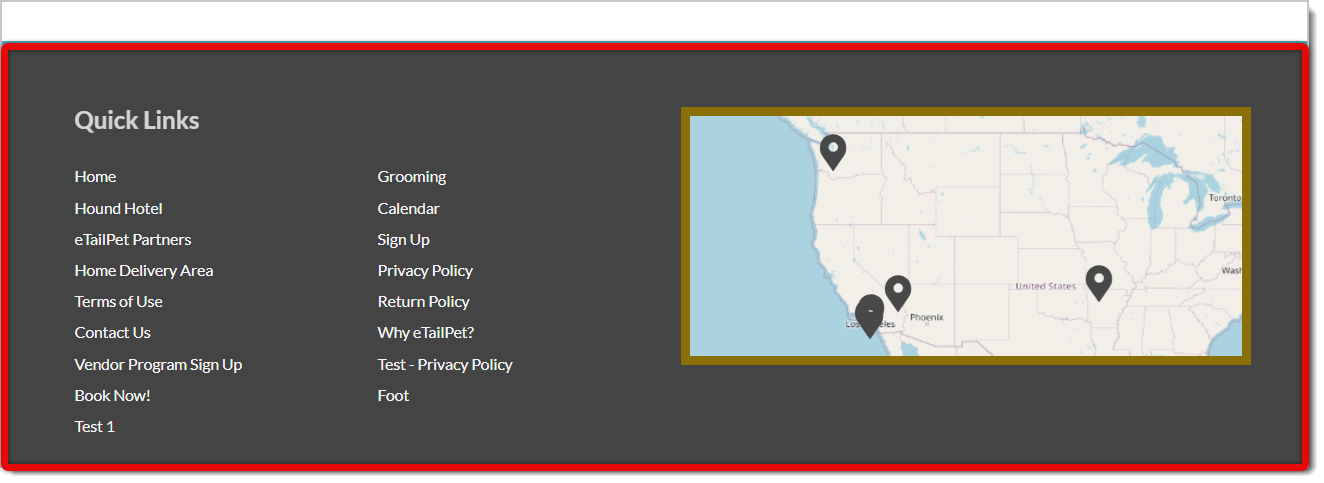
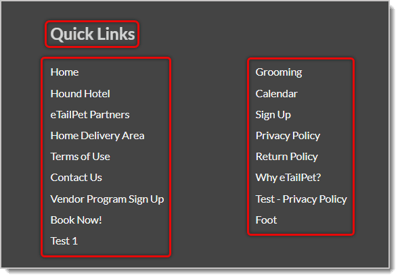
- Footer Text Color* — This color field is for the text in the footer of your website. This is highlighted in red in the image below.
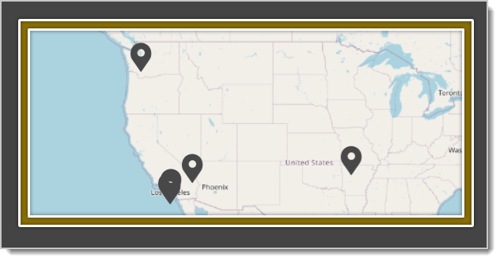
- Footer Map Border Color* — A map in the footer of your website pinpoints the location of your store. Use this color field to select a color for the border of the map. An example is highlighted in between white lines in the image below.
- View Site — Click on View Site towards the top of the screen to view your website's color themes.
- Update — Click on the Update button towards the bottom right to save your changes to the website's theme.
* Required Field
Related Topics
Navigation Banners
Footer Links
Custom Content
On Sale Page and Featured Products
Content Pages
Content Configuration
Frequently Asked Questions
Q: I have a question, but I can't find my answer here. How do I get more assistance?
A: You can ask any question at the number listed here. Contact our support team at (323) 370-0738 for the U.S. and (888) 370-2363 for Canada.
If a customer changes their mind and doesn't want to complete a transaction, you can easily clear it
🐶 The eTailPet system enables you to offer customers discounts by overriding the original price. Re
💲The eTailPet Dashboard gives you multiple ways to find a transaction and process it for a refund o







Is this page helpful?
×Help us improve our articles