On Sale Page and Featured Products

May 29, 2026
🐸 The On Sale Page and Featured Products area of the eTailPet system is where you can customize what products are displayed on the On Sale and Featured Products pages of your ecommerce website. See everything you can do so these pages fit your online store's needs!
Opening the On Sale Page and Featured Products Area
Here is how to access the On Sale Page and Featured Products customization area:
-
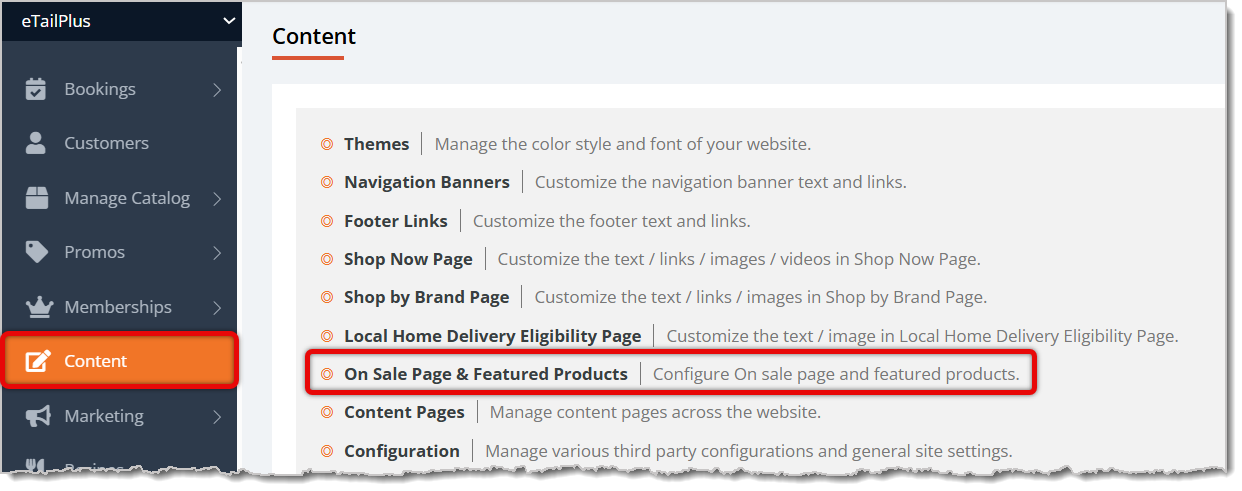
From the main menu, go to Content.
- Click on On Sale Page and Featured Products in the Content area. This will open the customization screen.
Customizing the On Sale Page
The On Sale page is where customers can see available promo codes and discounts.
😸 Please Note: The URL path for the On Sale page is /products/on-sale. Keep this in mind for your website's Navigation Banners. Click here to read about Navigation Banners.
This is everything you can customize about the On Sale page on your online store:
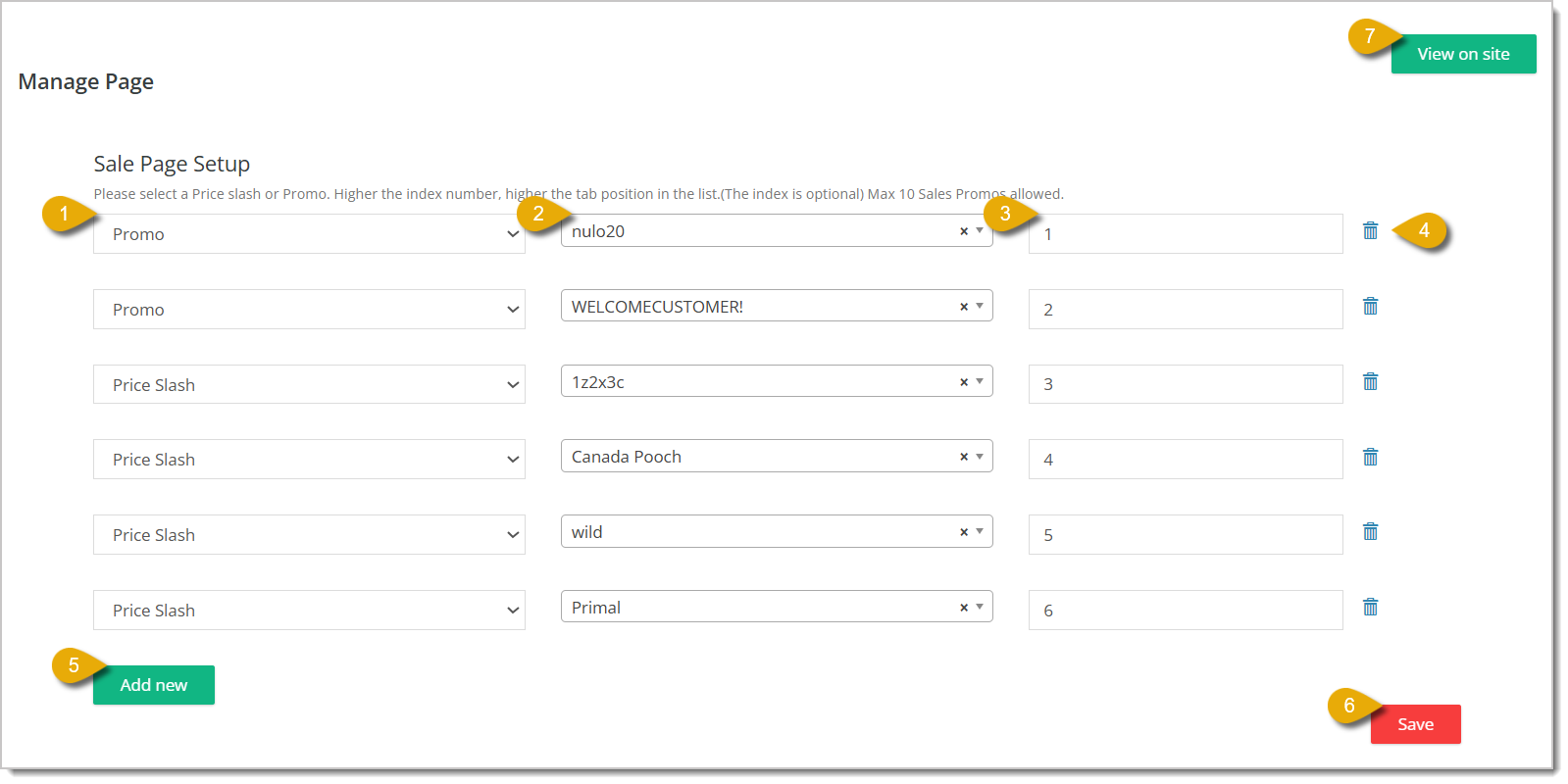
- Promo / Price Slash — Select either Promo or Price Slash in the leftmost drop-list to indicate if this section will show items eligible for either a promo code or price slash.
- Promo Code / Price Slash Name — Select from the drop-list the name of the Promo Code or Price Slash.
- Position — Enter a number in this field to indicate the promo code / price slash's place in the order. For example, entering 1 would place that first from the top of the page.
- Remove — Click on the Trash Can Icon on the far right of an entry to remove it from the page.
- Add New — Click on the Add New button to add another promo code / price slash entry to the page.
- Save — Click on the Save button to save your changes and update the page.
- View on Site — Click on View on Site to see how your On Sale page looks on your website.
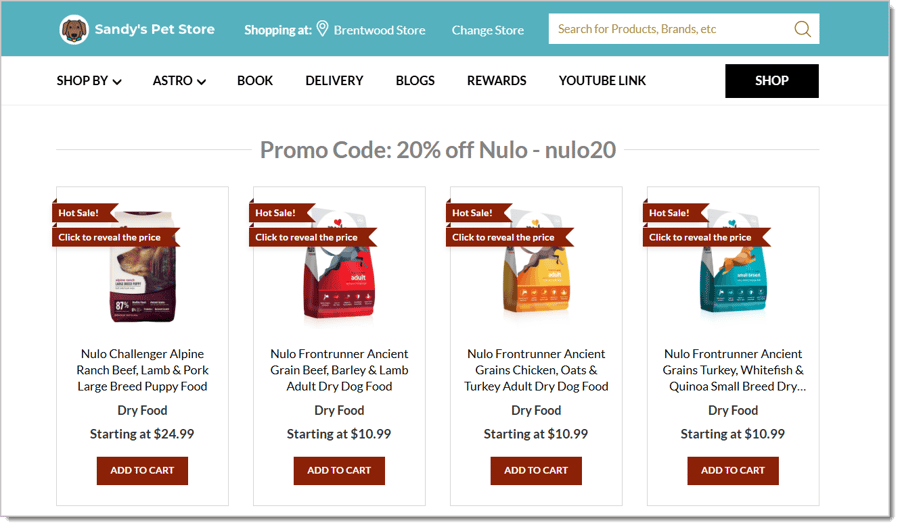
After you've saved your On Sale page settings, it should look something like this:
Customizing Your Website's Featured Products
The Featured Products page shows products you want to promote to customers. Scroll down the On Sale Page and Featured Products customization page to find the Featured Products area.
😸 Please Note: The URL path for the On Sale page is /products/on-sale. Keep this in mind for your website's Navigation Banners. Click here to read about Navigation Banners.
Here is everything in this area you should know to customize your Featured Products:
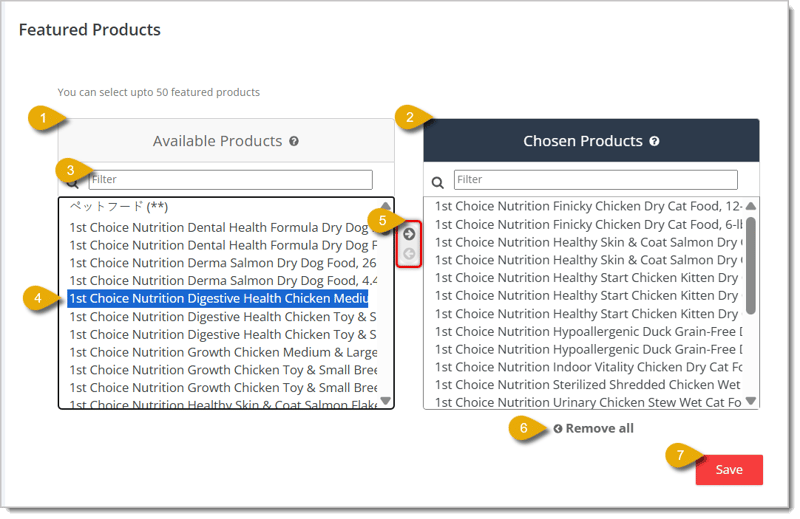
- The Available Products table on the left, shown in the image above, shows your store's catalog of products.
- The Chosen Products table on the right, shown in the image above, shows which products appear on the Featured Products page.
- Enter keywords in the Filter search bar in either table to find certain products.
- Click on a product's name in either table if you want to move it to or remove it from the Featured Products. For example, if you want to move a product to the Chosen Products, click the item in Available Products.
- After you've selected a product in either table, click on the the Arrow (between the tables) of the direction you want to move it. For example, in the image above, an item in Available Products has been selected. Clicking the top arrow facing right would move the product to Chosen Products.
- Click on Remove All under the Chosen Products table to remove all items from the Featured Products page.
- Click on Save to in the bottom right to save any changes you've made and to update the Featured Products page.
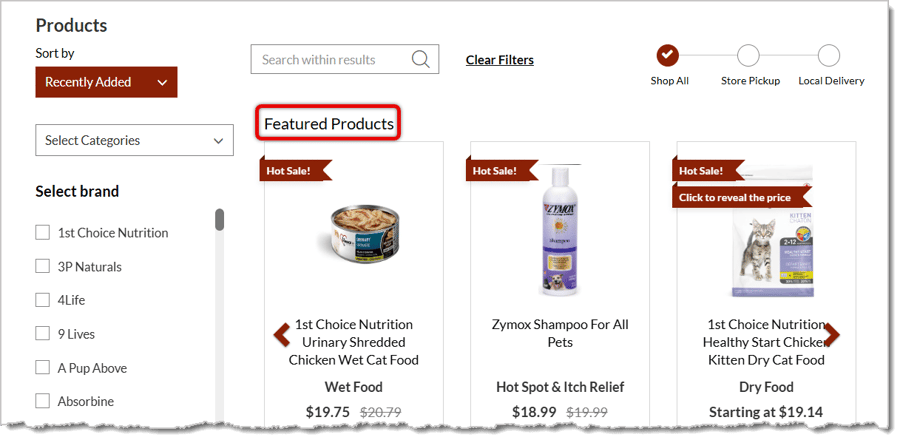
After you've selected the products you want promoted in the Featured Products page, it should look something like this:
Related Topics
Themes
Navigation Banners
Shop Now Page
Shop by Brand Page
Content Pages
Custom Content
Frequently Asked Questions
Q: I have a question, but I can't find my answer here. How do I get more assistance?
A: You can ask any question at the number listed here. Contact our support team at (323) 370-0738 for the U.S. and (888) 370-2363 for Canada.
If a customer changes their mind and doesn't want to complete a transaction, you can easily clear it
🐶 The eTailPet system enables you to offer customers discounts by overriding the original price. Re
💲The eTailPet Dashboard gives you multiple ways to find a transaction and process it for a refund o







Is this page helpful?
×Help us improve our articles