Shop By Brand Page

Jul 01, 2026
In the eTailPet system storefront website, you're able to configure a Shop by Brand page that allows your visitors to find the brand they want or to see featured brands. You can do a Simple page that displays all brands, or you can do an Advanced page featuring brands you select. This article will walk you through how to work with both page types for your Shop by Brand page. This one is easy, and it can be a powerful way to sell. Take a look!
The Simple Shop by Brand Page
Here is what an example of a Simple Shop Now page looks like:
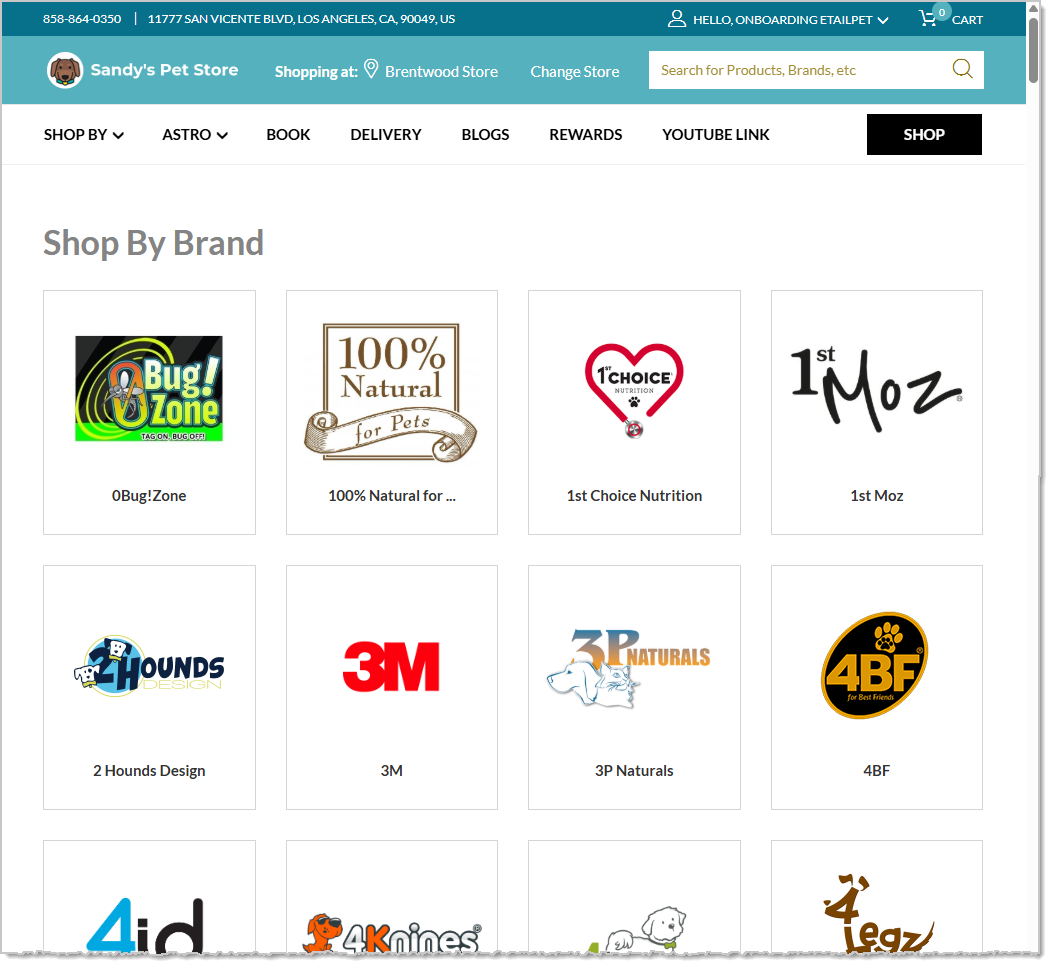
The Simple Page version of the Shop by Brand page is fully automated and displays all of your brands.
Configure Your Simple Shop by Brand Page
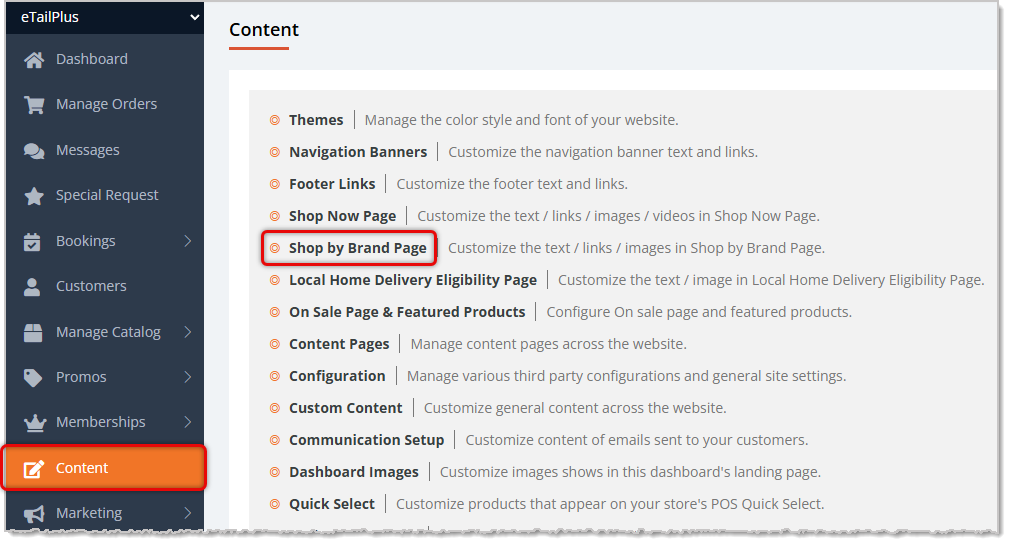
On the Shop by Brand page, follow these steps to configure it the way you want:
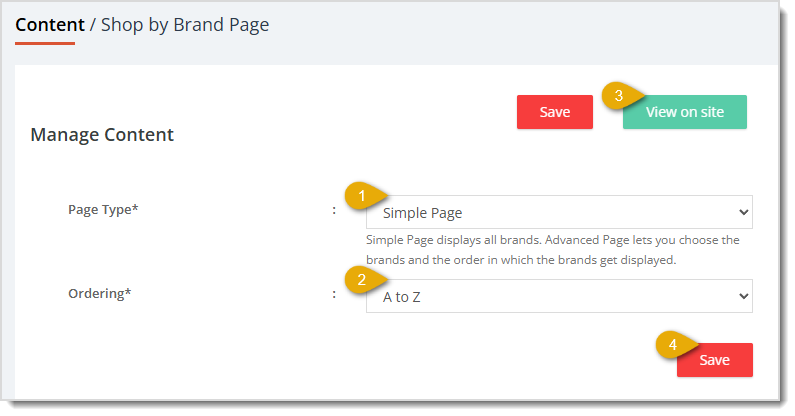
- Page Type — By default this will be set to Simple Page, which displays all of your brands. In the section below are full details about the Advanced Page version of the Shop by Brand page.
- Ordering — Choose either A to Z ordering for your brands (default), or Z to A ordering.
- View on Site — Click this button to see what your Simple Shop Now page will look like on the storefront website. The preview will open in a new browser tab for you.
- Save — When you have finished configuring the image areas on this page, click the Save button to save your changes to the website.
Configure Your Advanced Shop by Brand Page
On the Shop by Brand page, follow these steps to configure the Advanced Page version:
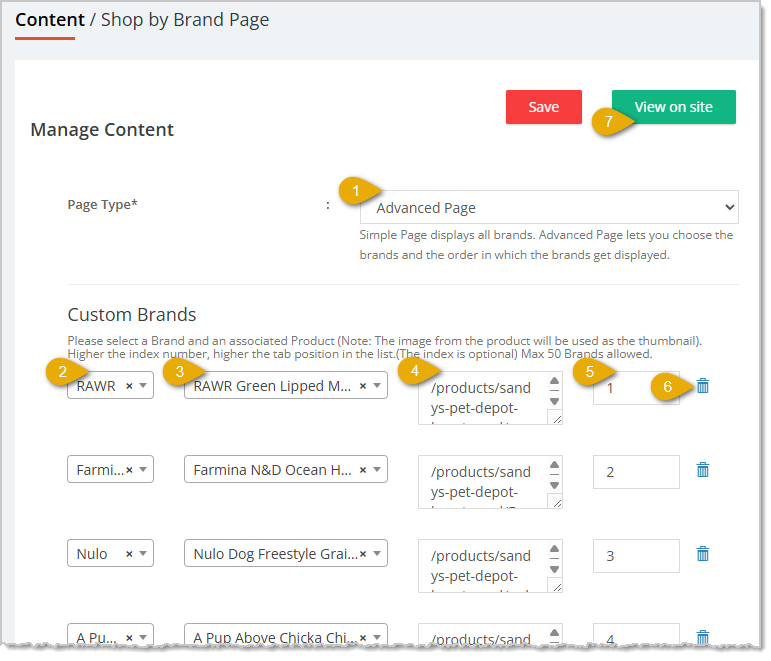
- Page Type — By default this will be set to Simple Page, which displays all of your brands. Click to change to the Advanced Page version of the Shop by Brand page.
- Brand — Click in this field and search for the brand you want. Matching results will display in a drop-list for you, click on the one you want to set your Brand.
- Product — There are two ways you can work with this field: If you leave it blank and in the URL field you paste in the URL for the brand products on the website, this line item will display all of the brand's products available for sale online. If you want to use this line item to feature a single product for the brand, you can click in this field and search for the Product you want. The search in this area is case-sensitive and also requires punctuations as they appear in the product's name, so copying and pasting the name of the product from it's web page is the best way to select the one you want.
- Webstore URL — If you want to feature a single product from the brand for this line item, you can do the following:
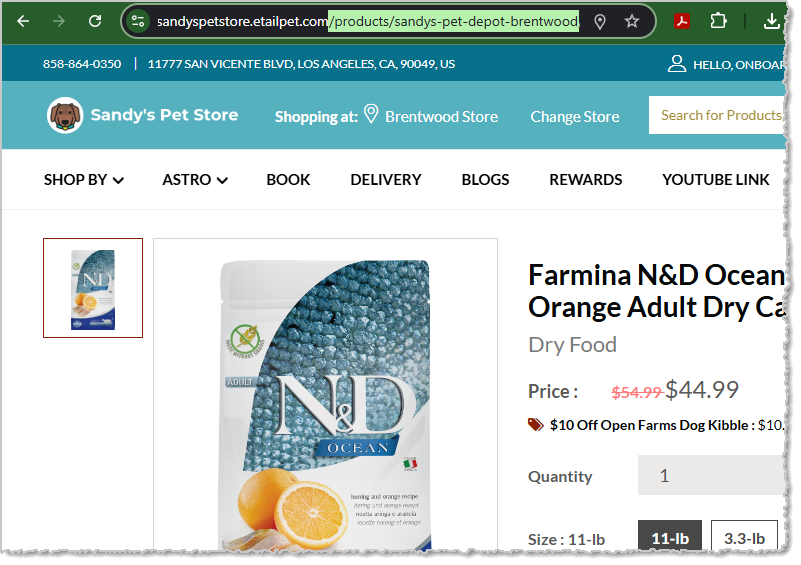
- Go to your storefront website and find the product page for the product you want to feature.
- In the Address Bar of your browser, copy everything after the .com, starting with the slash, as in the example above.
- In the Webstore URL Hyperlink field on the Shop by Brand page of the Dashboard, paste in what you copied.
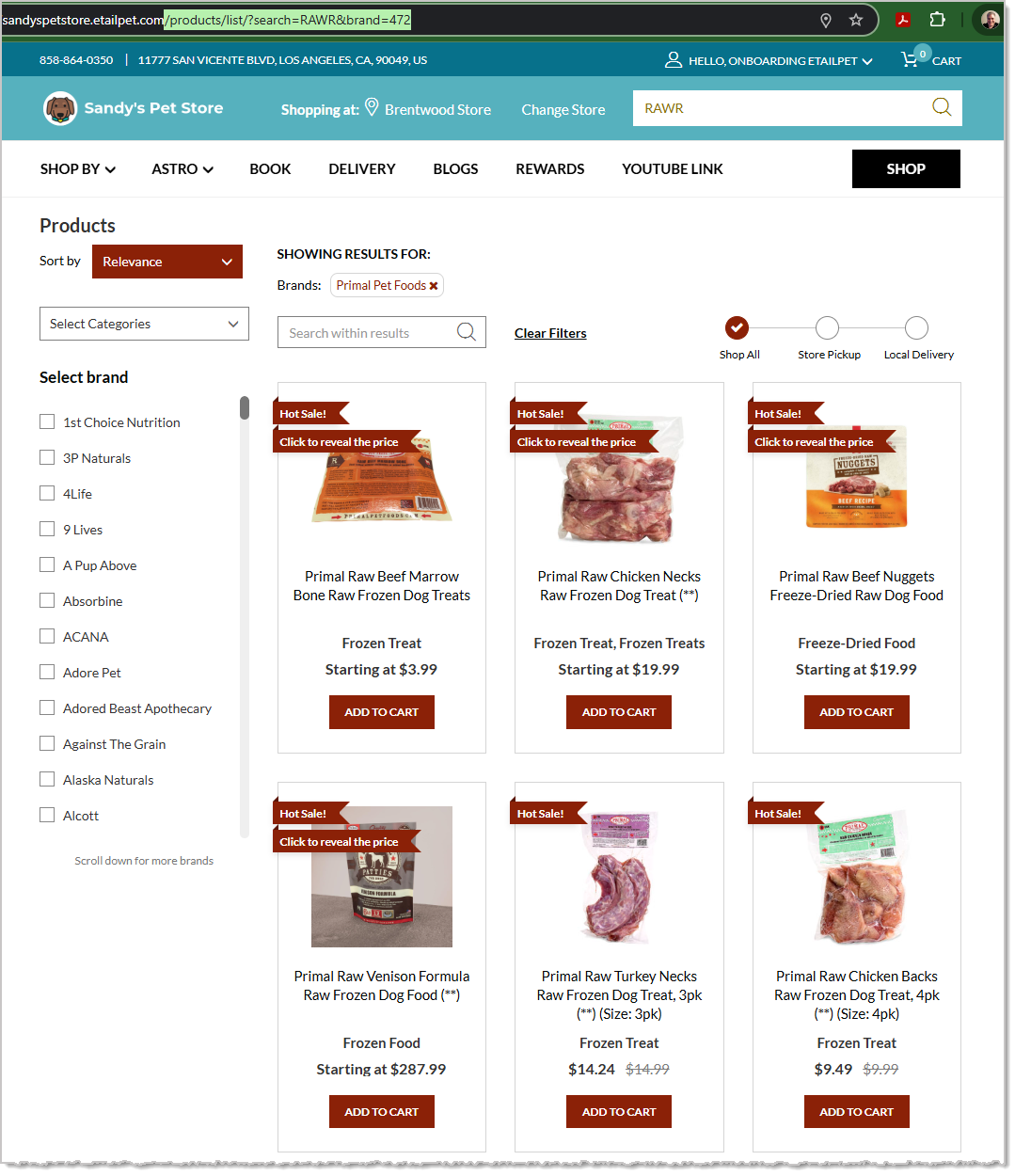
To feature all products by the brand, you must have the Product area for the line-item blank, and in this field, follow these steps:
- Go to your storefront website and find the Brand page for the brand you want to feature, as in the example above.
- In the Address Bar of your browser, copy everything after the .com, starting with the slash, as pictured above.
- In the Webstore URL Hyperlink field on the Shop by Brand page of the Dashboard, paste in what you copied.
- Order Index — If you don't care about the order in which the items appear on the page, you don't need to enter anything here. If you want items in a certain order, enter the order with the number 1 being the first item, and so on. This can be useful if you just added some new items to an existing list and you want them to appear at the top of the page.
- Remove Item — Click the Trashcan Icon to remove the item from this list. There is no confirmation pop-up for this function, so take care. If you accidentally remove an item you needed, you will have to recreate it.
- View on Site — Click this button to see what your Advanced Shop by Brand page will look like on the storefront website. The preview will open in a new browser tab for you.
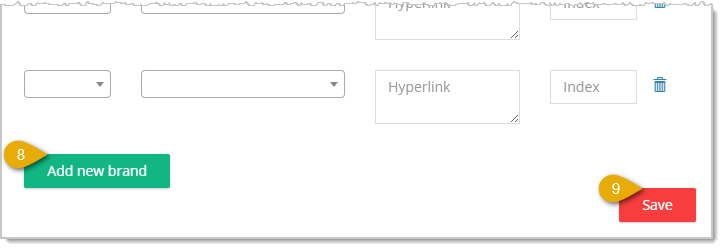
- Add New Brand — The Shop by Brand page will always give you a new blank Brand line to use. Click this button as many times as needed to add however many blank Brand lines you will need.
- Save — When you have finished configuring the Brand items you want on this page, click the Save button to save your changes to the website.
The Shop by Brand page will use the brand logo for the thumbnail if you are linking to all products in the storefront website for the brand. If you are linking to an individual product, it will display the product image. Here is what an Advanced Shop by Brand page looks like:
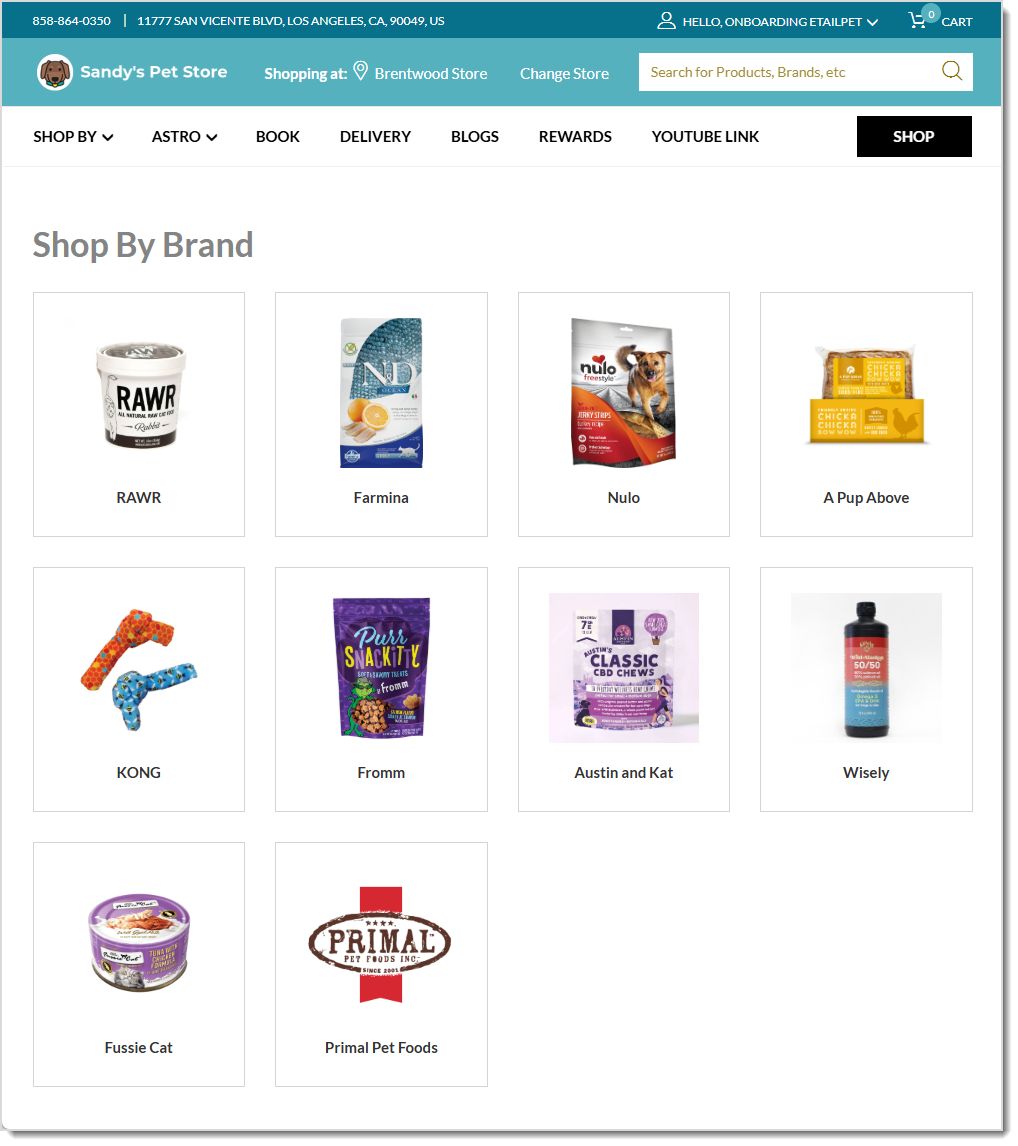
In this example, RAWR and Primal are links to pages for all items online for those brands, and the other items are links to individual products for the named brand.
Related Topics
Content Pages
Navigation Banners
Shop Now Page - Simple Page Setup
Shop Now Page - Advanced Page Setup
Frequently Asked Questions
Q: I have a question, but I can't find my answer here. How do I get more assistance?
A: You can ask any question at the number listed here. Contact our support team at (323) 370-0738 for the U.S. and (888) 370-2363 for Canada.
🎨 You can edit the color and font themes of your eTailPet website by going to Themes. Read on to se
🔗 You can add navigation links near the top of your eTailPet online store, which customers can clic
🏡 The Local Home Delivery Eligibility Page is where customers can check if their address is eligibl







Is this page helpful?
×Help us improve our articles