Local Home Delivery Eligibility Page

May 28, 2026
🏡 The Local Home Delivery Eligibility Page is where customers can check if their address is eligible for local delivery from your store. Read on to find out how to customize this page for your store's website!

Customize the Local Home Delivery Eligibility Page
Access the Customization Page
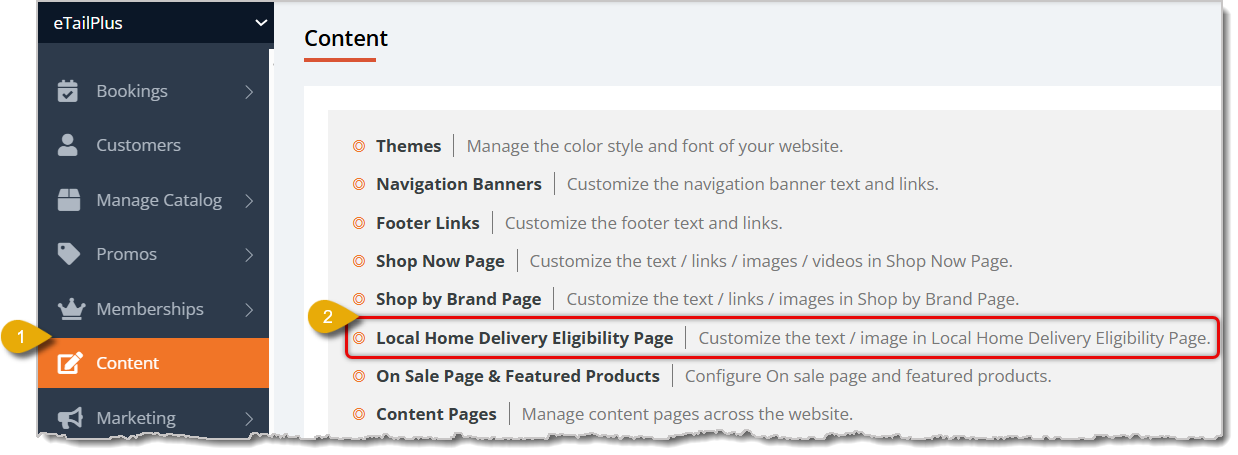
To access the Local Home Delivery Eligibility Page's customization, you have to:
- Go to Content from the main menu.
- Click on Local Home Delivery Eligibility Page, as highlighted in the image below.
Customization Options
Here are your customization options for the Local Home Delivery Eligibility Page, along with buttons to save your changes and preview the page:
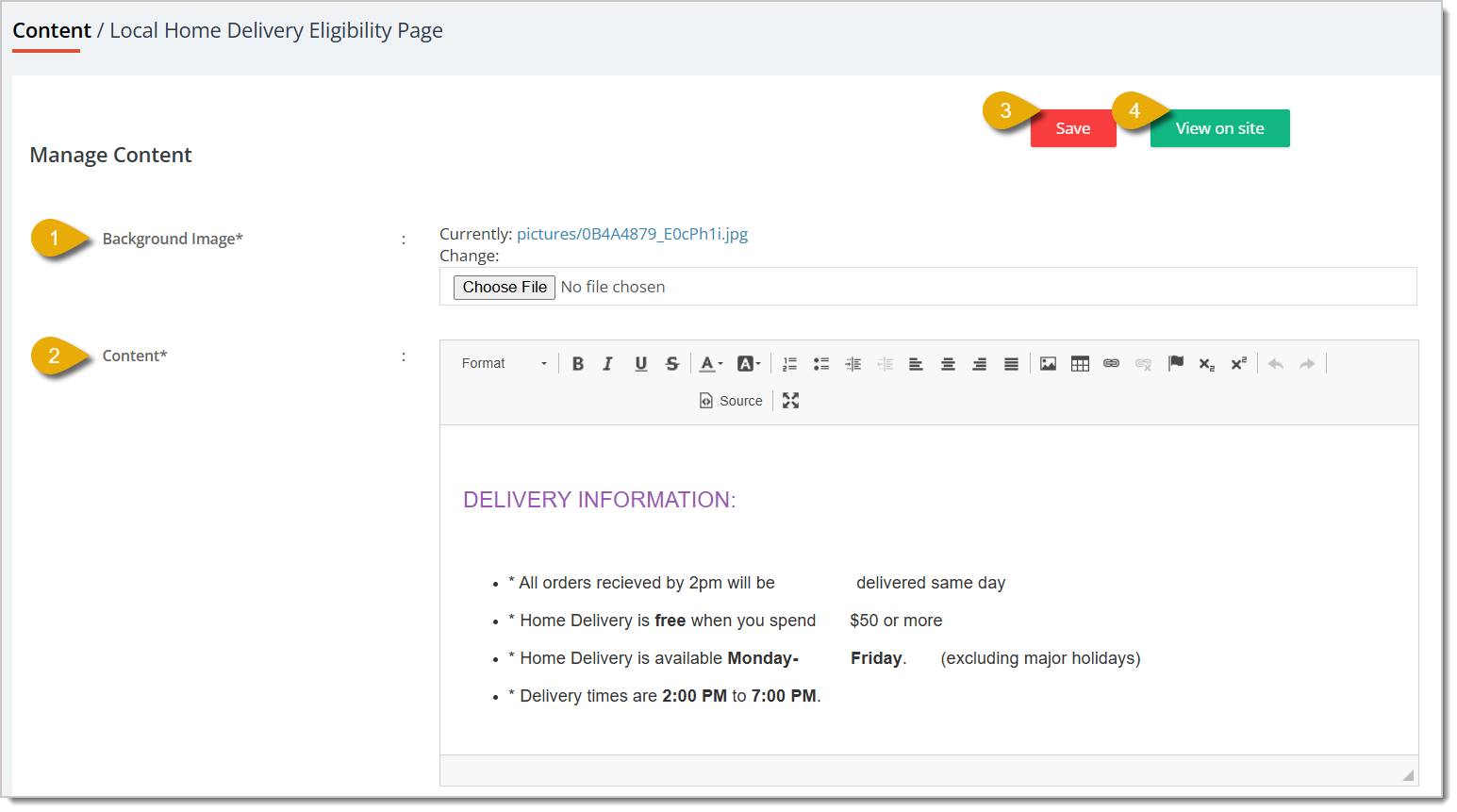
- Background Image — Upload an image that will display in the background of the delivery eligibility page. This is required for the page.
- Content — Enter the information that the customer will see on the eligibility page. We recommend using this to show delivery information, hours, and eligible ZIP codes.
- Save — Click on Save to save your changes and update the eligibility page.
- View on Site — Click on View on Site to see how your eligibility page looks on your store's website.
Here is an example of what a local delivery eligibility page looks like:
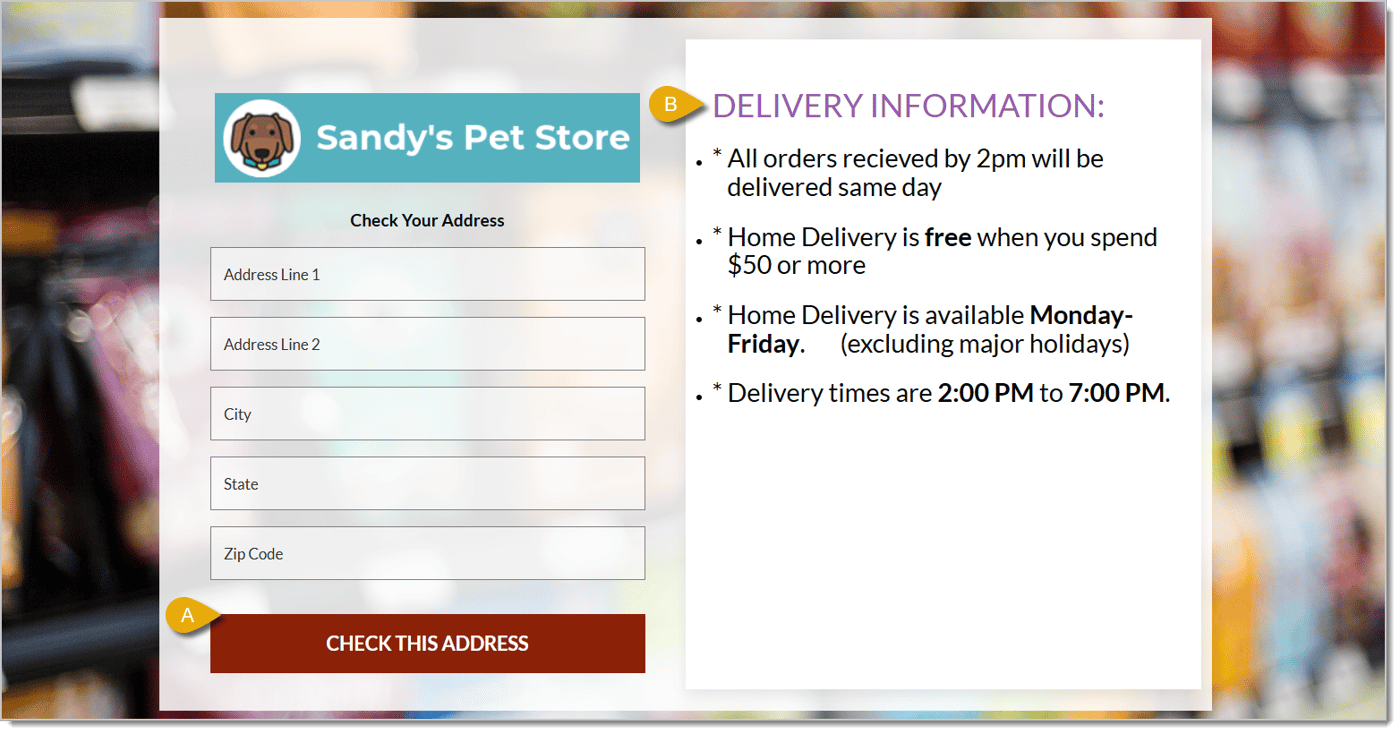
- Customers can enter their address information in the fields on the left, then click on Check this Address to see if they're eligible for local delivery.
- The content you put in the Content field of the customization page will display on the right of the address fields.
Making the Eligibility Page Visible to Customers
Once you've set up the eligibility page, you will have created a Navigation Banner.
-
To find the URL path for this page, click on View on Site.
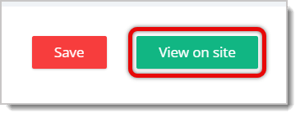
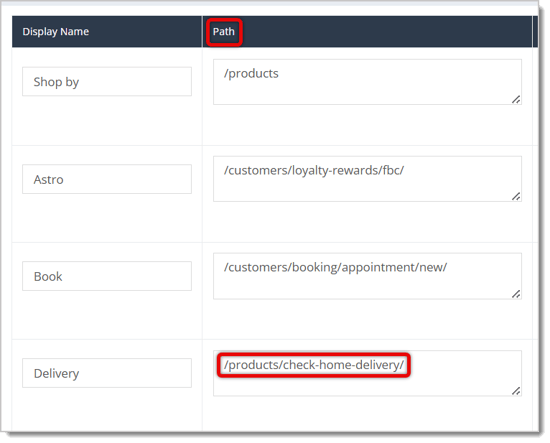
- You can find the URL path after your store's website domain. This URL path is automatically generated for you by the eTailPet system and should be /products/check-home-delivery.

- Go to Content > Navigation Banners to add this URL path to the top of your website so customers can navigate to the page. To learn more about customizing Navigation Banners, click here to read our Navigation Banners article.
- Under the Path column, paste the URL path.
- Click Save in the bottom right of the page. You may need to scroll down to find this button.

Related Topics
Navigation Banners
Themes
Shop Now Page
Shop By Brand Page
On Sale Page and Featured Products
Content Pages
Dashboard Images
Frequently Asked Questions
Q: I have a question, but I can't find my answer here. How do I get more assistance?
A: You can ask any question at the number listed here. Contact our support team at (323) 370-0738 for the U.S. and (888) 370-2363 for Canada.
🎨 You can edit the color and font themes of your eTailPet website by going to Themes. Read on to se
🔗 You can add navigation links near the top of your eTailPet online store, which customers can clic
🐸 The On Sale Page and Featured Products area of the eTailPet system is where you can customize wha







Is this page helpful?
×Help us improve our articles