🐦 The eTailPet system enables you to create your own sophisticated ecommerce website. In the system, you can manage Content Pages and customize them as you like so your website can accomplish everything you need. Read on to see everything that's available to you in Content Pages!

Access Your Content Pages
To access your website's content pages, do the following:
-
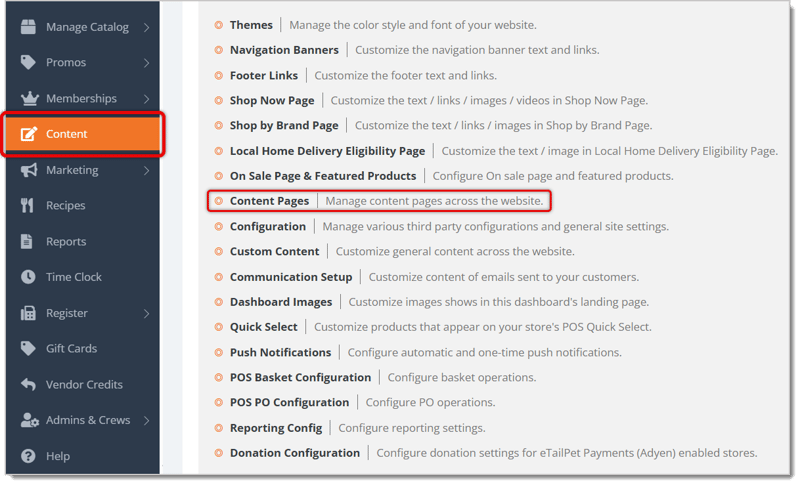
Click on Content from the left-hand main menu.
- Click on Content Pages.
The Content Pages Table
Once you've opened the Content Pages customization area, you will see a table listing out your website's pages. You can use the following functions to create and edit pages:
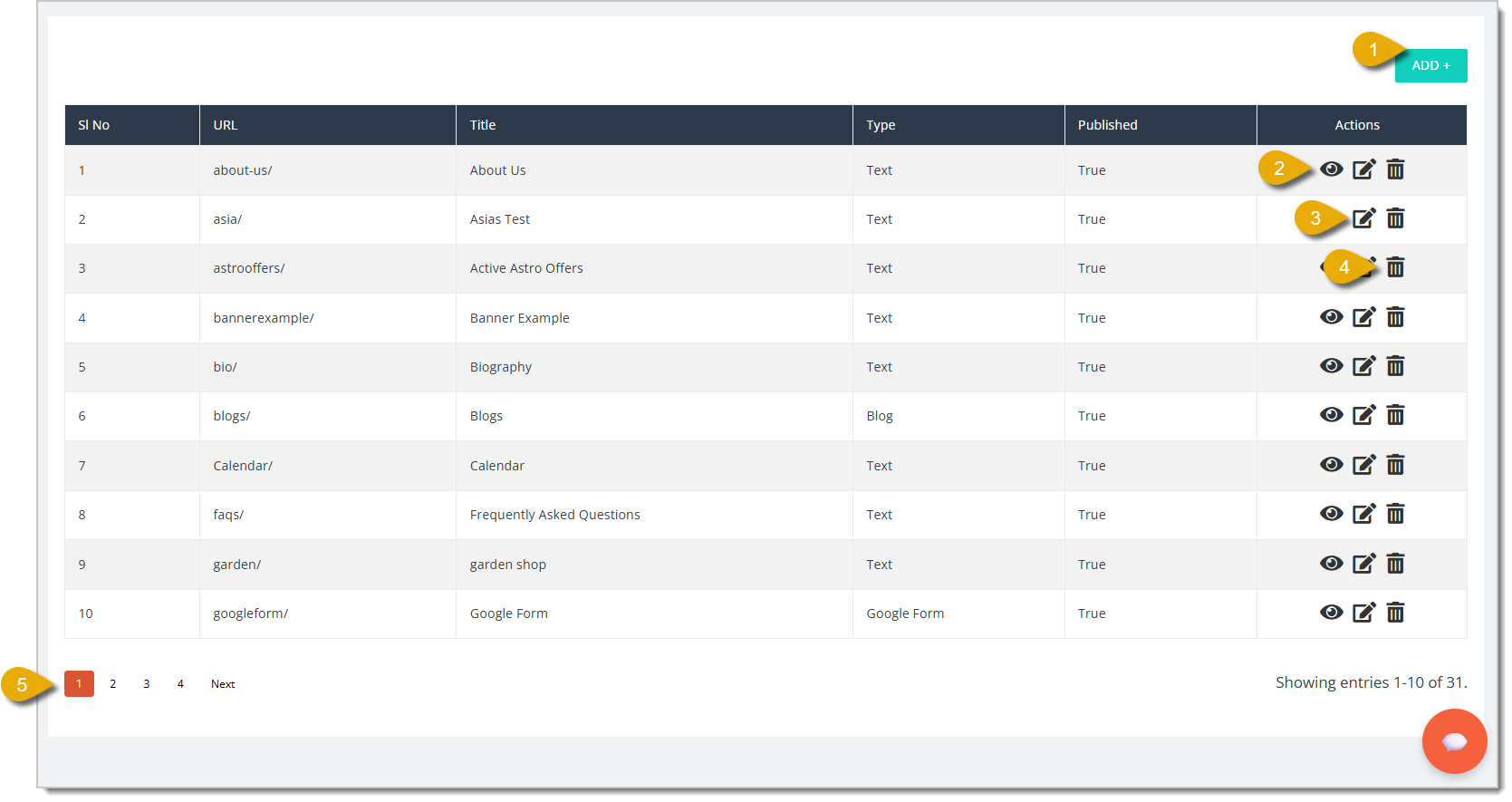
- Add — Click on the Add button in the upper right to create a new page for your website. You can read more about what you can add to a new page by viewing the sections for Blog Content Page, Image Content Page, Google Form Content Page, Text Content Page, and Mobirise Content Page below.
- View on Site — Click on the Eye Icon on the right of a page's table entry to view how the page looks on your website.
- Edit — Click on the Pencil Icon on the right of a page's table entry to edit the page's details and content. You can read more about what you can edit by viewing the sections for Blog Content Page, Image Content Page, Google Form Content Page, Text Content Page, and Mobirise Content Page below.
- Delete — Click on the Trash Can Icon on the right of a page's table entry to delete the page from your website.
- Navigate — If your content pages span more than one page in the table, click on the Numbers to skip to certain pages, or click on either Next or Previous to navigate between them.
Blog Content Page
A blog content page on your website will house your blog. You can use this blog to post advice articles or promotions. Note that eTailPet uses Google Blogger to show your posts on your website. Here is everything you can customize for a blog content page:
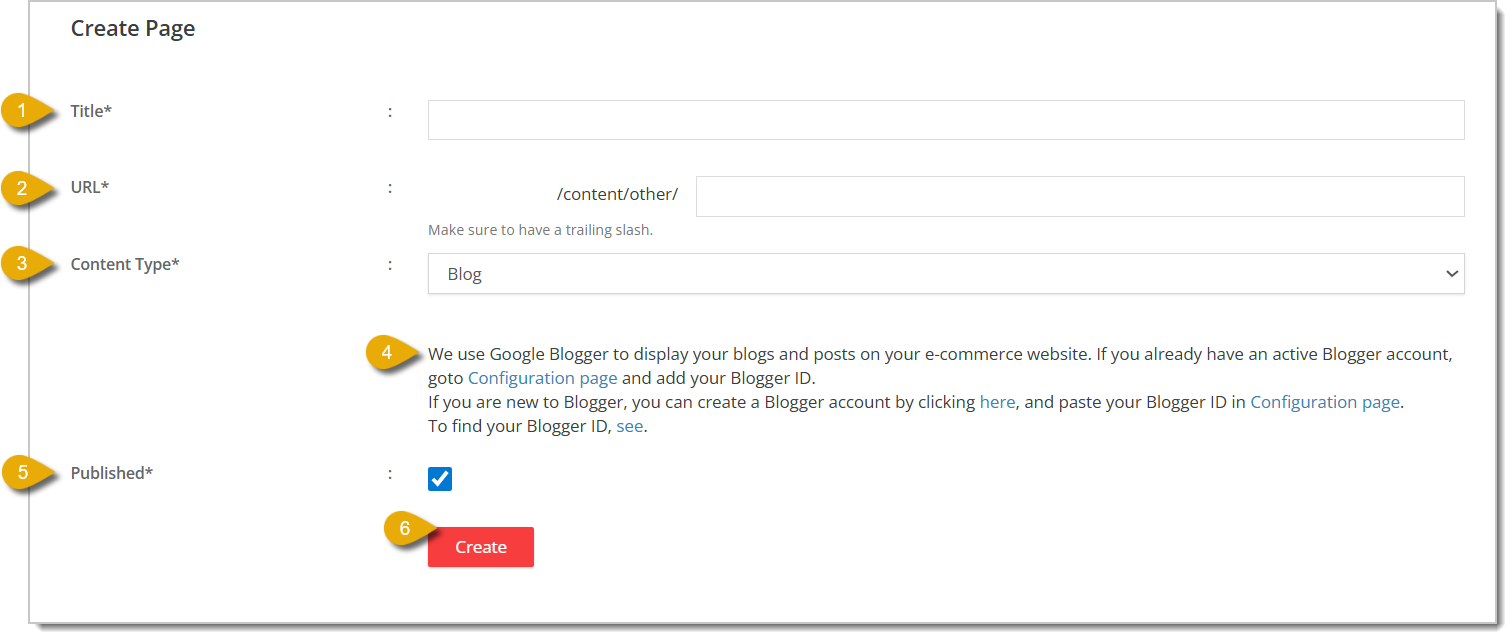
- Title — Enter the Title of the page.
- URL — Enter the URL path for the page. Do not enter your store's domain name, and make sure to add a slash at the end of the URL path.
- Content Type — Select Blog in the drop-list.
- Configure Blog — In this section, connect your Google Blog using the Configuration Page that is linked.
- Published — Check the box for Published to make sure this page is viewable on your website.
- Create — Click on the Create button to add your new page. If you're editing an existing page, this button will instead read Update.
Image Content Page
An image content page on your website will display images you've uploaded; this page will house two images, a Description Image and a Content Image. For example, you can use an image page for images that display your store's grooming services and prices. Here is everything you can customize for an image content page:
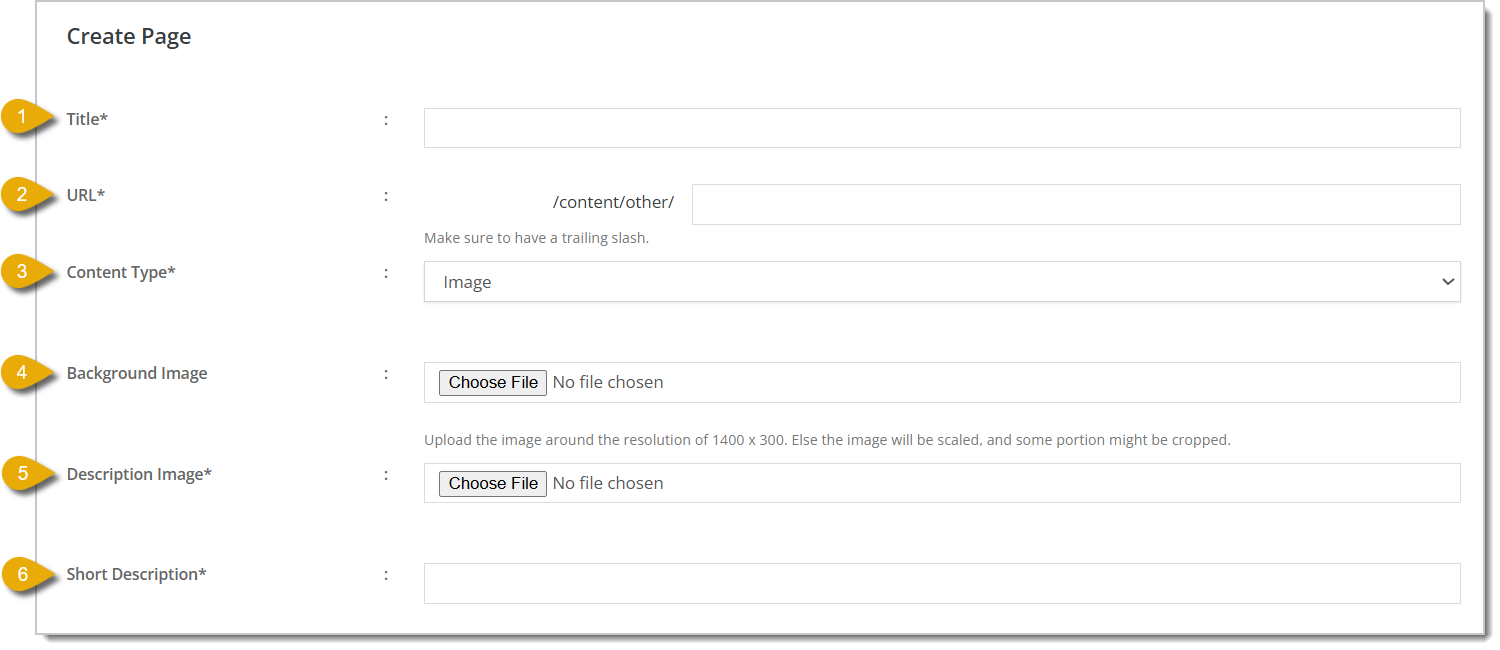
- Title — Enter the Title of the page.
- URL — Enter the URL path for the page. Do not enter your store's domain name, and make sure to add a slash at the end of the URL path.
- Content Type — Select Image in the drop-list.
- Background Image — You can upload an image that will display in the background of this page. This field is optional.
- Description Image — You can upload an image that will display at the top of the page and can show a description. Below is an example of a Description Image.

- Short Description — Enter a short description for the page that you want customers to read. For example, you could enter: "We offer a wide variety of services for your pet!"
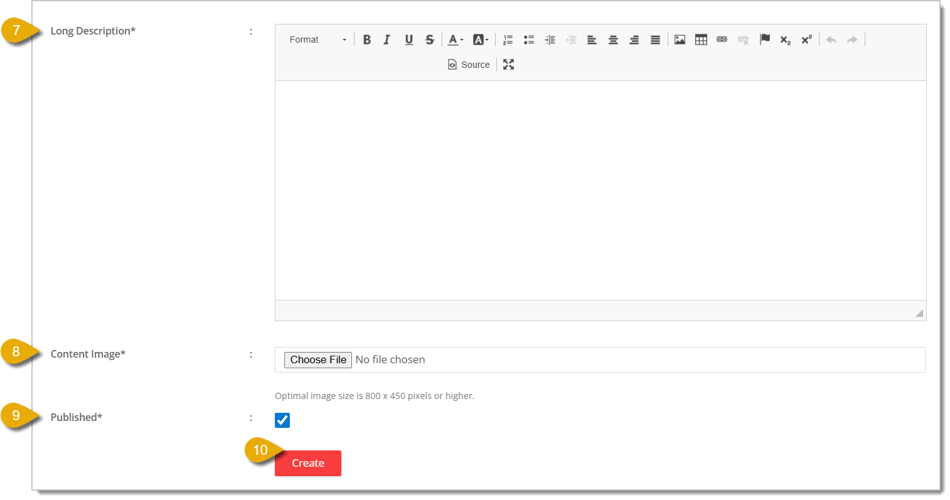
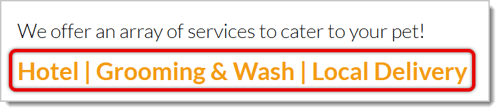
- Long Description — Use the text box to enter a longer message for your customers that you can customize more than the Short Description. For example, the image below shows a Long Description that reads "Hotel; Grooming and Wash; Local Delivery" in larger orange text.
- Content Image — Upload an image that will show the content you want displayed on the page. Below is an example of a Content Image.

- Published — Check the box for Published to make sure this page is viewable on your website.
- Create — Click on the Create button to add your new page. If you're editing an existing page, this button will instead read Update.
Google Form Content Page
You can use a page on your website to embed a Google Form for use cases like customer service feedback, complaints, product requests, and more. Here is everything you can customize for a Google Form content page:
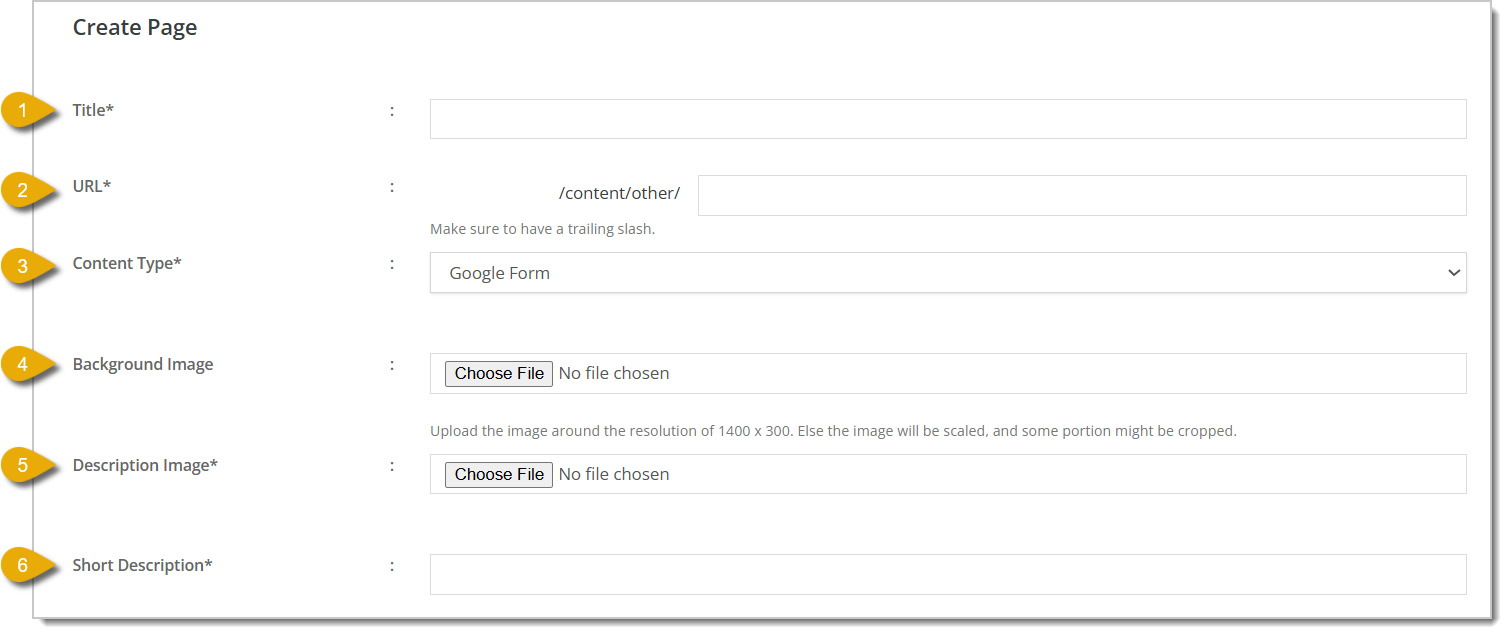
- Title — Enter the Title of the page.
- URL — Enter the URL path for the page. Do not enter your store's domain name, and make sure to add a slash at the end of the URL path.
- Content Type — Select Google Form in the drop-list.
- Background Image — You can upload an image that will display in the background of this page. This field is optional.
- Description Image — You can upload an image that will display at the top of the page and can show a description.
- Short Description — Enter a short description for the page that you want customers to read. For example, you could enter: "Provide us with feedback!"
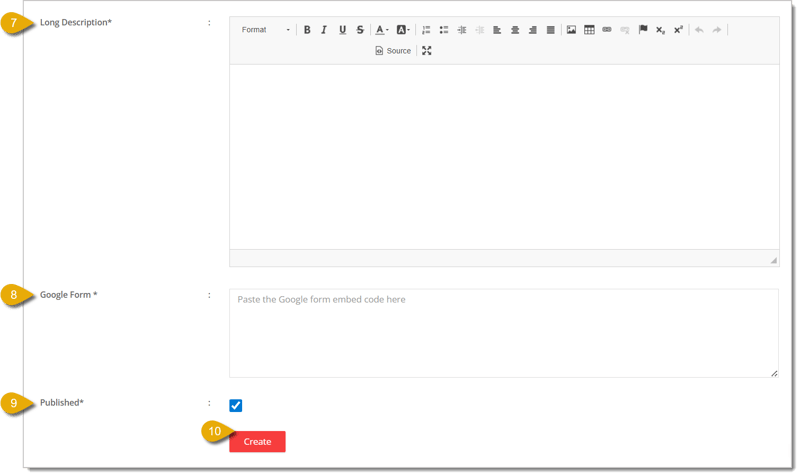
- Long Description — Use the text box to enter a longer message for your customers that you can customize more than the Short Description.
- Google Form — Enter the embed code for the Google Form you want added to this page. Click here to learn how to get the embed code for a Google Form you've created.
- Published — Check the box for Published to make sure this page is viewable on your website.
- Create — Click on the Create button to add your new page. If you're editing an existing page, this button will instead read Update.
Text Content Page
A Text Content Page on your website will display any text that you've entered. You can use text content pages to show frequently asked questions, your store's return policy, contact information, and more. Here is everything you can customize for a text content page:
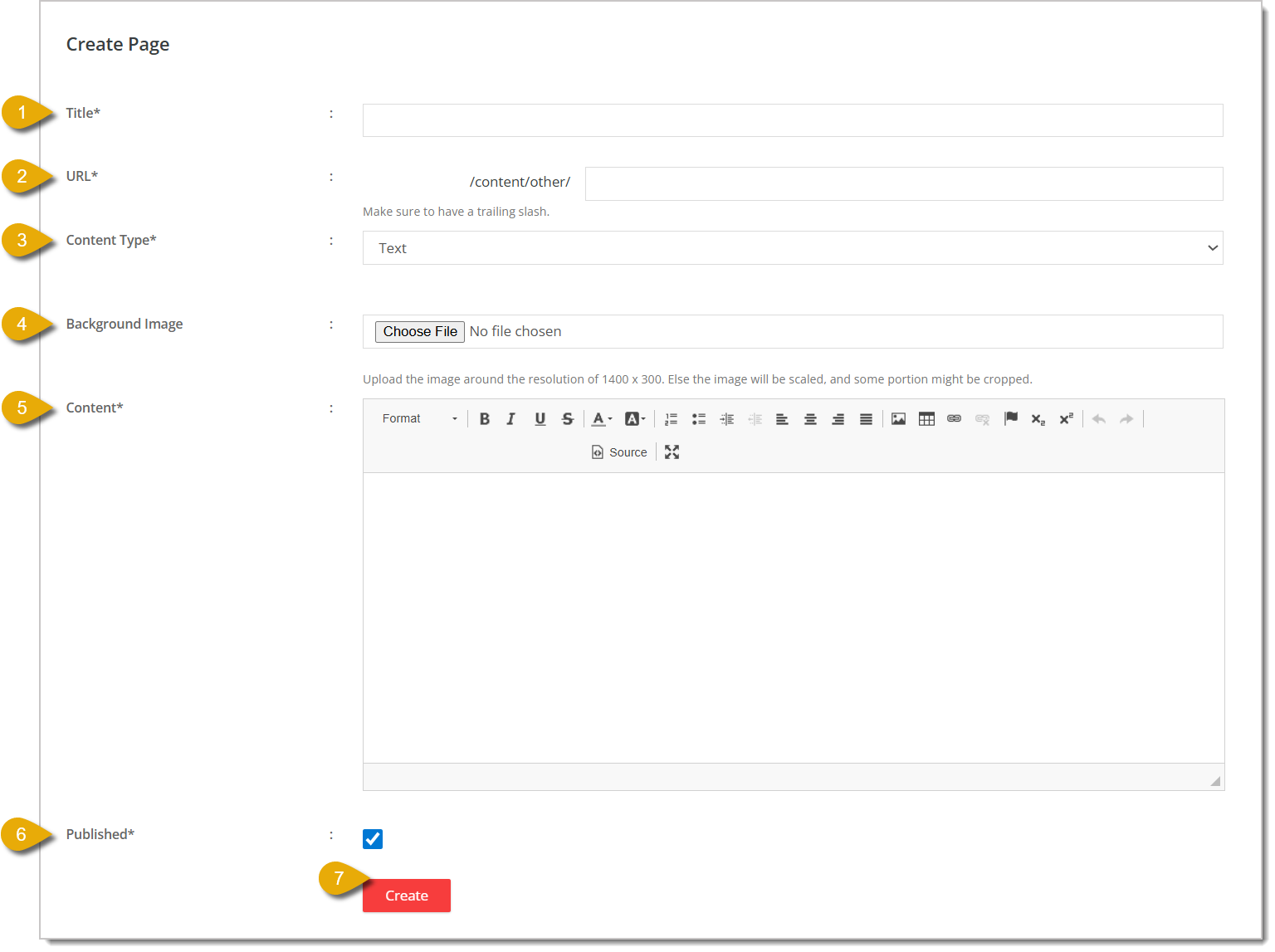
- Title — Enter the Title of the page. For example, "About Our Store" works as a Title.
- URL — Enter the URL path for the page. Do not enter your store's domain name, and make sure to add a slash at the end of the URL path.
- Content Type — Select Text in the drop-list.
- Background Image — You can upload an image that will display in the background of this page. This field is optional.
- Content — Using the content editor, enter the content you want displayed on this page. This can include images and tables, if needed.
- Published — Check the box for Published to make sure this page is viewable on your website.
- Create — Click on the Create button to add your new page. If you're editing an existing page, this button will instead read Update.
Mobirise Content Page
If you've made a website or page using Mobirise, you can add it as a page on your store's website. Here is everything you can use to add a Mobirise page to your website:
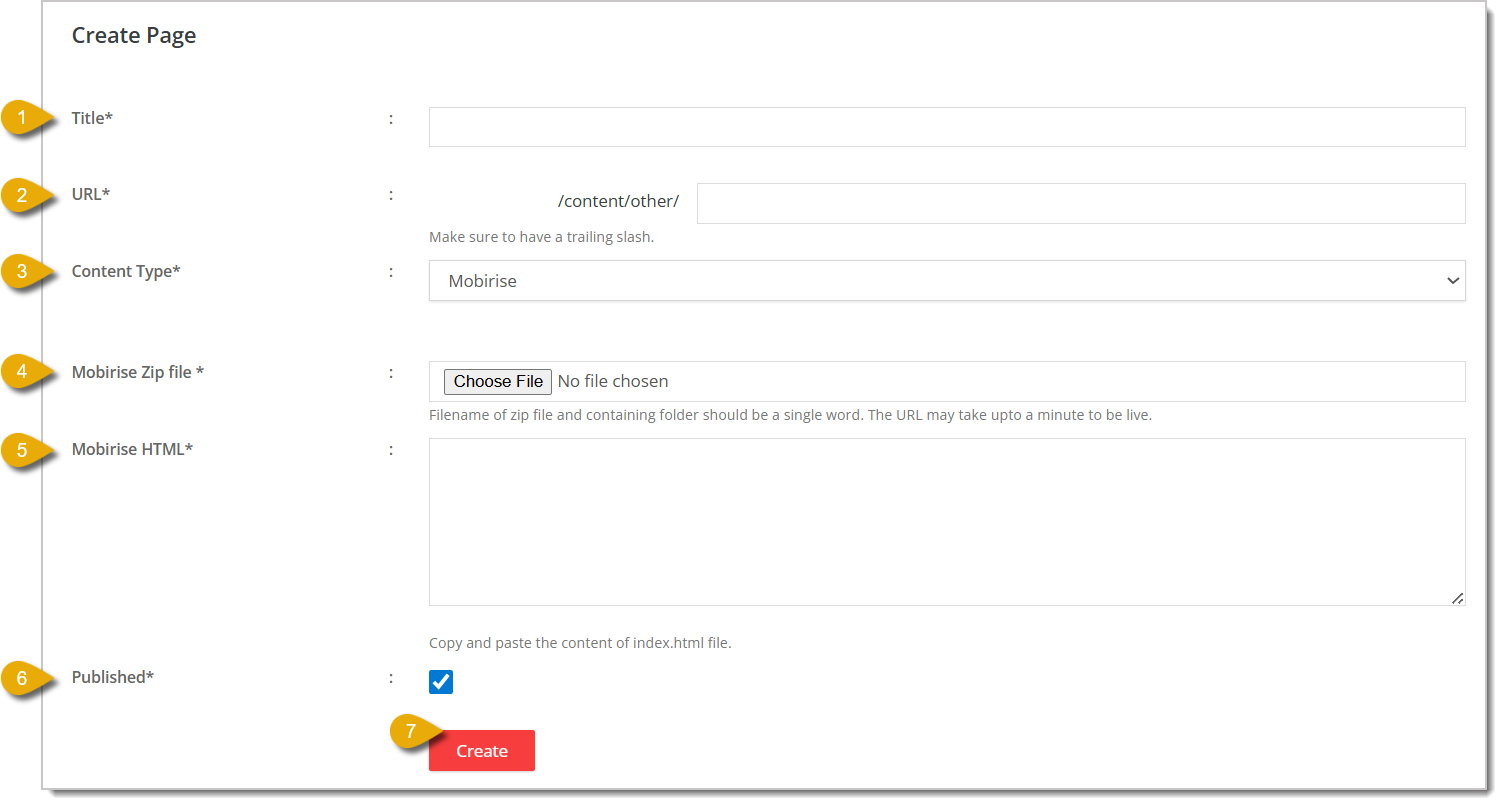
- Title — Enter the Title of the page.
- URL — Enter the URL path for the page. Do not enter your store's domain name, and make sure to add a slash at the end of the URL path.
- Content Type — Select Mobirise in the drop-list.
- Mobirise ZIP File — Upload the ZIP file from Mobirise that contains the files for your page.
- Mobirise HTML — Copy and paste the HTML code that comes from the Mobirise index.html file.
- Published — Check the box for Published to make sure this page is viewable on your website.
- Create — Click on the Create button to add your new page. If you're editing an existing page, this button will instead read Update.
Related Topics
Content Configuration
Custom Content
Themes
Shop Now Page
Shop By Brand Page
Frequently Asked Questions
Q: I have a question, but I can't find my answer here. How do I get more assistance?
A: You can ask any question at the number listed here. Contact our support team at (323) 370-0738 for the U.S. and (888) 370-2363 for Canada.







 Jun 08, 2026
Is this page helpful?
×Help us improve our articles