Custom Content

Jul 09, 2026Jul 09, 2026

The Custom Content page of the Content area in the eTailPet system allows you to customize specific text, images, and popups that appear on your storefront website, including your Shop Now button label, return policy details, price slash banner text, and the donation popup shown at checkout. This article shows you how to configure the settings on this page. See what's in there for you!
stennis - custom content

Custom Content

The Custom Content page lets you customize several storefront-facing text and image elements in one place. You are also able to manage custom HTML/script code for third-party integrations. To get to this area, in the main system menu on the left, click on Content, then on the Content page, click on Custom Content.
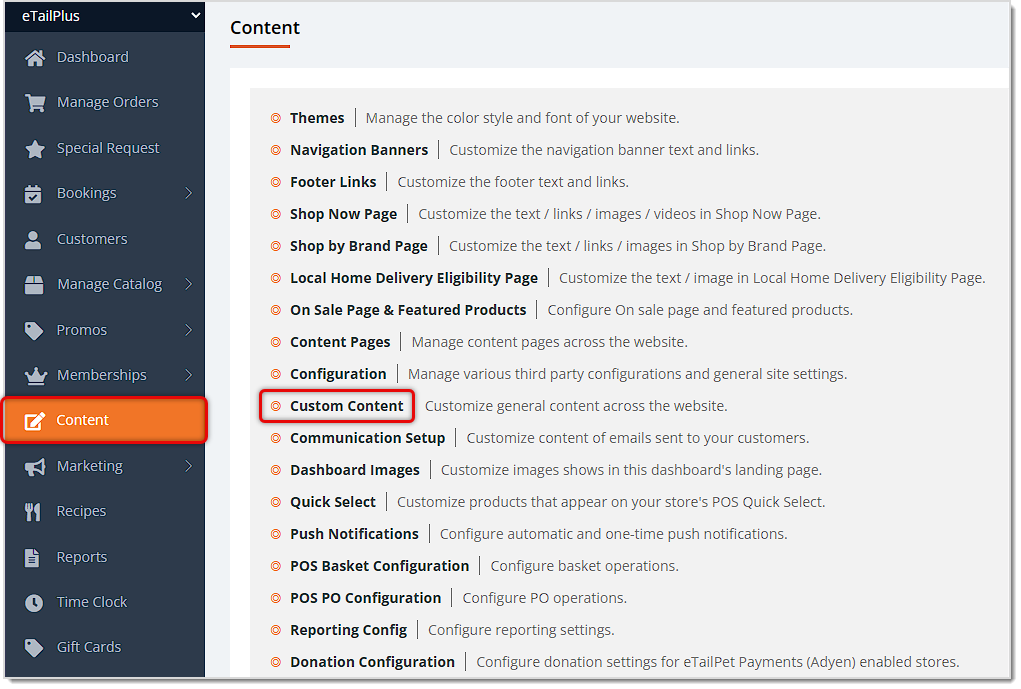
Image showing the Content page of the main system menu with the Custom Content option highlighted in the eTailPet system.

Please note that you can hover over the different setting titles to see a focused image of the related area, as pictured below:
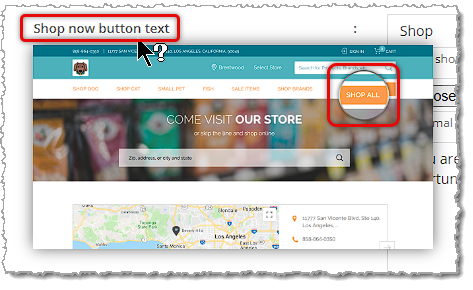
Image showing the hover preview available for settings on the Custom Content page of the eTailPet system.

Here is how to work with the settings on this page:
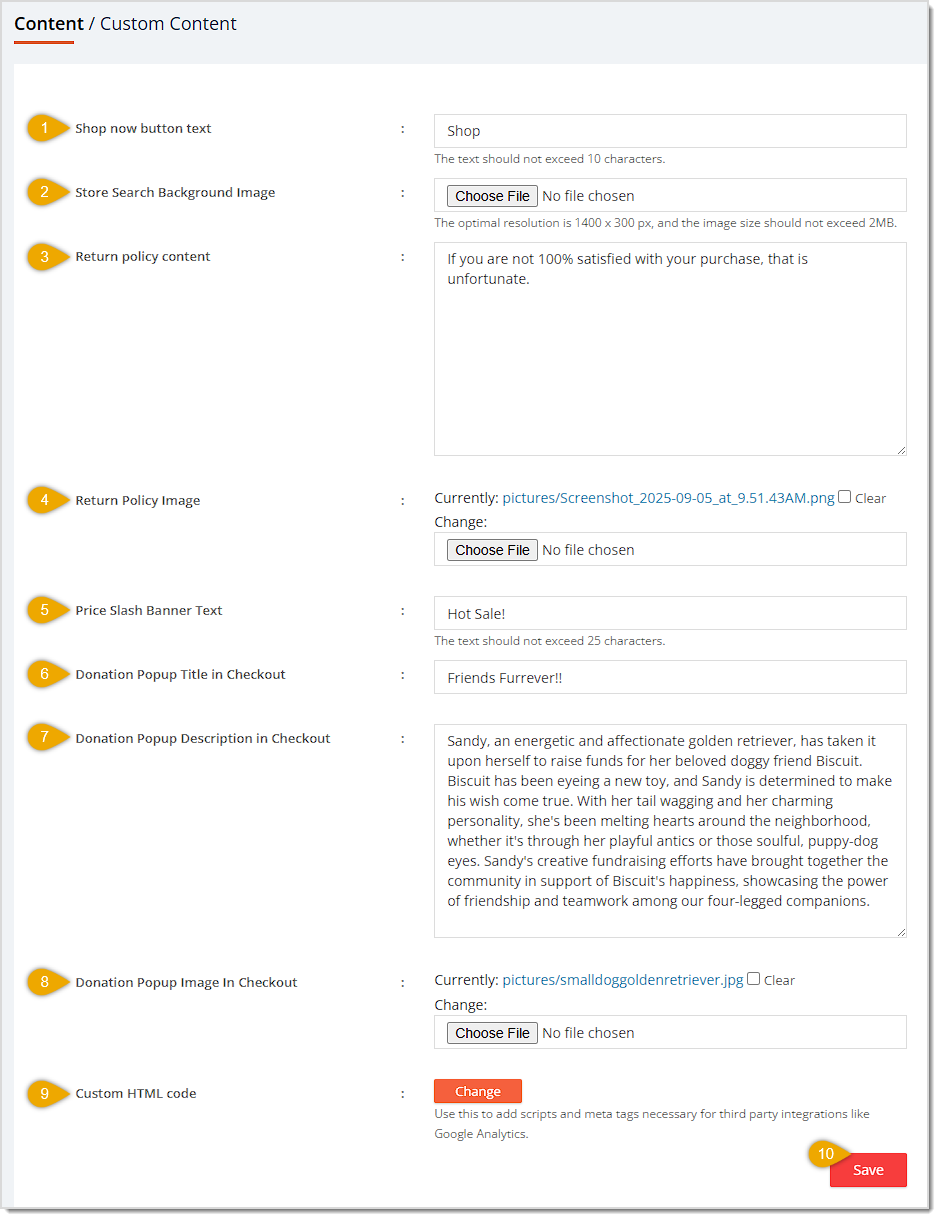
Image showing the Custom Content page of the Content area of the eTailPet system with key features highlighted.

  1. Shop Now Button Text — Enter the text you want to display on your storefront's Shop Now button in this field. Keep it to 10 characters or fewer.
  2. Store Search Background Image — Click Choose File to upload a background image for the store search area. The optimal resolution is 1400 x 300 pixels (width x height), and the file size should not exceed 2MB. JPG and PNG images are ideal.
  3. Return Policy Content — Enter your store's return policy text in this field. Your customers will see this text at checkout on your storefront website.
  4. Return Policy Image — This shows the currently uploaded return-policy image file as a link. Check the Clear checkbox to remove the current image, and click the Choose File button to upload a new one. If you have uploaded an image here, you can click on the link to preview it. Please Note: This preview takes you away from the current page and shows you the image in full size. You will need to click the Back button on your browser to return to the Custom Content page. You will not lose any changes you have made to the page.
  5. Price Slash Banner Text — Enter the short banner text (25 characters or fewer) shown on discounted/price-slashed products, such as "Hot Sale!"
  6. Donation Popup Title in Checkout — Enter the headline text you want to display on the donation popup that appears during checkout.
  7. Donation Popup Description in Checkout — Enter the full description text you want to display inside the donation popup, explaining the cause or campaign to customers.
  8. Donation Popup Image in Checkout — You can add an image here to display with your Donation Popup at checkout. Check the Clear box to remove the current image, and click the Choose File button to upload a new one. Again, JPG and PNG images are best.
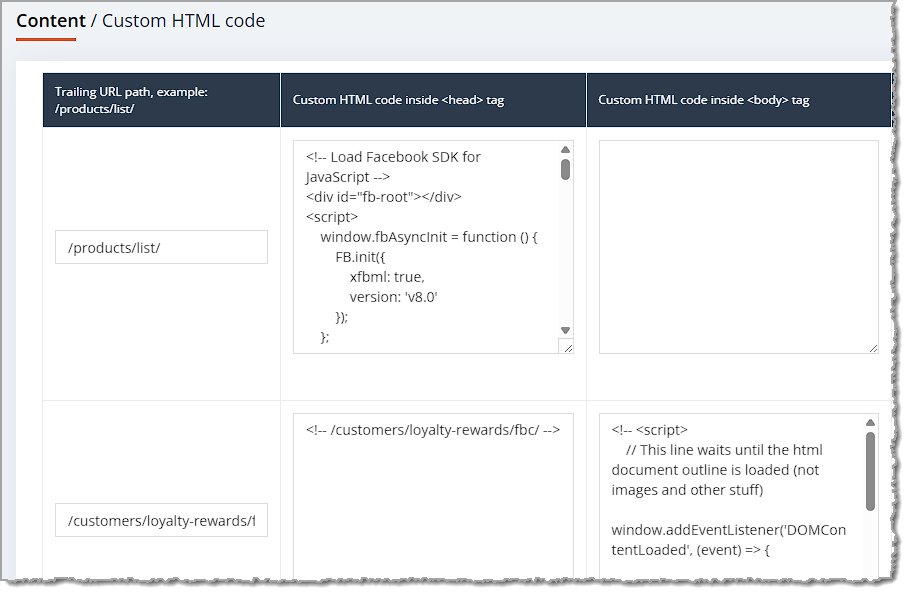
  9. Custom HTML Code — Click the Change button to go to a separate page where you can add custom scripts and meta tags needed for third-party integrations, such as Google Analytics. Our support team is happy to help you configure this area, if needed!
    Image showing the Custom HTML page for the Custom Content area of the eTailPet system.
  10. Save — Click the Save button once you have finished your changes.


Related Topics

POS Basket Configuration

POS PO Configuration

Donation Configuration


Frequently Asked Questions

Q: Is there a character limit on the Shop Now Button Text and Price Slash Banner Text fields?

A: Yes. Shop Now Button Text should not exceed 10 characters, and Price Slash Banner Text should not exceed 25 characters.


Q: What happens if I check the Clear box next to the Return Policy Image or Donation Popup Image?

A: Checking Clear removes the currently uploaded image; you can then use Choose File to upload a replacement, or leave it blank if you no longer want an image there.


Q: Where does the Donation Popup content actually appear to customers?

A: The title, description, and image you set here appear together in a popup shown to customers during the checkout process, inviting them to add a donation.


Q: Can I add Google Analytics or other tracking scripts from this page?

A: Not directly — click the Change button next to Custom HTML Code to go to the dedicated page for adding custom scripts and meta tags for third-party integrations.


Q: What image size should I use for the Store Search Background Image?

A: The optimal resolution is 1400 x 300 px, and the file should be no larger than 2MB.


Q: I have a question, but I can't find my answer here. How do I get more assistance?

A: You can ask any question at the number listed here. Contact our support team at (323) 370-0738 for the U.S. and (888) 370-2363 for Canada.

Need Help?

Can't quite find the answer you're looking for? Our support team is just a call away.