






Themes
🎨 You can edit the color and font themes of your eTailPet website by going to Themes. Read on to se
 Jul 14, 2026
The PO Configuration page of the Content area of the eTailPet system allows you to control how Purchase Order (PO) tables and inventory logic behave, including item scan navigation, column locking, and minimum inventory level exclusions. This article shows you how to configure the settings on this page. Streamline your Purchase Order workflow today!
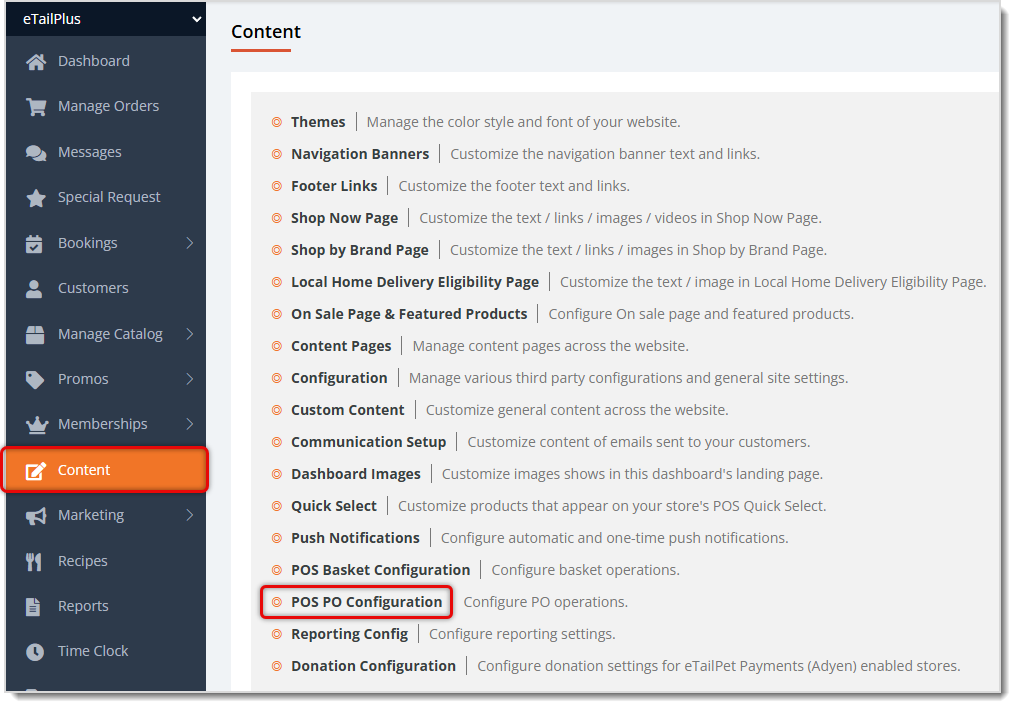
To get to this area, in the main system menu on the left, click on Content, then on the Content page, click on POS PO Configuration.
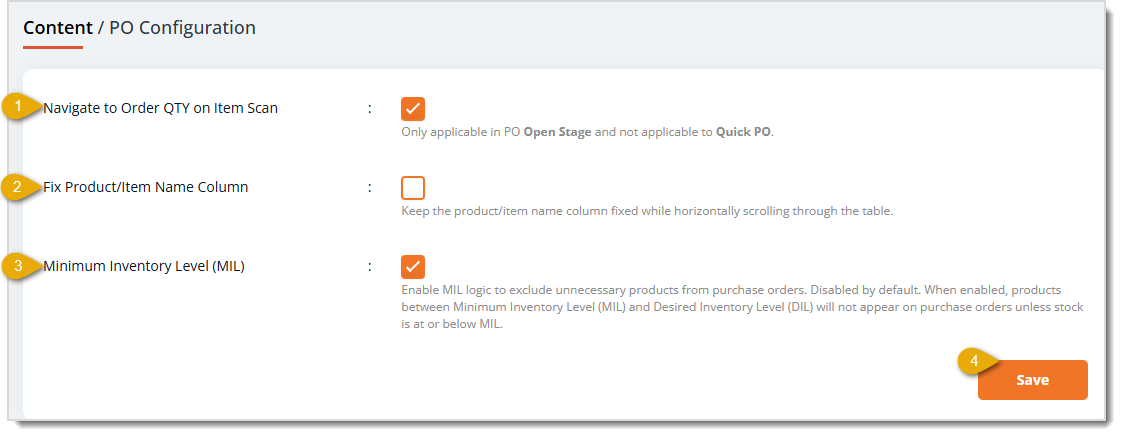
Here is how to work with the settings on this page:
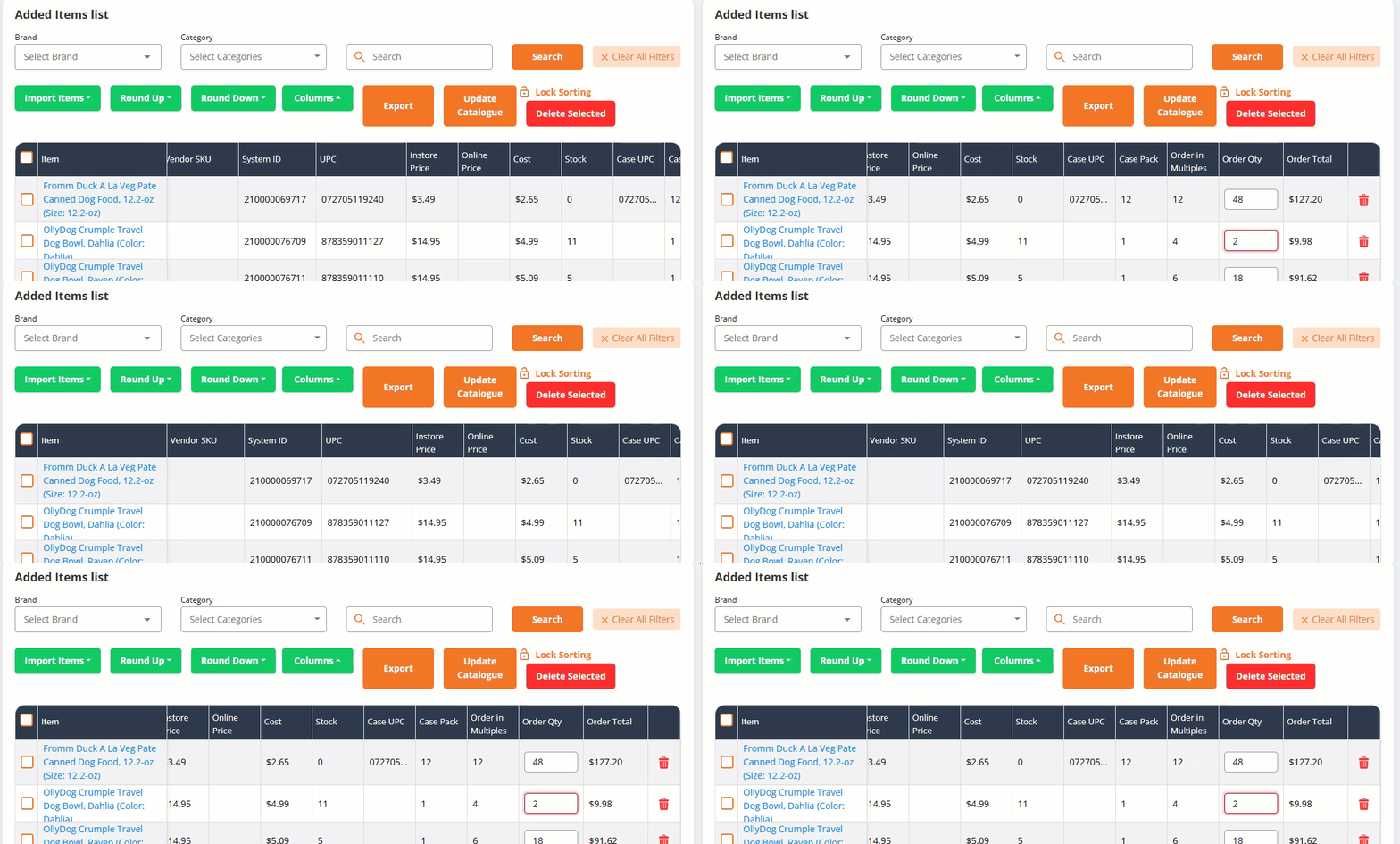
Q: Does the Navigate to Order QTY on Item Scan setting work in Quick PO?
A: No. It only applies during the PO Open status and does not apply to Quick PO.
Q: Is Minimum Inventory Level (MIL) turned on by default?
A: No. MIL is disabled by default, so you need to check the box to enable it.
Q: If I enable Minimum Inventory Level, will all low-stock products still show up on my purchase orders?
A: Not necessarily. This setting only applies to products for which you have saved a Minimum Inventory Level quantity. Products with stock between the Minimum Inventory Level (MIL) and Desired Inventory Level (DIL) won't appear on your Purchase Orders unless their stock drops to or below MIL.
Q: I have a question, but I can't find my answer here. How do I get more assistance?
A: You can ask any question at the number listed here. Contact our support team at (323) 370-0738 for the U.S. and (888) 370-2363 for Canada.
Is this page helpful?
×Help us improve our articles