The POS Basket Configuration page of the Content area of the eTailPet system allows you to control how your New Sale register (basket) and checkout behave. Settings include price slash stacking, Astro Loyalty discount rules, promo code eligibility, and penny rounding. This article shows you how to configure the settings on this page. Take control of how New Sale behaves at checkout!

New Sale Page Configuration
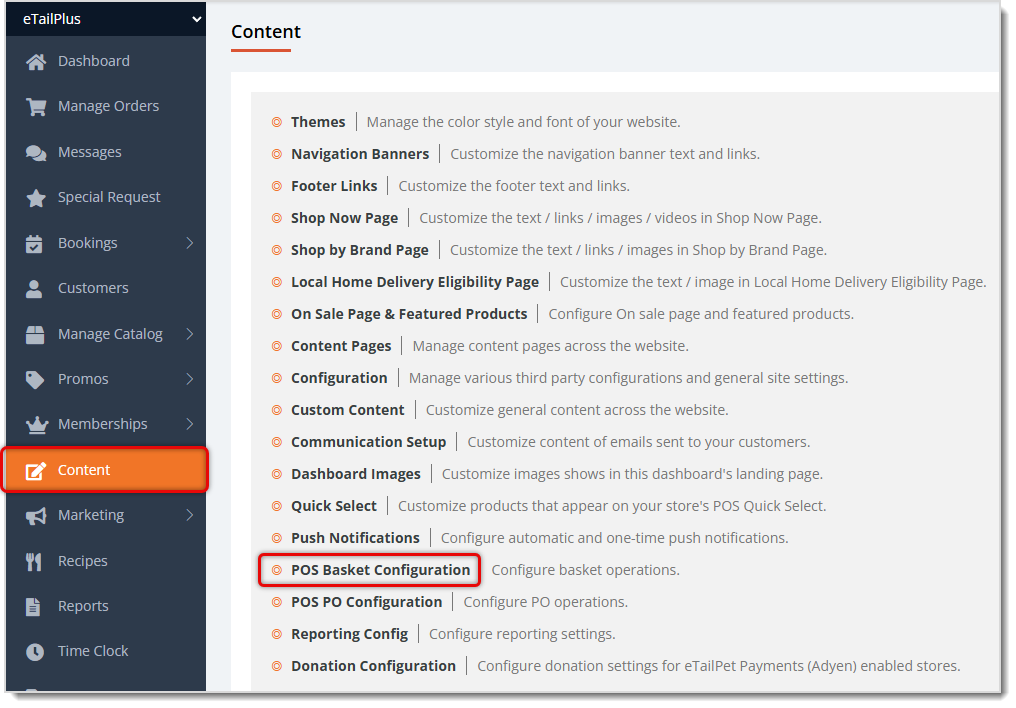
To get to this area, in the main system menu on the left, click on Content, then on the Content page, click on POS Basket Configuration.
Here is how to work with the settings on this page:
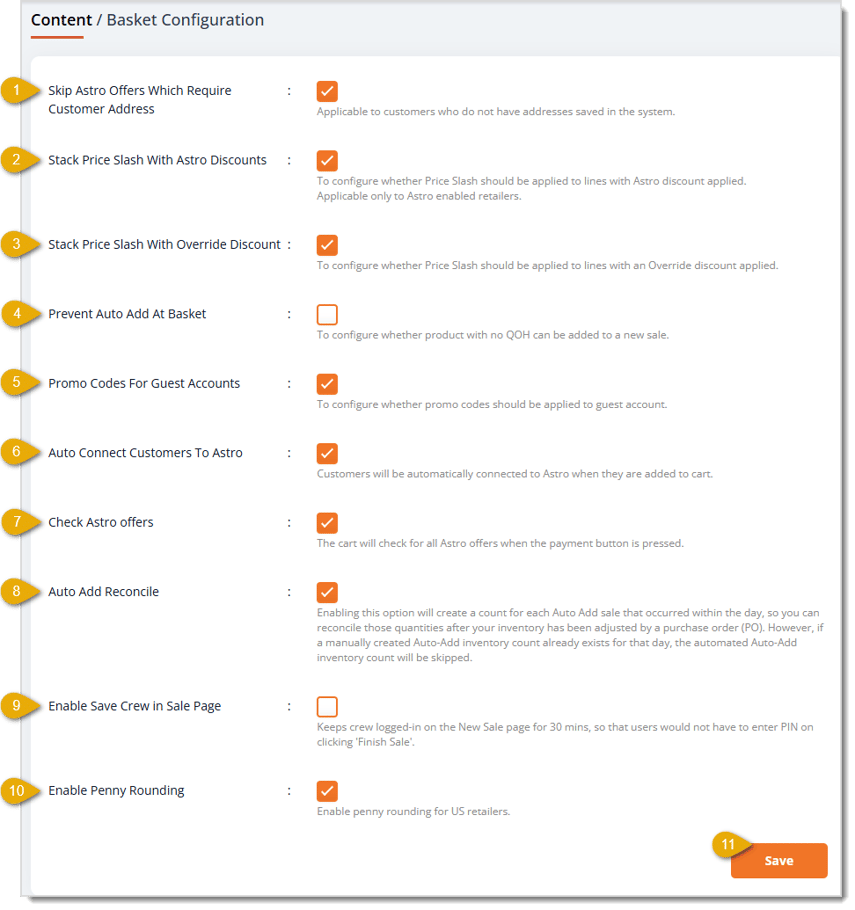
- Skip Astro Offers Which Require Customer Address — Check this box to skip Astro Loyalty offers that require a saved customer address. This applies to customers who do not have a street address on file in the system.
- Stack Price Slash With Astro Discounts — Check this box to apply Price Slash discounts to lines that already have an Astro discount applied. If you don't want those discounts to 'stack,' leave this box un-checked. This setting only applies if your store has Astro Loyalty enabled.
- Stack Price Slash With Override Discount — Check this box to allow the system to apply Price Slash discounts to lines that already have an Override Discount applied. If you don't want those discounts to 'stack,' leave this box un-checked.
- Prevent Auto-Add At Basket — Check this box to prevent products with zero Quantity on Hand (QOH) from being added to a new online sale. If you leave this un-checked, your associates will be able to sell zero-quantity items. The system will temporarily auto-add enough inventory to the item to make the sale, and will then reduce QOH back to zero.
- Promo Codes For Guest Accounts — Check this box to allow Guest Account customers (customers who don't want to create a customer account) to use Promo Codes in their New Sale transactions.
- Auto Connect Customers To Astro — Check this box to automatically connect customers to Astro Loyalty when you add them to the transaction.
- Check Astro Offers — Check this box to have the New Sale page check for all Astro Loyalty offers when you click the Payment button.
- Auto Add Reconcile — Check this box to create a count for each Auto-Add sale that occurs within the day (as in #4 above), so you can reconcile those quantities after your inventory has been adjusted by a Purchase Order (PO). Please Note: If a manually created Auto-Add inventory count already exists for that day, the system skips the automated count.
- Enable Save Crew in Sale Page — Check this box to keep crew associates logged in on the New Sale page for 30 minutes, so they don't need to re-enter their PIN each time they click Finish Sale. If for security or other reasons, you want your associates entering their PIN for each transaction, leave this setting un-checked.
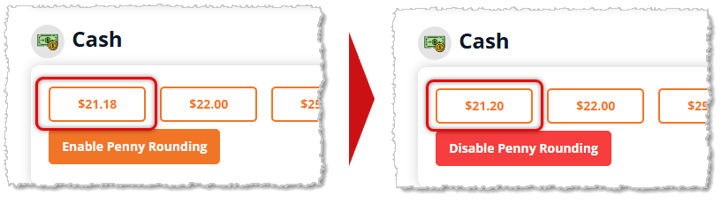
- Enable Penny Rounding — Check this box to enable penny rounding for U.S. retailers. With this setting on, on the Payment page of New Sale, the Cash area will have a button to Enable Penny Rounding. If the associate clicks the button, the system will round to the nearest 5 cents, as in the example below. This function can round up or down; for example, a Total of $8.32 would round down to $8.30, while a Total of $8.38 would round up to $8.40.
- Save — Click the Save button once you have finished your changes.
Related Topics
Communication Setup
POS PO Configuration
Frequently Asked Questions
Q: What happens if I leave the Prevent Auto Add At Basket setting unchecked?
A: Associates will be able to add products with zero Quantity on Hand (QOH) to New Sale. Check the box if you want to prevent this.
Q: If I check the Auto Add Reconcile setting, will it duplicate a count I already created manually?
A: No. If a manually created Auto-Add inventory count already exists for that day, the automated count is skipped.
Q: Is there a way to keep sales associates logged into New Sale longer than 30 minutes?
A: No. The setting Enable Save Crew in Sale Page keeps the crew member logged in on the New Sale page for 30 minutes, so after that time passes, they will need to enter their PIN again for the next 30 minutes..
Q: Should I enable Penny Rounding if I'm not a U.S. retailer?
A: Enable Penny Rounding is designed for U.S. retailers, so retailers outside the U.S. typically should leave it unchecked unless you don't use pennies for cash purchases.
Q: I have a question, but I can't find my answer here. How do I get more assistance?
A: You can ask any question at the number listed here. Contact our support team at (323) 370-0738 for the U.S. and (888) 370-2363 for Canada.







 Jul 14, 2026
Is this page helpful?
×Help us improve our articles