






Donation Configuration
 Jun 09, 2026
🐶 If your store is run by a non-profit organization, the eTailPet system allows you to collect donations. These will come from customers shopping in-store and will display on the New Sale screen. You can also set these donations as non-taxable. Keep reading to see how you can provide customers with options to donate to your store!
😸 Please Note: These donation configurations only work for stores that use the Adyen implementation of eTailPet Payments. If you are using a P5 Card Reader, you use Adyen.

Configure Donations for Your Store
To enable donations to your store, do the following:
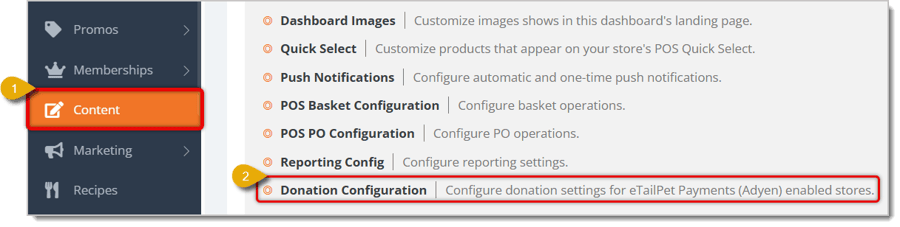
- Click on Content in the eTailPet system main menu.
- Click on Donation Configuration in the Content area. This will direct you to a page where you select a store.
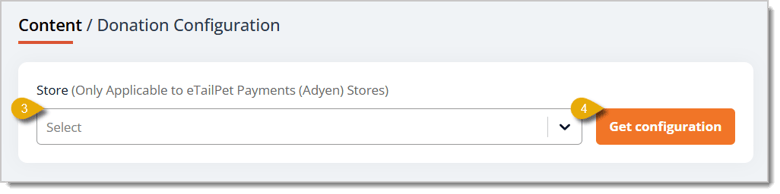
- Select the store you're configuring donations for from the drop-list.
- Click on Get Configuration, which will direct you to the Donation Configuration page.
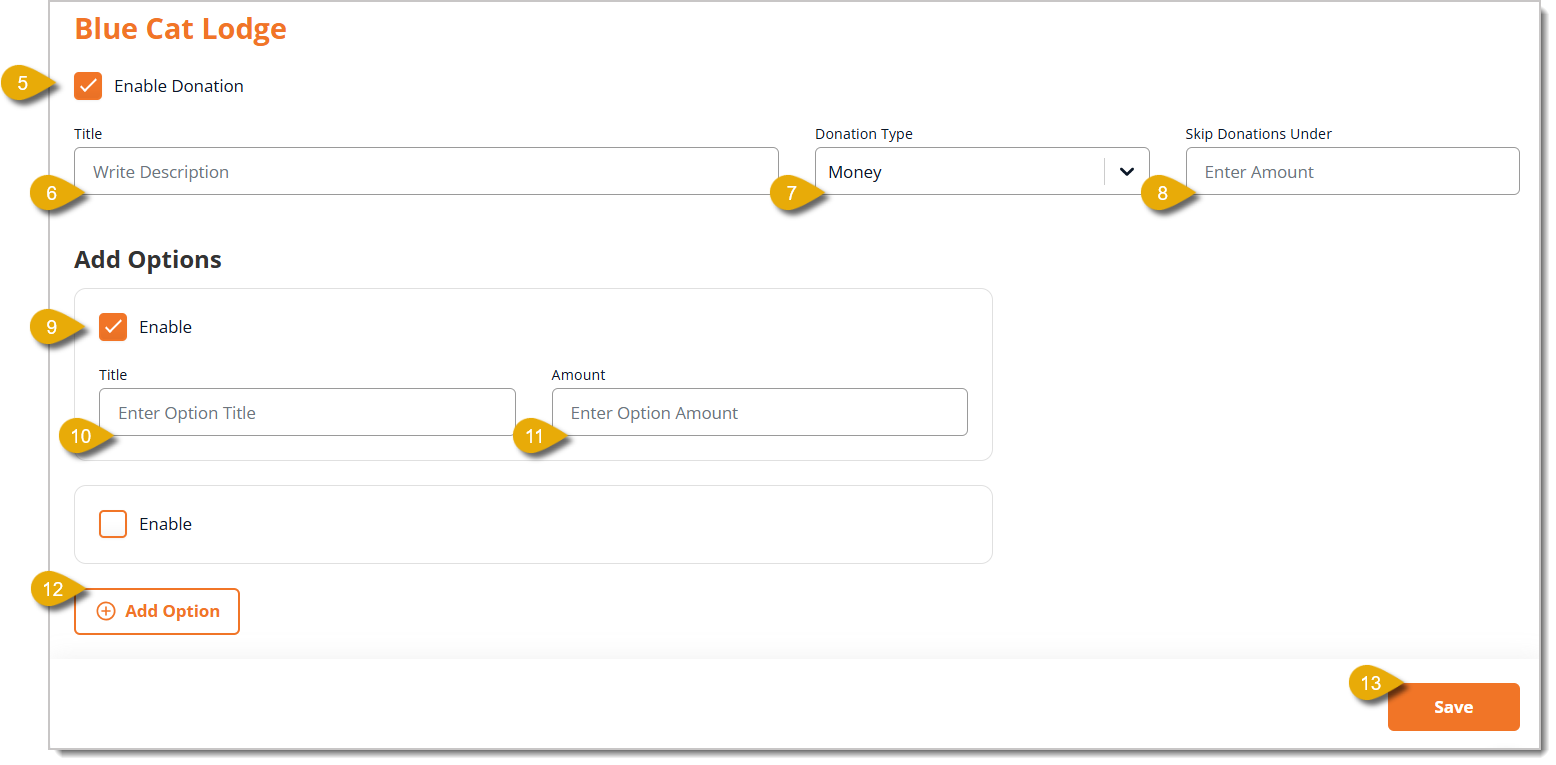
- Check the box for Enable Donation. This will open fields below the checkbox.
- Enter the Title for the donation that describes it. For example, "$10 Donation" would work.
- Select the Donation Type from the drop-list. Your options are:
- Money — The donation prompt will ask for a dollar amount you specify.
- Percent — The donation prompt will ask for a percentage amount of the customer's transaction total.
- Round Up — The donation prompt will ask the customer if they want to round up their transaction total to the next whole dollar. The difference between the rounded up amount and the original amount is the customer's donation.
- Customer Input — The donation prompt will ask the customer if they want to donate a dollar amount they can specify.
- You can enter a dollar amount under Skip Donations Under. Donations lower than the amount you specify here will be skipped. For example, you can enter "5.00" so the eTailPet system will skip donations under $5.
- Under Add Options, check the box for Enable to add options.
- Enter the Title of the option. For example, "$5 Donation" would let the customer immediately know the amount.
- Enter the Amount of the donation option, depending on what Donation Type you selected in #7. Using the prior example in #10, this donation would have Money as the Donation Type, and the Amount field would have "5.00."
- You can add more donation options by clicking on the Add Option button. This will give customers more than one donation option. For instance, you can give customers the option to donate $5, $10, or $15.
- Click on Save in the bottom right of the page to update your donation configuration.
Related Topics
Frequently Asked Questions
Q: Can I use donations if my store doesn't use a P5 Card Reader?
A: Only if you're on the Adyen implementation of eTailPet Payments. If you're not sure which one you use, check with support before setting this up.
Q: What's the difference between the Donation Type and the Add Options amounts?
A: Donation Type sets how the main prompt works (a set amount, a percent, round up, or customer's own amount). Add Options lets you offer a few preset choices, like $5, $10, or $15, on top of that.
Q: I have a question, but I can't find my answer here. How do I get more assistance?
A: You can ask any question at the number listed here. Contact our support team at (323) 370-0738 for the U.S. and (888) 370-2363 for Canada.
Is this page helpful?
×Help us improve our articles